Looking for a very basic visual memory app? Here is a free one from Alligator Apps (Grasshopper apps):
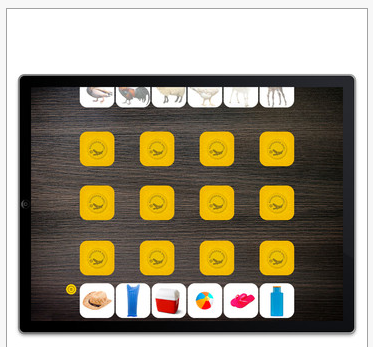
Monster Hunt – The Memory Game is compatible with iPhone and iPad, this free app provides customization of how many items are displayed, reveal time and sound. It allows single or multiplayer options for play. Here are some pictures showing features of this app requiring revealing monsters, then find me game as they disappear.
This is a cute, motivating visual memory game for kids to play. As always with Alligator/Grasshopper apps, the app provides the ability to customization features according to the users needs.
Monster Hunt app is another great Alligator/Grasshopper app! Keep it to your OT iTool Kit or pass it on to parents or teachers who are looking for a memory app for their child or student!
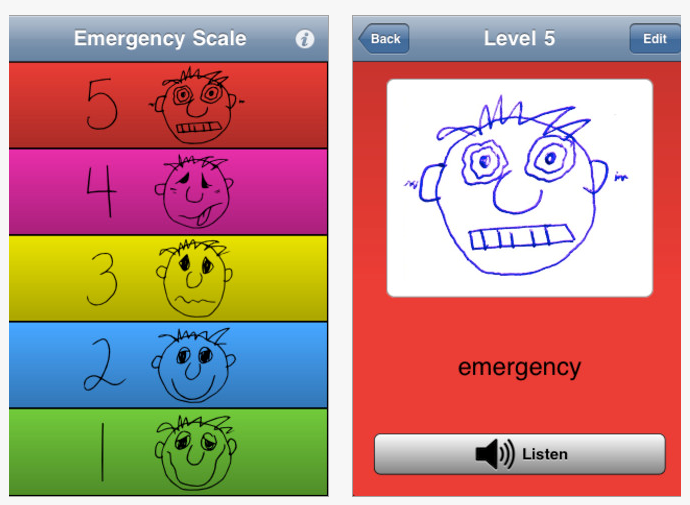
Autism 5 -Point Scale EP is a free app for iPhone and iPad developed by the Autism Society of Minnesota. Ms. Van Dixhorn, EBD teacher at the Sheboygan Falls Middle this app with me as an app to help with the programming of a student we mutually will work with. Not only free, but simple and easy to use for elementary and older students who would benefit from a simple method of identifying emotions and feedback about how they feel and potentially what strategies they could use.
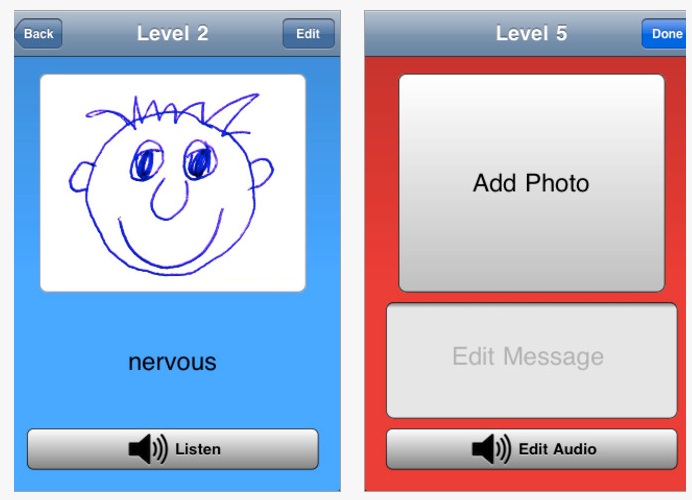
Here are some screen shots of the app:
I had the opportunity to set up the 5 point scale app with a student today on an iPod Touch. It took about 15 minutes for us to review the app, revise it with personalized text and audio recordings. We kept the pictures the same, although the option of inserting your own picture, emoticon or symbol is available. I decided to record instruction in with my voice on points 2-5 as a directive from a teacher, while the student recording the 1st point with “I’m happy”. As the student becomes more independent in being able to apply those strategies recording her voice may be a good option.
This was an easy app to set up, and easy app for student to use. I am looking forward to trialing this and other self-regulation apps with the student on her dedicated iPod Touch to work on greater independence as we get ready for a new school year.
Autism 5- Point Scale app is appropriate for OT’s teachers, parents and specialists working with special needs students who would benefit from a visual communication to help them become aware of their emotions!
Would your students benefit from this in your OT iTool Kit?
A recent comment from LeAnn Trana asked about the availability of a bulb grip stylus for one of her students with CP. I wondered about the same thing recently when considering adaptive stylus for individuals with mobility impairments. Although I found a variety of T – grip styluses available at http://www.etsy.com/shop/shapedad and have used the chunky Cosmos and HHI styluses from Amazon which are good for individuals with limited grasping capabilities, I was unsuccessful with finding any bulb grip styluses available on the market. Bulb grips are great options for developing grasps and for those individuals who have tone issues.
So, how could you MacGyver a bulb grip stylus?
I start a search for possible components or devices to create a bulb grip stylus. Cheap was my biggest concern. Here is what I found and especially cheap if you need to MacGyver a Bulb Gripped Stylus:
Aluminum foil tape ($6.98 from Menard’s; used for sealing ducts) Needed for capacitive connection and activation of touch with iPad/iPod/iPhone (capacitive properties uses electrical properties of human body for activating iDevices)
Tools:
Hack saw
Flat file for wood and metal
Scissors
Directions for assembling:
1. Cut/sawed off the paint brush tip on the bulb paint brush. File the cut edge so it is flat, straight and smooth.
2. The styluses I found have a small ridge at the end of it which makes it too big to slide into the open shaft of the bulb grip.
File the ridge at the end of the stylus to be the same width as the shaft of the stylus so it would fit in the shaft of the cut off bulb grip handle.
3. Inserted the stylus into the shaft of the bulb handle firmly (you could also put glue in to secure it but it does not seem necessary).
You can put tape on the handle and tuck the end of the tape into the shaft of the bulb grip before you insert the stylus as one way to connect the stylus with the aluminum foil tape and the handle.
4. Cut 3/8 – 1/2″ strips of the aluminum foil tape the length of the bulb grip handle. Keep the paper backing on for easy handling and cutting.
5. Remove the backing from the aluminum foil tape and attached it from the stylus up the handle to where the users hand would be gripping the bulb handle. There are a number of ways to attach the tape to the bulb handle. Just make sure your tape goes from the stylus to where the user will be holding the handle for the electrical connection to activate the capacitive iPad/iPod/iPhone – or the stylus won’t work! Here are a few pictures of the finished bulb grip stylus:
Your stylus is ready to use. You will find that when you are not touching the aluminum tape on the stylus will not activate your screen. Create whatever application of the aluminum tape from the stylus to the bulb handle you need or want to create the connection of where the user will be holding the stylus for connection to be made. I found if I smoothed the wrinkles of the tape out on the stylus it removed some of the sharp edges created by the foil tape.
After purchasing all the components and using equipment already owned. The cost each of these styluses were probably under $3.00. Maybe not exactly cosmetically ready for mass production (anyone know where to get ahold of aluminum handles??). But it works and looks tolerable.
If you know of any commercially made bulb grip styluses sold, please leave a comment. I think there would be more than LeAnn or myself interested!!
Ready to Print app, a (iPad, 9.99) pre-writing app created by Diane Reid OTR, has been upgraded to include lower case letters (Zaner Bloser style of letter formation). Features of the app, as described on the Ready to Print website, make it great tool for all children learning to print or working on pre-writing skills:
It provides activities for pre-writing skills, not just tracing letters.
It’s designed with a progression of skills that work towards correct printing patterns.
It allows you to change size settings to match each child’s skill level.
It features a progression from larger hand movements to smaller, more refined movements.
It lets you choose which activity and level to begin on.
It allows setting up multiple user profiles, each with different settings.
It provides (optional) feedback measurements for speed and accuracy.
Do you frequently use a handheld mobile device (smart phone, iPad, Android tablet) for emails/texting/Internet searching/gaming? Do you have symptoms of tightness across your shoulders, chronic head aches or soreness in your neck?
A syndrome called “Text Neck” coined by U.S. Chiropractor Dr. Dean L. Fishman, may be causing you to experience an overuse syndrome or a repetitive stress injury, where you have your head hung forward and down looking at your mobile electronic device for extended periods of time according to the article “Could you have Text Neck Syndrome“.
The article states ” if left untreated, a ‘text neck’ can lead to the inflammation of the neck muscles, ligaments and nerves, permanent arthritic damage, as well as increased curvature in the spine. Dr. Tan adds: “This is very prevalent in our new generation of young adults who are constantly “connected” to their mobile devices, even while walking.” (retrieved on 5/26/2012 fromhttp://sg.news.yahoo.com/blogs/fit-to-post-health/could-text-neck-syndrome-025025469.html )
Joe Conway, PT, in his article entitled “Text Neck Syndrome” also addresses this syndrome’s origins, symptoms and basic suggestions – balancing use with physical activities away from computing devices.
With the pervasive availability and use of handheld devices, what can you do to combat or avoid Text Neck Syndrome?
Using basic ergonomic principles that are tried and true for both young and old will help you avoid or reduce the possibilities of “Text Neck” Syndrome. Here are a few of those basic ergonomic principles:
Reduce awkward positioning (don’t crane your neck, be aware of good ergonomic positioning of your body in relation to the device)
Take frequent breaks when using any kind of computing device (desktop or handheld)
Be aware of lighting in your environment
Create a balance of computer (mobile or desktop) use and physical activity (away from the computer)
Here is a great video that reviews basic ergonomic solutions that can be applied to mobile computing. Note the suggestions of balancing time, positioning and activities that are basic principles of ergonomics:
The video remind us of the practical solutions of doing things in moderation, using good body dynamics and positioning when approaching any type of task. Our body is not meant to stay in one position for a long time. It is meant to move. Balance and moderation is key in all that you do. If you have persistent pains and headaches make sure you seek medical help.
What other tools might help you with positioning and balancing time spent using mobile devices?
Timer apps
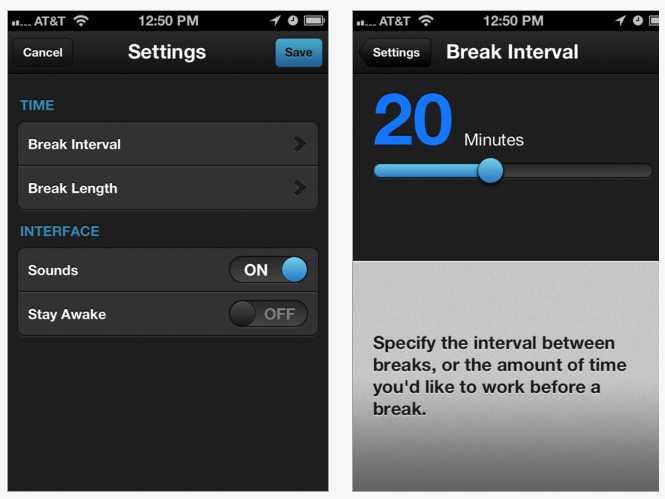
Use a timer app such as BreakTime app (2.99 for iPad and iPhone)to schedule reminders to take a short break or when it is time to change to another activity. We all know how addictive a game or time searching in cyberspace can be!
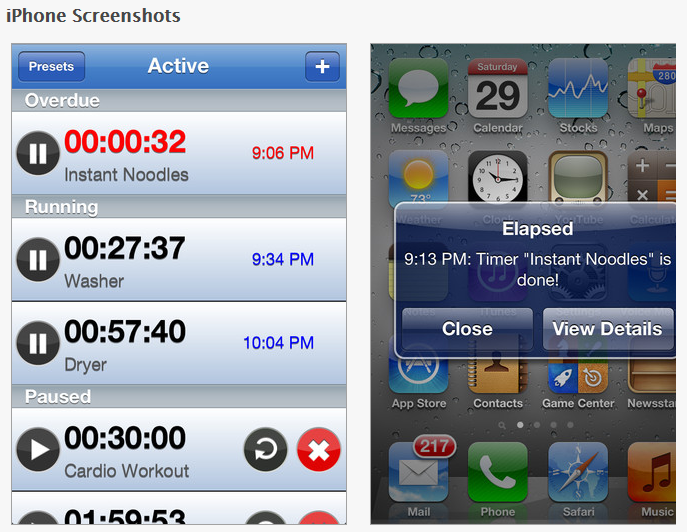
Elapsed Timer is a free timer that can set multiple alarms on iPhone/iPad.
Using timers with students also helps them anticipate that screen time is over. Here are some great choices of visual timer apps for iPad, iPod or iPhone:
Kiddie Countdown Timer – Suited to younger students, the Kiddie Countdown Timer has options of using stop sign like visuals in its timer. Available as a free app and also $.99 to remove the ads. This was previously reviewed – a great find by my colleague, Gail (thank you!).
Time Timer – This app is the electronic version of the 3″ and 8″ Time Timers compatible with iPad, iPhone and iPod Touch (1.99). It has three modes of timers – 60 minute, custom and a clock mode. Time timer also provides settings to allow it to be audible, visual or vibrate (on the iPhone).
This is another great timer with many features.
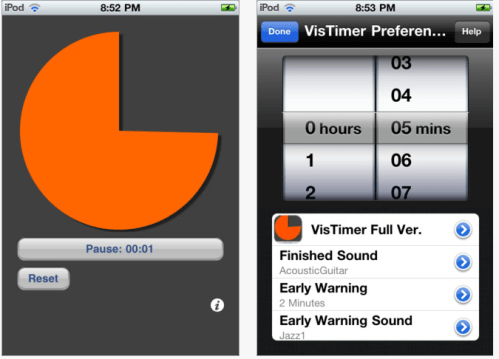
VisTimer – Available free and for purchase (1.99) for iPod, iPhone and iPad this timer does not have as choices of timers but does allow choices of colors for the clock, different sounds for warning and completion and features lapsing time. Limitations with the free version is it can only time up to 5 minutes and lowest warning time is at 1 minute. I work with older students and this free clock works well for my current purposes. We have many Time Timer clocks that are also readily available for use if a longer period of time is needed.
Waitstrip – A different, linear concept of a visual timer is the Waitstrip app. Available for iPod, iPad and iPhone for $.99, it features a concrete visual representation of time, amount of steps to be completed, number of minutes to work, math problems to be completed using a series of dots as a visual guide.
Stands or Positioning Devices:
Devices for positioning mobile devices are numerous however achieving the recommended 15-20° of neck flexion when using an iPad can be tricky depending on whether you are sitting at a table or desk or sitting in a chair. Here are just a few positioning devices I found that could help with iPad positioning for older children and adults when working at a desk or sitting in a living room chair:
Although the list is dated May 2011, it has many good apps such as voice recognition, memory aides, mental health, organization, communication, reading text, amplification apps and more. Here is a direct link to a PDF of the apps listed by topic:
The premise of the game is really simple – each player (of up to four) has a suitcase with six different items.
Each of these 24 items is represented on a small card. The small cards are turned face down and players take turns to turn the cards over. If the card is one of theirs, they put the card in their suitcase. If not, the card is turned back over and the next player gets to pick a card. The game involves finding all the cards that go into your suitcase. The best way to do that is to remember where other items from your suitcase are if the other player has previously turned them over.
WHY PARENTS AND TEACHERS LOVE IT
Great multi-player game for little kids
Teaches little kids to take turns
Simple enough for 2 year olds and fun for the whole family
Bonus round teaches categorization “where are you going?”
Develops memory and retention skills
Shows kids the importance of paying attention
The multi-player mode makes it fun for the whole family
Fully customizable so you can experience the game in daddy’s or mommy’s voice
Free for now! See if it fits as a tool for the clients you work with. If not, pass the word on about this free app!
Are you familiar with the Autism Apps App – a comprehensive list of apps used with and by people diagnosed with autism or other special needs?
Autism Apps is a free app with over 30 categories of curated apps providing information and links to reviews, videos and purchase of them. One of the categories listed in the Autism App is “Sensory”, providing suggestions of apps with visuals and auditory effects. Some of our favorite sensory apps our students have been used for a while that are listed are:
Here are new apps, unfamiliar to me that are listed in the “Sensory” category in the Autism App:
Falling Stars – This free iPad/iPhone app (created by Trident Gum) provides interesting visual and sound effects that are manipulated by the user. It has numerous choices and dynamics that may required a bit of problem solving by the use to achieve what might be interesting or pleasant sound and visual effects. Here are some clips of the app and a video demonstration to help understand the dynamics of the app:
Dropophone app – This free iPhone/iPad app creates minimalist melodies. Based on Lullatone’s album “Little Songs About Raindrops,” Dropophone allows you to make songs that sound like drips and drops falling on a tiny orchestra of instruments. Pressing the multi-colored raindrops triggers notes that loop every six seconds. Combine different colored drops and notes to compose your own rainy-day melodic backdrops. A metronome is also included to help you keep time.
These two reviewed sensory apps require a more problem solving and manipulation than some of the other apps initially listed, but are some interesting additions for students needing variety in their choices of sensory apps.
Other sensory apps our students frquently use are:
I especially see students using Fluid app which provides sound of water and the visual of water running over stone. Simple but it provides some sensory effect that is appealing to them!
As iPad use expands for students and staff the need for accessories and equipment to support their use emerge. One of the areas needing rethinking with their expanded use is positioning and equipment to make them more efficient and safely used. Ergonomics needs to be considered with the increased time and use of iPads for intervention, creating curriculum activities, or for communication and administrative tasks.
Greg Cresswell, CPE from HumanTech states in his post on Ergonomics and iPad Neck, “The most popular musculoskeletal disorder showing up in the news these days is iPad neck. It is characterized by prolonged usage of tablet computers, which results in sustained, awkward neck postures that lead to pain.”
So what do we need to think about with the increased use of the iPad? We need to consider ergonomic principles to avoid neck and shoulder pain or other physical challenges associated with poor positioning and over use. As an OT who has worked with adult clients and office ergonomics, these principles are familiar (for OT’s I am preaching to the choir, sorry!), but for those unfamiliar here is some basic info on office ergonomics applicable to the use of iPads:
Ergonomics is the study of designing equipment and devices that fit the human body, its movements, and its cognitive abilities. Ergonomics is employed to fulfill the two goals of health and productivity. It is relevant in the design of such things as safe furniture and easy-to-use interfaces to machines and equipment. Proper ergonomic design is necessary to prevent repetitive strain injuries, which can develop over time and can lead to long-term disability. Retrieved on 5/20/12 from http://en.wikipedia.org/wiki/Ergonomics.
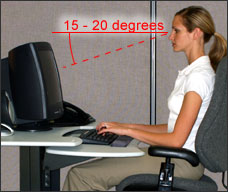
Currently most desktop computers we use have a 17-21″ monitor that stands upright on a stand that we view with (hopefully) our head in neutral position – as OT’s we know that is a balance of neck flexion and extension, or not having to bend our neck/head down or up too much. Here is a graphic of what good ergonomics look like when sitting at a desktop computer (retrieved on 5/20/12 from http://www.osha.gov/SLTC/etools/computerworkstations/positions.html ):
Placement of the monitor is recommended to be 15-20° below eye level as seen below:
Now, consider what your positioning is when you are using an iPad at a desk or holding it on our lap? I doubt that your body positioning is aligned like the person in the pictures above! Similar to positioning of laptop computers on a desk or your lap depending the size and height of the desk or laptop, positioning of iPad’s or other tablets (which are often even smaller than most laptops) is known to promote poor ergonomic positioning resulting in musculoskeletal pains and strains with awkward positioning and prolonged use.
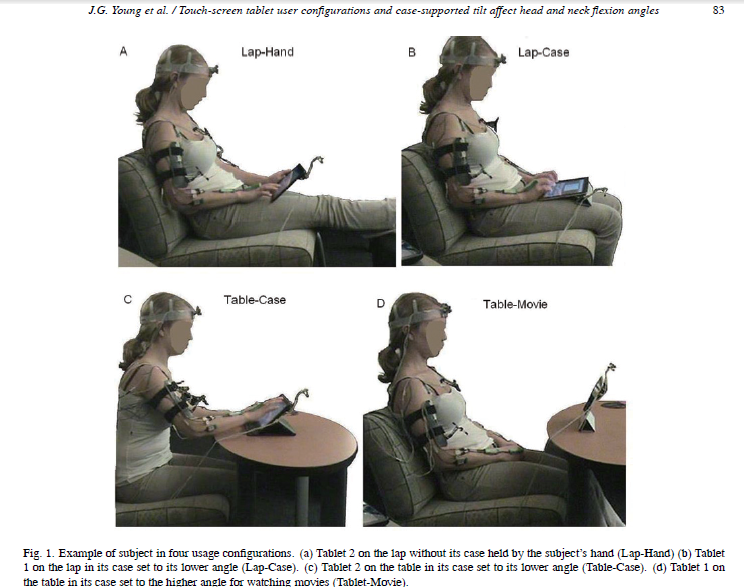
A study of mobile device use and ergonomic positioning was performed by Microsoft Corporation and the Department of Health to determine how neck and head positioning varies when using two different mobile tablets and using them in different positions. Here are some pictures of the positions used in the study, which are quite typical when using the iPad.
Consider how different the above positions with mobile device use are from the recommended ergonomic positioning with computer usage shown in the first two pictures. Poor ergonomics!
Results of the study indicated that neck positioning when using mobile tablets put individuals at a at a greater risk for neck and shoulder discomfort that other computer forms. Positioning the tablets in an upright position improved the neck positioning but then compromised the positioning of their hands and arms due to its upright positioning. Recommendations were made to elevate the devices for better viewing angles however elevated screen positioning can have detrimental effects on individual’s hands when inputting information into the mobile device positioned upright.
So what are some ergonomic solutions?
If you are using the iPad for several hours a day, consider a case with an easel or better yet a stand to position it upright to maintain your head/neck position in a neutral position. You may need to put the stand on something, a previously used computer monitor stand, books stacked or something to raise it so that your head position is like the person in the first picture.
If you are word processing for extended periods, consider using a keyboard to help keep your hands in an appropriate position while maintaining the device in an upright position.
A standard ergonomic recommendation is to move every 20-30 minutes. Your body is not built to stay working in one position for a prolonged time. Take a quick mini break to shift your posture, do a work task away from your desk every 20 to 30 minutes so your body can move while being productive (get your mail, make a copy, deliver something, – no it does not mean take a coffee break).
Look away from your screen every 20 minutes, look 20 feet away for 20 seconds. This is the 20-20-20 rule of ergonomics for your eyes, they need to move too and take a mini break! Consciously remembering to blinking your eyes also is also important. Working at the computer can contribute to dry eyes due to lack of blinking.
When using a keyboard keep your arms to the side and elbow flexed/bent about 90°. Don’t reach forward to the keyboard, bring the keyboard toward your hands and arms.
Sit in a comfortable upright position with hips approximately at 90° and feet on the floor.
There are many keyboards and stands that can be used with the iPad to assist with ergonomic positioning. Here are a few that I recommend:
These same principles need to be applied to students using the iPad for prolonged periods of time (under the age of 8 they shouldn’t be using it more more than 2 hours as recommended by the AAP). Although childrens bodies are flexible, teaching healthy habits of positioning and appropriate use early may save them pain and discomfort in years ahead. I don’t expect mobile technology use will decrease, so sooner than later would be wise!
Above is a categorized list of OT iTool Kit apps reviewed on OT’s with Apps. The categorized list provides active links to the iTunes App Store of app previously reviewed along with other iOS and Android apps that might be useful to OT’s, teachers or parents. Periodic updating is intended.

 Looking for a very basic visual memory app? Here is a free one from Alligator Apps (Grasshopper apps):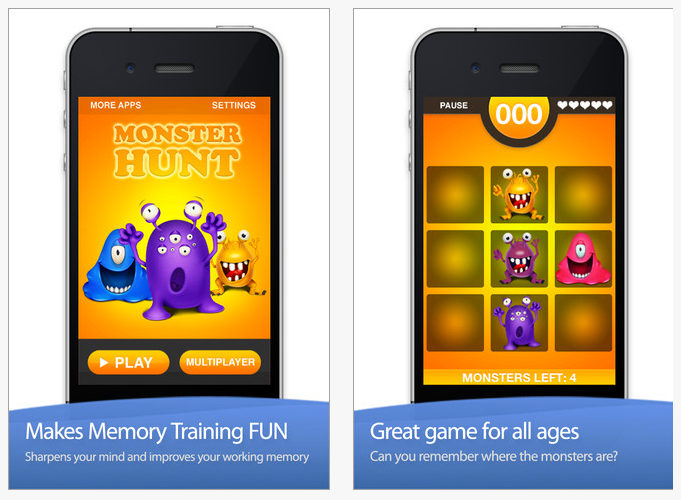
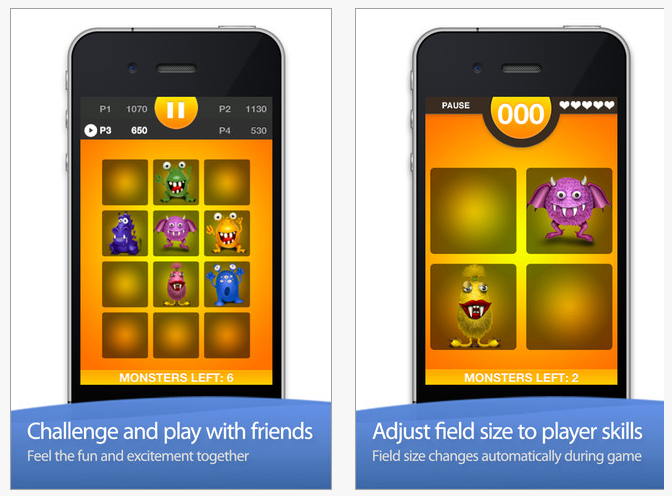 This is a cute, motivating visual memory game for kids to play. As always with Alligator/Grasshopper apps, the app provides the ability to customization features according to the users needs.


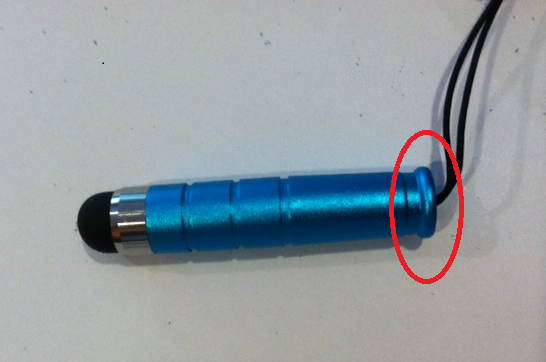
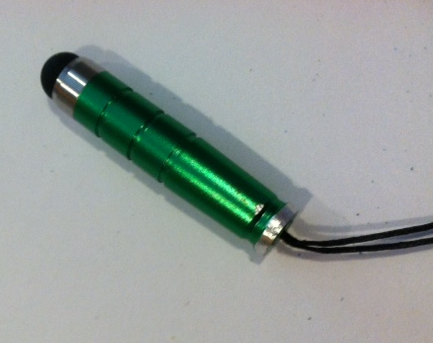
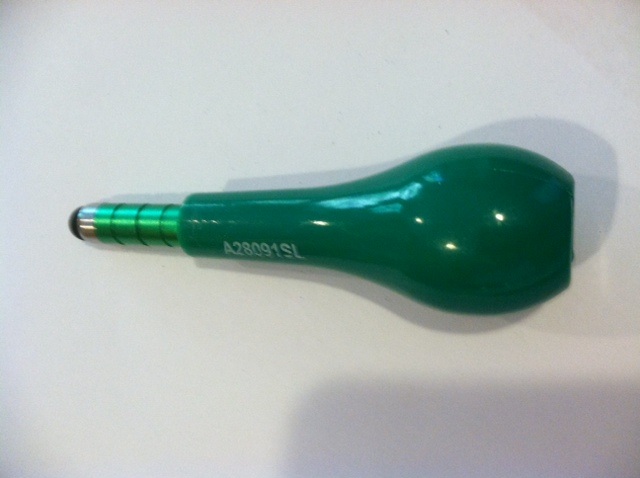

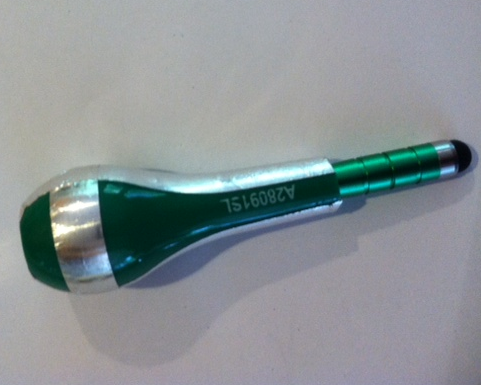






 – The iRest lap stand provides soft foam cushions and hinges to get that perfect viewing angle. Remove the cushions and the iRest converts to a desktop stand.


 – Another folding, portable stand.










 OT's with Apps & Technology