Chillax… with an App!

Chillax icon

Chillax app – no it’s not your teenage son or daughter telling you to chill out, but an app that can help you do that all by yourself! Listen to varieties of music and sounds in this free and simple app that provides music to unwind to and environmental sounds  to dream about the ocean, beach, fireside, mountain stream, park and more with this free app.

What is great about this app is that it is simple, just a few controls and setting options and you are listening to calming sounds to chillax!
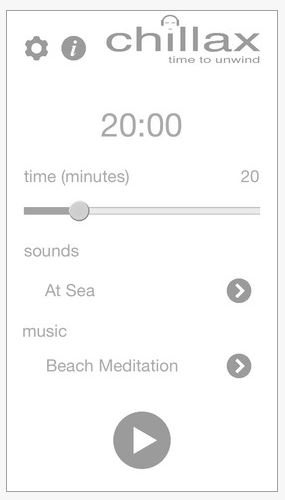
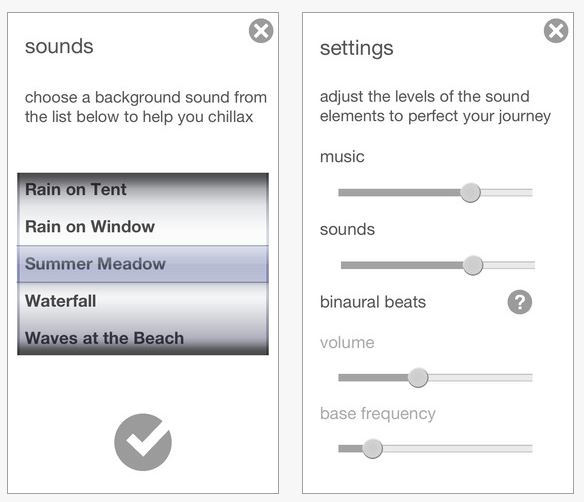
Chillax pic2 Chillax pic3

Here is a description about Chillax from iTunes:

Features:
– Works on iPhone, iPod Touch and iPad
– Multiple soundscapes and music tracks to choose from
– Chillax time selectable from 1 to 90 minutes – just set it and relax
– Binaural Beats with adjustable tone to aid relaxation
– Fade in and out so that you gently enter and return from your relaxation
– Set the levels of the music, sounds and binaural beats to suit you
– Works with the device locked, just like the iPod

BINAURAL BEATS
So what are binaural beats?  They are a psycho-acoustic effect created by the brain when you hear a different tone in each ear.  If you put a tone of say 300Hz in one ear and 310 Hz in the other ear, the brain produces a phenomenon resulting in low-frequency pulsations as the difference between the two tones.  Research suggests that binaural beats may be used to aid relaxation, and are often used in meditation. The waking, alert mind generates higher frequency brain waves, and as you become more relaxed and restful, the frequencies will get steadily lower.  Chillax generates these tones in each ear, to gently guide the brain waves from alpha down to deep theta waves found in meditative and relaxed states.

Interested in a bit more about binaural beats? Here’s a short piece of information on binaural from Wikipedia:

“Binaural beats may influence functions of the brain in ways besides those related to hearing. This phenomenon is called frequency following response. The concept is that if one receives a stimulus with a frequency in the range of brain waves, the predominant brain wave frequency is said to be likely to move towards the frequency of the stimulus (a process called entrainment). In addition, binaural beats have been credibly documented to relate to both spatial perception & stereo auditory recognition, and, according to the frequency following response, activation of various sites in the brain” (retrieved on 6/6/2013 from : http://en.wikipedia.org/wiki/Binaural_beats ).

Interesting? I will stick with Therapeutic Listening®  as an intervention for spatial and auditory perception, but I will try this app for myself, students or clients to facilitate calming behaviors. Add a speaker and provide environmental music to a class or therapy room to chillax?

It’s free, give it a try – add it to your OT, teaching or parent mTool Kit and … Chillax!

Carol

Posted in Adults, App Reviews, Apps for OT's, Apps for Special Needs, iPad, iPhone, iPod, Mental Health, Occupational Therapy, Rest and Sleep, Self-regulation | Tagged , , , , , | Leave a comment

Bitsboard Pro App Gone Free

Bitsboard icon

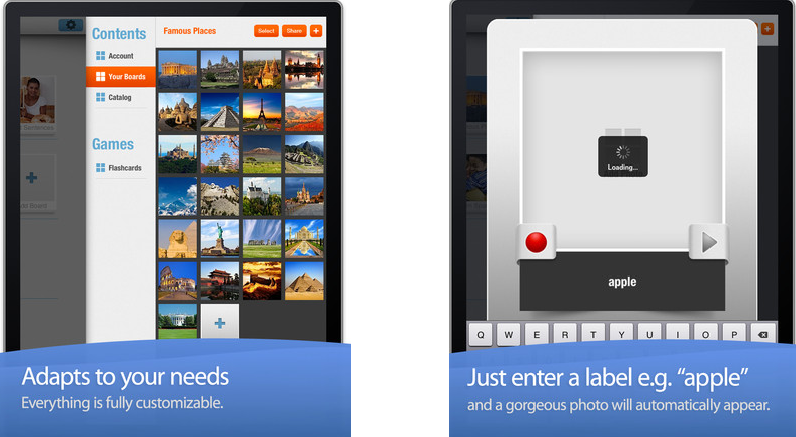
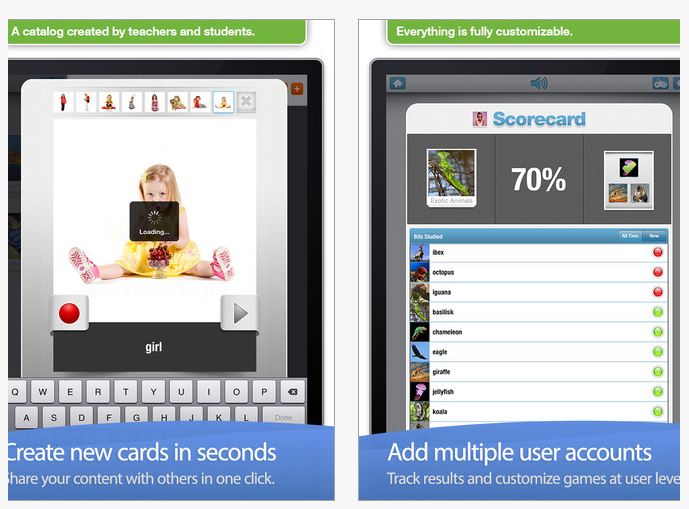
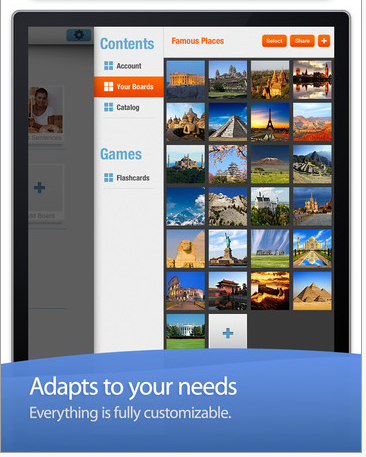
Are you familiar with Bitsboard app? By the developers at Grasshopper apps, this fabulous iPad language app provides many activities that are customizable activities for students with special needs. Thinking this is just for speech or the special education teacher?  Think again! For students who are learning basic new concepts you may want to put pictures of letters, numbers, shapes, symbols or functional pictures when learning ADL skills in to the board to reinforce the concept and pictures. Customization with pictures, recorded voices and text can be performed on each flash card.

Bitsboard pic 3,4

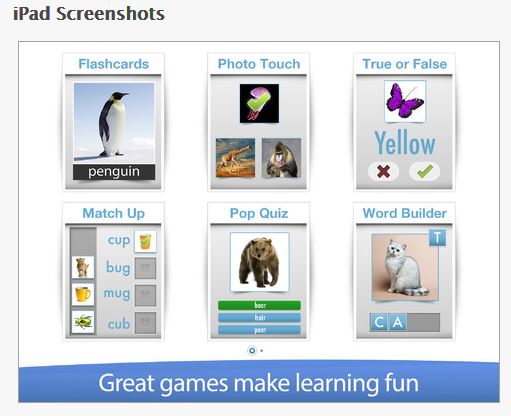
I use Bitsboard with students at the middle and high school that are learning functional life skills and vocational tasks. Reinforcing vocabulary of functional objects that require repetition with varieties of pictures of the same functional object (cups, plates, spoons, different sized towels/hand clothes) for learning and generalization to occur. Bitsboard provides a hierarchy of activities from easy more difficult.  Within the app they provide 10 different learning games as listed below in a hierarchy:

Game 1. Flashcards – 10,000+ free flash cards, fully customizable settings
Game 2. Explore – Review all flashcards at once.  Awesome study mode
Game 3. Photo Touch – Can you spot the right item? Play and learn at the same time
Game 4: True or False – Do you know the answer?
Game 5: Pop Quiz – Ready for a new challenge?
Game 6: Mach Up – Can you match the items?
Game 7: Word Builder Part 1 – Can you form the words?
Game 8: Word Builder Part 2 – Can you form the sentences?
Game 9: Spelling Bee – Suddenly spelling is a game
Game 10: Reader – A fun way to learn how to read
Game 11: Genius – Ready to mix up all the games at once?

Bitsboard pic7
TRACKS YOUR PROGRESS

• Bitsboard keeps track of every answer and makes it easy for you to see what words and boards you have mastered and which ones you need to study some more.

Bitsboard pic5

A NEW  PRO FEATURE SUPPORTS MULTIPLE USERS

• Bitsboard makes it easy to add multiple users and switch between user accounts
• Track progress at the user level
• Automatically saves game settings at the user level

ACCELERATES YOUR LEARNING

• Bitsboard’s learning algorithm automatically personalizes each game based on the players skills.
• Bitsboard knows your problem words and when you are ready to move on to your next challenge.

SHARE AND SYNC CONTENT ACROSS DEVICES

• With Bitsboard, you can share and sync your custom lessons across devices with just one click

• You can also utilize a huge resource of online Bitsboard activities completed by other colleagues.

Bitsboard pic4

This is a great app! If this won’t be part of your OT mTool Kit, share with parents, speech therapists and special education teachers – they will love it!

Carol

Posted in App Reviews, Apps for Special Needs, Customizable app, Early Childhood, Elementary School, Free apps, iPad, Life Skills, Middle School | Tagged , , , , | Leave a comment

AppWriter US Update Reads PDF’s on the iPad!

AppWriter icon

Ling Apps has been working hard on this first version of their PDF reader in their AppWriter App (US, 29.99) for iPad. Most PDF files can be read aloud, and each word will be highlighted directly in the PDF file as it is being read. We are working on optimizing the feature now, and you can expect another update with enhancements and bug fixes very soon.


There are two ways of opening a PDF file in AppWriter:

  1. Import from Google Docs – using the built-in import feature in AppWriter
  2. Use the built-in “open in” feature on the iPad directly from the browser, Dropbox or any other app supporting this feature.

File Types

We added icons for the two files types currently supported in AppWriter, i.e. txt and PDF files. You will notice that txt files are displayed with a blue icon, and PDF files are displayed with the typical red PDF icon next to the file name in the document list. This way you can easily find the file and file type you are looking for. Just tap on a PDF file to open it directly in the AppWriter PDF Reader.

PDF Reader

In the PDF reader you have the following options:

  • Navigate the PDF file by sliding between the pages or by choosing one of the thumbnails at the bottom of the screen
  • Tap the play button to read aloud your document. The read aloud feature will highlight each word as they are being read.
  • Tap the globe and switch between your currently installed voices
  • Tap the “open in”-button to extract the entire text of the current PDF page into the AppWriter editor for further processing.

With the newly added PDF reader, AppWriter is one step further to become the ultimate all-in-one tool for anyone struggling with reading and/or writing.

If you haven’t tried AppWriter lately the upgraded features are stable and easy to use. The ability to scan and convert text from hard copy to electronic format using their scan tool allows easy access to print using their text to speech tools. I found the AppWriter scanning feature accurate and easy to use with the camera on my iPad3.  For individuals who may have difficulty managing the work flow needed when using several different apps to convert hard copy to electronic, AppWriter’s ease of use makes it a great choice.

If you have students or adults that need to access print, give AppWriter a whirl.

Appropriate for your OT mTool Kit?

Carol

Posted in App Reviews, Apps for OT's, Apps for Special Needs, iPad, Occupational Therapy, Reading, Scanning, Text to Speech, Word Prediction, Writing | Tagged , , , , , , , | 4 Comments

OT’s with Apps: Apps and Applications for Your School Based OT mTool Kit

hand masthead turquoise no dots

Interested in learning about iPad apps, application of apps and some tips and tricks for your school based OT mTool Kit?

Join us this summer for a 2 day app-extravaganza of ideas and apps you’ll use at school!

DATES & TIMES

August 7-8th 2013

9:00 A.M. to 3:30 P.M.

CONTACT HOURS

Certificate for 12 Hours

LOCATION

Adaptive Technology Resources

1350 14th Avenue

Suite 3

Grafton, WI 53024

Presenters: Carol Leynse Harpold, MS AdEd, OTR/L, ATP and Erin Higgins, COTA

COST

$250.00 per person

(includes 2-day course and lunch each day)

REGISTER ONLINE

http://www.adaptivetr.com/upcoming-events/ots-with-apps-registration

Save $20 by Registering before June 10th

Description:

Mobile devices have the potential of supporting school based OT practitioners with intervention activities and documentation tools due to its ease of use, portability, wide selection of apps, multimedia and administrative tools. The iPad in particular is a popular mobile device used in schools that has been proposed to increase engagement, access and efficiency, however, identifying appropriate apps for student or professional use can be overwhelming and time consuming.

This presentation will focus on iPad apps and applications for the school based OT Practitioner. Apps and application in the areas of fine motor/visual motor, visual perception, handwriting, sensory processing, self-regulation and self-care will be reviewed and demonstrated as they relate to school based practice and home programming. Apps and iPad features supporting assessment, documentation and administrative tasks for the OT practitioner will also be reviewed. Access and production of curriculum tasks for reading, writing and math as it relates to OT intervention and inclusion of preschool to high school students will also be addressed.

Learning objectives: Participants will be able to:

1. Identify iPad apps that can support occupational performance of school aged students in the areas of activities of daily living, instrumental activities of daily living, education, rest/sleep (regulation), play and leisure.

2. Identify and apply iPad accessibility features that support successful iPad use for students with special needs.

3. Identify apps and features of the iPad that support evidence based practices and can improve functional life skill acquisition.

4. Apply device features and apps that can increase efficiency with administrative tasks required of the school based OT.

Come and learn about apps successfully used by school based OT’s. Bring your own apps and experiences with integrating mobile devices into school based practice and share with others. This presentation requires the participant to bring an iPad 2, 3 or 4, iPad Mini basic iPad navigation skills, and an active iTunes account, user name and password.

Questions? Email for more information : OTswithapps@gmail.com

Hope to see you there!

Posted in Continuing Education, Occupational Therapy | 2 Comments

OT’s with Apps mTool Kit App List

OT’s with Apps mTool Kit App List Updated 6-2-2013

(click on above link for Word doc app list)

App pics 6-2013

It’s been a while since the OT’s with Apps mTool Kit list has been updated. Please find this new list at the above link providing additional apps and categories which should be working better (good thing my job is not reliant on web designing!). The link provides you with a Word document of the list with links to all the iTunes apps.

If there are problems with the list please, leave me a comment or feel free to contact me at otswithapps@gmail.com .

Happy Apping – Thank you for visiting!

Carol

Posted in Android, App Reviews, Apps for OT's, Apps for Special Needs, Cause and Effect apps, Elementary School, Emotions, Fine Motor Development, Free apps, Game Apps for Special Needs, Geriatrics, Handwriting, Holiday and Special Events, iADL's, iPad, iPhone, iPod, Organization, Self Care, Self-regulation, Sensory Apps, Social Skills, Spelling, Story Telling, Text to Speech, Visual Communication, Visual Memory, Visual Motor, Visual Perception, Voice Recognition, Word Prediction, Word Work, Writing | Tagged , , , , , , | Leave a comment

More iPad/ iPhone Stands

Tablet Stands

            Clingo iPhone stand          

Providing appropriate positioning for access and ergonomic positioning can be important with the use of mobile devices. A recent road trip requiring the use of my iPhone for navigation, hotel and event searching brought about the acute realization that small screens, static, prolonged positioning yields some unpleasant symptoms (discomfort and stiffness which subsequently remained for several days… I should know better!). Although positioning is a bit more challenging in the car, I could have definitely improved my devices position and changed some of the accessibility options to help with visual and positioning as the navigator and event coordinator for the trip.

An ever-increasing number of stands are available for the iPad, iPhone or iPod. Here are a couple I have recently purchased or worked with that provide adjustable, quick on/off and or portable positioning solutions:

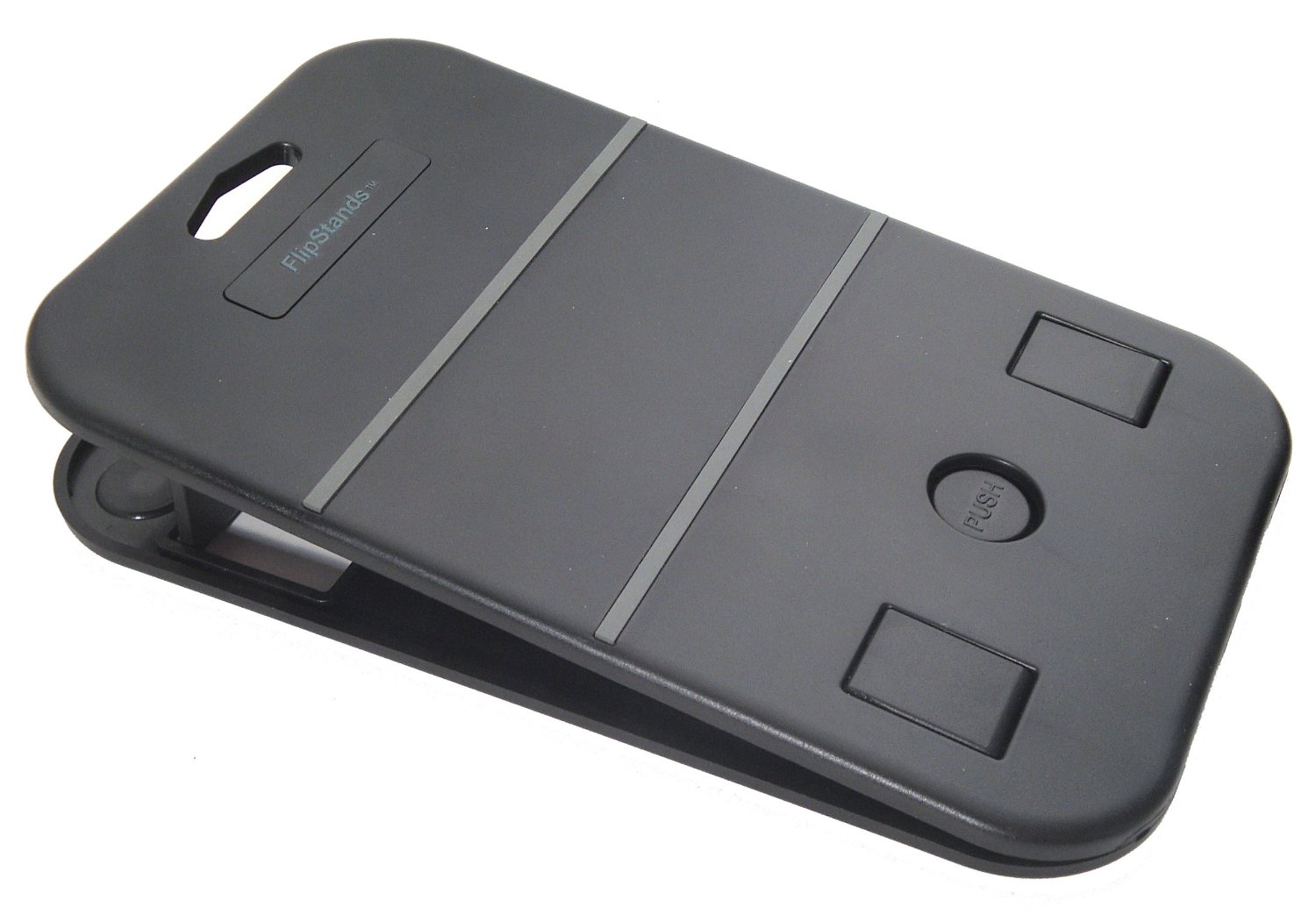
FlipStands – New, Compact Portable Multi-Adjustable Stand for the iPad, iPad2, the New iPad, iPad Mini, Nexus 7, Nexus 10, Nook HD and all other Tablets ($12.95 – Amazon)

Flip Stands pic2

This stand is 5 x 8″ x 3/8″, sturdy and light weight. The base has small rubber grippers to help it stay in place. The rests which holds the tablet, provides 3/4″ space to allow for iDevices with cases. Multiple positions can be set pending positioning needs. It is wide enough to not topple over with a device, although for some users whose motor or behavior control might be challenged, a choice of a heavier or more secure stand may be a better choice. This is great for portability and adjustability.

CLINGO Universal Dash Pad Car Mounts –  This mount is for an iPhone or iPod Touch (39.94).  It has a remarkable gripping surface that devices adhere to without having to clamp them on.

Clingo iPhone stand

Clingo Universal Wave Mount for tablets (26.95 at Amazon) provides limited adjustability but the same ease of attaching or removing from the cling surface in either horizontal or vertical positions. Manages tablet devices up to 2 pounds. Easy on and off of a device is a strong feature of this stand.

Halter Portable And Foldable Rotating Articulating Metal Desk Stand for Apple iPad 1, 2 And 3 (29.99) This stand is hinged and adjustable at the base of the upright stand and at the plate where the tablet attached. This is a heavy stand, making it not a real portable option, but allowing it to stay in place due to the weight. The halter at the edges are also adjustable allowing it to clamp down on a variety of different sized tablets.

Taking it on and off requires some screwing/unscrewing, however this could be adapted with Velcro placed on the stand and device or device case. Inexpensive, this provides adjustability for positioning of a device.

Arkon Portable Fold-Up Stand for Apple iPad, Galaxy Tab, Kindle Fire, Playbook, Xoom, Toshiba, Acer, Nook and Other Tablets  remains one of my favorite, portable stands as it is lightweight, takes limited space and is cheap! ($8.15)
The Arkon stand also accommodates cases such as the Otterbox, GumDrop and Trident cases.
I should have used the Arkon stand or Flip Stand propped on a bag to improve my positioning – along with longer breaks away from the device would also have helped!

What stands are you using that you would recommend?

Here are a few more resources for stands:

Any suggestions for mounts and stands?

Carol

Posted in Accessories, Ergonomics, iPad, iPad Management, iPod/iPad Accessory, Occupational Therapy | Tagged , , , , , , | Leave a comment

Pictus Kid’s Coloring Book App

Pictus Coloring Book icon

Pictus Kids Coloring Book

Children’s Day (the first Sunday in June) brings some free offers to iTunes store for kids. Pictus – Kids Coloring Book app for iPad is one providing kids of all ages (young and old) coloring activities to occupy them this summer (and all year round).

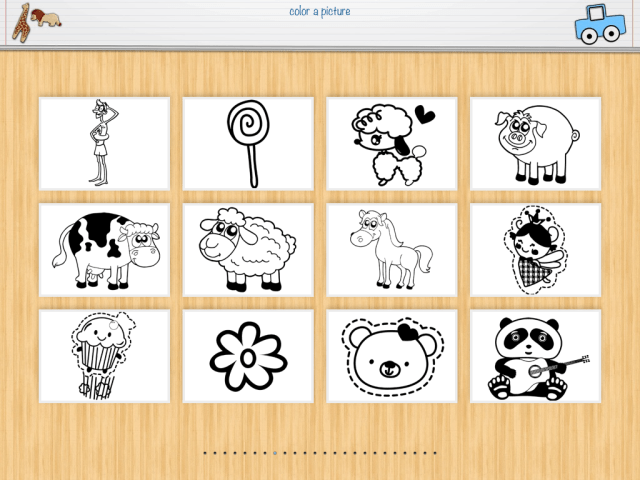
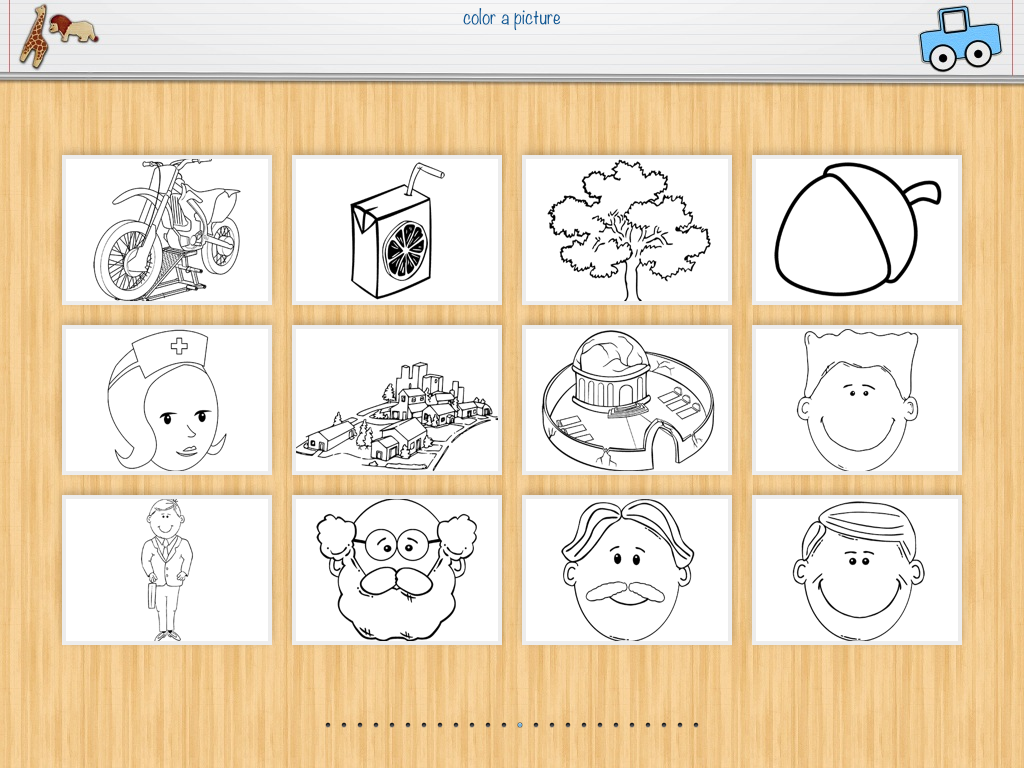
Pictus – Kids Coloring Book app offers more than 280 pictures from simple to more complex that are black on white stylized, cartoonish and standard pictures for users to color. Included in the picture choices also are some holiday themes. Here are just a few pages of examples of pictures:

Photo Jun 02, 8 16 01 AM Photo Jun 02, 8 17 26 AM Photo Jun 02, 8 17 45 AM

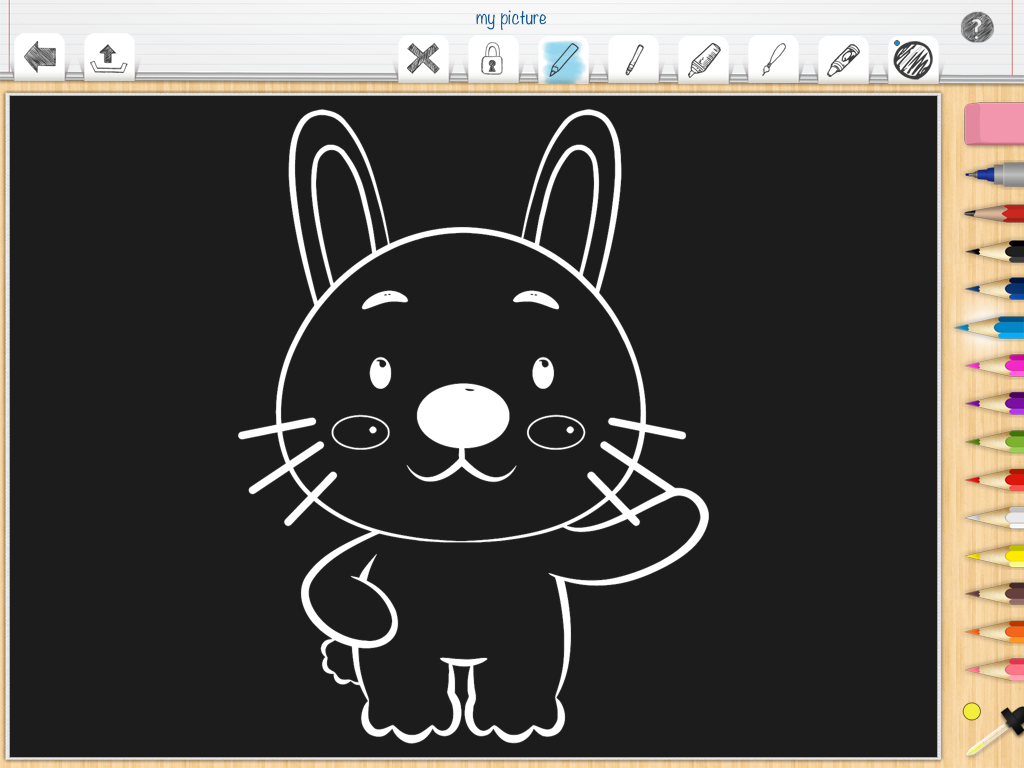
When choosing a picture you have the five choices of colored background paper to use, white, off white, lined paper, grid paper or black background for high contrast.

Photo Jun 02, 9 49 23 AM

Coloring tools include: pencil colors, fine and wide line markers, colors and paint brush. A color picker provides customization of colors. I liked the fine line colored pencils and markers which improved my ability to handwrite, often a challenge in some apps.

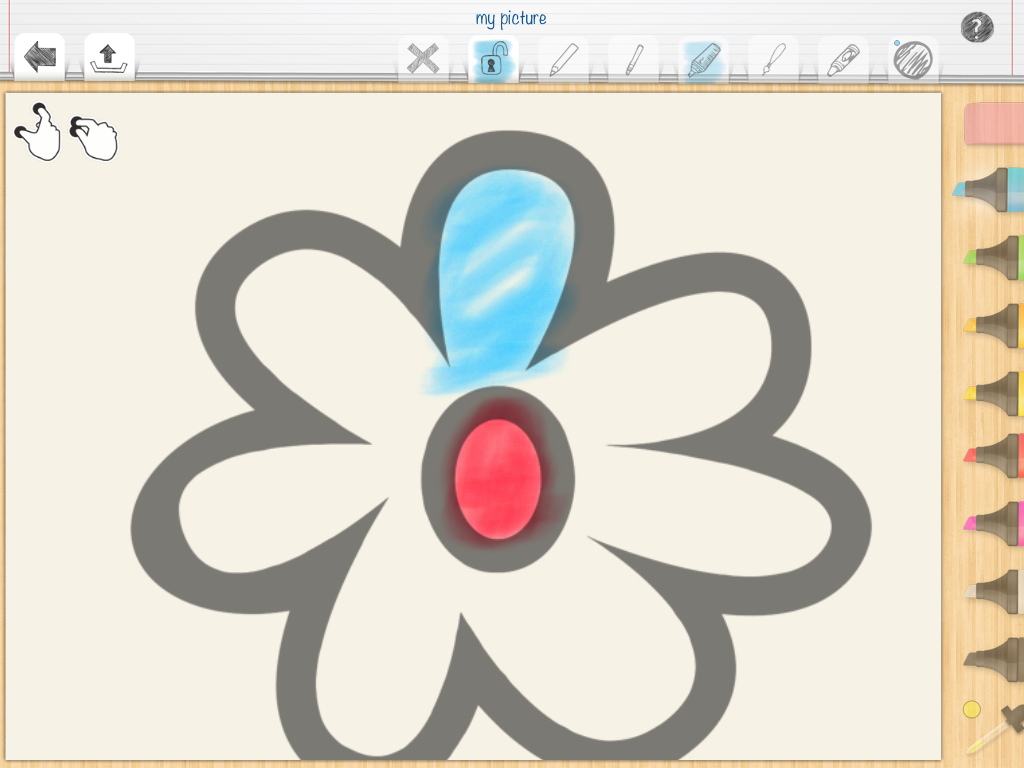
Wondering how on earth you could color some of the fine detail on an iPad? One unique feature to this app is the ability to unlock it, zoom and move the picture on the screen to parts of the picture you want to color, lock it and then move and zoom to another area.

Photo Jun 02, 8 17 56 AM

When you are done with specific areas you can return to the original picture with the fine areas colored. The hands at the top left of the screen provide visual cues of how to do this.

Photo Jun 02, 8 19 03 AM

Photo Jun 02, 8 18 26 AM

This zoom in/out feature would be great for young and old artists with visual challenges who enjoy coloring or want to master small details of the picture.  Choosing a stylus appropriate for the user would allow greater control and accuracy, develop tool usage and foster grasp patterns. An easel or stand for the iPad can also support posture, visual presentation, wrist and grasp development options important for the user.

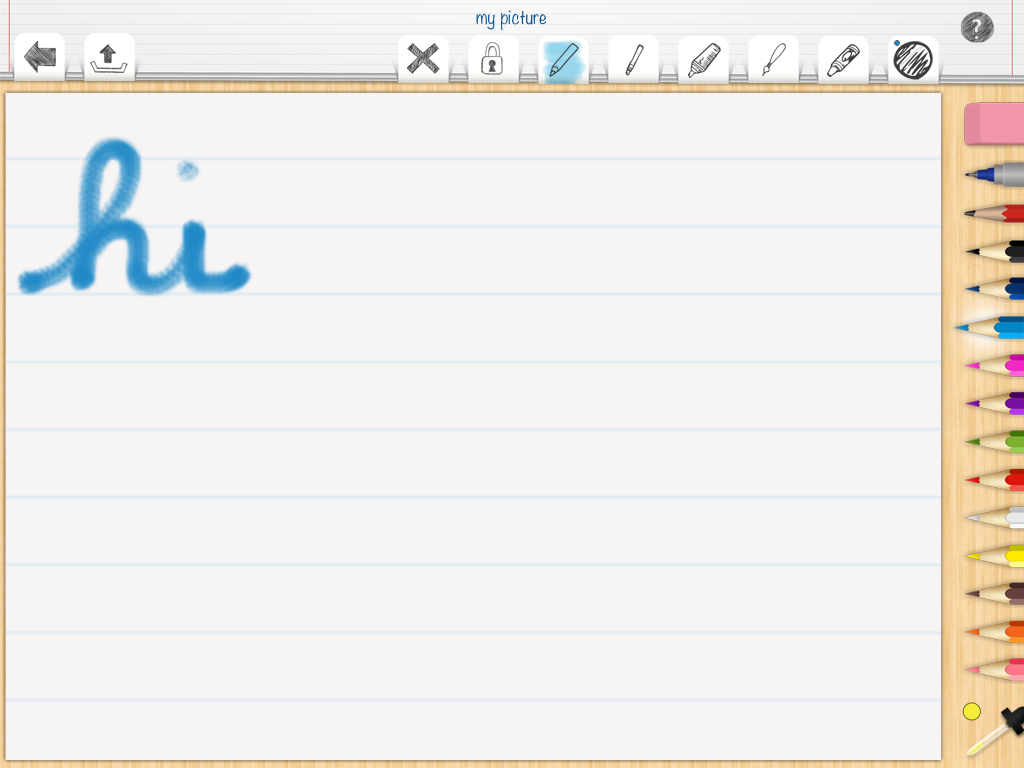
Although there are many apps for developing letter formation and handwriting, Pictus provides a solid lined paper background option that could be used for handwriting or letter formation practice.

Photo Jun 02, 9 04 51 AM

Options for workflow include emailing, sending to social media, saving to photo album, opening in other apps or copying the picture. Colored pictures could be showcased or used in story telling books or other creation apps like Educreation, Skitch or Show Me if needed for a presentation.

Although there is an abundance of coloring apps available, Pictus – Kids Coloring Book is currently a great price and provides some options that are suitable to your special education, geriatric, family, or OT mTool Kit! Who doesn’t like to color from time to time? Many of our students at school find coloring a calming activity – me too!

Looking for stylus or stand options? Here are some prior posts features many suggested stylus or stand options:

What is your favorite coloring app??

Carol

Posted in Adults, App Reviews, Apps for OT's, Apps for Special Needs, Drawing, Early Childhood, Education, Elementary School, Fine Motor Development, Free apps, Geriatrics, iPad, Leisure apps, Low Vision/ Blindness, Occupational Therapy, Pediatrics, Special education, Stylus, Visual Motor | Tagged , , , , , , , | Leave a comment

Adapted Hands-Free Bluetooth

Adapted Hands Free Bluetooth – The AT Daily

(as scooped on Scoop.itOT mTool Kit)

Hello! Just activate your switch to answer your phone!  First pair your phone with the Bluetooth speaker phone, then press your switch to answer your phone; press again to hang up. Bluetooth speake…

Carol Leynse Harpold‘s insight:

AT Daily reviews a way to use Bluetooth features on your phone with a switch for access!

Check it out!

Carol

See on attraining.org

Posted in Accessibility | Tagged , | Leave a comment

Touch ‘N Slide Calculator for iPad

Touch 'N Slide Calculator icon

Touch ‘N Slide Calculator

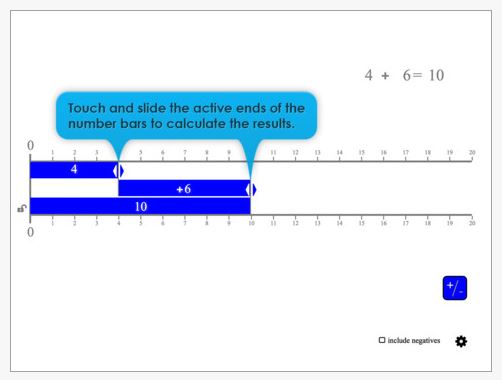
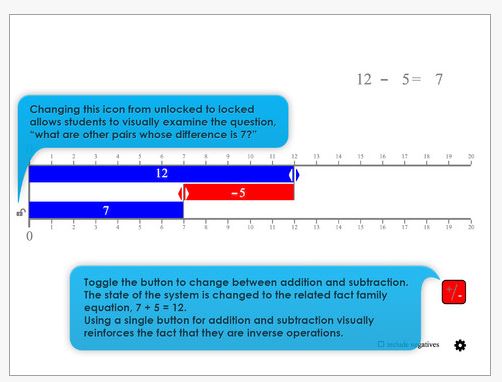
Unlike other calculators, the Touch ’N Slide Calculator visually displays the underlying mathematics giving users a visual and kinesthetic sense of what the arithmetic means. Created for iPad (Free), this app features an interactive calculator of addition and subtraction concepts with option to extend number line to negative numbers as appropriate for student skill level.

Touch 'N Slide Calculator pic Touch 'N Slide Calculator pic1

A visual and tactile method of interacting with math facts for students supporting common core math standards in operations and algebraic thinking.

Pass this along to special education teachers, parents as another method of math practice.

Carol

Posted in Apps for Special Needs, Autism, Education, Elementary School, iPad, Math | Tagged , , | Leave a comment

Keyboarding

Dear Otto: Do Students Still Need to Learn Keyboarding?

Ask A Teacher addresses the age old question regarding keyboarding in light of new technology use by students and provides a great listing of research on the topic.

(As posted on Scoop.itOT mTool Kit )

Dear Otto is an occasional column where I answer questions I get from readers about teaching tech. If you have a question, please complete the form below and I’ll answer it here. For your privacy, …

Carol Leynse Harpold‘s insight:

The question of keyboarding instruction continues to surface especially in lieu of packed curriculum content and currently the presence of mobile devices which changes how input is done for students.

This post address those questions and provides a listing of recent and past research information on the subject from an expert.

Carol

See on askatechteacher.wordpress.com

Posted in Keyboarding, Occupational Therapy | Tagged , | 1 Comment