iPad and Android Keyboarding Apps and Resources

Keyboarding Apps and Resources for the iPad

KEyboarding on iPad

Questions of keyboarding training using the iPad on occasion arise. Listed below are keyboarding instruction apps for the iPad and Android tablet. At the bottom of the list are a few web-based keyboarding instruction sites that will work on the iPad ( do not require flash) for keyboarding practice. Consider using a standard Bluetooth QWERTY keyboard when practicing 10 finger keyboarding skills for training on standard keyboard layout and ergonomic positioning.

Keyboarding Apps

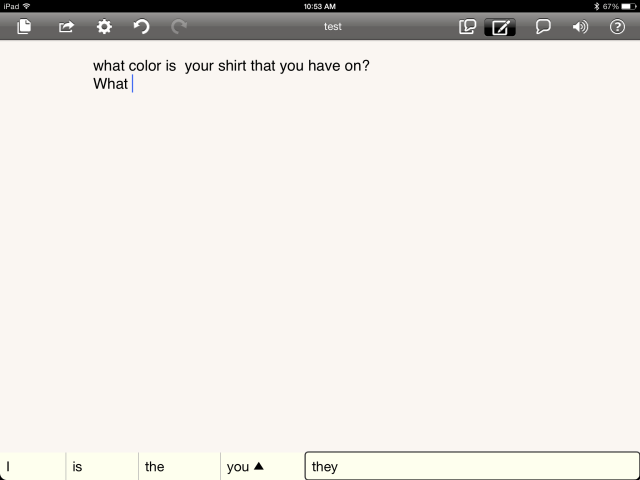
Tap Typing

TapTyping icon

iPhone/ iPad Typing app – Reinforces touch typing for speed and accuracy Free/ in app purchase
Typing Tutor

Typing Tutor Droid app icon

Android Typing app – Reinforces touch typing for speed and accuracy free
Type It!

Type It! app icon

Android Typing app – Reinforces touch typing for speed and accuracy free
GhostType

Ghost type icon

iPad Typing app with graduated lessons. No audio feedback 4.99
Typing Fingers

Typing Fingers app icon

iPad 10 finger typing instruction with 32 lessons. Typing practice and game mode included in each lesson. External keyboard recommended Free  / .99 for ad removal
Keyboarding Fun LiteKeyboard fun lite app icon
iPad Keyboarding awareness app. Speaks each letter typed out loud. Provides visual cues of key on key row visual model. free /4.99
Typing Fun – Lite

Typing Fun app icon

iPad Basic keyboarding awareness app providing visual cues and verbal reinforcement of letters typed free / 5.99  
Keyboard Explore

Keyboard Explore icon

iPad Explore keyboard. Tap a key and a letter, image and letter is named. Upper and lower case choice of letters is provided. free  
Type A Word

Type a word icon

iPhone / iPad Typing app with options of font type, speed (normal/slow) type (plain, reverse, random), languages, wind speed (rate of typing). Word typing practice. Does not offer instruction to typing technique/rows. free / .99  

Online Key-boarding Practice Compatible with use of  iPad

Typing Web.com

Typing Web icon

iPad Web site can be used with iPad with Internet connection to type in this keyboarding program Free / online  
PowerTyping.comPower Typing icon
iPad Develop and practice step by step web based typing lessons Free / online  

What keyboarding programs have you used?? Share!

More for your OT mTool Kit.

Carol

Posted in Android, Customizable app, iPad, Keyboarding | 3 Comments

Miss Sue’s Keyboarding Fun – OT-Care

Miss Sue's Keyboarding Fun pic

Are you looking for specialized or customizable keyboard instruction using the iPad for students with physical or cognitive/learning disabilities?

Miss Sue’s Keyboarding Fun© provides several keyboarding app choices with options to customize the sounds, colors, picture supports, word lists and layout within the app. Her apps span training skills from basic keyboard and letter awareness, spelling reinforcement of high frequency words and beginning keyboard awareness and practice. Significant customization of the words, pictures, layout, colors and speech are offered within the apps allowing creation of individual activities for users.

Keyboard Explore iconKeyboard Explore app (iPad; free ) – When a key on the keyboard is pressed, a fun picture is shown and a sound for the letter is spoken.

.

Type a word iconType A Word  app (full and lite version for iPad; 2.99 ) – Allows creation of spelling words for students to type. Each letter must be matched for successful completion. Full version includes data collection and customizable key colors.

Keyboard fun lite app iconKeyboard Fun app – (iPad; 4.99 ) – Encourages identification of key placement by matching keys to pictures. Keys on each line is displayed. Data collection and key coloring provided in app.

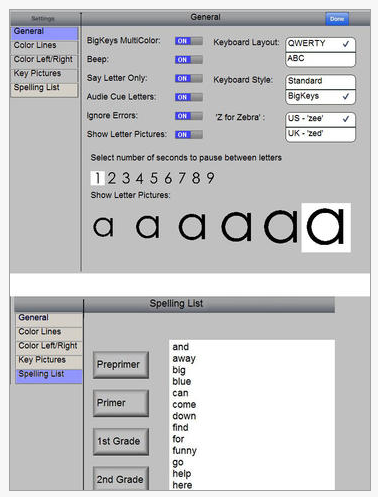
Typing Fun app icon Typing Fun app (iPad; lite/Full 5.99) – Learn keyboard then type out words. Add Dolch or other word lists to customize for a user. Color keyboard to match specialized keyboards. Images of the Typing Fun app customization features:

Typing fun app pic 1  Typing fun pic2

If you are in need of keyboarding apps with customizable features, Miss Sue’s Keyboarding apps provides wonderful options. Computer based software is also available from Miss Sue’s Keyboarding website at OT-Care.com  along with lesson plans and other keyboarding resources for individuals with disabilities.

Miss Sue’s app can customized with colored keys for the iPad using the following wireless keyboards:

Big Bluetooth from RJ Cooper (199. ): Provides additional keyboard options that allow use of function keys.

Big Bluetooth keyboard w tablet stand

Big Blu Kinderboard with Bluetooth (Chester Creek; 72.) :
Big Blu keyboard pic2
Great options for customizing access for individuals with disabilities with these apps and input methods.

More for your OT mTool Kit!

Carol

Posted in Accessibility, Accessories, Apps for OT's, Apps for Special Needs, Customizable app, iPad, Keyboard, Keyboarding, Occupational Therapy, Writing | Leave a comment

Using a Big Blue Keyboard and Word Prediction on an iPad

Big Bluetooth keyboard w tablet stand
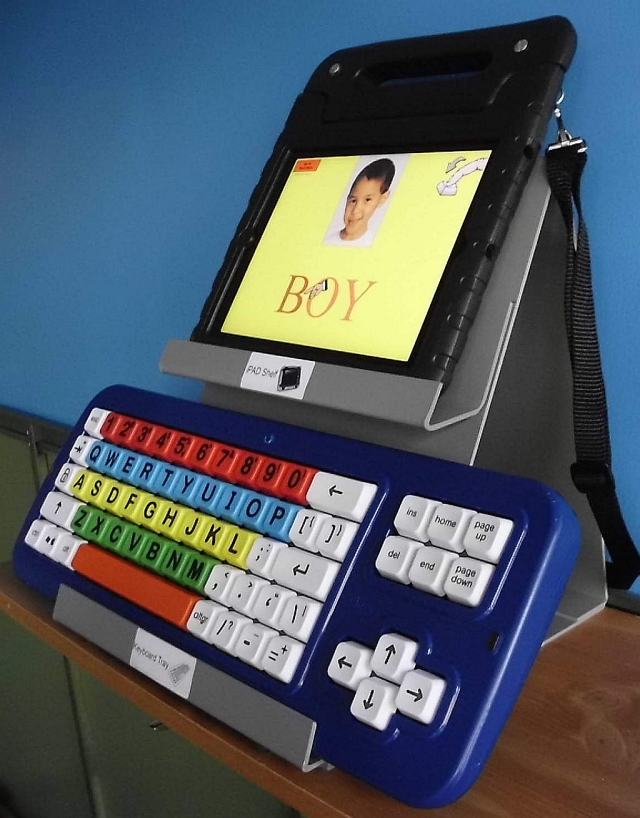
RJ Cooper’s Keyboard-Tablet Combo Stand and Big Blue Keyboard

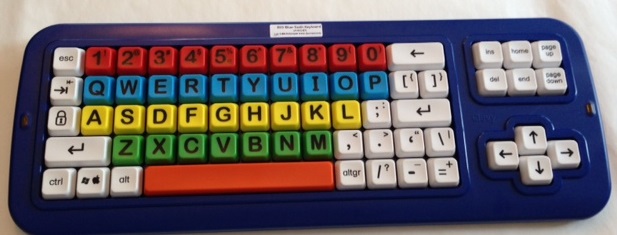
A big Thank-You to RJ Cooper for lending me a Tooth Keyboard and Tablet Stand Combo and Big Blue Keyboard to demonstrate input equipment for the iPad at an upcoming OT’s with Apps Workshop (March 7-8th). Reviewing and comparing apps and equipment that support writing will be just one of the many topics covered at the workshop. Exploring how the Big Blue keyboard works and what apps it works with to support individuals needing writing supports brought about many questions about how it can be used to support those with motor challenges.

Bluetooth keyboards, of course, come in all different sizes, however, most are either small or a standard keyboard size, making them difficult to access for individuals with poor motor control.

Big blue keyboard

Using RJ’s Big Blue keyboard (Bluetooth) provides an alternative method of access to the keyboard, but brings a number of questions beyond keyboard input about other tools often needed to support writing can be used on the iPad. Such tools as  word prediction, text to speech are often needed for more efficient input or writing support for many writers. How do those tools work with a Bluetooth keyboard to support written composition for individuals with motor and literacy challenges?

Many of those answers were fortunately provided by RJ Cooper’s thorough instructions and tips about the use of the Big Blue keyboard with the iPad. Although I wanted to trial it with many of the word prediction programs to see which ones would work, RJ provided suggested apps trialed by him and methods of access (what a resourceful guy RJ is!).  RJ’s instruction supplied information on the use of iOS Voice Over functions with the keyboard and specific apps that work well when needing  word prediction, text to speech for written composing on the iPad.

Here are some basic instructions on using RJ’s Big Blue keyboard with the iPad (see below link for RJ Cooper’s written instructions):

iPad and Big Blue Bluetooth Keyboard Connection:

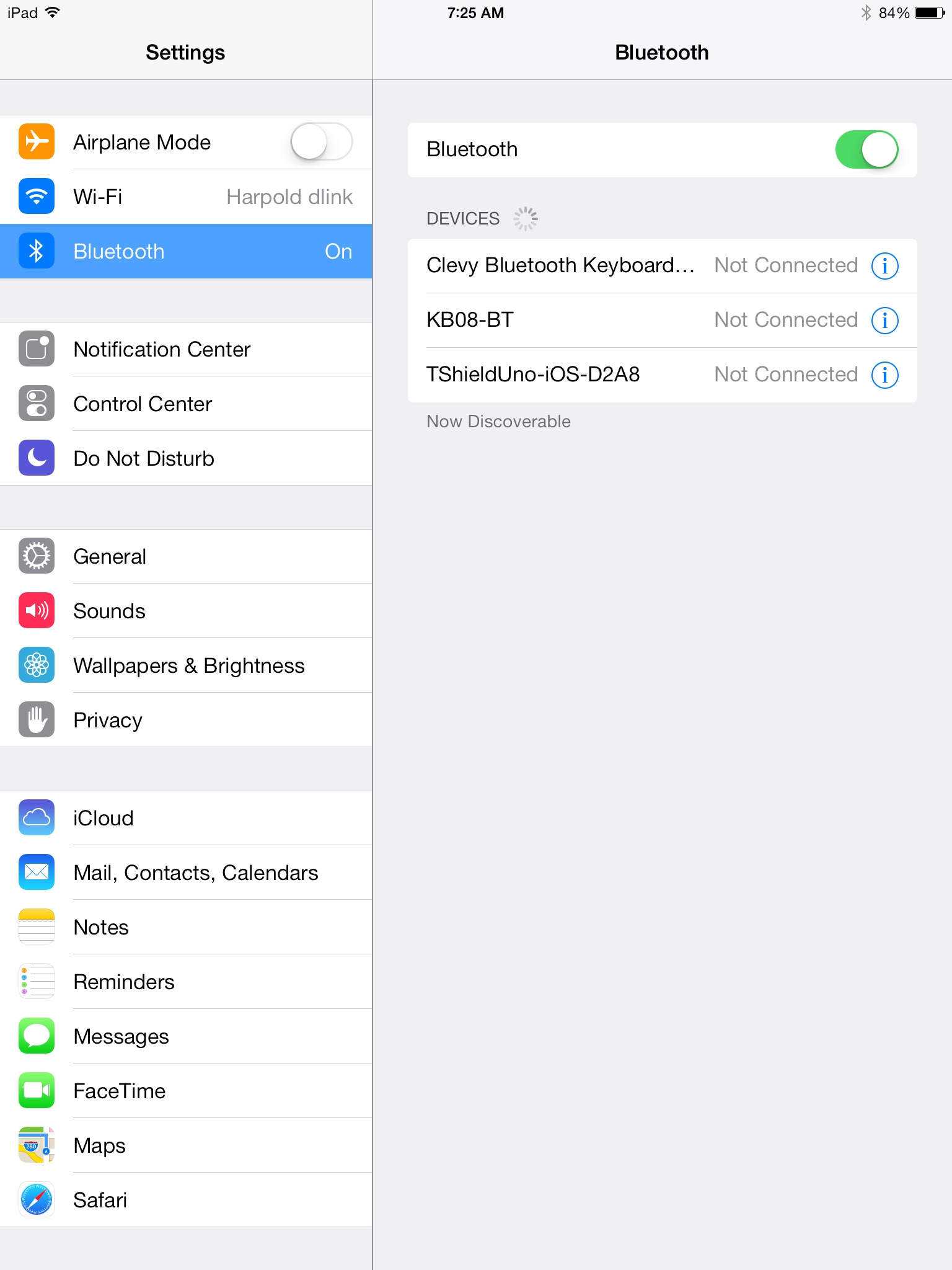
1. To connect the iPad to Big Blue : Go to Settings> Bluetooth> slide the button on (allows recognition of Bluetooth devices):

018c3de72f2449eb0ced6f3f6e4e7d8aa83887d5f2

2. On the Big Blue keyboard, press the Bluetooth inset button on the back of Big Blue to start recognition and pairing (instructions for connecting Big Blue from RJ):
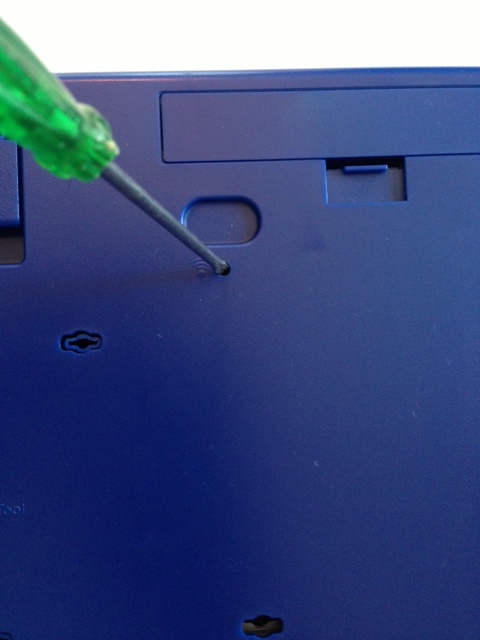
big blue btconnect 2

3. When the Clevy Bluetooth Keyboard US is recognized. Tap on Clevy Keyboard in the Devices list to pair. Pairing between the keyboard and iPad will require you to type in a code on the Big Blue.
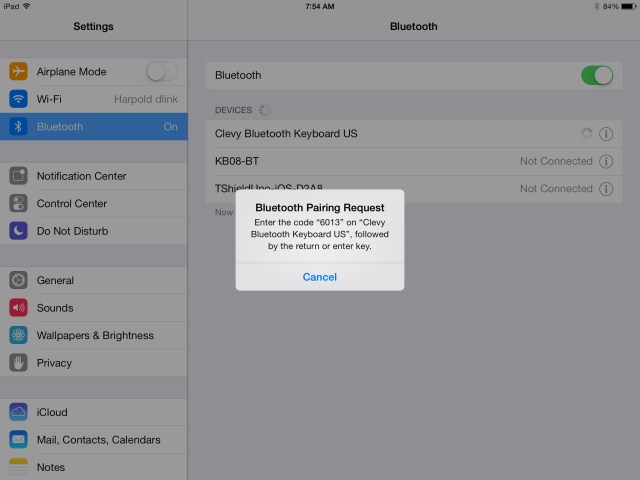
01e2846814368b26a6d21d1f7f90bdb055b94f689d

4. The Big Blue lights will flash indicating pairing and the keyboard will be ready to use. When using a Bluetooth keyboard the standard keyboard will not appear.

The Big Blue provides easier physical access to a keyboard with its large keys and positioning as needed pending the users needs. What apps now provide word prediction, text to speech and selection for users needing writing supports? Keyboard shortcuts and function keys provide methods of selection when using a Windows or Mac computer but what will work on the iPad? Fortunately, as aforementioned, RJ provides instructions.

Using VoiceOver With Word Prediction Apps (see list for specific word prediction apps):

1. In Settings> General> Accessibility Shortcut > Select Triple-Click the Home Button For: VoiceOver :
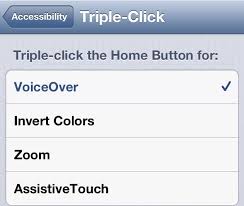
triple click for voice over

This will allow VoiceOver to be easily turned on and off when the Home Button is clicked three times quickly at any time.

2. A Big Blue switch on the back of the keyboard must be turned on to Key Repeat.
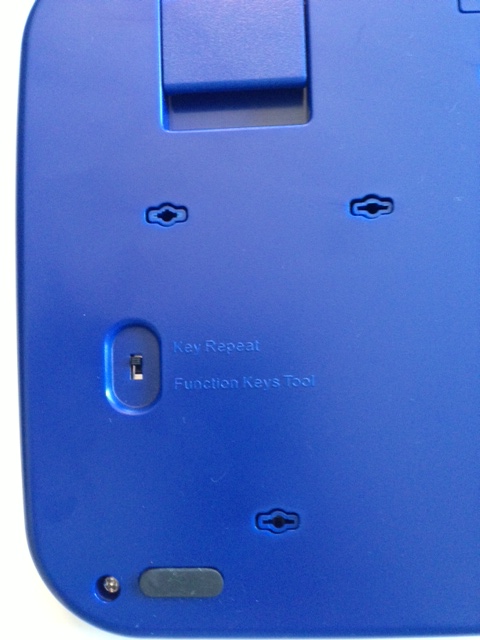
big blue func3

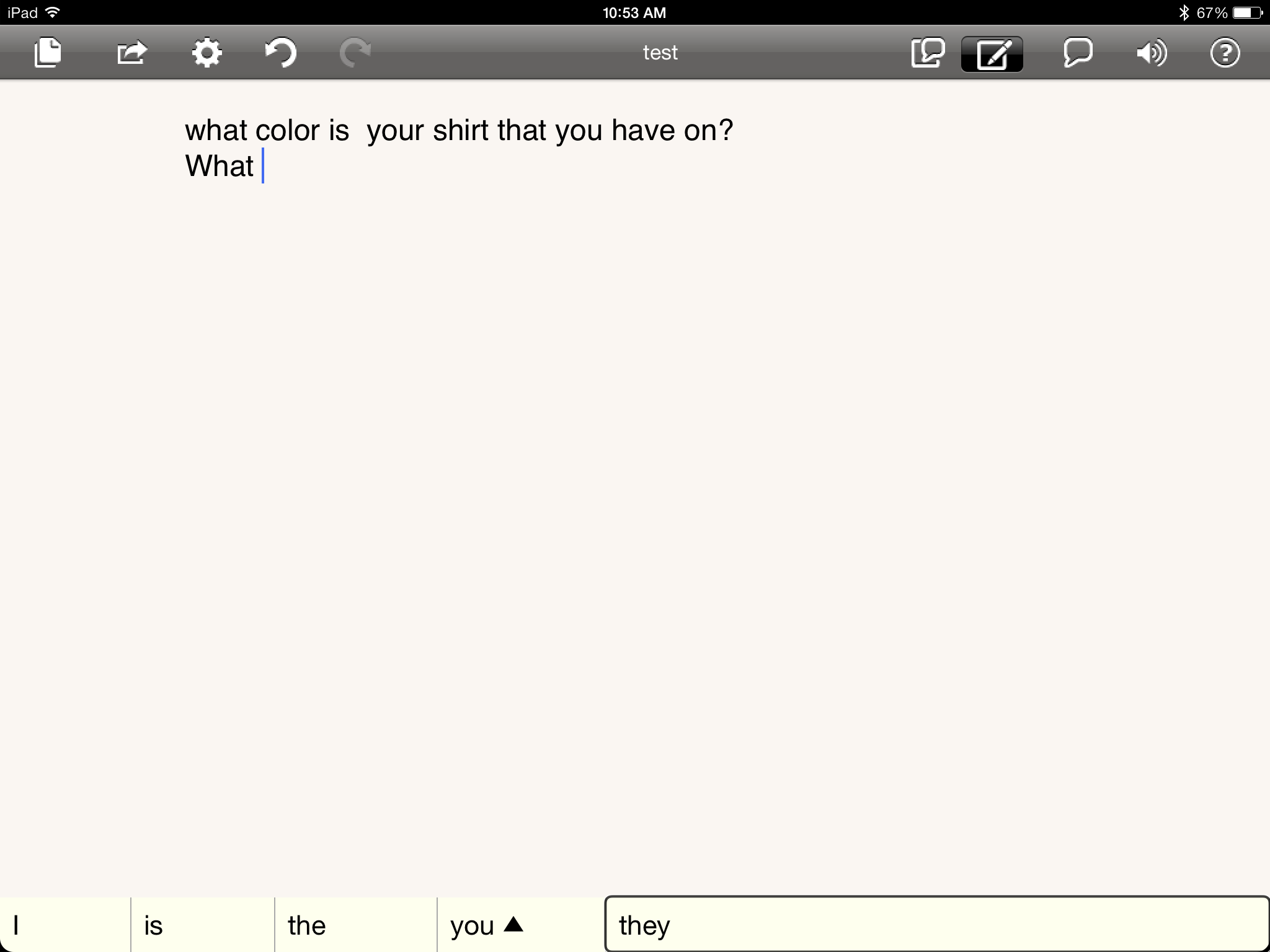
3. With your keyboard and iPad paired. Open your selected word prediction app (WordQ is the app featured below). Prior to start of typing, triple click the Home Button to turn VoiceOver on. You will hear a message “VoiceOver is on”.

4. Using the right and left arrow keys (← , →) on Big Blue allows navigation within features of the app  such as the text field area and word prediction list.
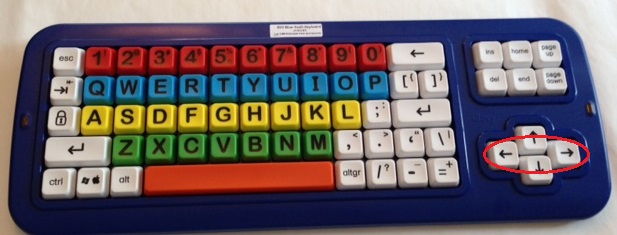
Big blue keyboard w r l arrow keys circled

WordQ with VO pic5. Selection of an item using VoiceOver can be made using the ↑, ↓ arrows simultaneously on the Big Blue keyboard allowing words from the prediction list entered into the document text field.
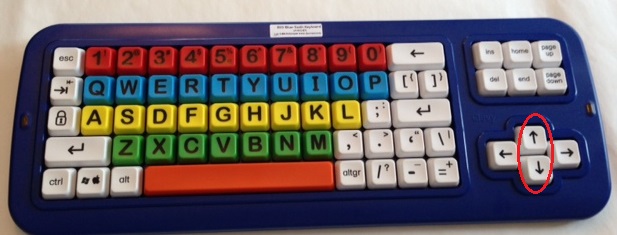
Big blue keyboard w up down arrow keys circled

Creating a quick cap affixed to the up and down arrow keys simplified activation using one finger or touch of both keys.
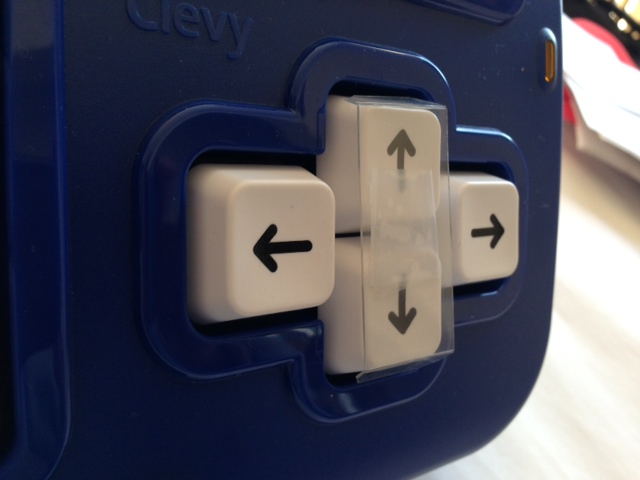
Big Blue key joiner

6. Additional control of navigation can be done using the altgr key which turns On/Off QuickNav allowing navigation within the text field or screen items. The keyboard keys can be used at any time to type, backspace, enter when word processing.
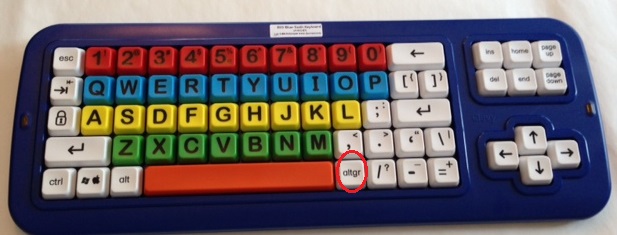
Big blue keyboard w altgr key circled

Practice with navigation and selection of the word prediction took a bit of time to learn, but once familiar resulted in use of the keyboard to type and navigation basically within the app.

RJ Cooper shared successful use of the keyboard with VoiceOver using the following apps:

Trial with word prediction apps found Brevity app, a basic app with word prediction, WordQ and AppWriter to work well with VoiceOver and RJ’s Big Blue keyboard. From my trials, I did not find success using  CoWriter, TypoHD or iReadWrite apps with Big Blue and VoiceOver, however, I would never dismiss user error as a reason for lack of successful use! Abilipad, PantherWriter  and Rocket Keys, nor Clicker apps were not trialed (that’s another day’s work!).

What keyboards or apps for individuals with motor and literacy challenges have you successfully used? Please share!

Interested in learning more about apps, iOS functions, keyboards and other equipment used in OT practice? Join OT’s with Apps for the School Based OT on March 7-8 for two days of apps for writing, reading, math, self-regulation, OT administration and hands on trials with a variety of iPad equipment.  Hope to see you there!

Again, a big thank you to RJ Cooper for loaning out his Keyboard-Tablet Combo Stand and Big Blue Keyboard!

Posted in Accessibility, Accessories, Apps for OT's, Apps for Special Needs, iPad, iPod/iPad Accessory, Keyboard, Mobile Device Use, Mobility Impairment, Occupational Therapy, Special Needs, Text to Speech, Word Prediction, Writing | Leave a comment

Eye Training Apps from Ebenezer School and Home for the Visually Impaired

Ebenezer School and Home for VI icon
Ebenezer School and Home for the Visually Impaired

I often just stumble upon apps when scouring for specific apps for client or students I work with. Apps developed by the Ebenezer School and Home for the Visually Impaired were those stumbled upon and for the right clients or student are a great find. The Ebenezer School and Home for the Visually Impaired, Hong Kong, have created different apps and all are Free!

Four apps have been developed for the Ebenezer School students with low which have basic options of contrast, sizing of objects, background colors and patterns and choice of objects. The four apps are:

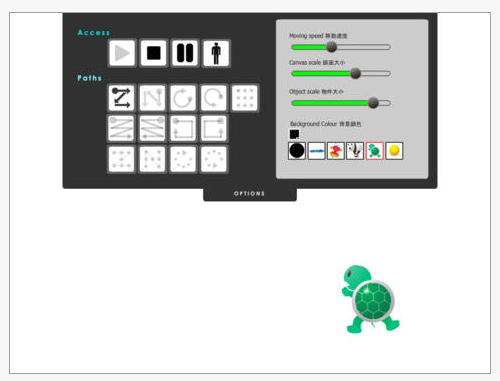
Eye movement training iconEye Movement Training app (free) – Basic tracking skills with 13 different visual tracking tasks, options of moving speed, canvas scale, object scale, background color and six different objects to track.

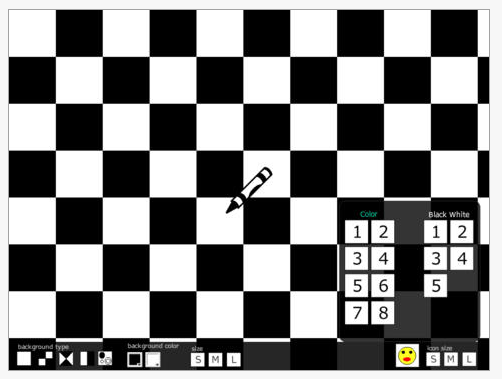
Eye movement traiing pic 6Shapes and Complex iconShapes in Complex app ( free) – Requires locating pictures and designs within competing backgrounds. Provides 5 different backgrounds, background colors, eight different objects to track and small, medium and large sizing of the contrast and objects.

Shapes in Complex free pic1

Dot to Dot icon Ebenezer School app for VIDot to Dot app (free) – Complete dot to dot letters (upper and lower case) and numbers using large numbered dots and animation to guide formation. Background contrast options available. Provides audio reward for completion.

Dot to Dot pic 1

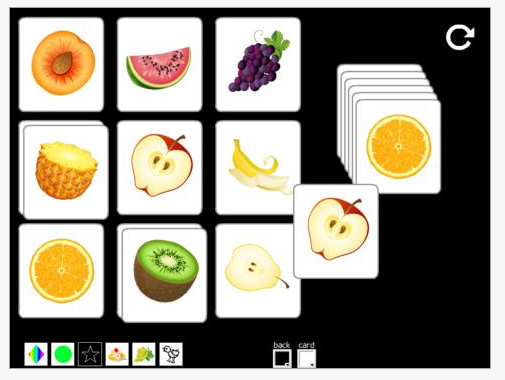
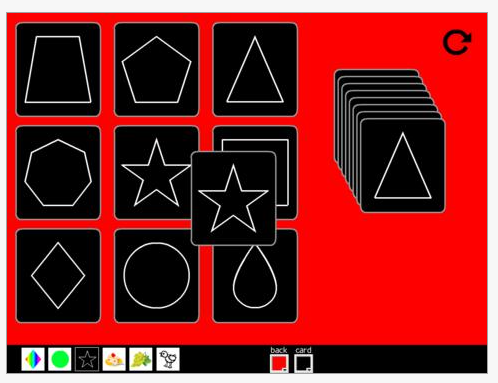
Find the Same iconFind the Same app (free)- requires visual discrimination/  matching of shapes, food, and line drawn animals. Options for background color and card color are available.

Find the Same pic1 Find the same pic2

What a great find for the right clients or students. Although these apps are designed for low vision students, they could be very appropriate for EC students or clients with cognitive, motor, vision, dementia challenges. At a price of free, they are a great deal for your OT mTool Kit!

Have your used these apps? Please share your experience if you have!

Thank you – Carol

Posted in App Reviews, Apps for OT's, Apps for Special Needs, Cognitive Impairment, Customizable app, Early Childhood, iPad, Low Vision/ Blindness, Occupational Therapy, Pediatrics, Special education, Vision | Leave a comment

Skill Game – Gone Free Today

Skill Training app icon

Skill Game App

I don’t often recommend Game Center apps, but the Skill Game is a favorite of mine for the visual motor, spatial reasoning and motor planning required. Compatible with iPhone/iPad (iOS 5 or later), this is best suited to upper elementary level students through adults  with fairly good motor control and perceptual reasoning. Today it is free, reduced from regular price of 2.99.

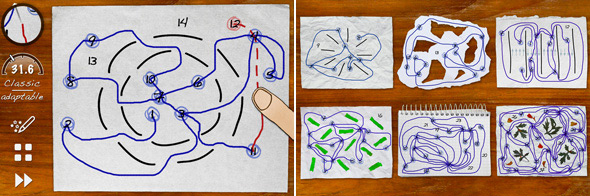
Skill Game  app increases in difficulty as you advance in the app. Connecting numbers without touching lines or obstacles is the object of this app. Skill Game requires problem solving, visual perceptual reasoning and motor planning to complete the task accurately. Beat your time, while avoiding drawing over the obstacles or your lines with accuracy is the goal of the game.

skillgame pic 5

To play this with greater accuracy, a stylus (styluses found at OT’s with Apps Amazon Store) is recommended but not necessary. The Skill Training app, which has the same activities  (2.99) but not linked to the Game Center. For more information about the Skill Training app checkout this prior OT’s with Apps Skill Training review.

Great game for kids or adults who like visual challenges!

More for your OT mTool Kit!

Carol

Posted in Adults, App Reviews, Apps for OT's, Apps for Special Needs, Drawing, Elementary School, High School, iPad, iPhone, Leisure apps, Visual Motor, Visual Perception | Leave a comment

Community Sidekick App from Ablelink Technologies on Sale

Community Sidekick App

Community Sidekick App

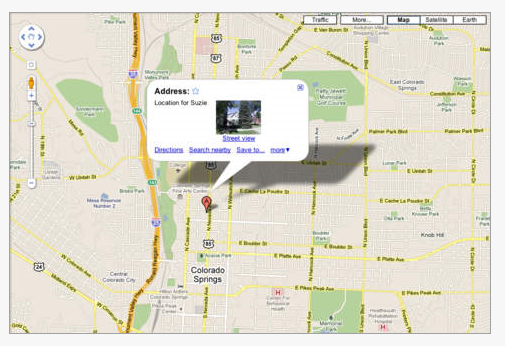
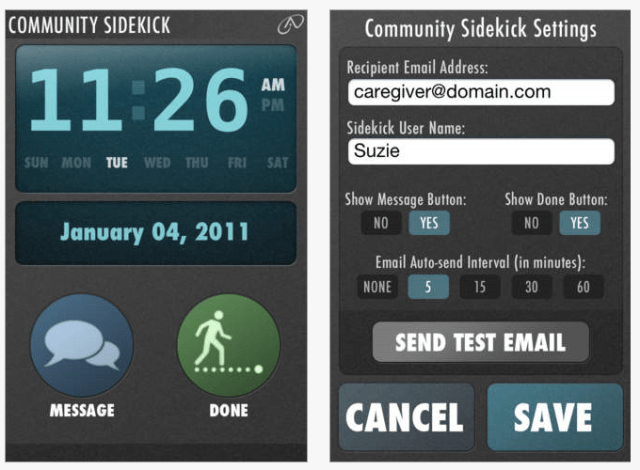
Community Sidekick App developed by AbleLink Technologies is a tracking system that monitors location of individuals in the community. Regularly 19.99, it is currently (2-7-2014) on sale for .99  for a limited time. Compatible with iPhone, iPod (requires Wi-Fi) and iPad, this app uses email to initially send a message of when travel is initiated and then sends automated  emails of locations at regular time intervals (5, 15, 15, 60 minutes) to a friend, caretaker or family indicating the travelers location.

community sidekick pic1 community sidekick pic2Community Sidekick App also provides the ability to automatically send an email to select individuals using a message button (above) to relay simple messages. community sidekick pic3
Community Sidekick app  assists with safety and independent community skills.

Hope you can still catch it while it is on sale!

Carol

Posted in Activities of Daily Living, Adults, App Reviews, Apps for Special Needs, Elementary School, iADL's, Letter Formation, Middle School, Mobile Device Use, Occupational Therapy, Self Care | Leave a comment

Breathe, Think, Do App by Sesame Street

Breathe, Think, Do w sesame street pic

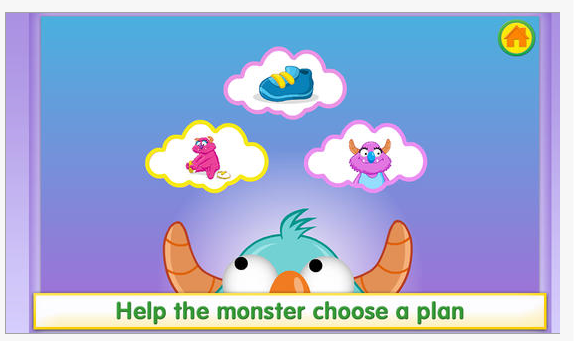
Breathe, Think Do iconBreathe, Think, Do app (iPhone/iPad; Android; free) developed by Sesame Street, is geared to children ages 2-5 years using a Breathe, Think, Do strategy to promote problem solving and emotional coping skills. Just one of the tools of the Little Children, Big Challenges Sesame Street Initiative, this app provides tap and touch to help a monster friend take big breaths, think of a plan and try them out.

Breathe, Think, Do pic1


Breathe, Think, Do pic2

Breathe, Think, Do pic3

Many other tips, guides and activities are available for printing from the Little Children, Big Challenges Sesame Street Initiative web-site.

Thanks to Margaret Rice for her featured post, Free App to Help with Self-Regulation, Deep Breathing and Motor Planning found on Your Therapy Source Blog, on this app along with other resources available for calming .

Have you tried this app with young children? Any other apps you use with young children for self-regulation?

More for your OT mTool Kit.

Carol

Posted in Activities of Daily Living, Android, App Reviews, Apps for OT's, Apps for Special Needs, Early Childhood, Elementary School, iPad, iPhone, Self-regulation, Social Skills, Therapist/Teacher Tools | 2 Comments

Ready to Print App Updated!

Ready to Print icon

Ready to Print app

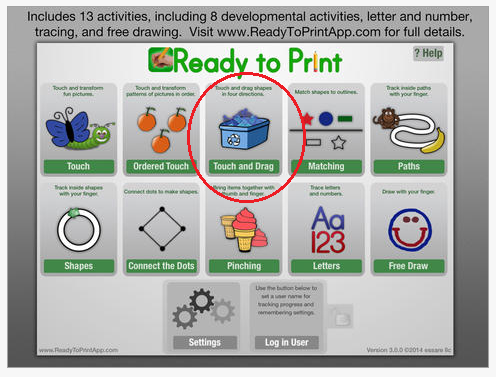
Ready to Print app for iPad (9.99), Android (7.99)   and for Kindle Ready to Print (Kindle Tablet Edition) (7.99) by Dianne Reid, OT at Essare.net is a well-developed pre writing/ letter formation app that provides graded levels of multiple visual motor and visual perceptual activities for children ages 2-7 years of age. Ready to Print app provides emerging handwriting, visual motor and fine motor activities with exceptional options to adjust features of the drawing tasks to each user. The  updated version 3 of Ready to Print app adds a new activity, Touch and Drag along with upgrades to the sound and graphics within the tasks.

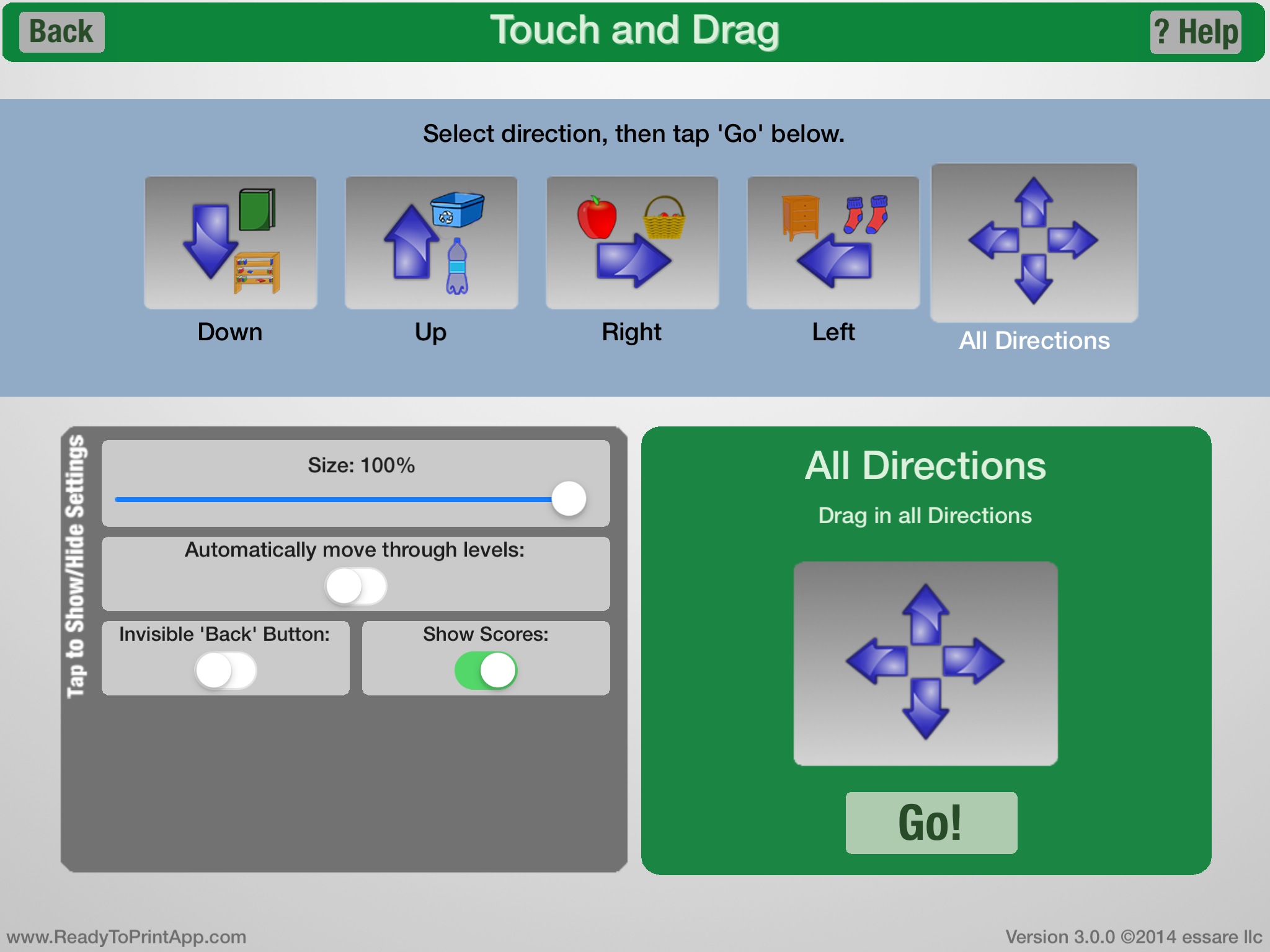
The new Touch and Drag activity  has been added to all versions of Ready to Print app:

Ready to Print pic 2-1-14 target

Activities in the Touch and Drag include drawing lines: down, up, right, left and in all directions. Options (settings) available within the Touch and Drag include changing size of lines for accuracy, automatically moving through levels, making the back button invisible and showing scores. Verbal directions are given the user at the onset of each activity.
01b470d950259ba8235b8a017c3102acdfb93b3dae

Ready to Print app is an excellent app to practice pre-writing and letter formation on the iPad with the ability to grade the activities to support each user. Options allowing individual setting for each user and data collection further provides assessment information for the therapist, teachers or parents.

A video of the version 3 app provides a great overview of the app and changes:

For a prior review of Ready to Print check out: Ready to Print a Prewriting App or the developers review of activities at Essare.net.

Available for iOS (iPad),  Android and Ready to Print (Kindle Tablet Edition), Ready to Print app is a valuable app to support pre-writing and access skills for touch screens for a wide variety of skill levels.

More for your teaching, parent or OT mTool Kit!

Carol

Posted in Android, App Reviews, Apps for OT's, Apps for Special Needs, Assessment, AT for Handwriting, eBook Creating, Education, Elementary School, Fine Motor Development, Finger Isolation, Handwriting, iPad, Kindle, Letter Formation, Occupational Therapy, Pre-writing, Primary Grades, Writing | Leave a comment

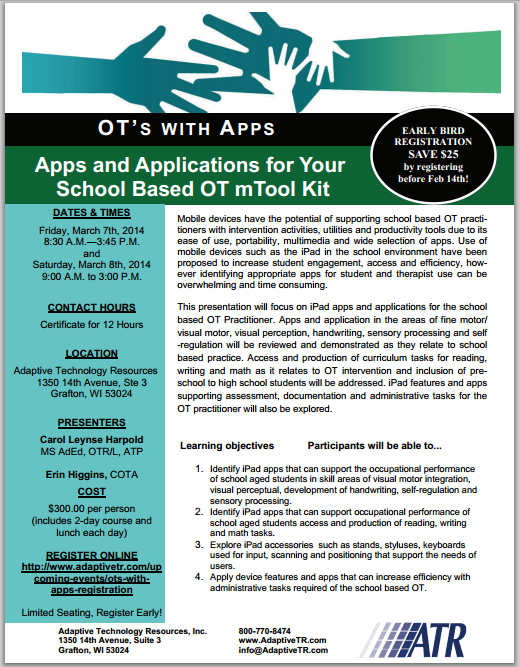
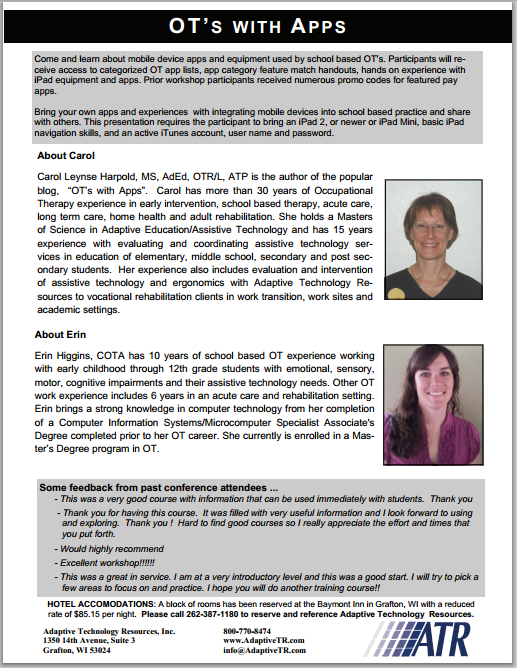
OT’s with Apps for School Based OT Workshop – March 7-8, 2014

Interested in learning more about apps for School Based OT?

Registration Information

OT's with apps 1 Mar 2014
OT's with apps 2 Mar 2014

Registration Info

Emails for more information: otswithapps@gmail.com  or  info@Adaptivetr.com

Hope to see you there!

Carol

Posted in Accessories, Continuing Education, iPad, iPhone, iPod, Mobile Device Use, Occupational Therapy, Special education | Leave a comment

Top 10 Apps to Help with Executive Functions

In need of apps to support executive functions for clients, students or yourself?

Check out the apps scooped from : http://www.smartappsforspecialneeds.com/2013/12/why-cant-you-be-more-organized-10-apps.html

Carol Leynse Harpold‘s insight:

Katherine McCloskey scooped this resource of apps for organization. My favorities on this list include the 30/30, Toodledo apps. I also would include apps like Notability, Awesome Note and Alarmed!

More for your OT mTool Kit!

Carol

Scooped from OT mTool Kit Scoop it!

Posted in Apps for OT's, Apps for Special Needs, iPad, iPhone, iPod, Occupational Therapy, Organization | Leave a comment