Tools4Students App

Looking for concept mapping supports for your iPad?

There are many great concept mapping apps available for the iPad. I ran across this free app that provides a number of types of pre made concept maps for many different purposes for free!

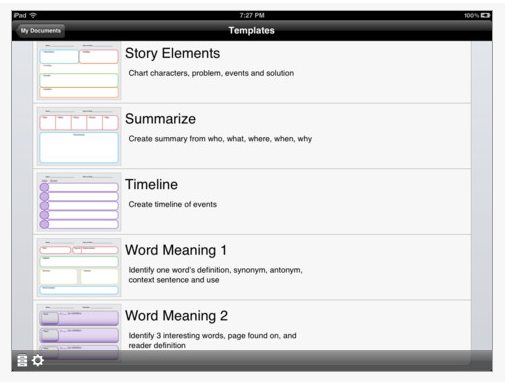
Tools4Students is a free app made by Mobile Learning Services for the iPad.  It provides 25  different graphic organizers used for writing, summarizing, comparing, work work and other study strategy used with or by students.  Here is a list of the organizers in the app:

  • Cause Effect
  • Character – Identify how a character acts, looks and feels.
  • Compare/Contrast
  • Pros/Con
  • Fact/Opinion
  • KWL
  • KWLW
  • Main Idea/Detail
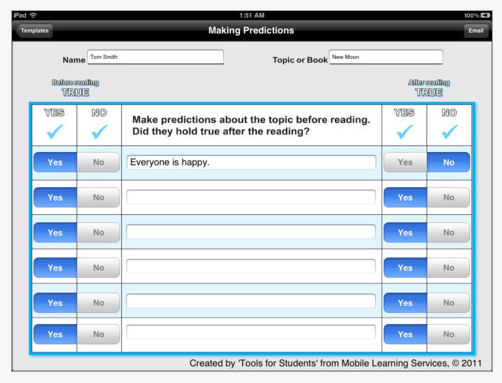
  • Making Predictions
  • Problem/Solution
  • Begining, Middle, End
  • Sequence Events
  • Summarize
  • Timeline
  • Word Meaning

Here are some screen shots of the app supports:

 Completed forms can be send via email to print or save. This app has a great assortment of graphic organizer if you are working with special needs students from elementary to high school levels.

More for your OT iTool Kit, and free!

Carol
//

Posted in App Reviews, Apps for OT's, Apps for Special Needs, Graphic Organizer, iPad, Learning Disability, Occupational Therapy, Uncategorized, Writing | Tagged , , , | 3 Comments

Ready to Print – A Pre-Writing App

Ready to Print app – A pre-writing app for the iPad (9.99).

Diane Reid, Occupational Therapist, created this pre-writing app as a supplement to develop the foundational skills of beginning writers. There are few such apps out there that truly provide visual motor activities in a developmental sequence and provides options to change settings within the activities as this Ready to Print. Also provided  is the ability to create multiple users and track data on each user for assessment data – very handy when progress notes and annual IEP review time comes around!

Ready to Print app progresses through pre-writing skills in a specific order, so that children can master the visual-motor, visual-perceptual, and fine motor skills necessary for correct printing patterns.   It is designed to teach children the correct patterns for printing, and to avoid bad habits that are difficult to change as the child gets older.
App features:

  • Provides activities for pre-writing skills.
  • Designed with a progression of skills that work towards correct printing patterns.
  • Allows change of size settings to match each child’s skill level.
  • Features a progression from larger hand movements to smaller, more refined movements.
  • Allows setting up multiple user profiles, each with different settings.

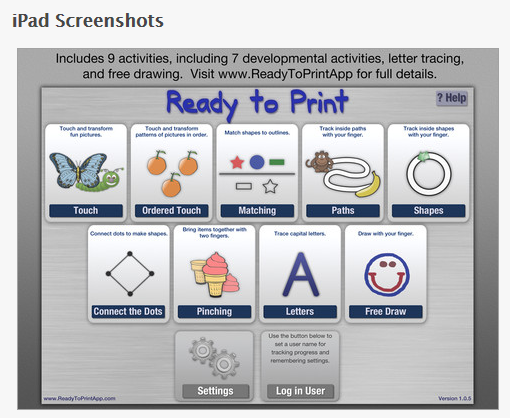
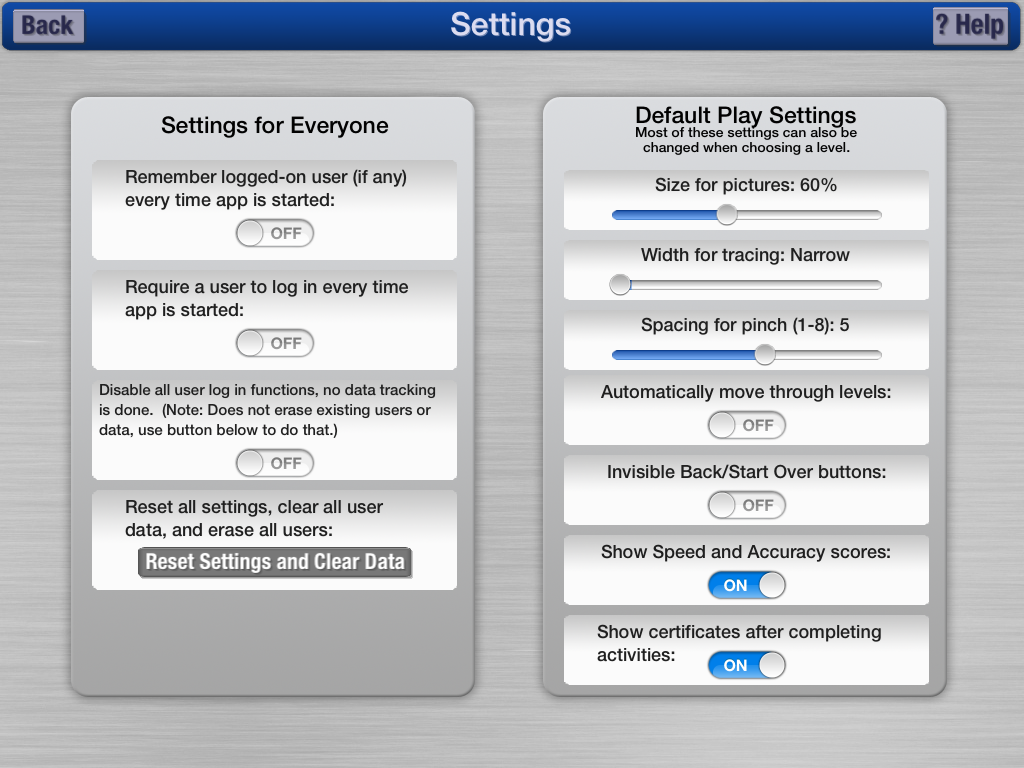
Here are some screen shots of the app activities and settings:

Here are the default play settings that allow the customization for path width, size of pictures, pinch spacing as well as ability to show or hide features of the app.

The app also provides speed and accuracy scores for touch,  paths,  ordered touch, shapes, connect the dots, pinching and letter formation activities. Only capital letter formation are offered in the app, however as a pre-writing app, that is developmentally appropriate.

A lot of work has gone into the development of this app. Collection of accuracy and speed is quite amazing as a method of collecting data on progression of skills. Although many students race through an activity negating the need for speed scores, the accuracy score will tell all for acquisition of fine motor coordination.

Ready to Print provides the ability to customize the activity features and collect data for a case load of students – all at your finger tips on your iPad. I appreciate how the developer presents the app as a supplement to developing pre-writing skills knowing how important haptic and fine motor active activities are in the development of  foundational skills of young children.

More information is available on the Ready to Print website including an app video overview.

Congratulations to Diane Reid, OTR for creating a great, new app for your pediatric OT iTool Kit!

In need of a stylus to use with Ready to Print? Consider HHI Chunky Pencil-Like Capacitive Stylus Pen – Aluminum Gold (For Kindle Fire, iPad, iPad 2, Motorola Xoom, BlackBerry Playbook, HTC Flyer, Samsung Galaxy Tab, iPhone 4, iPod Touch and All Touch Screen Tablets) for 2.99! I like the weight, feel and price!
Carol

Posted in App Reviews, Apps for OT's, AT for Handwriting, iPad, Occupational Therapy, Pre-writing, Uncategorized, Visual Motor | Tagged , , , , | 7 Comments

Transition Tools & Tips – Apps and Resources

Thanks to Kim Peterson for the comment she posted with a link to her suggestions for transition with kids. Those of us who work with neurotypical or neurodiverse children or students, we are well aware that transitions can cause behavioral challenges. Here’s the link to her practical suggestions for making transitions easier: http://kimscounselingcorner.com/2012/04/04/a-few-simple-tips-on-handling-transitions-with-your-kids/

Another great resource for tips on transitions comes from the National Autism Resources Blog. I am including a few apps that can help with transitions with the tips:

5 Tips to Help Autistic Students with Transitions

Transitioning can be difficult and stressful for people with autism spectrum disorder.   Here are five techniques that can help to reduce anxiety and give a sense of predictability to transitions.

1. Create a Schedule

Create a schedule the student can refer to.  This can be a simple written list of activities or a sequence of pictures or both. Schedules can prepare a student for a transition by allowing them to anticipate upcoming activities and understand the sequence of events that will occur. Using schedules can decrease transition time and lower anxiety and melt downs.

First/ThenVisual Schedule app by Good Karma has been a very successful app used my many students at school. Its visual presentation with audio and ability to check it off as it is completed allows an interactive and visual schedule for students. (9.99, iPhone and iPad)

You can also create a list or simple schedule of pictures that are stored in your Photo app if you are using the iOS 5 operating system. Open Photos, click Albums, New Album, then name the Album and select the pictures you want to add. The album can then be played like a slide slow or as a simple schedule.

2. Show Activities as Finished

Marking activities as finished naturally prepares the student for the next activity. If using a picture schedule have a finished pocket for the student to place the picture of the completed activity in. For routine schedules, laminate the schedule with a box next to each picture that the student can check off as complete. Or simply use a piece of paper and write out the schedule and allow the student to cross each item off as it is completed.

First Then Visual Schedule  provides the ability to check off the task pictured in the picture list.

3. Use a Timer

Time is an abstract concept that can be difficult for autistic students to understand. Using a timer gives students a visual of how much time is left before a transition. It can also help to keep some kids on task for projects they don’t like, because they can see it has an end. Some timers, like the Time Timer give an additional visual of the countdown of time.

Kiddie Countdown Timer app is a favorite with therapists and early childhood teachers at our school. Free for iPhone and iPad.

For an extensive listing of visual timers download the Autism App (free) and search the visual timer category.

4. Make sure there is ample time for transitions.

Rushing to stay on schedule is stressful for anyone. Especially with new routines at school allow adequate time for autistic students to process the transition and move on to the next activity.

If you have an iPod or iPad, a  standard clock will typically have a countdown clock that  can be used to help forewarn students of an end or a transition.

5. Give the student a transition item.

Sometimes carrying a familiar item during a transition can add a sense of continuity and comfort. Some students keep an object with them throughout the day.  For others it’s helpful if they get the item after they have completed a project.  Allowing the student to get the transition item may help prepare them to move on to the next activity.

Many of our younger students have had carrier items, necessary to help them transition through parts of their day. This can be any type of object, not necessarily electronic in nature. Hard copy pictures of where or whom they are transitioning to make a great transition item, keeping it visual and concrete for student when transitioning.

Retrieved on April 5, 2012 from: http://www.nationalautismresourcesblog.com/2010/09/02/5-tips-to-help-autistic-students-with-transitions/

Happy transitioning! More ideas for you OT iTool Kit!

Posted in App Reviews, Apps for OT's, Apps for Special Needs, Autism, iPad, iPhone, iPod, Transitions, Visual Communication | Tagged , , , , , , , , , | 2 Comments

Organization & Time Management iOS Apps for High School and College Students

Organization skills are necessary for  students of all ages and stages. For students transitioning to post secondary education, organizational abilities can be areas of concern as special education teachers, paraprofessionals no longer are available to support the student when they enter college or tech school.  What tools might help students with organization challenges?

As always, it is important to determine just what kind of organizational challenges exist for the students. Organization skills can fall under the broad category of executive functions and can be categorized in many different ways. Here is one way organization skills can be categorized to help with identifying specific areas of challenge:

  • Time awareness and time management
  • Planning and prioritization
  • Information and material management
  • Sequencing
  • Spatial organization

Some of the challenges seen with students transitioning are the ability to manage, estimate time, plan and prioritize to complete their homework. What kind of apps or can  support students with time management, prioritization and planning challenges?

Apps that provide calendars, reminders – persistent reminders by day, hour, repeated through specific days of the week (such as in M-W or T-TH schedules), with different types of reminders or alerts (visual, audio choices or vibration) and color coding features to help with prioritizing are all features that can help with time management, planning and priorization. Although technology can help, behavioral strategies to establish routines and habits for technology use are also important. Continued support to help establish routines with use of tools are needed at home as well as generalized to school for students to become successful with time management and planning apps or tools.

Here are some choices of apps that focus on time managment and planning for special needs students in high school or post secondary environments:

iStudiez Pro – (Free/Lite version and Full version $2.99 compatible with iPhone and iPad) – Here are some of the features provided in the app according to the decription on iTunes:

…ORGANIZING YOUR SCHEDULE Unique built-in planner lets you input and easy manage all types of schedules including classic, alternating (A & B weeks), rotating and block schedule. Not only you can enter most common course details, but also add instructors with all related information such as office hours, affiliation, phone number and email address. As well you are welcome to add holiday periods and even cancel separate classes in case of outstanding events. In addition, you are supplied with an expanded set of icons designed especially for iStudiez Pro to mark your class types and extracurricular activities. Color labels are available for your convenience to mark each particular course.
…FOLLOWING UP WITH YOUR HOMEWORK Special section is dedicated to keep track of your homework and assignments. Whatever is the way you are used to manage your tasks, you will find it all in iStudiez Pro. Either you want to organize your assignments by date, by course or by priority, or sort them into pending and completed, you have all options at your hand.
…SUMMARIZING IT UP FOR YOU Once your schedule is added, the summary of current classes and tasks is automatically reflected in Today view. You’ll see list of events and assignments including all details such as event type, location, time left, class instructor, number of tasks pending and what’s next on schedule. Courses reflected in Today view are easily modifiable in each and every detail. Today icon always sticks you to the current date!
…TRACKING YOUR GRADE/GPA This option is based on assignments (support of weighted/non-weighted assignments), and GPA calculator is available both for current and past semesters. Support of most world used grading scales (letter grades, percents, points).
…KEEPING YOU ALERT You will always be up to date with pending tasks and upcoming classes and events with iStudiez Pro. The app boasts Push Notifications feature which allows you set general alarm time for your classes and separate alarms for each of your assignments and homework. Setting the alarms is quick and smartly integrated within the interface of the app, so prepare to be the most resulting fellow ever with no special memorizing efforts!
…GUARDING YOUR DATA No way you will ever lose your data if something’s wrong with your device. iStudiez Pro takes care of you and offers the option to back up your data by sending it to your e-mail address with tapping just one button!

iStudies Pro provides almost all of the needed features. It does not provide audio recording in the app and the alert choices appears to be limited. Strong features it provides is its integration with iCal and the notifications and badges that can be turned on in the iPad iOS5 settings which provides an immediate to do listing that alerts you to events or assignments due. The calendar can also be synchronized with your iPhone iCal also with correct setting turned on, a bonus when using multiple mobile devices.
myHomeWork – Free app for iPhone and iPad requiring $1.99 to create an on line account to allow alerts and access to an online calendar account.  This app provides features for homework, classes and a calendar views and reminders. Here are listed features posted on iTunes for myHome Work app:

With myHomework you can easily know what’s due and when so you will never forget a homework assignment again.
The free app includes: – Track your classes, homework, tests, assignments – Time & Block based class schedules – Beautiful calendar display – iPhone Retina display support – Multitasking support – Universal (Both iPhone and iPad)
myHomework is also available on the web so you can quickly sync and access your homework from your computer at myhomeworkapp.com
In order to set alerts you must create an online account for $1.99 which allows you to: – Sync to your iPhone, iPad and Android devices – Access anywhere, anytime at myhomeworkapp.com – Receive homework reminders on your device (notifications) – Facebook Single Sign-On

No alerts are allowed without creating a myHomework online account. Alerts can then be added to your notification and badges presented on your iPad.

Conover Functional Planning App – (9.99, compatible with iPhone and iPad) is described as a visual approach to daily planning. Utilizing video modeling, the Functional Planning System can be used to plan out a user’s entire day. Think of it as a cross between a video playlist and a calendar app. Activities can be scheduled, and step-by-step videos prompt the user through the completion of the activity. Alarms can be set and even made to be recurring for daily tasks. Videos for many activities are already (available through in-app purchase) as part of our Functional Skills System video library, which has over 4,000 images and videos to choose from.
You can also use the capabilities of the iPod touch and iPad to completely customize the application for the user – use the camera to shoot your own pictures and video and use the built-in microphone to record your own audio.

VoCal –  (iPhone/iPad, 5.99 full app with unlimited reminders and removal of ads) Although not a complete calendar system, this voice created audio reminder system and a voiced calendar that could be used in conjunction with the above apps as an easy method of creating an alert for school based or personal needs. Considered a voice calendar, it is easy to record your voice, setting an alarm for quick creation of a voice alert on your iPhone or iPad. Here’s a description of its features:

Remember everything, forget nothing with this voice ‘to-do’ list. Simply speak your personal memo, set the time and date, be reminded in your voice. No need to type text!
Using Apple’s local notification technology, VoCal fuses a Dictaphone, Calendar and Alarm system into one. Speaking is quicker and more accurate than typing and speech recognition can sometimes get it wrong. VoCal makes a personal memo quick, easy and naturally has no spelling mistakes!
1. Tap the record icon, record a reminder using your voice ✔

2. Set time/date for the reminder to alert you ✔

3. Tap save and close the app ✔
From everyday ‘to do’ lists, to repeating annual reminders. VoCal will prompt you for any task or duty in your life. Your alerts are delivered even when the app is closed! VoCal now includes a ‘snooze’ feature. Delay the job, but never forget it!
Vocal can sync back to your iPhone calendar which can in turn be synced elsewhere. You can also send recordings via email.

Interested in more organizational app reviews for secondary or post secondary students with special needs?

Here are some great app reviews to check out:

  • Inov8 Educational Consulting in their series on apps for students with special needs Part 9 featured a review for college students with LD:

http://www.inov8-ed.com/2011/07/theres-a-special-app-for-that-part-9-apps-for-college-university-students-with-learning-disabilities/

  • The University of New Hampshire Disability Services list of iPod, iPad and Android Apps provides a great listing of a variety of apps suited to secondary and post secondary student:

http://unh.edu/disabilityservices/ipod-ipad-and-android-apps-college-students

Any suggestions for time managment apps for secondary and post secondary students? Please share!

Carol

Posted in App Reviews, Apps for Special Needs, iPad, iPhone, iPod, Learning Disability, Organization, Post secondary, Transition, Uncategorized | Tagged , , , , , | 4 Comments

Free Word Prediction App – Brevity !

Thank you to Wendy Homlish, Qiater, who shared this reduced price, now freed app:

Brevity – http://itunes.apple.com/us/app/id424431516?mt=8 – a word prediction app for iPad, iPhone/iPod. As a recently developed app, review of its initial ratings are very favorable!

I have not trialed it but free is always worth perusing for consideration in your OT iTool Kit! Check it out!!

Carol

Posted in App Reviews, iPad, iPhone, iPod, Occupational Therapy, Word Prediction | Tagged , , , , | Leave a comment

Looking for Apps for College Students with Disabilities?

Do you work with students transitioning to high school or post secondary education?

Here are a few helpful lists of recommended apps that can support students with a disability that are transitioning to high school or college for you to check out:

Here are some additional apps I would suggest for both high school and post secondary students with disabilities:

Dropbox app – free app for iPad, iPhone, iPod and Android providing Cloud storage space for documents, text, images, videos, audio (MP3 and other formats). This free services allows a method of transferring and storing documents and media for printing or easy transferring or sharing between devices or computers. Dropbox app allows you to create folders for organization by subject, by apps that synchronize to the service or for sharing documents and media with others. Many apps provide methods of of transferring directly to Dropbox for ease of use.

PaperPort Notes App –  Free for iPad only. Nuance’s notebook app that provides Dragon Dictation along with note taking tools. Highlighting, importing PDF’s, drawing/writing, recording audio notes in a notebook environment allows many possibilities for students.

Merriam Webster Dictionary app – Free for iPad and iPhone/iPod, this dictionary  provides voice search for a dictionary word.with Wi-Fi connectivity. Also available for Android.

Read2Go –  (19.99) iPhone/iPod and iPad app from Bookshare’s providing text to speech abilities for individuals using Bookshare’s accessible instructional books and textbooks.

Prizmo App – (9.99) for iPhone/iPod, iPad – This scanning app has improved significantly since first developed with great added features that makes it a great choice for individuals with print disability. Prizmo provides choice of the type of text you will be scanning (business card, text, bill, whiteboard or importing an existing document). Once the image has been gathered additional tools such as cropping the image, changing perspective, rotating images are provided. After cropping the image and OCR process performed editing the text is possible. The final product can then be read aloud, sent, copied, translated, sent to Dropbox, Evernote or iCloud. As always, scanned text is dependent on the quality of the original text, size, lighting and camera quality. Prizmo has continually improved and I have heard low vision users prefer this app over ZoomReader app.

VoCal App – Free lite/5.99 for full version. App for iPhone/iPod, iPad that allows creating calendar and voice reminders from recorded memos. Provides ability to select reminder for scheduled time, 5 or 10 minutes or hours before. The VoCal XL version integrates with iPhone/iPad calendar and Notification and Badges on your iDevice. Easy method of creating reminders for events and schedules.

Of course there are many more but the above links and the added apps listed provide a good start for apps that can support secondary and post secondary students!

Add them to your OT iTool Kit or your students iDevice tools!

Carol

Posted in App Reviews, Apps for Special Needs, High School, Post secondary, Special Needs | Tagged , , , , , , | 2 Comments

Light It Up Blue 2012 App – Show Your Support for World Autism Awareness Day

Check out Autism Speaks website show casing Light It Up Blue 2012 celebration for World Autism Awareness Day at: http://www.lightitupblue.org/Markslist/home.do

You will see picture of blue lights shining on building  all over the world celebrating National Autism Awareness Day!

Want to join in?

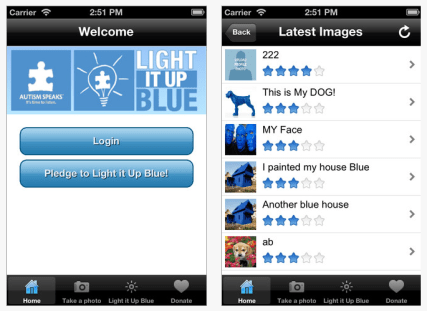
Here is the free Light It Up Blue App – for iOS devices.

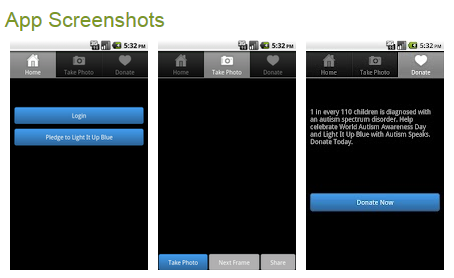
Here is a link to the  free Android Light It Up Blue app   in support of National Autism Awareness Day.

So support Autism Awareness Day 2012, show your blue lights, wear blue or take a picture, color it blue and post it to Light it Up Blue, sponsored by Autism Speaks!

Carol

Posted in App Reviews, Autism | 2 Comments

April 2, World Autism Awareness Day – Apps Reduced !

Today, April 2, is World Autism Awareness Day!

In honor of World Autism Awareness Day, many app developers have reduce app prices. Thanks to Wendy Homlish for posting a link to the iAutism website which has a listing and links to apps reduced in price in honor of the day:

http://www.iautism.info/en/2012/04/02/free-or-discounted-apps-world-autism-awareness-day/

I believe they are reduced just for today??

There are some great apps at reduced prices depending on the population you work with!

Carol

Posted in Uncategorized | Leave a comment

App Gone Free – Action Words from Alligator Apps

Are you using the customizeable Alligator and Grasshopper Apps developed by Innovative Mobile Apps? They are among my favorites for students learning basic vocabulary and emergent literacy and numeracy skills.

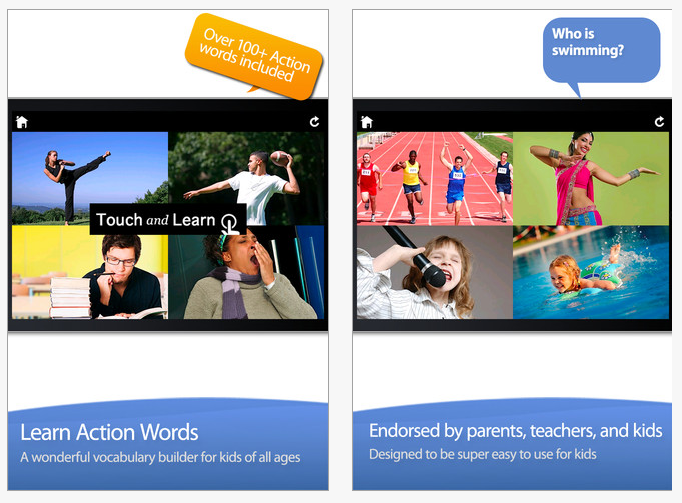
They have just announce their new Action Words Touch and Learn app compatible with iPad and iPhone for free. Action Words provides clean pictures of verbs or actions of people within a choice making activity for students. One of the (many) strengths of the Alligator and Grasshopper apps are its clean photos depicting individuals of all ages, making the content or intended subject clear but allowing generalization of those concepts withing context of the images.

Here are a few clips of Action Words app:

Check it out. Will you add this to your OT iTool Kit?

Carol

Posted in App Reviews, Apps for OT's, Apps for Special Needs, Autism, Early Childhood, iPad, iPhone, Occupational Therapy, Special education, Special Needs | Tagged , , , , , , | Leave a comment

iPad and iPod Accessories and Settings for Access and Aging in Place

Integration of the iPad and iPod Touch devices for students as well as staff continues to increase in the school I work at with steady questions of how apps work, what apps to use and access methods. Questions arise about student needs but also for staff using the iDevices as we venture into use of these new tools.

One of the uses we are initiating include the use of iPod Touches by staff for data collection.  The iPod Touch is a highly mobile device that can easily be transported to class, in a pocket for instant use. Although highly portable it also poses challenges to those of us with presbyopia (decreasing flexibility with our vision) and fine motor limitations due to arthritis, aging and sensory losses such as Reynaud’s to mention a few. With a small screen and small keyboard, word processing entry is a challenge for some staff and of course a significant size difference from the standard input method on our desktop or laptop computers making it less efficient to enter student information and goals for data collection. With formative assessment being an initiative our school is implementing, use of the iPod Touch for data collection is a feasible tool to automate data collection. Access methods however need to be considered however for staff members with access or aging in place concerns.

Here are a few of the devices and options being considered to support access and aging in place when working with the iPod Touch:

Styluses:

Trials of the standard stylus helped a staff member who had arthritis access the iPad and input data with much greater ease. As a fan of Amazon, I was able to find stylus’ under 10.00/each. A stylus would also help with those with Reynaud disorder since sensory function is often disturbed resulting in difficulty activating the capacitative screen. Certainly a pencil grip can always be added to a stylus if a build up grip is required for ease of use.

Another option is a chunky stylus if grasping becomes difficult. Actually I find these really nice for young children for ease of grasping. They are a bit heavy (which for some students or individuals who need a bit more feed back can be a plus) but provide an easier gripping surface. Handheld Items makes this chunky stylus which sell for 2.99 and can be used for adults and students!

There certainly are styluses of all kinds and costs. A previous post on styluses presents a number of them and an extensive review as well as a method of making them yourself. Check out the prior post if you want more information on styluses.

iPad Stylus Purchase or Macgyver it?

More iPad Styluses

Bluetooth Keyboard

Bluetooth keyboards used with the iPod Touches for keying or word processing goals into the data collection app is another access solution for efficiency or aging in place challenges. After some search I recently purchased the Logitech Tablet Keyboard for iPad (Keyboard-and-Stand Combo) (920-003241) (below) that can be used with an iPod Touch, iPad or Android tablet with its bluetooth capabilities. One of my favorite things about this keyboard is its easeled stand which becomes the keyboard case when not in use. The keyboard fits inside of the stand for protection when transporting it reducing the keys being damaging when carrying it around.  Although not real light, I liked the versatility of the bluetooth connectivity to different devices, easel that works with different sized devices (iPad, iPod, Android). The keyboard has a nice solid feel, a standard layout and was easy to pair using bluetooth capabilities. It runs on 2 AAA batteries.

Although I would like the easel to have more adjustability for my preference, this portable keyboard and easel provides a more efficient method of viewing the iPod Touch whether in portrait or landscape when entering text.

Many other bluetooth keyboards are available on the market, some that fold, are smaller sized for portability however, I have found changing the size and configuration of a keyboard annoying causing errors in keystrike and text entry. It always takes some time to get accustomed to a different keyboard layout even if slightly different, making use of a standard keyboard layout more efficient in my opinion.

Other Accommodations for Access and Aging in Place on iPod

Other methods to ease access for inputing text or data into the small interface on the iPod touch include utilizing apps, orientation or accessibility features:

  • Changing the rotation of the screen to landscape. Provides you with less on the screen but larger text and graphics
  • Use Dragon Dictation app to speak the needed text, wait for transcription of the speech to test and copy it into the text boxes on the app.  This takes some navigating from app to app but is definitely possible using the available “copy” tool in Dragon Dictation.
  • Use Paperport Note app which contains Dragon Dictation tool to speak your text, transcribe using wi-fi services then copy and paste it into your app as the text entry.
  • If you have the New iPad (iPad 3 Gen), Dragon Dictation is available on the iOS iPad keyboard. With Wi-Fi services you will be able to speak your the text into your app with the recognition or transcription speech service.
  • Increase your font size using the Accessibility settings, Large Text feature. Choices for large text settings allows font size from 20pt to 56pt which affects primarily iPad iOS apps like Notes. Input your text using larger font then copy and paste it into the text entry on the app you are using.  (This is in Settings> General>Accessibility)
  • Turn on Accessibility setting, Zoom feature if capable of performing a three fingered tap and slide movement with your fingers. (This is in Settings> General>Accessibility)
  • If a three fingered tap or slide is not possible, trial the Accessibility, Assistive Touch feature using the customized pinch gesture provided. (This is in Settings> General>Accessibility)

As with implementing any new devices or tools there is definitely a learning curve. Although consideration of AT tools is required of our special needs students, these same features might be needed for staff to access these devices! Fortunately there are many devices, settings and accommodations available for students and staff!

What tips and tricks do you have for access to an iPod Touch?

Are you using any iDevice accessories or accessibility settings to access your OT iTool Kit?

Carol

Posted in Accessibility, Data Collection, Formative Assessment, iPod, iPod/iPad Accessory, Keyboard, Mobility Impairment, Occupational Therapy, Physical Disability Tool | Tagged , , , , | 2 Comments