ClaroSpeak App

Are you familiar with ClaroRead software – a text to speech application to help struggling readers and writer?  They have produced a mobile app for your iDevice called ClaroSpeak!

ClaroSpeak App is now available in iTunes for 5.99 for iPad and iPhone. Described in iTunes as  a high-quality text to speech reader capable of speaking any accessible text with a range of human high-quality voices. ClaroSpeak offers visual highlighting of text in sync with the spoken words. It also has a range of color and font settings to customize the reading options and provides the ability to convert text imported to audio files.

Here are some of the features of the app:

  • Text to speech with choices of high quality voices and voice speeds
  • Text imported or pasted into the writing environment can be read out loud
  • Accepts text from documents, web or PDF to be read aloud
  • Visual highlighting of text, choices of highlighting modes and colors of text highlighted
  • Font style, color and size can be adjusted according to need
  • Can convert text to audio
  • Text can be sent via email or SMS

Here are some screen shots of ClaroSpeak:

 I found the voice quality to be good and navigation in the app to be easy to use.  The choices for background color, font, size and style support special needs individuals when working on an iPad for easiler visual access. One drawback, I beleive, is the need to copy and paste text into the app. I prefer the ability to connect to a Cloud resource from within the app for easy import of a document to into the app.  Other apps, such as Voice Dream Reader,  provides the option of retreiving documents directly from cloud storage as Dropbox for ease of accessing text.

This is a basic app that provides text to speech along with visually highlighted text, color choices for text, background and highlighting with a good quality voice at a reasonable price!

What is your favorite app for reading text? Will this be a part of your OT iTool Kit?

Carol

Posted in Adults with LD, App Reviews, Apps for OT's, Apps for Special Needs, iPad, iPhone, iPod, Occupational Therapy, Post secondary, Reading, Special education, Text to Speech | Tagged , , , , , , , , , | 1 Comment

OT iTool Kit Tip and Trick #5 – Reducing Accidental Hits on the iPad

As easy as it is to activate a capacitative touch screen sometimes that ease can make it difficult, causing accidental hits or activation for individuals or students who have difficulty with finger isolation.  Causing additional hits and activation can be frustrating, especially when just making a movement can be an effort! Styluses can help with targeting a single point but some users aren’t ready for an implement like a standard stylus.

Scouring the racks for magic gloves with cut out fingers (or cutting the index finger tip) at discount stores at the end of the winter season can provide a cheap solution. Here are some great solutions from an experienced family sharing methods to increase the success of activating the iPad for a child with motor challenges. Check out this blog post from Uncommon Sense:  Necessity is the Mother of Invention for some great ideas. Here is one of their ideas from their blog :

Retrived on 5/1/2012 from http://niederfamily.blogspot.com/2012/03/necessity-is-mother-of-invention.html .

I really liked their ideas of using conductive thread, kids tea gloves or easter gloves (- might be still available and on sale??) to get a smaller fitting glove.

I found some great deals on cheap gloves, some with fingers and some without at discount stores by cruising their sale racks. There are also gloves make with capacitative finger tips (New Easy2touch Touch Screen Gloves PICK YOUR COLORS!!!) made just for touch screen devices:

We call them smart gloves at school (we also use them with the Smartboards when little fingers are too sticky to slide well!) and students don them readily to use with a iDevice!

Thanks to Uncommon Sense for their great ideas – when there’s a will there’s a way. Simple solutions to add to your OT iTool Kit!

Carol

Posted in Accessibility, Fine Motor Development, Finger Isolation, iPad, iPhone, iPod, iPod/iPad Accessory, Mobility Impairment, Occupational Therapy, Physical Disability Tool, Special education | Tagged , , , , , , , | 1 Comment

More Perceptual App Recommendations

Thank you to Diane Novatnik, OTR for sharing recommendations on perceptual apps from Myfirstapps.com .

Here are her  great recommendations:

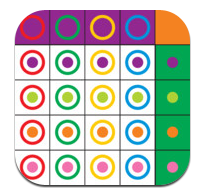
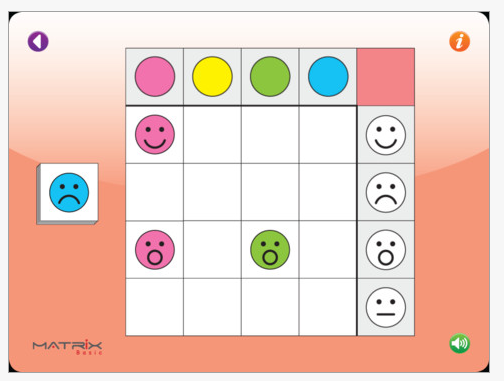
 Basic Matrix – A free app for iPad. The activity requires visual discrimination by color and image matching. Designed for ages 4+.

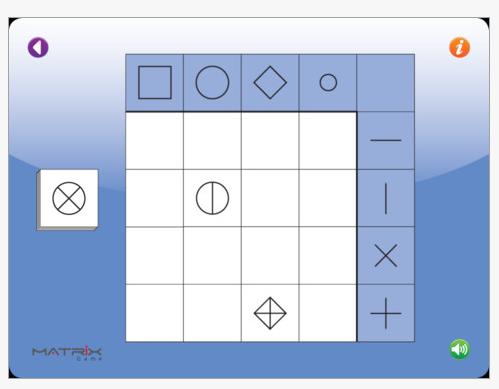
 Matrix Game – Also for iPad and free. This app requires visual discrimination skills of shape and designs within the shape. Recommended for 6+ year old skill level.

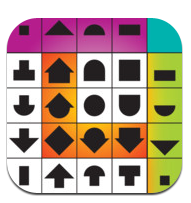
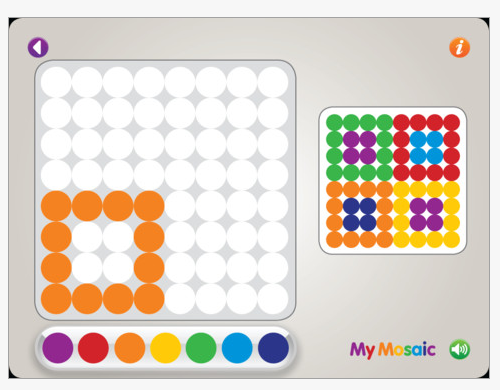
My Mosaic – For iPad and free. This app requires visual perceptual skills of spatial discrimination and visual matching. Recommended for 4-year-old.

There are many non-electronic activities that provide the these same kinds of activity. If you have students who are capable and need work on motor control, choosing the non-electronic versions of these activities may be the activity of choice. For some students who can not manipulate but can slide pieces to the correct location, this app make these types of activities accessible.   Using a stylus with the app also would provide practice for manipulating crayons and pencils for drawing tasks.

When considering the Mosaic app, I might prefer the use of the app on my iPad using an easel and a stylus to promote wrist extension, upright sitting, improved visual viewing when comparing the non-electronic version.  I often used a magnetic mosaic activity that required the use of a wand to place the pieces. That non-electronic mosiac could not be placed upright, losing some nice positioning possibilities important for some students.

Those students needing refinement of motor skills might be best suited to work on 3D mosaic tasks requiring manipulation. Considering the student needs, skills and interests and matching them to an activity is the creative and problem solving ability  therapists and teachers are great at. Therapists are especially suited to look at the physical and sensory needs of their clients and are always willing to help!

Wow! Thank you Diane for providing these suggestions! What great finds and all free. I believe you can buy a bundle of My First Apps for $.99 – also a great deal!

My First Apps has more perceptual apps available for ages 1.5 – 6 + years. It is worth checking out their website if you work with students needing perceptual skill development.

Many more possibilities for you OT iTool Kit!

Carol

Posted in App Reviews, Apps for OT's, Apps for Special Needs, Early Childhood, iPad, Occupational Therapy, Special education, Visual Perception | Tagged , , , , , , | Leave a comment

40+ Super Secret iPad Features and Shortcuts

This was shared on Twitter by Dr. Jenny Lane.  Posted on  iPad.Appstorm.net  it features 40 great tips and tricks for iPad use!

Check it out to see how many you know and learn a few more tricks for ease of use with the iPad!

If you visit I bet you will find a new tip or trick to put in your OT iTool Kit!

Carol

Posted in iOS, iPad, iPad Management, Occupational Therapy | Tagged , , | 1 Comment

Voice Dream Reader App – Making Text Accessible

Voice Dream Reader App for iPhone/iPad (1.99) is a newly developed app  by Winston Chen which supplies high quality text to speech within a reader app. Some of the great features this app provides is its easy connection from within the app to the Web, Dropbox, Instapaper and Read It Later- now Pocket services files and text to speech capabilities for access to documents when imported. Established accounts with Dropbox, Instapaper and Pocket are needed for access to those web-based services. As a frequent user of Dropbox to manage, organize, transfer files and media to numerous devices, I am extremely excited to find this app that integrates established cloud services so well and provides access to print for special needs students all for $1.99!!!

Voice Dream Reader app’s ability to connect to your Dropbox articles and documents organized in the cloud allows access to many different file formats:

  • PDF
  • txt
  • Word documents
  • RTF
  • PPT documents
  • epub
  • Pages documents
  • Keynote
  • html/htm files

After accessing and importing your files, the app populates the documents into a playlist that provides easy access to different documents within Voice Dream Reader app.  I see this being used to manage and populate documents into a playlist for students to read using the text to speech tool – all in one easy app.  How exciting is that!!!

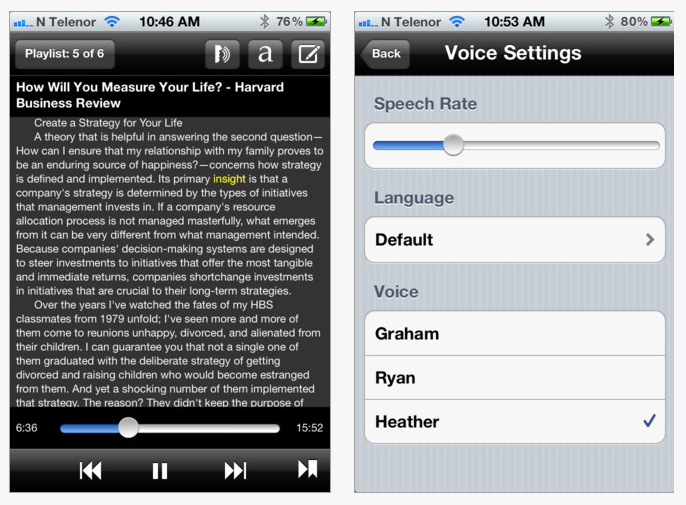
Here are some screen shots of how Voice Dream Reader presents on an iPhone:

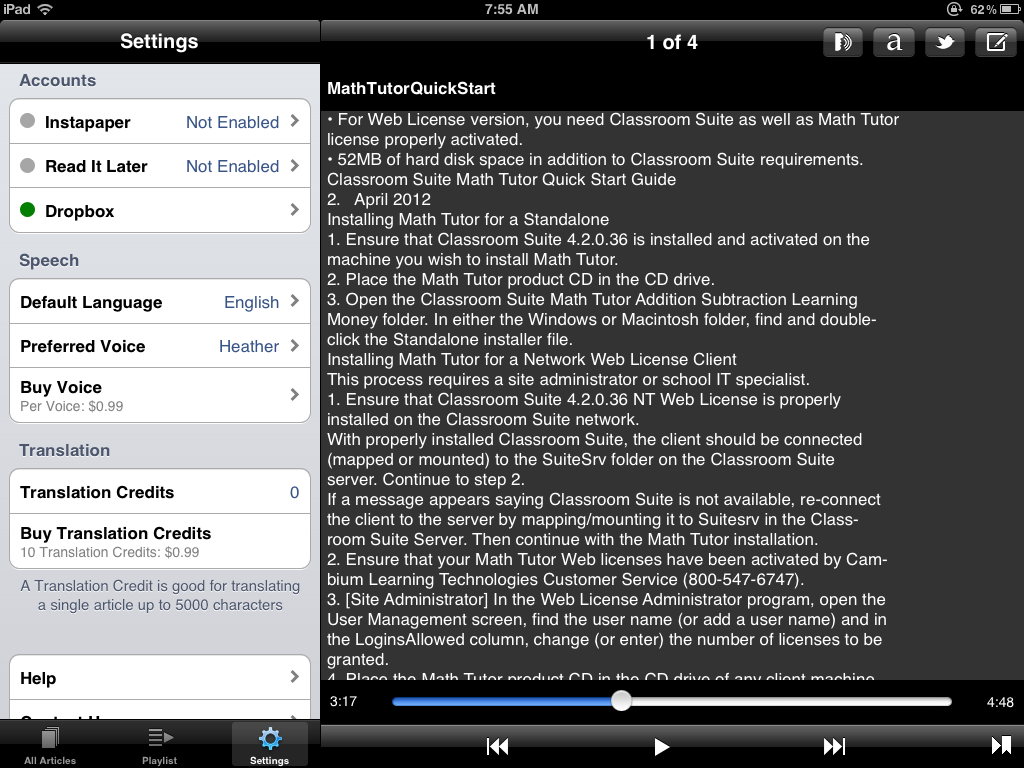
Here is the app on my iPad reading a PDF imported from my Dropbox:

Immediate use of the app found the text to speech provided to be high quality. It offers a wide variety of other high quality voices for $.99/each which can be easily downloaded within the app. Other features supporting students with a print disability include easy access to speech rate, choice of voices (as purchased), ability to turn on highlight spoken text and ability to increase or decrease text size up to size 17 font. The app provides easy controls at the bottom of the screen to pause, start, forward, review and return to the last text location you read.  You can also touch a word to start it reading at that location when  text has been stopped or been paused. This feature required use of a stylus for me due to the size of the text, but was much better than many other apps I have used with text to speech which did not provide easy start and stop of text to speech at the touch of a word.

The option of highlighting spoken text (yellow only and one word at a time) is important, however the small text size somewhat limits its visual effectiveness. I hope that the limited text size might be changed in the future to larger font size capabilities.  What is impressive is the presence of the highlighting, high quality text to speech, ease of managing the speech rate as well as ease of general navigation within in the app. An immediate help menu provide a good overview and directions for app use. Other features not mentioned such as editing text, translating are also provided within the app.

Thank you to the developer Winston Chen for alerting me to his new app. I think it is a great app that can be used for individual with a print disability whether middle, high school, post secondary, or adult users who need to easily access documents stored in cloud storage or from other Web services (newspapers). It does not allow access to iBooks or Kindle services or have study tools but does provide high quality text to speech and easy access to documents of your choosing. Many of our students qualify for Bookshare service which has a great app to access Nimas files, however for accessing classroom content not found in Bookshare stores, this provides a method of accessing curriculum materials in a number of different formats within one app on the iPad. The developers statement on the iTunes app page stating “this app will actively be maintained and enhanced” indicates a commitment to the app and individuals with a print disability. Contact with Winston Chen found him very responsive to questions regarding the app!

Do you have a suggestion of a similar app you use, please share! If you don’t have an app that imports and reads a variety of formats check out this app and consider adding this to your OT iTool Kit!

Carol

Posted in Adults with LD, App Reviews, Apps for OT's, Apps for Special Needs, High School, iPad, iPhone, iPod, Learning Disability, Middle School, Occupational Therapy, Post secondary, Reading, Special education, Special Needs, Text to Speech | Tagged , , , , , , , , | Leave a comment

iPad and Student Transport

The more we use the iPad the more we find uses for it. For some students their schedules or communication tools are on it and it goes where ever they go. Those students often have a paraprofessional or teacher accompanying them, however if we want students to be independent with their devices they need to be in control of it and have ready access to it for immediate use. So how do we keep it available/accessible and protected for students whose goals are to have ready access to the iPad for schedules and communication when transitioning about school?

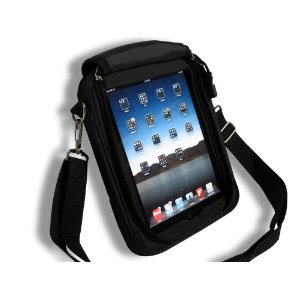
Fortunately we have protected our idevices with Otterbox cases. The iPads with Otterbox cases have survived being bounced, tossed and dropped without electronic injury. Most of our students have the ability to carry their devices safely. A recent planning meeting for a student who will be transitioning to use of their iPad for use with their visual schedule lacks a secure grasp and motor planning skill to ensure safe transport while moving about the school.  The Otterbox cases has protected our iPads thus far, but this situation seems to warrant a bag with a strap to help protect the iPad during use and transport. So what are the choices of totes or bags with shoulder straps for an iPad that allows immediate access and protection transported by the student?

The search began. Here are a few bags that I found that would appear to fit the bill:

Padded Ballistic Nylon Hybrid Travel Case / Bag with Strap for iPad and iPad 2
– 49.99 Heavy duty foam, plastic, and nylon around the edges protect your device in case you do drop it. Looks very sturdy and functional for students.

The TRAVELER II mobility iPad 2 & The New iPad 3 cases – Royal Blue
(59.99) that has possibilities depending on the case used with the iPad. Made with neopreme to hug the device. A stand is integrated into the back of the case.  Comes in 8 different colors.

RJ Cooper also has an Ultimate iPad Case or shoulder bag made for iPads ($99) which appears to include a bumper case for protection.

Any suggestions for an iPad bag with a strap? What have you used for your ambulatory clients who need ready access to the iPad? Please share!

Carol

Posted in iPad, iPhone, iPod, iPod/iPad Accessory, Special education | Tagged , , , | Leave a comment

Transition Tools & Tips – Apps and Resources

Thanks to Kim Peterson for the comment she posted with a link to her suggestions for transition with kids. Those of us who work with neurotypical or neurodiverse children or students, we are well aware that transitions can cause behavioral challenges. Here’s the link to her practical suggestions for making transitions easier: http://kimscounselingcorner.com/2012/04/04/a-few-simple-tips-on-handling-transitions-with-your-kids/

Another great resource for tips on transitions comes from the National Autism Resources Blog. I am including a few apps that can help with transitions with the tips:

5 Tips to Help Autistic Students with Transitions

Transitioning can be difficult and stressful for people with autism spectrum disorder.   Here are five techniques that can help to reduce anxiety and give a sense of predictability to transitions.

1. Create a Schedule

Create a schedule the student can refer to.  This can be a simple written list of activities or a sequence of pictures or both. Schedules can prepare a student for a transition by allowing them to anticipate upcoming activities and understand the sequence of events that will occur. Using schedules can decrease transition time and lower anxiety and melt downs.

First/ThenVisual Schedule app by Good Karma has been a very successful app used my many students at school. Its visual presentation with audio and ability to check it off as it is completed allows an interactive and visual schedule for students. (9.99, iPhone and iPad)

You can also create a list or simple schedule of pictures that are stored in your Photo app if you are using the iOS 5 operating system. Open Photos, click Albums, New Album, then name the Album and select the pictures you want to add. The album can then be played like a slide slow or as a simple schedule.

2. Show Activities as Finished

Marking activities as finished naturally prepares the student for the next activity. If using a picture schedule have a finished pocket for the student to place the picture of the completed activity in. For routine schedules, laminate the schedule with a box next to each picture that the student can check off as complete. Or simply use a piece of paper and write out the schedule and allow the student to cross each item off as it is completed.

First Then Visual Schedule  provides the ability to check off the task pictured in the picture list.

3. Use a Timer

Time is an abstract concept that can be difficult for autistic students to understand. Using a timer gives students a visual of how much time is left before a transition. It can also help to keep some kids on task for projects they don’t like, because they can see it has an end. Some timers, like the Time Timer give an additional visual of the countdown of time.

Kiddie Countdown Timer app is a favorite with therapists and early childhood teachers at our school. Free for iPhone and iPad.

For an extensive listing of visual timers download the Autism App (free) and search the visual timer category.

4. Make sure there is ample time for transitions.

Rushing to stay on schedule is stressful for anyone. Especially with new routines at school allow adequate time for autistic students to process the transition and move on to the next activity.

If you have an iPod or iPad, a  standard clock will typically have a countdown clock that  can be used to help forewarn students of an end or a transition.

5. Give the student a transition item.

Sometimes carrying a familiar item during a transition can add a sense of continuity and comfort. Some students keep an object with them throughout the day.  For others it’s helpful if they get the item after they have completed a project.  Allowing the student to get the transition item may help prepare them to move on to the next activity.

Many of our younger students have had carrier items, necessary to help them transition through parts of their day. This can be any type of object, not necessarily electronic in nature. Hard copy pictures of where or whom they are transitioning to make a great transition item, keeping it visual and concrete for student when transitioning.

Retrieved on April 5, 2012 from: http://www.nationalautismresourcesblog.com/2010/09/02/5-tips-to-help-autistic-students-with-transitions/

Happy transitioning! More ideas for you OT iTool Kit!

Posted in App Reviews, Apps for OT's, Apps for Special Needs, Autism, iPad, iPhone, iPod, Transitions, Visual Communication | Tagged , , , , , , , , , | 2 Comments

Free Word Prediction App – Brevity !

Thank you to Wendy Homlish, Qiater, who shared this reduced price, now freed app:

Brevity – http://itunes.apple.com/us/app/id424431516?mt=8 – a word prediction app for iPad, iPhone/iPod. As a recently developed app, review of its initial ratings are very favorable!

I have not trialed it but free is always worth perusing for consideration in your OT iTool Kit! Check it out!!

Carol

Posted in App Reviews, iPad, iPhone, iPod, Occupational Therapy, Word Prediction | Tagged , , , , | Leave a comment

Looking for Apps for College Students with Disabilities?

Do you work with students transitioning to high school or post secondary education?

Here are a few helpful lists of recommended apps that can support students with a disability that are transitioning to high school or college for you to check out:

Here are some additional apps I would suggest for both high school and post secondary students with disabilities:

Dropbox app – free app for iPad, iPhone, iPod and Android providing Cloud storage space for documents, text, images, videos, audio (MP3 and other formats). This free services allows a method of transferring and storing documents and media for printing or easy transferring or sharing between devices or computers. Dropbox app allows you to create folders for organization by subject, by apps that synchronize to the service or for sharing documents and media with others. Many apps provide methods of of transferring directly to Dropbox for ease of use.

PaperPort Notes App –  Free for iPad only. Nuance’s notebook app that provides Dragon Dictation along with note taking tools. Highlighting, importing PDF’s, drawing/writing, recording audio notes in a notebook environment allows many possibilities for students.

Merriam Webster Dictionary app – Free for iPad and iPhone/iPod, this dictionary  provides voice search for a dictionary word.with Wi-Fi connectivity. Also available for Android.

Read2Go –  (19.99) iPhone/iPod and iPad app from Bookshare’s providing text to speech abilities for individuals using Bookshare’s accessible instructional books and textbooks.

Prizmo App – (9.99) for iPhone/iPod, iPad – This scanning app has improved significantly since first developed with great added features that makes it a great choice for individuals with print disability. Prizmo provides choice of the type of text you will be scanning (business card, text, bill, whiteboard or importing an existing document). Once the image has been gathered additional tools such as cropping the image, changing perspective, rotating images are provided. After cropping the image and OCR process performed editing the text is possible. The final product can then be read aloud, sent, copied, translated, sent to Dropbox, Evernote or iCloud. As always, scanned text is dependent on the quality of the original text, size, lighting and camera quality. Prizmo has continually improved and I have heard low vision users prefer this app over ZoomReader app.

VoCal App – Free lite/5.99 for full version. App for iPhone/iPod, iPad that allows creating calendar and voice reminders from recorded memos. Provides ability to select reminder for scheduled time, 5 or 10 minutes or hours before. The VoCal XL version integrates with iPhone/iPad calendar and Notification and Badges on your iDevice. Easy method of creating reminders for events and schedules.

Of course there are many more but the above links and the added apps listed provide a good start for apps that can support secondary and post secondary students!

Add them to your OT iTool Kit or your students iDevice tools!

Carol

Posted in App Reviews, Apps for Special Needs, High School, Post secondary, Special Needs | Tagged , , , , , , | 2 Comments

Light It Up Blue 2012 App – Show Your Support for World Autism Awareness Day

Check out Autism Speaks website show casing Light It Up Blue 2012 celebration for World Autism Awareness Day at: http://www.lightitupblue.org/Markslist/home.do

You will see picture of blue lights shining on building  all over the world celebrating National Autism Awareness Day!

Want to join in?

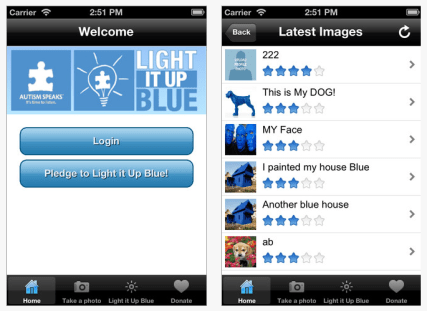
Here is the free Light It Up Blue App – for iOS devices.

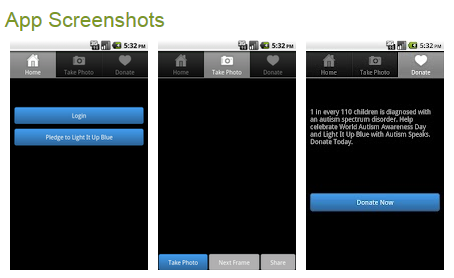
Here is a link to the  free Android Light It Up Blue app   in support of National Autism Awareness Day.

So support Autism Awareness Day 2012, show your blue lights, wear blue or take a picture, color it blue and post it to Light it Up Blue, sponsored by Autism Speaks!

Carol

Posted in App Reviews, Autism | 2 Comments