App Gone Free – Action Words from Alligator Apps

Are you using the customizeable Alligator and Grasshopper Apps developed by Innovative Mobile Apps? They are among my favorites for students learning basic vocabulary and emergent literacy and numeracy skills.

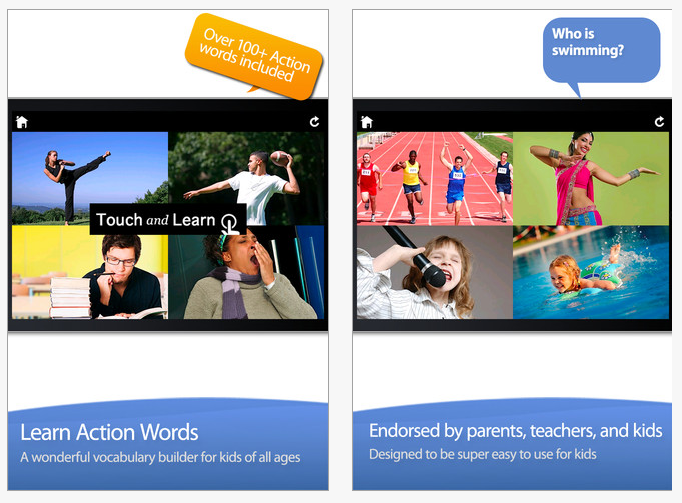
They have just announce their new Action Words Touch and Learn app compatible with iPad and iPhone for free. Action Words provides clean pictures of verbs or actions of people within a choice making activity for students. One of the (many) strengths of the Alligator and Grasshopper apps are its clean photos depicting individuals of all ages, making the content or intended subject clear but allowing generalization of those concepts withing context of the images.

Here are a few clips of Action Words app:

Check it out. Will you add this to your OT iTool Kit?

Carol

Posted in App Reviews, Apps for OT's, Apps for Special Needs, Autism, Early Childhood, iPad, iPhone, Occupational Therapy, Special education, Special Needs | Tagged , , , , , , | Leave a comment

iPad and iPod Accessories and Settings for Access and Aging in Place

Integration of the iPad and iPod Touch devices for students as well as staff continues to increase in the school I work at with steady questions of how apps work, what apps to use and access methods. Questions arise about student needs but also for staff using the iDevices as we venture into use of these new tools.

One of the uses we are initiating include the use of iPod Touches by staff for data collection.  The iPod Touch is a highly mobile device that can easily be transported to class, in a pocket for instant use. Although highly portable it also poses challenges to those of us with presbyopia (decreasing flexibility with our vision) and fine motor limitations due to arthritis, aging and sensory losses such as Reynaud’s to mention a few. With a small screen and small keyboard, word processing entry is a challenge for some staff and of course a significant size difference from the standard input method on our desktop or laptop computers making it less efficient to enter student information and goals for data collection. With formative assessment being an initiative our school is implementing, use of the iPod Touch for data collection is a feasible tool to automate data collection. Access methods however need to be considered however for staff members with access or aging in place concerns.

Here are a few of the devices and options being considered to support access and aging in place when working with the iPod Touch:

Styluses:

Trials of the standard stylus helped a staff member who had arthritis access the iPad and input data with much greater ease. As a fan of Amazon, I was able to find stylus’ under 10.00/each. A stylus would also help with those with Reynaud disorder since sensory function is often disturbed resulting in difficulty activating the capacitative screen. Certainly a pencil grip can always be added to a stylus if a build up grip is required for ease of use.

Another option is a chunky stylus if grasping becomes difficult. Actually I find these really nice for young children for ease of grasping. They are a bit heavy (which for some students or individuals who need a bit more feed back can be a plus) but provide an easier gripping surface. Handheld Items makes this chunky stylus which sell for 2.99 and can be used for adults and students!

There certainly are styluses of all kinds and costs. A previous post on styluses presents a number of them and an extensive review as well as a method of making them yourself. Check out the prior post if you want more information on styluses.

iPad Stylus Purchase or Macgyver it?

More iPad Styluses

Bluetooth Keyboard

Bluetooth keyboards used with the iPod Touches for keying or word processing goals into the data collection app is another access solution for efficiency or aging in place challenges. After some search I recently purchased the Logitech Tablet Keyboard for iPad (Keyboard-and-Stand Combo) (920-003241) (below) that can be used with an iPod Touch, iPad or Android tablet with its bluetooth capabilities. One of my favorite things about this keyboard is its easeled stand which becomes the keyboard case when not in use. The keyboard fits inside of the stand for protection when transporting it reducing the keys being damaging when carrying it around.  Although not real light, I liked the versatility of the bluetooth connectivity to different devices, easel that works with different sized devices (iPad, iPod, Android). The keyboard has a nice solid feel, a standard layout and was easy to pair using bluetooth capabilities. It runs on 2 AAA batteries.

Although I would like the easel to have more adjustability for my preference, this portable keyboard and easel provides a more efficient method of viewing the iPod Touch whether in portrait or landscape when entering text.

Many other bluetooth keyboards are available on the market, some that fold, are smaller sized for portability however, I have found changing the size and configuration of a keyboard annoying causing errors in keystrike and text entry. It always takes some time to get accustomed to a different keyboard layout even if slightly different, making use of a standard keyboard layout more efficient in my opinion.

Other Accommodations for Access and Aging in Place on iPod

Other methods to ease access for inputing text or data into the small interface on the iPod touch include utilizing apps, orientation or accessibility features:

  • Changing the rotation of the screen to landscape. Provides you with less on the screen but larger text and graphics
  • Use Dragon Dictation app to speak the needed text, wait for transcription of the speech to test and copy it into the text boxes on the app.  This takes some navigating from app to app but is definitely possible using the available “copy” tool in Dragon Dictation.
  • Use Paperport Note app which contains Dragon Dictation tool to speak your text, transcribe using wi-fi services then copy and paste it into your app as the text entry.
  • If you have the New iPad (iPad 3 Gen), Dragon Dictation is available on the iOS iPad keyboard. With Wi-Fi services you will be able to speak your the text into your app with the recognition or transcription speech service.
  • Increase your font size using the Accessibility settings, Large Text feature. Choices for large text settings allows font size from 20pt to 56pt which affects primarily iPad iOS apps like Notes. Input your text using larger font then copy and paste it into the text entry on the app you are using.  (This is in Settings> General>Accessibility)
  • Turn on Accessibility setting, Zoom feature if capable of performing a three fingered tap and slide movement with your fingers. (This is in Settings> General>Accessibility)
  • If a three fingered tap or slide is not possible, trial the Accessibility, Assistive Touch feature using the customized pinch gesture provided. (This is in Settings> General>Accessibility)

As with implementing any new devices or tools there is definitely a learning curve. Although consideration of AT tools is required of our special needs students, these same features might be needed for staff to access these devices! Fortunately there are many devices, settings and accommodations available for students and staff!

What tips and tricks do you have for access to an iPod Touch?

Are you using any iDevice accessories or accessibility settings to access your OT iTool Kit?

Carol

Posted in Accessibility, Data Collection, Formative Assessment, iPod, iPod/iPad Accessory, Keyboard, Mobility Impairment, Occupational Therapy, Physical Disability Tool | Tagged , , , , | 2 Comments

Generating QR Code with Chirbit

QR codes are a fast way of retrieving information from URL’s on websites, blogs or from a QR code on hard copy. A prior post QR Codes as AT reviewed QR apps and QR Voice, an online resource for creating a QR Code that provides audio from short texts (100 characters).

Is there any way of creating QR codes from longer texts?

Yes there is!

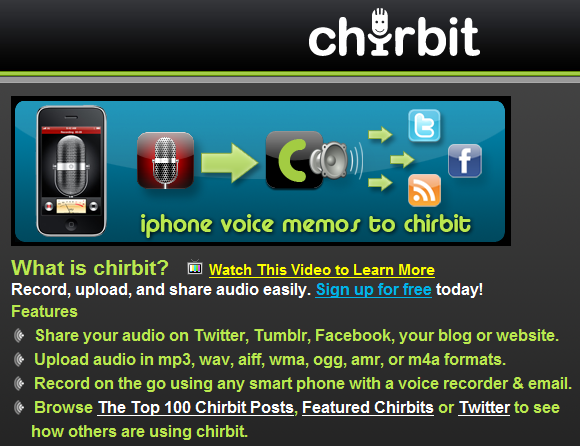
Chirbit is a free membership web-based service that will convert audio recordings, MP3 or Wav files, video and text to audio.

Chirbit also creates a URL with the conversion that allows you to embed in a blog, website or convert it to a QR code.

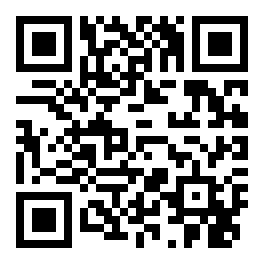
My trials produce a conversion of short story sketches from text I used from Gutenberg which when copied and pasted into Chirbit and converted quickly produced an audio recording. I could listen to the audio conversion online in my account. Use a provided URL link to embed in a website or blog (see below) or create a QR code to retrieve the source of the link and audio. The audio is not the highest quality when converting text to audio and I have not found a way to improve that yet. Here is the link to the URL and the QR code created for the converted text from The Project Gutenberg EBook of “A Few Short Sketches”, by Douglass Sherley: http://chirb.it/x0fHAh

As a QR code, with a QR reader you can take a picture of this from printed source or from the computer screen to get the link and listen to the text.

Here is an example of a text that I recorded into Chirbit then converted to audio link which yields a URL for use in a website or blog – http://chirb.it/4EJz49 or a QR code:

Not for everyone but I could see this used for students who can manage a smart phone or iPod/iPad with QR code reader app to take a picture. It doesn’t take much to click and read a code to retrieve a website, a message or reminder with the QR code. My favorite QR app is QRafter (free and 2.99 version which can made a QR code within the app). It also can keep a history of the QR codes taken for easy retrieval at a later time.

QR codes require wi-fi or a data service to link to the URL that is associated with the QR code. I think it has application for special needs students for reading, link to information, providing directions or reminders on hard copy when presented for an appropriate task.

Have you used QR codes? What might you use them for with your clients?

Carol

Posted in App Rubric, iPad, iPhone, iPod, QR Reader | Leave a comment

How Much Screen Time is Too Much? Is your iDevice use Developmentally Appropriate?

One of my early childhood colleagues shared with me the National Association for Educating Young Children position statement entitled,  “Technology and Interactive Media as Tools in Early Childhood Programs Serving Children from Birth through Age 8“. The  statement is intended primarily to provide guidelines for the use of techology and media to those working in early childhood education and primary aged children from birth through age 8.

As an OT, and thinking of the frenzy with the use of electronic devices, whether iDevices, Droids or other electronic devices, how much time spent with screen time is too much? What are national organization guidelines on the use an implementation of electronic devices and media for children aged from birth to age eight?

It was interesting to read the position paper from the National Association for Educating Young Children (NAEYC) and also review the American Academy of Pediatrics (AAP) recommendations on Healthy Promotions, as they focus on concerns of obesity,  engagement in sedentary activities and recommend developmentally appropriate practice for children birth to eight.  How does this affect best practices for OT pediatric practice and the use of electronic mobile devices with children?

Just to clarify, the NAEYC defines technology and media tools as  “computers, tablets, multitouch screens, interactive whiteboards, mobile devices, cameras, DVD and music players, audio recorders, electronic toys, games, e-book readers, and older analog devices still being used such as tape recorders, VCRs, VHS tapes, record and cassette players, light tables, projectors, and microscopes. “¹ Its description includes not only electronic mobile devices but many more electronic media formats such as TV, movies and electronic games.

There is much more in the full position paper, however here are a few of the key messages I took from the position paper and recommendations that I thought were important to reflect on when using electronic devices considering best practices in therapy within OT practice:

When used intentionally and appropriately, technology and interactive media are effective tools to support learning and development. The fundamental premise of the position statement is that technology and interactive media are tools for teachers and administrator to use in early childhood programs. The effectiveness of technology and interactive media, as with other tools, dependes on their being used in the right ways, under the right circumstances, by those skilled in their use. Within the framework of develpmentally apprpriate practice, this means rcognizing children as unique individuals, being attunded to their age and developmental level, and being responsive to the social and cultural contexts in which they live.

Effective uses of technology and media are active, hands-on, engaging and empowering; give the child control; provide adaptive scaffolds to help children progress in skills development at thei individual rates; and are used as one of many options to support children’s learning. Technolgoy and interactive media should expand childrens access to new content and new skills. When truly integrated, uses of technology and media become routine and trasnparent – the child or the educator is focused on the activity or exploration itself and not on the technology.”¹

“Limitations on the use of technology and media are important. Screen time recommendations from public health organization for children birth to age 5 for limits on screen time should include time spend in front of a screen at early childhood programs, home and elsewhere. The American Academy of Pediatrics recommendations are children under age 2 not watch TV and children age 2 and older watch no more than 1-2 hours of quality programming³” .

Sited in the position statement, “when screen time is used appropriately and recommendations kept in mind, technology and interactive media have the potential to enhance, without replacing, creative play, exploration , physical activity, outdoor experiences, conversation and social interactions.”²

“Special considerations must be given to the use of technology with infants and toddlers. Recommendations of the position paper further “prohibits the passive use of television, videos, DVD’s and other non-interactive technologies and media in early childhood programs for children younger than 2 years of age and discourages passive and non-interactive uses with children ages 2 through 5. Any uses of technology and interactive media in programs for chldren younger than 2 years of age should be limited to those that appropriately support repsonsive interactions between caregivers and children and strengthen adult-child relationships.”²

“Attention to digital citizenship and equitable access is essential.”¹ Teachers and administrators have a responsibility to protect and empower children to think about appropriate use of technology and media they use and view. Digital tools should be used by adults with good citizenship, developmentally appropriate uses for communication, learning in healthy, positive and safe manners. Equitable access to technology and interactive media is also necessary as a model of digital citizenship.

 What might this mean for OT practice with early childhood interventions through age 8? Limit screen time, encourage developmentally appropriate activities including physical interaction in gross and fine motor activities allowing children the opportunity to gain hands on experience and development with real items that provide all the sensory and haptic experiences they need to perceptually/cognitively learn about the environment and things in the environment. Utilize electronic devices as another tools for learning, motivation/behavior management within a balance of activities in the classroom. As with all other tools, it is just a tool to be used seamlessly for learning. Consider how much other face time is occuring in the students programming or at home. Discuss this with other care providers and or parents.

Are there exceptions? Consider children with physical, cognitive, communicative or sensory challenges limit their interaction with the environment and between others. Electronic devices may be one of the only method they might be able to independently interact with others or engage in learning.

As with all things, creating balance and considering developmentally appropriate activities for individual student needs must be considered. As we explore exciting, engaging, new tools for the students we work with, it is important to keep in mind that balance with the tools and activities we use. The position paper from NAEYC and AAP recommendations helps us reflect on our developmental and occupational framework  as we integrate new tools into our treatment sessions.

I encourage you to read the entire position paper,  “Technology and Interactive Media as Tools in Early Childhood Programs Serving Children from Birth through Age 8” especially if you work with early intervention through 8 year old children to review the NAEYC recommendations for yourself.

Just food for thought when considering how you use your OT iTool Kit!

Thanks to Nancy Pfankuch, Early Childhood Teacher and colleague at Sheboygan Falls School District for sharing the initial position paper with me!! She truly has a handle on the balance of technology and instructional tools for her students. Thank you Nancy for sharing – this was a great read.

Carol

References:

¹a Technology and Interactive Media as Tools in Early Childhood Programs Serving Children From Birth to Age 8, retrieved on March 24, 2012 from: http://issuu.com/naeyc/docs/ps_technology_issuu?mode=window&backgroundColor=%23222222

¹Key Messages of the NAEYC/Fred Rogers Center Position Statement on Technology and Interactive Media in Early Childhood Programs, retrieved on March 24, 2012 from http://www.naeyc.org/files/naeyc/file/positions/KeyMessages_Technology.pdf

²Promoting Physical Activity, retrieved on March 24, 2012 from  http://brightfutures.aap.org/pdfs/Guidelines_PDF/7-Promoting_Physical_Activity.pdf

³ Healthy Promotion Information Sheet , retrieved on March 24, 2012 from  http://brightfutures.aap.org/pdfs/Health_Promotion_Information_Sheets/healthyweight.pdf

Posted in Appropriate use of Technology and Media with Early Childhood, Early Childhood, iPad Management, Occupational Therapy, Special education | Tagged , , , , , , | 3 Comments

123 Color HD: Talking Coloring Book – Just Another Coloring Book App? Take a Closer Look…

 123 Color HD: Talking Coloring Book app has been around for a while however quiet enhanced from its first version!. Available for iPad, iPhone/iPod and currently free (just for today?), this app provides coloring pages for elementary students with fair to good coloring skills. A Premium version is available for 4.99.

As a coloring book app this app comes with additional features of color by number, color by letter, talking palettes that speak the colors on the palette as well as subtly provide the written word, a nice feature for students needing visual and verbal reinforcement.

Although the coloring or cartoon pages provided in the basic app have pictures with a lot of detail, suited primarily to elementary aged students, when you color the color stays in the lines creating greater success for students (especially those with a perfectionistic side or those with limited motor control. Use with younger students is also appropriate when using Photo Painting (see discussion below).

Other coloring choices provided is a Shapes coloring book which features coloring sheets with multiple shapes of squares, triangle, pyramids,  cubes, concentric circles, wedges, ovals, cones, parallelograms, trapeziods and hexagons, suited to  elementary aged students at the 1st or above grade level.

A cool coloring book feature of the app is the World Map coloring page. It provides a single coloring page of the world that when colored or tapped provides you with an immediate link to the Google Earth page of the country or ocean you touched.

Although my initial thought of this app was just another coloring book app, when I look a bit deeper at the Photo Painting coloring book, you will find existing pictures of animals you can color or paint on or apply a limited palette of stickers to. The Photo Painting initial screen also allows the option to import a picture from your Photo Album, meaning that if you took or imported a picture of a worksheet, personal picture or map it can be available for import into the Photo Painting coloring book. This provides a really nice method of bringing in those image worksheets you legally acquired, or personal photos you want to embellish using the 123 Color Talking Coloring Book tools. I have a prior post on how to import or take screen shots of worksheets from web resources on this prior post:  https://otswithapps.wordpress.com/2012/01/27/ot-itool-kit-tip-and-trick-2-taking-and-using-screen-shots-on-your-idevice/

Here is an example of a quick completed worksheet I had in my Photos taken from a screen shot from Injini’s website using their colorful, free, pre-writing worksheets:

Sizing of the color or paint strokes is offered.

Another option available in the basic 123 Coloring Book app is their Stationery Coloring Book providing Lined Paper of different colors, Lettering Paper (has top, middle and base or bottom lines for letter formation and alignment practice) as well graph paper (although a small grid). The Letter Paper provides a nice choice of paper for handwriting practice if needed.

Settings of this app provides many options of size of color by number letters or numbers, turning the music on or off, type of reward songs, choices of music or coloring book themes, language, color palette size, choice and layout and more!

Additional pages and concepts are available as add-on purchases with the value pack coloring books ranging from 3.99 – 5.99. There are handwriting practice sheets, holiday  and topic theme coloring books. One of the packs has a complete world map set.

Although the basic app coloring sets are for more mature elementary students in my opinion, this app can be used for modifying worksheets or drawing on pictures similar to Doodle Buddy as described in the post sited above. One difference between Doodle Buddy and 123 Color however is Doodle Buddy allows typing on the screen whereas 123 color is only drawing and painting – pending the task you are doing.

123 Color: Talking Coloring Book has many other features and easy access to the tools I believe. Currently free, or even if $.99 this app has many features worth using with students in your OT sessions.

123 Color HD: Talking Coloring Book is worth considering for your OT iTool Kit if you work with middle school or younger students, whether free (today) or for $.99 in my opinion!

Carol

Posted in Activity Worksheets on Your iPad, App Reviews, Apps for OT's, Apps for Special Needs, AT for Handwriting, Drawing, Early Childhood, Fine Motor Development, Finger Isolation, Handwriting, iPad, iPhone, iPod, Maps, Middle School, Occupational Therapy, Pre-writing, Special education, Visual Motor | Tagged , , , , , , , , , , | 3 Comments

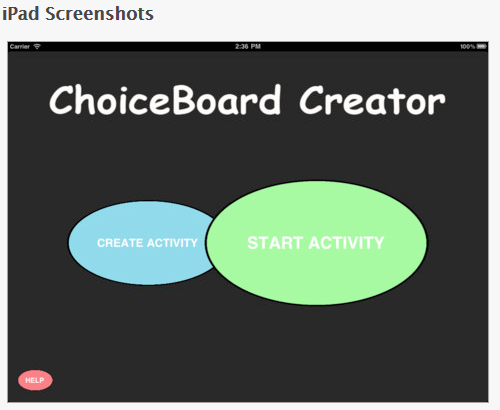
Choiceboard Creator App

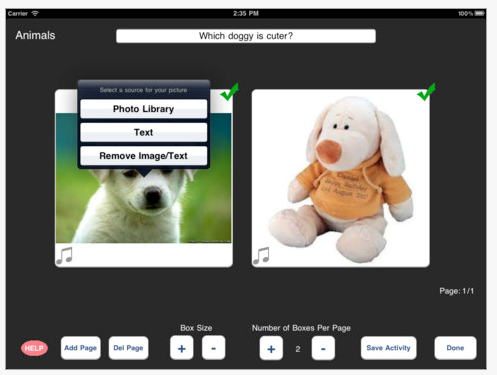
 Choiceboard Creator App is a simple, free iPad app that provides the ability to present questions and answer choices with visually and  audio capabilities. There is a simple method of designating which is the correct answer with an audio response provided when the correct answer is chosen by the user (clapping sound). Here are some of the features of the app as described by the developers:

  • Large buttons, and black/white contrast to facilitate visual attention
  • Box sizes are now adjustable for those who just need to see a little more clearly
  • Clean board design to minimize visual distraction
  • Space between choice buttons to avoid inadvertent hits
  • Customizable to 1,2,3,4 or 6 choices
  • Users can download their own pictures
  • Users can create blank boxes as distractors to suit users of all levels
  • Now users can preset multiple “correct answer” boxes, and download different sound files to each box – a feature that allows users to choose their favorite music with just a tap
  • Other than image files, users can now type text into the choice box – use this feature to teach sight words, letter, number recognition
  • Versatile application that can be used to create curriculum content to promote cognitive and literacy skills
  • Ease of use. Intuitive interface allows user to set up activities in minutes
  • Allows users to create multiple pages for each “game” or activity

Examples of choice boards/activities:

  • •Odd one out (find the image that is different)
  • •Music player (touch the correct image to play the tune)
  • •Present vocabulary, sight words, shapes, numbers, or alphabets in array of boxes and ask your child to find the right one.

Choiceboard Creator  app is easy to create and use. There are a few limitations I would love to see the developers change. The question box does not have audio capabilities so either the individual needs to be able to read or the question or text needs to be read to the user. Also, the audio in the boxes or choices have to have the sound imported in from another source rather than having a recording option built into the app. Despite those limitations, it is a very easy, FREE, and useful app for many purposes as described above. I have started using Choiceboard Creator to provide simple question and visual answers to books created of curriculum content adapted for the regular education classroom. It will not collect assessment data, but for the students I am using this with, assistance is always present for the student.

Have you had experience with this app? How have you used the app or might use it?

I definitely added this to my students’ apps and my OT iTool Kit app list!

Carol

Posted in App Reviews, Apps for OT's, Apps for Special Needs, Choice Making app, iPad, Occupational Therapy, Special education, Special Needs | Tagged , , , , , | 4 Comments

App Listing – Maximize Your Touch App List

Paula Walser is a Speech Pathologist and AT expert – now CESA 6 Instructional Technology Specialist and national speaker from Wisconsin. With years of expertise in special education and instructional technology she is always on top of technology. I ran across her January 2012 Apps for Education listing which includes many categories suited to special education and OT. Her apps list provides categories of:

  • Social interaction
  • Independent Living Skills
  • Writing, Art/Fine Motor
  • Reading
  • Assistive Technology
  • Cause/Effect
  • Teacher Utilities
  • Games
  • Organization
  • And more are included in her app list.

Yes, there are many lists available, however my experience has been she always provides outstanding materials and instruction and this list is extensive and current.

Her PB Wiki provides other app and technology resources that may be helpful if you work with students and can be found at: http://maximizeyourtouch.pbworks.com/w/page/30796448/FrontPage

Hopefully you will find more for your OT iTool Kit!

Carol

Posted in App Reviews, Apps for OT's, Apps for Special Needs, iPad, iPhone, iPod, Occupational Therapy, Special education, Special Education Teacher, Special Needs | 4 Comments

Abilipad App

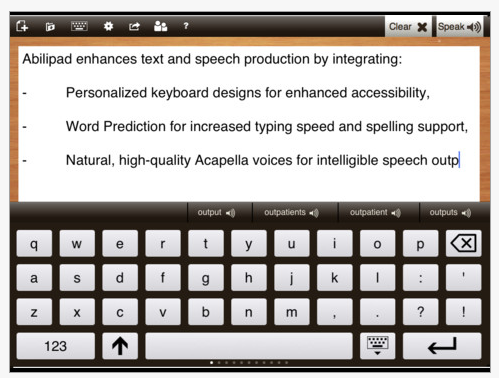
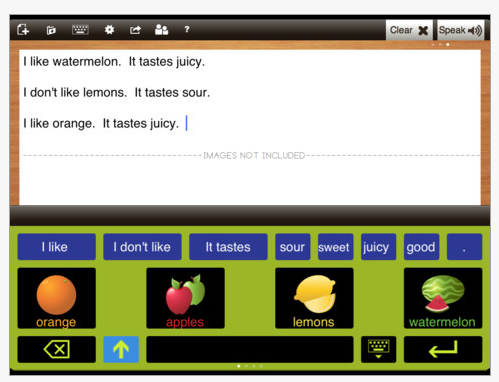
Abilipad app, formerly Intellipad app, has a new logo and continues to be updated and expand  supports for struggling writers on the iPad. Available for iPad only (19.99), it is the only adaptive note taking app I am aware of.

Created by Cheryl Bregman, this adaptive note app provides the ability to modify the keyboard content, text to speech and alphabetical word prediction.

The ability to add pictures to the note pad also provides additional visual prompts and supports for users during the writing process.

Here is one of two instructional videos about Abilipad app from the Abilipad developers website:

This is a great tool for special needs and is currently a one of a kind and worth the cost for its unique visual and adaptive supports providing word prediction and text to speech tools for writing.

Check it out and consider this app for your OT iTool Kit!

Carol

Posted in App Reviews, Apps for OT's, Apps for Special Needs, iPad, Occupational Therapy, Special Needs, Word Prediction, Writing | Tagged , , , , , | 6 Comments

10 Apps for Learners Who Struggle with Reading/ or Writing – Post from Paul Hamilton

Are you familiar with Paul Hamilton’s  Free Resources from the Net for Every Learner ?

If you are not it’s time to become acquainted with his wonderful Edublog of resources!

His February 21 post entitled “10 Apps for Learners Who Struggle with Reading/Writing ” provides numerous great app recommendations for special needs students. Many of them are familiar but some new ones are shared by Paul Hamilton in this posting. I highly recommend checking this post out for reading, writing and math. One of the apps TextGrabber, turns hard copy to readable text using the iPhone camera. It is one I have acquired but not yet fully explored. I have been working with a similar app, Prizmo which capitalizes on the iPhone camera to gather and process (scan) text to be read aloud.  It will be interested to see how TextGrabber compares.

With the new iPad making its debut with a more powerful camera, use of such apps will become more possible using the iPad and iPhone, I presume! More access methods to text for students that struggle!

Paul Hamilton’s Edublog shares wonderful resources on educational tools for all learners. This article on 10 Apps provides great suggestions of apps appropriate to students with learning disabilities!

Do you or will you have any of these apps in your OT iTool Kit?

Carol

Posted in App Reviews, Apps for OT's, Apps for Special Needs, iPad, iPhone, Language Arts, Learning Disability, Reading, Writing | Tagged , , , , , , , , | Leave a comment

Protecting Kids Hearing – Methods of Headphone Volume Control

Using headphones with electronic electronic equipment (MP3’s, iPads/iPods, CD’s, computers, electronic readers, e.g.) is often necessary in inclusionary settings when students are working on parallel curriculum tasks in the classroom. A concern I always have is the volume level that is set on an iDevice,  MP3’s/CD’s or computer when our students are frequent fliers on those devices to engage in activities. You never know whether the volume has been changed (or bumped) batteries are dying or equipment is not working properly. Many of our students are unable to tell us its too loud, too soft and in the haste of getting them started it can be just too easy put the headset on and get them started with their learning task. We also all know of those students don’t have the patience to wait for an audio check to happen! 

What are some options?

  • Splitters – Audio output splitters have been around for along time. They allow two headsets to be plugged in so a caretaker can check the volume level with a second set of headphones, allowing the student’s listening to be undisturbed. For some programs I like to use the splitter option so that I know what the program directions are to help them of the student inorder to hel them through an activity. Sometimes it’s not just the volume but whether the equipment is working at all that is needed (i.e. someone turned on mute, headphones gone bad…). Splitters are available on at your local Radio Shack or other stores that sell electronics for about 3.00. Amazon.com has Belkin Speaker and Headphone Splitter for easy online purchase.

  • Headphones with controlled volume levels are also available such as Kidz Gear Wired Headphones For Kids.  Kidz Gear provides audio limits with their kid headset that limit the volume up to 80% of the origninal maximum level. Quality of their build is comparable to adult headsets. Cost is 19.99.

  • Splitters with volume control are another option allowing use of standard headphones but providing a  volume control setting for a determined safe sound level. Kidz Gear Volume Limit Splitter Cable provides that easy access volume control.

Consider protecting your student’s hearing.

More for your OT iTool Kit!

Carol

Posted in Accessibility, iPad, iPhone, iPod, iPod/iPad Accessory, Special Needs | Tagged , , , , , | Leave a comment