Keyboarding Practice on Your iPad or Android – Apps and Other Equipment

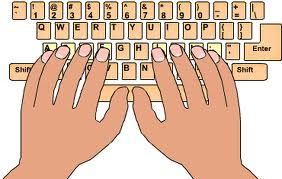
keyboarding image

Considering the need to practice keyboarding on your iPad or Android Tablet?

Following an earlier comment asking about the possibilities of iPad keyboarding practice apps and considering the needs of a student who will be producing word processing  on his iPad during his school day, I started researching what was available in keyboarding lessons for mobile devices.

However before discussing apps for keyboarding, some thoughts about keyboarding instruction is important to consider:

  • No matter what device you are using there is a developmental sequence for the acquisition of keyboarding skills for communication.
  • Initial skills of positioning and keyboard awareness, use of left and right hands on the keyboard are the beginning stage (K-2 grade)
  • Next stage involves developing touch typing skills with individual key strokes learned to develop good technique along with ergonomic positioning when sitting at the computer (3-5 grade).
  • The third stage involved developing speed and accuracy that is build upon good positioning and application of proper keyboarding technique (6 + grade).

Different school districts differ on their grade level expectations of keyboarding and  exceptions to instruction and acquisition of keyboarding is depending on student skills, type of instruction provided and frequency of application of the skills.  School curriculum, age, skills and needs of the student should be considered when selecting the type of keyboarding program used and expectations (e.g. http://www.solon.k12.ia.us/district/instruction/curriculum/documents/keyboarding_curriculum.pdf ).

Despite the numerous on-line keyboarding lessons and practice for those using PC or MAC computer, app choices appeared to be limited  Here are some keyboarding apps that I found for iPad and Android devices:

iPad Keyboarding Apps:

Jalapeno app – (2.99) for iPad. helps people of all ages learn to type with speed and accuracy.

Features:

– Practice mistakes with keystroke history
– Subtle helping hands show which finger to type with
– Adjustable fonts and sizes
– Print your speed test scores

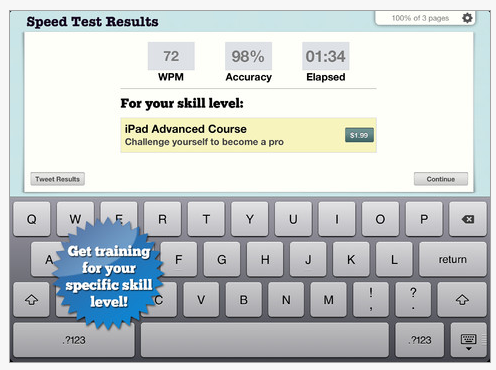
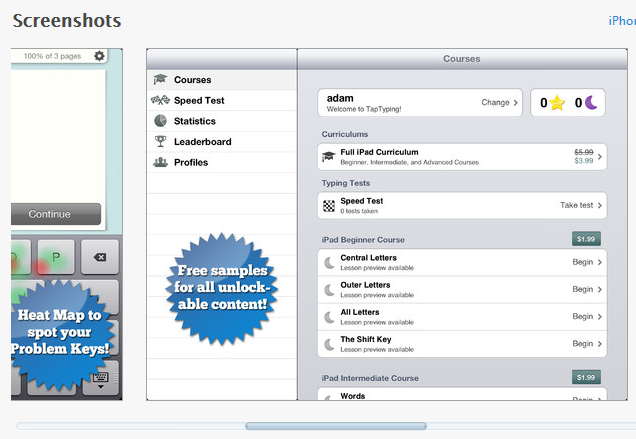
Tap Typing  app – Free for demo and previews, then in app purchases for three levels of courses (beginner, intermediate and advance course each 1.99)

Features:
– iPhone/iPad Crash Course: quick overview                                                                                     – Beginner: Learn to quickly reach the primary keys (a-z)
– Intermediate: Capitalization, punctuation, numbers
– Advanced: difficult tapping patterns, complicated sentences and symbols
– Special courses: Alice’s Adventures In Wonderland (chapters 1 & 2), US History, Inspirational Quotes, Romeo & Juliet
Android Keyboarding apps:
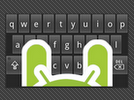
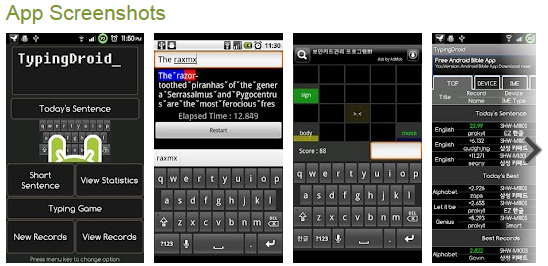
Typing Tutor Typing Droid – (Free)Android typing game to practice speed and accuracy. Does not provide introductory keyboarding instruction. Good for reinforcement after keyboard keys are learned.
TapWriter app (free) A game keyboarding skill app with four different game modes:

– Classic (basic level with words starting with 3 letters and progressing up to 8 letter words)

–       Spelling (words are spoken to you and you type the word)

–       Arcade (give 6 seconds for each word. Starts with 3 letter word progressing to 8 letter words)

–       Names (type word of famous personalities)

This game app does not provide basic keyboarding introduction of home row keys. Nice graphics and interface. Requires prior instruction to learn keyboarding technique. Good for reinforcement of skill and speed.

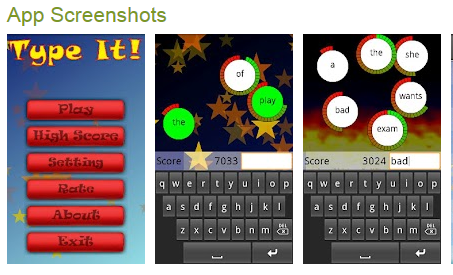
Type It! App (free) – For Android, has setting to manage sound, volume of music presented in app. Game format keyboarding app practice. Does not appear to present keyboarding practice in a progress. Appropriate for increasing speed after keyboarding techniques have been learned.
Other Options for Keyboarding Practice

There are many keyboarding games and standard keyboarding lessons available online for students to practice and not be bored with the repetition needed to acquire keyboarding technique and accuracy.  Many of those keyboarding game websites require flash player, not friendly (not available) on the iPad but which work well on the Android platform (allows Flash).

iPad Compatible Websites

Here are a few websites that I tested that work on the iPad (primarily skill and drill lessons, however appropriate) that will require Wi-Fi connectivity and the use of a standard keyboard for learning good technique and the standard keyboard layout:

http://www.typeonline.co.uk/lesson1.html – This website provides lessons in instruction of the keyboard in a progressive manner. Simple but well laid out keyboarding website.

http://www.usspeller.com/keytutor.html – Online website for keyboard awareness does not use a standard keyboard instruction. Provides letter, word, then sentence practice. Works on with iPad with Wi-Fi connection.

Android or PC/MAC Computer Keyboarding Websites

Here is an extensive listing of selected online keyboarding websites (Thank you to Mrs. Erin Higgins, COTA for this list) that will work on a standard computer or on an Android device. Again use of a standard keyboard, whether wired or bluetooth is recommended when initially learning the keyboard using a computer or mobile device.

www.freetypinggame.net  – Many different games with the ability to change the level of difficulty and how many rows (or keys) on the keyboard you want to focus on.

http://freeonlinetypinggames.com/kids-typing/dino-kids-trash-typer/  – Falling words, one level of difficulty.

http://funschool.kaboose.com/fun-blaster/games/game_super_hyper_spider_typer.html – Three levels of difficulty to choose from. Practice typing letters progressing to typing words.

http://www.bigbrownbear.co.uk/keyboard/index.htm  – Keyboarding instruction with the ability to choose the letters you want to learn.

http://www.tvokids.com/games/keyboardclimber This site focuses on letter recognition on left and right sides of the keyboard.

http://e-learningforkids.org/Courses/EN/K0001/index.html – Teaches 10 finger typing and providing students lots of feedback, visuals and good explanations. Offers lessons and games for them to practice the letters learned.

http://games.sense-lang.org/  – This is a collection of games that range from typing single letters to words to copying full text.

Using Standard Keyboards with your iPad

You can use Bluetooth keyboards as well as standard keyboards with your iPad.

  • Bluetooth Keyboards – You can connect a Bluetooth keyboard by going to Settings > General > Bluetooth>On then slide button to ON.
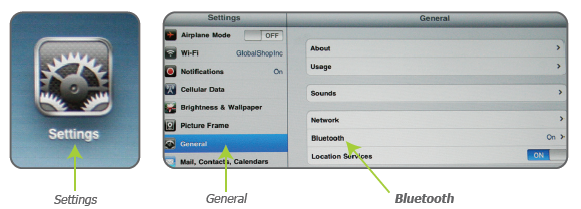
Make sure your keyboard power is on and then pair the two devices. The iPad will search for your Bluetooth device and give you instructions for pairing the device and keyboard. The manual for your keyboard will also give you instructions for how to pair the devices. My favorite Bluetooth keyboards are still the Apple keyboard or the Logitech Tablet Keyboard that has a stand and works with both my Toshiba Thrive Android Tablet
or iPad. Use of a stand (see some choices below) improves the ergonomic positioning a an important part of keyboarding practice.

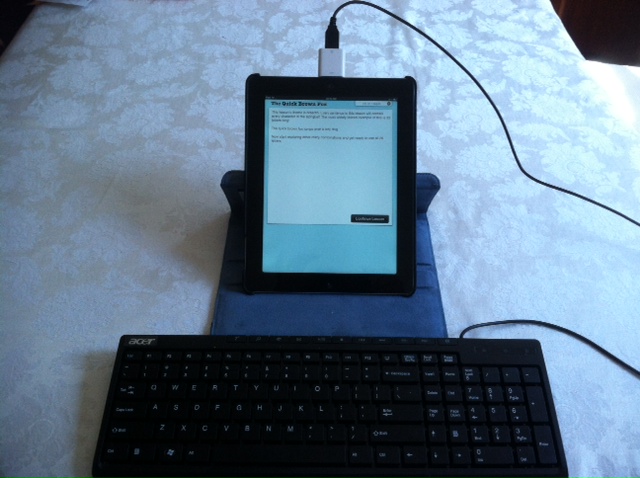
Plug the camera connector with the USB port into your iPad and connect a standard USB keyboard into the USB connector. I initially received a not compatible message, but selecting okay, allowed me to type on the keyboard into the typing program on my iPad without problems. Here is a video showing you how to connect a wired keyboard:

The next challenge was positioning of my iPad in an upright position with the connector attached at the bottom. I unlocked the rotation on my device so that I could flip the iPad upside down and view the app with the connector positioned on top of my iPad.

I could then position my iPad with my Targus Versavu Case that provides an easel in an upright position with the standard wired keyboard attached allowing the keyboard more appropriate ergonomic placement.
I also have an inexpensive Arkon Portable Fold-Up Stand for Tablets
suitable for easeling an iPad, Thrive or any other tablet for better ergonomic positioning.

Final Thoughts

As a OT I would suggest practicing keyboarding on a standard computer and keyboard for the following reasons:

  • There many more choices of online keyboarding programs available for individuals to practice keyboarding without becoming bored.
  • Ergonomics and set up generally will be better if you review how and where you are sitting and follow basic ergonomic principles.
  • Beginning keyboarding lesson app are few. There are more Android and iPad apps for speed and accuracy than the beginning foundational skills of keyboarding. (Although Jalapeno was my favorite of all the apps and had good stage two lessons in it.
  • There is merit, I believe, in practicing keyboarding with the layout of a keyboard associated with a mobile device you will be using as your primary mode of typing to gain speed and accuracy.  It always takes a bit to become accustomed to a new keyboard.
  • Always consider good ergonomic positioning, develop good typing techniques when word processing to establish good life time habits!

For more information on ergonomics with your iPad visit the prior post on Ergonomics for your iPad!

Happy Keyboarding!

Carol

Posted in Accessories, Android, App Reviews, Apps for OT's, Ergonomics, iPad, iPad Management, iPod/iPad Accessory, Keyboard, Occupational Therapy | Tagged , , , , , , , | 10 Comments

iPad 3 Cases for Little Hands

My search for new iPad 3 cases found a number of bounce-able ones suited to toddlers and preschool children. In the post  “How to Choose an iPad Cover”, another factor suggested to consider is the content of the material of the case. Is it made of unsafe silicon material (those made in China?)?

Here are some of the tried and true cases now updated for use with iPad 3 as well as  new cases recently debuted that are designed for toddler to preschool children. As there are few reviews of this category of cases, I included consumer ratings from Amazon, the largest store in the world. The numbers of the customer who rated may be dependent on just the sales of a single colored case and should be taken into consideration. More information can be found on Amazon on the ratings.

Review of the type of  materials used in the cases are listed with exception of the Fisher Price case.  Despite a search of the material make up of the Fisher Price case on the Internet and on their website, I could not find a description of the materials used.

Here is the list of the cases I found for little hands:

Fisher-Price Laugh and Learn Apptivity Case: iPad Edition $34.95. Compatible (per Fisher Prices web site) as compatible with iPad 1, 2 and 3. No description of material content provided on Amazon or Fisher Price website. Made in China. Rated 4/5 on 8 customer views.

Speck SPK-A1247 iGuy for iPad 3 – Lime  $27.85  Fits all iPad cases including iPad 2 and 3. Made of light weight EVA foam. Free standing. 5/5 rating from 4 customers.

Big Grips Frame for iPad 2 | 3rd Generation – Purple $34.95 – Foam frame that is Phthalate and PVC free, lead and latex free. Lightweight, durable easy to clean and resistant to oils, chemicals, stains, molds and germs. Comfortable grip. Stand sold separately. Rated 5/5 from 7 customers.
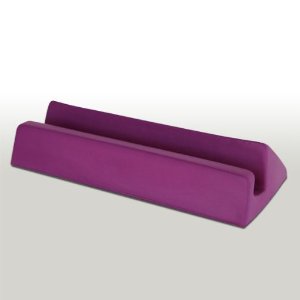
Big Grips Stand – Universal – Purple $24.95

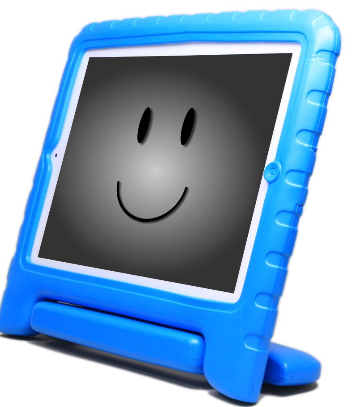
KaysCase KidBox Cover Case for Apple iPad 2, iPad 3 – the new iPad (Bluey)- Lightweight foam (non-toxic foam) that is free standing with a handle for easy portability. Suited to iPad 2 and 3. Rated 5/5 from 1 consumer. $39.99

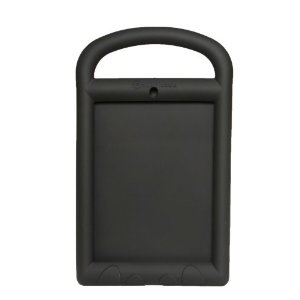
AddyCase for Home Button Blocking! (Black) $49.00  Compatible with iPad 2 and 3. Easy to clean, non-toxic, lead free, latex free material. Provides handle and covers the home button to control users access to other apps. Resistant to oils, chemicals, stains, molds and germs. Rated 5/5 from 2 consumers.

Our school’s 4K iPads have used the iGuy cases with positive responses from the teachers. What has been your experience with cases for young children? There are some varying opinions about blocking the home buttons to provide users the freedom and experience exploration and control. What are your thoughts?

If you are interested in updated information on sturdy iPad 3 cases suitable for students, here is the link to a recent review: http://wp.me/p1w0d0-Ju

Carol

Posted in Accessories, Early Childhood, iPad, iPad Management, iPod/iPad Accessory, Pediatrics | Tagged , , | 2 Comments

4th of July Fireworks Apps – (but don’t forget the ear muffs)!

Whether celebrating the 4th of July in the US or planning for an outdoor fireworks show elsewhere, here are a few app that might entertain or forecast a firework event for individuals with special needs. Thanks to Digital Storytime for their review of the first two apps!

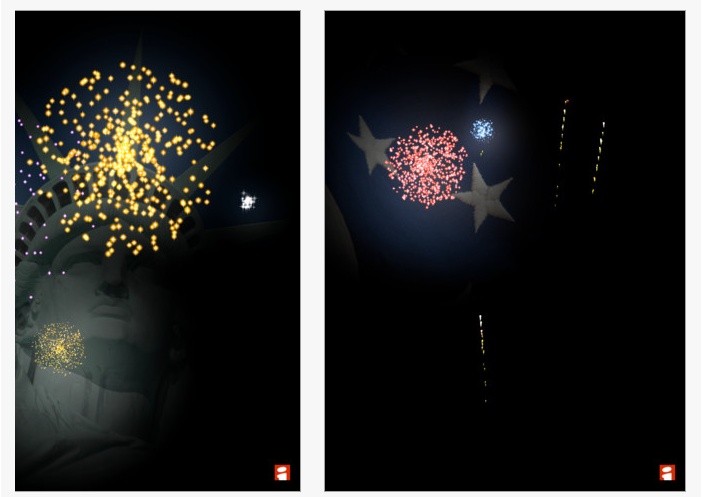
4th of July Auracle – Free for iPad, this app displays fireworks with a touch or a shake of the device. Good for cause and effect interaction with the iPad.

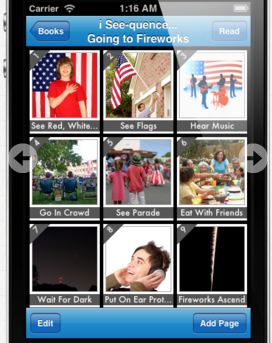
 i See quence … Going to Fireworks – (Free today) For iPhone and iPad is described as an application providing a photo social story for individuals that need support in understanding the process of watching fireworks. Twelve icons with real picture images are used to illustrate the sequence of events.  Text statements can be individualized for each picture allowing the app to be used for a variety of purposes, including receptive identification and expressive labeling.  Personal photos can be added by the user with a camera ready Apple device or imported from the user’s photo album.


Typically developing young children participating in watching fireworks for the first time and individuals with developmental delays, such as PDD-NOS and autism will benefit from this interactive application. Parents, teachers, SLP’s and other support professionals will appreciate the user-friendly design.

Here are a few more fireworks apps that are cause effect in nature and may be helpful today, for special events or all year round:

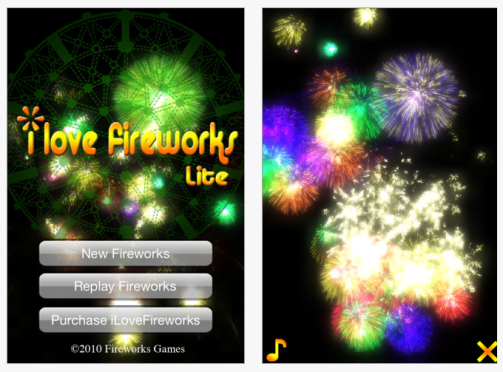
I Love Fireworks Lite – (Free, .99 full version) For iPhone/iPad allows you to touch on the screen and you immediately see breath-taking fireworks in 3D graphics and real sounds.

Fireworks Arcade app – Available for Android and iDevices (iPhone/iPad) are free on both platforms.  Created by Big Duck Game LLC, this is a game app however provides a cause and effect activity by pressing Start Show displaying fireworks with sound. I have this on my Thrive showing a good variety of fireworks with colors and realistic sounds. Control the sound and this may allow you to start sensitizing an individuals to a fireworks display.

There are many more firework apps available for you to choose from. Thanks to Digital Storytime for their curated collection of apps and to Big Duck Game for supplying free choices of the cause effect fireworks app on both platforms!

Enjoy your 4th with real life fireworks if you can – don’t forget the noise cancelling headsets for those with auditory sensitivities! Here are some foldable noise cancelling ear muffs you might consider (good for all kinds of occasions, we have learned not to leave on school trips without them!) having available to help special needs individuals. It is amazing what a comfort just having them around makes!

Howard Leight R-01523 Leightning L0F Ultra Lightweight NRR 23 Compact Folding Earmuff

Howard Leight R-01526 Impact Sport Electronic Earmuff

Another choice is Walmart’s $8.95 noise reducing headsets available in the hunting department. We use these at our school, available in pink and black and they also fold for easier transport.

More for your OT Tool Kit! Have a great holiday America!

Carol

Posted in Android, App Rubric, Apps for OT's, Apps for Special Needs, Cause and Effect apps, iPad, iPhone, iPod, Occupational Therapy, Self-regulation, Sensory Apps, Sensory Apps for ASD, Social Skills, Special Needs | Tagged , , , , , , , , , , | 4 Comments

Bugs and Buttons App

Thanks to Christina Scheer MHS, OT from Grafton School District in Wisconsin for her recommendation of the Bugs and Buttons app. Ms. Scheer reported Bugs and Buttons is a favorite of her students.

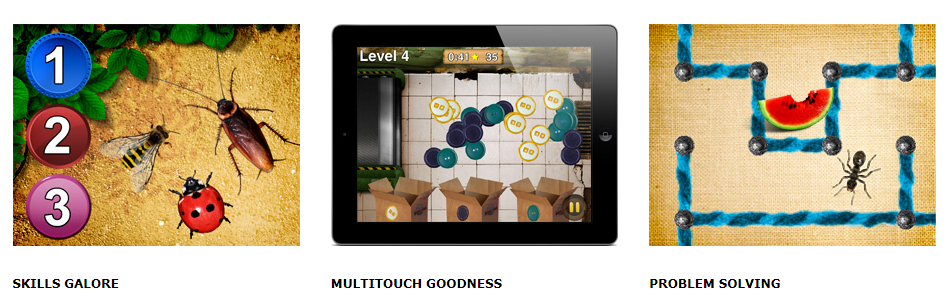
  Bugs and Buttons app for iPhone and iPad ($2.99) is packed full of 18 educational games and visual motor activities for students. Geared to preschool and kindergarten, its provides a wide variety basic counting, sorting, patterning, tracing, matching color identification activities. See the list of all of the activities below. Here are images of a few activities included in the app:

Of the 18 activities provided, some have progressive skill levels. Here is a listing of the activities and which are progressive:

What a great app for OT’s working on visual motor and preschool/kindergarten skills. Thank you to Christina Scheer, OT for her Bugs and Buttonsapp recommendation!

More for your OT iTool Kit!

Carol

Posted in App Reviews, Apps for OT's, Apps for Special Needs, Early Childhood, Fine Motor Development, iPad, iPhone, iPod, Occupational Therapy, Special education, Visual Motor, Visual Perception | Tagged , , , , , , , , , | 2 Comments

Sturdy iPad 3 Cases – What’s New?

It’s not surprising that with iPad’s record sales that the choices of cases keep increasing. With the increasing numbers of cases I decided to check on what sturdy cases might withstand kid or student use of an iPad 3.

A search for a current (May 2012 or later) review of iPad 3 cases for kids came up empty-handed, so I turned to Amazon as the biggest electronic store in the world, to see what they had and how the cases were rated. Here is a list as of today with some old and some new iPad 3 cases considered for kids and what seemed to qualify as “sturdy” and how they were rated by consumers. I did not include some of the iPad 3 cases geared specifically to preschool (iGuy, Fischer Price, etc.) in this review. Here is what I found:

M-Edge Supershell Protective Cover Case for iPad 2 / iPad 3 (New iPad) – Ocean Blue (Abacus 24-7 Velcro Cable Tie Included)

Foam frame for iPad 3 is made from ultra-protective closed-cell foam that helps absorb shocks if the iPad is dropped. The case wraps around the iPad and provides access to the rear facing camera and speaker, with push buttons for volume and power. Ridge provides a handheld grip while the thick, high-impact corners provide maximum protection. No stand. Comes in a variety of colors: blue, purple, green. Appears to be very new as there are few ratings. The iPad 2 version that looks exactly the same was given a 5/5 rating from 7 customers. 35.99.
KaysCase KidBox Cover Case for Apple iPad 2, iPad 3 – the new iPad (Bluey)

Foam case without a screen protector. Has stand. Comes in blue and pink colors.  Only two review with 4.5/5 stars. 39.99.

Griffin GB02534 Survivor Extreme-duty case for the new iPad (3rd Generation) and iPad 2, Pink

Available in pink and black, the Griffin Survivor Extreme Duty is made for extreme conditions (that can include kids!)  Built on a shatter-resistant polycarbonate frame clad in rugged, shock absorbing silicone. A built-in screen protector seals your Multi-Touch display from the outside environment, while hinged plugs seal the dock connector, camera lens, headphone port, hold switch and volume controls. Has a stand that clips on, then folds open for landscape viewing and typing. Survivor is independently tested and verified to meet or exceed environmental testing standards for blown rain, blown dust and grit, vibration, shock, temperature and humidity. Sounds very sturdy. Rated 4.5/5 from more than 75 customers. $34.99.

OtterBox Defender Series for the New iPad (3rd Generation) and iPad 2 – Alpenglow

Otterbox provides multi-layer technology combined with high-quality materials to create the most solid protective solution. New case for iPad 2 and 3 provides a slimmer look with a known solid, rugged protective case. Provides a screen integrated with the case. Rated 4.5/5 by 294 consumers. Stand included in case.  Comes in blue, white, pink and black. $89.95.

GumDrop Cases Drop Series Case for Apple iPad 3rd Generation, Black (DS-IPAD3-BLK-BLK)

Described as rugged, highly durable case that conforms to the shape of your iPad.  Constructed from soft silicone and resilient polycarbonate offering maximum shock absorption and drop protection for your tablet.  Comes with a removable protective screen. No stand. Available in pink, black, white and green. Rated 4-4.5/5 from 45+ customers. $56.95.

Bobj Advanced Heavy Duty Case for New iPad 3 and iPad 2 – Bobj protective cover – Rockin’ Raspberry

Made with a protective silicone for the New iPad 3 and iPad 2. This heavy duty case provides more drop protection and shock absorption than typical skins. Comes in a variety of colors raspberry (above), blue, green, gray. Does not come with a protective screen. No stand. Appears to be new rated 5/5 on 1 customer review.  $27.95.

i-Blason ArmorBox Series 2 Layer Protection Case for Kids Friendly The New iPad 3 3rd Generation & iPad 2 (Multi Color) (Green)

Made with hard shell constructed from impact-resistant polycarbonate and double-enforced with a shock absorbing silicone inner-sleeve. Corners feature double-thick silicone for outstanding protection against drops and other impacts. Has built-in screen protector. No stand. Comes in numerous colors, green, yellow, white, black, blue, orange, red, purple. New, it is rated 4/5 from for consumer sales. $25.00.
Ballistic SA0660-M385 Tough Jacket for iPad 2/New iPad – 1 Pack – Carrying Case – Retail Packaging – Black Silicone/Black TPU/White PC Black Cover

Provides three layers of protection with all four corners having extra shock absorption.  Included with the case is a front cover attachment that will help protect the screen during travel and provides a kickstand for the device. Comes in two colors, black with white and black with red. Also appears to be new with 4/5 rating from 1 customer. $32.72.

What has been your experience with cases for the new iPad 3? If you have any preferences please share.

Carol

Posted in Accessories, iPad, iPad Management, Occupational Therapy, Special Needs | Tagged , , , , | Leave a comment

Flow Free App – Available on Android

Flow Free App developed by Big Duck Games is now available on Android. A fun visual spatial app, provides 300 free puzzle games. The goal is to connect matching colors with pipe to create a flow. Pair all colors, and cover the entire board to solve each puzzle in Flow Free. But watch out, pipes will break if they cross or overlap!

I found the Android app to work just like the iOS version when comparing them on my iPad and Thrive tablets. With the strong contrast of black background and bright colors, this app might work well for some individuals with visual impairments (low vision clients) granted that specific colors are not problematic for them.

Check out this fun, visual spatial apps for your clients, students or yourself! More for your OT iTool Kit!

Carol

Posted in Adults with LD, Android, App Reviews, Apps for OT's, Apps for Special Needs, Visual Perception | Tagged , , , , , | Leave a comment

Bo’s Jigsaw Puzzles

Bo’s Jigsaw Puzzle is a new iPhone/iPad puzzle app currently free. Another puzzle app however it has no other in-app purchases and features 24 different puzzles. A choice of easy (four pieces), intermediate (9 pieces) and hard (12 pieces) levels are available providing graded opportunities for each puzzle.


Geared to young learners  ages 2-6 years, the graphics are cute images of animal like characters or kids. When assembling the puzzle you do need to place the puzzle piece very close to the appropriate location for them to pop into place. Pleasant background music is played with the app. No setting or controls are available to turn the music on and off, however muting your volume is always possible.

If you are in need of a puzzle app for young students, Bo’s Jigsaw Puzzle is currently free. I suspect it will be for purchase after its initial debut.

Another puzzle app for your OT iTool Kit!

Carol

Posted in App Reviews, Apps for OT's, Apps for Special Needs, Early Childhood, Elementary School, iPad, iPhone, iPod, Occupational Therapy, Pediatrics, Special Needs, Visual Perception | Tagged , , , , , , | 1 Comment

Free App Friday – Free iOS and Android Apps!

Here are some apps gone free (typically only for today, June 22) for Free App Friday. Some apps were previously reviewed but have come around free for the downloading. The iOS apps are appropriate for visual perceptual , visual motor and visual memory skill development depending on the app. Check out the Android device management tool as the Android free (always) app!

iOS Apps Gone Free

How to Draw – Full Versions – Another Step by Step Drawing app reportedly free this weekend only.  For kids ages 4-7 years.

iLuv Drawing Monsters  HD –  Step by step drawing app by the developer of the series of iLuv Drawing People, Animals and Dinosaurs. iPad version.

Puzzle Family Plus – This app features 8 different puzzle games for iPhone and iPad. Currently free, visual memory, visual sequential and visual memory games are offered in this app. Looks interested are suggested as an app for the whole family.

Free Android App

Here is an Android app rated well and available always for free that looks worth checking out. I would love this app on the iOS system.

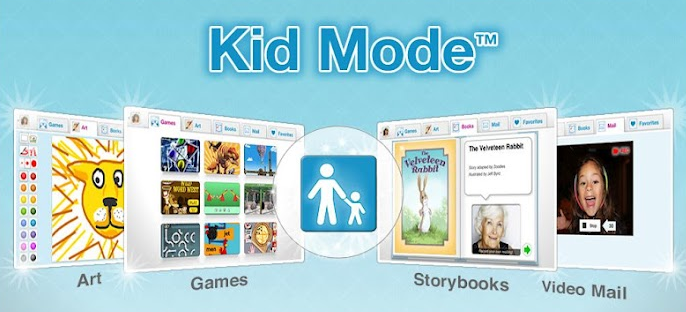
Zoodles Kid Mode – Always free, this Android app provides a games and a safe mode for kids to play the included app games, drawing, videos, educational app as well as apps you choose for your child. The activities provided within the app are suited to age 1 through age 8.   Information indicates you can set up profiles for different children.  Here is a video of the app:

https://www.youtube.com/v/Tm0-ofngVEA?version=3&feature=player_embedded

I have not used this Zoodles Kid Mode app but it sounds great for keeping children or students in a safe mode or controlling what they spend time on when using a mobile device. There also reportedly is a timer that can set limits to how long kids can engage in the device. Comparably on the iOS iDevices there are apps for limiting what YouTube videos you want your child to watch, but I am not familiar with an iOS app that you can set a profile of videos, activities and apps as Zoodles Kid Mode. What a valuable management tools for parents!

Do you know of an iOS app comparable to Zoodles Kid Mode? Please share if you do!

Happy Free App Friday!

Carol

Posted in Android, Android Management, App Reviews, Drawing, iPad, iPhone, iPod, Visual Memory, Visual Motor, Visual Perception | Tagged , , , , , , | Leave a comment

Tap the Frog HD App – Finger Tapping and Swiping Fun!

Here is an app review from Carol Hesch, OTR/L on…

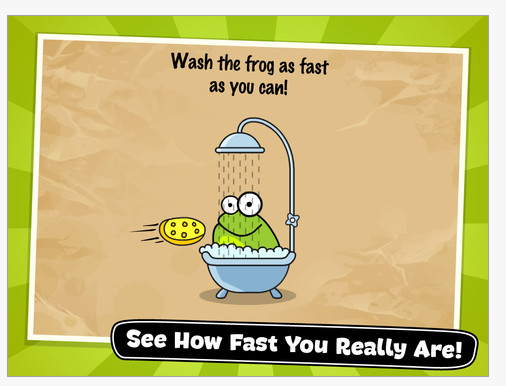
Tap the Frog HD is an App for the iPad (1.99) by Mentals LLC that I use almost daily for fine motor fun with my student’s.  The app has colorful graphics, snappy music (that can be turned off) and provides 64 levels of finger tapping and swiping fun!

This fun app allows you to pick any level to begin and provides such a large variety to choose from that my student’s can’t wait to try!

The student’s follow directions to match colors,  help the frogs jump, eat flies, answer true/false questions, do math, — really too many to name–in a timely fashion.  Student’s will use finger tapping, swiping, dragging, visual scanning, and  bilateral finger use in the higher levels.

Here is a quick video of the app:

The only drawback to the app I have found is that there are simple written directions that a child either needs to read or have read to them so they know what to do with the frog.  Usually, I read the directions quickly for the younger students ( grade 1-2 & under).  If they did not understand the directions the first time, they see their mistake and can very easily try again.  There is no limit to the amount of times they can do a level to earn stars.  The better they get the more stars they earn.

There is another version for $1.99, Tap the Frog 2 (Playmous), which is also quite fun and offers a variety of different games.

I highly recommend Tap The Frog for your OT iToolkit!

Carol Hesch, OTR/L

(Thanks Carol H for your review!More apps for your tool kit! – Carol Leynse Harpold, OTR/L)

Posted in App Reviews, Apps for OT's, Early Childhood, Fine Motor Development, Finger Isolation, iPad, iPhone, iPod, Occupational Therapy, Primary Grades, Visual Motor | Tagged , , , , , , , | Leave a comment

Router Aqua App for Android – Free Today!

  Router Aqua app for Android is comparable to the Flow App (iOS) previously posted. Currently free in the Amazon App Market (today only!), this app provides visual spatial reasoning and visual motor challenge for your clients needs or you (this is the kind of games I really like!). In app purchases are available for more challenges.

Here is an image of the Router Aqua app:


  Router app is a similar app (.99) available from the same developer provides more visual spatial reasoning activities on your Android device.

Have fun Android Appers!  More for your OT eTool Kit!

Carol

Posted in Android, App Reviews, Apps for OT's, Leisure apps, Occupational Therapy, Traumatic Brain Injury, Visual Perception | Tagged , , , , , | Leave a comment