Infinitec Screen Cast on Alternative Keyboards for the iPad by Mary Bettlach

Alternative keyboards

Alternative Keyboards

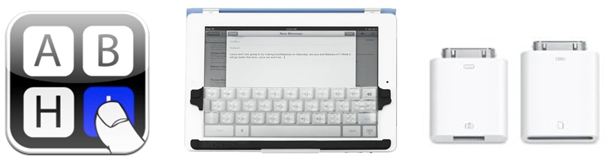
Mary Bettlach from Infinitec, presents an Infinitec screen cast on Alternative Keyboards for the iPad as presented by Scott Marfillius and Kelly Fonner at the 2012 Closing the Gap Conference. Mary Bettlach shares the following iPad keyboard alternatives in her 5 minute screen cast : Mary Bettlach’s Infinitec’s screen cast on keyboard alternatives (retrieved on 12-8-12 from : http://www.screencast.com/users/InfinitecVideos/folders/Default/media/8718946c-881b-40f3-bb30-500e0397a359 ).

Mary Bettlach reviews the following alternative keyboards:

A few other resources or alternative keyboards ideas include:

Alternative Keyboard Apps and Equipment

Alternative Keyboard Apps and Equipmen


Alternatives for keyboarding for your OT iTool Kit!

Carol

Posted in Accessibility, Accessories, App Reviews, Apps for OT's, Apps for Special Needs, iPad, Keyboard, Keyguards for iPad, Occupational Therapy, Writing | Tagged , , , , , | Leave a comment

Photo Transfer App – my favorite app of the year from Rehabgadget2go

Photo Transfer App – my favorite app of the year.

Rehabgadgets2go shares a favorite photo management app using Wi-Fi and how to use it in the above link.  Use of photos on the iPad is a powerful tool for creating therapy instructions, visual schedules, visual modeling, capturing student productions, schedules and much more.

Thank you Rehabgadget2go!

Carol

Posted in Android, App Reviews, Computer Utilities, iOS, iPad, iPhone, iPod, Multimedia | Tagged , , , , , | Leave a comment

Kindergarten Reading – New App from Duck Duck Moose

Duck Duck Moose is an award winning developer of  preschool and kindergarten educational apps with familiar apps as their Wheels on the Bus, Old MacDonald, Draw and Tell, Park Math and Word Wagon to mention a few of their interactive apps.

Kindergarten Reading iconDuck Duck Moose’s  most recent app, Kindergarten Reading  (introductory offer for .99) for iPad is the first in a series of  apps they have created based on Common Core State Standards  in reading.

Kindergarten Reading app features foundational reading skills at the kindergarten level:

  • Teaches phonics – recognizing and naming upper and lowercase letters
  • Demonstrating knowledge of letter-sound correspondences
  • Isolating and pronouncing sounds in CVC words

Here is a video of the app features:

The app provides interactive activities with age appropriate characters and also provides progress information or “lesson plans” reports on users.  Kindergarten Reading app introduces letters based on the frequency of letter use in everyday lnaguage and the order in which students tend to learn them ” (Kindergarten Reading app, 2012, retrieved on December 7, 2012 from app) and work with word families, consonant and vowel sounds needed for the foundations of reading. The ability to track performance is available in the “Parents” section and shows what consonants, short or long vowels the student is working on and if they reached mastery on them.

Kindergarten Reading provides prompts when appropriate in some activities It requiring letter sounds, limiting students ability to just visually match letters instead of using a phonetic awareness or strategies to determine correct answers. Prerequisites of identification of words and consonent sounds are needed for engagement or support by an adult in the app may be needed for emergent learners who do not have phonetic awareness knowledge or strategies.

The app moved along in activities of “find the sound” quickly allowing users to earn new animals as they successfully completed activities in the app. The speed of objects or words scrolling across the screen was fast requiring a quick responses to listen to the word or item and match with the verbal request given. Some students who might struggle with processing this auditory information might find this frustrating. It would be a great addition for special needs students to slow the speed of the items presented and provide a button to repeat the sound requested. Offering varying speeds such as slow, medium or fast might allow differentiation for student at differing levels of skill acquisition and ability. Background and animal sounds are able to be turned on and off in the app.

Duck Duck Moose’s has a blog providing a free, accompanying  Kindergarten Activity Workbook to the Kindergarten Reading app with paper-pencil activities to reinforce learning letter sounds and word families.

Summary:

Duck Duck Moose has produced another engaging app that supports Core Curriculm Standards in the area of reading for kindergarten students. As a home or school activity app, assessment data provided  helps parents or teaching staff understand the users skill levels. As an adjunct to classroom reading instruction, Kindergarten Reading app can help reinforce user skill development and assist parents in understanding core standards of the reading curriculum. Offering workbook activities also can provide non-electronic means of working on the skills, balancing hands on activites with and screen time limits for learners. Knowledge is power. With the app and worksbook activities provided to parents  can help with the understanding of reading development of students at a young level.

Just a couple of options that I would like to see include adding a button to repeat the auditory instruction of the activity if needed. Visually there is much of interest in the app and students who do not have strong receptive language skills would benefit from having a repeat directions button or tool. Options of having the responses provided at different speeds would help differentiate the task to a variety of learners.

Kindergarten Reading app is a nice addition for kindergarten students who are working on phonetic skill development. Although this is not particularly an intervention OT’s may work on, my experience is we may assist parents or teachers with determining appropriate apps for students we service. Pass the word on to teachers and parents to check it out this app while at the introductory price!

Carol

Posted in App Reviews, Early Childhood, Education, Elementary School, Emergent Literacy, iPad, Language Arts, Occupational Therapy, Primary Grades, Reading | Tagged , , , | 1 Comment

We Want Apps App

We Want apps icon

Interested in a more efficient way to find an educational app?


We Want Apps app (free) from Goodbeans GmbH  curates educational apps suited for children up to 14 years of age.   The app also provides a search tool by category, age, price, platform and language. A brief review and rating of likes is provided in the app.  Here are a few screen shots of the app:

we Want Apps pic1 Richard Byrne, educational blogger of Free Technology for Teachers describes this as a time-saving tool when searching for educational apps for parents or teachers (or therapists). We all could use some time savers in our busy educational day!

A few other app review apps that are go to’s for special needs students are:

  • KinderTown app – (free)  reviews apps for children ages 3-7 from Kinder Town website. Both the app and the website provides great information on preschoolers. Check out their blog!
  • Autism App – (free) Apps are categorized and reviewed in this thorough app review app from Touch Autism website. The Touch Autism website is another resource of information if you are working with individuals with Autism Spectrum Disorders, Down Syndrome or special needs.

Happy (faster) Apping!

Carol

Posted in App Reviews, Apps for Special Needs, Education, iPad, iPhone, iPod | Tagged , , , , , , , | Leave a comment

Visual Attention App by Tactus

Visual Attention App

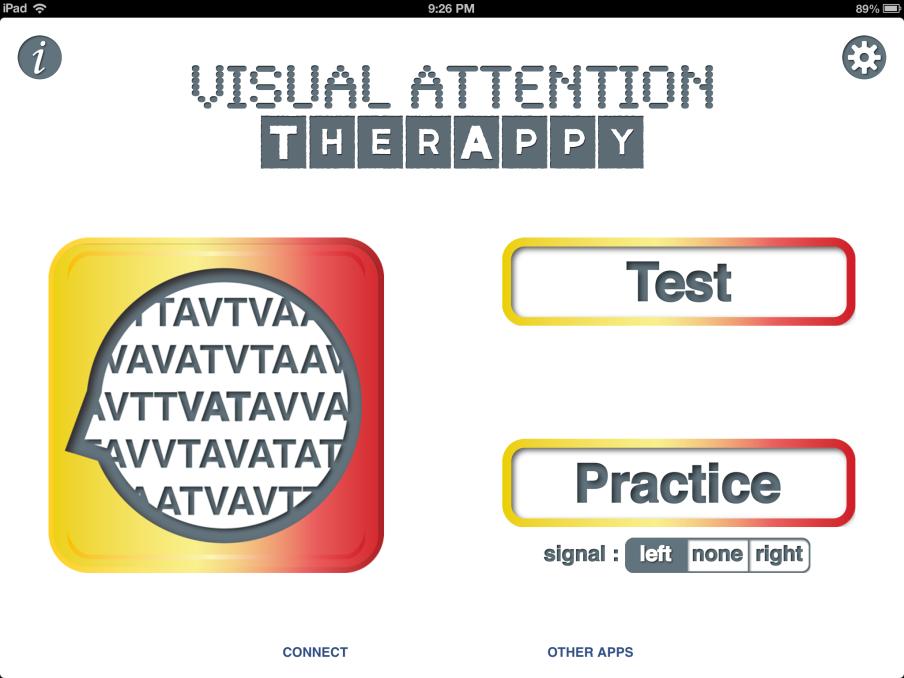
Visual Attention TherAppy  ($9.99) , a Tactus Therapy app , is an iPad app designed to help assess and train visual attention in individuals who have difficulty with visual neglect, visual scanning or sustained attention.  It is one of the few perceptual apps that I have been able to find that is designed to be age appropriate for adults, as well as older children. 

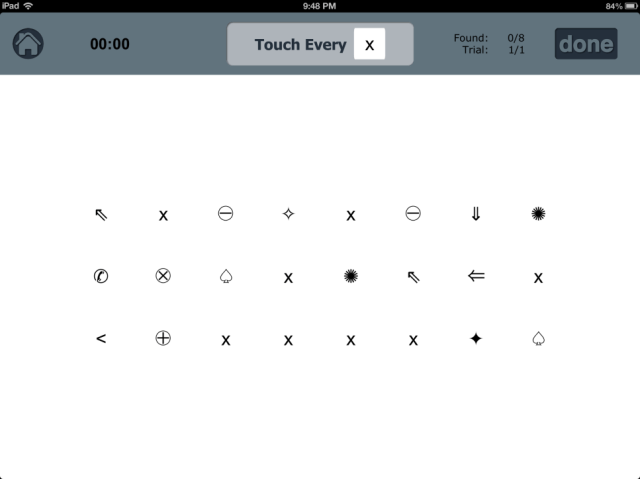
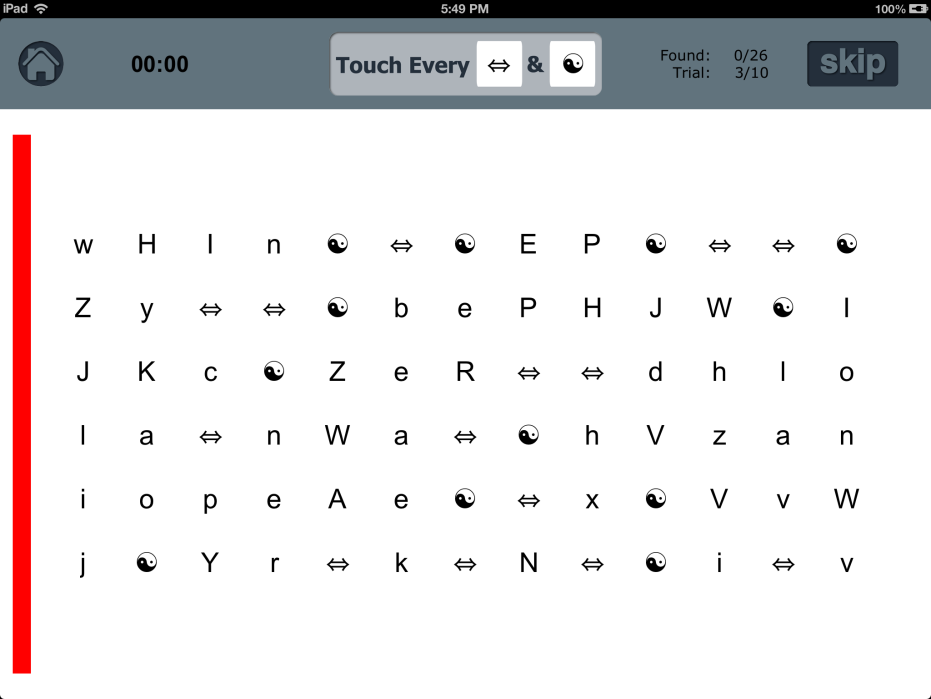
The task involves scanning and tapping on 1 or 2 targets from a screen of symbols or letters.  The app will keep track of the errors and omissions.  The task can be graded by choosing the number of targets (1 or 2), symbols/letters, number of trials at each level, the number of lines on the screen, spacing between symbols/letters, and use of visual cues. The size of the font cannot be increased.

The app has a Test Option and a Practice Option. The Practice Option can be used to train an individual to scan in an organized fashion.  The app provides an auditory cue when the individual has tapped on the correct target.  If the individual has missed a target, it will make a different auditory cue for error.  The app will only let the individual enter a target if it is the correct target in the correct left-to-right sequence. 

You can also set up the Practice session to have a red/yellow/or flashing bar on the side of the page (left or right) to cue the individual to scan to the edge of the page. The Test Option is similar to the Practice Option exception that it will accept target that are out of sequence (do not need to scan left to right).

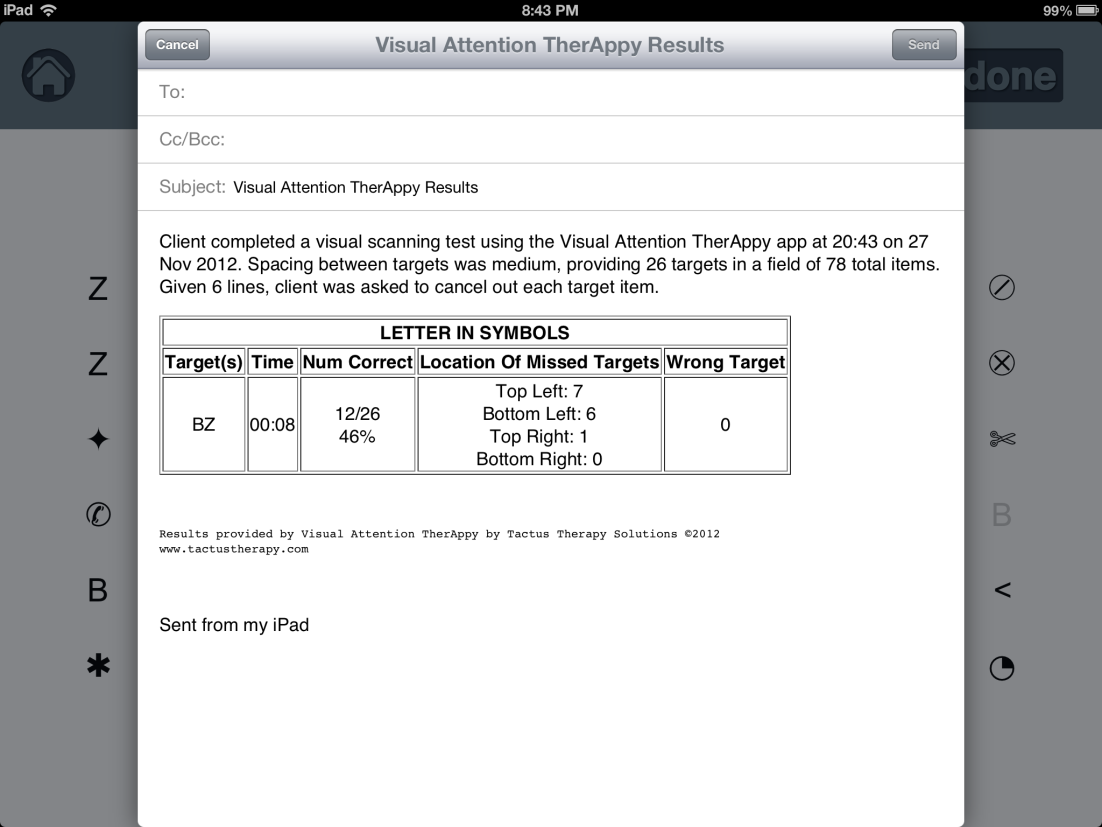
Both the Test and Practice Options will report the time and accuracy at the end of each level.  There is also an option to email more detailed results of the session.  The email report includes information on time, number of correct targets, location of missed targets (by quadrants), and the number of wrong targets.


Here is a sample report of an individual who has left inattention.

When I start using this app with a client with left inattention, I will place the iPad directly in front of the client so the information is located in his/her midline.  As the client progresses, I may move the iPad closer to his/her left side, to encourage the client to scan further to the neglected side.  I also explore with my clients what types of strategies they use to improve their scores, and how they can try using these strategies in their activities of daily living.

I like this app because it provides quick and accurate feedback to my clients, and easily records their progress.  The Practice Option provides opportunity for individuals to improve their awareness of their inattention.  The app comes with very clear instructions, though most will find the app is intuitive to use.

  And like all good apps, Visual Attention TherAppy Lite version comes in a free “Lite” version . Visual Attention TherAppy is on sale for $4.99 until the end of November, 2012.

Written by guest reviewer Adele MacNeill, OT

Adele MacNeill, OT, B.Sc., has 24 years of OT experience in the field of Acquired Brain Injury  with adults in B.C. Canada. Her experience includes working in inpatient, outpatient and community settings as well as a consultant to a group home for individuals with acquired brain injury.


Posted in App Reviews, Clinic Based Interventions, iPad, Occupational Therapy, Rehabilitation, School Based Interventions, Vision | Tagged , , , , | 4 Comments

BrainWorks App – A Sensory Diet Tool

BrainWorks app (11.99) for iPad and iPhone was developed by Occupational Therapist, Gwen Wild of SensationalBrain.com! to provide sensory diets menus for children and teens. Customizable, this app can manage an unlimited number of users and provide in app activity choices as well as customized sensory diet activities using photos from your iPad/ iPod photo library.

Here is a helpful video that provides a great overview of the app and settings:

More about how the BrainWorks app is set up:

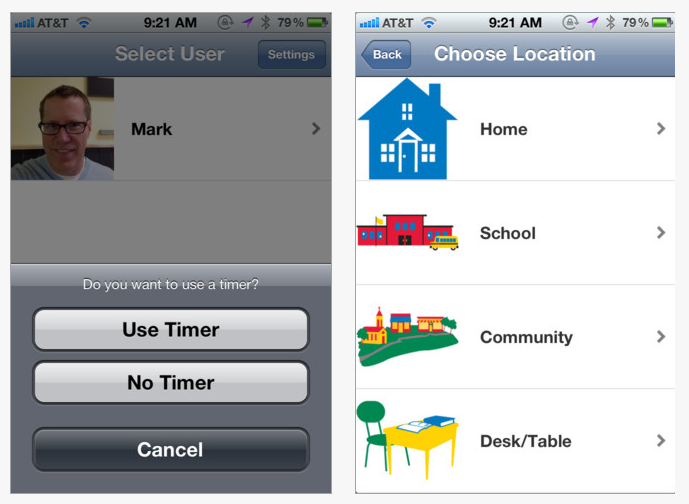
1. Enter user(s) – an unlimited number. Once a user is entered you have the option of using a timer or not.

2. Choose the locations that you will be using the activities.

3. The next step for the user is to choose how they feel. Their feelings will determine what activity choices will be available to them, either calming activities, alerting activities or just right activities.

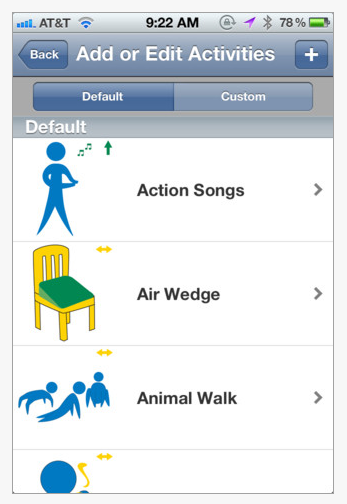
4. When the user has chosen their feeling a list of activities is presented. The user then chooses one of the images they will use. If using the timer was chosen and time was set in the settings menu the time will start lapsing (see time remaining on right picture).

5. If a needed activity is not in the image list, pictures can be added from your photo library. If you do not have the equipment the stock activity can be removed from the list.

BrainWorks app provides a well thought out tool providing supports using a “How does your engine run?” type of problem solving to individuals who need sensory diet activities to help with self-regulation. It provides a familiar framework of sensory diet and many activities with graphics that are explicit visually to the user. I like their terminology of defining user feelings, Just Right, Slow and Sluggish, Fast and Stressed and Fast and Hyper along with the visuals they provide to the user. Customizing the app by adding users and your own activities makes it a flexible tool for therapists and parents and reinforces the concepts and activities that can support self-regulation for the user. Help menus are provided in the app as well as on the SensationalBrain website for using and setting up the app.

A few things I would like to see modified in the app include:

1.  Being able to add in activities rather than removing activities from the activity listing for the user.  There were more than 75 choices of calming activities listed to choose from which is good, however that list might be overwhelming to a student and removing that many is rather tedious. We also provide fewer choices to students for calming, or alerting activities for students and provide them with explicit instructions for some activities such as belly breathing (do 2 minutes of breathing) or theraband (do 10 repetitions x 2) which are often needed to structure the sensory diet activity appropriately during their break time.

2. It would also be great if text or audio could be customized in the user items selected to provide more specific instruction for the user to be effective.

3. Also, it would be great if the app could collect time stamps and data of the users feeling selection  – Just Right, Slow or Sluggish, Fast and Stressed or Fast and Hyper especially at school to help determine some of the antecedents of their dysregulation to help with determining time of breaks or environments that may need some modification. Not sure that can be done, but sure would be great data.

Overall this is a great app with great application for creating sensory diets for parents, teachers and therapists. Sensational Brain website also provides some great information on sensory processing and sensory diet information along with checklists and handouts. They also offer different memberships that provides access to their materials for creating sensory diet activities.

Kudos to  Sensational Brain for their work, providing one of the first sensory diet apps on the market that I am aware of.

Will this app be included your OT mTool Kit?

Carol

Posted in App Reviews, Apps for OT's, Apps for Special Needs, Autism, iPad, iPhone, iPod, Occupational Therapy, School Based Interventions, Self-regulation, Sensory Apps, Sensory Apps for ASD | Tagged , , , , , , | Leave a comment

OT’s with Apps iTool Kit Apps List Updated 11-24-12

Here is an update as of November 24, 2012 with a few new apps and categories for  OT’s with Apps  iTool Kit Apps List

If you have any problems with the link please send me a comment or contact me!

Thank you!

Carol

Posted in Android, App Reviews, Apps for OT's, Apps for Special Needs, iPad, iPhone, iPod, Occupational Therapy, Special Needs | Tagged , , , , , , , , | Leave a comment

Autism and Learning

Infographics are like pictures with research and statistics imbedded for quick understanding of a subject. Here is a great infographic from Online College.org on Autism and Learning that shares information and strategies to help individuals with Autism.

Autism & Learning
Via: Online College Advice

Mobile technology and apps are just one of the many tools that can provide strategies to individuals with Autism. Low tech tools, environmental tools, social interaction, sensory strategies, direct instruction and high technology desktop software all provide supports to individuals with Autism.

Here are just a few apps and resources that can support the cited strategies of visual aids, structure and communication from the infographic.

Visual aids or visual communication apps:

Time Timer  HD – (iOS 4.99), (Android 1.99). Provides a clock timer that counts down the time from start to finish. Aids anticipation of the end of an activity visually. Customization of the features is available.

VisTimer – (Free; full version 1.99) – Visual timer with customization of sounds, colors, text colors. Free version has limited time options. Good alternative to more expensive visual timers.
Kiddie Countdown Timer – (iOS free; 1.99 remove ads) – Visual times with image of stop sign, Yeild and Go, familiar to young learners. Great app but with upgrade to iOS 6 some errors occurred. Well worth trialing for young learners.

Stop Go! – ( iOS Free) – Stop sign timer. Settings allow options for set up of the stop sign and sounds. Each light can be set as a specific time on the stop sign.

Waitstrip – ( iOS .99) – Provides a horizontal count down of time to “wait” using dots that fill with passing time.


Also see apps for structure below which provide step by step visual instruction.

Apps for Structure:

First /Then Visual Schedule-  (iOS 9.99), (Android 9.99 )Provides ability to create your own customized schedule by days, events with context specific images of people, places, objects or events. Text and audio out put is available.

iSee quence – (iOS 2.99) A simpler visual schedule app providing customized sequence of scheduled tasks, places and event using real photos. Allows creation of multiple users. Can also be used for social stories.

Visual Impact – (iOS Free; Pro 49.99) Provide customizeable step by step visual and spoken instructions of tasks and schedules. Import pictures of tasks to create step by step instructions with audio support. Free version provide demo of the Pro capabilities.

iPrompts – (iOS 39.99 ) , (Android 9.99) – Visual schedule app with photo and video capabilities. Create visual schedules with capabilities of task instructions within a schedule.
Visual Routine – (iOS 4.99) – Provides visual schedule and choices using text, audio and photos for scheduled tasks with in the app. Check off is provided for items completed.


Autism App – (Free) Provides categorized lists of app reviews including visual communication/schedule apps available suited for individuals with Autism. Very helpful app.

Communication Apps

Scene & Heard – (iOS 49.99) – This communication app also can provide visual communication for everyday tasks using its context based tools to create scenes of tasks for the user. Easy to use with photos and customized hot spots created within the app. Many scenes can be created.

Answer Yes/No  – ( iOS 1.99) – Create simple boards with one and two choice cell with this easy to use app. Good for simple communicative choices.

SoundingBoard – (iOS Free) – Offered by Ablenet, this is a simple to use communication board that can be customized with existing symbol library or personalized photos. Switch accessible using Ablenet’s Blue2 iPad switch and blue tooth or wired switches.

Proloquo2Go – (iOS 189.00) Highly customizeable AAC app for iPod and iPad. Provides symbol or picture based communication or text based communication environments with word prediction. Instructions and webinars from developers website tutorial aid in  creating customized AAC environments.

GoTalk Now – (iOS Free, 79.99 ) – Offers 3 styles of communication: standard, express and scenes providing basic symbol cell selection, creating sentences and context based communication opportunities in the scene mode.

JabTalk – (Android Free) – Free AAC app for Android. Use pictures, text and record audio to support comunication user. Also provides sentence building in this free app.


Other resources for structure, visual communication and communication apps:

Jessica Chase’s extensive list Social Skills and Autism Disorder Spectrum List for everything Autism and current posts – http://consonantlyspeaking.com/posts/2012/05/social-skills-and-autism-spectrum-disorders-app-list

Jane Farrell offers wonderful information at the Spectronics Website including a listing specifically for AAC apps: Jane Farrell’s extensive Spectronics AAC app list. A bit overwhelming by all the choices but allows you extensive information based on Jane’s AAC expertise.
Autism App – (Free) From Touch Autism website curates apps under more than 30 categories related to Autism. I find this a very helpful resource.

More for your mobile Tool Kit!

Carol

Posted in Android, App Reviews, Autism, iOS, iPad, iPhone, iPod, Visual Communication | Tagged , , , , , , , , | Leave a comment

Panther Technology Black Friday Special Offers

Here are more Black Friday app specials from Panther Technology suite of apps…

Don’t forget to get your Panther Apps from the iTunes store today.

Discover Panther Technology. Apps are based on Universal Design, to unleash potential for individuals with motor disabilities.

Discover everything from Panther Connect, which creates innovative ways to control your computer from your ipad, to Moto Racer, a racing game that finally allows play for indivdiuals with complex motor needs.

Savings thru midnight Sunday night!

Panther Connect – 50% OFF   – Regularly $59.99. NOW $29.99

Panther Math Paper – 25% OFF  – Regularly $19.99. NOW $14.99

Panther Calculator – 30% OFF – Regularly $6.99. NOW $4.99

Moto Racer – 40% OFF  – Regularly $4.99. NOW $2.99

Panther Dice – 50% OFF – Regularly $3.99. NOW $1.99

Candy Cards – Free!

Start unleashing the potential so many others are finding with the Universal Design and Innovative access approaches in Panther Technology!

Check out the apps and the savings from Panther Technology.

Carol

Posted in Accessibility, Apps for OT's, Apps for Special Needs, iPad, Math, Mobility Impairment, Occupational Therapy, Physical Disability Tool, Special education, Special Needs | Tagged , , , , , , , | Leave a comment

Read & Write app for Google Docs

Are you aware of Read & Write app for Google Docs?

First off it has been confusing to me to consider the Read & Write extension available in Google Chrome as an app. Apps have a wider connotation than I thought. Doing a little research on the definition of apps or mobile apps helped clarify how and what an “app” was and why the Read & Write for Google was an app…

“Also called mobile apps, it is a term used to describe Internet applications that run on smartphones and other mobile devices. Mobile applications usually help users by connecting them to Internet services more commonly accessed on desktop or notebook computers, or help them by making it easier to use the Internet on their portable devices. A mobile app may be a mobile Web site bookmarking utility, a mobile-based instant messaging client, Gmail for mobile, and many other applications.” (Retrieved Nov. 23, 2012 from http://www.webopedia.com/TERM/M/mobile_application.html) .

So,  Read & Write extension for Google Chrome is also considered an app!

So what’s the big deal about Read & Write app for Google Chrome? If you are a Google school and students with learning disabilities are using Google docs, or if your school is rolling out Chromebooks you will want to know about this free “app” that can help support struggling readers and writers.

Read & Write app is a free extension available from the Google Chrome Web Store when using Google Chrome as a web browser. The web app provides some of the basic features of the desktop Read & Write software created by TextHelp and can only be used within Google Chrome.  Features available in the Read & Write Google web app include:

  • Text To Speech with Dual Synchronized Highlighting
  • Talking Dictionary
  • Picture Dictionary
  • Vocabulary Tool
  • Study Skills tools to capture Google highlights

Word prediction is not yet available in the Read & Write Google Docs app.

Here are some screen shots of Read & Write for Google Docs to help you understand how this extension or app works:

Selecting text allows text to speech with dual highlighting.

Picture and regular dictionary available. Text to speech allows the dictionary text be read aloud.

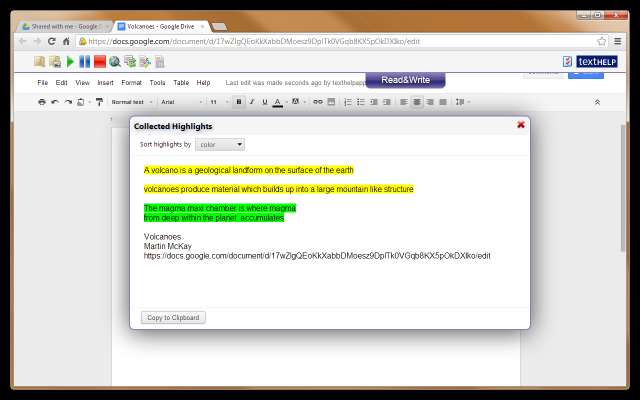
Highlighting tools are available and can be extracted and copied to another document.

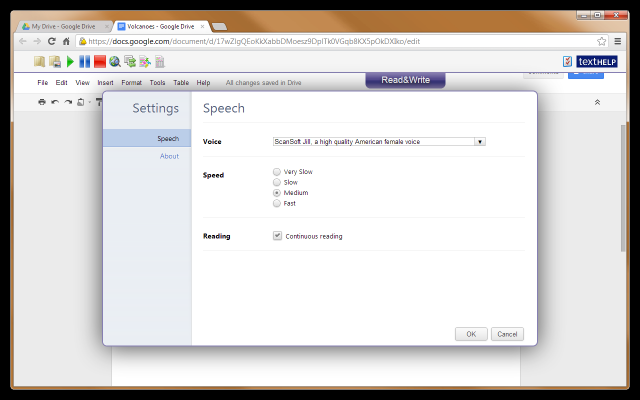
Basic tools for text to speech are available.

(Images retrieved on November 23, 2012 from –https://chrome.google.com/webstore/detail/readwrite-for-google-docs/inoeonmfapjbbkmdafoankkfajkcphgd#detail/readwrite-for-google-docs/inoeonmfapjbbkmdafoankkfajkcphgd )

A video clip provides a better explanation about the app:

To trial Read & Write for Google Docs, download Google Chrome browser to your desktop computer. Log into your Google Drive account and search in the Google Chrome Store for Texthelp, Read & Write or text to speech. Add Read & Write app as an option to your Google Drive app. The Read & Write tool bar  will be available in Google Docs. The tool bar collapses and expands by tapping the tab as shown in the above images of the app in Google docs.

A great support for students using Google Chrome and Google Docs in or out of school. Texthelp has developed a web-based app for use on the iPad with a current version of Read & Write and a paid maintenance plan. Visit the Texthelp website for more information on the web apps or trial the mobile device version of Read & Write version 10.

While attending Closing the Gap conference in October 2012, I was able to listen to the developer of Read & Write. More plans for expanding the features of the Google app including word prediction are projected for next year. Whether it remains free is a question! As a Google school, I find this a great support as we venture into new territory that was known to not be accessibility friendly!

It is an interesting time with many shifts (it seems like seismic shifts!) and changes with operating systems, web-based tools, a variety of mobile devices and apps seemingly occurring daily. Trying to keep up with supports for access methods for individuals with disabilities is definitely a challenge!

Is this app in your OT mobile Tool Kit or does it need to be if you have clients or students who are Google users?

More to come on Google apps that support individuals with disabilities!

Carol

Posted in Accessibility, Adults with LD, App Reviews, Apps for OT's, Apps for Special Needs, Google Docs, Learning Disability, Occupational Therapy, Post secondary, Text to Speech | Tagged , , , , , | Leave a comment