Creating Relaxation Slide Shows on your iPod Touch

Looking for a fast easy way to create a relaxation slide show with favorite pictures and music on your iPhone/iPod without purchasing music or an app?

Photo Jan 20, 3 18 11 PM

The iPod Touch is a great personal device for students or clients to aid self-regulation. There are many apps for relaxation, calming or self-regulation but here is a simple way to create a customized relaxation slide show using favorite photos and music stored on your iPod or iPhone.
Here’s how to do it in 10 easy steps:
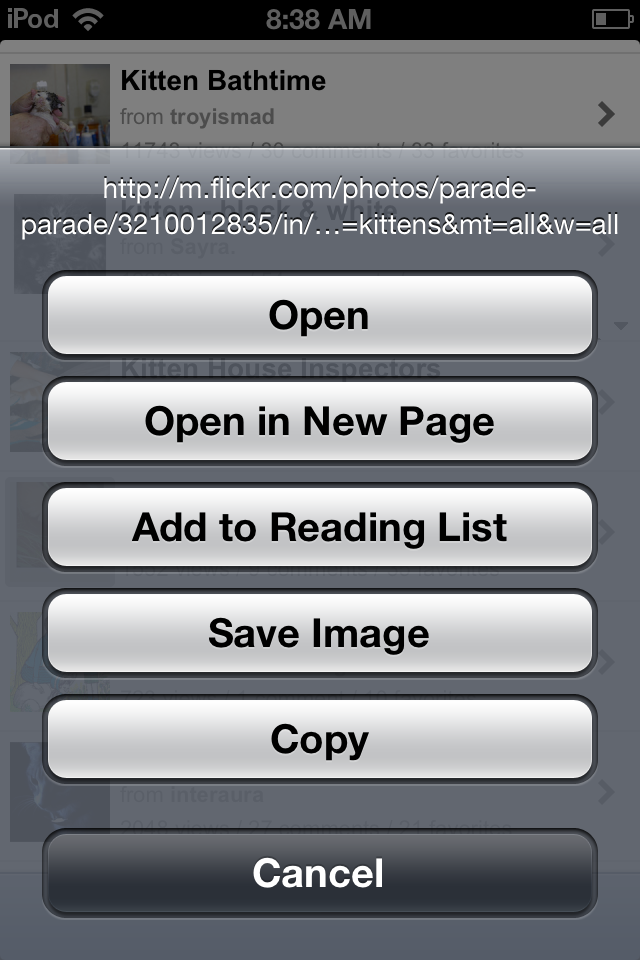
1. Take pictures of a favorite object or place using the camera on your device or find images on the Internet. If using Internet pictures, find copy right free images available from the Internet (see list for copyright free photo resources*). You can also easily copy Internet pictures by dwelling your finger providing the option of   automatically save the image to the Photo app on your iDevice.

Photo Jan 20, 8 38 23 AM (1)

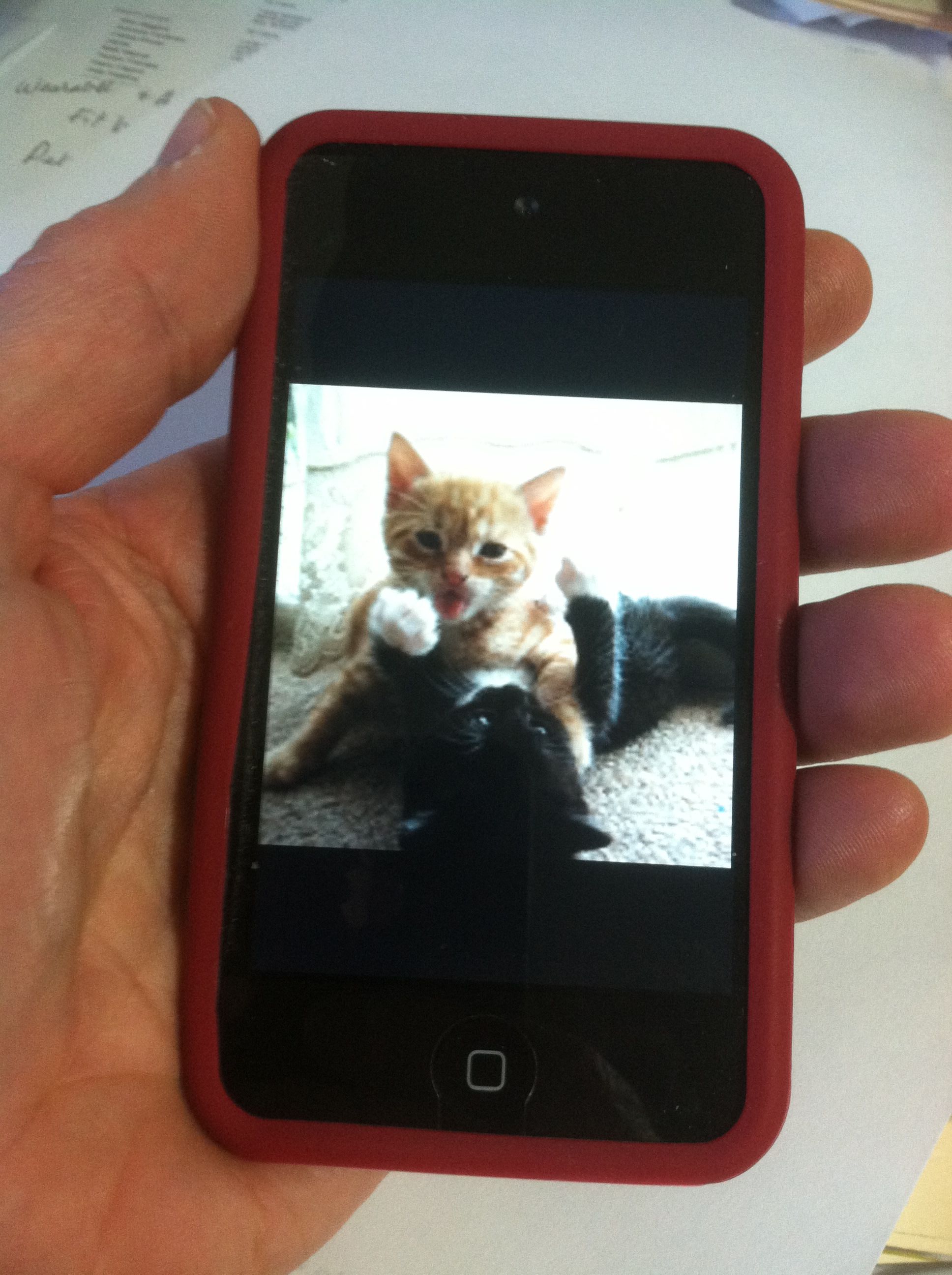
One of the students I work with loves cats. Cute cat images were very easy to find on Flickr,  one of the copyright free Internet photo resources.

Photo app iOS

Photos iOS app

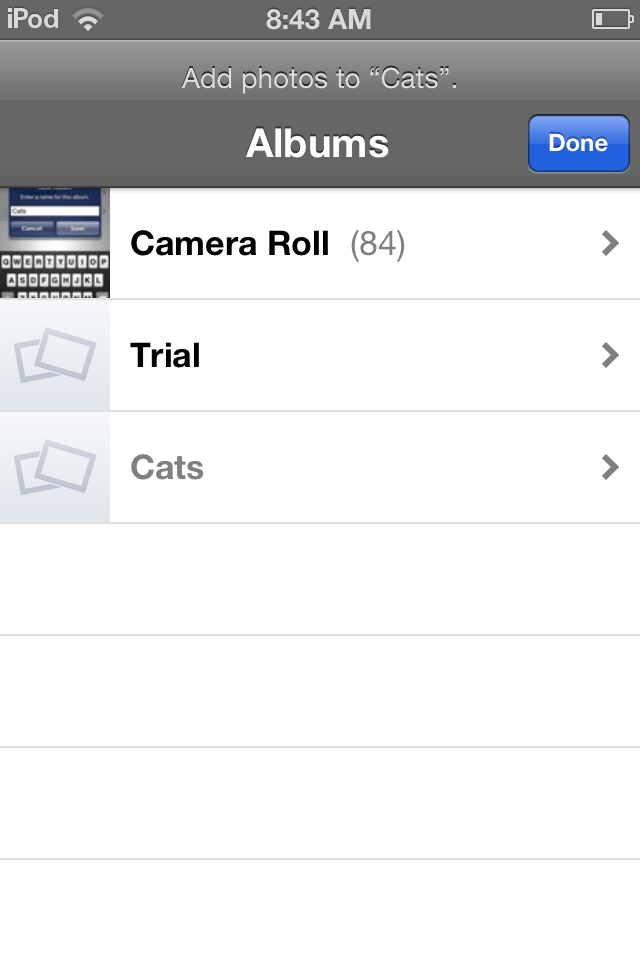
2. In order to create a slide show using favorite images  in the iOS Photo app, you will need to  go to the Camera Roll, tap on Albums to create a new album.

Photo Jan 20, 8 43 55 AM

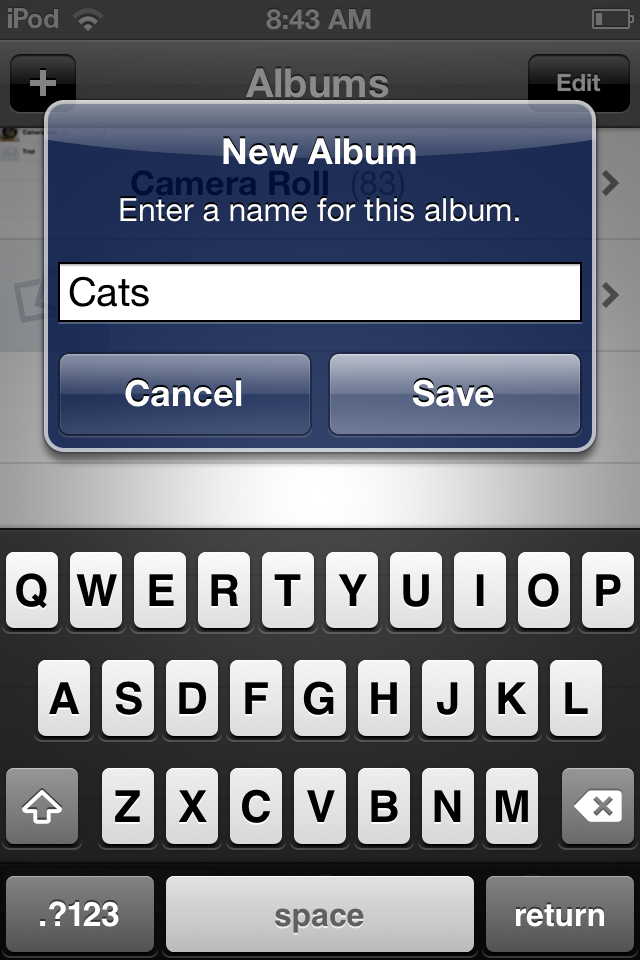
3. Click on the “+” button to create a new Album and give it a name (e.g. Cats).

Photo Jan 20, 8 43 04 AM

Now you can tap the “Cats” Album.

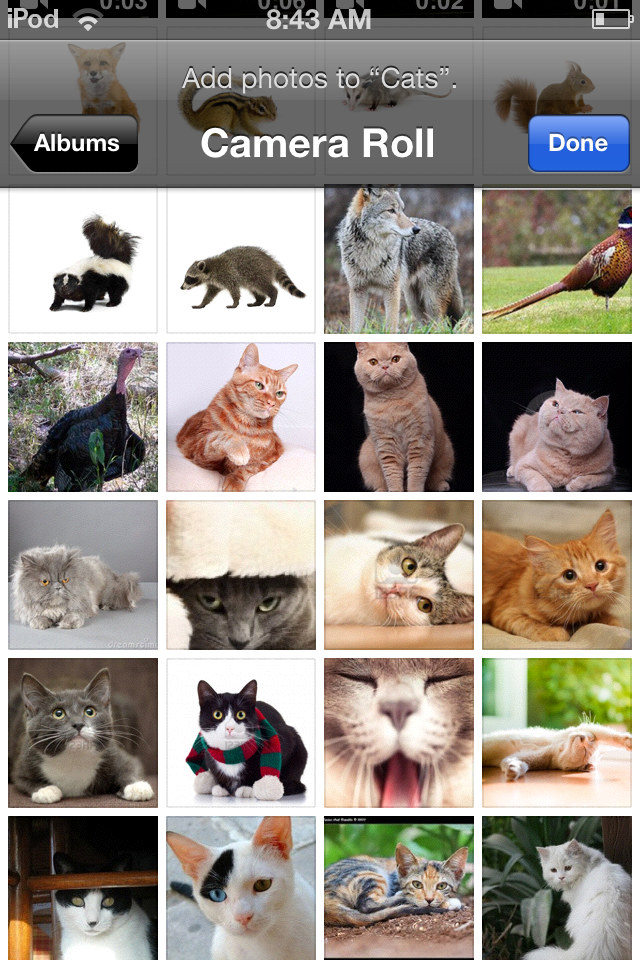
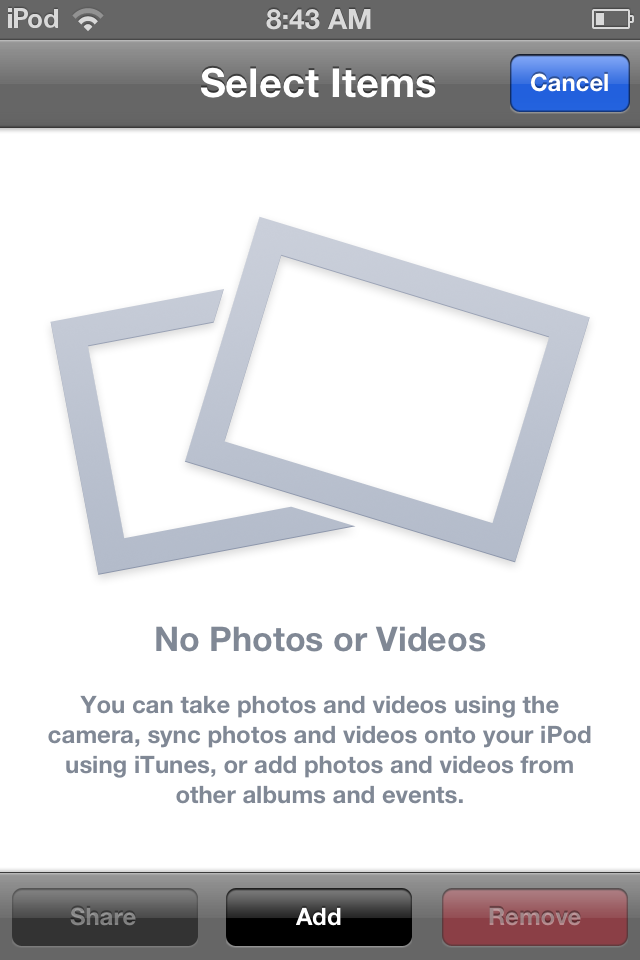
Photo Jan 20, 8 43 17 AM4. In your new Album tap the Add button at the bottom. You will then have the opportunity to Add photos from your Camera Roll.

Photo Jan 20, 8 43 42 AM

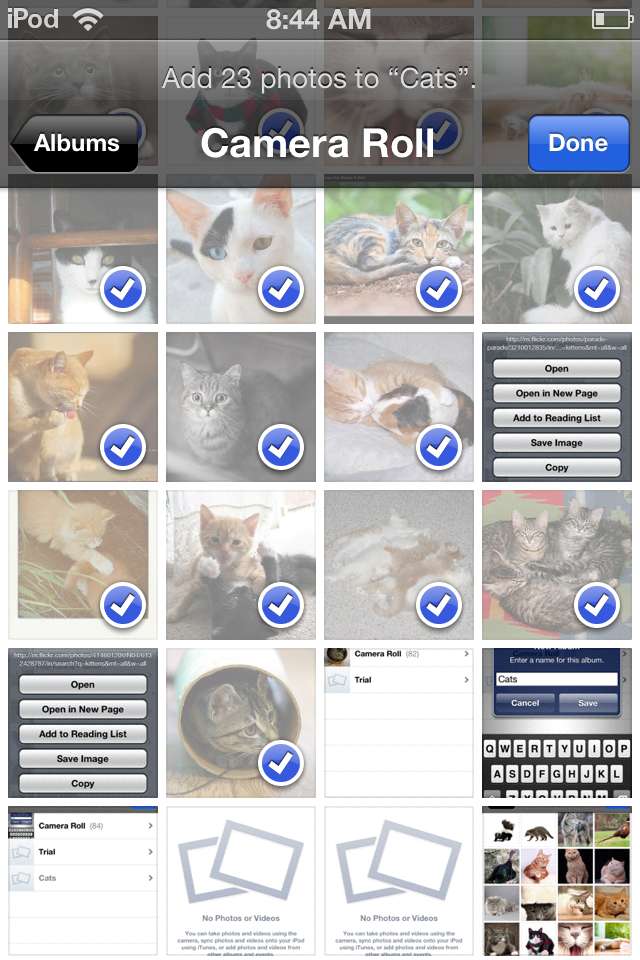
5. Tap on photos in your Camera Roll  you want to add to your new Album (e.g. adds 23  photos to “Cats”). Tap Done and your selected photos will be added to your Album.

Photo Jan 20, 8 44 22 AM

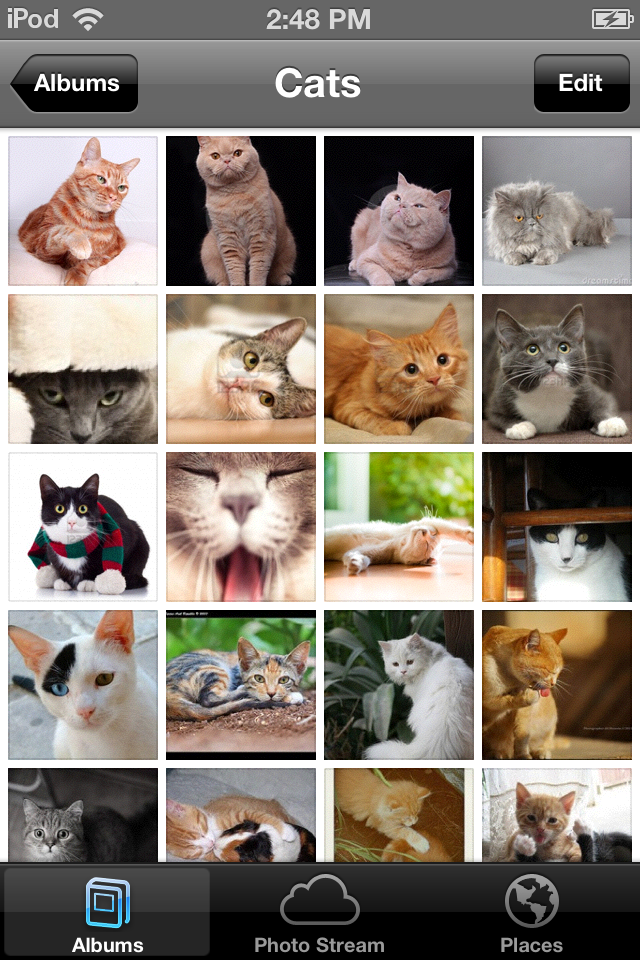
Additional photos can always be added or deleted by using the Edit button when in an album.

6. To add music to your album select the name of your new album. With the Album open, tap the first photo of the album.

Photo Jan 20, 2 48 58 PM

7. The photo opens and here is where you can add music to the slide show by pressing the play (>) button at the bottom.

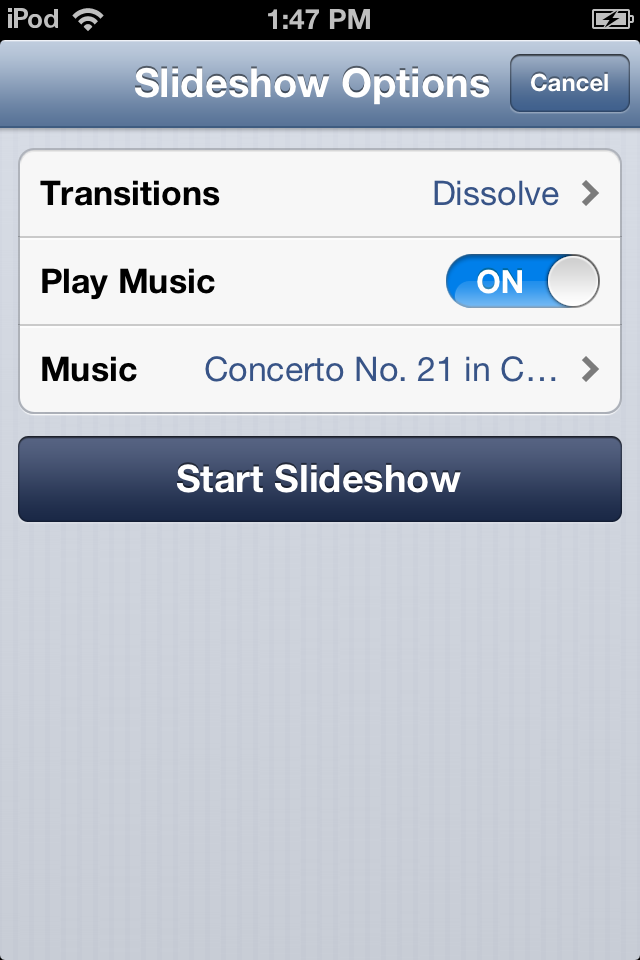
8. A new dialogue box opens allowing choice of Transitions, Play Music (on or off). Slide the Play Music button to On. 

Photo Jan 20, 1 47 23 PM

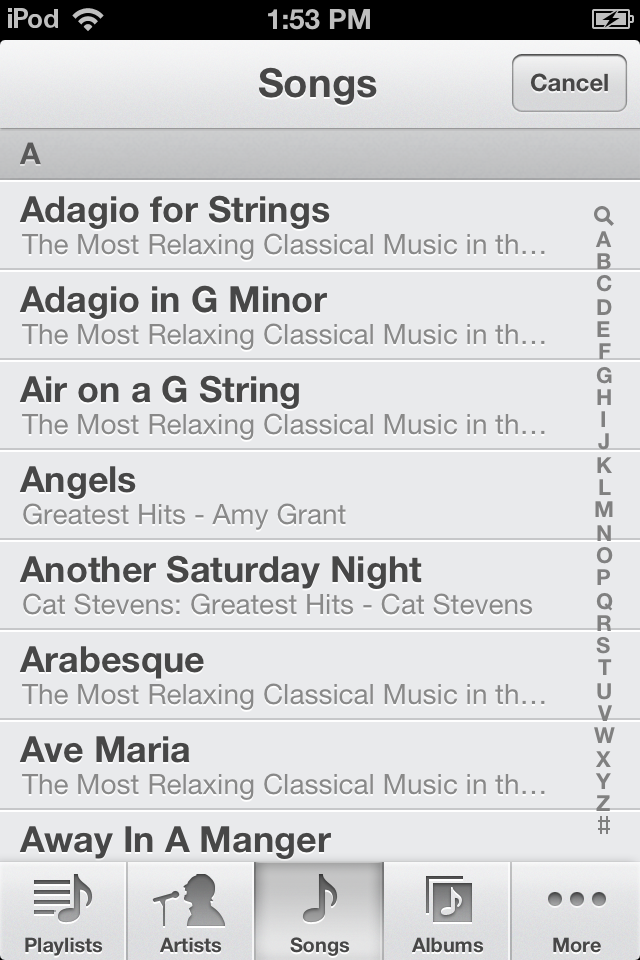
9. Tap the Music button . Your music library is shown.  Tap on the desired song.

Photo Jan 20, 1 53 09 PM

10. Tap Start Slideshow. Your customized relaxation slide show is ready to go for your student or client. The music selected will remain attached to the album until you edit it.

After doing this once, the process is pretty easy only requiring locating images and music prior to creating a new Album. I am using this method of providing a customized relaxation slide show using the iOS Photo app as an on demand choice of a self-regulation activity for a student at school.  It does require numerous pictures to keep a slide show going for an extended time, but is easily customizable with pictures and music already synced to your iPod Touch as chosen by your student or client.

*In need of resources to find  copyright free and free images?

Here are a few to check out:

In need of free calming music?

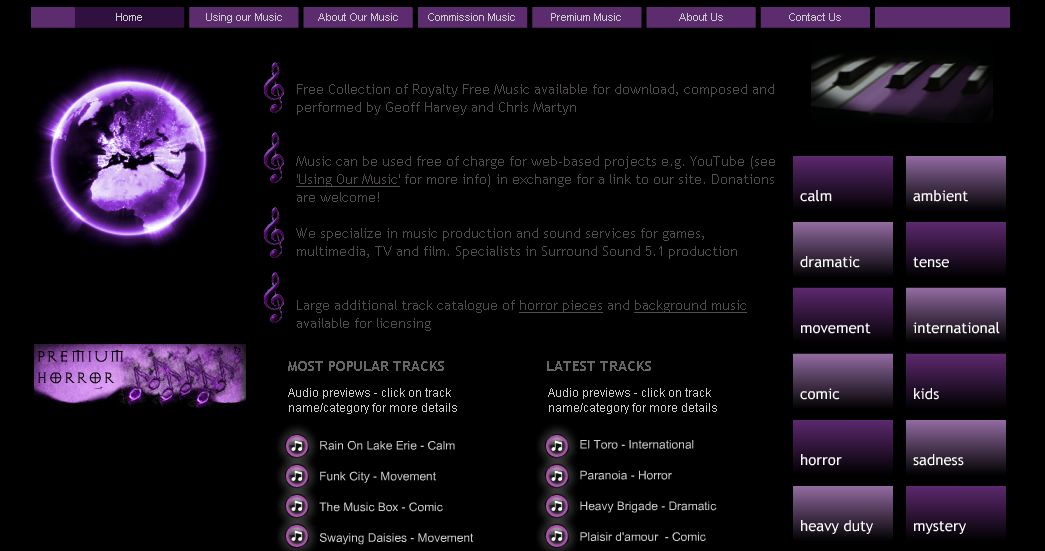
I stumbled upon Purple Planet.com trying to find calming music clips for free. Purple Planet offers royalty free sounds clips if you credit their website. I was quite excited to find Purple Planet.com  which supplied me with a variety of royalty free music to try with specific students that was easy to listen to the download right from their web and download with ease. They have a whole list of calming music and ambient music titles that might be suited to students who might benefit from music that is calming in nature. Here is a screenshot of their website:

Purple planet pic1

Purple Planet.com is one resource for downloading and transferring music from your PC to your iPod via iTunes. Instructions for how to upload music from your computer to your iPod Touch is found in the eHow article How to Transfer Music From my Computer to my iPod. Using appropriate existing titles purchased through iTunes certainly is another easy method of accessing music.

Interested in a list of calming apps for your middle to post secondary students (or adults)? Here is a link to 20 Calming Apps for Stressed out Students (and Teachers) from Edudemics.

Relax!

Carol

Posted in App Reviews, Apps for OT's, Apps for Special Needs, Education, Emotions, High School, iPad, iPhone, iPod, Mental Health, Middle School, Music app, Occupational Therapy, Photo, Rest and Sleep, Self-regulation, Sensory Apps, Sensory Apps for ASD, Special Needs | Tagged , , , , , , , , , , | Comments Off on Creating Relaxation Slide Shows on your iPod Touch

20 Calming Apps For Stressed-Out Students (And Teachers) – Edudemic

See on Scoop.itOT mTool Kit

The picture of college that we get from Hollywood is usually one where everyone is happy, carefree, and laid back, giving no thought to tomorrow.

Carol Leynse Harpold‘s insight:

Edudemic provides a variety of calming apps for middle to post secondary students and teachers worth checking out.

Carol

See on edudemic.com

Posted in App Reviews, Apps for OT's, Apps for Special Needs, High School, iPad, iPhone, iPod, Occupational Therapy, Rest and Sleep, Self-regulation | Tagged , , , , , , | Leave a comment

Leo’s Pad 1 & 2


Leo's Pad2 icon Leo’s Pad is a relatively new app for preschoolers created by Kidaptive and designed by Stanford University featuring interactive and animated appisodes of adventures in science. Leo’s Pad Appisode 1 (free; iPad) has been available since mid December with Leo’s Pad 2 debut January 10, 2013 in iTunes.

I was first made aware of Leo’s Pad just recently by a special education teacher who has a preschool daughter who reported she was highly engaged by this app.  Reviewing the Leo’s Pad Appisode 1 and 2 does show this app to be a very engaging and interactive app.

Leo’s Pad curriculum concepts include 7 categories:

  • Control Yourself (Emotional Control, Executive Function, Motor Control, Patience)
  • Figure Stuff Out (Representation, Spatial Reasoning, Planning, Structure of the World, Relationships)
  • Be Creative (Creative Uses, Self Expression, Idea Generation)
  • Gather Necessary Knowledge (Colors & Shapes, Mathematics, Positional Language, Reading and Language, Wellness)
  • Love Learning (Practice, Perseverance, Approach to Learning)
  • Acquire Physical Routines (Movement Mastery, Space Mastery, Task Mastery)
  • Interact with Others (Back and Forth, Boundaries, Communicating, Reading Others)

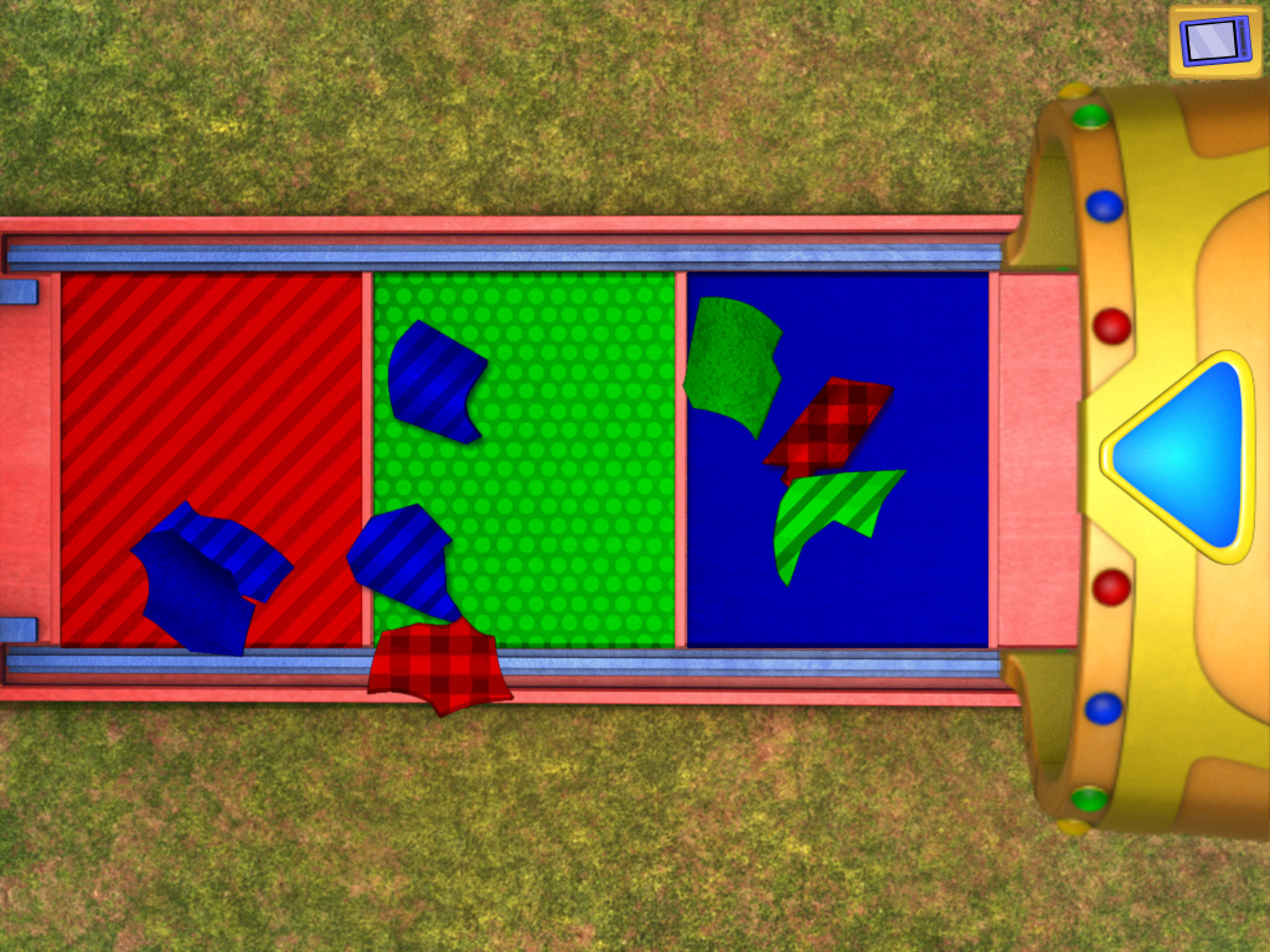
Categories support 21st century learning goals as noted in the curriculum listed featuring the sub topic goal areas. The app presents like a Pixar interactive story with animation, characters talking, giving directions, moving and interacting within the scenes with the activities.  In Leo’s Pad 1 there are 13 different story scenes with activities featuring tracing and putting pieces of a telescope together, counting and taking away, sorting patterns and identifying numbers while tilting the iPad towards the correct number of objects on the screen.  Here are a few screen shots of some Leo’s Pad 1 spatial reasoning activities involving putting together a telescope:

Leo pad pic 1                         Leo pad pic 3

After completing  scene activities, you can go back to the scenes and interact with them again. Repeating a scene increases the level of difficulty of the activity if the user has successfully completed the entire activity.

Leo’s Pad 2 has 9 different scenes providing a combination of activities that support the defined curriculum goals.  Here are a few of the screen shots of the new Leo’s Pad 2 visual motor, matching and sorting activities which increases in difficulty when going through the complete story another time:

Leo Pad pic 4                     Leo pad pic 5

The app provided a few activities suited to students serviced by OT such as tracing, color and pattern  sorting, shape matching/ parquetry, however the tasks appeared to be more advanced than what most special needs preschools might work on. The visual motor task of tracing parts of a rocket ship (above picture on left) involve shapes with curves and angles, a more difficult visual motor skill.  Following directions and knowledge of right and left concepts were also part of the activities in Leo Pad, skills well above those of  most special needs preschoolers I have worked with. These activities could be appropriate children with typically acquired developmental skills with more abstract spatial reasoning skills.

Leo’s Pad activities requires strong listening and receptive language skills as part of the curriculum goals, but which may be frustrating to students with challenges in these areas.  Again, as projected for preschool children, those with language, motor or cognitive difficulties may need support when engaging in the activities. The activities would seem to be best suited to kindergarten or primary students who have the receptive language skills to support engagement and understanding of tasks requested.

Leo’s Pad provides wonderful, engaging activities for typical preschool to kindergarten aged students. At this time limited options for differentiation are available in Leo’s Pad apps to make any changes or to add or remove additional prompts (visual, textual or repeated audio) within the activities or provide different levels of the tasks. Within the school setting use by teachers or therapists require using it with a variety of students. Lack of enlisting numerous students at this time or resetting the activity to the beginning level limits use with multiple students. Including the ability to enroll multiple users would make this app more useable in a school setting.

Projected for Leo’s Pad apps is a parent dashboard that will collect data on the users progress. This sounds to be a great addition to the app to monitor progress in the goal areas projected within the app. At this time home use by individual users seems to be what it is best suited for. Suggesting this app for home programming for students who have skills that support successful participation would be appropriate or providing individual support by an adult when using the app for those that are engaged but may have difficulty with tasks presented. With Leo’s Pad 1 currently free, I suggest checking this app out to trial with your child or students for it’s engaging and interactive storylike format.

Carol

Posted in App Reviews, Early Childhood, Elementary School, iPad, Occupational Therapy, Special education, Visual Motor | Tagged , , , , | Leave a comment

More Customizable Apps

OT’s with Apps Customizable Apps List

Customizable apps - ots w

Judi Sweeney’s customizable apps list is a great resource for apps that can be modified to support the unique needs of individuals with disabilities for work task at school or independent living or work skills. With thousands of apps available and new apps continually developed, there are always more emerging with customizing features. Here is another app list with more possible customizable apps:

  Book Making / Social Story Creating Apps


Story Creator icon  Story Creator – Use pictures, videos, add text, highlighted text and audio recording to book making app. Work flow is limited to Facebook. Lock feature

Free

 Tapikeo icon  Tapikeo HD – Uses pictures, audio, text to create stories, vocabulary supports or sequenced instruction. Lock feature

2.99

 Bookabi icon Bookabi – Create books in 2D or 3D with backgrounds, characters, objects, stickers or your photos. Call outs for text.

Free

 My Pictures Talk icon My Pictures Talk – Create stories with your photos and audio recording features.

4.99

Storyboard icon  Storyboards – Create 2D story boards with stock images.

Free

Creative Book builder icon  Creative Book Builder – Create ePub books or text books. Work flows to PDF, ePub and iBooks.

4.99

  Fine Motor – Prewriting


Ready to Print icon Ready to Print – Allows customization of features within the pre-writing activities.  

9.99

  Functional Life Skills


Functional Planning System icon  Functional Planning System – Scheduling and video prompting options support daily tasks. Customizable

4.99

 Shopping List Generator icon Shopping List Generator – Create a picture list of shopping items

4.99

 Visual impact pro icon Visual Impact Pro – Video, text, audios supports provide cognitive supports for community and daily living tasks.

49.99

Piclist to do icon  PicList – Create to do list. Provides image support

1.99

  Instructional Apps


Bitsboard icon Bitsboard – Combines many Grasshopper apps for customizing instruction for emergent learning tasks.

Free

Sentence maker app icon Grasshopper apps  Sentence Maker – Create your own sentences for students.

.99

Make Dice Lite icon   Make a Dice – Create your own dice for classroom tasks.

.99

Little puzzles Little Puzzles– Use your own pictures to customize puzzles with 4-9 pieces.

Free

 Image spinner icon Image Spinner – Create your own spinner

.99

A+ Flash Card Pro icon  A + Pro – Flash cards created with text, audio, image. Syncs with Quizlet collection of flashcards

Free

 Tiny Tapp icon Tiny Tap – Take pictures and create choice game for young students.

Free

Choiceboard creator icon  Choice Board Creator – Create choice board of 2 to 8 pictures to choose from

Free

Word Slapps icon  Word Slapps – Customize and categorize vocabulary with images, audio.

4.99

  Math


 Teaching Table icon Teaching Table Provide a variety of widgets to create math activities.

2.99

  Self-Regulation


Sosh icon  Sosh – Provides supports for 5 R’s of social skills and self-regulation (relate, relax, regulate, reason, recognize). Appropriate for individuals with self-awareness.

39.99

 Sosh icon Sosh Relax – Relaxation component only of the Sosh app. Add your own images, sounds, songs to create customized self-regulation tool.

5.99

 Autism Tracker Pro icon  Autism Tracker Pro – Tracks moods, emotions, activities. Customizable

9.99

Brainworks icon  Brain Works  Sensory diet app, customizable, unlimited users

11.99

Autism 5 pt scale icon  Autism 5 Point Scale – Five point rating. Allows customization of each point.

free

  Visual Communication Apps


Now what icon  Now What? – Text based visual schedule app for higher functioning individuals

free

iSee Quence app icon iSequence – Basic visual schedule app appropriate for young students

2.99

  Writing/ Handwriting


 Clicker Sentences icon Clicker Sentences – For emergent writer supplies images, word bank and text to speech. Customizable

20.99

 Clicker Docs icon Clicker Docs – For developing writer, provides word prediction, word banks, text to speech, tabbed word banks. Customizable

25.99

Write My Name icon  Write My Name – Features ability to create customized user name activity.

3.99

 Write for School icon Write for School – Choose school fonts. Customize the instruction and verbiage of letter formation within app.

6.49

Another fabulous resource is Lauren Enders Pinterest pins of customizable apps. Lauren’s Pinterest is absolutely awesome! An exceptional resources for special education teachers, therapists and AT’s.

Also thank you to Lisa Olsen for sharing her favorite customizable apps! What are your favorite apps that can create customized content for your students or clients occupation?

Carol

Posted in App Reviews, Apps for OT's, Apps for Special Needs, Customizable app, iPad, iPhone, iPod, Life Skills, Occupational Therapy, Rehabilitation, Social Skills, Special education | Tagged , , , , , , , , , | 2 Comments

Apps4Stages Wiki

Looking for apps that fit the characteristics of your students?

Familiar with Stages© Framework from Cambium, produced by Madalaine Pugliese?

Stages pic

“Stages© framework takes a research-based approach to defining developmentally
appropriate observable learner characteristics for each Stage and recommends
features to consider in computer software for learning, along with teaching
strategies that match and scaffold student need.  This approach has proven very helpful in supporting educators, therapists and families in selecting appropriate learning materials.

 Apps4Stages provides app recommendations from students and faculty at Simmon’s College Assistive Technology Programs that correspond to the seven Stages framework. The seven stages are not grade level or age referenced. Instead they are competency
based. Each Stage© identifies skills or milestones to achieve. Once those
milestones are determined, and from the perspective of student first, features
to seek in skill building applications are suggested.” (retrieved on December 31, 2012 from: http://apps4stages.wikispaces.com/).

The apps4Stages lists each Stage©, a description of the stage, features to consider and linked list of apps appropriate to the characteristics of the learner. Here are the individual Stage© and its wiki page:

Most of the apps are iOS however the list provides a wonder list of apps to support students with special needs. Checking out this list and then searching for Android apps may be well worth your while as more and more apps are created that are cross platforms are available.

Apps4Stages provide a wonderful listing of apps by characteristics rather than age or grade level. The wiki, supervised by faculty at Simmon’s College provides helpful app listings as well as links to Accessibility, Finding Apps and Recommenders, App Tutorials  as well as more resources and information about apps for special needs individuals.

Thanks to Simmons College, Luiz Perez, Jennifer Edge Savage, Gina Violante and their students for providing this resource!

References:

Stages© Framework , retrieved on December 31, 2012 from http://apps4stages.wikispaces.com/ .

Stages © https://www.intellitools.com/store/stages/stages-special

Pugliese, Madalaine. n.d., Using Stages to create meaningful and effective alternative assessment portfolios, retrieved on December 31, 2012 from: http://spnd453fall2013.wikispaces.com/file/view/Stages+CTG+2002.pdf .

Resources for your OT mTool Kit!

Carol

Posted in Accessibility, App Reviews, Apps for OT's, Apps for Special Needs, Cause and Effect apps, Early Childhood, Education, Emergent Literacy, iPad, iPhone, iPod, iPod/iPad Accessory, Life Skills, Occupational Therapy, Primary Grades, Special education, Special Education Teacher, Special Needs, Writing | Tagged , , , , , , , , , , , | Leave a comment

Panther Technology Apps on Sale Thru End of Year!

Panther Technology  has produced several apps geared to students with motoric challenges that provide alternative access modes to classroom tasks. Their apps are on sale through the end of the year:

Panther Writer – iPad app now 14.99 is their new writing app featuring 4 keyboards configured for individuals with motor challenges.

Panther Writer pic1

– Basic Plus: a small variation on basic keyboard organization with features such as hold times, different alphabets, etc.

– Tom’s Keyboard: a powerful new layout that feels familiar, yet makes the keys you need most easier to hit

– Mini Touch: a keyboard that’s smaller, for people who have trouble moving their fingers a distance.

– Vertical Fall: a new concept for people who have severe disabilities. Just drag your finger along the bottom of the iPad and the letters and symbols present.

Panther Connect – iPad app now 29.99 provides multiple means of connection to the computer for individuals requiring special settings for access. Features accessible trackpad with 5 innovative modes for individuals with motor disabilities.

panther connect pic1Panther Math Paper – For iPad and also currently on sale for 14.99. Features keys to create beginning math problems to advance equation problems. Math practice problems also included. For individuals with motoric challenges allowing production of math equation problems.

Panther Math paper

Panther Calculator – iPad app on sale for 4.99 provides ease of access for individuals with motoric challenges. Cut and paste your problem into the calculator work space and produce your answer.

Panther calculator pic1

Specialized apps for individuals with motoric challenges for your OT iTool Kit! For more information check out Panther Technology.com

Carol

Posted in Accessibility, App Reviews, Apps for OT's, Apps for Special Needs, iPad, Keyboard, Math, Occupational Therapy, Special education, Writing | Tagged , , , , , , | Leave a comment

Write for School App – Customizable Letter Formation Instruction

Write for School icon
Write for School
Device Compatibility: iPad
Cost: 6.49
Developer: Little Caradams Pty Ptd
App Description: Write for School is an educational app featuring manuscript upper and lower case letters, number formation, letter blends and vowel formation instruction for primary aged students. Created by Australian developers, this app also provides D’Nealian and Zaner Bloser Style American letter formation along with numerous Australian, New Zealand and United Kingdom font styles in its instruction.
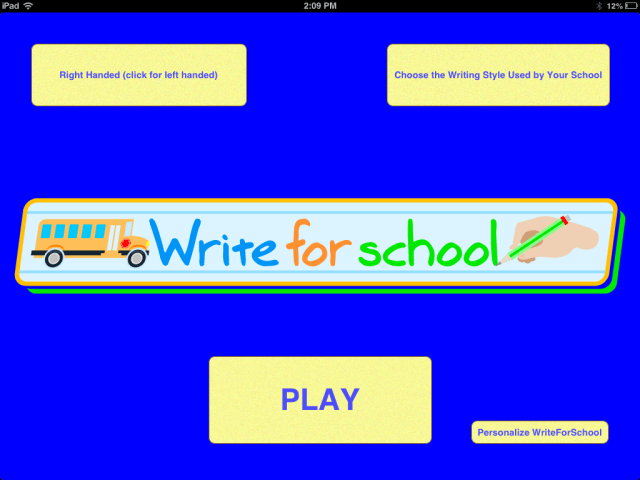
The main screen of the app provides the following options:
Writefor school pic5

  • Choice of using right or left hand (positions the letter on right or left side of the app screen)
  • Choose the Writing Style Used by Your School (provides choice of the style of instruction and font)
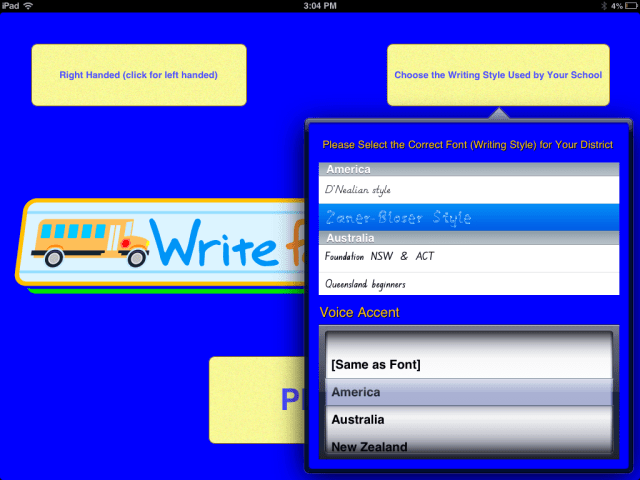
Write for School pic6

  • Personalize WriteForSchool button on the bottom right provides many font editing options:

Type of font
Font Color
Font Size
Transparency
Thickness of the font
Position of the font on the screen (moves it up and down on the screen)
Writing line size
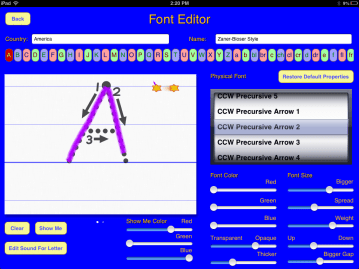
Write for school pic1 font editor 2012-12-24 02.37.46 PM

“Show Me” editing options allow you to create your own the order and letter formation of the letter. The default lower case letter “x” formation started with the left diagonal descending, different than American Zaner Bloser letter formation. I was able to edit this sequence using this editing feature. The default color for the “Show Me” video of letter formation is red. Other options are green and blue.

  • The PLAY button takes the user to the activity page as chosen by the options set in Choose the Writing Instruction for your School and Personalize WriteforSchool button on the main page .
    Five choices of letter and number formation instruction is provided on the activity page or screen:
  1. a – z (lower case manuscript)
  2. vowels
  3. blends
  4. CAPITALS
  5. numbers 1-20

The activity page provides the following options for the user:

  • Use of right/left hand
  • Writing style
  • Touch and sound of the letter
  • Letter or number line

Writeforschool pic1

The writing area also provides the following options for the user:

  • Picture provides hearing the letter and word name
  • Show Me button
  • Next button
  • Try Again/Clear button
  • Colored writing tools

The “Show Me” button provides a video of the letter being drawn,  “Next” moves the user to practice the next letter in the alphabet, and “Try Again/Clear” clears the writing area for additional practice. A star guides the user in where to start writing and continues to guide the user in the direction of letter formation.

The a-z alphabet buttons provide easy choice of letter formation practice in any sequence. The picture speaks the letter and word name when touched. Phonetic sounds are not provided in the app.
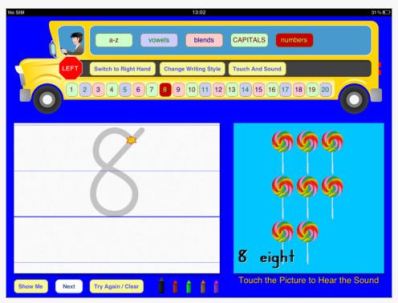
Writeforschool pic2

Use: This app is primarily for preschool and elementary skilled students needing practice with letter formation. Although made by Australian developers, it provides many options for different styles of letter formation instruction for English languages. Easy to use, it provides visual and video instruction of letter formation. Although it does not provide arrows for direction of letter formation as is recommended by best practices (Graham, Steve), it does provide a star showing where to start writing the letter which also guides the user through the visual motor sequence of letter formation. The “Show Me” option provides a wonderful visual/video sequence of letter formation. Readily available “Try Again/Clear” and “Next” buttons allows for additional practice or moving on to the next letter in the alphabet. Using the letters and number line presented on each screen can allow for  practicing letters out of sequence or by letter groups as directed by the teacher or therapist. Repeated practice is offered using different colored writing tools. Coming from a school that has adopted the American Zaner Bloser method of handwriting instruction, there were a few minor differences with how some letters were formed but which could be edited in Personalize WriteforEducation button using the Font Editor menu.
I found the options available in the Font Editor to be exceptional, allowing editing of the “Show Me” video formation sequence as well as changes to the attributes of letter writing with color choices, width of lines, sizes of paper lines and size of the font. Choosing different fonts available provides, letters with arrows showing the correct sequence of letter formation also with options of reducing the supports to dotted lines depending on the font choices available. Although the app is very straight forward for the user, the many options requires a bit of trial to determine how to customize the letter formation practice to the user as well as to a school’s letter formation instruction using the Personalize button options.
Pros: Writefor Education app include the ability to customize not only the color, the font, weight and thickness of the lines and formation of letters using the Font Editor menu. Few other app (that I am aware of) provide such in depth customization of the instruction component.  Customization can aid users with vision, motor planning and motor control challenges and also provide fading supports to the user with use of different font types.

Instruction is provided by the videos (“Show Me”) of letter formation as well as use of a star showing where to start writing and which guides the writer in the direction of the letter formation. Although this does not provide the recommended numbered arrows for letter  formation (Graham, Steve, n.d.), it does provide guidance for letter formation to the user. Accuracy for letter formation was lenient when tracing over the letter, stopping the written line when extremely deviant from the letter line.  This can be good for beginning writers providing them the ability to learn the sequence and formation of the letter then requiring accuracy after letter formation is learned.

The “Show Me” video instruction is a wonderful aid for students who are visual learners to view format of the whole letter sequence. Many different opportunities for letter and number formation practice are provided in this app in a flexible and customizable skill and drill format.
Cons: Best practices recommends providing arrows and number sequence for letter formation (Graham, Steve) which is partially provide using the star guide during the writing process. The videos however provide a wonderful visual guide of how the whole letter is formed. The letter pictures provided in each writing activity I found somewhat distracting as many have animation which might be distracting to the user.

Use of a stylus is recommended for improved viewing of the star which visually directs letter formation but can be difficult to see under your finger when writing on the iPad. Although the app provides many opportunities for letter formation (lower, upper case, blends and vowels), best practice also recommends using the letters practiced in words and writing letters from memory (Graham, Steve, n.d.). Writing activities to reinforce recall from memory or writing words are not currently integrated into the app but can easily be performed following letter formation training with the app using paper, white board or chalkboard practice. Games of producing the letters by verbal or recall can easily be played using letter dice, flash cards or in a variety of tactile mediums (shaving cream, play dough, clay, gel bags, sand or aquarium rocks for real multi-sensory feedback.
Multiple user options are not available in the app.  For teachers or OT’s customizing the app for multiple student use would be difficult to manage. Tracking the acquisition or completion of letters by students also is not available within the app. Screen shots could be take of single student work using the Home button and Power button and stored in a Photo Album by student for assessment and tracking purposes if assessment information was needed when using the app.
Special needs features: Widths and sizes of letters and numbers, line and color of lines when writing can be customized for the user providing great options for students with visual challenges, attention or motor challenges. Video “Show Me” option of letter formation provides a strong avenue for learning for visual learners. Guidance for letter formation using the star and a stylus can aid students with cognitive and motor planning challenges. Providing students audio instruction or coaching (by the instructor) using the classroom’s verbal instruction is recommended to allow a multi-sensory method of learning for students which is consistent with classroom instruction. Positioning of an iPad on an easel and use of an appropriate stylus for the student can help with access and being able to see the star guide when writing.
Final Comments: Despite some features that were missing according to best practice research (Graham, Steve) I was quite impressed with the many options and customization available in this app allowing instruction to mirror what is provided by school curriculum or customize the instruction to individual learners needs. The video “Show Me” option for visual learners is very appealing as this is a strong method of learning for them and readily available. Writing for Schools also provides a flexible means of learning upper, lower case letters, blends, vowels and numbers. The ability to choose your own order of practice of letter or number formation and the ability to customize using the “Personalize” button provide customization not only to school instruction but also to each user. Customizing instruction to multiple users on a single iPad could be very cumbersome but would be beneficial to students using dedicated devices. Using this app along with other hands on methods of letter formation would provide learners with instruction and multi-sensory modes of learning including writing on paper for functional carry over to classroom tasks.  Instruction for those using Handwriting without Tears I believe could be adapted using the Font Editing options.

This app is a value for its ability to customize instruction to students and customize instruction for a specific school handwriting method. It would be great if a lite version was available for a brief time for teachers and therapists to trial prior to purchase to ensure that it will meet their students and school instructional methods. WriteforSchools is a worthwhile app for skill and drill practice of handwriting for primary aged students.

Have you used this app? What is your favorite letter formation app?

References
“Writing Numeral and Symbols.” N.p., n.d. Web. 24 Dec. 2012. <http://www.zaner-bloser.com/media/zb/zaner-bloser/HW_Student78.pdf&gt;.
“Teaching Letter Recognition.” Web log post. The Reading Genie, n.d. Web. 24 Dec. 2012. <http://www.auburn.edu/academic/education/reading_genie/letters.html&gt;.
Graham, Steve. “Want to Improve Children’s Writing.” N.p., n.d. Web. Retrieved on December 24, 2012 from http://www.aft.org/pdfs/americaneducator/winter2009/graham.pdf

Carol

Posted in App Reviews, Apps for OT's, Apps for Special Needs, AT for Handwriting, Autism, Handwriting, iPad, Occupational Therapy | Tagged , , , , , | Leave a comment

Educational Apps for Sale…

Educational apps 4 sale

Educational Apps for Sale  (part of Digital StoryTime) has a few great deals on iPad apps previously reviewed but now at reduced prices:

Book Creator for iPad icon      Book Creator for iPad – (Was 4.99 now 1.99 ) This app allows unlimited creation of books within the app with text, audio, video and images. Easy to use for teachers and students to create books and projects that can be transfered to iBooks, PDF format, sent thru email. Good work flow options within the app.

iLearn with Poko  iLearn with Poko: Seasons  – (Was 2.99 now free) This app provides early learners activities about seasons, weather, clothing in a fun format. Used with PreK thru 1st grade level students this provide activities regarding self care skills (clothing choices), seasons and weather.  A nice addition to your science apps for free!

American word speller icon American Wordspeller – (Was 4.99 now  .99) A phonetic based dictionary.


Educational Apps for Sale has many more educational apps on sale. Check them out!

More for your OT iTool Kit!

Carol

Posted in Activities of Daily Living, App Reviews, Apps for OT's, Apps for Special Needs, eBook Creating, Elementary School, iPad, Occupational Therapy, Reference, Spell Checking, Story Telling | Tagged , , , , , , | Leave a comment

Need a stocking stuffer for your iDevice user?

STocking stuffers2

Here is a holiday stocking stuffer idea for the iDevice user –  shared by Chris Beatty, OTR, ATP via email:

“I recently found ‘Tech Touch’ gloves available at Target with which work with iPad or capacitance  touch screen. The gloves prevent inadvertent touches from the palm or other finger.

Tech touch gloves black 4The touch is limited in the thumb and index finger. It allows the user to rest the hand on the touch screen without activation. It would work much less intrusively than a traditional keyguard.  The gloves fit most hands and relatively inexpensive (3 pair for $9.99).

It may be a great little gift.”

Chris Beatty OTR/L ATP
Adaptive Technology
Occupational Therapist
Assistive Technology Professional

You can also find these Tech Touch gloves in assorted colors from Targets online store for 3 for 9.99 (with free shipping on purchases over $50).

Tech touch glovesNice find and great iDevice accessory Chris! Thank you for sharing!


Carol

Posted in Accessibility, Accessories, Holiday and Special Events, iPad, iPhone, iPod, iPod/iPad Accessory, Occupational Therapy | Tagged , , , , , , | 2 Comments

Alien Buddies – Coming to Town for Free App Friday

Heads up! The folks at Artgig Studios are providing a holiday gift – Alien Buddies – Free on December 14th!

Alien buddies Dec 14

Stock the fridge with eggnog and put out your finest fruit cake, the Alien Buddies are coming to town!

This Holiday Season we’re pleased to offer our award winning Alien Buddies as a FREE download for your iPad/iPhone – 1 Day Only, Friday December 14th.

“Alien Buddies is a fantastically entertaining, educational app that manages to seamlessly combine a learning experience into games that kids will want to play simply because they are fun.” – GeekMom, wired.com

This is a great preschool app with matching, dot to dot, puzzles and sticker activities!  Put it on your list for download on the 14th – for free!

Carol

Posted in App Reviews, Apps for OT's, Early Childhood, iPad, iPhone, iPod, Occupational Therapy, Visual Motor, Visual Perception | Tagged , , , , , , | 2 Comments