Using Twitter as Assistive Technology

Twitter as AT 2

Twitter as AT?

A recent post on The Assistive Technology DailyPreserving Memories 140 Characters at a Time after Traumatic Brain Injury” describes Thomas Dixon’s use of Twitter as an AT support for his episodic memory loss sustained in a closed head injury while running. Can social media be considered assistive technology?

Dixon reported he was familiar with handheld technology since middle school, but after using a notebook as a tool to assist with memory loss he changed his strategy and created a private Twitter account to record memories to assist with his recall. He describes Twitter, with only 140 characters allowed, as mimicking how episodic memory works. Using Twitter, to log experiences in a linear timeline, with recent events posted on top and the ability to search by keywords made providing the appropriate cognitive support.

Here is a video interview created by Temple University OT Students with Thomas Dixon, “Twitter as Assistive Technology” with basic instructions of use of Twitter:

Considering that any device or tool that supports individuals with improved functional capability, Twitter services on a mobile device with Wi-Fi could definitely be considered as assistive technology.

More information on Thomas Dixon’s strategies can be found by searching YouTube with Traumatic Brain Injury? Technologically Beyond it! Part 1, 2 and 3.

What a great example of the application of social media as an AT , innovative use of technology by the client to meet their unique needs. Universal design for living!

References:

“Assistive Technology Act.” National Dissemination Center for Children with Disabilities. National Dissemination Center for Children with Disabilities, 1 Apr. 2013. Web. 02 July 2014. <http://nichcy.org/laws/ata&gt;.

Wishnick, Emily. “Twitter as Assistive Technology.” YouTube. YouTube, 12 Oct. 2013. Web. 02 July 2014. <https://www.youtube.com/watch?v=9HXbVNTf_Ks&gt;.

Woods, Jeanette. “Preserving Memories 140 Characters at a Time after Traumatic Brain Injury – NewsWorks.” Preserving Memories 140 Characters at a Time after Traumatic Brain Injury – NewsWorks. NewsWorks, 12 July 2014. Web. 02 July 2014. <http://www.newsworks.org/index.php/local/item/68974-preserving-memories-140-characters-at-a-time-after-traumatic-brain-injury&gt;.

H/T to The Assistive Technology Daily.

Carol

Posted in Medical, Memory, Mobile Device Use, Occupational Therapy, Rehabilitation, Traumatic Brain Injury | 2 Comments

Assistive Technology Blog: iOS 8 Accessibility Roundup: More Accessible Than Ever

iOS 8 Accessibility Roundup: More Accessible Than Ever

As scooped from The Assistive Technology Blog through Scoop.it


Source: bdmtech.blogspot.co.uk

The Assistive Technology Blog reviews some new features slated in iOS 8 expected to debut this fall. Word prediction is one of the proposed features integrated into the iOS keyboard with context a part of the formula. That is exciting news as an assistive technology specialist – Apple is finally catching up to Android on that feature – at last!

For OT’s working in home health or rehab, a new iOS 8 Health app will be featured. It will be interesting to see how this app might interface with information used by or for patients and how it complies with HIPAA regulations.

Other new changes for iOS 8 include more accessibility features: hand free commands with Siri, more Guided Access options and text to speech voices. Exciting new features to consider for students and clients.

Check out Assistive Technology Blog post for more information on these new iOS 8 features.

Carol

Posted in iOS, iPad Management, Scoop.it | Leave a comment

Bug Art App – Another Little Bit Studio App – On Sale!

Bug Art pic1

Bug Art App

Familiar with the Little Bit Studio Apps, Bugs & Buttons, Bubbles and Buttons, Bugs & Buttons 2, Bugs and Numbers, often favored apps of OT’s?

Bug art iconBug Art app (iPad/iPhone; on sale for 1.99) is their newest app that provides some fun summertime visual motor activities. Not as educationally geared, this app provides drawing and designing bugs along with interactive bug requiring visual motor skills. Used for fun, fine motor, bilateral motor control, visual motor skills, this app can easily be used as a reward during a therapy session.

Activities in Bug Art:

  • Bug Designer – design your own bugs using paint, glitter, pencil, marker tools. The bugs designed are used in the activities or you can choose existing bugs
  • Free Paint – paint on picture pallets provided
  • Butterfly Valley – Fly your butterfly on a pathway. Requires bilateral control and motor planning to tip and direct the butterfly down a pathway. The pathway is visually subtle, requiring fair figure-ground discrimination to follow the path. Rewards are gathered along the path to as frequent targets and keep you going.
  • Bug Race – Use your custom designed bug or existing bugs in a race. Requires tapping buttons to race your bug
  • Playground – Use your designer bug or existing bug to collect pearls through mazes and activities. Requires exploration and practice for navigation. Bug Art pic2

Other features of Bug Art includes ability to create multiple users, turning off background music, a camera to take pictures and resetting game data. No connection with social media, in app purchases, or collection of user information is present in the app. I believe this app is suited for students 5 years and older.

To understand the app features here is a video showing the app activities:

Whether for summer fun, OT intervention or reward in therapy, Bug Art app (like the other Little Bit Studio apps) is a worthwhile app for a school based OT mTool Kit!

Enjoy!

Reference:

“Your Therapy Source : Ways to Motivate Children. Your Therapy Source, 9 Nov. 2009. Web. 02 July 2014. <http://yourtherapysource.blogspot.com/2009/11/ways-to-motivate-children-in-therapy.html&gt;.

Carol

Posted in App Reviews, Apps for OT's, Drawing, Elementary School, Finger Isolation, iPad, iPhone, Just for Fun, Occupational Therapy, Primary Grades, Visual Figure Ground, Visual Motor | Leave a comment

SnapType App for Occupational Therapy – A Tool for Dysgraphic Students

snaptype icon

I am always excited to see OT created apps, such as SnapType app geared to OT practice. My admiration goes to those that not only have an idea for an app, but also have the persistence to see it to fruition in iTunes or Google Play Store – much less offer it for free. SnapType for Occupational Therapy (iPad; free) has done just that – currently in the iTunes Store and offered for free. Huge Kudos to the creator, a 2nd year OT student, Amberlynn Gifford at Springfield College in Massachusetts.

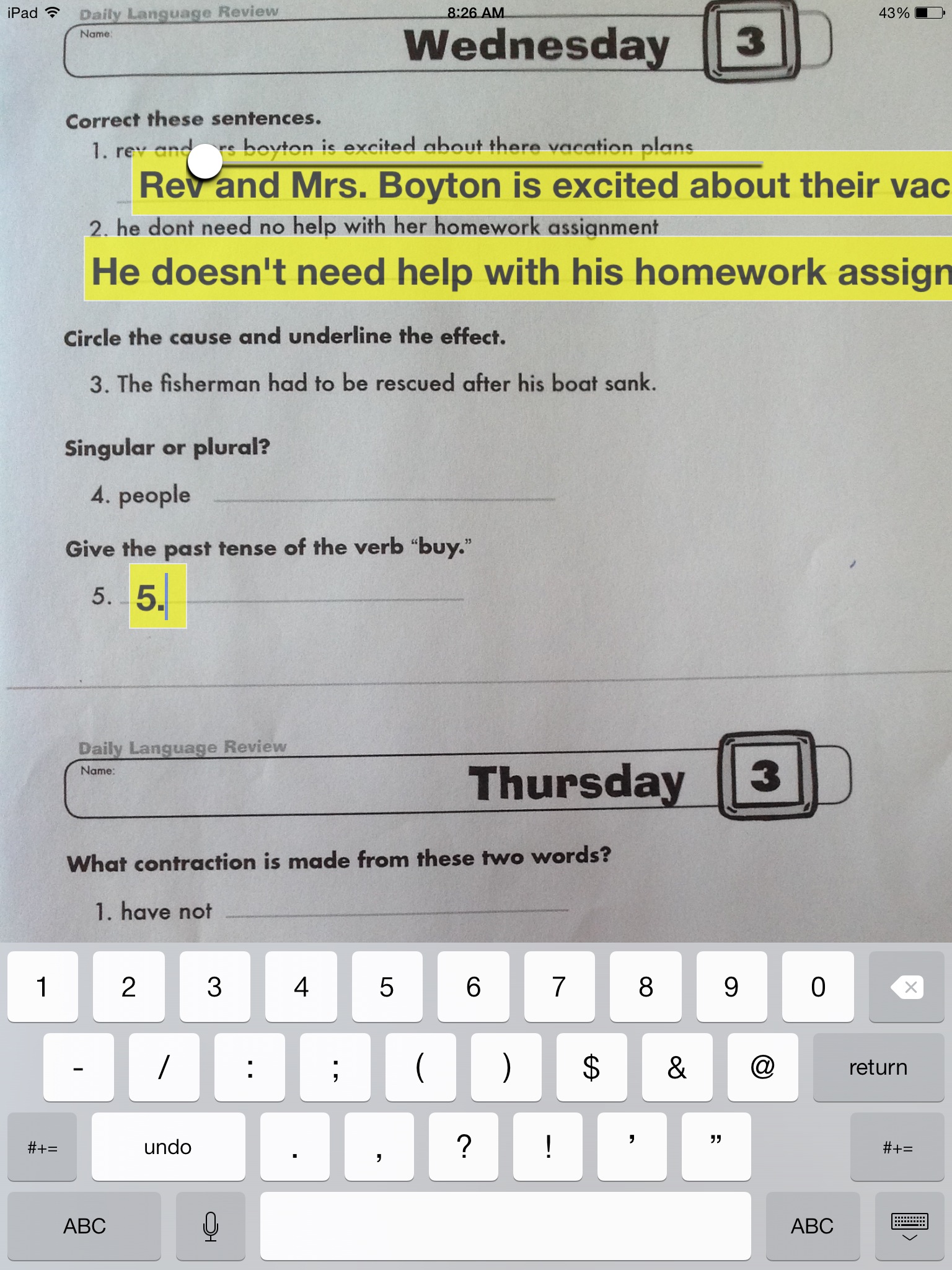
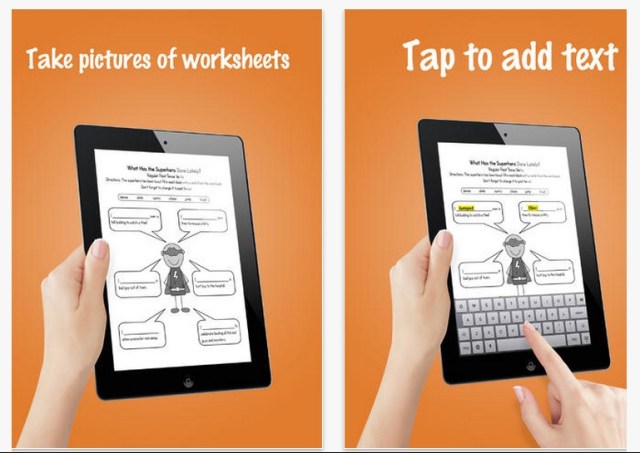
SnapType  for Occupational Therapy app is described as an Occupational Therapy app that helps students who have difficulty writing. Students can take pictures of their worksheets in class and use the iPad keyboard to type in answers.
snaptype pic1
It is an easy to use app. Here is how to use it:

1) Use the on-screen shutter button to take a picture.
2) Tap where you want to add text.
3) Start typing using the iPad keyboard.
4) Tap and drag to move the text boxes.
5) Resize the image by pinching using two fingers.
6) Resize the text using the slider at the top of the screen.
7) Save your work by pressing the iPad home button and power button at the same time (this saves as screen capture to your iPad’s camera roll).
8) Start over by flipping the iPad face-down for 2 seconds.

SnapType Trial:

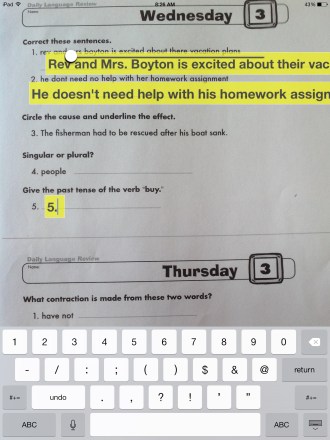
After downloading the app (which only demands .4 MB on your device – a good thing for those of us with an abundance of apps), it is an easy and intuitive app to use. It was simple to use with very  few bells and whistles – not a bad thing at all- offering a straightforward app for young students or users who may get easily overwhelmed or distracted by lots of app buttons and tools. It worked intuitively, first offering the camera buttons to take a picture immediately after opening the app, then creating a text box where you touch on the screen. The keyboard is offered as soon as you touch within the text box and expand to the size needed for the text inserted. Text can be wrapped by inserting an enter and the voice recognition tool on the keyboard also works with Wi-Fi support. A slider tool is offered to increase the font and text boxes size.
011a51bb6deff7d8fcc11465ed7c2a04cc7fd319a0

The app allowed zooming the image for an enlarged view. Text boxes can easily be moved around the image with drag and drop. In order to hold a text box (to further support completion by students), a keyboard character must be inserted. If you have Speak Selection turned on as an Accessibility option, (Settings>General>Accessibility> Speak Selection) text to speech is available for the user when the text is selected.

App Summary:

SnapType for Occupational Therapy is an easy to use, intuitive app allowing completion of  worksheets using the camera on an iPad to create an image and type answers on it. Images taken are not particularly clean or clear, but offer a quick and easy way for students with good reading and spelling skills to complete worksheets using word processing or speech to text if supported with Wi-Fi or accurate speech recognition. This app would be appropriate as a quick answer for elementary students who are familiar with mobile technology and have some level of support from teaching staff. Requirements for independent use by a student include:

  • Ability to take picture of a hard copy document
  • Ability to tap and create a text box
  • Ability to read the worksheet text
  • Reasonable typing and spelling skills to support producing text or accurate speech to text capabilities (with Wi-Fi)
  • Ability to take a screenshot of the completed worksheet

Pros of the app:

  • Extremely fast and easy to use for young, inexperienced or cognitively challenged users
  • Few tools available that can be confusing
  • Requires few steps to complete the task
  • Text boxes are easily created and deleted for the user
  • Workflow to Photo Album for printing or sharing

Cons:

  • Would like the text size slider to offer smaller font size for small worksheet fonts and blanks
  • Can only do one worksheet at a time
  • Users need to be able to read or understand worksheet independently
  • Must have good speech or spelling abilities
  • Users must be able to do a screen shot for storage

Adaptation Possibilities:

  • Worksheets could be modified to user ability level using pictures, multiple choice or word banks to copy from or providing simplified vocabulary
  • If answer choices are offered, X’s or voice recognition capabilities can be used to complete the worksheet
  • Instructional support can be provided to take the picture, create text boxes prior to completion, perform the  screenshot or shared using AirDrop capabilities

Summary

SnapText for Occupational Therapy app is an easy to use app for elementary or beginning writers who can use a keyboard, but infrequently need to complete worksheets. Its intuitive tools and ease of use provides students a method of producing text on worksheets with few steps. For those who need to complete worksheets more frequently in different curriculum areas may benefit from apps that provide organization methods and easy workflow to share completed tasks via email or to other iCloud tools. SnapText for OT app is definitely an app that is suited for a teacher or OT mTool kit for the appropriate student – and it is free!

A huge kudo to Amberlynn Gifford for her  commitment to her students and drive to develop an app based upon need!! Amberlynn Gifford can be contacted at https://www.linkedin.com/in/amberlynngifford for more information.

Carol

 

Posted in Accessibility, Activity Worksheets on Your iPad, Apps for OT's, Apps for Special Needs, Dysgraphia, Elementary School, Free apps, Handwriting, iPad, Mobile Device Use, Occupational Therapy, Special education, Writing | 11 Comments

Learn to Write with Mr. Pencil by Leap Frog

Learn to Write with Mr. Pencil icon

Learn to Write with Mr Pencil stylus and app created by Leap Frog is an emergent writing app featuring tracing lines, shapes and letters using the Leap Frog stylus for ages 3-6 years. The Mr. Pencil stylus is available online as well as in stores where Leap Frog toys are sold. Available online from Amazon, LeapFrog Learn to Write with Mr. Pencil Stylus & Writing App (works with iPhone 4/4s/5, iPod touch 4G & iPad) costs 9.49 which unlocks activities in the Learn to Write Mr. Pencil app. Unfortunately only four different areas are provided with purchase of the stylus, with an in app purchase of 14.00 to unlock all of the 24 activities, making it a very pricey app and stylus.

Purchase of the stylus, a chunky, hexagon stylus, unlocks four activities which features practicing basic shapes starting with single lines to curved lines and progressing to circular shapes, squares and rectangles and associated letters and numbers that utilize those strokes. The shapes, letters and numbers presented provide a dot where to start and animation with direction of the stroke requested in a step by step method for all lines required. Three trials of the shape or letter/number are provided to practice.

Learn to Write pic 1Tracing the shape, letter or number allows some error however if the stroke goes entirely off the line, animation is provided to start again with the stroke. Positive prompts are provided to encourage trying again or to complete the task.

Learn to Write pic 2

Although the app provides quite a bit of verbiage in the app and initial explanation would not hold the attention of most 3-4 year olds, it does provide rewards and interactions within the app encouraging users to explore in each activity.

Learn to write provides a developmental approach to shapes and letter formation starting with straight lines and advancing to more complex shapes and letters. No options for changing line sizes are offered within the app which provides ball and stick instruction to the letter formation. Due to the in app purchase, I did not have a change to trial the remainder of the letters, numbers (1-20) and remaining shapes.

Initial instruction in the use of the stylus during introduction of the app promoted use of a mature pencil grasp. The hexagon shaped stylus was comfortable in my hand, not too heavy, but which may be quick large for a toddlers small hand. Despite its size, the slight curve to the stylus did have a balanced feel to it.

Learn to Write stylus pic


Three users can be entered to play Learn to Write with the ability to modify users within a menu. Learn to Write with Mr. Pencil has some positive features however the in app cost of $14.00 is high for what few options are available. Other apps such as Ready to Print, Shelby’s Quest provide many more features to grade the task for emergent writers. Other styluses also may fit young writers hands better than the Mr. Pencil.

Have you used the Learn to Write with Mr. Pencil stylus or app? What has been your experience?

Carol


Posted in Accessories, App Reviews, AT for Handwriting, Early Childhood, Elementary School, iPad, Letter Formation, Occupational Therapy, Stylus, Visual Motor | Leave a comment

HeadFoams the world’s first mono-body foam headphone.

HeadFoams from MarBlue – Check out more about them on their website!

As scooped on Scoop.itOT mTool Kit

The MarBlue HeadFoams are durable, kid-safe headphones for children ages 3 to 8.

Carol Leynse Harpold‘s insight:

The folks at the QIAT listserv shared this new headphone set. What a great headset for kids and students. Allows controls for the sound levels to protect kids hearing!

Carol

See on www.gomarblue.com

Posted in Accessories | Leave a comment

OT’s with Apps – Apps and Application for Your School Based OT mTool Kit

OT's with Apps Promo image

Interested in learning about apps mobile device equipment related to school based Occupational Therapy intervention?

Join OT’s with App’s for “Apps and Application for Your School Based OT mTool Kit” August 11th & 12th!

Prior workshop participants received over $60 of free app codes and iPad accessories.

Course Information

Register by July 15th for a discount!

Registration Information

Hope you can join us! OT’s with Apps – Carol & Erin

Posted in Apps for OT's, Continuing Education, Dysgraphia, Early Childhood, Education, Elementary School, iOS, iPad, Letter Formation, Mobile Device Use, Occupational Therapy, OCR, Rest and Sleep, School Based Interventions, Self-regulation, Stylus, Therapist/Teacher Tools, Visual Perception, Writing | Leave a comment

Heavy Duty Cases for iPad Mini

sturdy iPad mini cases pic1Whether protecting your iPad Mini from mishaps of kids or adults, providing heavy duty coverage for your tablet can be a smart investment.

It has been a while since I reviewed iPad cases, much less for the iPad Mini, so here is a quick rundown on what I thought were the main contenders for protection:

OtterBox Defender Series for iPad mini with Retina display – Black (35.80 on Amazon) – The Otterbox is well known for its durable cases and its iPad Mini case stands up to its reputation. The current versions of the OtterBox case for iPad Mini provides multiple layers of protection, screen protector and stand/cover and meets military standards for protection.  The cover provides an additional layer of protection to the screen should it be dropped face forward as well as an easel for positioning.  Having used Otterbox cases since the first iPad, the current case features are well engineered (like the first case and much improved from the OtterBox case for iPad 2). Weighs 4.8 oz.

OtterBox Defender for iPad mini

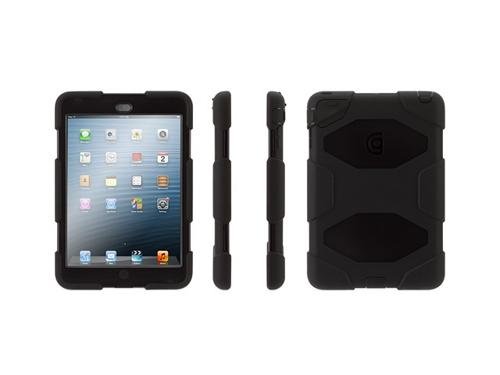
Griffin Technology Survivor for iPad mini ($35.00) – Has an integrated screen with covers for ports for protection. Internal frame protects from drops and shocks. Meets military standards.  Includes a stand. Comes in a variety of colors. Experience with Griffin cases has found them to be sturdy and well engineered. Rates well on Amazon by users. Weighs 5.8 oz.
Griffin Survivor iPad mini

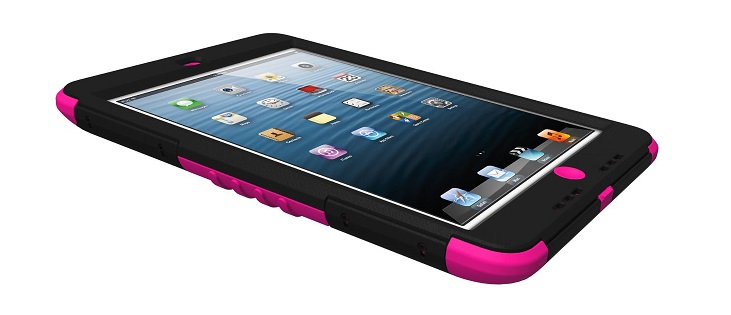
Trident Case KRAKEN AMS Series for Apple iPad mini ($33.53) – Comes with a built in screen protector, inner shock resistant shell, dust covers for speaker and microphone bays. Includes an attachment port to attach other straps or holsters. A stand attachment is also available. My experience with Trident cases for iPads has also  been positive with good ratings received for this case from Amazon users. Weighs 7.5 oz.

Trident case for ipad mini

LifeProof Fre Waterproof Case for iPad mini  (79.99) – Another military grade case for the iPad mini.. The LifeProof is waterproof for up to 60 minutes, has a screen protector and is shock proof. Comes in different colors. I have not had experience with LifeProof cases, however if you need one to be waterproof, this is the case for you! Weighs 4.8 oz.

Lifeproof case for iPad mini


Some of the same makers of sturdy cases for the iPad have comparable protective cases for the iPad Mini. Costs are similar between the cases with exception of  LifeProof case which is costs a bit more but is waterproof. If weight is a consideration, the Otterbox LifeProof and Griffin cases are the lightest choices.

What are your experiences and preferences with iPad Mini cases?

More for your OT mTool Kit.

Carol


Posted in Accessories, iPad, iPad Management, iPod/iPad Accessory | Leave a comment

Summer Tip and Trick for Managing Screen Time for iOS

Summer holidays pic

Summer is finally here and that means more free time for kids. How will they spend their time?

  • Playing outdoors doing physical activities?
  • Spending sometimes doing hands-on learning with real things and or friends?
  • Helping by doing some chores?
  • More screen time activities with electronics?

With additional free time available for kids in the summer, the temptation to spend even more “screen time”  playing with electronic tablets or devices is possible. Research¹ now shows kids spend approximately 5-7 hours of sedentary time engaging in “screen time” contributing to obesity, limited attention, anxiety, depression and sleep problems. Although structure and providing choices of active things to do are a great way to curtail too much screen time, here is a no cost method of controlling timed usage on the iPhone, iPad or iPod :

The original Apple Clock app provides a timer that can be set to lock your device after the timer goes off. It requires creating a passcode (Settings>Restrictions>Passcode) to lock your device. Here’s how to set the timer and lock the device when the timer is done:

1. Go to your  iOS Apple Clock.

apple clock image


2. Go to the Clock Timer tool. Scroll to set the time. Recommended screen time for children over 2 years of age is 1-2 hours/day. Under 2 years of age screen time is not recommended.

Apple Timer pic3

3. Click the music symbol (between the Start and Pause button)

Apple timer music symbol pic
4. Scroll down to the bottom of the sound choices for “When Timer Ends” to Stop Playing. Select Stop Playing option and Set.

Apple timer pic1

5. Select Start when you are ready to begin using the timer. When the timer time is done, the device locks (again, must have Restrictions on and a Passcode set) and returns you to the screen to enter a Passcode.

Easy and free. You may need to change your passcode often if the user has good visual memory when using your passcode! A sturdy case may also be a prudent choice, especially if being locked out causes some frustration.

For how to decrease screen time visit the National Institute of Health website for suggested activities.

Reference:

1 Retrieved on June 7, 2014 from: http://www.nlm.nih.gov/medlineplus/ency/patientinstructions/000355.htm


Posted in iOS, iPad, iPad Management, iPhone, iPod, Mobile Device Use, Pediatrics | 4 Comments

Community Lost & Found – Tiles are Shipping!

Tile pic1

An earlier blog post presented the SelfStarter project called Tiles, a small chip developed to help locate misplaced items using a smartphone app.  Considering this as a tool for those with organization challenges (where did I put that??), the Tile offers a few advantages over others I have used as it doesn’t run on a battery which can be yet another obstacle with use of locating tools.

Tileapp icon2Using the  Tile app, and a Tile device you can track where items are located within a 150 ft range. Options for community locate and find are also being developed with the device.  Now in production and being shipped, here is a recent update on the Tile which appears easy to use, requires no battery to assist with locating those items that somehow seem to walk away…


With the possibility of a community lost and found feature, the Tile offers possibilities for individuals who are challenged with material management!

Interested in more about the Tile? Check out The Tile App.com for more information and special pricing for early buyers! I am looking forward to my Tiles arriving soon!

More for those that are organizationally impaired or perhaps consider it a cognitive support?

More for your personal or OT mTool Kit!

Carol

Posted in Accessories, Adults with LD, App Reviews, iADL's, iOS, iPad, iPhone, iPod/iPad Accessory, Occupational Therapy, Organization | Leave a comment