Third Party Keyboards

Luis Perez keeps us all up to date with iOS accessibility options. In this blog post, re-blogged from the Website of Luis Perez, he shares step by step how to use third party keyboards. It is really easy, and his quick video guides you through the process of using and customizing the keyboards. Many thanks to Luis Perez for sharing his expertise!
Carol

Luis Pérez, Ph. D.'s avatarThe Website of Luis Perez

One of the most anticipated features in iOS 8 was the redesigned on-screen keyboard. Recently, I did a video on my YouTube channel on the new QuickType feature that now provides smart word prediction with the iOS onscreen keyboard. That video also discussed two other additions: the Dictation feature now has almost real-time feedback, and you can customize the on-screen keyboard by adding a number of third-party keyboards to your iOS device. In the video I featured two of my favorite third-party keyboards: Swype and Fleksy (both $.99 on the App Store).

With Fleksy,  I like the extra feedback I get as I type (the letters appear to jump out) and the fact that you can customize the keyboard by choosing large keys and adjusting the colors to a combination that works well for you. Typing is also very quick with this keyboard. Whenever you need to enter a space, just do a…

View original post 302 more words

Posted in Apps for Special Needs, Assistive Technology, iOS, iPad, iPhone, iPod, Keyboarding | Leave a comment

Toca Robot Lab App Gone Free

Toca Robot  icon

Toca Robot Lab App

After three or more years of curating apps, considering trialing an app, much less downloading has to have a definite function or created by trusted developers. Toca Boca apps are well developed and provide great features and fun.  Toca Robot Lab app for iPhone/iPad (regularly 2.99; requires iOS 5.0) is another Toca Boca app currently gone free!

Create a robot, step by step, follow a maze to collect stars and you are done! Time to make another robot!

Toca Robot pic1

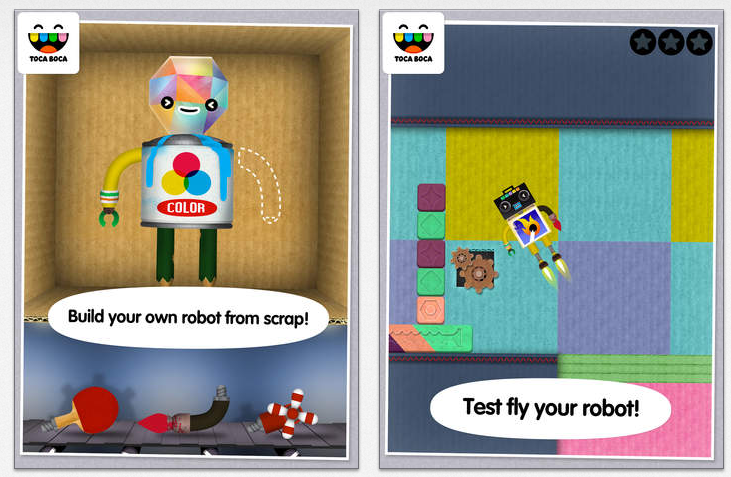
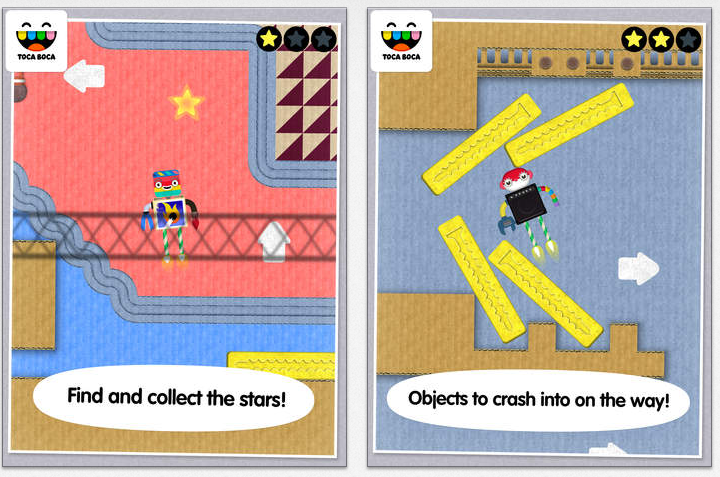
The app provides three options to choose, legs, body, head, arms to create your robot, providing a fun activity to work on basic body part recognition. After building a robot, guide your robot through a maze to collect stars within the maze and to the final production magnet.

Toca Robot pic2

Each robot building activity can be short to complete or provides additional problem solving to collect all of the stars. Toca Robot Lab could also be used as practice for the appropriate student to work on sliding with maintained touch of your finger on the iPad.

Used as a  reward activity, this might be a motivator for some student to complete required academic or OT therapy activities.  This app appears suited for preschool through primary aged children.

Here is a quick video of the app:

At the current time this Toca Boca app is not available for Android.

If you work with young children, check it out. Free today – always a mystery how long it remains free!

Have fun!

Carol


Posted in App Reviews, Early Childhood, iPad, iPhone, iPod, Occupational Therapy, Visual Motor | Leave a comment

CoWriter Universal: Word Prediction Software

CoWriter Word Prediction software had become a universal product that is compatible with devices like the iPad and Chromebook!

Don Johnston’s CoWriter has universal presence among all devices, from computer based to mobile devices.

Check out The Assistive Technology Daily’s post about the new Cowriter Universal product or Don Johnston website.

How exciting!

As Scooped from : AT Daily.org http://attraining.org/atdaily/2014/09/18/word-prediction-software/

Carol

See on Scoop.itOT mTool Kit

Posted in Word Prediction | Tagged | Leave a comment

More Styluses for Big and Little Hands

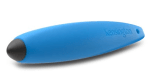
STyluses for big and little hands pic

Styluses for Big and Little Hands

As an OT, I like tool options.  Like different qualities of pencils and pens, styluses provide some of those same types of choices on the iPad. We all have our favorites tools, but it is nice to see what else is out there. So, here are just a few new chunky styluses (at least to me) available at a reasonable price (under 10.00  USD):

Kensington GummyGrip Stylus for Kids ( 9.06 to 11.92 pending color from Amazon)

Kensington Gummy Grip stylus pic
This stylus has a tripod shaft and measures 4″ in length with a diameter of about 5/8″. It has a comfortable feel with some weight so you can feel it in your hand. Available in different colors, I chose a gray stylus,  which seemed to allow it to be appropriate for more mature users (and happened to be cheaper on Amazon). The tip is as accurate as many other mid range priced stylus but is not solid. I would give this 4 stars on a scale of 5 – would be a 5 if it had a solid tip (rubber tips work well but wear out or can be damaged by students who like to pull or push hard with use).

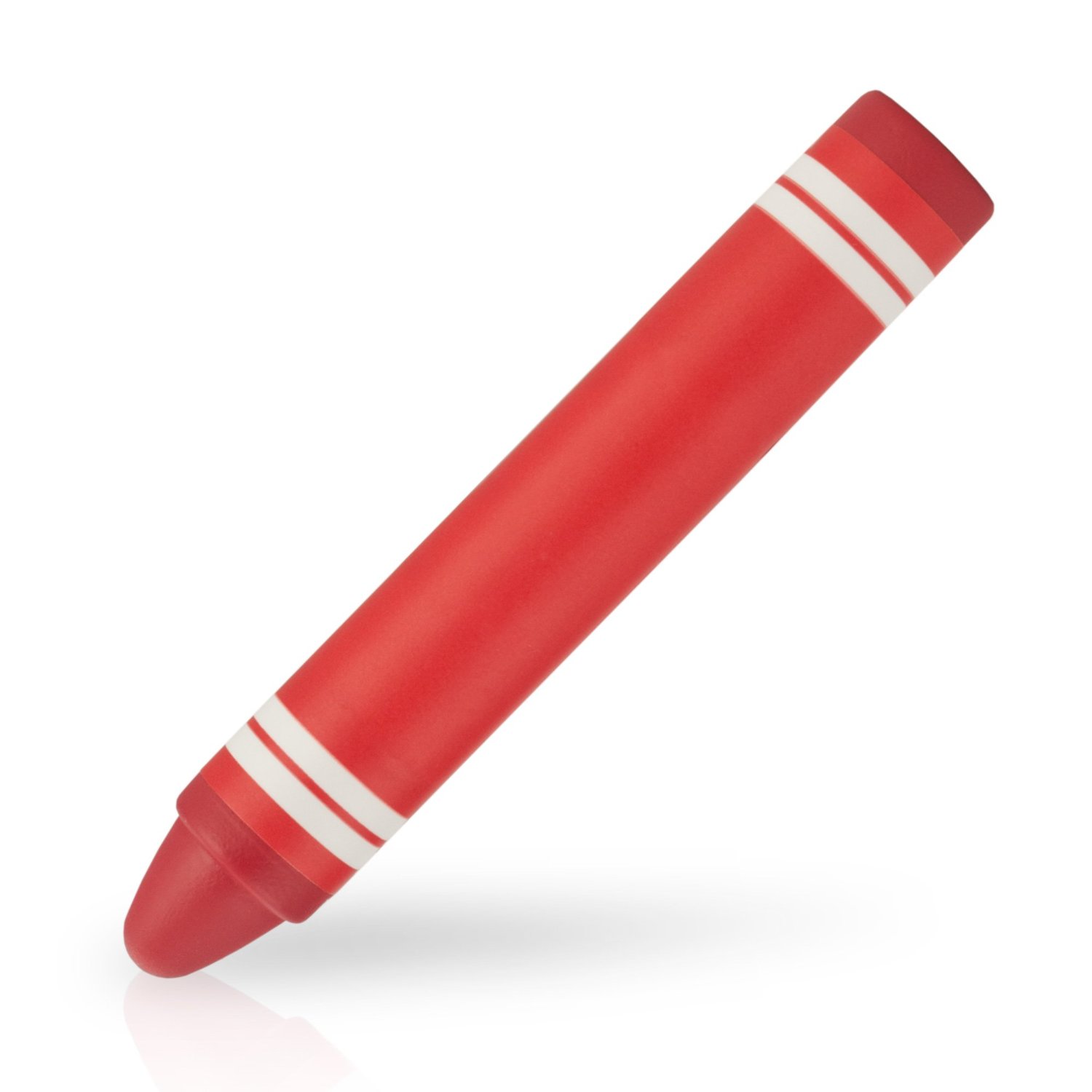
BoxWave Touchscreen KinderStylus (7.50 and up from Amazon)

Boxwave stylus pic

BoxWave Stylus has a round shaft and is sized like a marker. It is slightly weighted with a soft tip that is as accurate as other mid priced (5.-10. range) styluses. With a round shaft, it does not provide additional grasping support or structure and is too large to add a grip.

My Favorites Styluses

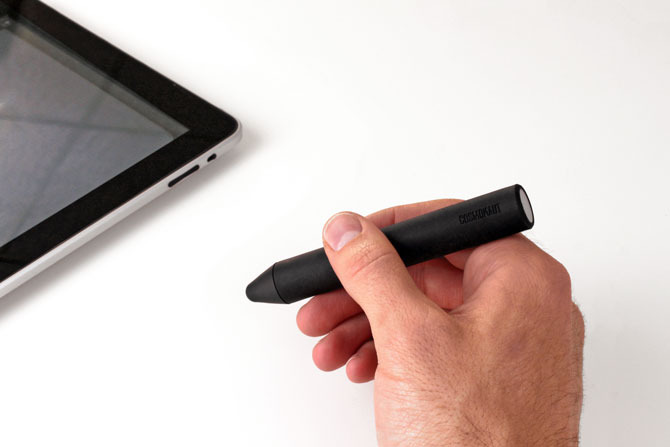
The Cosmonaut stylus is one of my favorite styluses for those needing a chunky stylus due to the weight and the hard, firm tip. Although more expensive (25.00 Cosmonaut on Amazon), the firm tip makes it less pliable and less likely to be damaged, ultimately reducing the cost of replenishing styluses due to tip wear or breakage.

cosmo_hand_1

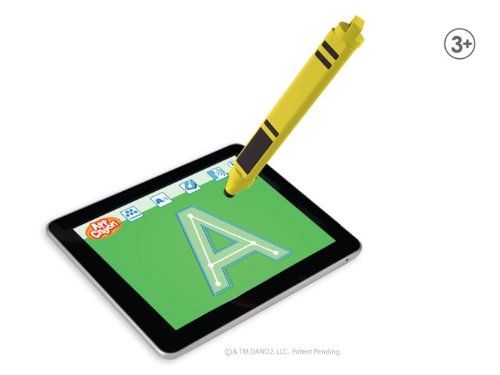
Dano AppCrayon Stylus has a great tripod grasp, light weight but has a soft tip. It is easy to grip and use for young students. Also a bit pricey (Dano AppCrayon about
24.00 on Amazon) , but found on the DanoApp Website for 9.99.

Dano Stylus

The Pencil Grip Ergo Stylus, developed by The Pencil Grip folks provides The Grip on a chunky, weighted stylus. Appropriate for young and old this provides the support for developing grasps or for more mature individuals that might be experiencing difficulty with grasping due to arthritis, pain or numbness causing difficulty holding a small writing tool. Reasonably priced ( The Pencil Grip Ergo Stylus 18.95 on Amazon ) with a comfortable, this ergo stylus is appropriate for young and old.

The Grip Pencil ergo stylus pic3

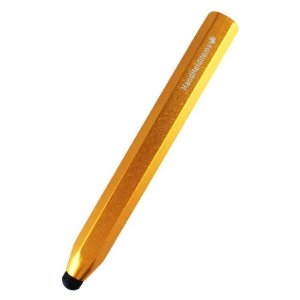
HHI Chunky Stylus Pen  made by HandHeldItems has a large shaft and definitely has weight for those individuals who need more feedback when writing. It has a soft tip but is extremely affordable at 2.99 + 2.85  shipping on Amazon. Buy several and the shipping may make it more affordable. Many teachers and fellow therapists have liked the weight of this stylus. It makes losing or issuing styluses that you might not see again not so painful. This has been one of my favorite chunky stylus finds! It also comes in a smaller size that allows the use of standard grippers on the shaft.

stylus HHI

And here is really on the cheap…
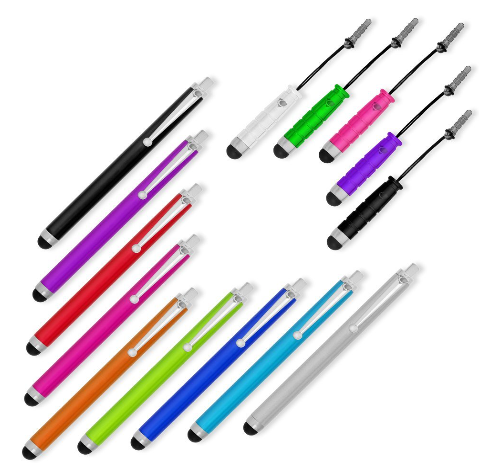
Buy a 14 Stylus Bundle  (9.99 if Amazon Prime) of styluses – for cheap to adapt.

Stylus bundle pic

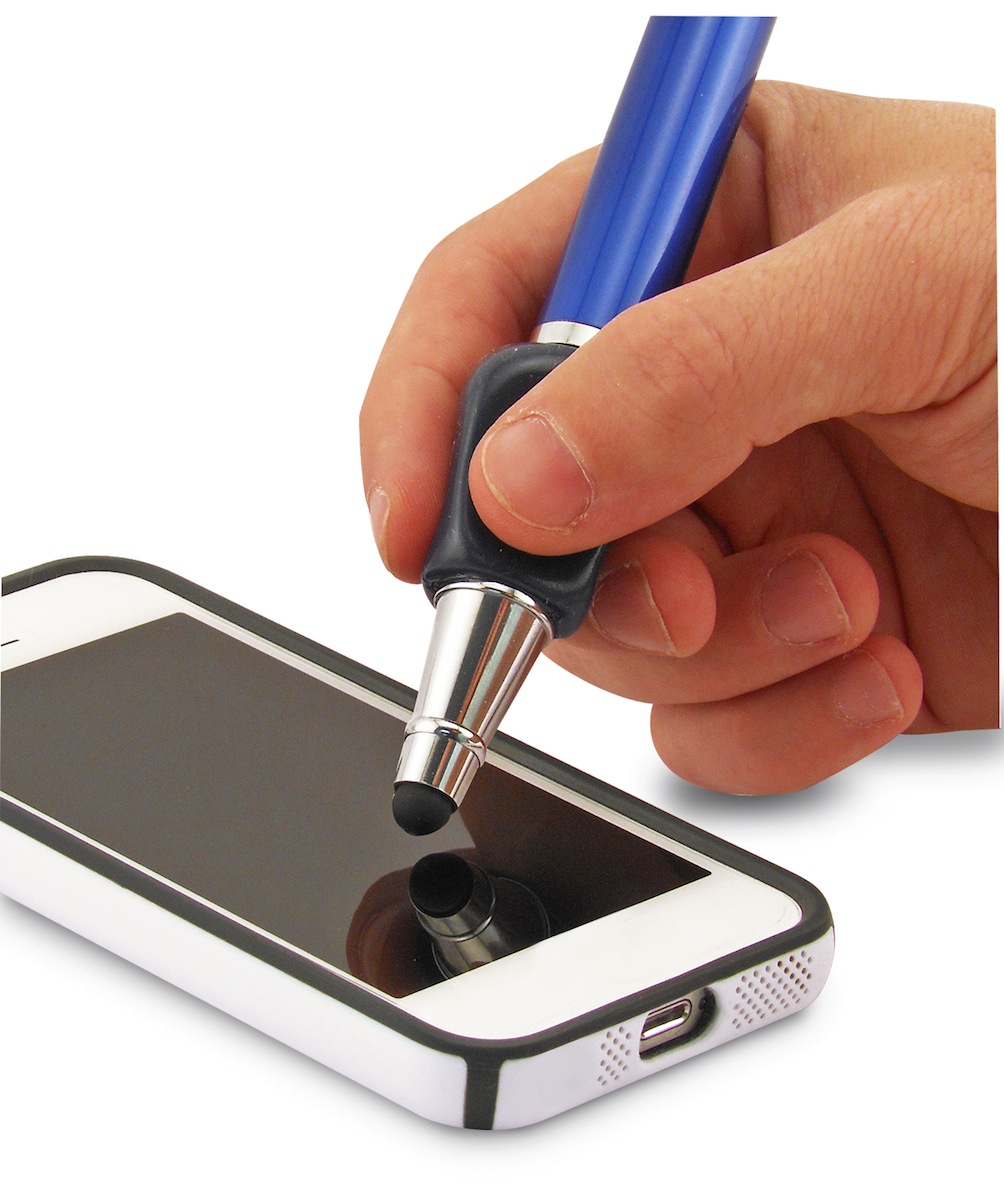
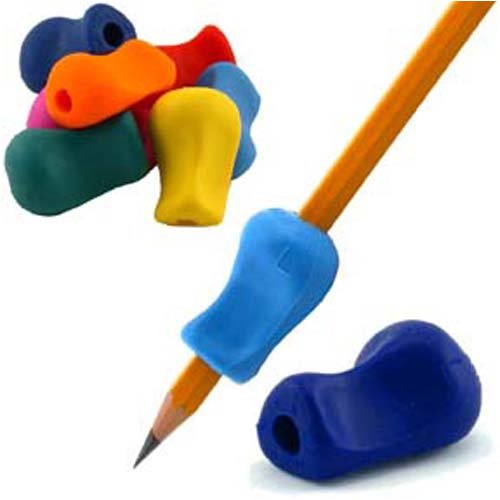
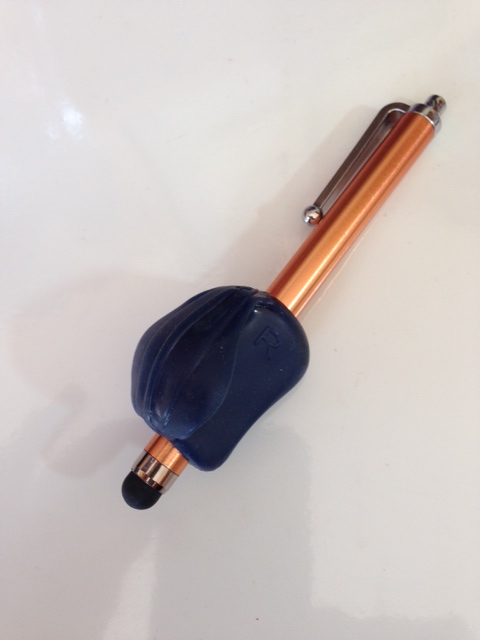
Then add The Pencil Grip ( yes this works for iPad and Android) and you have a cheap stylus with grip! Buy 6 grips for 6.42 (with Amazon Prime) – certainly you may have some on hand.

The grip pics

Slide it on and – Walla!

The Grip with stylus pic

Cost will be less than 2.00/stylus with The Grip. One caveat, the quality of cheap styluses may or many not be comparable to some of the other recommended styluses, which may cause some frustration for the user.

Certainly there are other styluses for more refined drawing and writing or with other types of adaptations for students with more significant needs that are covered here.

What stylus do you recommend?

Carol

Posted in Accessories, Android, Drawing, iPad, Pre-writing, Stylus | Tagged , , , | 2 Comments

Maze Activity App Suggestions – From the Voice(s) of Experience

Marble math apps

Marble Math Apps

Thanks to comments from a recent post entitled “Mazes Activities – Magnetic Maze Boards or an App?“, I received some good suggestions of apps with bilateral, maze activities embedded with academic tasks.
HT (hat tip) to Dana C. and Michelle P. who suggested the following two favored apps that provide visual motor tasks with academic, math content:

Marble Math appMarble Math App (2.99; iPhone/ iPad) for 9-12 year olds, developed by Artgig Studios, provides a maze activity while solving math concepts.

Marble Math pic1

Marble Math Jr iconMarble Math Junior (2.99; iPhone/iPad), created by Artgig Studios is for 5-8 year olds. Provides a game math app with a maze format.

Marble math jr pic1

What a great way to include visual motor and academic learning!

For more information visit Artgig.com .

Thank you Dana and Michelle for their voice of OT experience!

Carol

Posted in App Reviews, Apps for OT's, Bilateral Control, iPad, iPhone, Math, Visual Motor | Leave a comment

More Brain Break Resources

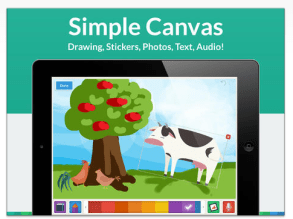
Brain Breaks canva

Your Therapy Source is a rich website and blog with an incredible amount of therapy ideas, forms and research information developed by Margaret Rice. I admire her extensive resources and her blog which provides great ideas and research related to pediatric therapy.
Your Therapy Source also provides brain break resources well work perusing. Free and some low cost brain break materials for therapists and teachers to use are available. Here are some activities that are suggested that work well for therapists or teachers who need quick warm up activities:
1. A popular title is Mini Movement Breaks

2. Brain Breaks resource cards

3. Freebie – Roll Some Fun – I have used this and kids love it!

For those who prefer hard copy activity sheets, activities can be downloaded and saved or printed. I have to admit, having the Roll Some Fun Sheets printed and posted on the wall is also a handy resource!

Check out more resources for OT’s and PT’s at Your Therapy Source .

Thank you Margaret for sharing your resources.

Carol

Posted in Activity Worksheets on Your iPad, Occupational Therapy, Self-regulation | Tagged , | Leave a comment

Touch+ – Makes Any Surface Multitouch

A small, sleek bar that “sees” your hands, the Ractiv Touch+ (formerly Haptix) makes any surface multitouch and more! Touch+ is the first to let you control your computer from any surface and with simple hand gestures. From web browsing to designing, Touch+ makes interaction simple, practical, and powerful.

Scooped from: http://attraining.org/atdaily/2014/09/08/surface-multitouch/

AT Daily shares another new technology find that provides access to your computer from any surface. It will be interesting to see this as it rolls out.

Thanks to Assistive Technology Daily who scours for all things AT and shares it with all of us!

Carol

As scooped on Scoop.itOT mTool Kit

Posted in Accessibility, Assistive Technology, Motion Activation | Leave a comment

Cursive Writing Wizard App – Gone Free!

Cursive writing Wizard icon

Cursive Writing Wizard App

Familiar with the popular Writing Wizard app? It’s cursive counterpart – Cursive Writing Wizard app has just gone Free (for how long – it’s always a mystery)!

Cursive writing Wizard pic 1

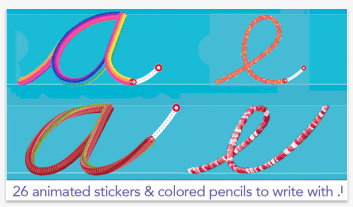
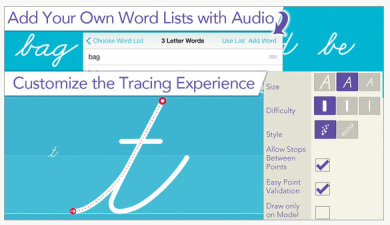
Cursive Writing Wizard app (typically 3.99) for iPhone and iPad provides the same fun multimedia effects that can motivate students to practice letter formation. Customization options are available for the type of font, size, speed and amount of modeled instruction provided for the user.

Cursive writing wizard pic2

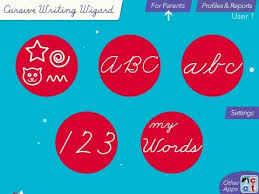
Multiple users and  progress reports are available within the app.

Cursive Writing Wizard pic3

Here is a quick video on some of the great features within the Cursive Writing Wizard app:

OS requirements: iOS 5.1 (this will work on an iPad 1)

Not teaching cursive handwriting or not a high priority for intervention with your students? Consider downloading this free app for the pre-writing or number activities provided. Assessment information (replay information providing accuracy and stroke patterns) for each user is available for all activities, including pre-writing and number formation allowing an easy way to gather and review student progress.

Cursive writing wizard pic5

Although you might not be teaching cursive handwriting to your students, this app might be an adjunct for pre-writing or number formation development for your students. Using it as pre and post assessment information for letter formation or pre-writing goals for your students.

Would you use this type of information for data gathering for a student learning objective if required to participate in teacher effectiveness?

Carol


Posted in App Reviews, Apps for OT's, AT for Handwriting, Handwriting, iPad, iPhone, iPod, Letter Formation, Occupational Therapy, Primary Grades, Writing | Tagged , , , , , | Leave a comment

Mazes Activities – Magnetic Maze Boards or an App?

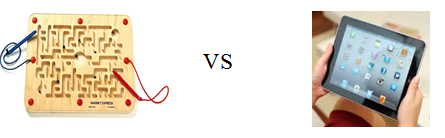
Maze vs

Magnetic Hands on Mazes versus Mazes on the iPad

Maze activities have been a fun visual motor, fine motor coordination and spatial reasoning task for students. I especially enjoyed (and so did the kids!) the magnetic maze activities we used with students on 1:1 or as provided in play centers in early childhood, Pre-K or kindergarten as a visual motor activity.

Maze magnet circle pic

Anatex Magnetic Maze – Circle Express
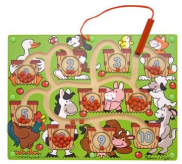
Maze magnet farm pic

Melissa & Doug Magnetic Number Maze

Maze magnet rectangle pic

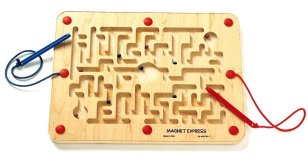
Anatex Magnet Express

Add a grasp to the magnetic pencil and some positioning for students and reinforcement of OT goals could be accomplished.  They are also contained providing easy management in the classroom.

Using them as a labyrinth without a pencil or stylus (holding and moving the ball to the designated goal) also adds a motor planning and bilateral coordination demand to the task, more appropriate for primary aged students. One draw back however is having a variety of levels available, however, the task can certainly be graded with postural control demands with positions, eg. sitting at a table,  sitting on a ball without support, standing, kneeling, etc.

What about similar activities on the iPad?

There appears to be (or maybe I am just becoming aware of them…) more apps that use the accelerometer and gyroscope capabilities which allows the iPad to sense speed and movement. These features can allow the sensing of movements made with the iPad and provide the tools needed for labyrinth activities. Here is one of a number of iPad apps that uses those features and might provide a motor planning and bilateral demand as appropriate for your students:

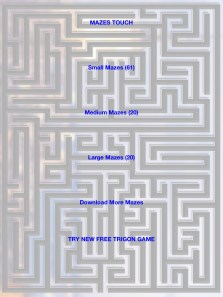
Mazes Touch iconMazes Touch app for iPad /iPhone (free with ads; OS requirements: OS 4.2 or later.) allows users to either tilt the iPad or use a finger or stylus to move the target to the maze exit. This app uses the gyroscope and accelerometer features of the iPad, different from other typical visual motor, follow-in-the-lines kinda app or task.
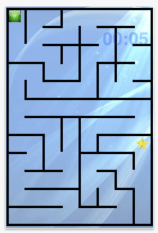
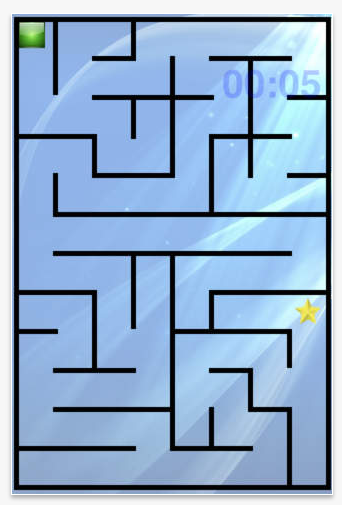
Maze Touch pic1

Example of small mazes

Mazes Touch app provides a timer that times how long it takes you, not a count down timer that can cause anxiety about finishing the task.

Three levels of mazes (Small, Medium and Large) are available in the app, with small mazes being the easiest.

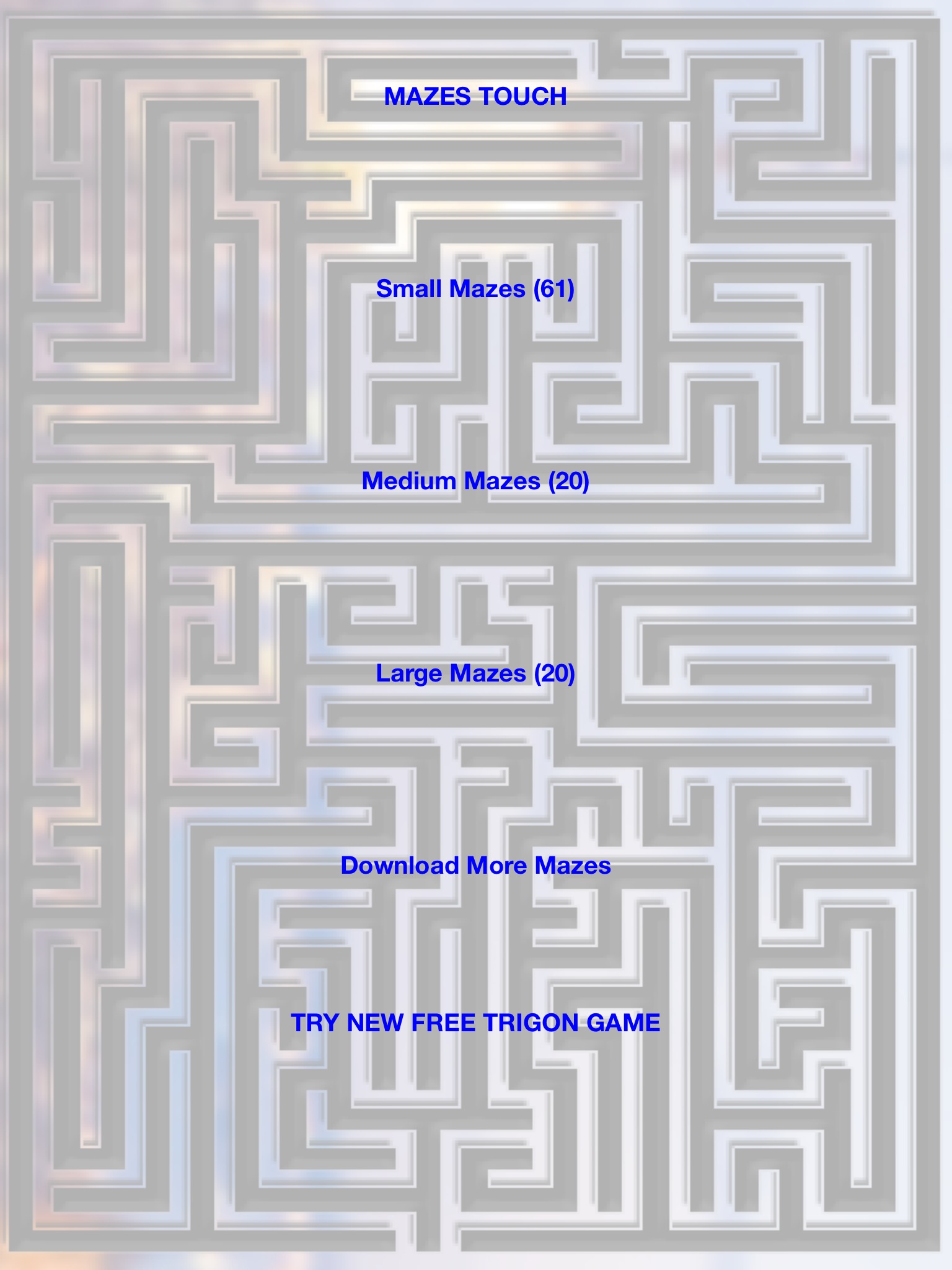
Maze Touch pic2

Examples of medium and large mazes .

This free app provides 61 small mazes, 20 medium mazes and 20 large mazes with initial download. Selecting the “Download More Mazes” link, provided another 30 mazes, 10 more of each level – plenty of mazes to keep the user practicing with increasing levels of challenge.
01ab4c955b184020d4b8b8b98eb896d679e41a78f7

Touch Maze app provides a labyrinth type of challenge for primary aged students with intermediate visual motor skills.

Pros and Cons of hands on board magnet mazes versus iPad Maze Activites:

Board magnet mazes

Pros:

  • Contained, easy to administer to students
  • Students can use at any time
  • Students can practice repeatedly
  • Visual motor activity
  • Motor planning activity

Cons:

  • One level of activity
  • Table top activity
  • No assessment data or information supplied

iPad Maze App

Pros:

  • Modify levels of use with 1:1 administration/supervision
  • Visual motor activity
  • Motor planning activity
  • Bilateral motor control activity
  • Assessment data can be collected using completion time
  • Easy to access with iPad

Cons:

  • Only used with administration/supervision or 1:1
  • Safety of use
  • Requires student to stay within app to complete (or use Guided Access)

What other pros or cons do you see? What has been your experience?

An additional thought. This type of app would be great with academic activities embedded as a goal to identify numbers, letters, math problems, phonics or other common core tasks while working on visual motor or bilateral skills. Perhaps there is an app out there like that ? Any one familiar with one?

More for your OT mTool Kit.

Carol



Posted in Apps for OT's, Bilateral Control, Early Childhood, Elementary School, Free apps, iPad, iPhone, iPod, Occupational Therapy, Primary Grades, Visual Motor | Tagged , , , | 6 Comments

My Story Book Maker App – Gone Free

My Story Book Maker for Kids icon

My Story Book Maker App

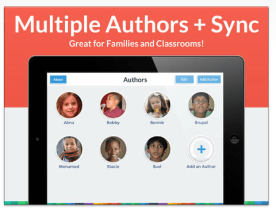
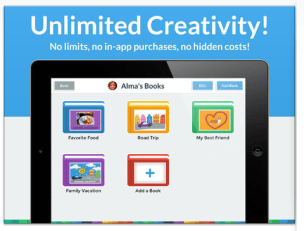
For a limited time, My Story Book Maker  app for iPad (normally 3.99) is free. You may have an abundance of storytelling apps already, however, this free app provides book making for 6-8 year olds with great drawing tools, stamps, voice recording, text,  sharing capabilites and the ability to create multiple users who have their own “book collection”.

My Story - Book Maker pic2

My Story Book Maker pic3


My Story Book Maker   drawing tools allow different painting and drawing tools with different line sizes (marker, paint brush and pencil) and stamps. Photos can be taken within the app or imported from from your Photo Library. A text tool and and sound recorded is available.

My Story Book Maker pic 1


And sharing tools: Link, email, Twitter, Facebook and iBook .

My Story Book Maker pic 4

Here is a quick video of its features:

My Story Book Maker app looks like a great tool for social stories, sensory stories, book making, language development, adapting books, or, just for fun. The app seems even more fun when its free!

More for your teaching or OT mTool Kit.

Carol

Posted in App Reviews, eBook Creating, Elementary School, Emergent Literacy, Free apps, iPad, Pre-writing, Primary Grades, Story Telling | Leave a comment