Dragon Dictation App vs. Dragon NaturallySpeaking – What’s the difference?

I am a user of Dragon Dictation on my iPhone (no Siri unfortunately) with good success using the manual ability to correct the mistakes prior to copy/pasting or emailing the produced text. I believe the Dragon Dictation provides a great writing support for students with learning disabilities and a quick means of creating speech to text with some physical editing required. Recent experiences with middle school students using Dragon Dictation and PaperPort on the iPad with Wi-Fi  resulted in fairly good accuracy given the minimal to no training required (basic instructions for punctuation, new line, enunciation, microphone positioning and environmental controls – quiet area) and fluctuating quality of  middle school male voices! Used with students who significantly struggle with literacy, Dragon Dictation can be a boon for production of written expression when support is provided by others with the editing process. Physical access to the iPad or iPod/iPhone is required for the recording, editing and production (email/copying/printing) process.  Using the Dragon Dictation in the PaperPort app further provided the ability to dictate their response and listen to their recognized speech to text using the iOS 5’s speak selection enabled to assist in students with the editing process.

A recent evaluation of an individual with mobility impairment brought  questions about the use of Dragon Dictation on the iPad. Although a powerful app, how does Dragon Dictation compare with Dragon NaturallySpeaking, what are the pros and cons of each of their use and who might they be best suited for?

Here are some features when considering the use of Dragon Dictation versus Dragon NaturallySpeaking and who it might be appropriate for or what tasks each application may be best suited to:

Dragon Dictation:

Pros

  • Minimal training or voice commands required for use
  • A few basic settings available in Dragon Dictation (language selection, recognize names, detect end of speech)
  • Mobile use (with Wi-Fi or G3/4)
  • Will adapt to your voice over time
  • Capable of using some wired microphones for dictation
  • Easy use for social networking or emailing

Cons:

  • Requires Wi-Fi service for transcription
  • Learns your voice over time but no correction capabilities
  • Cannot train on new words or vocabulary
  • Requires direct, physical selection to: start app, start dictation, send, print, edit, copy or paste text
  • Unable to use for voice navigation on the iDevice
  • Limited to within the app on iPad, iPod or iPhone 4 (projected to be a keyboard capability on New iPad available March 2012)
  • Limited to record up to 1 minute at a time
Dragon NaturallySpeaking (Premium) software:

Pros:

  • Control of computing environment using voice commands
  • Provides ability to use with other programs (Word, PowerPoint, Internet, Outlook/email)
  • Enables ability to open applications, edit, print, send, navigate Internet using voice commands – hands free computing
  • Learns voice and vocabulary
  • Ability to learn new vocabulary, words or commands
  • Provides ability to utilize templates via voice commands and macros
  • Does not require Wi-Fi for regular use
  • Allows higher quality microphone for enhanced recognition accuracy
  • Extensive recognition capabilities on the computer operating system or applications or web based services

Cons:

  • Requires some time to train voice file
  • Requires time and training to learn voice commands
  • Requires capable computer

So what’s the difference, what’s the big deal?

When considering the mobile app (excluding iPhone with Siri) for individuals who have significant mobility impairment with limited physical access to the computer, Dragon Dictation or PaperPort on the iPad/iPod provide many more physical demands than Dragon NaturallySpeaking does on a computer.   Barriers to written production or navigation on a device or computer exists when using Dragon Dictation.  Lack of multi-tasking on the iDevices limit its use to within Dragon Dictation or Paper Port app, unlike Dragon NaturallySpeaking which allows hands free navigating on most of the computer and programs when set up for the individual’s specific needs.  Accuracy of voice recognition is limited in Dragon Dictation when compared to Dragon NaturallySpeaking’s software with initial voice training, analyzing existing documents, correcting errors by voice and ability to train on new words or names. Settings in Dragon Dictation offers very limited customization for a user.  For individuals with significant motor impairment, use of a computer compatible with Dragon NaturallySpeaking Premium or above provides hands free access to the Internet, written production or navigation on the computer and customization for unique physical and task needs.

When would I use Dragon Dictation or PaperPort’s voice recognition? In the case of the students who have significant challenges with producing written information or recalling commands, Dragon Dictation ease of producing text with minimal training provides a motivating method and quick method of producing text, reducing some of the overwhelming demands of the writing process. Although not perfect, use of Dragon Dictation on a mobile device can increase independence and motivation in producing text using this as assistive technology by reduce some of the mechanical writing demands. Assistance with the writing process, as typically required during the writing process will be needed for many struggling writers. Dragon Dictation can also be a quick, easy method of generating short pieces of written text via voice, requiring manually editing, copying, pasting and emailing your written work.

When considering apps or software and devices, assessing the strengths, challenges, environment and tasks of the user is essential to choose  appropriate tools for the individual. Dragon Dictation/PaperPort and Dragon NaturallySpeaking provide different solutions for the unique needs of individuals with disabilities.

What has been your experience with Dragon Dictation vs. Dragon NaturallySpeaking voice recognition applications?

Will these apps be part of your OT iTool Kit or AT tool kit?

Carol

Updated 3/10/2012

Posted in App Reviews, Apps for OT's, Apps for Special Needs, iPad, iPhone, iPod, Learning Disability, Middle School, Mobility Impairment, Occupational Therapy, Special Needs, Uncategorized, Voice Recognition, Writing | Tagged , , , , , , , | 9 Comments

Protecting Kids Hearing – Methods of Headphone Volume Control

Using headphones with electronic electronic equipment (MP3’s, iPads/iPods, CD’s, computers, electronic readers, e.g.) is often necessary in inclusionary settings when students are working on parallel curriculum tasks in the classroom. A concern I always have is the volume level that is set on an iDevice,  MP3’s/CD’s or computer when our students are frequent fliers on those devices to engage in activities. You never know whether the volume has been changed (or bumped) batteries are dying or equipment is not working properly. Many of our students are unable to tell us its too loud, too soft and in the haste of getting them started it can be just too easy put the headset on and get them started with their learning task. We also all know of those students don’t have the patience to wait for an audio check to happen! 

What are some options?

  • Splitters – Audio output splitters have been around for along time. They allow two headsets to be plugged in so a caretaker can check the volume level with a second set of headphones, allowing the student’s listening to be undisturbed. For some programs I like to use the splitter option so that I know what the program directions are to help them of the student inorder to hel them through an activity. Sometimes it’s not just the volume but whether the equipment is working at all that is needed (i.e. someone turned on mute, headphones gone bad…). Splitters are available on at your local Radio Shack or other stores that sell electronics for about 3.00. Amazon.com has Belkin Speaker and Headphone Splitter for easy online purchase.

  • Headphones with controlled volume levels are also available such as Kidz Gear Wired Headphones For Kids.  Kidz Gear provides audio limits with their kid headset that limit the volume up to 80% of the origninal maximum level. Quality of their build is comparable to adult headsets. Cost is 19.99.

  • Splitters with volume control are another option allowing use of standard headphones but providing a  volume control setting for a determined safe sound level. Kidz Gear Volume Limit Splitter Cable provides that easy access volume control.

Consider protecting your student’s hearing.

More for your OT iTool Kit!

Carol

Posted in Accessibility, iPad, iPhone, iPod, iPod/iPad Accessory, Special Needs | Tagged , , , , , | Leave a comment

Great Visual Timers Resource

Visiting Todd’s Tech Tuesday blog, a really great resource on ideas for differentiation, featured a link to the a post entitled “Use Visual Timers to Ease Transitions” from  the Adapting Creatively blog. If you are looking for visual timer resources, this article provides an outstanding list of visual timers options available as apps. tools, software or web 2.0 resources that is well worth the visit.

If you are looking only for iDevice visual timer apps, visit the prior post  Visual Timers  on this blog for a some great options.

Carol

Posted in App Reviews, Apps for OT's, Apps for Special Needs, iPad, iPhone, iPod, Occupational Therapy, Special education, Special Education Teacher, Uncategorized, Visual Communication | Tagged , , , , , , , | 4 Comments

Drawing with the – Squiggles App

Squiggles – A Fun Pre-Writing Development App!

Squiggles  – is a fun, animated pre-writing and drawing app that will make you wiggle and giggle drawing squiggles or lines and more! This is sure to motivate students to engage in pre-writing tasks!

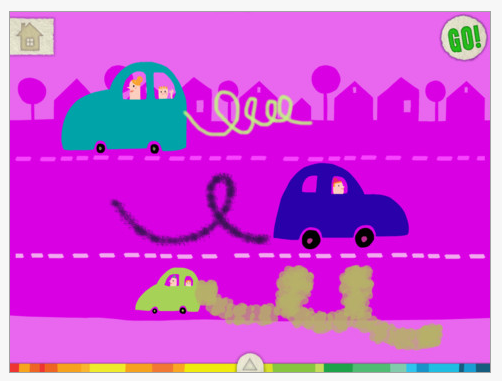
Free and compatible with the iPad, this drawing app allows you to draw squiggles and shapes and lines on images on the page. After you draw and press Go, your drawings or squiggles become animated (in the drawing below the exhaust lines would “squiggle”).

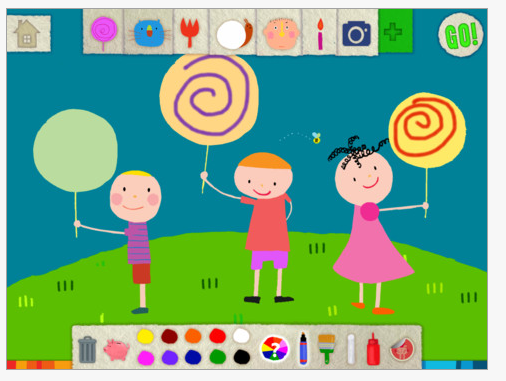
With a two different pallets of objects to squiggle on, different colors and drawing tools are offered to be creative with your drawings.

Although the app encourages “squiggles”, I see many opportunities to model and draw geometric shapes, lines and details on the objects offered in the objects palette. Good for preschoolers working on pre-writing skills to primary aged students who are acquiring the ability to draw shapes, work on directionality or adding details to existing pictures.

Squiggles app offers some fun, motivating drawing opportunities for preschool and primary aged students. The tools offered also will allow therapists to work on visual motor skills within the app if you use your creativity.

Kids will love this app! This is definitely an app I have added to my OT iTool Kit!!

Have fun squiggling!

Carol

Posted in App Reviews, Apps for OT's, Early Childhood, iPad, Occupational Therapy, Pre-writing, Special Needs, Uncategorized, Visual Motor | Tagged , , , , , , | 4 Comments

Grasshopper Apps has Freed Another App – Little Reader

Grasshopper apps makes awesome apps that can be customized in a number of ways for students. You can record and import your own pictures, create a favorites list and choose specific content in the settings.  We use the apps at school for a range of students who are emergent learners of different ages. They are offering another new app…

Little Reader is a new app created by Grasshopper apps offering matching of four letter words and pictures. It iscompatible with iPad, iPod, iPhone and currently offered for free.  Here are a few screen shots of the Little Reader app:

Pictures and words are categorized alphabetically and can be customized in the settings by deleting some words and also adding your own. Little Reader offers a clean interface with real pictures that supports the needs of  our special education students. I have a students who are working on functional life skills that this app could easily be used to make an activity featuring environmental signs, household, clothing, hygiene and grooming items geared to the needs of the student. When trialed creating a customized word list, the app accepted three and four letter words within the app.

Add this and other Grasshopper apps as Little Speller, Little Patterns, Kids Puzzles as learning apps for your OT iTool Kit and share it with the teachers and therapists you work with!

Thanks Grasshopper apps!

Carol

Posted in App Reviews, Apps for OT's, Apps for Special Needs, iPad, Occupational Therapy, Pre-writing, Visual Motor | Leave a comment

Cars 2 AppMates App with Manipulatives

Thanks to my OT and AT colleague Bonnie, I had the opportunity to attend a free in service hosted by Concordia College’s School of Education in Mequon, Wisconsin with presenters Sue Gorman, an Apple  Distinguished Educator and Ann Barry and Kate Sieg experienced AT/ IT educators from Racine Unified School District. It was a great day with reviews of familiar and unfamiliar educational apps and implementation ideas focusing on inclusion, instruction and access for special education. Sue Gorman also reviewed apps and software for iBook creation and apps for higher order thinking skills. This was a great in service for its content much less being free – thanks to Concordia College of Education!

Among the many apps presented, Disney’s  Cars 2 AppMATes   app (free, iPad) was presented and caught my attention as an appropriate fine motor – OT app that combines the use of the iPad as a mat with manipulatives –  cars that interact with the app! I love the iPad and all it can offer, but as a OT, providing manipulative activities to our students is still imperative for development of in hand manipulation, distal control, haptic and visual motor coordination skills for fine motor coordination. This app provides some of both with the user holding and manipulating the car that interacts with the app!

How does that work? Here’s screen shots of the Cars 2 AppMATes app to get a sense of how the app and physical car works. Note that there is an open web space of his thumb and index finger when kids hold the car – something we are always trying to achieve with our students!!

The physical cars are available for purchased separately, however, you can play the app using two fingers to drive “Paper Lightning” car on the app. Instructions of what to do are spoken aloud to the user as well as an animated arrow provides visual directions to where you need to be on the screen to make it work. The app give great verbal as well as visual feedback of how to play in this app.

There are other animated components such as a basic horn, gadgets (missle??- would not allow that choice!), and fuel that is free as well as more for purchase components which are not necessary to play. The app plays a game that you earn coins to purchase other parts for your car and leads you to other destinations in the app. Step by step auditory instructions are provided through out the app for what to do next. Here is a video of the app:

I am not particularly a huge fan of games on the iPad but this app, based on the Cars movie, is well done, easy to get started (even for me) and would be very motivating for students – certainly for boys on your caseload. It can provide a good reward activity with some visual motor and fine motor skill development qualities inherent in the app to motivate your students . I found driving Paper Lightning a definite motor planning challenge but the activity provided enough feedback to help me and was motivating enough for me to catch on and continue. Students may have an easier time that I not being much of a gamer.

Although you can play using Paper Lightning car, physical cars can be purchased online and typically come in packs of two. Here are some of the different cars available and links for purchase if interested:

Mater Finn McMissile

McQueen & Holley

Todoroki & Bernoulli

Do you have this app in your OT iTool Kit already? Are there more like this available?? If you have any experience please share!!

Carol

Posted in App Reviews, Apps for OT's, Fine Motor Development, iPad, Occupational Therapy, Visual Motor | Tagged , , , , , | 4 Comments

Awesome Note

As an itinerant therapist, traveling from building to building, or room to room it can be difficult  to write notes, have schedules or other information  easily available to you. If you have an iPad, do you carry your iPad along with you during the day?

My iPad goes with me almost where ever I go at school. I am in a number of different buildings and many classrooms whether I am working with students or teachers as a OT or AT Coordinator (I wear two hats at my school).
One of the apps that I have found helpful is Awesome Note (iPad HD 4.99/ Lite- free), which allows me to organize information by categories almost like a binder system on my iPad. I have been using it for a while, but was surprised when their was an inquiry on the QIAT listserv, how frequently it was mentioned by other professionals in education for their preference as an organizer app. Aside from being very visual (color, tabs and easy visual presentation/organization fits my learning style) here are some of the features in Awesome Note:

  • Provides options of colored tabs or categories of information you need to record or access ( OT Elementary Students; Schedules; OT Middle School Students; AT High School Students, OT Admin; AT Admin; e.g.)
  • Allows posting dates and events into the calendar
  • Tools to set alarms by events, or to do list
  • Provides options to enter notes, to do lists into categorized subjects (e.g. student lists)
  • Provides options to insert pictures (saved or camera option) of evidence of student work (pictures of handwriting samples, keyboarding or drawing samples)
  • Create a to do list with suspense date

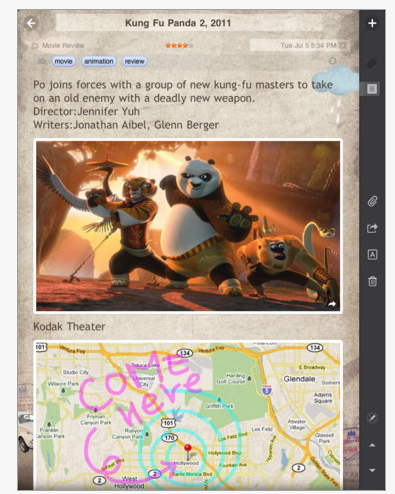
Here are some screen shots of  Awesome Note features:

(instead of Kung Fu, this might be a student name and a daily note written).

Here is how I organize some of my categories:


Each category students has a listing of student names where I write daily treatment notes or can take pictures within the notes of student production ( images of handwriting, drawing samples, word processing samples, etc.). I can use those images/ data collection samples for pre-post information or provide an electronic samples easily to parents during IEP meetings.

I also create a list of to do tasks that can help me prioritize, set alarms and then check off the tasks (my favorite thing is to check those tasks off!) Awesome notes is my agenda and organizer, providing a one stop job shop of administrative information! I do wish that within the notes it would create an automatic date stamp. It does automatically record the last date entered something into the note however. Awesome Note syncs notes to Google Docs, Evernote or via Wi-Fi between iDevices for archiving.

Here is a YouTube video of Awesome Notes:

Check out Awesome Note if you need an electronic organizer for your OT iTool Kit!

Carol

Posted in Apps for OT's, iPad, iPhone, iPod, Note Taking App, Occupational Therapy | Tagged , , , , , , | Leave a comment

Injini Printables – Activity Worksheets for your iPad

  1. Did you know that Injini has printable Supplement Books available in PDF on their website? Suited to young children, these printable Supplement Books or worksheet provide beginning visual motor tracing activities starting with simple straight lines and another set providing simple curved lines.

Do you know what that means? Yes –  electronic  visual motor activity worksheets for your iPad!!

How do you do that?

  1. On your iPad navigate to the following Injini website’s Printables Page:  http://www.injini.net/?page_id=384
  2. Click on the picture/image under the heading of Injini Frog Game (PDF will load) on the page OR follow this link to the PDF of the Printables:    http://www.injini.net/wp-content/uploads/2011/07/Frog-Supplements.pdf (a PDF will open up).
  3. Click on the picture/image under the heading of Injini Tracing Game (PDF will load) OR follow this link to the PDF: http://www.injini.net/wp-content/uploads/2011/07/Tracing-Supplements-Smaller.pdf
  4. When the PDF opens on your iPad, center the page and take a screenshot of each page (press home and power button at the top simultaneously – you’ll see a flash and if audio is on hear a click).
  5. Navigate to your Photos and you will find a screen shot of each page.
  6. Open those pages in your favorite draw program such as Doodle Buddy (free), or Skitch  app (free) or a note taking app as reuseable tracing activity for young students.
  7. Save the work, email the completed worksheet if you need evidence or a production for the classroom.

Here are some screen shots of the Injini worksheets that are clean and engaging for students.

You may be able to reduce the size of the tracing lines by using the worksheets in an app that you can adjust the size of the image if appropriate.

Thanks Injini for your printables!

More for your OT iTool Kit – and free!!

Carol

Posted in Activity Worksheets on Your iPad, Drawing, Early Childhood, Fine Motor Development, iPad, Occupational Therapy, Special education, Special Needs, Visual Motor | Tagged , , , , | 7 Comments

Telling Time App – Another Alligator App Gone Free!

Telling Time App  is a new, free app (limited time?) by  the Alligator/Grasshopper app developers  providing customization and multiple levels of activities to learners of all ages. This apps shows no preference in appearance for young or older students/individuals making it appropriate for a wide variety of ages and disabilities. Just produced, I haven’t had a chance to use this app, but being produced by the Alligator / Grasshopper App developers I trust this will be well worthwhile to add to your arsenal of apps. Here are a few clips of the app:

Grasshopper/ Alligator Apps are great apps and free even makes them better!

More for your OT iTool Kit! Share the teachers you work with!

Thank you Grasshopper/Alligator Apps !

Carol

Posted in App Reviews, Apps for Special Needs, iPad, iPhone, iPod, Life Skills, Special education, Special Education Teacher, Special Needs, Uncategorized | Tagged , , , , , | Leave a comment

Writing Apps – Supports for Students with LD #4

Writing is considered one of the most difficult literacy tasks. Many students with learning disabilities struggle with the process of writing as well as the mechanical componets of the writing task. Technology can provide support to the mechanical demands of the writing process and is often a welcome tool to students.

When asked about AT supports for writing there are many,  however some of the standard AT tools of mechanical writing are voice recognition, use of text to speech, word prediction and adaptive or customized writing environments. Although there are others (especially those with text to speech) here are some apps that show good reviews and provide basic features of the standard AT tools for writing. At the present, phonetic word prediction does not appear to be present in writing apps (may be found in more advanced text-based AAC apps such as Predictably). Note taking, story telling, graphic organizing or concept mapping apps are anticipated to be reviewed in upcoming posts.

Voice Recognition Apps

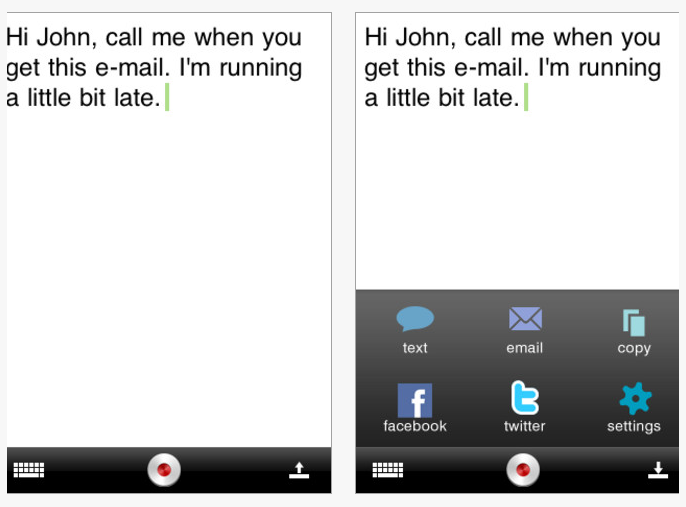
Dragon Dictation – Created by Nuance, the makers of Dragon NaturallySpeaking, provides this free voice recognition app for iPod/iPhone/iPad. It requires Wi-Fi service for the translation of your voiced file to text. Dragon Dictation is amazingly accurate given the fact that no training is required prior to its use. It uses some of the standard Dragon NaturallySpeaking voice commands for formating and document navigation. Check out the voice command listing in the previous post, Dragon Dictation  to help with voice navigation and  punctuation commands when composing. Options for publishing the text include copying, emailing, cutting or sending it to Facebook or Twitter.

Dragon Dictation minimizes the demands of the mechanical writing demands. I requires a significant  cognitive component to organization thoughts, speak out punctuation and recall commands for document navigation, editing or formating by voice.   Dragon Dictation however is a boon for those who have significant spelling challenges, difficulty getting their ideas down on paper and rely on scribing to others. Good articulation, Wi-Fi service, and the ability to read your translated text is required to use Dragon Dictation app.

PaperPort App – This is Nuances new free digital note taking for your iPad that captures hand written notes, typed text, images, web content and audio. PaperPort Notes even allows you to take advantage of the Dragon Dictates voice recognition software produce your ideas and notes simply by speaking. This is a fabulous app previously reviewed in a previous post PaperPort App  – Dragon Dictation on Steroids.

PaperPort app provides a “scribe-like” tool with additional support of importing pictures into the app. Tools to draw and type are available along with the capabilities of “speak text” tool to be used to list to the transcribed text. Best of both worlds, this app provides voice recognition in a note taking app with many tools including “speak text” capabilities.  Good articulation, written organization, knowledge of conventions for punctuation and capitalization and editing is required to support the writing process. Ability to manually navigate in the app is required to access tools and menus. Great tool for students with learning disabilities to get their thoughts down on paper and review the text using “speak text” tool offered in iOS5.

Text to Speech to Assist with Editing

Write & Say App  – This app provides a word processing environment with text to speech, translation and the ability to convert your text to MP3 format. Many languages and voices are available within the app. Boost high quality voices for its text to speech tool. Compatible with iPhone/iPod and iPad, (9.99). Provides the ability to email your documents.

Word Prediction Apps

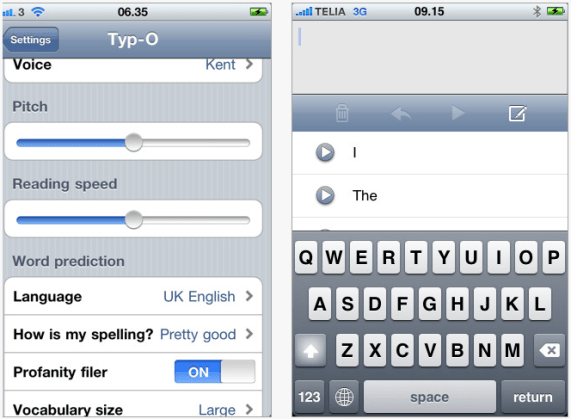
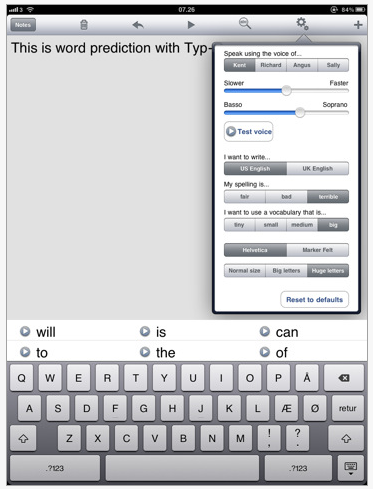
Typ-O – A simple word processing note pad with word prediction and text to speech provided to read your text aloud. Provides the ability to email your work or copy to the clipboard to transfer to another word processing or note taking app. Basic setting options of reading sped, pitch and word prediction vocabulary and spelling skill options are provided to support the writer’s skill level.

Typ-O for iPod/iPhone (9.99):

Typ-O for iPad (14.99):

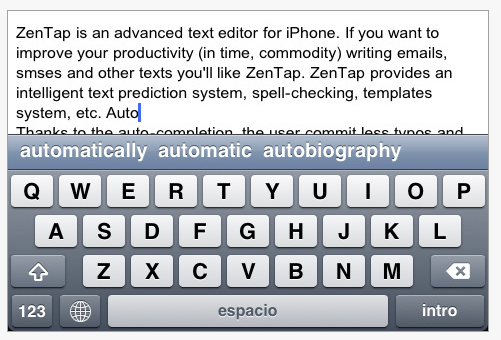
ZenTap – A word processing app featuring advanced word prediction.  Compatible with iPhone/iPod and iPad provides a free and Pro version (2.99), ZenTap provides a word processing environment with word presented above the keyboard for easy presentation and access. Words are predicted using an alphabetic formula, rather than a phonetic or grammatic method of generation.

Spell checking is also provided in the app as well as the ability to translate to other languages. No text to speech is provided in the app, however if voice over capabilities are enabled, cursory text to speech will be available. Word processed text can be saved, emailed or copied for use in other apps. For its cost, ZenTap provides many features along with its word prediction tool.

Intellipad App – This word prediction and customizable keyboard app provides many options for students with special needs. Compatible only with iPad (19.99). Intellipad provides a word processing environment with word prediction presented above the keyboard for easy viewing and selection. Word prediction is generated alphabetically as you type. Text to speech is also provided for easy auditory review of the text. This is a great app for elementary aged students with learning disabilities who have difficulty generating written work. Working with the app to become familiar with it I easily customized a math keyboard with math symbols as a solutions for students having difficulty handwriting simple math problems.

Another outstanding feature of Intellipad is the ability to modify the keyboard and key contents.

Intellipad is a great app providing access and scaffolding of writing supports for special needs students. For more information visit an earlier post dated October, 2011 on Intellipad.

iMean – Another app providing word suggestions with an alternative keyboards available with text to speech capabilities. Compatible with the iPad (4.99), this app provides options of an ABC, QWERTY and number keyboards with word suggestions  and text to speech available when the word enter the typing window. Easy switching from keyboard to keyboard is available directly on the keyboard.

Capabilities to change from keyboard to word processing view as shown above is readily available. Copying capability allows for transferring the written information to a word processing or note taking app.

There are many more mechanical writing apps for students with learning disabilities, however those reviewed provide possibilities for elementary through post secondary aged students with challenges with spelling, writing/typing. Hopefully in the near future phonetic based word prediction with be provided within apps for those students or individuals who have not yet acquired transitional or conventional spelling skills.

Have any mechanical writing apps to share ? Please post a comment with any apps you might suggest.

What’s in your OT iTool Kit for writing?

Carol

Posted in App Reviews, Apps for OT's, Apps for Special Needs, High School, iPad, iPhone, iPod, Language Arts, Learning Disability, Middle School, Occupational Therapy, Post secondary, Special education, Special Needs, Text to Speech, Writing | Tagged , , , , , , , , , | 16 Comments