Typingweb.com – Learn to Type is another keyboarding resource commented on by that can be used with the iPad and Android tablet. Use of a standard keyboard is recommended for practicing keyboarding as the standard keyboard configuration is different from iPad keyboard. Keyboarding instruction is based on use of the standard layout.
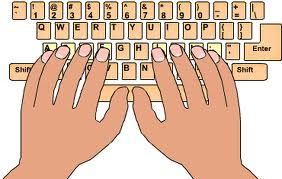
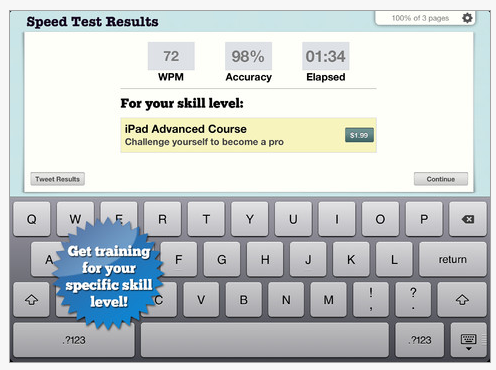
Typingweb.com provides progressive keyboarding instruction starting with home row keys and displaying proper fingering when keys are introduced. This keyboarding instruction is broken down step by step using a standard keyboard instruction with practice sessions to build technique, keyboard layout, speed and accuracy. It also collects data on lessons completed, speed and accuracy of your typing.
Typingweb.com’s Learn to Type instruction’s free version requires signing up for a login membership. Cost of the full version is 9.99 which removes ads. The program provides many levels of keyboarding instruction to reinforce ten finger typing skills. I understand they are developing a keyboarding app for release soon.
Remember that a standard keyboard is recommended for keyboarding instruction and position your tablet upright for appropriate posture when keying. Here are a few suggested Bluetooth keyboards:
Looking for games, leisure activities or cause and effect activities apps for students with cognitive challenges using a iPad or iPod?
Here is a combination of games, leisure, cause and effect apps that could be used for inclusion as well as a link to prior posts to more of the same type of activities that are appropriate for individuals with special needs. Especially check out the spinner app which can be used for inclusion and choice making in any classroom.
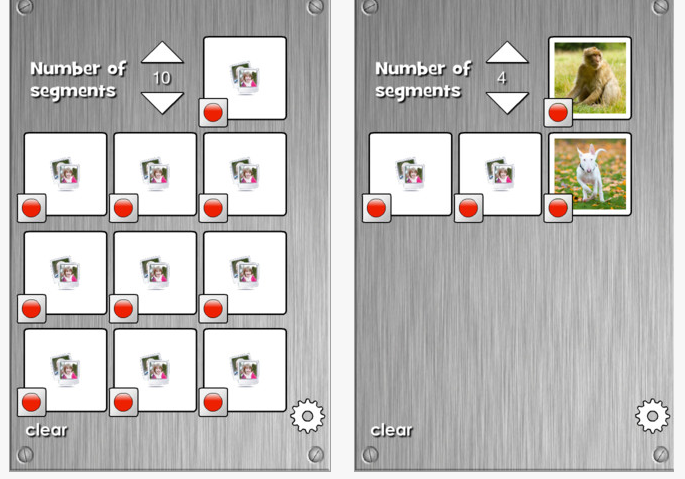
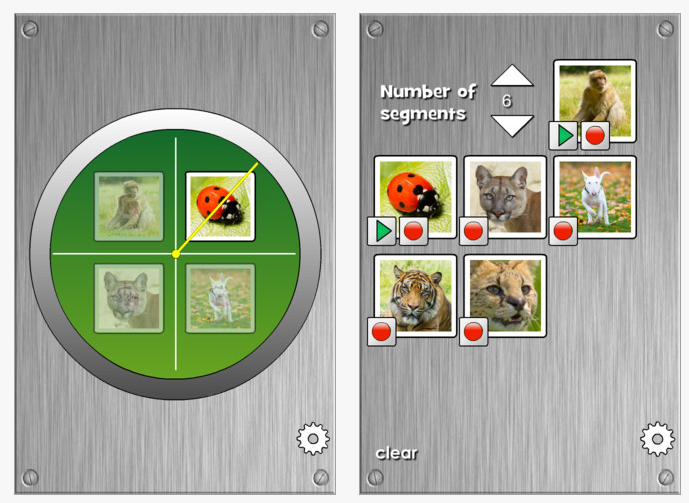
Image Spinner app – iPhone/iPad (.99) provides use of up to 10 images and audio recordings to create a spinner. Touch or shake to activate. Have you used the All-Turn- It Spinner for choice making, rolling dice, choosing names, numbers? Now you can create your own!
This app could be used to chose a random name, class jobs, number, concept or activity in a classroom as an inclusionary task. This developer also makes an app called Custom Spinner that provides 5 different spinners that you might also want to consider.
Balloon Pops – app for iPhone/iPad (.99) provides a simple balloon popping game. Suited for young and old.
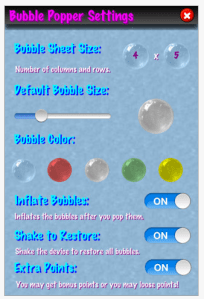
BubblePopper – app for iPhone/iPad (free) is a bubble wrap game allowing customization of size, quantity and color of bubbles presented. Allows playing by times or “Just Pop”. Increased bubble sizing, color and timed activity options allows easier access for individuals with physical, visual or cognitive challenges.
Undecided – app for iPhone/iPad (free) provides choice making tools for games such as:
Rolling dice (up to 6 dice at once)
Drawing straws
Paper-rock-scissors tool
Random number generator
Coin for flipping heads/tails
Spinner with numbers 1-10.
Touching or shaking the iDevice activates the choice making tool (dice, coin, etc.). On an iPad the dice, coins are large and could be accessed by a mouth stick or a gross movement for students to participate in an activity that needs choice making or random numbers generated.
Here prior posts with suggestions for games, leisure activities and cause-effect apps that provide opportunities for individuals with special needs:
Game apps from Ensenasoft – Listing of game apps available from Ensenasoft for students with special needs.
I am awaiting switch equipment to begin to trial switch access possibilities for students requiring indirect access for accessibility. I hope to have more information on that soon. It appears that apps with switch access for the iPad are limited. One of the new devices, the Tecla Shield from Komodo uses Voice Over hooks for access to the iPad, to provide access to the iOS environment. AbleNet and others also have switch access available but which as I understand require switch capable apps.
For more information about switch access for iDevices, check out Jane Farrall on her Jane Farrall’s Blog which provides up to date extensive, expert reviews of accessibility options for iDevices. Her very recent blog posts covers current information on switch accessibility options that are available and those that are emerging. Her reviews are thorough and up to date (recent posts are from June 29th!). I think they are by far the best reviews out there that helps define what the state of switch access currently is clearly. Jane Farrall also provides a wealth of resources and information on AT in general with expertise in AAC. Check out Jane Farrall’s blog – to glean her wealth of knowledge!! http://www.janefarrall.com/blog/
Any suggestions of apps you use for leisure, games or cause effect for students with special needs? Any one have an adaptive device idea that can be switch activated that could shake an iPod for indirect access to one of the above shake activated apps (and that will keep the device safe? Hmm, just a thought until more switch access is available. If you have an idea please share!
What’s available or new in reading apps for iOS devices?
With hundreds of new apps released everyday fortunately some of them are targeted for individuals with special needs. It has been about 2 years since the first debut of the iPad and it appears as though apps are more robust now than ever, doing more and having more features for individuals with disabilities. So it goes with reading apps, but can they compete with Kurzweil, Read & Write or ClaroRead? No, but there are more and more available to help print disabled access print. Here are some reading apps for iDevices with good quality voices(s) and highlighting of spoken works that supply reading solutions for student or adults who struggle with reading (and some help with writing):
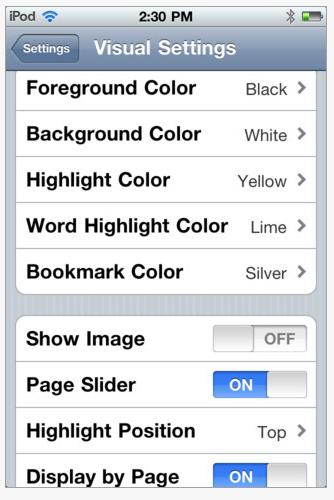
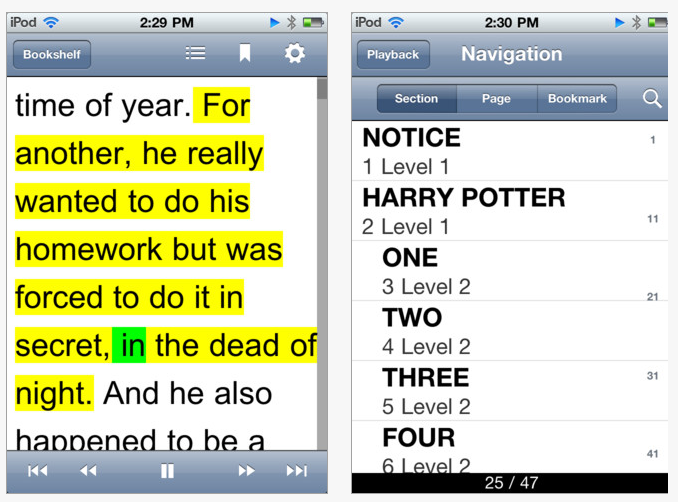
Read2Go – (19.99) Read2Go app is Bookshare.org’s iPad/iPhone app that manages Bookshare members book files. Easy to download files with a membership and easy use and this app provides reading tools as voice selection, speed, auto play, choice of highlighting and highlighted word color, foreground and background color choices and font size setting.
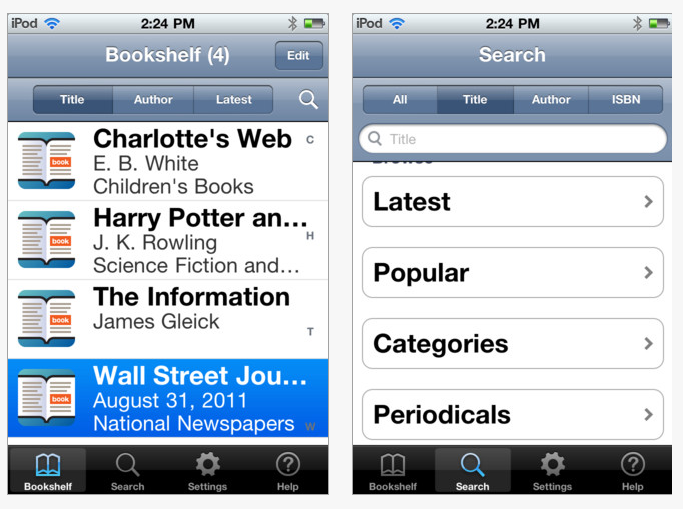
The app reflows the text of the book for individuals needing larger size font, a boon for ease of reading for individuals with visual impairment. Navigation of books and your bookshelf within Read2Go is easy allowing searching and loading of books, newspapers and periodicals easily.
Although this app is not cheap, it is well worth the 20 bucks if you are eligible for membership to Bookshare and have an iPod or iPad. Interested in information about Bookshare? Click Bookshare.org .
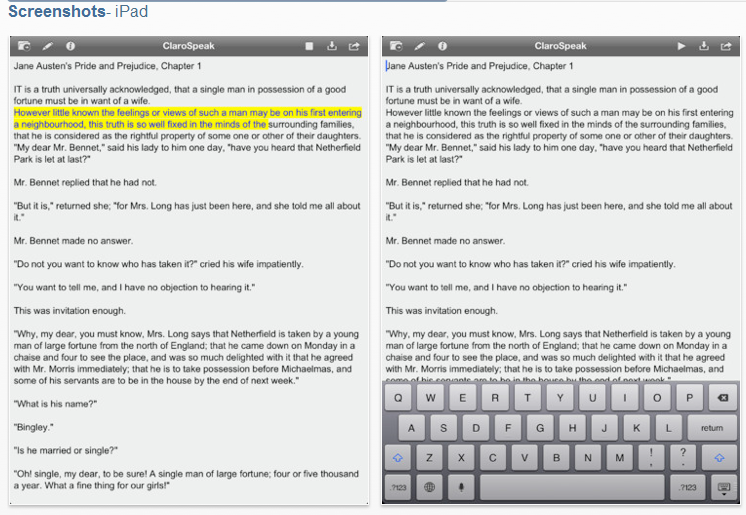
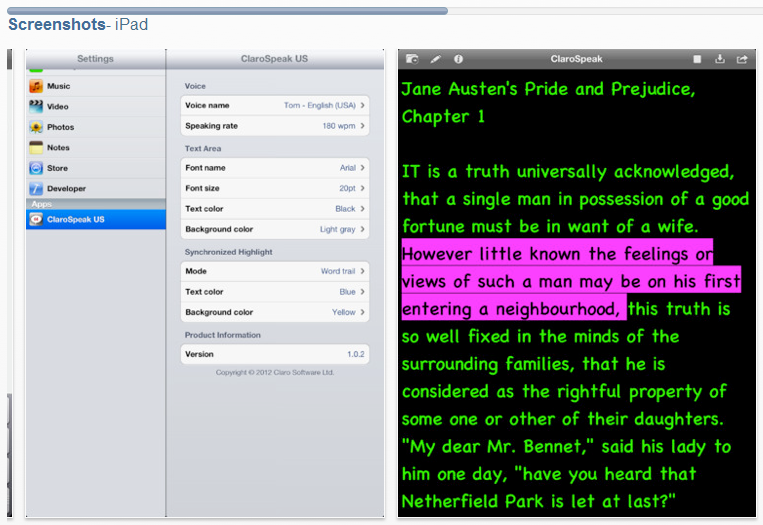
ClaroSpeak US Edition app – For iPhone/iPad (5.99) is made by the ClaroRead company, a scan and read program for the computer. ClaroSpeak provides high-quality text to speech reader capable of speaking any accessible text with a range of human high-quality voices. ClaroSpeak offers the options of visual highlighting in sync with the spoken words, a range of colors for font and background and the ability to create audio files from any text using preferred reading speed settings and voice. Text reflows with font size chosen for complete text viewing.
You can type (or speak using an iPad 3’s voice recognition tool) into ClaroSpeak also and access the text to speech tools.
In order to import text to read, text files can be can be:
Synchronized from your computer via iTunes (can be done connected or wirelessly if File sharing is enabled)
Send files via email, open the file and choose ClaroSpeak to open it in
Copy and paste it from another source.
Of the choices, sending it via email appears to me to be the easiest method of opening it in ClaroSpeak. Copying and pasting it directly into ClaroSpeak from another source is a bit awkward. No option of creating a new text file is available so I found myself saving over the top of an existing file to rename it. option you only are able to save it. I found myself saving over other older files then saving it as another name which seems very awkward and confusing. Synchronizing a text (txt) file wirelessly worked very well as did connecting the iPad and adding the text file into the ClaroSpeak file sharing tool then sync’g it.
ClaroSpeak has many good accessible reading features for students or individuals with print disability – whether learning or visual. At a cost of 5.99, ClaroSpeak will allow you to access any text using customized setting. Helpful if you need accessible text that you can’t find on Bookshare or have not gotten through other resources that supply accessible instructional material.
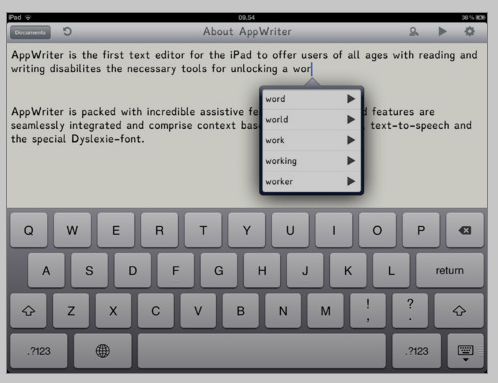
AppWriter US iPad app (19.99) provides users of all ages with reading and writing disabilities the tools to access and produce print. It is a very simple format, easy to navigate and use immediately. Although its name suggests that it is for writing, the text to speech capabilities allows it to read documents as well as produce writing using its word prediction tool. Other features it provides for both reading and writing include:
Settings for read aloud including reading by words, sentences or read characters, voice speed and voice choices. It provides a screen reader which provides text to speech of basic menus or navigation when using the app but which is very subtle in nature.
Word prediction with auto-space and text to speech with words predicted
Appearance setting of font size, font color and background color
Sharing within the app (save as function), email, copy to clipboard, upload to Google Docs or Dropbox
Adding documents to the app can be performed by creating a document, scanning a document (with its own document scanning and editing tools) or by importing from Google Docs
Copying and pasting text into AppWriter was easy to perform by creating a new document
Reads words as you type and will read from the insertion point of the cursor.
AppWriter is an all-purpose, easy to use app with text to speech and word prediction that can support individuals with a print disability. The word prediction offers high frequency word choices were as word completion when you start typing a word provides alphabetical choices. Smart typing, providing a space between words is offered.
I trialed the scanning which had some errors, but not atypical of what I have experienced when scanning with the iPad. Although its camera has been upgraded it still is not the highest quality camera for OCR and maintaining a steady hand to take a picture and good lighting are other huge factors for getting good accuracy with OCR conversion.
I found the ease of transferring files in and out from Google Docs a huge plus and the ability to move it to Dropbox or directly to other apps such as ClaroSpeak, Pages, Notes or GoodReader. Although a bit pricey, this is a very easy to use app and for individuals who need some screen reading to help them navigate, this app provides a very pleasant screen reading voice that subtley guides you within the app. Well thought out app for ease of use and transferring files in an out (I tend to think this is as important as the app features are – why use it if you can’t produce or access files with it?).
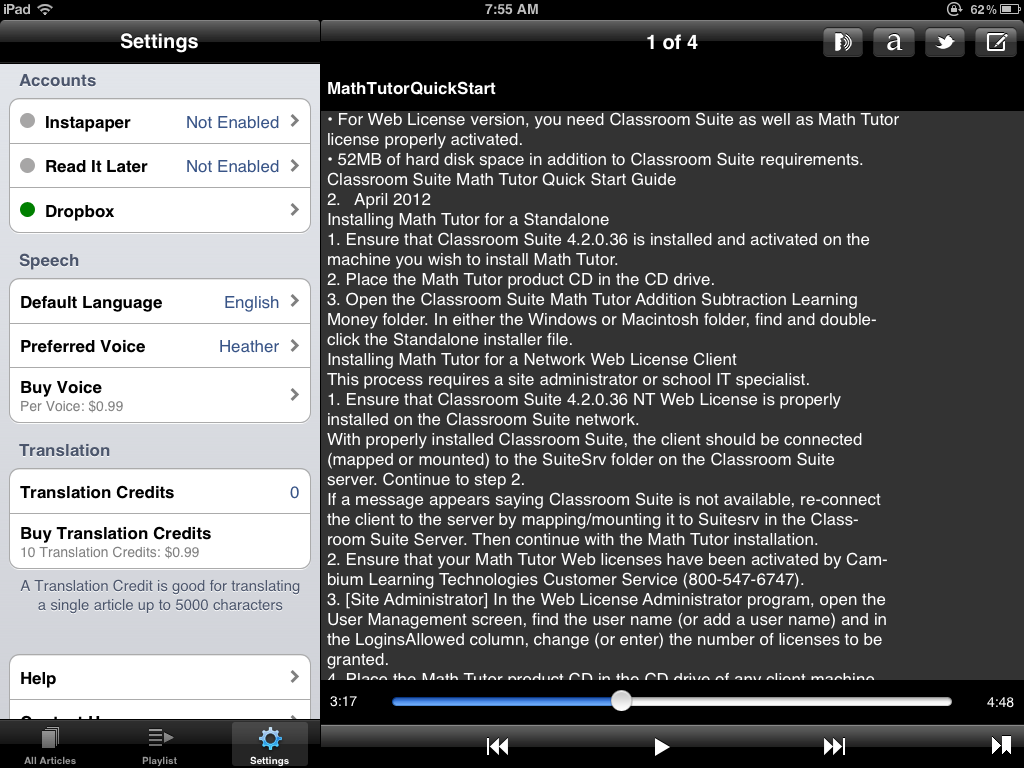
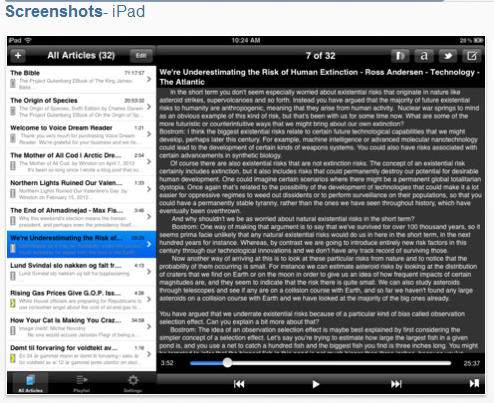
Voice Dream Reader app (4.99) helps students and adults with reading difficulties by extracting text from most articles you want to read, and speak the text with text-to-speech technology. The voice is clear and natural. Text highlighting makes it easy to follow the text as it’s being read. Options in the settings are more limited with maximum text size up to 30 and the contrast either being black on gray background or gray on black background. The controls for reading text are offered simply, like controls for listening to music with a forward and back button and pause/play button.
Text to speech capabilities are high quality and additional voices are available as an in app purchase. Translation capabilities are available as is a timer to alert you when reading.
Storing files in the app allow the choice of populating all of your articles, creating a customized playlist or accessing Pocket archives. You can also create your own folders for organization of documents and files within the app.
This app is an advanced app with good quality text to speech and easy navigation within an article loaded. I did have some challenges with loading PDF files but was able to copy and paste information from the Internet into folders to read at a later time. This app has many features but requires sometime to understand all the advanced features available. I would recommend this app for individuals who are tech savvy with transferring files, organizing files and can fluidly manage other on-line or mobile services.
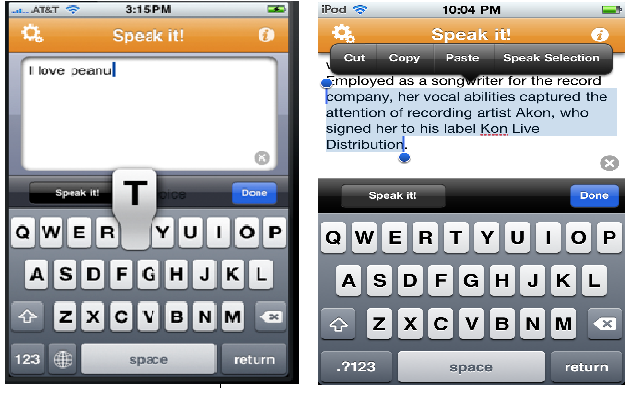
Speak it!– Text to speech app available for iPod, iPhone and iPad (1.99), with features of high quality voices, rate of voice and volume controls. Use the app to type or paste text from another source into the app to use the text to speech tool. Options available include saving the text, create an audio file and saving the audio file.
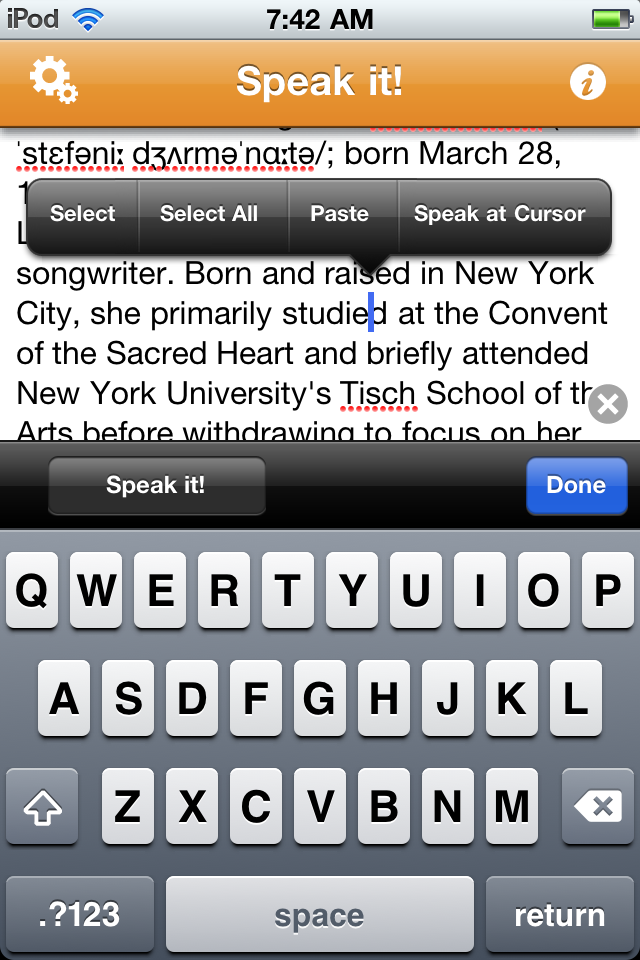
Speak it! provides the ability to copy, paste and speak the text as shown in the controls above. Quality of the voices were good and additional high quality voices can be purchased. One of the simple features I liked was the ability to Speak at Cursor, allowing better control when you wanted to move forward to have text read aloud, rather than reading all of the text.
In many other apps trialed, most read from the beginning of the paragraph with difficulty being able to select or touch in the text to read a specific word or text. A small feature but functional when skimming for details or vocabulary.
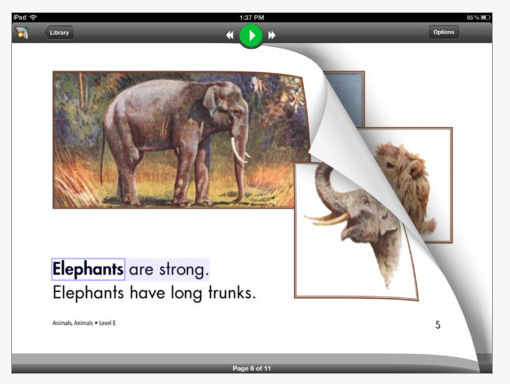
Firefly app is Kurzweil’s iPad app (free) that requires Kurzweil 3000 web-based license to access school or student specific libraries of books, documents or textbook electronic material. Firefly provides a clean interface with text to speech and other print features for individuals who struggle with reading.
Even if you don’t have a web based version of Kurzweil 3000 that is compatible with the Firefly app it provides you with more than 1800 documents of classic public domain books and stories within the free app that does not require any type of membership to access. Check out this recent post of the Firefly app for more information.
There are many more apps available with text to speech capabilities. Here are a few other reviews worth checking out that provide information on text to speech for iOS:
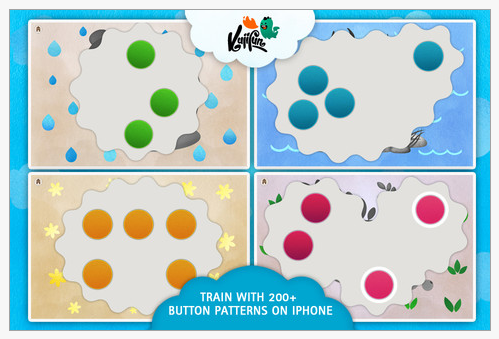
Finger Fun app currently is a free app for iPhone/iPad that is described for children ages 2-6 years of age. It is rather unique as it requires finger isolation skills while touching dots. One or more dots can be presented on the screen at a time requiring simultaneous touching to complete the task. One hand or two hands, fingers must touch the dots at once for a picture reward to be shown.
Sounds are provided when you touch the dots and the dot is highlighted (white ring) when touched properly and to show which dots have been activated. I found that if not all dots were pressed after a period of time the next pattern reduced the number of dots presented. The number of dots presented increased quickly from one activity to the next and could cause frustration to a child with limited finger isolation. No setting options are available in the app or in the Settings icon where some apps provide feature choices.
Finger Fun provides an interesting app that could be used for developing finger isolation or used as a motor planning activity. Each activity provides dots placed in different locations requiring definite motor planning skills of how to approach the dots much less activate them with individual fingers. Recommnded for children ages 2-6 years, a method of adaptation for this app could be assist a child with your touch of some of the dots, requiring them to only touch one or two to complete simultaneous activation. For upper ages, requiring use of two hands to activate, making it a bilateral activity for students.
I would like to see more setting options in this app with controls for numbers of dots that are presented. It would also be great to be able to have two different colors of dots possible on the screen, requiring students to consider using one hand to activate each color (ie. right hand touches read, left touches green) to make it a laterality and bilateral development activity. Option of turning off some of the sounds or music that it plays might also be important as it could be a distraction, overload of sensory information or just annoying to some children
So check it out and see it this would go in your OT iTool Kit. It has some possibilites that I am not aware of in too many other iOS apps. Let us know what you think!
Are you a Kurzweil 3000 user and interested in accessing your universal documents from your iPad?
Not a Kurzweil 3000 user but interested in accessing pubic domain classic literature or trialing Kurzweil’s text to speech iPad app??
Firefly app, made for the iPad, provides users of Kurzweil’s web-based services access to their digital files (Universal Library) through this app. Firefly app provides access to KESI and text files assigned to the user through Wi-Fi connectivity. Using login and password information like you would when accessing files on your computer, your digital library will be available to you. Don’t have Kurzweil 3000 web-based services? You can log on and try it out without any hassle or even sign-up required. Kurzweil has provided non-users access to more than 1800 classic literature public domain electronic text files (presidential speeches, Mark Twain, Aesop, etc.).
Firefly app provides a high quality of images as typical of their software.
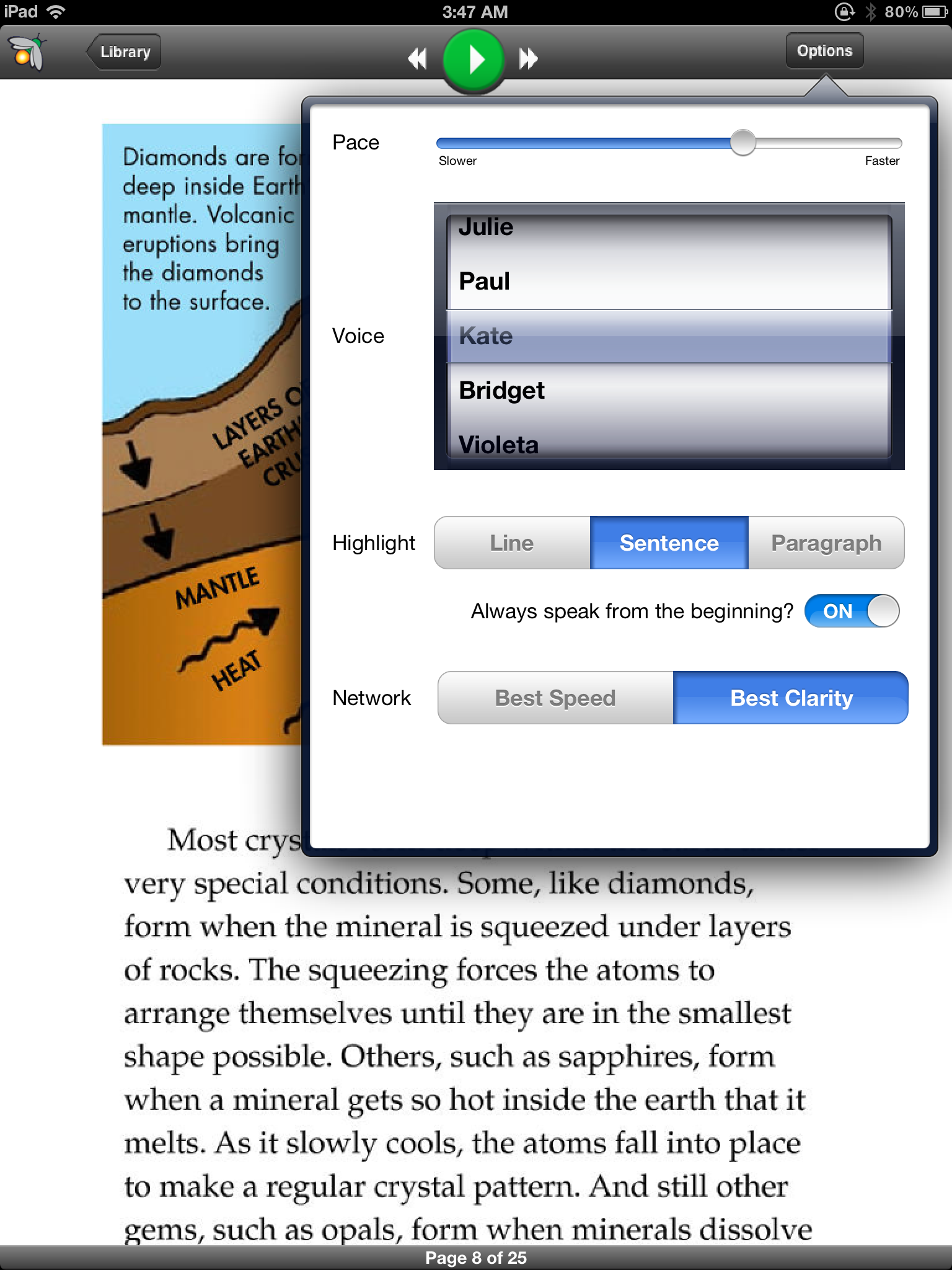
It also features simple and easy to use interface for navigation and access to basic options of pace or rate of speech, voice choices, highlighting by line, sentence and paragraph and choice of preference of best clarity versus best speed with Network connection. Here’s how the options looks:
A single control allow text to always be read from the beginning of the page, or when turned off allows the user to start reading at the touch of any word.
The app allows zooming in and out of the screen and text although does not provide other options of background color or text color. No reflow of the text on the screen is provided.
Although full functionality requires a user to be a member of a web-based service agreement, you can easily trial this app out without a membership. If you have students who may be required to read classic literature such has Romeo and Juliet, The Adventures of Huckleberry Finn or Tom Sawyer or you are interested in listening to a classic novel, this app will provide you with a free electronic copy.
Try it out for free. Interested in more information on Kurzweil products or Firefly? Here is a link to vendor information: Adaptive Technology Resources
Can you relate to this video? (I can, hugely at school! Watch this it will make you laugh! )
Although our school system is making welcome changes to allow print capabilities this fall, printing and solid wi-fi connectivity can be source of frustration when using the iPad. As good as the iPad is, if you create content or documents and can’t seamlessly produce them, access them (my wonderful former IT guy, Marty Gross always used the word seamless which to me is extremely important – thank you Marty), then why do those kinds of tasks on the iPad?? They are possible but connectivity for access to iCloud, servers and printers are needed!
Here is a new solution to that old, frustrating print problem!
xPrintServer Network Edition – I do not have experience with this but is sounds like a great solution for a business or school situation. Here is more information from the Lantronix website:
Print from all your iOS devices to virtually any printer!
xPrintServer enables wireless printing for iOS devices such as iPads® and iPhones® using their native print menu. It eliminates the need to print through apps, install software, or email yourself documents for printing. And more importantly, you don’t need to buy a new printer because xPrintServer works with more than 4,000 top brand USB and network printers.
Why the xPrintServer?
Print to virtually any printer / no need to a buy new printer
No apps or software to buy or load
Easy to use / automatic discovery and set up of printers
Print directly from the iOS native menu
Advanced configurations via web interface
One xPrintServer supports multiple printers & virtually unlimited iOS devices
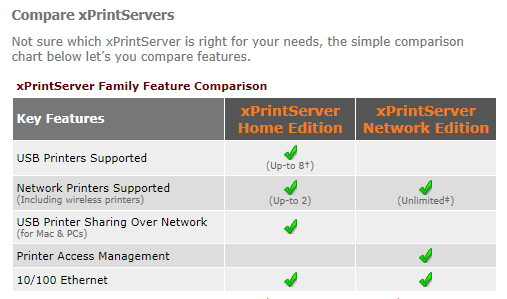
Compare home and network xPrintServers:
Here is a simple comparison chart on the xPrintServers available:
I know that there are other apps available for the iPad (Citrix app) for connecting server services to your iPad, but I sure was entertained and related to the video from Lantronix regarding the challenges presented when print capabilties are difficult! For home printing, purchasing a e-Print/Air print capable printer can do the job. For more information on their product visit the Lantronix website.
More OT iTool Kit possibilities for seamless use of your or your client/student’s iDevice!
Considering the need to practice keyboarding on your iPad or Android Tablet?
Following an earlier comment asking about the possibilities of iPad keyboarding practice apps and considering the needs of a student who will be producing word processing on his iPad during his school day, I started researching what was available in keyboarding lessons for mobile devices.
However before discussing apps for keyboarding, some thoughts about keyboarding instruction is important to consider:
No matter what device you are using there is a developmental sequence for the acquisition of keyboarding skills for communication.
Initial skills of positioning and keyboard awareness, use of left and right hands on the keyboard are the beginning stage (K-2 grade)
Next stage involves developing touch typing skills with individual key strokes learned to develop good technique along with ergonomic positioning when sitting at the computer (3-5 grade).
The third stage involved developing speed and accuracy that is build upon good positioning and application of proper keyboarding technique (6 + grade).
Different school districts differ on their grade level expectations of keyboarding and exceptions to instruction and acquisition of keyboarding is depending on student skills, type of instruction provided and frequency of application of the skills. School curriculum, age, skills and needs of the student should be considered when selecting the type of keyboarding program used and expectations (e.g. http://www.solon.k12.ia.us/district/instruction/curriculum/documents/keyboarding_curriculum.pdf ).
Despite the numerous on-line keyboarding lessons and practice for those using PC or MAC computer, app choices appeared to be limited Here are some keyboarding apps that I found for iPad and Android devices:
iPad Keyboarding Apps:
Jalapeno app – (2.99) for iPad. helps people of all ages learn to type with speed and accuracy.
Features:
– Practice mistakes with keystroke history
– Subtle helping hands show which finger to type with
– Adjustable fonts and sizes
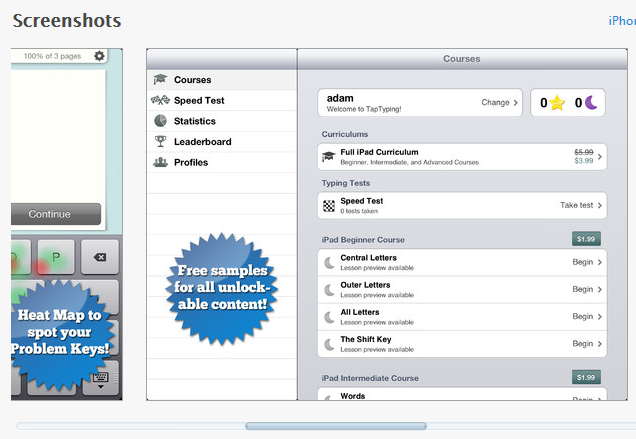
– Print your speed test scores Tap Typing app – Free for demo and previews, then in app purchases for three levels of courses (beginner, intermediate and advance course each 1.99)
Features:
– iPhone/iPad Crash Course: quick overview – Beginner: Learn to quickly reach the primary keys (a-z)
– Intermediate: Capitalization, punctuation, numbers
– Advanced: difficult tapping patterns, complicated sentences and symbols
– Special courses: Alice’s Adventures In Wonderland (chapters 1 & 2), US History, Inspirational Quotes, Romeo & Juliet
Android Keyboarding apps:
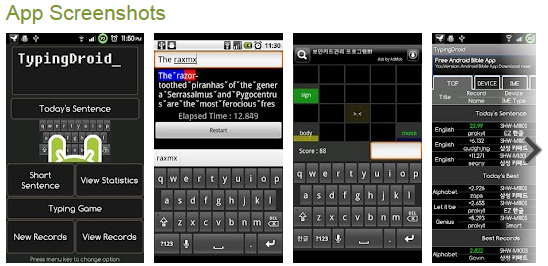
Typing Tutor Typing Droid – (Free)Android typing game to practice speed and accuracy. Does not provide introductory keyboarding instruction. Good for reinforcement after keyboard keys are learned.
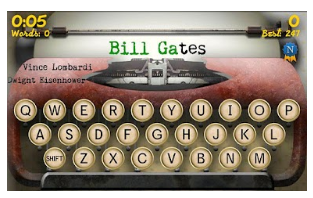
TapWriter app (free) A game keyboarding skill app with four different game modes:
– Classic (basic level with words starting with 3 letters and progressing up to 8 letter words)
– Spelling (words are spoken to you and you type the word)
– Arcade (give 6 seconds for each word. Starts with 3 letter word progressing to 8 letter words)
– Names (type word of famous personalities)
This game app does not provide basic keyboarding introduction of home row keys. Nice graphics and interface. Requires prior instruction to learn keyboarding technique. Good for reinforcement of skill and speed.
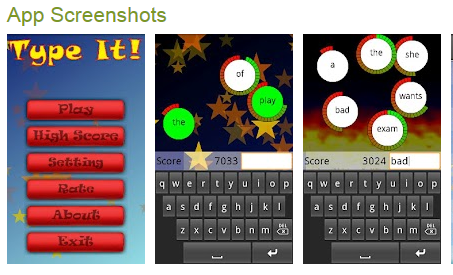
Type It! App (free) – For Android, has setting to manage sound, volume of music presented in app. Game format keyboarding app practice. Does not appear to present keyboarding practice in a progress. Appropriate for increasing speed after keyboarding techniques have been learned.
Other Options for Keyboarding Practice
There are many keyboarding games and standard keyboarding lessons available online for students to practice and not be bored with the repetition needed to acquire keyboarding technique and accuracy. Many of those keyboarding game websites require flash player, not friendly (not available) on the iPad but which work well on the Android platform (allows Flash).
iPad Compatible Websites
Here are a few websites that I tested that work on the iPad (primarily skill and drill lessons, however appropriate) that will require Wi-Fi connectivity and the use of a standard keyboard for learning good technique and the standard keyboard layout:
http://www.typeonline.co.uk/lesson1.html – This website provides lessons in instruction of the keyboard in a progressive manner. Simple but well laid out keyboarding website.
http://www.usspeller.com/keytutor.html – Online website for keyboard awareness does not use a standard keyboard instruction. Provides letter, word, then sentence practice. Works on with iPad with Wi-Fi connection.
Android or PC/MAC Computer Keyboarding Websites
Here is an extensive listing of selected online keyboarding websites (Thank you to Mrs. Erin Higgins, COTA for this list) that will work on a standard computer or on an Android device. Again use of a standard keyboard, whether wired or bluetooth is recommended when initially learning the keyboard using a computer or mobile device.
www.freetypinggame.net – Many different games with the ability to change the level of difficulty and how many rows (or keys) on the keyboard you want to focus on.
http://games.sense-lang.org/ – This is a collection of games that range from typing single letters to words to copying full text.
Using Standard Keyboards with your iPad
You can use Bluetooth keyboards as well as standard keyboards with your iPad.
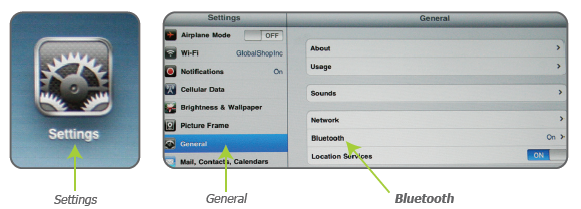
Bluetooth Keyboards – You can connect a Bluetooth keyboard by going to Settings > General > Bluetooth>On then slide button to ON.
Make sure your keyboard power is on and then pair the two devices. The iPad will search for your Bluetooth device and give you instructions for pairing the device and keyboard. The manual for your keyboard will also give you instructions for how to pair the devices. My favorite Bluetooth keyboards are still the Apple keyboard or the Logitech Tablet Keyboard that has a stand and works with both my Toshiba Thrive Android Tablet
or iPad. Use of a stand (see some choices below) improves the ergonomic positioning a an important part of keyboarding practice.
Plug the camera connector with the USB port into your iPad and connect a standard USB keyboard into the USB connector. I initially received a not compatible message, but selecting okay, allowed me to type on the keyboard into the typing program on my iPad without problems. Here is a video showing you how to connect a wired keyboard:
The next challenge was positioning of my iPad in an upright position with the connector attached at the bottom. I unlocked the rotation on my device so that I could flip the iPad upside down and view the app with the connector positioned on top of my iPad.
I could then position my iPad with my Targus Versavu Case that provides an easel in an upright position with the standard wired keyboard attached allowing the keyboard more appropriate ergonomic placement.
As a OT I would suggest practicing keyboarding on a standard computer and keyboard for the following reasons:
There many more choices of online keyboarding programs available for individuals to practice keyboarding without becoming bored.
Ergonomics and set up generally will be better if you review how and where you are sitting and follow basic ergonomic principles.
Beginning keyboarding lesson app are few. There are more Android and iPad apps for speed and accuracy than the beginning foundational skills of keyboarding. (Although Jalapeno was my favorite of all the apps and had good stage two lessons in it.
There is merit, I believe, in practicing keyboarding with the layout of a keyboard associated with a mobile device you will be using as your primary mode of typing to gain speed and accuracy. It always takes a bit to become accustomed to a new keyboard.
Always consider good ergonomic positioning, develop good typing techniques when word processing to establish good life time habits!
For more information on ergonomics with your iPad visit the prior post on Ergonomics for your iPad!
My search for new iPad 3 cases found a number of bounce-able ones suited to toddlers and preschool children. In the post “How to Choose an iPad Cover”, another factor suggested to consider is the content of the material of the case. Is it made of unsafe silicon material (those made in China?)?
Here are some of the tried and true cases now updated for use with iPad 3 as well as new cases recently debuted that are designed for toddler to preschool children. As there are few reviews of this category of cases, I included consumer ratings from Amazon, the largest store in the world. The numbers of the customer who rated may be dependent on just the sales of a single colored case and should be taken into consideration. More information can be found on Amazon on the ratings.
Review of the type of materials used in the cases are listed with exception of the Fisher Price case. Despite a search of the material make up of the Fisher Price case on the Internet and on their website, I could not find a description of the materials used.
Here is the list of the cases I found for little hands:
Fisher-Price Laugh and Learn Apptivity Case: iPad Edition $34.95. Compatible (per Fisher Prices web site) as compatible with iPad 1, 2 and 3. No description of material content provided on Amazon or Fisher Price website. Made in China. Rated 4/5 on 8 customer views.
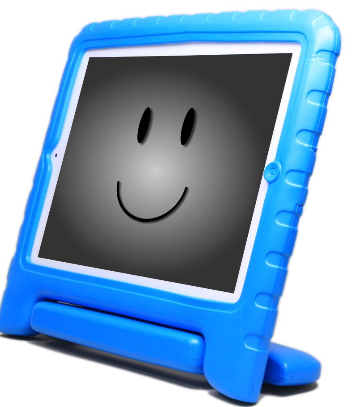
Speck SPK-A1247 iGuy for iPad 3 – Lime $27.85 Fits all iPad cases including iPad 2 and 3. Made of light weight EVA foam. Free standing. 5/5 rating from 4 customers.
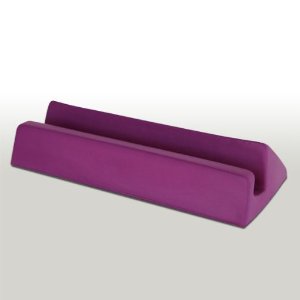
Big Grips Frame for iPad 2 | 3rd Generation – Purple $34.95 – Foam frame that is Phthalate and PVC free, lead and latex free. Lightweight, durable easy to clean and resistant to oils, chemicals, stains, molds and germs. Comfortable grip. Stand sold separately. Rated 5/5 from 7 customers.
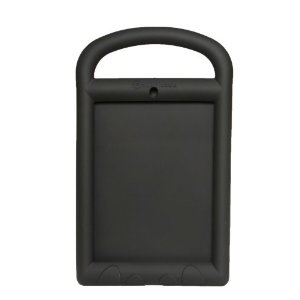
AddyCase for Home Button Blocking! (Black) $49.00 Compatible with iPad 2 and 3. Easy to clean, non-toxic, lead free, latex free material. Provides handle and covers the home button to control users access to other apps. Resistant to oils, chemicals, stains, molds and germs. Rated 5/5 from 2 consumers.
Our school’s 4K iPads have used the iGuy cases with positive responses from the teachers. What has been your experience with cases for young children? There are some varying opinions about blocking the home buttons to provide users the freedom and experience exploration and control. What are your thoughts?
If you are interested in updated information on sturdy iPad 3 cases suitable for students, here is the link to a recent review: http://wp.me/p1w0d0-Ju
Whether celebrating the 4th of July in the US or planning for an outdoor fireworks show elsewhere, here are a few app that might entertain or forecast a firework event for individuals with special needs. Thanks to Digital Storytime for their review of the first two apps!
4th of July Auracle – Free for iPad, this app displays fireworks with a touch or a shake of the device. Good for cause and effect interaction with the iPad.
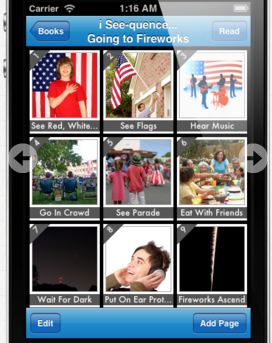
i See quence … Going to Fireworks – (Free today) For iPhone and iPad is described as an application providing a photo social story for individuals that need support in understanding the process of watching fireworks. Twelve icons with real picture images are used to illustrate the sequence of events. Text statements can be individualized for each picture allowing the app to be used for a variety of purposes, including receptive identification and expressive labeling. Personal photos can be added by the user with a camera ready Apple device or imported from the user’s photo album.
Typically developing young children participating in watching fireworks for the first time and individuals with developmental delays, such as PDD-NOS and autism will benefit from this interactive application. Parents, teachers, SLP’s and other support professionals will appreciate the user-friendly design.
Here are a few more fireworks apps that are cause effect in nature and may be helpful today, for special events or all year round:
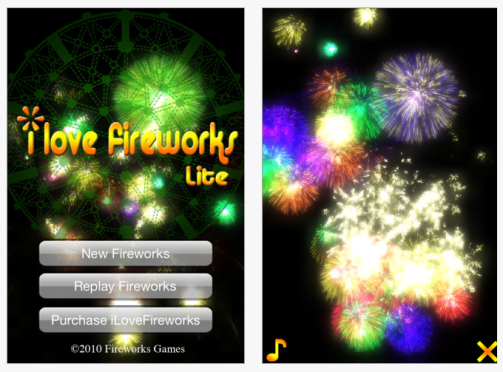
I Love Fireworks Lite – (Free, .99 full version) For iPhone/iPad allows you to touch on the screen and you immediately see breath-taking fireworks in 3D graphics and real sounds.
Fireworks Arcade app – Available for Android and iDevices (iPhone/iPad) are free on both platforms. Created by Big Duck Game LLC, this is a game app however provides a cause and effect activity by pressing Start Show displaying fireworks with sound. I have this on my Thrive showing a good variety of fireworks with colors and realistic sounds. Control the sound and this may allow you to start sensitizing an individuals to a fireworks display.
There are many more firework apps available for you to choose from. Thanks to Digital Storytime for their curated collection of apps and to Big Duck Game for supplying free choices of the cause effect fireworks app on both platforms!
Enjoy your 4th with real life fireworks if you can – don’t forget the noise cancelling headsets for those with auditory sensitivities! Here are some foldable noise cancelling ear muffs you might consider (good for all kinds of occasions, we have learned not to leave on school trips without them!) having available to help special needs individuals. It is amazing what a comfort just having them around makes!
Another choice is Walmart’s $8.95 noise reducing headsets available in the hunting department. We use these at our school, available in pink and black and they also fold for easier transport.
More for your OT Tool Kit! Have a great holiday America!
Thanks to Christina Scheer MHS, OT from Grafton School District in Wisconsin for her recommendation of the Bugs and Buttons app. Ms. Scheer reported Bugs and Buttons is a favorite of her students.
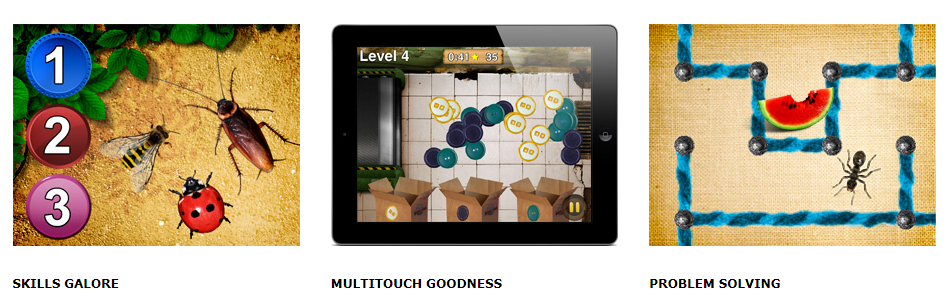
Bugs and Buttons app for iPhone and iPad ($2.99) is packed full of 18 educational games and visual motor activities for students. Geared to preschool and kindergarten, its provides a wide variety basic counting, sorting, patterning, tracing, matching color identification activities. See the list of all of the activities below. Here are images of a few activities included in the app:
Of the 18 activities provided, some have progressive skill levels. Here is a listing of the activities and which are progressive:
What a great app for OT’s working on visual motor and preschool/kindergarten skills. Thank you to Christina Scheer, OT for her Bugs and Buttonsapp recommendation!

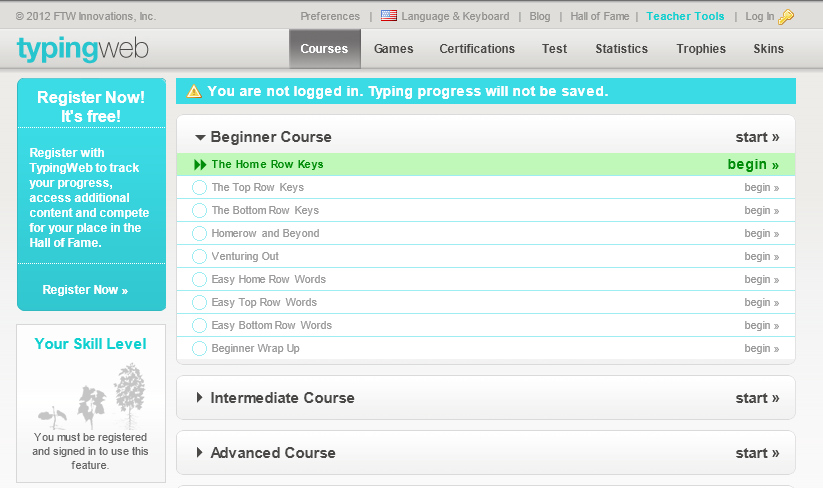 Typingweb.com provides progressive keyboarding instruction starting with home row keys and displaying proper fingering when keys are introduced. This keyboarding instruction is broken down step by step using a standard keyboard instruction with practice sessions to build technique, keyboard layout, speed and accuracy. It also collects data on lessons completed, speed and accuracy of your typing.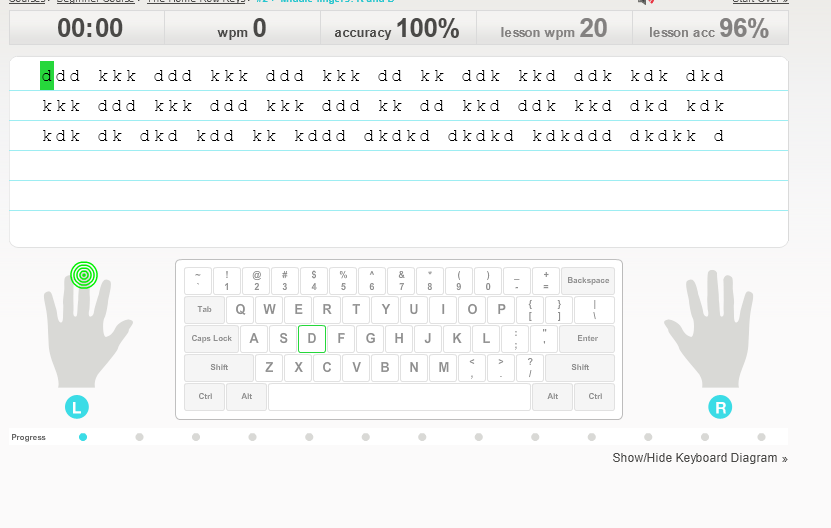












 – I do not have experience with this but is sounds like a great solution for a business or school situation. Here is more information from the Lantronix
 that has a stand and works with both my
 .
.
 that provides an easel in an upright position with the standard wired keyboard attached allowing the keyboard more appropriate ergonomic placement.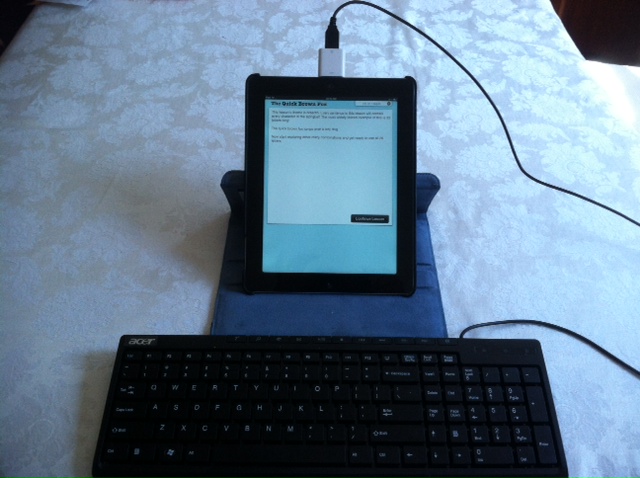

 $34.95. Compatible (per Fisher Prices web site) as compatible with iPad 1, 2 and 3. No description of material content provided on Amazon or Fisher Price website. Made in China. Rated 4/5 on 8 customer views.
 $27.85 Fits all iPad cases including iPad 2 and 3. Made of light weight EVA foam. Free standing. 5/5 rating from 4 customers.
 $34.95 – Foam frame that is Phthalate and PVC free, lead and latex free. Lightweight, durable easy to clean and resistant to oils, chemicals, stains, molds and germs. Comfortable grip. Stand sold separately. Rated 5/5 from 7 customers.









 OT's with Apps & Technology