This presentation by Laura Campaña, Director of Infant & Early Childhood Program at Junior Blind of America, was given in March 2012.
“It introduces multiple applications on the iPad iOS platform that have been tested on children with visual impairment. It includes cumulative data collected on iPad use compared to APH Lightbox use with children with visual impairment during a study done by the Junior Blind. The purpose of the study was to investigate the use of the Apple iPad as a means to strengthen or initiate visual engagement, parental interaction, communication, visual attentiveness, reaching adn/or activation among children with visual impairments and/or multiple disabilities.”
FreeSpeech is a new free AAC tool for the iPad that allows you to add your own photos, group them, and collaborate with other FreeSpeech users to share content!
“FreeSpeech is a communication tool based upon research in augmentative and alternative communication (AAC) and human-computer interaction, as well clinical insight and expertise in speech and communication disorders.”
Although this might not exactly be your area of expertise, creating a simple board with yes/no, help, bathroom, therapy choices or other symbols (depending the available symbols) might be of help to you on your iPad. Most students with communication needs may have a dedicated device, but availability of basic communication symbols might just come in handy from time to time.
Adele MacNeill, Canadian Occupational Therapist, provided the following extensive comment to the September 1, 2012 post Back to School Apps for Productivity. She provides app suggestions for photo editing (not at all my expertise) which are not only from a voice of experience, but applies shares how she uses them professionally. Adele also presents information on EXIF metadata and privacy information. Not sure what EXIF metadata is ? Read on to learn more…
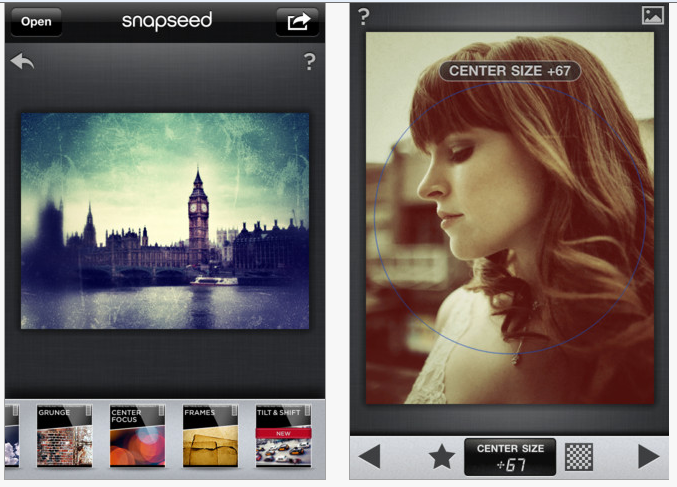
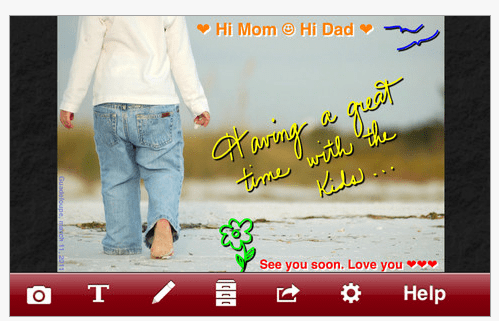
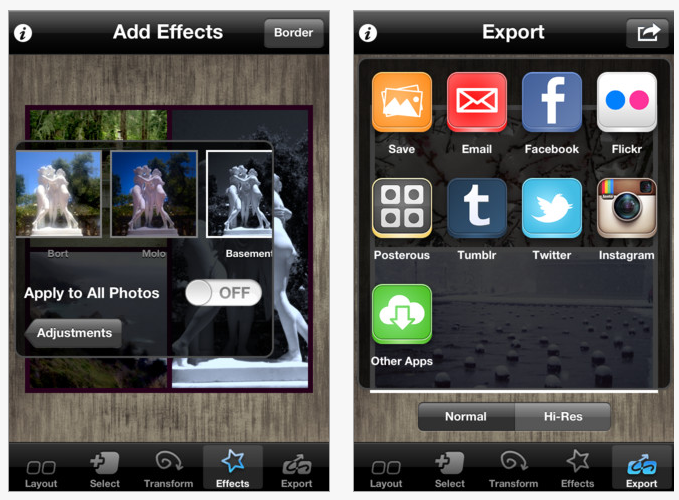
“My favorite apps for making education material/home exercises are Snapseed ($4.99), A+ Signature ($0.99), Diptic ($0.99) and NoIMGdata ($1.99). All four (photography editing) apps are compatible with iPhone and iPad.
I take a photo with my camera and use the photo app Snapseed to edit my photo. It is one of the easiest to use photo editing apps available. I don’t use the photo edit function that comes with the iPhone because it does not save your original photo – Snapseed saves your original photo so if you don’t like your saved edited photo, you can start over with your original. With Snapseed you can brighten a dark photo, crop the photo to show exactly what you want, and you can “straighten” crooked photos. There are many other excellent editing features available on Snapseed as well.
A+ Signature is an app that allows you to add text to your photo. I like the different fonts available – there are other add-text-to-photo apps, but this one has more professional looking fonts. There is a free version (A+ Signature lite) too, but it has fewer font options and you can only add one line of text at a time (then you need to save photo and add text to the saved photo if you want to add another line).
Diptic allows you to combine 2 or more photos into one photo. You can choose from many different layouts, and it has different filter options. There are other free apps that allow you to combine photos (eg. Pic Stitch, Frametastic) – I use Diptic because it is easier (and no ads).
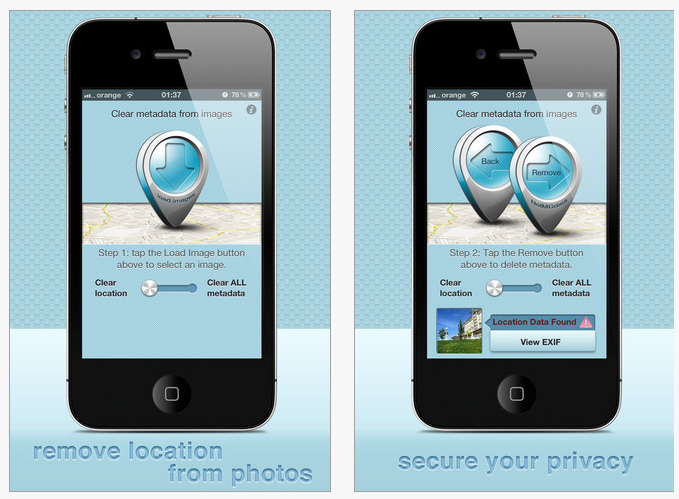
Finally, NoIMGdata is an app that will show and remove the EXIF metadata from your photo. If you have left the Location Services “on” for your camera setting, it is possible to view the exact location (longitude/latitude) of where the photo was taken. It is important to leave location services “off”, as leaving this information in the photo can compromise client confidentiality. NoIMGdata allows you to check to see what data is embedded in the photo, and also allows you to remove this data from the photo.”
Thank you to Adele for sharing her expertise in photo editing apps and her applications of the apps to OT practice. Adele provides many new apps, uses and considerations of privacy information in pictures that should be considered if using personal information of clients on our iPads. The metadata information was a whole new concept for me and I am thankful to be aware of that for confidentiality reasons. The photo editing apps recommendations are valuable when producing stories and needing to edit photos. Adele’s suggestions on using the iPad to take pictures for home programs, home exercises and skill development are great examples of ways mobile devices can be used in OT.
Adele MacNeill is a Canadian Occupational Therapist who works for a rehabilitation hospital community outreach team that services clients with TBI, CVA’s and brain tumors. She also is a consultant with group homes for people with acquired brain injuries.
Story telling apps can serve many educational, therapeutic or social purposes for any student, but for special needs students it can allow the ability to modify/customize classroom or IEP focused curriculum tasks. I see this as huge – no longer needing to searching for an app (out of 700,000 – yikes!) for content but allowing customizing curriculum materials on a mobile device for an individual student. Content on demand!
Generally here is what storytelling apps can do:
Provide a method of creating modified curriculum materials for students with special needs on any subject
Allow the ability to create high interest or personalized stories to students
Provide a method of creating social or sensory stories for individual student needs
Supply step by step directions with images and audio to a student/individual
Provide vocabulary words or facts to students with audio and images
Captures student productions to make a book for a student or parent
Allows an easy method for a student to become an author (how powerful is that!!) – with audio, text or drawing/selecting
Seemingly endless uses!
Story Creator app provides a few different options when compared to some of the other story telling apps that I have used. It is also developed by the Innovative Mobile App folks who are a trusted source, provide heroic support and great customizable educational apps for emergent learners. Here’s a few of the features available in their new app:
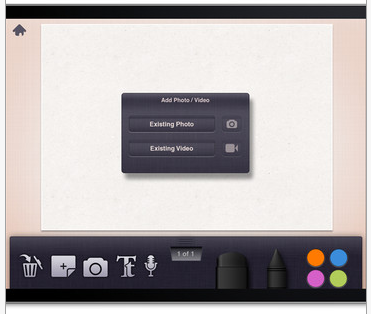
✔ Extremely easy to create in for a student or adult
✔ Supports the importing of photos and videos
✔ Allows adding text and audio recordings with every page
✔ Supports text highlights – easy to modify to read each word with audio recorded (even I caught on right away how to modify this!) ✔ Drawing tools available
✔ Allow sharing stories with others and copy stories across devices
Other app features:
✔ Add as many stories as you like – I can create a library of books for a student
✔ Share stories with friends and let them download your stories into their own app
✔ Share stories on Facebook as a photo album
✔ Backup stories online so kids can’t accidentally delete your hard work
✔ Download stories on multiple devices – create once, share with others
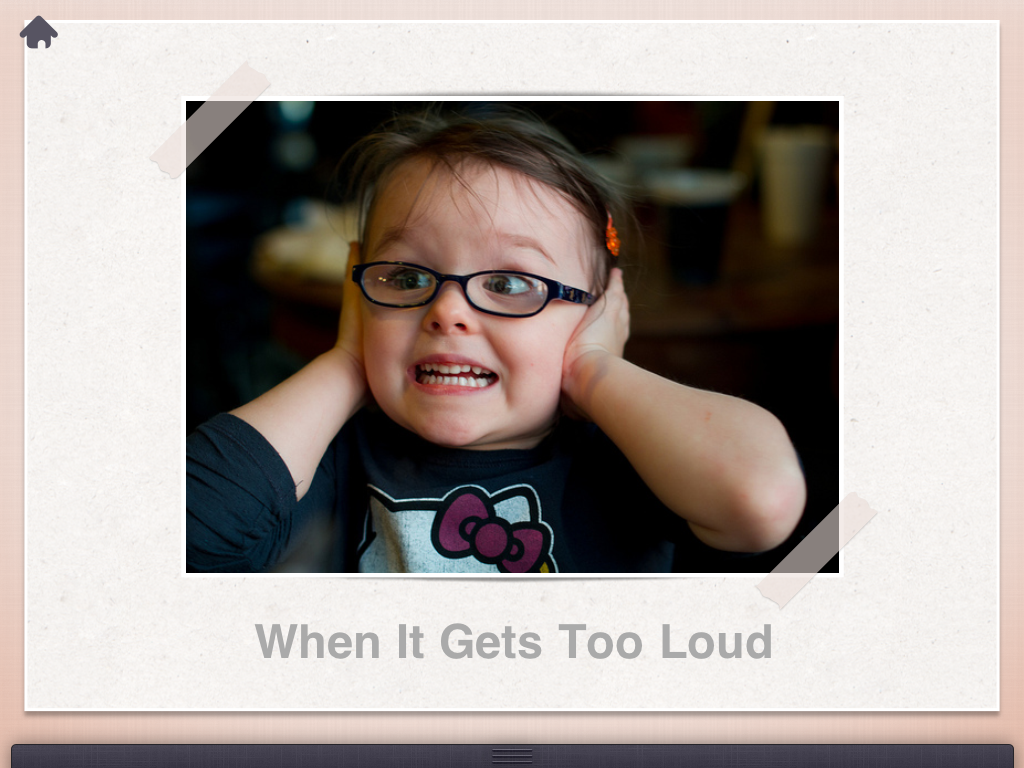
Here is an example of a book I quickly made using pictures from Creative Commons or Google images for a sensory story for a student(s):
Story Creator app was easy to use, however, took a few trials to get a story sent from one device to another. This may have been user error. One of the methods for transferring it was with Facebook and I shared it using a “Private” setting. I am not real adept at navigating some of those features in Facebook. With time and a few trials it did transfer from my school iPad to my personal iPad (maybe its the size of the file also that took longer to transfer?). I am requesting instructions from Mobile Innovations for file transfer which I could not find on their website or in the app at this time perhaps due to its debut today.
One of Story Creator features that I really like is the ability to create and store as many stories as I want and back them up or transfer them to another device. Story Creator also provides the possibility of transfering it to iPad and iPod Touch, not always the case with all story telling apps. I also find it more and more important to explore the workflow possibilities of an app along with the qualities of the app when considering creating stories or activities for students. Those workflow needs are how can I share, how many can I produce, can I print it, how easy is it to share with others to get it to student(s) device? I love the stories that Story Buddy app creates however the fact that you can only create 5 books in the app will not support my student needs for curriculum content. Audio is also lost with some apps when transferring to another source or device (very important feature for many special needs students!).
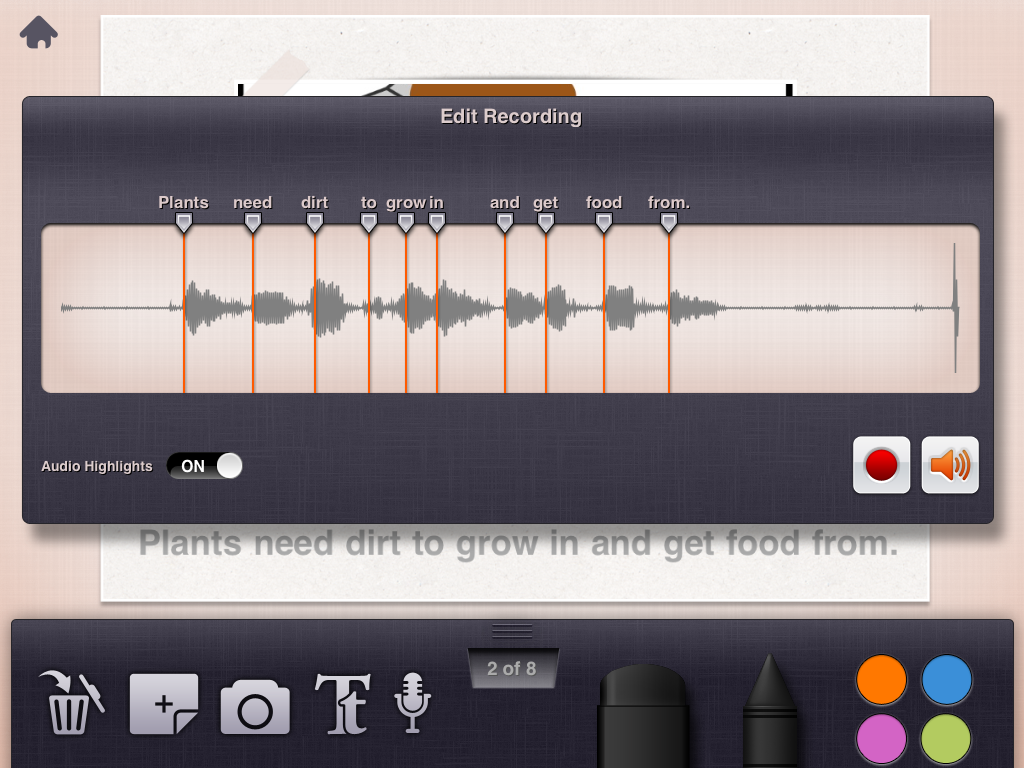
One of the amazing features of Story Creator app is its ability to speak the text word by word that you record. Not only does it allow audio highlighting, but it also allows modification of when it will speak the word using the edit recording feature. This was amazingly intuitive and easy to edit and I am not typically so great at managing and modifying audio.
Story Creator is a great app but here’s a few things that I would suggest to make this app even better:
Although you can back up the story online, I would like to see a lock feature in the app to remove access to controls by wandering fingers.
Provide a turn page button for individuals that need a concrete image for turning pages or are not ready for swiping (sounds silly but when working on specific patterns of movement or access it can be important)
Option to export to Dropbox along with social media websites
Story Creator is valuable, free story telling app that is an easy to use, allows sharing and supports audio, text, images and video – not something that you typically find in a free or low-cost app. It would be a worthwhile app for a cost for the tools and ease of use it provides. As typical, Innovative Mobile Apps has supplied another highly useful app that will allow customizing content to support special need students.
I know this will be in my OT iTool Kit and I will share it with every one at my school!!
Shelby’s Quest App for the iPad ($4.99), designed by an occupational therapist, is a therapy tool specially made for OT’s, teachers and parents that gives the child a fun way to practice fine motor and visual perceptual skills.
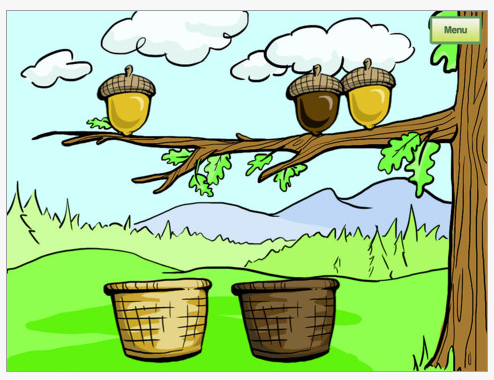
Shelby’s Quest guides the child along a journey assisting Shelby the Dog as she helps her forest animal friends overcome their challenges. Set in the beautiful Pacific Northwest, students will guide Skip the Salmon upstream to help him find his family, assist Samantha the Squirrel as she collects acorns and help Maurice the Moose find his way home. Each of those activities provides visual motor, visual matching, fine motor and visual motor integration at three levels of skill.
Skip the fish is animated as he swims up the stream. Samantha the squirrel needs help sorting the acorns requiring two fingered pinch to drop them in the correct basket.
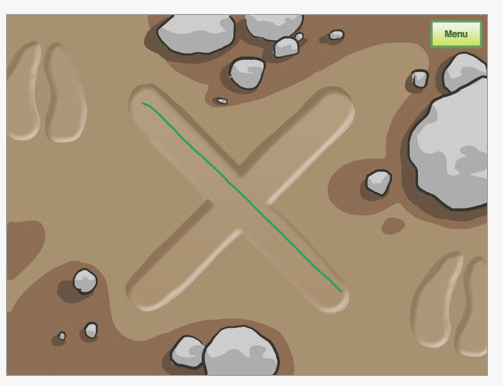
Maurice the moose follow pathway of shapes in the woods.
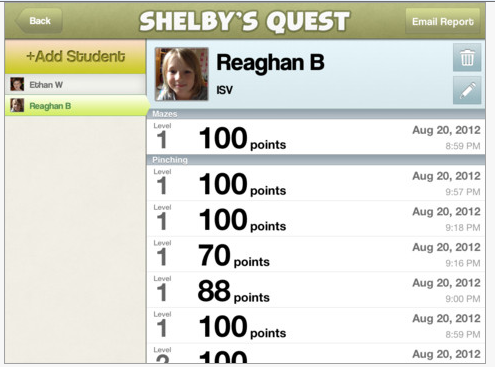
User information is collected for assessment purposes and can be shared by email.
Shelby’s Quest is a fun app with three levels of skill within the three activities. The animation of Skip the fish as he swims up the stream is an interesting part of the app. A auditory alert is provided when drawing outside of a shape or pathway in the activities to assist the user to stay in the lines.
Shelby’s Quest app was easy to use due to the clear, written instructions are provided on initial screens of the app. The app is easy to navigate and guides the user through the activities. Depending on the age and skill of the user it would be great to have another level of skill available for each of the activities to challenge the skill of users. The data collection feature is a great method of measuring progress for students/users and easily shared via email.
Congratulations to Doodle Therapy Apps for their successful development of Shelby’s Quest app, providing additional tools for OT’s using mobile devices in therapy. For more information on Shelby’s Quest visit Doodle Therapy Apps.
Mobile Education Tools generously offered PrepositionBuilder App to me for review. With the focus of the app on language, I requested the expertise of a Speech and Language Pathologist at my school to provide feedback on the app and its use with students. Thanks to guest reviewer, Sheila Kloepping, MS-CCC/SLP for her review!
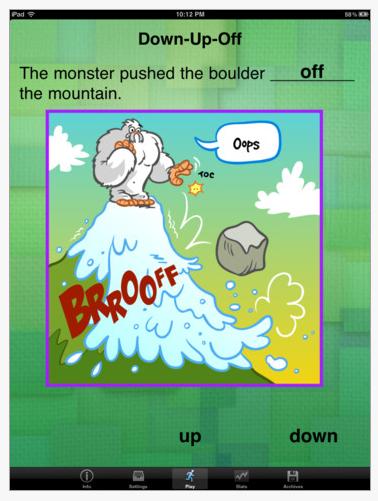
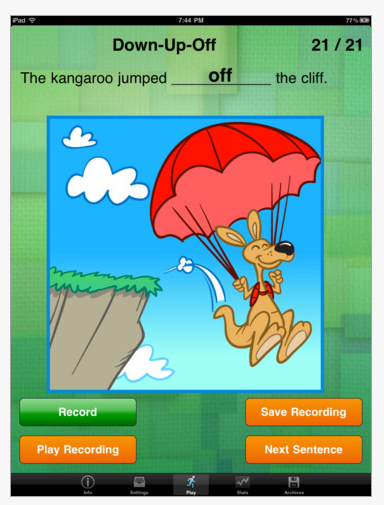
Preposition Builder is a fun iPad app ($7.99) that reinforces preposition use within sentences. The student is presented with a picture, a corresponding sentence, and a choice of three prepositions to choose from to complete the sentence. The student can touch each word to hear it before sliding it into the sentence.
Unfortunately, the sentence is not able to be read to the student, therefore the student needs to be an independent reader or has to have the sentences read to him/her.
When an incorrect answer is chosen, the app shows the picture of what their sentence means. The student is awarded for accurate answers with short animation clips that eventually combine for one long movie once the child completes all levels.
This app is especially beneficial to therapists with its ability to collect and save data as well as record speech samples of each student user. Status on the progress of the user is provided in the app as seen below.
PrepositionBuilder app also provides practice for 27 different prepositions! Along with use of this app for the concepts it practices, it is always important to collaborate with other stakeholders, OT’s, PT’s, parents and teachers on application of these prepositions to connect the concept, language and physical action of these concepts in daily activities. Collaboration and teamwork is powerful!
Thank you Sheila Kloepping, MS-CCC/SLP, for your review!
Shelby’s Quest is an app created by a OT from Doodle Therapy Apps. Described as “therapeutic tools for fine motor and visual perceptual development”, its first debut will be on September 6, 2012 in the App Store. Here is a preview of the app:
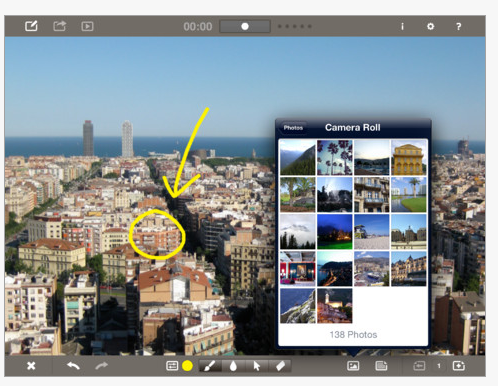
Doodlecast Pro , gone free for a limited time. Developed for the iPad, Doodlecast Pro app provides tools to record audio, draw, import images from the Doodlecast library or your photo album to create multi-media activities. Doodlecast Pro allows creation of single page or multiple pages which can be exported to iMovie, Keynote, iBooks or shared via Dropbox or email.
Here are some images of the Doodlecast tools and applications:
Other backgrounds available include lined paper, grids, graph plots, Venn diagram, comic sequence or story boards and sporting field layouts to create lessons for teachers or students. You can also create your own backgrounds saved as an image and layer other images in your activity allow use for many educational activities.
Here is a link to a video of Doodlecast Pro showing more of its features:
Doodlecast Pro app provides tools to create individualized practice lessons and provide tools for students to demonstrate their knowledge of a subject.
Here is one example of how it could be used:
Adapt a science or social studies activity for a one of your students. Take pictures or find images of the steps or components on your iPad in your Photos. Create an Album of images to select one of a few or many choices of images as an answer (frog or butterfly life cycle, pictures of a concept). Use a suitable background such as a 4 part storyboard or create your own board to show the answers or sequence and save it in your photos. Record directions to the task. Have the student select the answers to your question by finding the correct answers in the photo album. Send the answer to your email as an assessment or demonstration of their skill level.
Notability, Doodle Buddy among other apps allow you to create your own backgrounds by drawing shapes, taking screen shots and storing them in your photos app. This could be a differentiated activity for students who have a difficulty time with paper and pencil answers but could show what they know using multimedia and recording their answer. Other uses might include having a student order the steps to a problem or task, choose items needed for project or life skill task.
Although there are many presentation apps available, Doodlecast Pro provides a few more possibilities readily available in the library of images. I would like the ability to type words rather than handwrite within the app not currently available.
How might you use this presentation apps for your students?
Sarah DeBellis’ of On Sarah’s iPad , provides a great review of Ghost Type app, a typing tutor app for the iPad. Sarah, in her “Points of interest”, provides thoughts on the apps use with special needs, customization and with an external keyboard that helps hone in application for special education or OT use.
If considering typing practice specifically on the iPad, consider keyboards such as the Touchfire Keyboard, specifically designed for use on the iPad (see Touchfire Keyboard review on OT’s with Apps). Touchfire keyboard was found to provide additional sensory feedback when compared to the iPad on-screen keyboard.
Traditional typing tutors might be a great thing for traditional keyboards, but for the iPad you need something completely different. iPad keyboards do not have physical “home keys,” the tactile and audible feedback of keys being pressed, and are smaller than most physical keyboards, making it awkward for large hands to do two-handed touch-typing. Ghost Type by Demografix is designed to help people of all ages to type on the iPad with two hands, and you’ll also find it might help single-handed typists also, such as those with a physical impairment. I often find myself typing with a single hand (either left or right) due to the other being occupied by small people, and I’ve found Ghost Type has helped me with speed and accuracy.
The Touchfire Keyboard (49.99) screen top keyboard is made of high-performance silicone rubber (latex allergy, this may not be for you) and is extremely thin, lightweight and portable. Magnets hold the keyboard in place on your iPad similar to how the Smart cover stays in place.
Transparent, the keyboard allows you to see the iPad keyboard, but provides you the physical feel of keys with a raised membrane. When you don’t want to use the keyboard it can easily be rolled back or removed to access the entire iPad screen.
It can be cleaned by simply running tap water over it and towel dry.
Here is a video of the Touchfire Keyboard to understand just how it works as a keyboard and on your iPad:
Trial
I did some timed, touch typing with and without the Touchfire Keyboard. I found little change with the rate of my keying, but I did feel more secure with the use of the Touchfire Keyboard due to the sensory motor feedback of physically touching the membrane keys when typing. Without use of the keyboard, I had no physical reference or sensory feedback to where I was typing causing me to have to concentrate very hard to use my motor memory of the keyboard layout, much less that it was different from the standard Qwerty keyboard. Another aspect of touch typing on the iPad keyboard, nothing to do with the Touchfire Keyboard, is the different layout of the iPad keyboard requiring a whole new motor memory from the standard Qwerty keyboard.
I also realized that the capacitive screen was very sensitive to my bioelectrical “charge”, resulting in more mistakes when typing without the membrane keyboard. This may differ from person to person pending how much of a “charge” each person produces (see related articles below, “How iPod Touch Works“¹). Since a capacitive touch screen responds to the bioelectric “charge” from your fingers, personal charge differences, whether typical or challenged (by such conditions as Raynauds Disease² or possibly peripheral neuropathies) may result in different responses to touch.
I enlisted a young, technically savvy 16-year-old millennial student to trial the Touchfire Keyboard and give me some feedback on what he thought of it. After trialing the Touchfire, he reported that he liked the keyboard’s feel and its feedback when typing on the iPad as opposed to typing without it. As a non-touch typist who used a modified typing approach to keying, he reported that the keyboard aided his typing on the iPad and gave it a “thumbs up” vote.
Final Thoughts
The Touchfire Keyboard is a lightweight and portable option for keyboarding on your device. A bit pricey, however appears to provide a better feel when typing with the on-screen iPad keyboard.
Choices of the use of the iPad keyboard versus standard QWERTY keyboard appears dependent on your familiarity to key accurately and quickly. With practice anyone can acquire a new motor plan for keyboarding on a new layout such as the iPad keyboard and if that is an interest or need, in time I believe you’ll become proficient with its use. For those of us who are die hard QWERTY keyboard users who may still gravitate to using laptops for their bulk of typing, using on screen keyboards as the Touchfire Keyboard may not be our first choice, not because of the design of the Touchfire Keyboard, but established habits and accuracy using a conventional keyboard. If you standardly use the keyboard in split mode this obviously won’t work.
Use of the Touchfire may certainly be a good choice for typing on the fly without having to tote a blue tooth keyboard along. Ergonomics also it a huge consideration when typing on the iPad for prolonged periods and for that reason Touchfire Keyboard would be best used for short periods of typing on the iPad.
Thoughts about its use for students or individuals with special needs…
For students who are acquiring touch typing skills, use of a blue tooth keyboard would be best to reinforce learning one keyboard for accuracy and speed. It is all about establishing habits and motor memory when learning keyboarding, so using the keyboard layout used in instruction would be important.
If students or users were going to be using the iPad exclusively for written composition, learning the iPad layout by using the Touchfire Keyboard could help with providing sensory-motor feedback of the keyboard layout. It also may provide fewer mistakes as the Touchfire Keyboard seemed to reduce the sensitivity and errors when typing. The Touchfire Keyboard could also be visually adapted with color coding, dots or other markings providing a “skin” for keyboarding practice or keyboard awareness.
The ergonomics of the use of the on screen keyboard should be considered if typing for extended periods due to the poor ergonomics associated with using the one screen keyboard on the iPad. Bluetooth keyboards and use of a stand with the iPad provide the best ergonomics when typing for extended periods on a tablet.
For individuals with mobility impairments who have difficulty with the sensitivity of the keyboard, the Touchfire might provide greater room for error due to slight decrease in sensitivity. Use of a keyboard guard or a stylus may be best suited when accuracy, fine motor control for targeting keys is an issue.
For individuals with circulatory challenges (e.g. Raynaud’s Disease, Diabetes) use of a highly sensitive stylus or capacitive glove might work better than the tip of a finger due to calluses or reduced bioelectic “charge”. Holding a capacitive stylus or using a capacitive glove that gathers a charge from a whole hand might have more “charge” ( might that make a difference ?). If responsiveness to capacitive screens is generally poor, using a resistive touch screen might need to be considered. (See articles below. There is little information on this subject out there. Anyone have any sources of info on this?)
For individuals with visual impairment, use of the Touchfire keyboard provides the tactile markings on f and j keys like the standard Qwerty keyboard for orientation to the keyboard layout.
Have a latex allergy? This may not be for you.
Have you or would you consider using the Touchfire Keyboard yourself or with your students/clients? Do you have experience with capacitive styluses, capacitive gloves and conditions of diabetes or other circulatory challenges with the iPad?















 Traditional typing tutors might be a great thing for traditional keyboards, but for the iPad you need something completely different. iPad keyboards do not have physical “home keys,” the tactile and audible feedback of keys being pressed, and are smaller than most physical keyboards, making it awkward for large hands to do two-handed touch-typing. Ghost Type by Demografix is designed to help people of all ages to type on the iPad with two hands, and you’ll also find it might help single-handed typists also, such as those with a physical impairment. I often find myself typing with a single hand (either left or right) due to the other being occupied by small people, and I’ve found Ghost Type has helped me with speed and accuracy.



 OT's with Apps & Technology