Point to Pictures App

RJ Cooper has provided accessibility devices and software with special needs students for many years. As the cheese moves so has RJ Cooper, creating specialized apps for mobile devices that support students with physical and cognitive challenges. Point to Pictures is just one of his apps for communication with customizable features and currently Free from iTunes!!

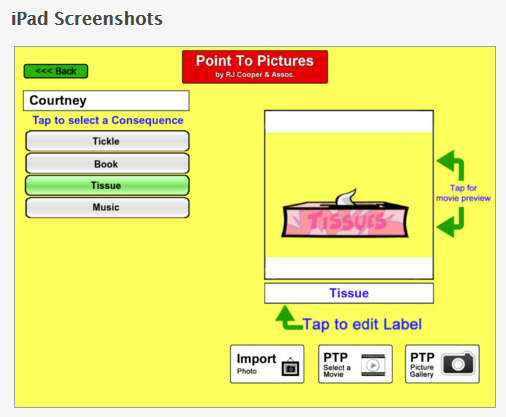
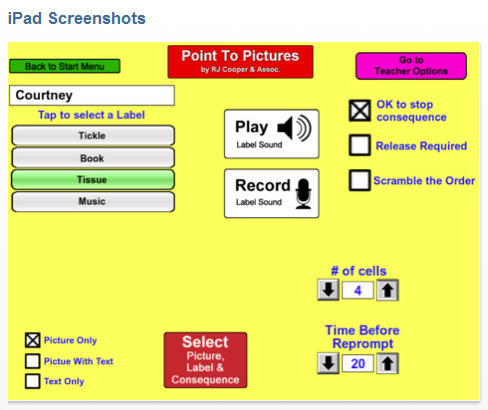
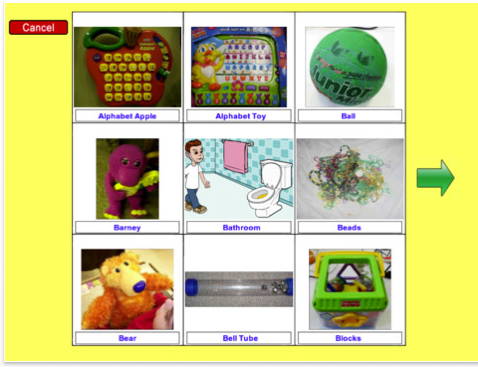
Point to Pictures app provides the tools to customize a communication board for students pending their physical access, communication or cognitive abilities. Here are a few screen prints of the tools and customization features:

Just last week one of the speech pathologists was looking for something that could be used for presenting information on an iPad in the regular education classroom with one of our students with PDD – I believe would have been a great solution!

The Point to Pictures app seems to be a flexible app, used as a choice board or communication board for students needing visual communication as well as working on basic communication needs. Although our speech and language pathologists typically establish the communication supports for our students, developing visual communication for functional life skills and working on developing skills to access devices is a part of our OT job. RJ Cooper describes the Point to Pictures as an augmentative communication “training” app designed for those persons “learning” to point/select a picture on an iPad in order to “get” that item in real life. I have a couple of student who are in need of those pointing and selecting skills as we begin to use iPad for their visual communication to perform functional tasks at school. Point to Pictures provide the type of customizable features that will support the students and is free!

Free and available for iPad only, I am looking forward to using this app with specific students on an iPad2 with familiar pictures taken of places and equipment at our school.  Have you used it? Any tips and tricks you can share?

Carol

Posted in App Reviews, Apps for OT's, Apps for Special Needs, Augmentative Communication, iPad, Occupational Therapy, Special education, Visual Communication | Tagged , , , , , , | Leave a comment

Dictionary Apps – Supports for Students with LD – #1

This is a first is a series of reviews of apps useful to individuals with learning disabilities. As our school has just issued some iPad to our LD teachers the search has begun for apps that would support students at the middle/high level as well as appropriate to students post secondary schools or for individuals with LD requiring support in vocational settings.

When I first started using my iPod several years ago, I was thrilled to be able to look up an unfamiliar word with my iPod Touch while in conferences or when reading.  With several years and thousands of app developments later, the choices of dictionary tools have only gotten better with more choices and supports available for students with spelling, vocabulary and reading challenges. In the public school setting, we support our high incidence students with LD using many different devices. Spelling to look up a word is often a challenge. The portability and availability of apps on iDevices as well as cell phones provides wonderful tools in the hands of students as well as employees who have learning disabilities. A recent inquiry to one of my employment opportunities, Adaptive Technology Resources, requested mobile device for an individual in a work place who had spelling challenges with daily documentation . My first thought was the use of a mobile device, such as an iPod Touch or iPhone (carried in a pocket) to look up words using Voice Search, or creation of a favorites list of frequently used words that were difficult to spell.

Although not inclusive, here are some dictionary apps that I felt would support individuals with learning disabilities and help compensate for spelling or vocabulary challenges:

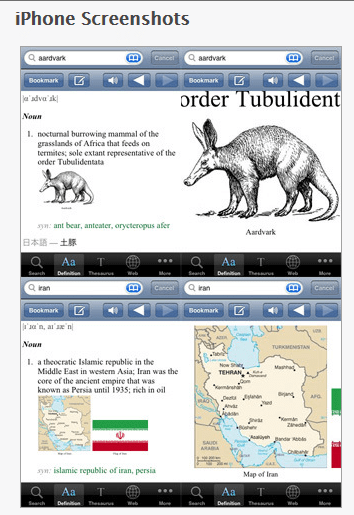
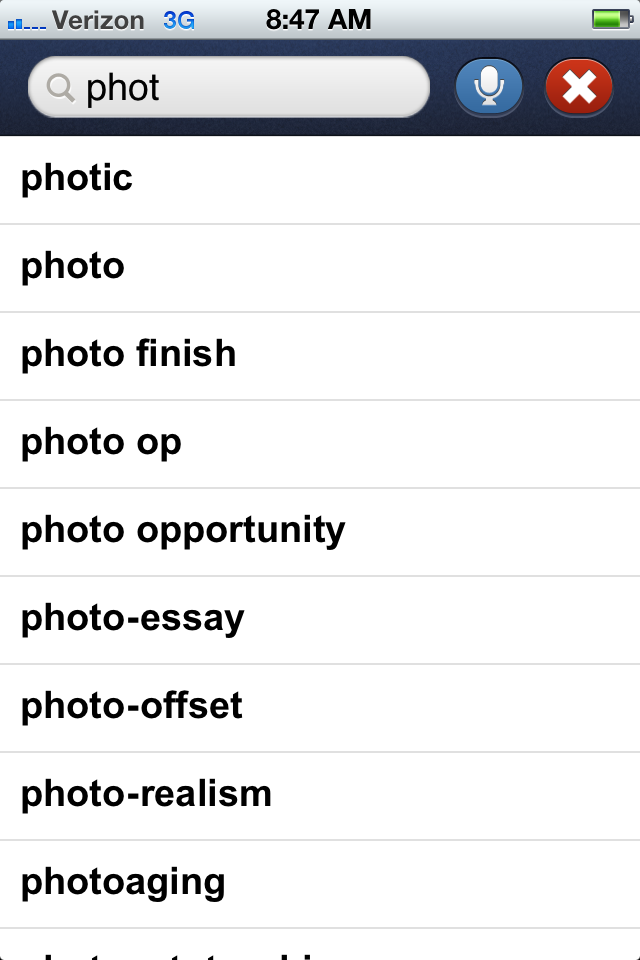
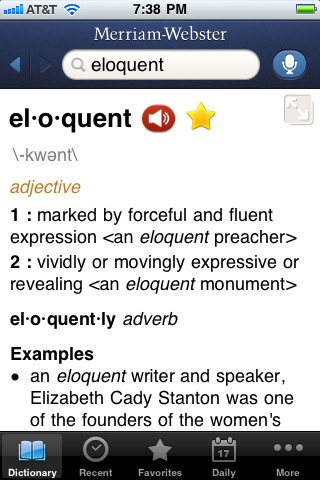
Merriam Webster Dictionary – Merriam Webster Dictionary app (free, iPhone/iPod, iPad, Android) is a boon for students who can not spell and need support with vocabulary.  With a wireless connection, Merriam Webster Dictionary has a voice search tool allowing an individual to speak the word into the app and the word will be transcribed and the word and the definition will be presented.
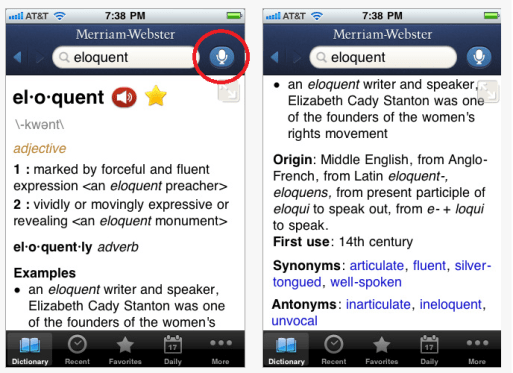
When Wi-Fi is not available the dictionary app will not allow voice search, but allows manual look up of definitions using the dictionary app.  Although word prediction is not available an alphabetized word list is generated on the device given the correct spelling.
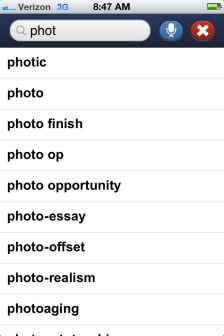
The dictionary app also features:

  • Collecting favorite words, allowing creation of a word list of frequently misspelled words or vocabulary list for specific classes or occupation related word list
  • Recent searches collects a helpful tool if needing to create a word list for individuals of frequently misspelled words or vocabulary usage for specific classes or as needed in a work situation (see bottom tools on image above)
  • Synonym and antonyms are available in each definition entry and are linked to the definition of the word to hear it spoken aloud
  • Easy navigation is available with arrows at the top of the app between links and features.

Although Merriam Webster Dictionary does not provide text to speech of the definition, nor does the Speak Selection function in the app, if you turn on Triple-click Home -Voice Over function on, you will have text to speech of the text definition with triple clicking. This takes a little bit of practice but is a very useful function for struggling readers for with many apps.

Available for iPhone/iPod. Android and iPad, the iPad app provides a scrolling listing of words on the screen.
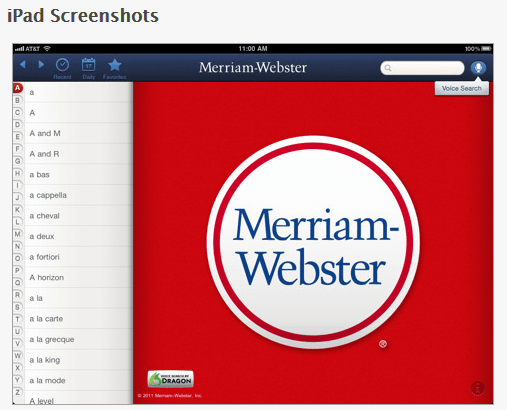
The free version of the Miriam Webster Dictionary has ads but which are minimally distracting however provide a link to the advertisement which may be problematic for some students. As a free app, this is an invaluable and accessible tool for individuals with LD especially accessible with Wi-Fi services.

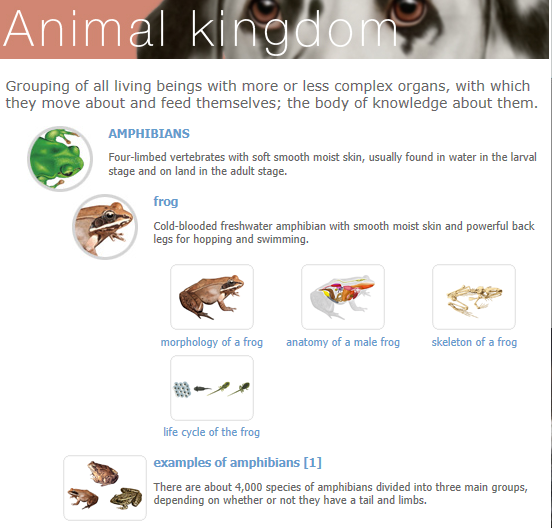
Visual Dictionary Online –  The Miriam Webster Visual Dictionary is an online tool that provides 15 different themes or subject areas (Human Body, Animal Kingdom, Astronomy, Earth, Plants and Animals, Food & Kitchen, House, Clothing and articles, Arts & Architecture, Communications, Transport & Machinery, Energy, Science, Society, Sports & Games) and 6,000 images. By adding the Visual Dictionary Online  as a Bookmark or using “Add to Home Screen” as an icon on your iDevice in Safari will provide you easy access to a pictorial dictionary for your students with Wi-Fi services. Here is an example of a visual dictionary entry when searching the Animal kingdom theme:
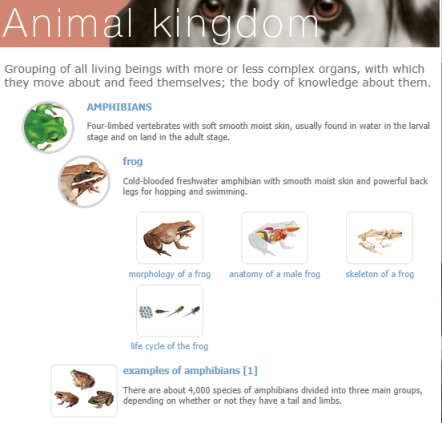
Each of the sub topic areas are linked to more information. Images are able to be saved or copied to your photo album by tapping on the pictures. Some images however were watermarked. Audio output of the main dictionary word is available however I found it to be a bit awkward in its functioning as it links you to another page to speak the word aloud.

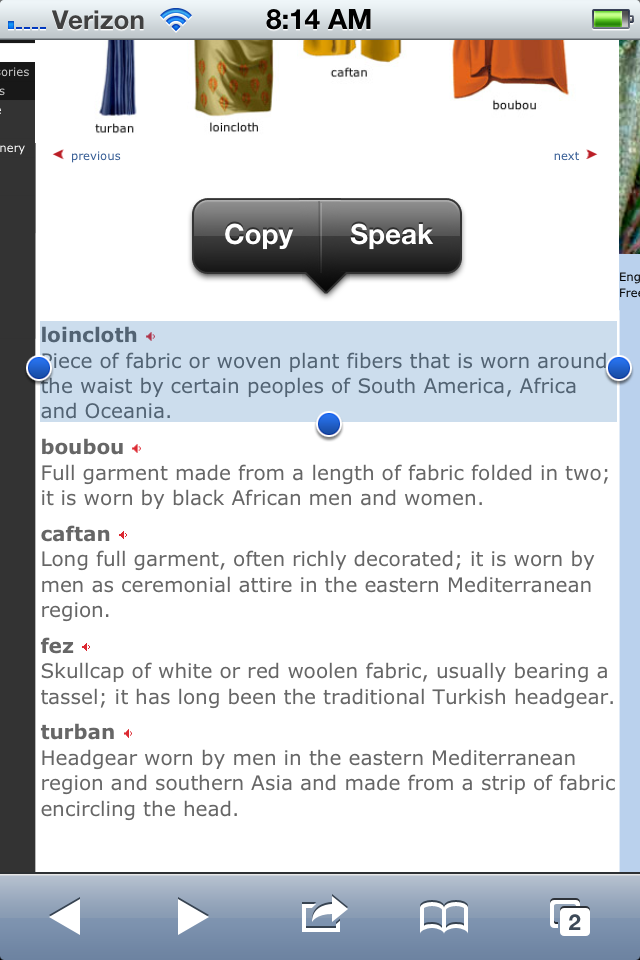
If you are on the new iOS5 operating system you have the additional bonus of tapping on a non-linked word and using the Copy, Define or Speak option when the Speak Selection (Accessibility>Speak Selection) is “On”.
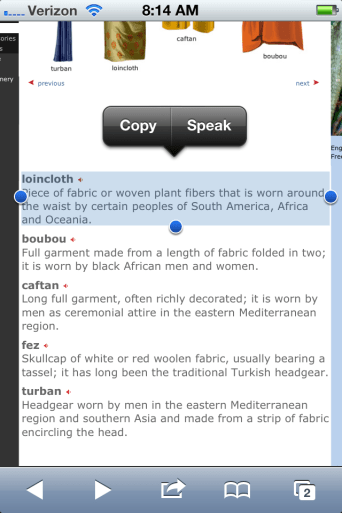
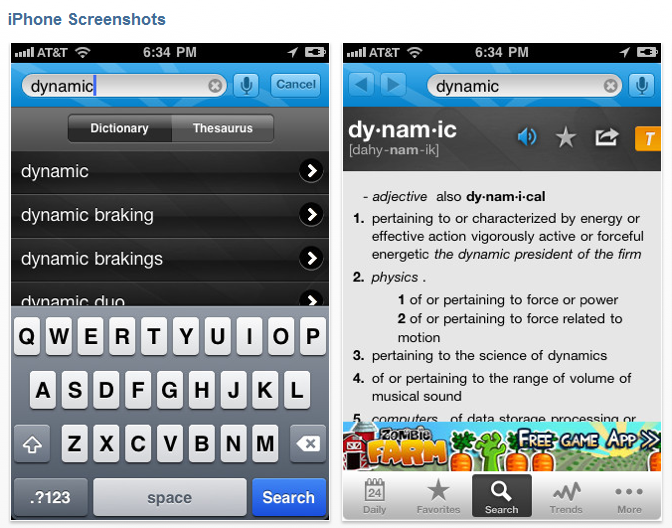
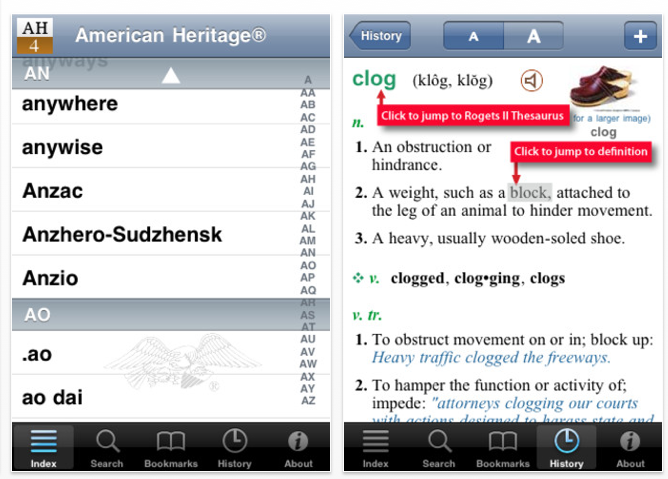
Dictionary.com – Dictionary.com app (Free/$2.99 for ad removal) is a dictionary app with a dictionary base of 2,000,000 words or entries which provides voice search  capabilities with Wi-Fi connectivity.
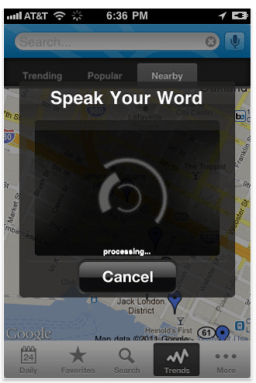
The dictionary is functional off-line using the search box. A list of alphabetized words is offered when the word is being entered.
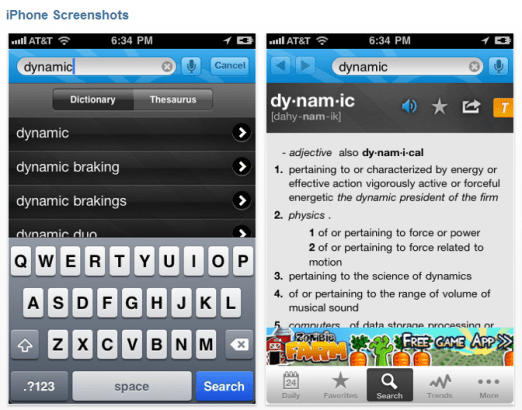
The text to speech button is provided for the targeted word to  be spoken aloud however the definition is not available for text to speech. Words in the definition are linked for look up and speaking of the individual words. Using Triple click-Voice Over, definitions can be spoken aloud.

Dictionary.com provides a toggling method of accessing the thesaurus or the dictionary with the  yellow T/blue D presented to the right of the screen. Other features provided in Dictionary.com include:

  • Favorites word list created by selecting the star when in a word definition
  • Options of a limited number of background colors
  • Dictionary and Thesaurus entries (as described above)

Dictionary.com’s dictionary and thesaurus tools I believe are more user-friendly however, navigation in Dictionary.com is not as intuitive as Miriam Webster’s Dictionary in my opinion. Both apps voice search was remarkably good using an adult voice.

A post in appadvice.com, “ Best English Dictionary Apps: iPad/iPhone Apps AppGuide” provides a great listing of dictionary apps. Research and trial of many of the additionally listed apps finds that many of them do not have speech pronunciation available or some may have it but requiring Wi-Fi service to function. In my opinion the dictionaries are only accessible if they talk aloud to support most of the students I service. Certainly Voice Over can be used with these dictionary apps however a quick look up with the pronunication readily available is preferred in my mind.

In addition to the above free apps with voice search here are a few additional apps worth looking at for use with students with learning disability:

WordBook English Dictionary & Thesaurus – The WordBook Dictionary ($1.99 for iPhone/iPod; also available for Windows phone) has 150,000 entries with pronunciations for all words. pronunciations are available within the apps, not requiring Wi-Fi services for speaking pronunciations. WordBook is easy to navigate and provides tabs to navigate between a word entry dictionary thesaurus and other tools such as Wikipedia entries of the word. It also provides some word suggestions when typing in a word almost like word completion/word prediction without a phonetic base (see WordBook XL below).
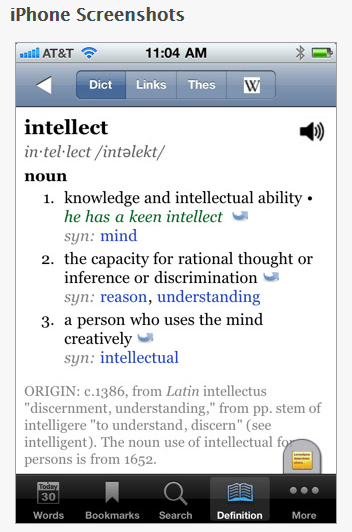
A tab in the bottom of the screen (yellow) provides other tools such as adding a note, bookmark or cross referencing other web-based tools such as Miriam Webster, Google, Wikipedia, answers.com or Wordreference.com if Wi-Fi is available.

WordBook XL – English Dictionary & Thesaurus for the iPad ($2.99) is laid out slightly different:
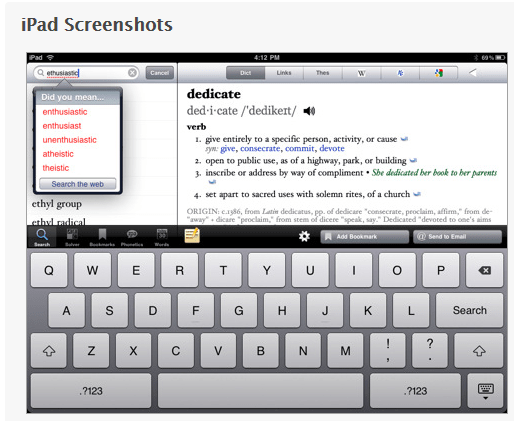
Other tools and features available within WordBook include:

  • Adding Bookmarks or History word lists for later review or reference (this could be used for word frequently misspelled)
  • Choice of font styles (7 different styles)
  • Text Size (Smallest, Smaller, Medium, Larger, Largest)
  • Choice of turning voice on or off
  • Customizing the web content URL’s used for referencing words searched

WordBook does not provide the tools to read the definitions, but using Voice Over (Triple-click turned on) allowed definitions to be read aloud. Although a smaller vocabulary base in this dictionary, I liked the ease of navigation and some of the other customizations and  features provided in this app that could aid with some visual challenges and provide links to web-based tools. The other reference tools provided within WordBook all are linked back to WordBook app and would require additional exploration for their usefulness determined.

Dictionary – by Xyster.net another of the numerous dictionaries ($1.99) for iPhone/iPod and iPad provides 150,000 entries with links and illustrations. Dictionary does not provide a voice search, but does provide pronunciation of the word and bookmarks for frequently used words. Other features available include:

  • Thesaurus
  • Suggested spelling list
  • Bookmark capabilities
  • Extensive rhyming list

Other classic dictionary apps for purchase to check out:

American Heritage Dictionary 5th Edition ($24.99)
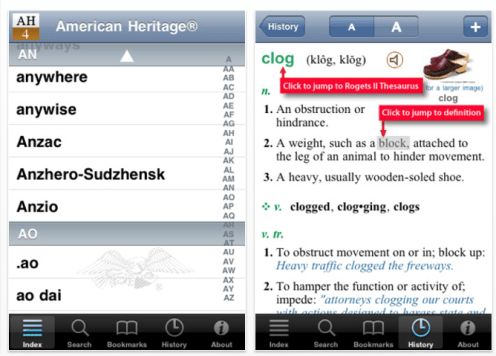
Merriam Webster’s Collegiate Dictionary, Eleventh Edition – ($24.99) for iPhone and iPad.

There are many dictionary app choices available, some have greater advantages for individuals with learning disabilities. Check out some of the dictionaries and provide some thoughts and feed back on which ones you would use with your students or individuals in employment. I look forward to any thoughts or experiences you may have!

Happy apping!!

Carol

Posted in App Reviews, Apps for OT's, Dictionary app, High School, iPad, iPhone, iPod, Learning Disability, Middle School, Post secondary, Voice Search | Tagged , , , , , , | Leave a comment

KinderTown App

Looking for an educational apps for students with skills in the 3-6 year old level?

KinderTown is an app to help you search for the best educational apps for 3-6 year olds. It provides a searchable data base of apps that provide “substantial educational value” as reviewed by parents, teachers and kids!

Here are some screen shots of the search tools for the iPad (the iPod version has a similar search tool):

Additional information on cost, rating, subject is provided by clicking on app titles from your search results:


What a helpful, free app for preschool, early childhood and teachers of special needs students. Although the categoires are standard educational skill areas, I found apps related to OT practice including a tanagram app, letter formation apps (Alpha Writer and Pocket Phonics) connect the dots, Spot the Dot that would be appropriate for visual motor and visual perceptual skill development for young children.

KinderTown just launched on November 11, 2011 so I expect they will be adding many more apps to their data base, both old and new!

Free and compatible with iPhone/iPod and iPad, I believe this is a worthwhile app to help with the search of appropriate free and pay for apps.  Try it out and pass the word on to the teachers of young children that you service for an easier method of searching for apps that would support their students needs!

Happy app searching!!

Posted in App Reviews, Apps for OT's, Early Childhood, iPad, iPhone, iPod, Occupational Therapy, Special education | Tagged , , , , , , | 1 Comment

Sosh App for Individuals with Aspergers

Have you seen the Sosh app? If you work with high functioning individuals with Aspergers you’ll want to check it out!

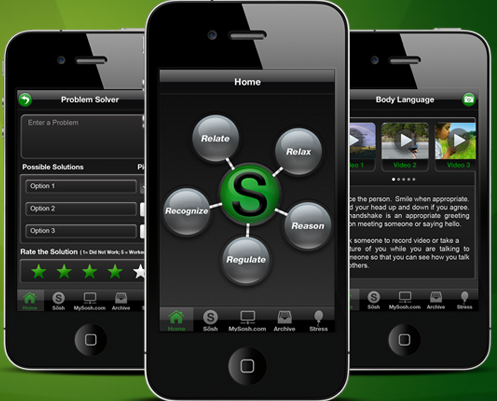
Developed by Dr. Mark Bowers, the Sosh app is based on the Sosh framework which focuses on 5R’s of social skills development:

  • Relate (Connect with others)
  • Regulate (Manage behaviors)
  • Reason (Think it through)
  • Relax (Reduce stress)
  • Recognize (Understand feeling)

The Sosh is not just an app, it is a framework developed by Dr. Bowers over a 10 year period. The five components of the framework are included in the Sosh app with interactive activities that can be customized for a student using a iPad, iPod or iPhone.

As an OT working with adolescents with autism, many of the sensory or self regulation strategies we have used with students with autism  are included in the Sosh app. You will recognize a number of sensory supports or strategies you may have used or are working on with your students to develop their self-regulation skills such as a voice meter, deep breathing, music to calm as well as others. Used on a mobile device as an iPod/iPhone or iPad, these tools can be readily available to students anywhere.  Of course the activities provide wonderful visual, auditory presentation, well suited to students with Aspergers.

Here are a few videos of some of the R’s of the app that focus on the sensory or self-regulation strategies that OT’s often are involved in with individuals autism:

Block Out Sensory Difficulties

Deep Breathing to Relax

Voice Meter to Regulate Speech

There are many more components to the Sosh app. Check out this link more short  Sosh videos .

This is a great app for high functioning students to work on self-regulation,  social skills in a manner that fosters independent application of such strategies. This app can also be a great teacher tool to use with other for students who require feedback on behaviors such as voice loudness, calming techniques or reducing perseverative behaviors (check out the shredder tool– it is great!) to name just a few.  Sosh costs $39.99 which is relatively expensive as apps go but it provides many tools, strategies and features not covered in this review. Sosh Lite allows you to down load the full app for 7 days to trial.

If you are working with adolescence students and adults who need supports for social skill and self regulation development, I suggest you check this app out! It has a lot to offer!

Carol

Posted in App Reviews, Apps for OT's, Autism, iPad, iPhone, iPod, Occupational Therapy, Self-regulation, Sensory Apps, Sensory Apps for ASD, Special education, Special Education Teacher | Tagged , , , , , , | 10 Comments

Story Telling Apps for the iPod and iPad

Interested in making e-books for your students? Do you have photos of students, events or images pertaining to curricular science, social studies content that could be included in a book for your special needs student?

Digital story telling/e-book creating apps are a wonderful way to create books pertaining to school events, students, curriculum topics and vocabulary that supports your students classroom or functional life skills curriculum?

With photos readily available or taken on the iPad2, iPod 4th Gen or retrieved from sources on the Internet (and are public under the creative commons license) that would support student vocabulary and concept development, story telling apps are an easy way to create or adapt curriculum materials for special needs students. Here are some new story telling apps as well as those that have been around awhile that will allow you to easily create stories and books that read aloud. Features I look for in story telling or book creating apps include audio and text capabilities that read the book aloud and provide text for our emergent readers and visual learners. Here are some choices as well as links below to several great reviews from others on story telling apps:

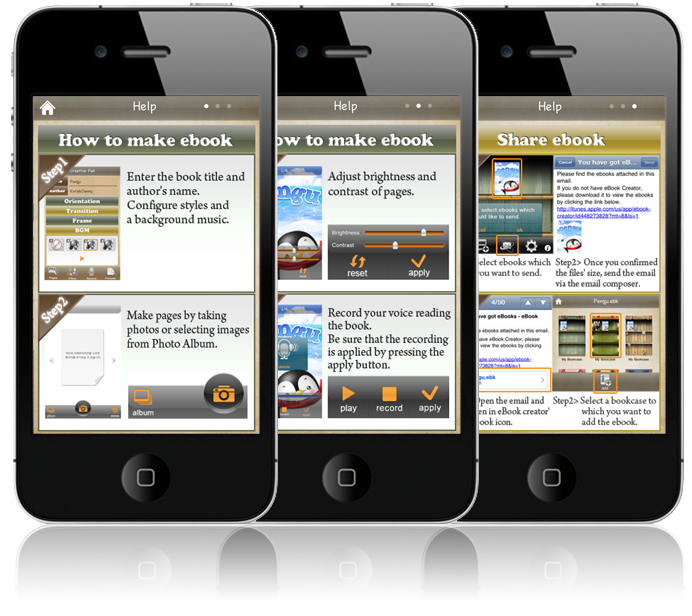
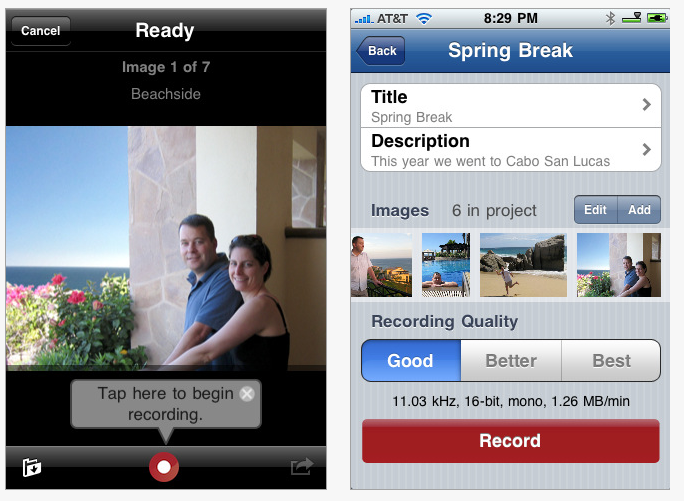
Ebook Creator is a low cost ($3.99) app for iPod/iPad/iPhone that imports pictures from you Photo Album as well as taking a photo within the app when creating an ebook. Easy to use this story telling app provides a recording feature to vocally narrate your story as well as the ability to type text in the story. Background music can also be played in the back ground if desired.

One eBook Creator feature I like is the ability to share or email the book. Sharing allows you to make the story book on your own device and send it you your students or parents. Many of my students have visual schedules or their communication boards on their dedicated devices making their iPad an essential part of their day and limiting the ability to modify or add to their device during the school day. Emailing such stories allows those who support from other locations the convenience of making those changes or additions from a distance!

SonicPics ($2.99) for iPod/iPad/iPhone (a lite version is also available) which turns your pictures into a video. This app also allows you to share the video story you create with others and provides audio recording and inserting text in a slide/photo.

Two other inexpensive and easy to use story telling apps previously reviewed ( from February 2011 AT 4 Education Blog) are:

Storyrobe

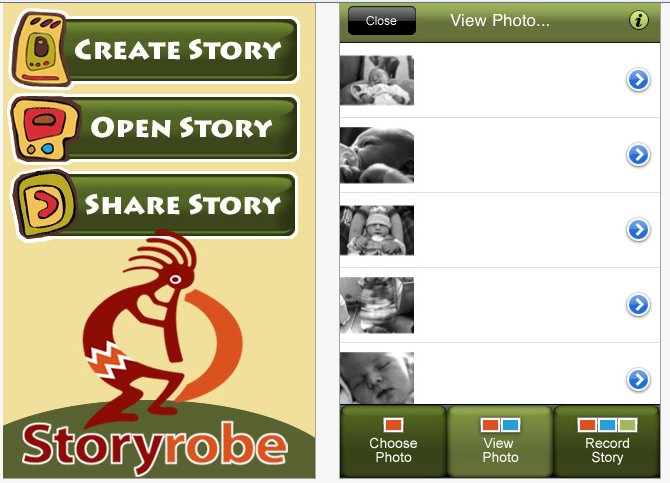
Storyrobe StoryRobe app is a quick and easy to use to story making tool allowing you to use existing photos or images from your Photos folder. I allow you to record a story line but  does have text tools to write the words on the pictures in the story. Simple and easy to use, you can have a photo story slide show going in no time. If you have a caption app, you can edit your photos with a text caption on the pictures for use in StoryRobe. It is an easy to use app allowing you to create an e-book in no time at all.

A 3 minute Storyrobe tutorial is included in the Tutorial link below. $.99, it is compatible with iPad, iPod and iPhone.

Story Kit

Story Kit  StoryKit app provides the tools to create a story book you can digitally narrate as well as type text to create a book using images in your Photos album. Story Kit also provides a simple drawing tool that can be used to draw a picture while creating the story. Story Kit is free and for iPad, iPod and iPhone.

Find a 6 minute tutorial on the link below that will get you started being a digital storytelling author!

Tutorial Link:

https://sites.google.com/site/digitalstorytellingwiththeipad/app-tutorials

More Storytelling Resources:

Karen Janowski, on her outstanding EdTech Solutions Blog, recently reviewed storytelling apps. Visit her blog for a review on above apps as well as for purchase storytelling apps for iPad and iPod Touch devices.  Check them out at http://teachingeverystudent.blogspot.com/ .

Here is another great resource on story telling apps,  comic strip apps as well more serious book publishing apps that is well worth visiting:

http://storykeepers.wikispaces.com/iPad+StoryTelling+APPS

So many ways to use the pictures you have gathered on your kids or create content on curriculum topics for your students. What an accessible way to create content for your students! Make science or social studies books, tell stories and share them with your class and families.

Another story telling app to consider is Pictello. I have not used this app due to the price ($18.99) but was developed by the makers of Proloquo2go and should be worth checking into!

Happy story telling!!

Carol

Posted in App Reviews, Apps for OT's, Apps for Special Needs, Autism, eBook Creating, iPad, iPod, Story Telling | Tagged , , , , , , | 2 Comments

SQUEEGiT Trial

Thank you Neutronics and Cleaner Gear for sending me a sample of your SQUEEGiT squeegee and cleaner!

I have been sharing the SQUEEGiT with fellow staff members at the schools where I work and I have heard nothing but positivies about this handy squeegee and cleaner! It is small, easy to pack and carry . It cleans well and has a fresh clean scent that makes you feel like you are combating germs!

Thank you Neutronics and Cleaner Gear for allowing me to trial it and share it with coworkers. Great product and worth buying for it good cleaning qualities and portability!

Thank you!

Carol

Posted in Cleaning your iPad/iPod, iPad, iPod, iPod/iPad Accessory | Tagged , , , | 1 Comment

Apps for Middle and High School Students

My position as an OT and an AT coordinator requires me to work with teachers and students from 4K to high school. Although most of the iDevices we currently have are dedicated to younger special needs students or students in multi-categorical classrooms, we will be getting iPads for some of our LD teachers at different grade levels to use. Thus the search begins for appropriate apps for teachers and students at the middle and high school levels. Here are just a few apps that I consider useful for middle and high school  LD students as well as a few other resource lists of apps suited to these grade levels:

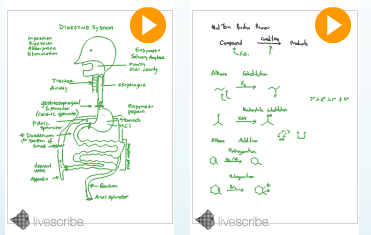
Pen Cast Player – Livescribes app that plays Echo/Pulse pen audio and handwritten notes created into a pen cast. Pen casts can be played on the Internet through Livescribe Educational Pen Casts, linked to your web page or in a Pen Cast on your iPad or iPod Touch.

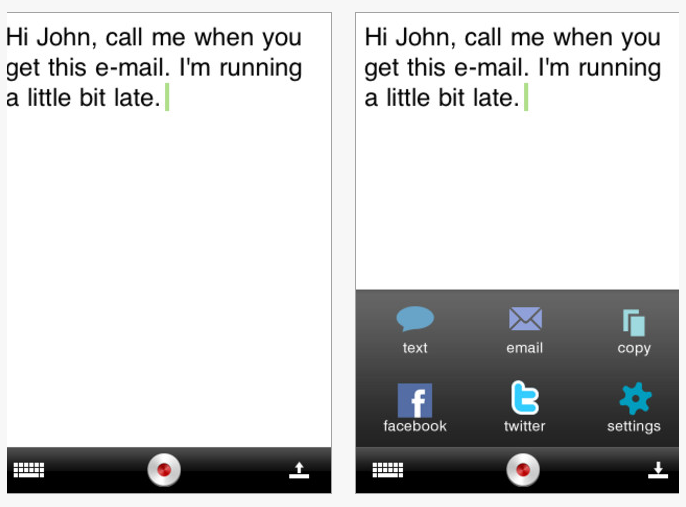
Miriam Webster Dictionary app – On the iPod, iPhone or iPad, the Miriam Webster Dictionary provides Dragon Dictation to record (mic at top to right of the search box) and translate your spoken word into a typed text that is automatically looked up and defined. The word can be spoken aloud using a high quality voice.

By selecting/touching a word in the definition,  the app will open the dictionary to that words definition. Navigation arrows at the top menu bar allows you to move back and forward to words you have looked up. The app allows you to review recent words and collect favorite words. If you touch a word in the definition it will look that word up in the dictionary. Although it does not read the definition a loud to you. Using the Triple -click voice over function allows text to speech of the definition.

This is a great app for individuals with spelling problems allowing them to speak a word for look up in the dictionary!

Dragon Dictation – Voice recognition software on your iPad, iPhone or iPod Touch. Speak into your devices and have your speech transcribe via cloud computing to text. The text can be copied, emailed or texted.

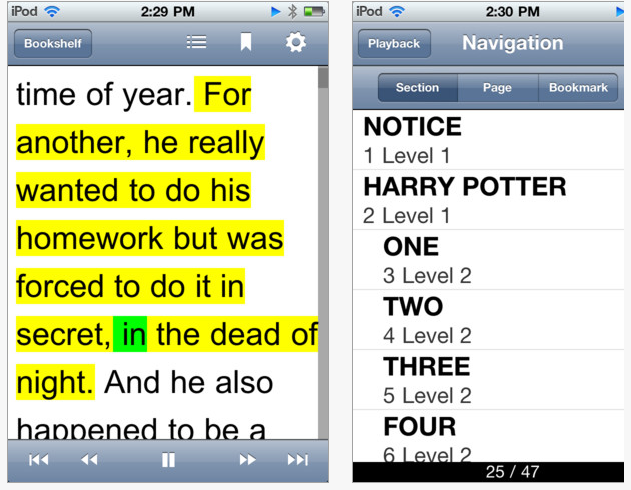
Read2Go App – Bookshare’s mobile app for iPod and iPad. Read2Go allows downloading Bookshare books directly to the apps. Read2Go provides text to speech,bookmarking and along with other tools to access the books and textbooks to those who qualify (those with print disability).

Where can you find more apps for middle and high school students for iDevices? Here are a couple of lists of apps for older students worth checking out:

Here is a link to a list of 100 iPad Apps Perfect for Middle School students that I stumbled upon. The apps are categorized by subject area. Many apps are familiar but there are many new apps to peruse to see if they fit you or your students needs.

Another list, 10 Essential iPad apps for High School Students provides a few more productivity, math, reference and history apps worth checking out.

So if you work with older students or their teachers here are some resources to check out!

Carol

Posted in App Reviews, High School, iPad, iPod, Middle School, Occupational Therapy, Voice Recognition | Tagged , , , , , | 2 Comments

Kiddie Countdown Activity Timer App

Looking for a visual timer for young children?

A colleague I work with (thank you Gail for this great find!) found this great free visual timer – Kiddie Countdown Activity Timer Free  – for the  young students she works with.

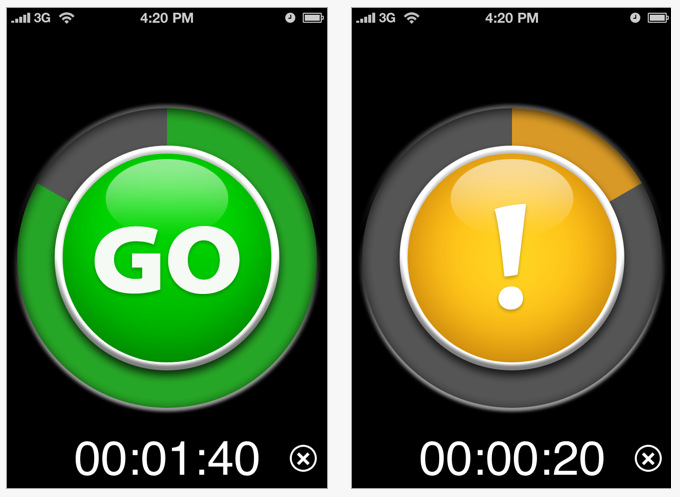
The Kiddie Countdown Activity Timer counts down using visuals of the stop sign.

It provides a yellow forewarning signal -!- at a time prior to the descending countdown time which is customizable with about 15 sounds to choose from ranging from animal sounds, to horn, applause, bells, school among others.

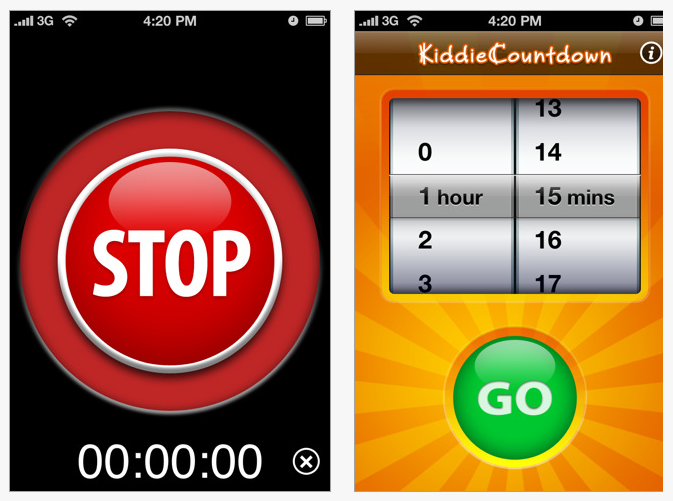
It ends with a stop sign and a time’s up sound at finish that can be customizable with the same sounds as described above.

A button or X to stop the time’s up sound is provided that can allow the student to engage in the process of being “done” with the current activity.  The warning sound can also be customized using the same choices of sounds as the time’s up.

You can set the countdown time only in minutes with a range from 1 minute to 23 hours and 59 minutes.

There are two different choices in the display settings for the visual timer – Shapes or Sweep. The sweep shows the time lapsing as shown in the outside rim of the picture above. The Shape choice presents circle when time starts, diamond for the warning picture and stop sign for time’s up.

There are other great apps for visual timing, however this provides universal signs for young children along with a forewarning sound and visual Stop at the end that are familiar to them.

Kid friendly with universal signs recognized and used with most young children the Kiddie Countdown Activity Timer app is available for iPod, iPhone, iPad Free or $.99 if you want the ad removed from it.

Thanks Gail – this is a great find!

Carol

Posted in App Reviews, Apps for OT's, Apps for Special Needs, Autism, iPad, iPod, Occupational Therapy, Special education, Special Education Teacher | Tagged , , , , , , | 2 Comments

iOS5 Accessibility Tool – Speak Selection

Have you used the new Speak Selection accessibility option available in the iOS5 on your updated iPhone, iPad or iPod Touch? Have you done training with any students or clients on its use with their iDevice?

Speak Selection Option

This new feature provides text to speech capabilities on your iDevice that makes access for struggling reader more of a reality. Here is walk through of set up and options of the Accessibility Tool –  Speak Selection assuming you have updated your iDevice to iOS5.

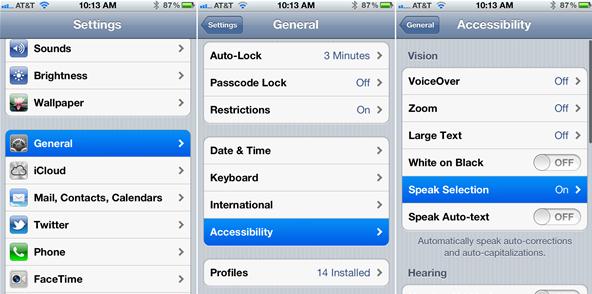
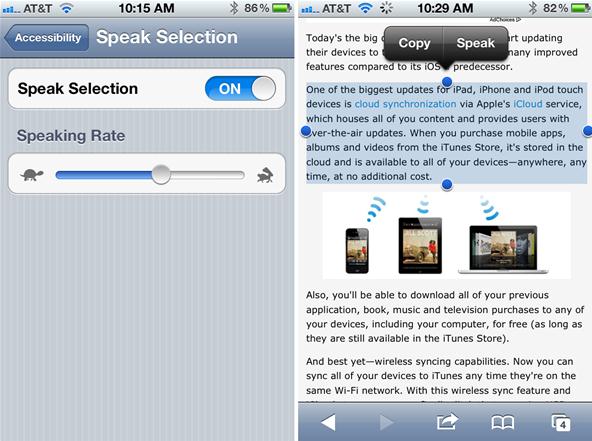
The Speak Selection can be turned on by going into the Settings>General>Accessibility> Speak Selection on your iPad, iPhone or iPod touch with iOS5.

(Above two images from WonderHowTo.com Blog’s   ” The 7 Best Secret Features of iOS5“)

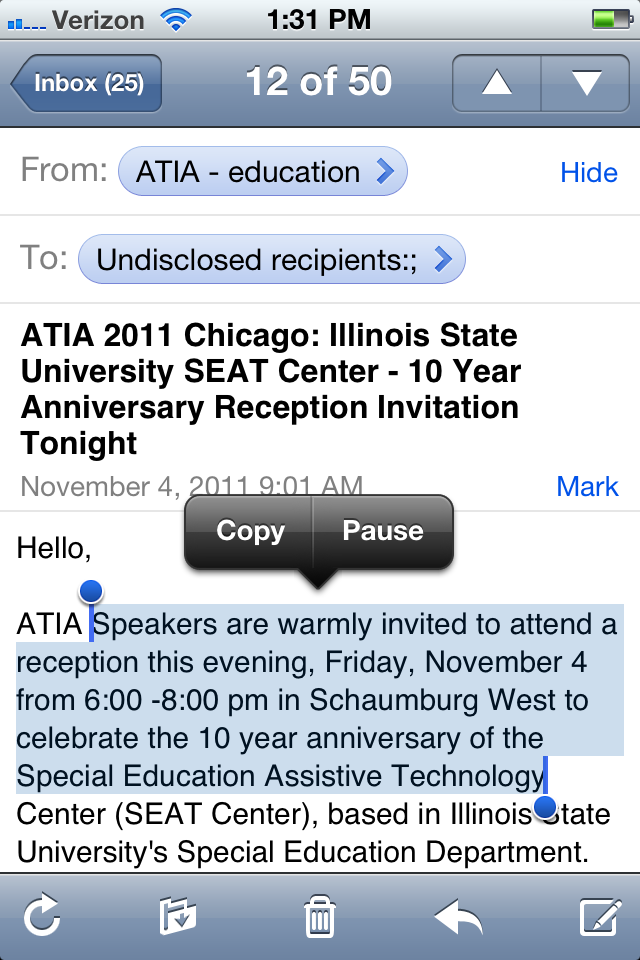
In the Speak Selection option you can change the text to speech rate. The above right image shows the Speak tool which will give you the option of Copy or Speak.

When Speak tool is clicked you will then get another option of Copy or Pause. You also are provided with the ability to move the handles of what you want selected and thus how much you want read with this tool. Great flexibility with its use. If you have only one word selected the Define tool becomes an option (below).

I found the text to speech with Speak Selection to be good quality. Changing the rate of speech also will improve the ability to understand spoken text.

Define Tool

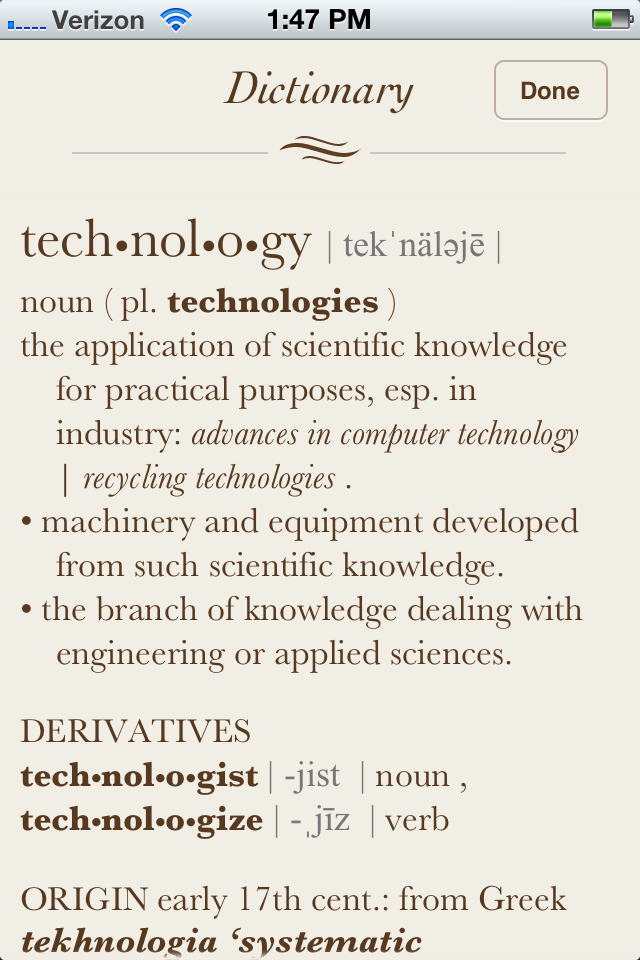
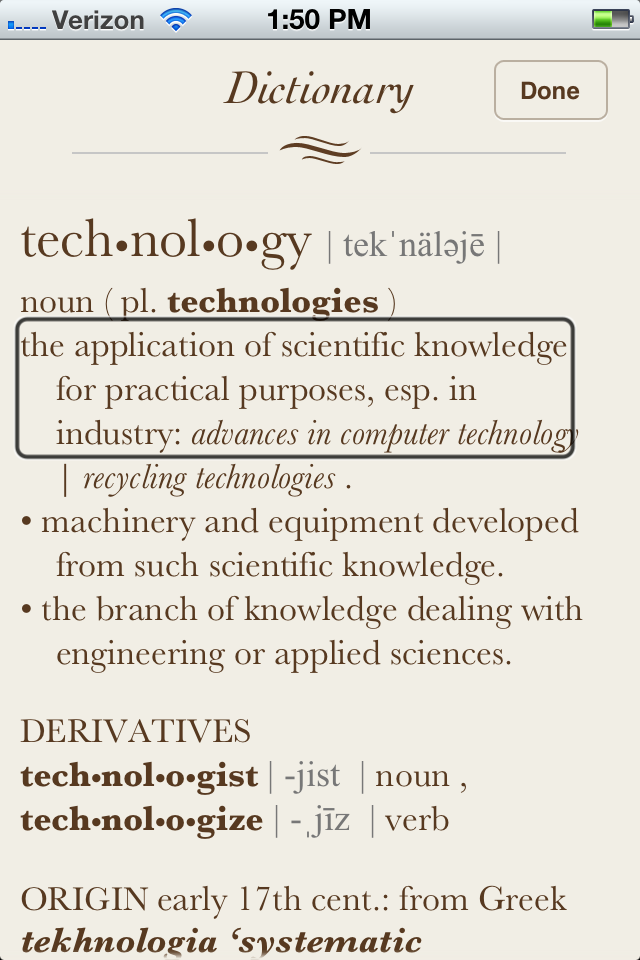
When you select the Define tool you will be taken a dictionary definition of the word.

In this dictionary the Copy or Speak tool is not available meaning text to speech is not available. A work around to use text to speech in this dictionary is to turn on the Triple-click Home and the Toggle VoiceOver in your Settings.

The box with words in it as shown above displays what voice over looks like when turned on.  Selecting or clicking on text will provide the iOS systems text to speech output.

Voice Over Triple-click Option

How do you turn on Voice Over Triple – click toggle? Go to  Settings >Accessibility> Physical & Motor> Triple -click Home> Toggle VoiceOver to turn on this option. With some practice this tool gives you text to speech in other places that may not provide the Speak Selection tool.

Where to Find the Speak Selection Tool

This is a wonderful tool that makes text accessible to struggling readers. Although not an expert at all at this, it was rather frustrating reading commentaries on this feature that seemed to indicate that you could use this anywhere on your device. With many, many trials with other apps I found this available in some iOS5 applications, when searching with Safari and using it on text documents stored in the Cloud. Functionally this makes a big difference with what I would expect to be accessible to a user who needed this access.

Here is where I found the Speak Selection available to me on my devices:

  1. In Apple iOS5 apps
    1. Mail app
    2. Notes app
    3. Messages app
    4. Safari app
  2. When in web-based documents (such as Google doc or other tools that has text based documents stored on the web)
    1. Gmail
    2. Google Docs but not documents such as Google Forms or PDF file.
    3. Google Reader text
    4. Google Calendar text (not buttons – those will be read with Voice Over however)
    5. Dropbox documents that are text based not PDF files
  3. When searching using Safari (Apple app)

This is not an inclusive list, but my trials with the Speak Selection tool found it available in iOS5 tools and also when in Web or Cloud based documents. I did not find this available in iBooks (can someone prove me wrong with this – seems strange) nor in my productivity software such as Docs2Go,  QuickOffice or PDF readers. When I consider how to make documents accessible for our students or adult clients when using an iDevice, what apps you choose to use or where you store it may mean all the difference with being able to use the Speak Selection (text to speech) features. I am already thinking about how I can use resources as Google to store text documents for students use to allow them access with the Speak Selection tool. Certainly there are other options such as apps that you paste text into or talking readers to consider. Web based tools such as Texthelp’s Mobile Apps may also provide general access to a text to speech tool in more environments.

Thoughts on Speak Selection / Text to Speech Features in iDevices

This iOS5 feature is a wonderful new tool for accessibility. I has taken me a while to really use the Voice Over Triple-click effectively and begin get the hang of the Speak Selection tool. It will take more and practice and experimenting to implement this tool fully with apps and in web based tools but it is an exciting new accessibility feature.

Your comments or experience are welcome if you have more insight on the usability of this new accessibility feature!

More to come soon on the functionality of other iOS5 accessibility features!

Carol

Posted in Accessibility, Apps for OT's, Apps for Special Needs, iOS, iPad, iPod, Occupational Therapy, Special education, Text to Speech | Tagged , , , , , , | 8 Comments

More iPad Stylus Choices

More iPad stylus choices?? I thought I had done a thorough job of researching styluses – well I guess not! Research on note taking apps featured a video about  the “best iPad stylus ever” and peaked my attention – always in search of the just right solution(s) !

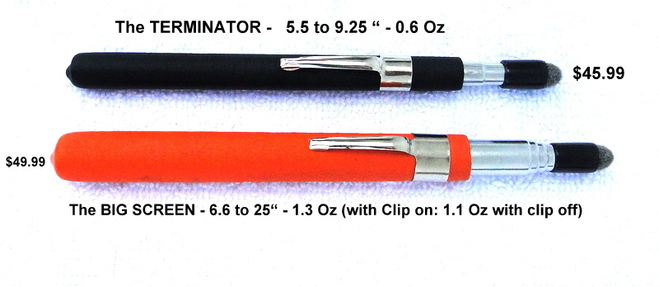
Stylus-R-Us – This company has an extensive list of stylus that differ from most of the stylus previously reviewed. Their most popular stylus is a fine tipped telescoping stylus – the Terminator with different size shafts.

When comparing the previously reviewed stylus it is apparent that the Terminator has a small, more refined tip that could make writing more refined. This stylus looks like what I was searching for in a sylus but with a much higher price tag than the typical brands available. When you read the reviews and watch the videos the price might just be worth it if doing lot of drawing or handwriting on a tablet.Having just come from a conference where I used my iPad to take notes with a stylus I could I love to have had one of their stylus to handwrite. The price however is a bit beyond my budget!

Stylus-R-Us features their telescoping stylus as most popular of their stylus. They also have a listing of over 30 different pen like styluses listed. Their website offers videos of the use of their products. What appears to me to be impressive is the ability to use the stylus like a typical pencil or pen with it slanted rather than holding it straight up and down for good contact to occur.  Check out the video on its use:

Searching their website I was excited to see that they  have a link displaying uses for Physically Handicapped . Stylus-R-Us telescoping stylus extends 17″ and is very light weight is  shown being used by a student with a significant physical handicap. It appears as though due to its lightweight quality it can allow individuals with muscular weakness the ability to access to a capacitative touch screen given supports and positioning. Although they indicate that they do not have a mouthpiece at this time is appears as though that is a work in progress! Here is one of their videos of the application of this stylus:

Visit Stylus-R-Us showroom and you will find a wide variety of pen style styluses. I am not sure this is the average type of stylus you would put in the hands of your preschooler, but for a special or specific access need, accuracy or professional application this appears to me to be another resource to find a specialized stylus and perhaps a company that would help with customization!
More resources available for access for individuals with disabilities. Certainly this is another resource to put in your access tool kit. I would also like to put the Terminator stylus in my own personal tool kit!!!
Carol

Posted in Accessibility, iPad, iPod, iPod/iPad Accessory, Physical Disability Tool, Stylus | Tagged , , , | Leave a comment