Viewers Tips and Tricks for Skill Training App… and More…

Tips and Trick otswithapps.comHere is a tip regarding use of the Skill Training App from Margaret at Your Therapy Source :

  • “I do enjoy this app but just a tip – need to use it on the iPad.  Way too small for iPhone for me.” Margaret also adds additional free resources from her website:
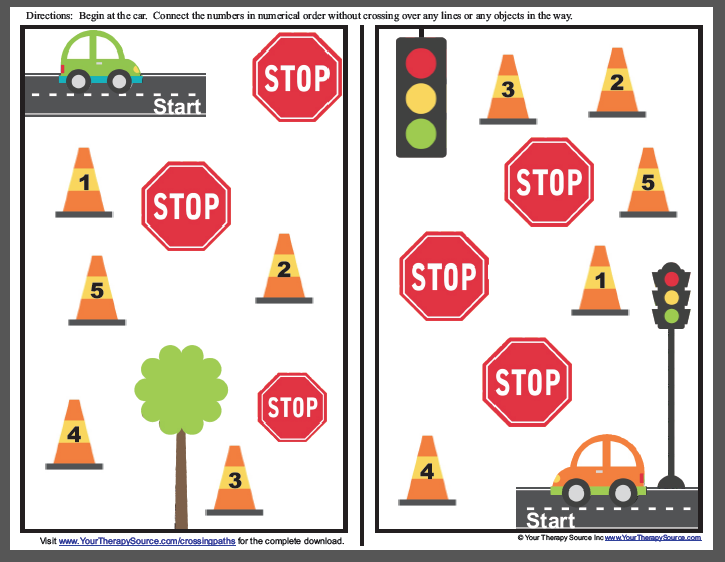
  • “If you want simpler versions of the same concept check out this free printable from Crossing Paths – http://yourtherapysource.com/files/Crossing_Paths_Freebie.pdf.  Not an app but it is a similar motor planning and visual motor task.”

Hard copy tasks are a typical option and may be preferred for choice of tools used, size, positioning and tactile/kinesthetic/proprioceptive options afforded with hands on tasks for many students/clients. Another option available with mobile device use, is to import the image of of online documents or images into apps as Doodle Buddy, Draw Free, Educreations, Explain Everything (using screen shots ) and use the drawing tools to complete the visual motor task. Saving the picture within the app, emailing the completed task or taking a screen shot and printing or sharing through Wi-Fi, Air Print or Cloud service will allow you to print from a portable device or computer if connectivity is available.

Thank you to Margaret from Your Therapy Source for her tip and resources.

More for your OT/Teaching/Therapy mTool Kit!

Carol


Posted in Activity Worksheets on Your iPad, Occupational Therapy, Visual Motor, Visual Perception | Leave a comment

Decide Now! App Gone Free

Decide Now! icon

Decide Now! app

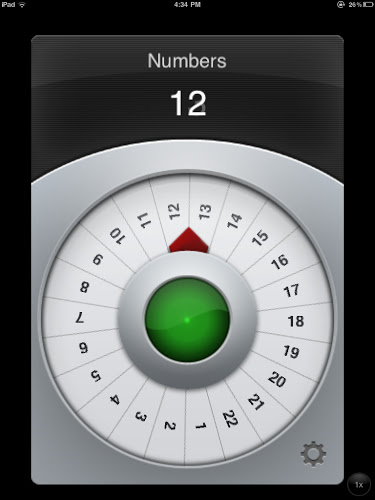
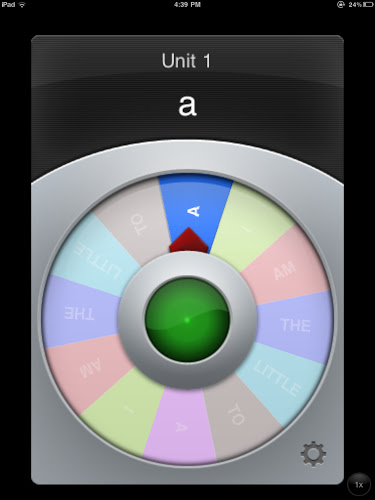
Decide Now! app for iPhone and iPad is free today (typically 1.99). I have blogged about this app  before, but with it going free today, I thought it was worthy to mention again. This app provides a customizable spinner with text ( no pictures or audio) for generating questions and ideas to create a game like activity. This app has many educational uses as well as can be used to generate choices for some therapy activities. Here are a few images of possible uses as suggested on Digital Kindergarten Blog:

DEcide Now number eg Decide Now! alphabet eg.

Decide Now! can be used for a wide range of students (with some text identification) to create letter, number, reading, copying, or math activities to name just a few. Decide Now! app provides customization of the labels create simple curriculum activities. Attach it to a projector with a VGA connector can create a whole class activity.

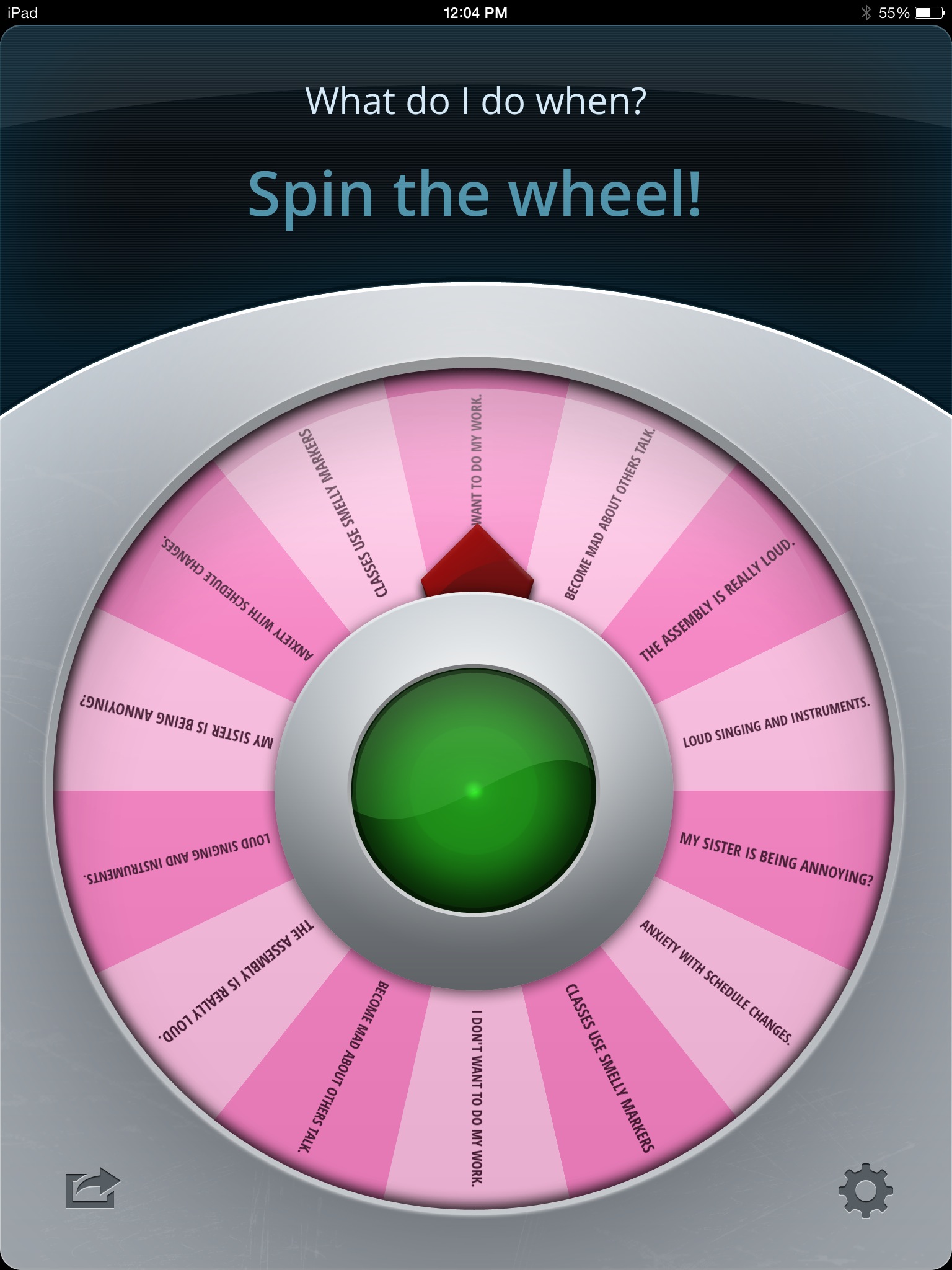
Used in therapy sessions, this can be a fun tool offering letters, numbers or words for handwriting practice, generate a sentence starter or choice making. I currently use it as a spinner to practice determining sensory strategies a student might employ given choices of scenarios on the spinner:

0194eba5a97ec9eea2cb7b6840a6f0f5ccf9cea514The student spins to a text-based scenario then determines what sensory strategy they might use based how they would identify their feelings on a 5 point scale and identify and share what strategy they would use. This provides continued practice and review of strategies identified with them in the classroom. This has been a fun way to reinforce strategy choices and practice. Used along with our 5PointScale expanded , which is individually created for a student, this allows practice and coaching of the strategies individually created with the student .

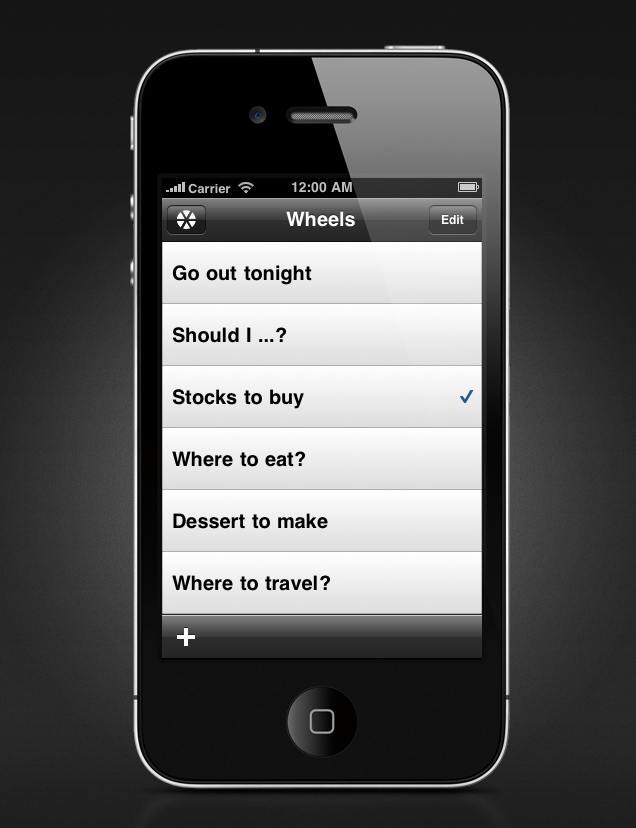
This app is helpful when used with students who can read what is entered on the spinner. Draw back of the app is there is no audio or image capabilities, limiting differentiation for non-readers. It is easy to spin by spinning it or tapping the middle green button. Options for customizing include eight different color schemes, reducing or adding labels on the spinner and unlimited number of spinners created and saved within the app.

decidenow_screenshot_details_4

For those students who need picture and audio support the Image Spinner app (.99) for iPhone and iPad is available. Image Spinner app only saves one spinner at a time, unfortunately, requiring recreating a spinner for each activity.

Happy New Years!

Do you have a spinner or choice making app you use with students? Please share if you do!

More for your OT mTool Kit for 2014!

Carol

Posted in App Reviews, Apps for OT's, Apps for Special Needs, Customizable app, Early Childhood, Elementary School, Game Apps for Special Needs, iPad, iPhone, iPod, Mobile Device Use, Occupational Therapy, School Based Interventions, Special education, Therapist/Teacher Tools | Leave a comment

Taptool could be “the perfect accessory for heavy touchscreen users”

Check out the video and a review about Taptool at  http://m.androidauthority.com/taptool-326580/

The Taptool is a unique wearable accessory designed to protect our fingers and joints from potential issues caused by prolonged touchscreen use.

Carol Leynse Harpold‘s insight:

Taptool is a new Kickstarter invention developed by Matt Weiner, PT. As with most inventions, it was created out of need due to the high impact on joints when using mobile devices. A mother of necessity, the Taptool’s purpose is to reduce the repetitive stress caused by frequent tapping on tablets.

Check out the video onTaptool and Matt Weiner’s story about his invention.

Carol from OT’s with Apps

As scooped from Scoop.it! – OT mTool Kit

Posted in Accessories, Adults, Android, Ergonomics, iPad, iPhone, iPod, iPod/iPad Accessory, Mobile Device Use, Rehabilitation | Leave a comment

9 MORE apps to improve organizational skills for LD students

Scooped from: http://www.inov8-ed.com/2013/12/theres-a-special-app-for-that-9-more-apps-to-improve-organizational-skills-for-students-with-learning-disabilities/

Apps to improve organizational skills for students with learning disabilities – but we wanted to add 9 MORE for students with learning disabilities.

Carol Leynse Harpold‘s insight:

Here is a re-scoop from Kathleen McClaskey’s Scoop it!. The scoop is an updated list of organizational apps  for LD students from inov8 website . Read on for their helpful post.

Carol

Scooped from OT mTool Kit – Scoop. it!

Posted in Adults with LD, Learning Disability, Organization, Special education, Special Education Teacher | Leave a comment

Lyrics App by Tunewiki

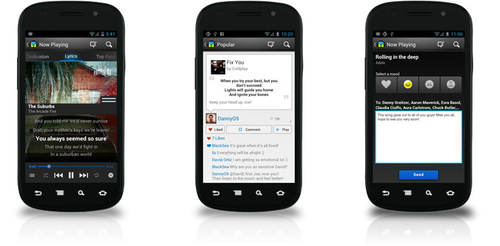
AT Daily’s recent post features Lyric App by Tunewiki

Per the National Center for Learning Disabilities, using Tunewiki is a great way to increase reading fluency. Tunewiki plays popular music in the background while displaying and scrolling through t…

Carol Leynse Harpold‘s insight:

AT Daily shares Tunewiki as a tool to help LD student increase their reading fluency. Check out AT Daily for more information about this iOS app.

Carol

As scooped from the OT mToolkit on Scoop it!

Posted in App Reviews, iPad, iPhone, iPod, Learning Disability, Reading, School Based Interventions, Special education | Leave a comment

Kids Bead App and Hands on Beading Activities for Kids

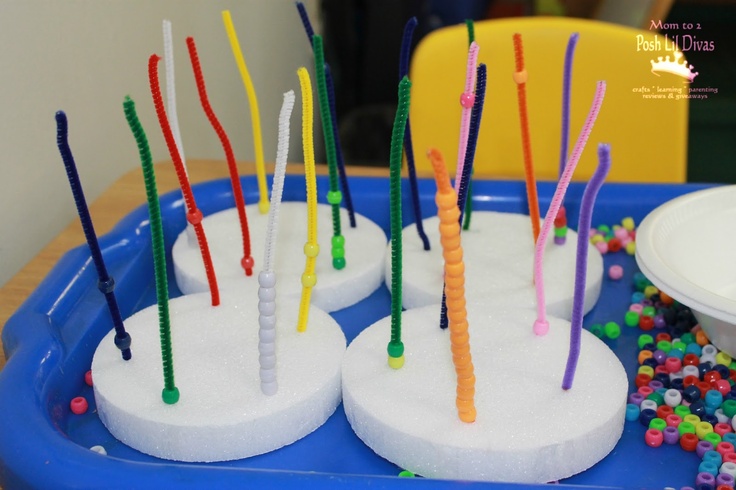
Bead stringing on pipe cleaners

Kids Bead App for Visual Motor or Hands on Beading Activities for Fine Motor Development

I stumbled upon this free electronic app for stringing beads and thought this would be a fun electronic activity during the doldrums of winter. I believe most tablet apps support development of visual motor activities but leave much to be desired for fine motor development.  Both apps and hands on activities both have their place for use at home or in therapy when used in balance or if apps are used as a reinforcement, reward or as a visual perceptual/visual motor activity as needed. So this review provides both, review of an app as well as suggestions for beading activities for fine motor development. Although OT’s working with kids will not find a lot that is new about bead stringing – check out Krista Whitaker’s Pinterest link below for some fresh ideas.

Kids Bead iconKids Beads is a free iOS app for iPhone/iPod and iPad that is a fun activity for kids ages 3-8. The visual motor demands are limited (depending on the size of the device used), making this an easy and fun app for young kids when using an iPad. More precision to select a bead is required on an iPod or iPhone.

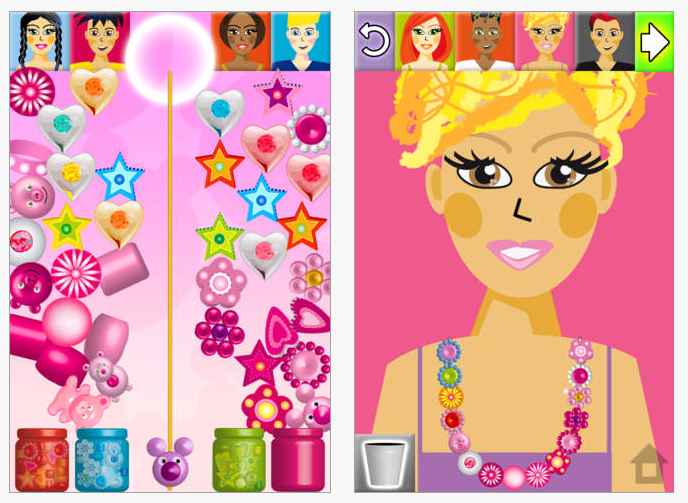
Jars of different types of beads are offered requiring sliding beads on a string/ post or rod to make a necklace. The jars of colored beads (red, blue, green and pink) offered provide similar beads of different colors that can be opened at any time to slide on the string/ post.

Kids Bead pic1

Create a string of random beads or encourage pattern sequencing of the beads. Run out of the shapes you are sequencing? Tap another colored jar and the same shapes of different colors are offered. Shape concepts can also be worked on (circle, rectangle, stars, hearts) as offered by the beads provided. When the necklace is done, tap a person (top of screen) and the necklace appears on the selected person. Tapping the bucket restart Sound and music volume are the only options available within the app. No emailing or printing options are available in the app either, however taking a screenshot (hold home and sleep/power button simultaneously) is always an option to publish the creation.

I found this a simple, fun visual motor activity that might be more appealing to girls than boys. Supervision or coaching to make this a therapeutic, visual perceptual/sequencing task. It has limited fine motor demands (as many tablet apps) requiring only touch and sliding objects on the screen but the interface is colorful, appealing and fun.

Extension or Hands on Activities for Kids Beads App

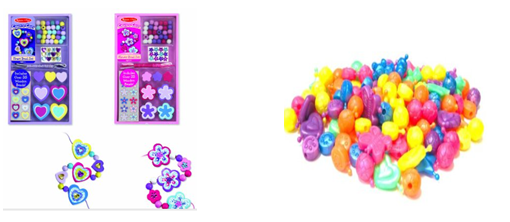
What kind of hands on activities might be encouraged as an extension with the use of this app? If this is motivating get out beads or pop beads of appropriate sizes to create their own real necklace! You may have beads readily available or check your local craft store for beads of all different styles and sizes. Pop bead were always a favorite choice of activity for students needing opposition of thumb and fingers, fine motor dexterity and distal strength. Size of the pop bead needs to be chosen carefully to not cause collapse of the thumb when opposing (especially with resistance). Beads come in many different fun shapes and sizes from Small Bead Assortment to Jumbo Lacing Beads and large to small pop beads depending on ability.
beadsLooking for some low-cost beading options for kids? Education.com provides suggestions for Homemade Beads: 3 Ways – using pasta, clay (made with flour) and paper to create beads. If you have a child with immature skills, using a pipe cleaner can do the trick for beginning bead stringing (a standard toolkit item for OT’s working with young students). Visit Krista Whitaker’s OT’s Pinterest for some great bead stringing (and many more fine motor/bilateral coordination) activities.

On the topic of facilitating opposition for some students lacking this skill, thumb supports (such as Benik’s splints or McKie Splint for support of thumb MP joint) can also be used to help facilitate opposition. Whether performing hands on activities or using the iPad, a support might be considered if opposition is a challenge along with mobility and stability activities for the student. Use of a stylus fit to the student such as the MacGyvered Bulb Grip Stylus or The Pencil Grip Ergonomic Stylus might support opposition when using the iPad. Don’t forget positioning of the iPad to facilitate wrist extension and refined finger use as tolerated.

So use of an app or hands on tasks using beads? I believe both can have their place by balancing the needs and the skills of the client during therapy.  What are your thoughts?

Carol

Posted in App Reviews, Apps for OT's, Early Childhood, Elementary School, Fine Motor Development, Free apps, iPad, iPhone, iPod, Just for Fun, Occupational Therapy, Pediatrics, Primary Grades, Special education, Stylus, Visual Motor, Visual Perception | Leave a comment

Skill Training App – Visual Motor Fun!

Skill Training app icon

Skill Training App

Looking for a fun and challenging visual motor activity app for your students or adult patients? Check out Skill Training app (look out you might be hooked…)!

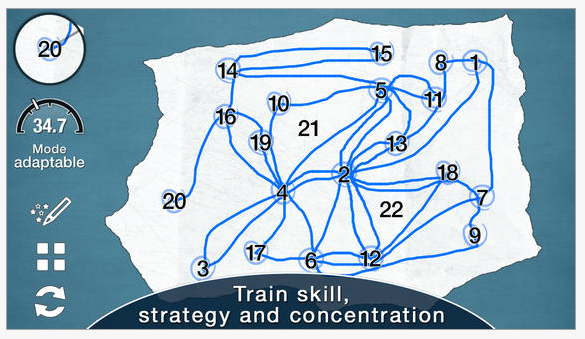
Skill Training app for iPhone and iPad (2.99) is a visual motor/spatial reasoning app that requires drawing, motor planning and spatial problem solving activity. Created by the same developer as the Skill Game app, it is appropriate for upper elementary ages through adults.

Skill Training app, like Skill Games,  adapts the level of the task to your abilities . It differs however by allowing multiple users or clients which tracks their progress. Skill Training app requires connecting numbers in order without crossing or touching lines. Motor accuracy and motor planning are required to complete the task.

Skill Training pic2
A magnifying glass is available to show what is happening under your finger (top left tool in image below), however using a stylus also helps with drawing on the iPad and visualizing the what is on the screen. A skill score is calculated automatically based on how accurate you are. Skipping or restarting is allowed which can help the user practice and see improvements as reflected in the score. Options are readily available on the screen for ease of adapting the task.

Skill Training pic4

Options in Skill Training app provide levels of difficulty (adaptable, constant and random presentation) and element choices  such as turning on/off obstacles, challenging papers and one way streets reducing the motor and cognitive demands for each user. Skill Training pic1With the ability to adapt the difficulty, a wide range of tasks are available to the user which adapts according to their production.

Other settings available within the app include:

  • Size of the numbers (adaptive, adaptive big, constant)
  • Left-handed mode option
  • Magic Pen
  • Audio

Skill Training App is a fun app providing customizable activities for students/clients and also provides scores that can help to assess skill improvements.

Try it out – if you like visual spatial puzzles, you may find your name on the user list and comparing your own scores!

In need of a stylus for drawing? Consider some of the styluses suggested in the OT’s with Apps aStore at Amazon or check out another new tool, the TapTool that can help with accuracy with touch screen. The TapTool is currently developed by a PT to increase access and reduce the effects of repetitive stress injury for heavy touch screen users.

Have fun with Skill Training app – I did !

Carol

Posted in Adults, App Reviews, Apps for OT's, Apps for Special Needs, Drawing, Elementary School, Game, iPad, iPhone, iPod, Middle School, Occupational Therapy, Pediatrics, Puzzles, Rehabilitation, School Based Interventions, Uncategorized, Visual Memory, Visual Perception | 3 Comments

How to Choose an App

Rehab2Go shares some good reminders of how to find apps and what to look for. A few websites that provide wonderful curated app lists or search engine include:

  • Bridging apps – a search engine for apps related to individuals with disabilities.
  • KinderTown – The educational app store and website that reviews and lists apps for 3-6 year olds. Their website and blog provides wonderful, practical suggestions age appropriate activities and apps to support hands on activities for the young learner. A KinderTown App is available for free.
  • The Friendship Circle searchable data base of app for individuals with special needs. Lists both iOS and Android apps .
  • AppAdvice website and app (1.99) provides reviews on universal apps under a wide variety of categories for everyone. This is a great place to find productivity, reference, note taking app reviews.
  • Apps for Children with Special Needs – This site provides written and video reviews of app for children and students.
  • Apps for Dyslexia and Learning Disability – Extensive list of apps for individuals with dyslexia and LD.
  • Autism Apps listing from Autism Speaks – An app and web-based curated listing of apps for individuals with autism. Apps are categorized by subjects and easily searchable. A free Autism App is available.

A good review of how to choose an app and a short list of good app review websites!

Carol

adl2go's avatarrehabgadgets2go

I do presentations on mobile technology a few times a year, and give out a general handout for clients and therapists on “How to Choose an App.”  The tips include the following:

  • Keep it Simple – Start with the apps that come with the device.
  • Word of mouth – What do your friends/colleagues use? What do they like about it? See if you can try their app.
  • Official app stores – Stay with known providers (Eg. iTunes, Google Play, WindowsPhone or Blackberry World). When you download an app from an unknown website, you risk downloading an app with a virus.
  • Reviews on apps
    • Read reviews on iTunes, Google Play, WindowsPhone or Blackberry World – be cautious of overly praised (100% 5 star ratings) as “real” reviews will have a mixed rating
    • Googlesearch for review of the app – include search words such as “best” or “favorite”
    • You-Tubesearch to…

View original post 183 more words

Posted in Uncategorized | Leave a comment

KanPlan App

KanPlan icon

KanPlan App

Familiar with KanPlan app? Are you in need of a text based visual support for students or clients needing structured task lists without images and benefit from an interactive format?

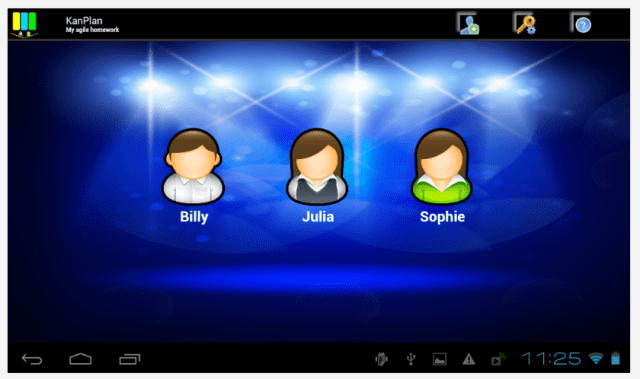
KanPlan app might just be the app to use. I first learned about KanPlan app last spring. It seemed to be just the right app for several of my students and now it is one of my favorite apps for scheduling or sequencing tasks for students who do not need images but still benefit from a step by step to do – done method of task completion.  Easy to use, it provides text based information in a customizable, interactive and flexible format.  I have been sharing the app with paraprofessionals and teachers/coaches and found after a brief overview of how to customize the app users have quickly and easily created a wide variety of visual task lists for students or clients serviced. I am amazed at how many tasks it can support and how easily individuals customize the app. Although this app can be used for a single user, it can supports multi-users and can be set up for classes or families using a web-based task management system (See their blog for more instructions – http://kanplan.wordpress.com/ ).

Here are some previews of what the app looks like for both Android and iOS:

Multi-user view:
KanPlan pic1 Droid

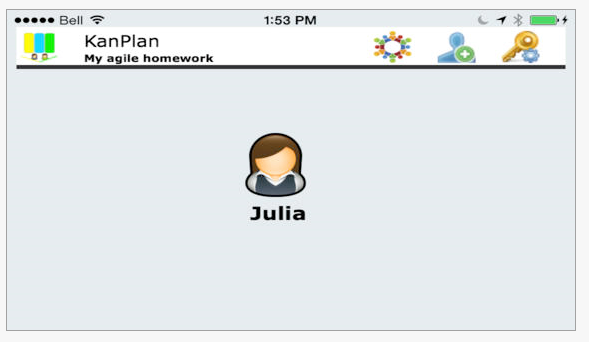
Individual user view:

KanPlan pic3 ios
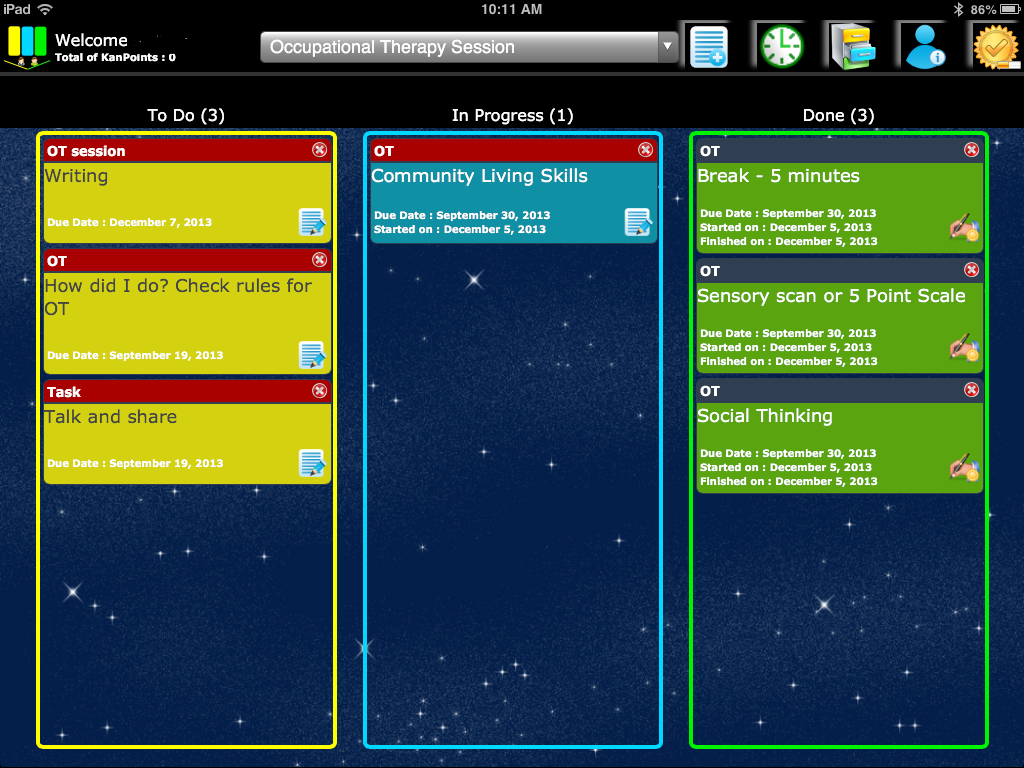
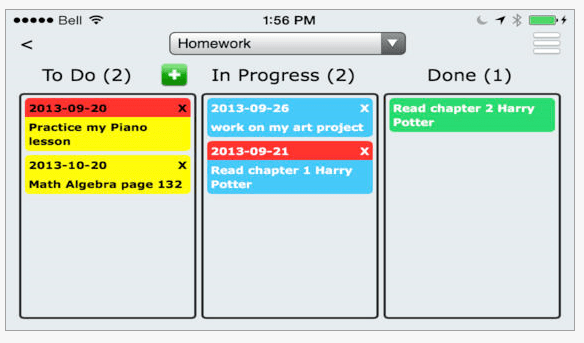
Multiple tasks can be created for each user. In the below image, the task “Homework” an example of a work task created with individual task created. The to do list tasks can be swiped or moved from the first column to the “In Progress” column and when completed tapped and moved to the Done column or list. Students enjoy physically  interacting or moving the tasks from one column to the next. As an expanded “To do – Done” visual support, this seems to make this process concrete and interactive.  A method of collecting points is available within the app which provides a method of collecting information or using it as a reward system if desired. The changing of the colors of the tasks when moved to each column provide additional clarity with task completion.
KanPlan pic1

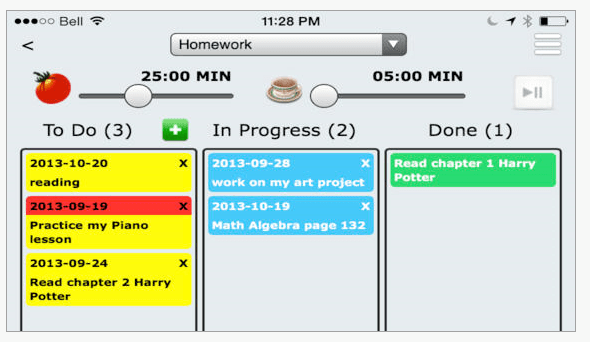
KanPlan app also provides the option to utilize a Pomodoro Timer. Different from the typically used visual timer, the Pomodoro timer is based on the Pomodoro Techique®, a specific time management concept of working with time (focused work for 25 minutes with brief break x4 then 20-30 minute break to aid time management and focusing abilities. Suggested to be good for ADD and improving time and prioritization management.).
KanPlan pic2

I use this with a student as a visual support that provides the student some choices of what order he might complete tasks within an OT session. There are some task I choose for the OT session but I also allow the student some choice of activities. One of the choices of tasks includes a break to allow practice with awareness and strategy choices of his self-regulation during an hour session.

KanPlan pic ios eg

The same student uses KanPlan at home for his homework choosing what to work on first or last, consider time and priorities in his homework choices. A chore list also helps increase his independence with daily or weekly tasks.

After a quick overview with a paraprofessional working with a mutual student who needed more structure during certain activities in Culinary Class, she created a specific list of tasks he was responsible for to be more productive. He is using an iPod Touch which is an accepted, portable tool for a high school student. Another list was created for tasks that needed to be done or reviewed for completion during a resource period. Further, an expanded task list of elements required of a writing project was quickly created as a personalized rubric to be more explicit in the requirements. The lists also help monitor at a glance the students progress with the tasks.

Could these to do or task lists be done on paper? Of course they could, however for those students who are motivated by the use of electronics, consider it a more acceptable support or require numerous and quick customization of such lists, using an electronic device can reduce the paper chase and allow easy creation and editing.

This app has many positive aspects but it is primarily for individuals who can read text. No audio recording or image supports are available within the app. I do wish there was an option of a standard timer along with the Pomodoro Timer to choose from.

KanPlan app is available cross platform. KanPlan app  for Android is free and 2.99 for iOS  with compatibility with iPhone/iPod Touch, iPad . It is a great bargain for Android but also well worth the 2.99 for the  iOS app.

Have you used this app? Please share your experiences if you have!

Carol

Posted in Adults with LD, Android, App Reviews, Apps for OT's, Apps for Special Needs, Customizable app, High School, iADL's, iPad, iPhone, iPod, Life Skills, Middle School, Mobile Device Use, Occupational Therapy, Organization, School Based Interventions, Special education, Special Needs | Leave a comment

Read & Write App for Google Chrome

Read & Write for Google Chrome

Read & Write for Google , an extension in the Google Chrome Store, is available with a new look and new features. The Read & Write extension has continued to improve, providing additional features to support struggling readers and writers. Word prediction, translation and fact finder tools are new features in the full, premium version. Other new features the full version provides are access PDF files and KES files using Read & Write browser tool along with the basic tools such as text to speech and highlighting capabilities within Google Docs and the web.  Easy to use, the Read & Write for Google extension provides  basic tools that support students with print disabilities.

The Read & Write for Google offers all of the features for in a 30 day free trial with text to speech tools remaining after the trial period. Available for use in Google Docs and on the Internet, the Read & Write tool bar is easy to use when working on Google Chrome. Here’s a video on accessing the Read & Write for Google tool bar and use of word prediction in Google Docs:

The full features of Read & Write for Google (after 30 day trial requires purchase of Premium version) includes:
◾Read Aloud with dual-color highlighting
◾Word Prediction (New!)
◾Translator
◾Talking and Picture Dictionaries
◾Fact Finder
◾Highlighters and Collect highlights
◾Vocabulary Builder to easily create a list of words with text definitions and images.
◾Annotations (PDF and ePub)
◾Navigational tools (PDF and ePub)

A video of the new web browser tool demonstrates using Read & Write’s text to speech tools while on the web:

The added word prediction and web reading features are a welcome addition. My personal experience with students using Read & Write for Google has shown it an easy to use, stable tool bar with helpful tools for individuals with literacy challenges. Working in a Google School, the new Google extension provides greater choices for students with a learning disability than any other Google extension or app currently available. After the 30 day trial, the text to speech tool remains a great tool for students to access print or edit their written work using the speech feedback.

Give it a trial for 30 days with your students! It is a great accessibility option to have on the web and in Google docs.  Got a question or need more information? Contact Text Help for more information – they are always helpful and responsive to your questions or concerns.

Thanks Text Help for supporting students with literacy challenges using Google Chrome!
Carol

Posted in Adults with LD, App Reviews, Apps for OT's, Apps for Special Needs, Elementary School, Google, Google Chrome, Google Docs, Learning Disability, Occupational Therapy, Word Prediction | 2 Comments