WeWalk Is A White Cane Accessory That Changes How Blind People Navigate — Assistive Technology Blog

A new startup, WeWalk, which recently graduated from the Microsoft for Startups program, is making waves in the assistive technology world. WeWalk has invented a product by the same name that attaches to a regular white cane that not only detects obstacles for visually impaired people but also enhances and changes the way visually impaired […]

via WeWalk Is A White Cane Accessory That Changes How Blind People Navigate — Assistive Technology Blog

Check out the new WeWalk, enhance community mobility for visually impaired!

Carol – OT’s with Apps and Technology


Posted in Accessibility, Accessories, Assistive Technology, Community Mobility, Life Skills, Low Vision/ Blindness, Occupational Therapy, Visual Impairment | Tagged , , | Leave a comment

Occupational Therapy & Assistive Technology for Persons with Diabetes and Visual Impairment

November is National Diabetes Month 

Providing Occupational Therapy and Assistive Technology for Persons with Diabetes and Visual Impairment

November is National Diabetes Month, and for OT’s providing services to adults and children, diabetic care may be part of your therapy interventions. As a chronic health condition, diabetics can cause complications of the skin, eyes, nervous system, kidney, heart when uncontrolled (Diabetes Complications, 2019). Diabetic complications may require additional treatment considerations, or adaptive or assistive technology in therapy interventions.

While diabetes complications can affect many bodily functions, vision is one of the systems that can be impaired if diabetes is not controlled. According to the Center for Disease Control (Diabetes Public Health Resource, 2012), in 2011, 20 % of individuals aged 45 years and older diagnosed with diabetes reported visual impairment. Diabetic retinopathy is also reported as the leading cause of blindness in working aged adults (Program, 2018) along with a higher risk of early cataracts, glaucoma and other visual impairments associated with the diabetes (Kleinbeck, 2013). Given the complications of visual impairment with patients with diabetes, treatment may require familiarity with adaptive tools, assistive technology and modifications to support OT intervention of patients with diabetes.

The American Association of Diabetic Educators (AADE) identifies 7 Self Care Behaviors for individuals with diabetes (Resources for People Living with Diabetes, 2019). Each of these self-care areas fall within the scope of occupational performance skills assessed and treated by OT’s. The 7 Self Care Behaviors, as defined by the AADE align with OT scope of practice as listed below:

  1. Healthy Eating (Health Management, Shopping, Meal preparation)
  2. Being Active (Health Management)
  3. Monitoring (Health Management; Personal Hygiene and Grooming; Personal Device Care)
  4. Medication Administration (Health Management,
  5. Problem Solving (Health Management)
  6. Risk Reduction (Health Management; Personal Hygiene and Grooming)
  7. Healthy Coping (Health Management; Social Participation in Community; Education)

National Diabetes Month, OT and Assistive/Adaptive Technology and Resources

Given the incidence of visual impairment with patients OT’s treat, the need for assistive and adaptive devices to compensate for their sensory impairment may need to be explored. So, what assistive technology, adaptive equipment or modifications are available for diabetic patients with visual impairment to help them with health management and maintain independence with their self-care?

While some devices are medically prescribed by the patient’s diabetic team, there are many devices and modifications Occupational therapists that can be considered to support diabetic health management and patients’ occupational goals. Listed below are few assistive/adaptive technology tools and resources that might be considered to support OT intervention of the diabetic in the 7 Self Care areas:

AADE 7 Self Care Behaviors / OT Occupations Assistive or Adaptive Devices

(Low to high tech tools)

Resources to Support OT Interventions in the 7 Self Care Behaviors
Healthy Eating / Health Management, Shopping, Meal preparation


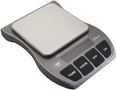
My Weigh Talking scale

  •  MyPlate plate ^ has a high contrast display for educating patients

MyPlate for diabetics

  • Large Print measure cups^ increase visibility for persons with low vision. Tactile markings added can aid identification.

large print measuring cups

  • A variety of reading and writing assistive technology devices are available for individuals with visual impairment**. See suggestions below chart.
The Diabetes Food Hub website has recipes, a meal planning tool and other healthy eating tips for diabetics

MyPlate program provides a visual guide for healthy eating, food and quantity management.

Carb counting apps or forms aid learning and tracking daily carb intake:

Mayo Clinic’s Diabetic Meal Plan Recipes  Provides a list of foods and recipes for diabetic meal planning and preparation

Large Print Activity and Food Log (free) from American Diabetes Association

Being Active / Health Management
  • Fitbit® activity trackers are available in some Medicare Insurance plans to monitor activity and heart rate levels. Best Fitbit for Elderly 2019 article recommends Fitbits® for Seniors.
  • Wearable health monitoring devices as the Fitbit or Garmin provide health activity monitoring tools.
  • The Best Fitness Activity Tracker for Seniors / The Elderly 2019 recommends 3 different trackers. The Garmin reviewed offers larger screen for increased visibility.
  •  A variety of reading and writing assistive technology devices are available for individuals with visual impairment**. See suggestions below chart.
Some Medicare Insurances have a Fitbit community to aid motivation for staying active (e.g. AARP Advantage plan Fitbit community)

The Silver Sneaker Program provides online line and community health/fitness programs geared to seniors. Check client eligibility at Silver Sneaker.com.

American Diabetes Association has Fitness Information for Diabetics.

The National Council on Aging provides a wealth of evidenced based practices on fitness programs for older adults.

A Workout Program for Diabetics from the Verywell Health website offers information and fitness training for Diabetic Type 2 clients.

VisionAware has information on Exercise for People who are Blind or Low vision.

Monitoring / Health Management; Personal Hygiene and Grooming; Personal Device Care
  • Blood Glucose (BG) monitors with large print, talking capabilities are available. devices. BG Monitors with data storage can share date with medical teams for monitoring.

Prodigy BG talking monitor^

Prodigy Glucose Meter

  • Blood pressure cuffs with large print readouts or talking features. BP units that saves data for medical or diabetic team review.

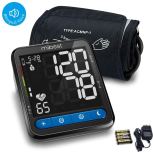
MiBest Talking BP monitor^ has a large, high contrast LCD, offers English and Spanish and saves up to 90 records for 2 users.

MiBest talking blood pressure monitor

  • Recording daily blood sugar and blood pressure reading on with large print log sheets aids persons with visual impairment with diabetic health management
  • A variety of reading and writing assistive technology devices are available for individuals with visual impairment**. See suggestions below chart.
The American Diabetes Association website Device Technology section has an overview of basic devices used for diabetic management.

VisionAware website provides diabetics step by step instructions for monitoring sugar levels in print format and also audio versions.

Information on what to look for in glucose meters is also provided. Information on monitoring blood pressures is also included in this topic which can be found at VisionAware:

Monitoring your Blood Glucose when you have Visual Impairment

Large Print blood glucose and blood pressure log sheets are available:

Large Print Blood Glucose Level Log

Large Print Blood Pressure Log

Medication Administration

/ Health Management

VisionAware website offers information on Products and Devices to Help Identify Medication   including a list of adaptive medication identification systems including talking options. A few medication devices listed:

Talk Script

Accessamed

Other labeling systems:

Pen Friend 2 labeling system^

PenFriend label system

  • Low tech methods of marking meds can include tactile markers, large print labels or other tactile or visual marking systems
  • A variety of reading and writing assistive technology devices are available for individuals with visual impairment**. See suggestions below chart.
The American Diabetes Association has information on medication management for diabetics and caregivers.

VisionAware website has specific medication management suggestions and tools for diabetics with visual impairment – Diabetes: The Basics Taking Medication .

VisionAware website is accessible with magnification tools and audio formatted information for individuals with visual impairment.


Problem Solving /

Health Management

Problem Solving tools can include apps to organize and review diabetes data:

  • Diabetic Connect app for iOS and Android provides tools to monitor blood glucose, medication, meals, blood pressure, weight and diet within the app. Information can be exported to online, computer-based archive system.
  • Diabetes:M app for iOS and Android is a log book for management of diabetic data. Manages blood glucose, BP, insulin, medications, weight, food, graphs the information and provides reminders.


VisionAware Diabetes: The Basics: Problem Solving:   Suggestions for productive problem solving is the focus of the information presented on VisionAware website for individuals with visual impairment. Magnification tools and information in audio recordings offer accessible formats.

National Diabetes Education Program – Lifestyle Change Program providing education, support groups are available through National Diabetes Education Program.

The Diabetic Council.com offers a listing of support and educational groups by state.

Risk Reduction / Health Management; Personal Hygiene and Grooming


Monitor and record BP, BG and Cholesterol levels using apps and/or diabetic monitoring forms. Maintaining records can help the diabetes team identify medical needs.

  •  Apps as listed in Monitor and Medication sections can help with health management and Risk Reduction.
  • Using low tech such as large print BG and BP log sheets can help with Risk Reduction.
  • A variety of reading and writing assistive technology devices are available for individuals with visual impairment**. See suggestions below chart.
VisionAware website Diabetes: The Basics: Risk Reduction offers information on reducing risks including the following topics:

  •  Regular Skin/feet checks
  • Oral health care
  • Monitor


Coping Strategies / Health Management; Social Participation in Community; Education


Apps for calming, deep breath or meditation can be help as a coaching tool for anxieties or depression


The Diabetic Council.com offers a listing of support and educational groups by state. Support groups, activity groups and educational groups are known resources to help with well-being. Some program costs may be covered by insurance.

VisionAware – Diabetes: The Basics: Coping Strategies offers information regarding healthy coaching for diabetics with low vision. Accessible print and audio format of the information is available.

Coping with Your Emotions – University of California – SF offers online suggestions for copying with diabetes.

^ Amazon Affiliate Link

Reading and Writing Assistive Technology Tools for Individuals with Visual Impairment**

A wide range of reading and writing assistive tools and modifications are available to support access and production of print for individuals with visual impairment. These aids can help diabetics with visual impairment maintain independence in their health management. A few of the reading or writing aids to support low vision might include devices as listed below with many more varieties available on the market depending on patients needs and resources:

  • Modifying print and writing tools with large text, high contrast, bold and clean fonts (san serif fonts) as Arial, Tahoma, increased spacing, use bold pens, writing guides can increase visibility for individuals with low vision. A few tools to consider:
  • Increased lighting, such as task lighting, flashlights directed to the viewed text or object and comfortable to the client aids visibility. Flexible task lights such as:
  • Magnification of objects or print using handheld magnifiers, video magnifiers or CCTV’s provide adjustable spot and stationary reading aids. Video magnifiers offer illumination, multiple magnification levels, contrast settings and reading lines for reading print. A few such magnification systems to consider (but not limited to) include:
    • Handheld video magnifiers of different sizes for near and or far distance viewing:
    • CCTV’s:
      • Life Style CCTV – HD CCTV offers a stationary monitor and video camera for reading print magnified on a large monitor.
      • Go Vision CCTV – The Go Vision CCTV provides video magnification and OCR with reading aloud capabilities. Contrast, magnification and connectivity with phones, computers, tablets are among its features.
      • Patriot Voice Plus – A non-visual device that reads aloud text placed under the camera. Simple tactile controls provide easy access to the Patriots features for individuals with blindness or significant visual impairment
  • Computer programs that magnify and computer information also may support clients in accessing health management information. Programs such as:
    • Accessibility options in Windows and Mac operating systems offers magnification, text to speech, high contrast, enlarged pointers/cursors for individuals with visual impairment.
    • ZoomText Magnification/Reader or Fusion software are dedicated magnification programs to access computer print as well as screen reading access (JAWS) in the expanded version of Fusion.
    • JAWS – Job Access with Speak program offers access to Windows computer for individual with blindness.
    • NVDA– Non-Visual Desktop Access is a free screen reader for Windows operating system allowing access to the computer to individual who are blind.

Summary

Occupational therapists working with patients with diabetes can support their health management, self-care and iADL skills following the 7 Self-Care Behaviors identified by the American Association of Diabetic Educators. For patients with diabetes who have a visual impairment, there are many assistive and adaptive tools and resources OT’s can consider to support patients in the 7 Self Care Behaviors to help with health management and well-being.

More for your OT eTool Kit as well as other adaptive devices!

OT & AT for Persons with Diabetes and Visual Impairment PDF

Carol- OT’s with Apps & Technology

References

Diabetes Complications. (2019). Retrieved from American Diabetes Association: https://www.diabetes.org/diabetes/complications

Diabetes Public Health Resource. (2012, September 21). Retrieved from Center for Disease Control and Prevention: https://www.cdc.gov/diabetes/statistics/visual/fig3.htm

Diabetes: The Basics Overview. (2019, November 22). Retrieved from VisionAware: https://www.visionaware.org/info/your-eye-condition/diabetic-retinopathy/diabetes-guides-with-lessons-following-seven-self-care-behaviors/the-basics-about-living-with-diabetes-7-lessons-in-audio-and-print/1234

Kleinbeck, C. (2013, July 25). Diabetes Self Management. Retrieved from Tools and Techniques for Visual Impairment: https://www.diabetesselfmanagement.com/managing-diabetes/complications-prevention/tools-and-techniques-for-visual-impairment/

Program, N. D. (2018). Guiding Principles for the Care of People with or at Risk of Diabetes. Retrieved from National Institute of Health: https://www.niddk.nih.gov/health-information/communication-programs/ndep/health-professionals/guiding-principles-care-people-risk-diabetes

Resources for People Living with Diabetes. (2019, November 22). Retrieved from American Association of Diabetes Educators: https://www.diabeteseducator.org/living-with-diabetes/aade7-self-care-behaviors

 Disclosure Statement:

OT’s with Apps & Technology is a participant in the Amazon Services LLC Associates Program, an affiliate advertising program designed to provide a means for sites to earn advertising fees by advertising and linking to Amazon.com. A percentage of proceeds is donated to charitable organizations.

Posted in Accessibility, Activities of Daily Living, Adaptive Devices, Assistive Technology, Diabetes, iADL's, Life Skills, Low Vision/ Blindness, Occupational Therapy, Rehabilitation, Text to Speech, Vision | Leave a comment

Alexa, “What am I Holding?” – Amazon Show and Tell Feature

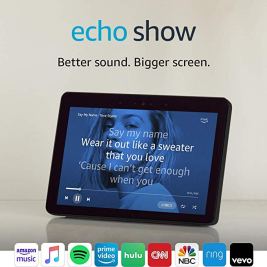
Amazon Show 2nd Gen

Alexa’s skills as offered in the Amazon Show or Echo devices continue to expand offering more and more including universal design services for the general public and individuals with disabilities. A recent email sharing “What’s New with Alexa?” featured the new Show and Tell skill supporting individuals with blindness and low vision. The Show and Tell feature is offered for all versions of the Echo Show devices (1st and 2nd generations) providing product recognition using its camera to identify and vocalize the product. Object recognition to support individuals with visual impairment and cognitive disabilities has been a high interest, and a need identified when evaluating client for their AT needs. While I have previously review apps with object or product recognition tools, this device as a stand alone tool was a new tool. So, this new feature offered on this ubiquitous home device piqued my attention as a possible AT solution for clients serviced. So can Alexa help with product recognition?

Amazon Show- Show and Tell Skill Operation

The Show and Tell skill of the Echo Show (1st and 2nd generation both have cameras), uses its camera to tell you want object you are holding. Asking Alexa, “What am I holding?” while holding a product about 1 foot away from the camera and positioned about 1 foot above the surface the Show is located. The Show and Tell provides verbal instructions on how to use it and then speaks the item name out loud to you. Quite slick.

How does Show and Tell work to identify products you’re holding? Here are the Amazon directions for asking Alexa to identify common pantry products your holding with Show and Tell:

Before you get started, make sure that there’s good lightning in your room and that nothing is blocking your Echo Show’s camera.

  1. Hold your item one foot from your Echo Show’s camera.
  2. Say things like, “What am I holding?” or “What’s in my hand?”
  3. When prompted, move your item around slowly to show different sides of the packaging. Alexa helps you position the item with tips and sound.

Of course, I had to trial product recognition with my Amazon Show (1st generation). At on set of the verbal command “Alexa, what am I holding?”, Alexa provided me with a brief but adequate instruction on how it works then promptly completed the recognition task. Sound feedback is provided when a camera shot is taken and prompts to turn it to another side to get more information. It was very simple and intuitive to use Show and Tell with initial trial.

Amazon Show – Show and Tell Trial

How did it work? I trialed 8 different products from my pantry including canned goods, jars of products and packages (snack bars, packet of rice, etc.). I used name brands and generic brand products. Alexa Show and Tell provided me with basic information with the generic products (grape jelly) while additional but basic information was provided with the name (e.g. Jiffy Crunchy Peanut butter) of the product presented. Alexa prompted me with verbal instructions to turn the item, lift it up for better recognition. It appeared that showing the front and the UPC scanning code (I suspect) was key additionally used to identify the item. As would be true when scanning any items, standard text of the product was most accurately recognized versus word art or cursive writing on the product. It accurately identified 8/8 items with a general description (“grape jelly” Nature Valley oatmeal bar, olive oil. Additional information of the product may be offered by Alexa. If help is needed, saying “Help with Show and Tell” or “More help with Show and Tell” can provide the user with additional information.

Amazon Show – Show and Tell as an AT Device

Although briefly trial with a few panty products, accuracy was good with basic information provided on what the product was. Although detailed information was not always provided, this would be a helpful tool for individuals with low vision or blindness to help them recognize products in their cupboards or refrigerator if marking were lost, items unmarked with the typical ID systems recommended. It was also easy to position the items in front of the 10″ Echo Show screen with Alexa verbalizing directions when needed to turn or reposition the item. A hack that might help would be to have a small low platform to place an object on with position set at 1 foot away with a rise that is even with the bottom of the Show device. this would take the guesswork away for individuals that may not be able to see the distance from the Show device or hold the item steady while it is detecting the label.

While I may not run out and get a Show just to recognize products, the Show offers many great services making it a worthwhile device for many tasks for the general population and individuals with disabilities. The Echo Show can easily be considered an AT device, offering many accessibility tools and services.

What do you need to set up an Amazon Show

Amazon Show Devices

The Amazon Show devices now come in a variety of models. Refurbished 1st generation models are available for about $99.99 for the 10″ model with 2nd generation refurbished under $200. Here are a few of the newer Amazon Show models and prices:

Amazon Show 5  

This model offers a 5.5″ screen with built-in camera shutter and microphone/camera off button.

Amazon Show 8

Amazon Show with 8″ screen with built-in camera shutter and microphone/camera on/off button and touch screen .

Amazon Show (2nd generation) offers a 10″ screen, built in camera shutter and microphone/camera on/off button and touch screen.

While these models offer product recognition, many other skills are available with Amazon Echo Show devices including reading books aloud, closed captioning, playing music with voiced requests, finding out news, weather, sports, making calls, talking reminders and timers, researching basic information on the Internet as well as automating home devices and services. The skills offered by Alexa on the Amazon Show continue to expand and are used by young and old to access information and control their  environment.

What skills do you or your clients use or are your favorite on the Amazon Show? Ask Alexa next time what her favorite skills (NASA and cats…?).

More for your OT eTool Kit.

Carol – OT’s with Apps and Technology

Posted in Accessibility, Activities of Daily Living, Adults, Aging in Place, Artificial Intelligence, Assistive Technology, Cognitive Impairment, Environmental Control, Home accessibility, iADL's, Intellectual Disability, Internet of Things, Low Vision/ Blindness, Object Recognition, Text to Speech, Universal Design, Visual Impairment | Tagged , , , , | Leave a comment

Assistive Technology for Kids who Experienced Trauma — Michigan Assistive Technology (AT) Program Blog

By Aimee Sterk, LMSW, MATP Staff I’m working on a trauma certificate and recently attended a symposium on Somatic Experience therapy for children who have experienced trauma. The presenter, Maggie Kline, LMFT, explained that for young children (birth to 18 months) who experience trauma, the body holds the memory and that therapy needs to focus…

via Assistive Technology for Kids who Experienced Trauma — Michigan Assistive Technology (AT) Program Blog’

This is an interesting post from the Michigan Assistive Technology Program Blog describing movement tools as AT for individuals with trauma in their history. It shares great information and also expands the concept of AT by including sensory equipment to support individuals with social and emotional disabilities.

Thanks to MATP for their informative post.

Carol

Posted in Assistive Technology, Early Childhood, Social Skills | Tagged , , | Leave a comment

Portable Reading Tool Options, Smartphone or Handheld Device – What’s Your Pick?

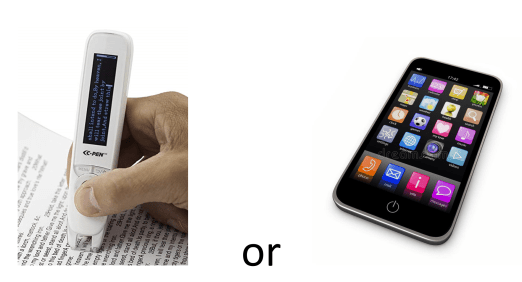
image of C-Pen reader and smartphone

C-Pen Reader or Smartphone?

A variety of portable reading tools are available with fairly good recognition and improved text to speech voices for quick access to print using text to speech.  While many individuals rely on their smartphones for accessing print with text to speech these days, for some it is not always the preferred solution.  A recent evaluation demonstrated use of apps on a smartphone, such as my favorite, on-demand Claro Scan Pen app for individuals with a learning disability, and the handheld C-Pen Reader upon requested. While this is an infrequent request, as it may be considered  “older technology”, it remains an preferred option for some clients. .

For this particular client, using the C-Pen was strongly preferred. The reason for the  clients preference included:

  • Reduced level of distractions when using the pen compared to the potential distractions of a smartphone’s messages, texts, alarms, phone calls or other alerts occurring (even with Airplane mode on)
  • Simplicity of use
  • Perception of others (classmates or instructors) when using a smartphone that use is for entertainment purposes.

Despite the somewhat lower text to speech quality, for some clients this lower tech tool continues to be their choice for listening to text read aloud from paper sources.  Interestingly, a number of clients recently serviced have been adamant about not using a smartphone to access print due it being perceived as entertainment rather than an assistive tool in work or educational environments.

While many options exist for accessing text to speech using portable devices such as  smartphones with scan and read apps other portable devices like the C-Pen remain a solution for accessing and reading text. Hang on to it, it may be the tool of choice for one of your clients!

What has been your experience or preferences of portable reading tools?

More for your AT Toolkit!

Carol Leynse Harpold, MS, OTR, ATP, CATIS

Posted in Accessibility, Assistive Technology, Dyslexia, Learning Disability, Reading | Tagged , , , , | Leave a comment

The NEBO EYE shared by Assistive Technology at Easter Seals Crossroads

The folks at Easter Seals Crossroads shares another low tech AT tool for low vision clients or children as well as for older adults. Both low vision clients typically benefit from the right type of task lighting. Older adults over the age of 60-65 years and gradually experience visual changes in their eyes requiring brighter light levels. The AT specialists at Easter Seals Crossroads share out the NEBO Eye, a flexible, portable light that can be used for a variety of tasks, placed in a variety of positions and offers a bright and a milder or lower brightness level.

Check out the review by Easter Seals Crossroads on the NEBO Eye below.

Hey there! Welcome to Accessibility Minute, your weekly look at Assistive Technology, those clever tools and devices designed to help people who have difficulties with vision, mobility, hearing or other special needs! If you’re looking for a simple solution to light up a dining room table, closet, bathroom, desk, and more – check out the […]

via AM341 – NEBO EYE — Assistive Technology at Easter Seals Crossroads

H/T to Easterseals Crossroads for their AT curating!

More

Carol


Posted in Aging in Place, Low Vision/ Blindness, Occupational Therapy, Visual Impairment | Tagged , | Leave a comment

ATU422 – Morphic with Gregg Vanderheiden — Assistive Technology at Easter Seals Crossroads

Thanks to Assistive Technology at Easter Seals Crossroads for sharing information on Morphic in their regular blog posts. Morphic is a universal design for access in development for 10 year and is now coming to fruition! Truly a universal design technology tool offering accessibility tools and language translation capabilities for every computer.  To learn more, visit AT at Easter Seals Crossroads for more information about this exciting universal design tool or see the video and links to Morphic below.

Your weekly dose of information that keeps you up to date on the latest developments in the field of technology designed to assist people with disabilities and special needs. Show Notes: Dr. Gregg Vanderheiden PhD – Director of the Trace R&D Center at the University of Maryland College Park More on Morphic: https://morphic.world——————————If you have an…

via ATU422 – Morphic with Gregg Vanderheiden — Assistive Technology at Easter Seals Crossroads

Morphic

https://morphic.world/

H/T to Assistive Technology at Easter Seals Crossroads for their curation of AT tools and resources!

Carol

Posted in Accessibility, Universal Design for Learning | Tagged | Leave a comment

“On-Demand” Apps for Reading

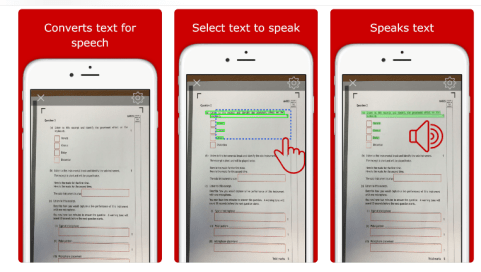
On demand scan and read apps image

On demand scan and read apps for mobile devices

Many individuals with reading challenges are faced with difficulty reading the information in their environment. Whether text in a technical manual at work, written directions and a handout provided in a class or meeting that may be difficult to read. While computer-based scan and read software have been around for a long time, mobile devices now become a scan and read tool for “on demand” access to print for struggling readers whether for school or work.

On-demand access to print is a topic often addressed with students with significant reading challenges during the assessment of their AT needs. While these apps have been around for a while, new apps, upgrades continue to offer additional options for struggling readers.

For students who benefit from test to speech and seeing the document in its original format, the following apps are solid apps for adults and students with a learning disability and mild intellectual disability:

Claro Scan Pen app (iOS and Android; smartphone/tablets; $9.99 for iOS) – While this has been around for several years, it remains my favorite of the quick access scan and read apps for its stability, accuracy, and access. Claro Scan Pen allows the user to scan (OCR, optical character recognition) a worksheet, menu, form or document, provides a replica of the document scanned and allows selecting any text read aloud. A variety of voices are available, options to change speed, and the color of the selected text read. For individuals with significant reading challenges, the visual representation of material scanned is critical to navigating within a document. Loss of formatting for individuals with vision can create difficulty orienting to the contents of a form or worksheet. Claro Scan Pen can batch scan, offering several scanning pages of a document or worksheet. Images from the camera or Photos can be used to and processed with OCR. Additional features allow sharing the document with other apps and services as well as copying to the clipboard.

Claro Scan pen process image

Claro Scan Pen Video Review: https://www.youtube.com/watch?v=m7Ffleh78q4

Prizmo Go (iOS app for iPad and iPhone; free, in-app purchases) – Prizmo Scanning app with text to speech has been around for years. However, the Prizmo Go app offering quick scan and text to speech options, is a newer app producing “quick capture” scan and read using OCR. The app offers options of taking a picture with the camera or importing an existing image from the Photos library using OCR. Single page scanning and batch scan of multiple pages are options available in the app. Prizmo Go offers the ability to crop an image after importing, selecting the text and listening using text to speech, highlighted text when read as well as navigation using the play and forward/back buttons. The OCR’d text can be translated, shared and copied. The app is compatible with Voiceover.

Handwriting recognition is also present, however trials were marginally accurate. Other features include speech output to assist with orienting the device when scanning.  Prizmo offers two views of the scanned text,  one showing the original document layout (pictured above in below image) with a second dialog box showing text only and controls for reading, sharing and settings. Prizmo Go offers a more features than Claro Scan Pen app which might be confusing for individuals with intellectual disabilities.

Prizmo Go app image

Video Review of Prizmo Go: https://www.youtube.com/watch?v=WiAV3D526Cs

Voice Dream Scanner app (iOS; iPhone/iPad 3.99 sale limited time) – The developer of Voice Dream Reader app recently debuted the Voice Dream Scanning app, offering quick scan and reading of documents with a mobile device. The OCR scanning was very accurate, detecting print labels in documents with images. Voice Dream Scanning app allows instant access of documents scanned with text to speech, the option of text-only document view, options of a variety of voices and the ability to share the scanned information to Voice Dream Reader, as a text or PDF document or copy the text. Batch scanning is an option as well as cropping the initial image before performing OCR to select specific text in the scanned document. Images from the camera or from Photos can be used to process the document using OCR. Navigation within the text and playing text to speech is accessed using the play or forward/backward button.

voice dream scanner app image

Voice Dream Scanner app review: https://www.youtube.com/watch?v=dymG9H1UyJA

Comments: Accuracy of the OCR when used with the same document were all good but not perfect. Voice Dream Scanner app was the most accurate when compared with the Claro Scan Pen and Prizmo Go. Although less features, I find the Claro Scan Pen preferred for clients with intellectual disability to instantly process, simplified tools and easy access to any text desired to be read. When accessing forms or worksheets, Claro Scan Pen allows the user to view and access the line of print exactly as the original copy. Although the apps work on iPhones, when scanned text is small, selecting the text to be read aloud can be a bit tricky and requires good vision and dexterity. Using the scanning apps due to the detail, is easiest generally when on an iPad Mini tablet or larger in my experience.

As always however, accuracy of the text to speech is dependent on the quality of the document scanned, steadiness of taking a picture and higher quality camera used. The free Prizmo Go app is a bargain however the other apps are well worth the cost, depending on the needs of the user.

As device capabilities and apps improve, accessing text on demand for struggling readers becomes more and more possible!

What are your favorite apps for quick access to print “on-demand”?

More for your OT eTool Kit!
Carol

Posted in Accessibility, Adults with LD, Android, App Reviews, Apps for Special Needs, Assistive Technology, Intellectual Disability, iPad, iPhone, iPod, Learning Disability, OCR, Reading, Text to Speech, Vocation | Tagged , , , , , | Leave a comment

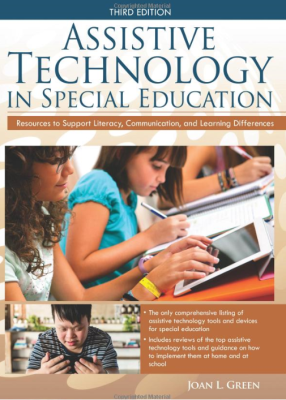
“Assistive Technology in Special Education 3rd Edition” Book by Joan L. Green, SLP

Assistive Technology in Special Education        A big “thanks” to Joan L. Green for her diligence in updating her book, “Assistive Technology in Special Education 3rd Edition” © 2018 and to her donor who offered 1500 copies of her book to professionals working in the field of AT. I gratefully received one of the 1500 copies of her book yesterday offered as a member of the QIAT community. With the book, I received a message from Joan and her donor about their SHOW and SHARE objective to spread the contents of the book with others. With the Show and Share initiative, individuals who participate in sharing her book have a chance to win $1,000 donation to the charity of their choice. Aside from sharing the book with colleagues, this blog post is my Showing and Sharing of her book to reach online communities of individuals interested in AT.

I couldn’t resist reviewing “Assistive Technology in Special Education, 3rd Edition”, as soon as I received the book. While AT lists for apps and technology have come and go over the years, Joan’s 3rd edition of her book offers a valuable “resource to support literacy, communication and learning differences” for individuals in special education. She provides an amazing accumulation of AT resources and strategies for special needs learners that remains timely despite the rapid, ever-changing (assistive) technology industry. Reading and reviewing the contents she provides familiar, tried and true AT apps, software and devices as well as new and unfamiliar AT tools and resources. I look forward to using this book as a go to resource for AT solutions for clients serviced. If not specifically provided in the book, she offers resource lists in topic chapters for more information, (e.g. Enable Mart,  CHADD, CTD ). As an AT Practitioner evaluating clients with a wide variety of challenges, this book offers a helpful guide in topics less frequently used. It also offers tools and strategies in a wide variety of needs faced by students we service. 

As a speech and language pathologist, Joan Green’s book focuses on AT to support special education. Contents of her book addresses the following 15 topics (chapters):  

1. Getting Started with Assistive Technology

2. The Benefits of AT

3. Lifting the Barriers, Technology and Access

4. Technology and Strategies to Improve Verbal Expression

5. Alternative and Augmentative Communication

6. Technology and Strategies to Improve Auditory Comprehension and Receptive Language

7. Technology and Strategies to Improve Reading Comprehension

8. Drill and Practice Technology to Improve Reading Skills

9. Technology and Strategies to Improve Written Expression

10. Drill and Practice Technology to Improve Writing Skills

11. Technology and Strategies to Improve Attention, Cognition and Executive Function

12. Technology and Strategies to Learn New Information

13. Online Organization and Collaboration

14. Interactive Programs to Practice Cognitive Skills

15. Final Thoughts: Keeping Students Safe and Preparing for the Future

I am impressed with the content of Joan Green’s book and will use it as a resource for identifying solutions for client serviced. Having some experience with blogging and training in AT apps and technology, maintaining up to date information with AT is a huge challenge. Hats off to Joan for compiling a valuable hard copy resource of AT for special education that maintains relevance for today.

Assistive Technology in Special Education sells for $28.92 at Amazon.com. Amazon offers a “Look Inside” to catch a glimpse of some of the contents of her book. 

More for your OT eToolkit!

Carol, OT’s with Apps and Technology


Posted in Android, App Reviews, Apps for Special Needs, Assistive Technology, AT for Handwriting, Augmentative Communication, Communicaton, Emergent Literacy, Executive Function, Focused attention, Google Docs, iOS, iPad, iPhone, Language Arts, Learning Disability, Note Taking, Scanning, Special education, Special Needs, Spell Checking, Spelling, Text to Speech, Windows, Writing | Tagged , , , , , , , | Leave a comment

Technology for Sound Sensitivity – Follow- up Success Story!

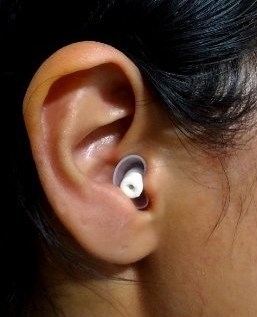
LiveMusic! Ear Plugs image

LiveMusic! Ear Plugs

An earlier post Technology for Sound Sensitivity dated February 2, 2019 shared a case study of a student with auditory overload when in noisy environments. A variety of noise reduction options were researched and presented. While the Vibes noise cancelling ear plugs were implemented initially with the student,  there continued to be occasions that noise levels caused the student to seek the quiet of the resource room to each his lunch.  While the Vibes worked the majority of the time, the student reported whistling and noise levels that were not tolerable. A better solution was needed.

As researched and presented in the Technology for Sound Sensitivity post, additional high frequency noise cancellation ear plugs are available. Further research found flanged ear plugs recommended –  (what’s that??), which look like this:

flanged ear plugsThose flanges, which you have all seen on inexpensive ear plugs, provided a better seal in the ear.  The LiveMusic HearSafe earplugs which are flanged ( triple flanged!), were trialed with the student. The LiveMusic HF ear plugs come in sets of two,   one set with 29 db NRR (noise rating reduction) and other 23 db NRR. With application of the 29 db NRR the ear plugs were found to be comfortable and resulted in the student able to consistently stay in the lunch without being challenged by the noise or whistling sounds. With these HF noise cancellation earplugs, you are able to hear conversations with peers and teachers blocking only the loud, high frequency noises. For this student it worked like a charm!

The only challenge encountered was the student had difficulty getting the earplugs out of the tiny, narrow container provided. A different container was provided and all was good! The student now is ready for high school using inconspicuous ear plugs, able to hear conversations while tolerating the inclusive lunch or other noisy environment. Fortunately, this student was very organized and has been able to maintain the ear plugs without misplacing the tiny things! What a win!

LiveMusic! HearSafe Earplug – Available on Amazon for $28.95.

For this student, this was a great low cost, low tech solution! I wish all solutions were this simple and low cost!

More for your OT eToolKit!

Carol – OT’s with Apps & Technology


Posted in Assistive Technology, Self-regulation, Sensory Processing, Special education, Special Needs | Tagged , | Leave a comment