OT iTool Kit Tip and Trick #3 – Adding a Webpage to your Home Screen

Do you have frequently visited websites you need to access on your iPad for medical billing, attendance, or sites you or your students like to visit?

Did you know that you can create an icon on your iPad to link you directly to a website URL so you don’t have to type in the URL again and again?

Here’s how you can create an icon on your iPad page of a frequently visited website using Safari:

  1. Open Safari on your iPad/iPhone/iPod Touch
  2. Open the website and specific page you typically go to (e.g., log in of web-based Outlook, online medical billing site, etc.)
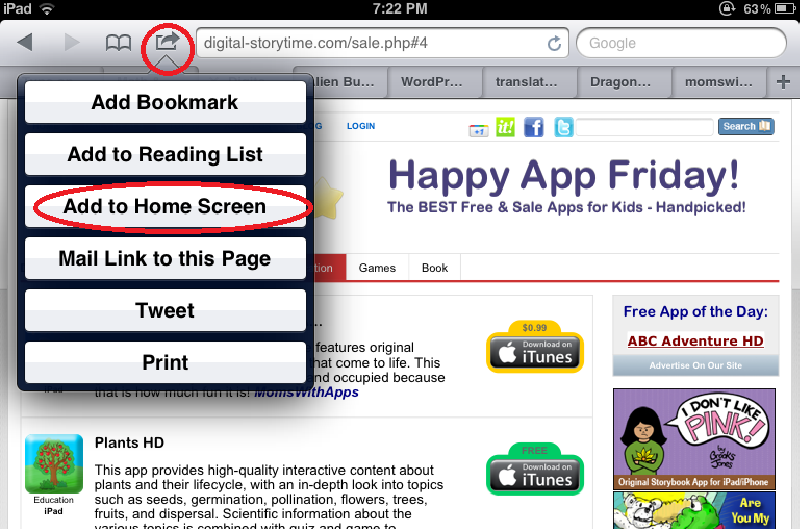
  3. While in Safari at the top of the screen you will see a tool (square with arrow) that provides options (Add Bookmark, Add to Reading List, Add to Home Screen,… Print). Tap/select that top tool or option. A drop down menu presents. Then tap or select Add to Home Screen.

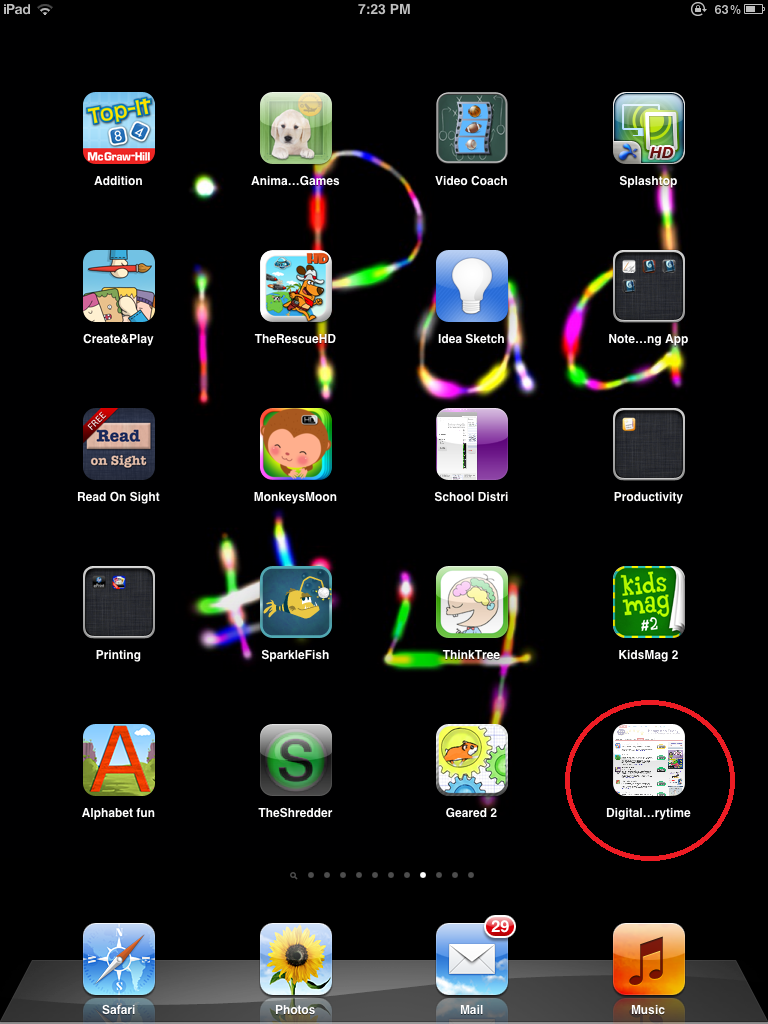
4. An icon will be added to one of your iPad/iPhone/iPod screen pages that looks like the web page you chose to “Add to Home Screen”. Search the pages of your iDevice for your new icon of the web page you chose to “Add”. Now you have a short cut to that favorite or frequently visited web page.

You can also create Bookmarks in Safari, but adding an icon to your iDevice screen is a very convenient way to access those frequently used online accounts during your work day. Once you add it to your iDevice screen, you can move it to a convenient location.

Now if you want to get really techie you can create your own icon picture – here’s a video tutorial of you to do that on YouTube: http://www.youtube.com/watch?v=4JEkx2TvqYc&feature=related .

Tips and trick for using your iDevice!

Carol

Posted in iOS, iPad, iPad Management, iPhone, iPod, Occupational Therapy | Tagged , , , , | 2 Comments

Apps Gone Free – Happy App Friday

Digital Storytime – one of my sources for reviewed and free educational apps has some apps you may want to peruse today or this weekend (I am not sure how long they will be on sale or available for free…). Here are some of the titles of education apps available for free in their Daily Deals tab:

  • Magic Sorter* –  (iPad) Shape matching
  • Geared 2 – Spatial Puzzle requiring you to align gears (there have been specific students who used to love to take apart and build who would especially love this dynamic, spatial, problem solving app!)

* There was problem down loading Magic Sorter reportedly through iTunes. Hopefully it will be resolved.

Check them out (ASAP) and see if they are appropriate for your OT iTool Kit!

Carol

Posted in App Reviews, Apps for OT's, iPad, Visual Perception | Tagged , , , | Leave a comment

Apps for Mental Health

One of the many areas that Occupational Therapists work in is mental health.  This is not a specialty area of mine, however mental health issues definitely are areas we all address from time to time, whether in the school system, vocational  or in clinical settings.

A comment last week from Linda, asked about mental health apps and the lack of them on this blog.  There are not any listed as mental health apps but rather apps that focus on sensory, social stories that address some of the mental health needs we have in the school system. Here are some of the apps that can be used at school that I would consider “mental health apps “:

  • Me Moves app
  • Relaxation Melodies app
  • White Noise app
  • Pandora radio app
  • Soundscape app
  • Pocket Pond app
  • Fluidity
  • Fluid
  • Fluid Monkey
  • Sparkle Paint
  • Marine Aquarium
  • SOSH – This is a suite of apps that provides the following sub topics:
    •  Relax (Block Out, Deep Breathing, Shredder, Imagine, What Helps to customize); Regulate (Self monitor, voice meter)
    • Recognize (Triggers, FAcial Expression, Feeling, Shades of Gray)
    • Relate
    • Reason areas with other strategies that can be customized for a student/client. This app is geared to individuals with social skill challenges. –
  • Moody Me – free, tracks moods given visual icons to choose from
  • Time Timer or VisTimer to assist with limits
  • Doodle Buddy app –
  • White board app (or a low tech dry erase board, or symbol pictures for visual communication) depending on the need of the student.
  • First Then app – visual schedule app

Mental health apps are definitely available for students and with a bit of search are being developed for adults as well. Here are some websites reviewing apps and apps for mental health:

Mental Health Apps:

  • Mindfuness App – iPad, iPod/iPhone (1.99) Mindfulness meditation app; there is interesting new/current research on the positive effects of mindfullness training
  • Breath2Relax – iPad, iPod/iPhone, Android (Free) Portable stress management app
  • T2Mood Tracker – iPad, iPod/iPhone, Android (Free) Mood monitor
  • My Mood Tracker – iPad, iPod/iPhone (4.99)Tracks moods and emotions
  • PTSD Coach – iPad, iPod/iPhone/Android (Free) – Manages  symptoms after trauma.

These are just a few of the many other mental health apps including apps that helps with assessment, data gathering and strategies for dealing with mental health issues using a portable electronic device. Some of the breathing and mood tracking apps could potentially be applicable to older students as strategies to train and work on implementation of calming strategies.

I thank Linda for providing me the comment to make me rethink and explore some apps in mental health. I’ll have a few more ideas on some apps that can aid older students when the need arises.

If anyone has any experience with mental health apps, feel free to share!

Apps for your OT iTool Kit!

Carol

Posted in App Reviews, Apps for OT's, Apps for Special Needs, Autism, Emotions, iPad, iPhone, iPod, Mental Health, Occupational Therapy, Self-regulation, Sensory Apps, Sensory Apps for ASD, Social Skills | Tagged , , , , , , , | 2 Comments

Game Apps from EnsenaSoft for Individuals with Special Needs

Looking for games that transcend age or abilities for your students or clients? Games that encourage turn taking, engagement with others and leisure skills?

Check out EnsenaSoft game apps for kids or adults – almost any age. This weekend they have many on sale for iOS devices! Here are some of the titles of their games which are available on different mobile or computer platforms – Android, iOS, Windows:

  • Barnyard Mahjong
  • Fantastic Four in a Row
  • Fantastic Checkers
  • Terrific Tic Tac Toe
  • When Pigs Fly
  • Hang Man
  • Mancala
  • More…

I work with students of a variety of abilities at school. For some students leisure, engagement, interaction with others and turn taking are functional skills being developed. Games, whether on the computer, Wii, in gym or on a mobile device foster those skills. Use of the iPad has been a game changer for our students when barriers of physically manipulating game pieces or drawing, independent set up, understanding the rules or sequence of the game or turn taking with others may interfere. Our students and their peers (teens and adults/teachers) enjoy playing games that are ageless such as Tic Tac Toe, Four in a Row or Checkers on the iPad with our students that allow easy access, set up and facilitate interactive skills. Games that have one and two player options (usually not in the free versions) allows students to learn the game when played by themselves prior to turn taking using two player mode with a peer. They enjoy the games whether they win or lose!

I was excited to find the EnsenaSoft full version game apps gone free for this weekend. They are simply presented, have options for one and two players and have music and animation in them that will engage our students.  One of my students with an infinity for music will just love the music playing (has option to turn on and off) in the apps.

Our students have been playing some of these games already and really enjoy playing them by themselves, but also with others. The best thing is these games are a lure for interaction with others – same aged high school peers, adults or other neurotypical students. They have been a great addition to one of my students’ fun choices on her communication device (iPad). She can request it and then navigate to the app to play – what independence! Who doesn’t like to play a game now and then, especially those that are ageless like tic tac toe, checkers,  mahjong (look out mahjong is addictive!) or four in a row?

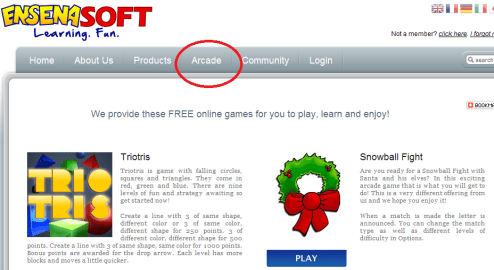
What also is great is EnsenaSoft supplies these games on different platforms and if you want to check them out first  they are Ensensasoft’s website under their arcade tab!  EnsenaSoft’s website Arcade tab allows you the choice of games by Preschool, Grade School or Young/Adult with a variety of games choices that can be played right on the computer with students – no need for an iDevice.
I am always on the hunt for activities and apps that allow our students age appropriate engagement with others. These EnsenaSoft apps and software fit the bill. Thank you EnsenaSoft for offering these for free  – what a deal for our students!

An earlier post on games for special needs listed a few other games on the iPad (such as Action Bowling) that our students love. I have not trialed any of these apps with students needing switch access as I currently don’t have students needing such access.

If you have any suggestions for iDevice games for student with special needs – please share!

More for your OT iTool Kit!

Appy Gaming!!

Carol

Posted in App Reviews, Apps for OT's, Apps for Special Needs, Developmental Delay, Game Apps for Special Needs, High School, iPad, iPhone, iPod, Leisure apps, Occupational Therapy, Special education, Special Needs | Tagged , , , , , , , , | Leave a comment

OT iTool Kit Tip and Trick #2 – Taking and Using Screen Shots on Your iDevice

This Tip and Trick #2 – Taking and using screen shots on your iDevice was prompted by a question from Fiona about how to take a screen shot. This is a tip and trick that is so useful I thought I would post it in the case users are unfamiliar with this feature.  Here is how you take a screen shot on your iPad or iPod:

1. Search what ever reproducible image, worksheet, document, PDF or picture you want to capture and have it open on your iPad screen (make sure you are complying with copyright laws).

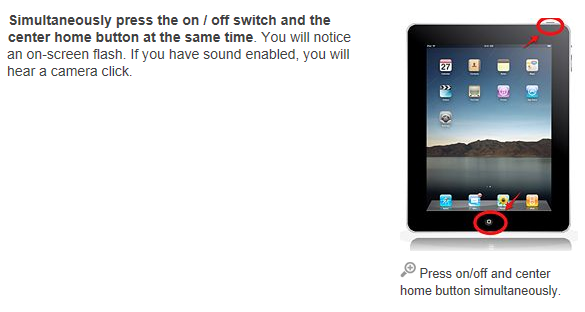
2. Press the iPad/iPod home (bottom button) at the same time as the power bottom (at the top). You will see a flash and hear a camera click (if your volume is on). Your screenshot has been taken (same thing as Print Screen on your computer).

3. The image will be sent to your Photos for review or use.

Here are some ideas of the things you can do with screen shots:

  • Import the image into other apps such as Doodle Buddy, Your Whiteboard to draw or write on. Images of reproducible mazes, dot to dots, letter formation sheets, hidden pictures found on the Internet (check out what Your Therapy Source , Education.com/worksheets, All Kids Network,  there are many more available ). You may need a stylus for this!
  • Screen shots of documents can be taken and imported and converted into PDF in apps such as Type on PDF Free.
  •  Import and crop pictures from Internet sources for use in communication or visual schedule apps such as My Choice Board or First/Then as needed.
  • Take screen shots of images and group them in an Album for a slide show like presentation for your students on your iPad (see Jan. 25th Tip and Trick on creating an Album as a  visual schedule or sequence/book.
  •  I have taken screen shots of pages of a purchased book bought for my Kindle and viewed on my iPad Kindle app.  I took screen shots of specific pages that had sensory checklists and worksheet pages that I use with some of my older kids with sensory issues. In stead of scanning or copying them (this is so much easier), the screen shot  takes picture of each page, puts them in my Photo icon/app then I grouped them in an Album by chapter/topic in my iPad for easy retrieval and use with my students. With the right app they can completion checklists by using a writing or drawing tool. Taking another screen shot of the completed checklist will save a copy to your Photos.

What did we do before we had iPads? Carried around folders and binders (I still do that, but am trying to decrease my load!) to access the forms and materials we needed. Although we still need manipulative tools and activities with our students, the iPad/iPod can help reduce some of the materials we have to tranport given that many OT’s in schools are transient.

Hope that spurs some ideas on how to use your iPad other than with app content. Please share any ways or tricks you have found on how you use screen shots or any other iPad/iPod tricks or tips you have!

More for your OT iTools Kit!

Carol

Posted in Activity Worksheets on Your iPad, iOS, iPad, iPad Management, iPod, Occupational Therapy, Special education, Stylus | Tagged , , , , , , , | 6 Comments

Alien Buddies App Gone Free Again!

Alien Buddies App is currently free again (until 1-27-12 ?)! This is app was previously mentioned in a post in December, 2011 (when free) for its visual motor and visual perceptual activities. Geared for 3-7 year olds, the following activities are featured in the app.

  • Matching – color, shape, letter and number recognition
  • Puzzle – problem solving, shape recognition with 4, 6 or 8 pieces.
  • Dot to dot sequencing with numbers

Good for fine motor and visual perceptual motor tasks is a fun and engaging app for early childhood to kindergarten aged students. If you didn’t have a chance to acquire for free hopefully you will now.

Good for your school based OT iTool Kit.

Carol

Posted in App Reviews, Apps for OT's, Early Childhood, Fine Motor Development, iPad, iPhone, iPod, Occupational Therapy, Special education, Uncategorized, Visual Motor, Visual Perception | Tagged , , , , , , | 2 Comments

OT iTool Kit Tip and Trick #1 – Creating a Visual Schedule (Sequence) in your iPad Photo Album

I wish I was as smart as our Paraprofessionals (Tara, Olivia) and COTA (Erin) at the school I work at! They demonstrated at a training how they have been creating Albums to show sequences of tasks or events, scheduled tasks (yes, just like using a visual schedule) for students using photos taken on the student iPads with iOS 5.  Although we have some  First Then apps on some of the iPad, not all of the devices were provided the app. But being the mother of necessity they created their own way of producing a visual sequence of photos for their students.

How did they do that?? Clever, but easy…

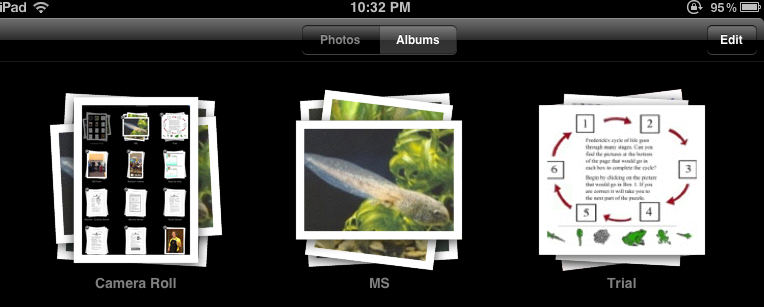
In your Photos icon using iOS5, you have the availability of viewing pictures in Photos or Albums. Select or tap on Albums.

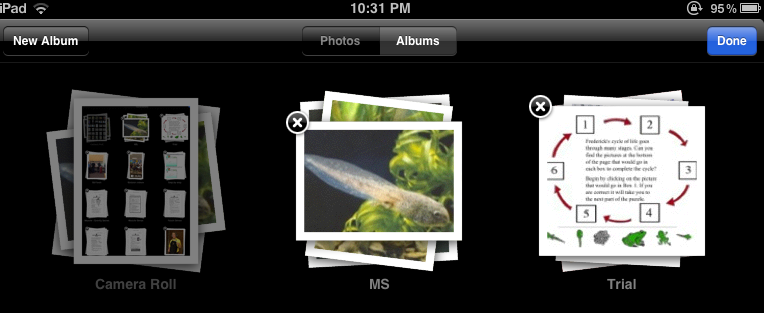
When Albums is selected, an Edit button becomes available. Tap the Edit button.

After tapping the Edit button, a New Album button appears on the top left of the screen.

Tap or select the New Album button. A dialogue box allows you to name your New Album.

After creating a New Album, you are prompted to “Add photos to your New Album. Tap or select Photos button and  tap or select the pictures you want added. Photos are copied and not cut from your Photos library. When you have selected all you need, tap Done.

Your selected pictures will be collected or stacked in the named Album. To review, tap on the first picture of your Album and they will be ready to view in the order you selected them. You can also play them like a slide show if appropriate. Paraprofessionals take picture of the scheduled activities, work tasks and name the New Album (Wednesday PM, Thursday AM) creating a visual sequence of activities to present to the student. It does not have as many features as an app as First Then, but it sure can get the job done!

I also like creating Albums with groups of worksheets or handouts of a theme or activity type that I may have found on the Internet. Taking screen shots of online free materials I might use with some students provide easy access, organization and display on my iPad without carrying around folders and hard copy paper.

A great tip from our support staff at school!

Adding to your OT iTool Kit!

Carol

Posted in Autism, iOS, iPad, Photo | Tagged , | 8 Comments

New Apple Apps – iBooks 2 and iTunes U

Apple announced on Thursday, January 19th their new developments in the textbook arena – iBooks2, iTunes U and E-Book Creator for Mac computer.

Upgrade of iBooks to iBooks2 (free, requires just an upgrade, not a new app) allows greater management of multimedia textbooks with features of text, images, videos, animation and audio. Used with the Speak or Voice Over accessibility features, text to speech is available to access print in iBooks2. Accessible instructional media on your iPad,  – truly amazing providing access, visual and wonderful multimedia for your students (if the text-book is being offered – or you can create it!) – talk about Universal Design! If you haven’t already downloaded iBooks to your iPad or iPhone/iPod, its time to do so as children’s books along with textbooks have the potential of being more multi-media rich also!

Apple also announced their new iTunes U app – a free app coursework, books, videos, presentations already available in iTunes but now easily available in an app on the iPhone and iPad. Currently it has open sources text materials, videos, presentations, audio and books primarily for post secondary students.

The app has note taking options and  offers access to associated materials within the app.

iTunes U certainly has the potential for offering any kind of educational multi-media for young and old. This is an amazing resource if you want to brush up on anatomy, psychology – almost anything – for free! I have enjoyed downloading podcasts from iTunes U in the past to listen to while driving. The iTunes U app makes this even easier without the hassle of  downloading into iTunes.

Another new development for the Mac computer is a free E-Book Creator app. Only for the Mac computer, the E-Book Creator will allow making e-books using this app. Use the link for more information on the Mac app. I am really wanting a Mac computer to be able to use this app to create content for students for use on their iPads!

Here is a Mac World article for more information on Apple’s new developments. With the accessibility on the iPad and multi-media content for students with special needs I believe we will see a plethora of educational content still arriving for the iPad.

As a school based OT and AT specialist this unfolds a whole new use of the iPad for students with learning disabilities or students needing modified content for their classes.

More great tools for your OT iTool Kit!

Carol

Posted in App Reviews, Apps for OT's, eBook Creating, High School, iPad, Learning Disability, Middle School | Tagged , , | 2 Comments

TouchFire Screen-Top Keyboard

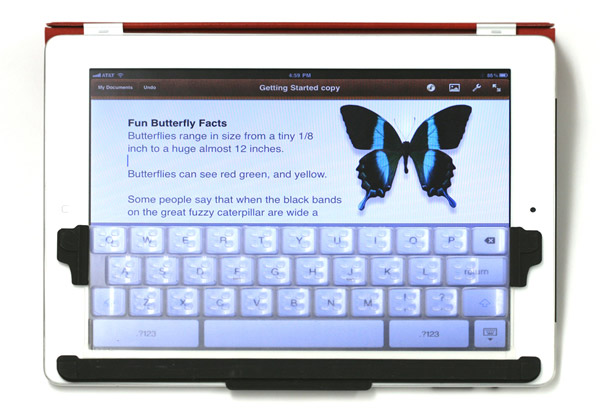
A comment to the post about “sturdy cases” from Ann Sciabarrasi, OTR shared the TouchFire Screen-Top Keyboard, a new iPad keyboard. Created by two tech developers, Steve Isaac and Bradley Melmon, this keyboard is small and portable attaching to the iPad with corner magnets. Compatible with iPad 1 and 2, it sits on top of the keyboard:

An interesting new keyboard, this video shows it being used:

For more details visit TouchFire’s website. It’s low scale design makes it very portable and integrates with other iPad cases. I wonder how students at school will adapt to it (they probably will adapt easier that those with established keyboarding habits!)?

Thank you Ann! This is a great, portable option to a keyboard for the iPad! I am looking forward to adding this to my iPad equipment for its portability.

Carol

Posted in iPad, iPod/iPad Accessory, Keyboard | Tagged , , | 2 Comments

Letter School App

Letter School app is another letter/number formation app available for iPhone/iPad (Lite/2.99) that was found by my OT colleague, Erin (nice find Erin!). She rated it as well worth the 2.99 for the choices of handwriting styles of letters (HWT, Zaner Bloser, D’ Nealian etc) as well as varied, and engaging interactive activities presented in the app.

Letter School provides instruction in upper and lower case letters and numbers with a choice of what method of instruction you or your school has adopted to remain consistent in instruction!  Although there are some great letter formation apps out there, differences in methods of letter formation can be problematic. Letter School app provides choices for that.

Visit the Letter Store for more information.

This looks like an engaging app for learning letter formation and sounds. Check it out to see if it is appropriate for your OT iTool Kit.

Thanks Erin!

Carol

Posted in App Reviews, Apps for OT's, Apps for Special Needs, Autism, Handwriting, iPad, iPhone, iPod, Letter Formation, Occupational Therapy | Tagged , , , , , , , | Leave a comment