Smartpen use by ASU students with Learning Disabilities

See on Scoop.itAssistive Tech at SFSD

csleynse‘s insight:

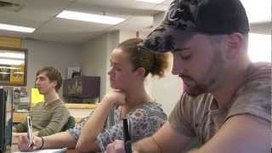
Students’ comments on the use of the Livescribe Echo Pen. One of the connections that can be created with the Livescribe Desktop software is using the Pencast Player app for iPhone and iPad. App reviews are mixed however.

See on www.youtube.com

Posted in Adults with LD, iPad, iPhone, iPod, Middle School, Note Taking, Occupational Therapy, School Based Interventions, Special education, Uncategorized, Writing | 2 Comments

Fish School App

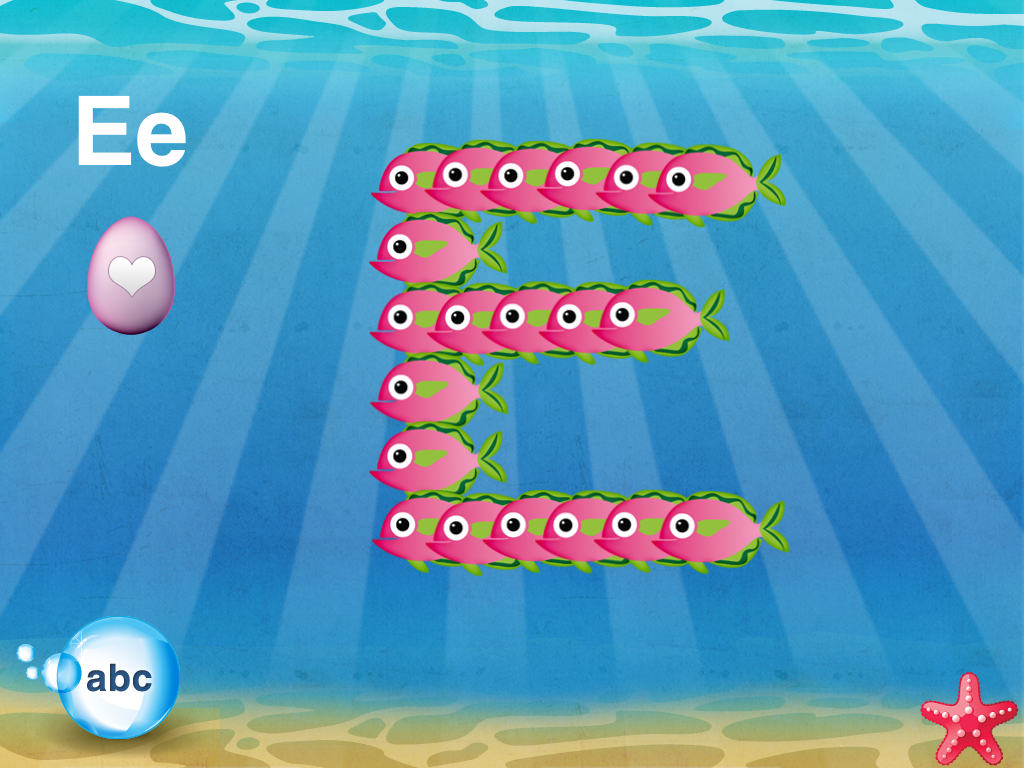
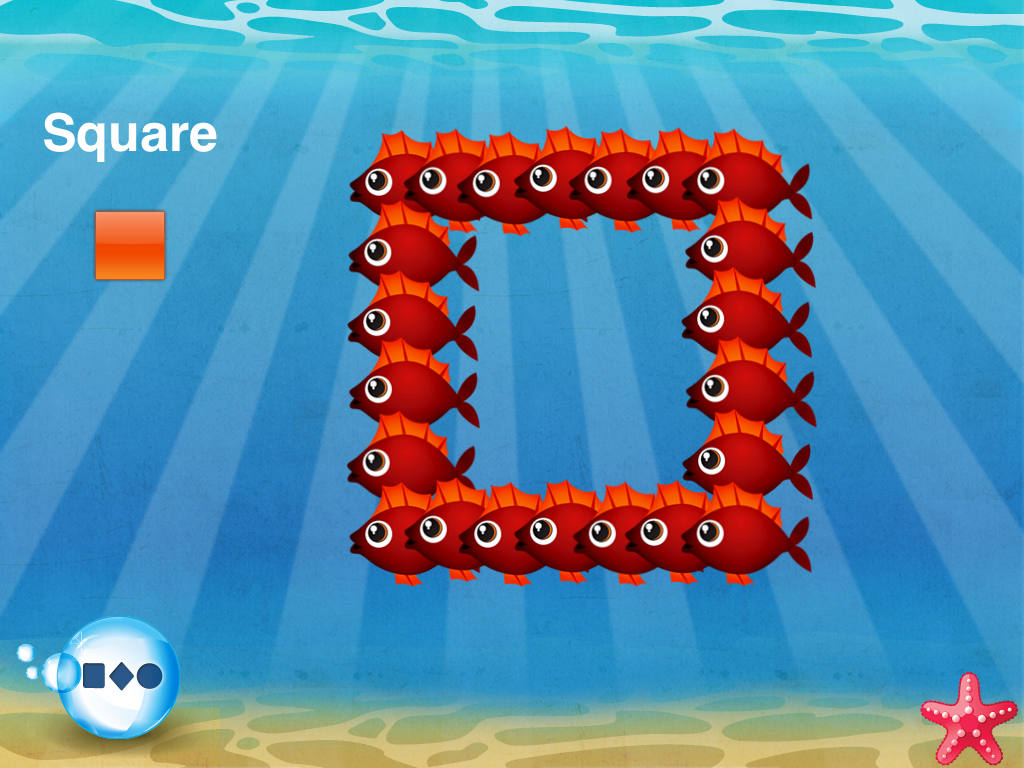
Fish School iconFish School is an app for your iPad (iOS 3.2 or later) from Duck, Duck Moose currently $1.99.  An app for toddlers and preschoolers, it features colorful fish that swim along and teaches the basics –ABC’s, numbers, and shapes (& more).  

At your tap, the fish swim into the various letters or shapes (think “Finding Nemo”).  You can also tap the balloon in the left lower corner to easily change the game you are playing.

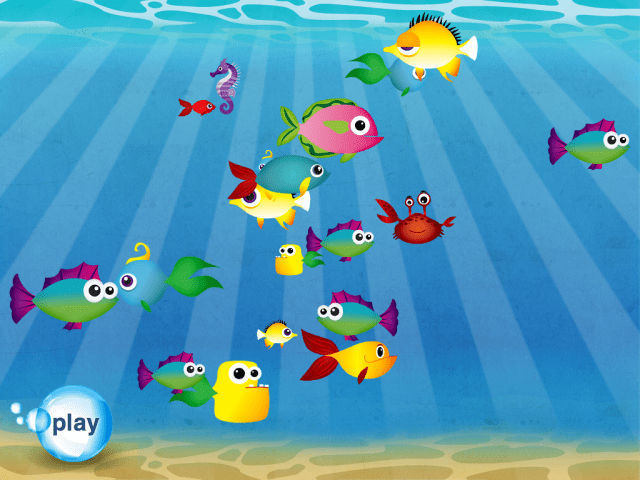
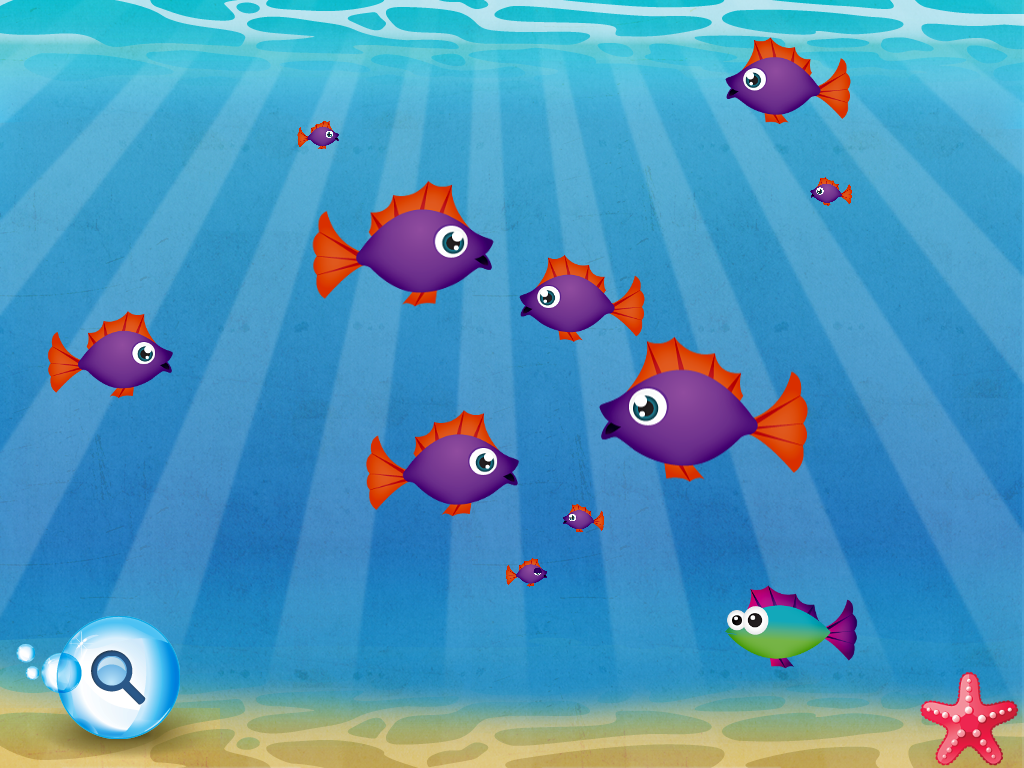
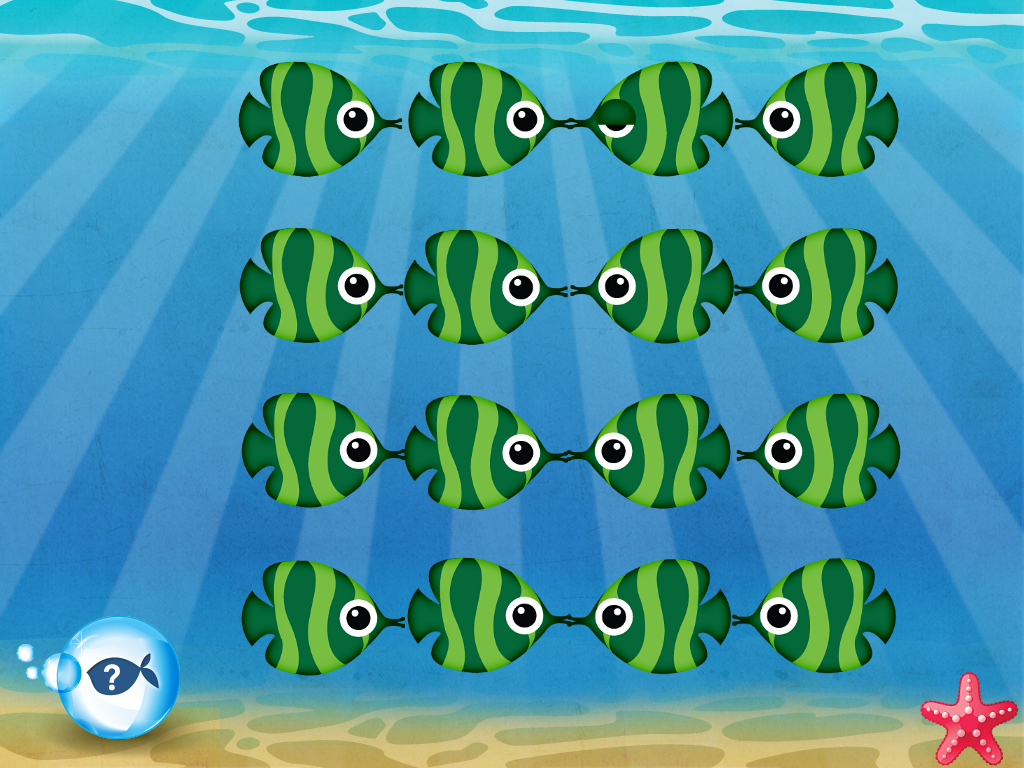
Fish School pic1                 Fish School pic2

The app has a fun ‘play’ setting that allows students to touch the fish for different reactions.  There is an ‘ABC song’ option that sings the song while the fish form the letters to the song.Fish School pic3

There is a neat color game that allows you to tap a fish and then all the fish turn that specific color.  It is a cute way to reinforce color learning.

Fish School pic4

There is a ‘spot the difference game’–which seems to me to be at a just right level of ease for our kiddos.

Fish School pic5

The ‘matching game’ is a memory game–you tap the fish to reveal fish underneath.

Fish School pic6

Fish School offers a nice range of games to Fish School offers a nice range of games to work on early educational skills.    I like that it requires either a simple isolated finger touch or a general tap/swipe to the screen.  This second aspect works nicely with some of our more physically challenged students.  The graphics are colorful and tunes are soothing (violin and cello). 

If you work with young students, I recommend you check out this app!

Carol Hesch, OTR

Carol Hesch, OTR is an occupational therapist of 23 years with a passion for helping children learn. She has experience in pediatric acute care, rehabilitation, early intervention and school based therapy. As a member of an iPad team for a large school corporation, she has been exploring the use of mobile technology as a “new age” modality with her students.


Posted in App Reviews, Apps for OT's, Early Childhood, Fine Motor Development, Finger Isolation, iPad, Occupational Therapy, School Based Interventions, Special education, Special Needs, Uncategorized | Tagged , , , , , | Leave a comment

Best Apps for 4 Year Olds – Kindertown

See on Scoop.itApps for Special Education

The KinderTown app helps busy parents find the best educational apps for kids ages 3-6 years old. Download it on your iPhone, iPad, or iPod Touch and teach your little one something new today.

Carol Leynse Harpold‘s insight:

KinderTown’s Carolina Nugent provides wonderful reviews and insights about technology and education for preschool students. Here is a list from her featuring best apps for 4 year olds. Check it out.

Carol

See on www.kindertown.com

Posted in Uncategorized | Leave a comment

Go Go Games App for Students with Autism

See on Scoop.itOT mTool Kit

Carol Leynse Harpold‘s insight:

New app for students with Autism called Go Go Games. Visual matching activities are some of the features of this app.

Are you familar with this app?

Carol

See on go-go-games.com

Posted in Apps for OT's, Apps for Special Needs, Autism, Game, Game Apps for Special Needs, Uncategorized, Visual Perception | Tagged , , , , , , | Leave a comment

Creating Relaxation Slide Shows on your iPod Touch

Looking for a fast easy way to create a relaxation slide show with favorite pictures and music on your iPhone/iPod without purchasing music or an app?
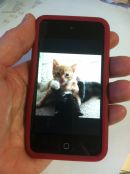
Photo Jan 20, 3 18 11 PM

The iPod Touch is a great personal device for students or clients to aid self-regulation. There are many apps for relaxation, calming or self-regulation but here is a simple way to create a customized relaxation slide show using favorite photos and music stored on your iPod or iPhone.
Here’s how to do it in 10 easy steps:
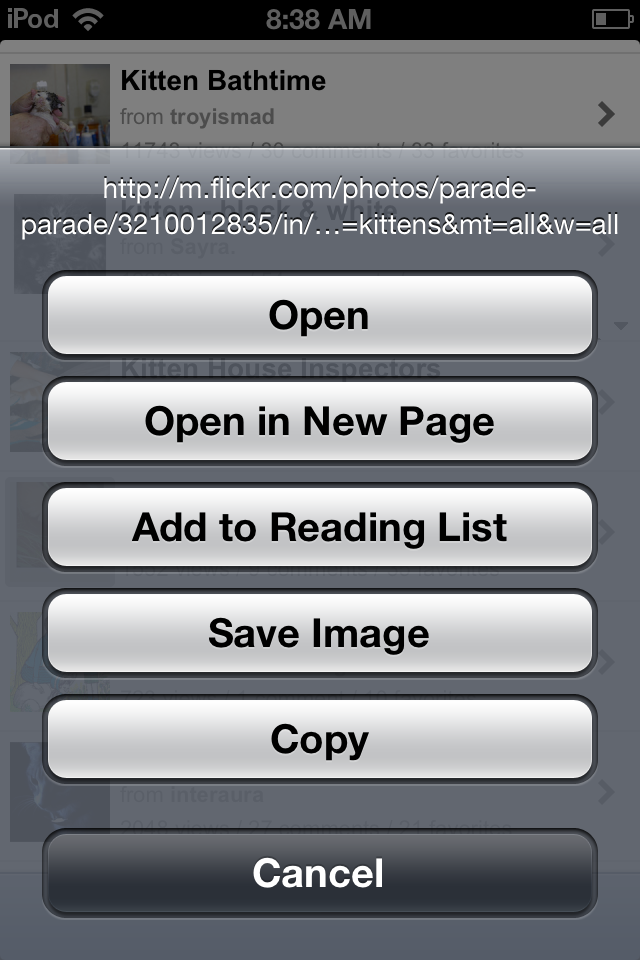
1. Take pictures of a favorite object or place using the camera on your device or find images on the Internet. If using Internet pictures, find copy right free images available from the Internet (see list for copyright free photo resources*). You can also easily copy Internet pictures by dwelling your finger providing the option of   automatically save the image to the Photo app on your iDevice.
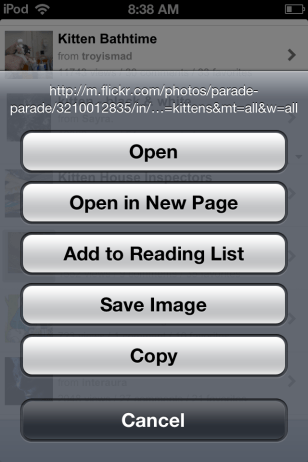
Photo Jan 20, 8 38 23 AM (1)

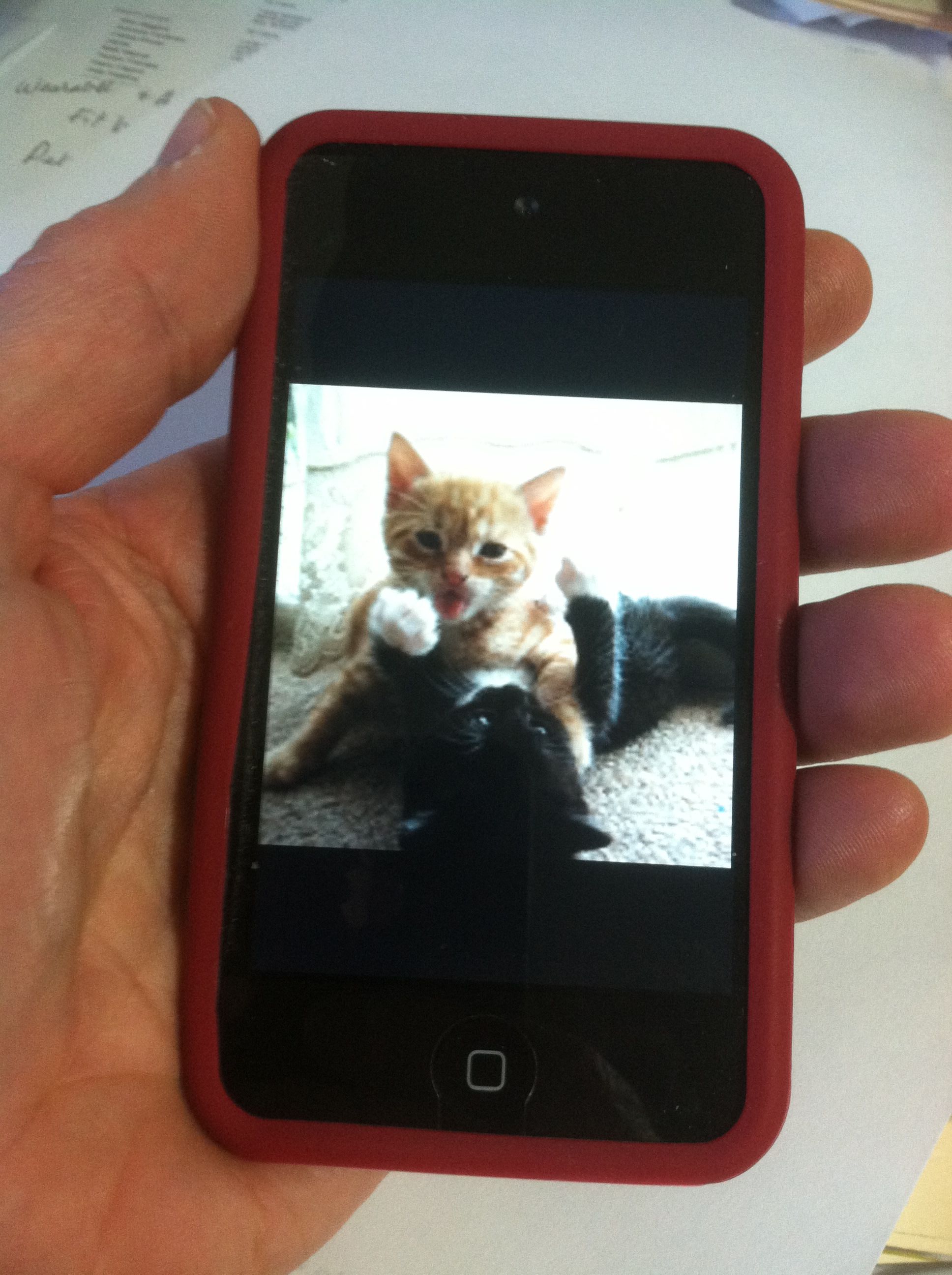
One of the students I work with loves cats. Cute cat images were very easy to find on Flickr,  one of the copyright free Internet photo resources.

Photo app iOS

Photos iOS app

2. In order to create a slide show using favorite images  in the iOS Photo app, you will need to  go to the Camera Roll, tap on Albums to create a new album.
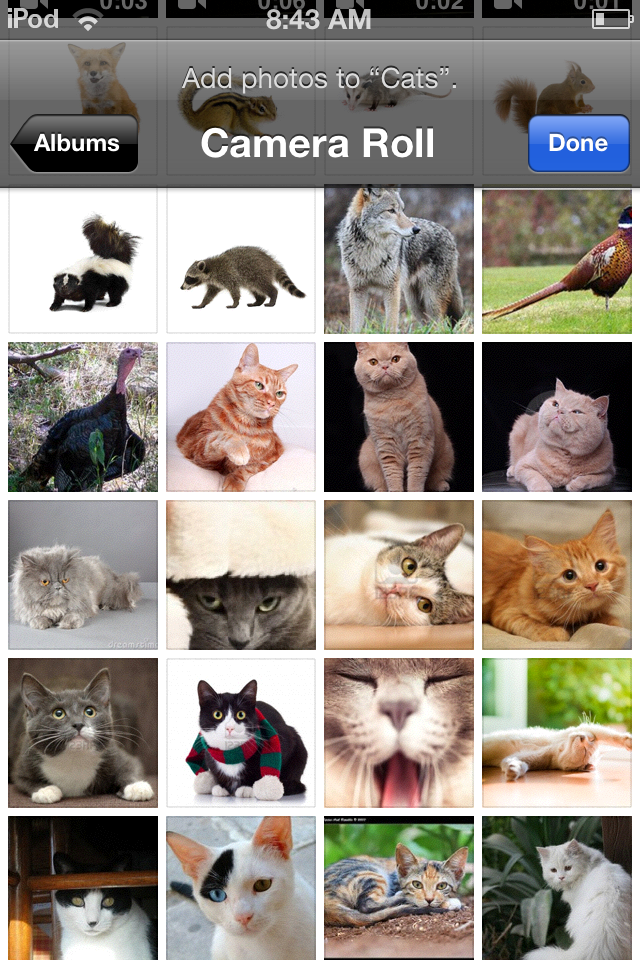
Photo Jan 20, 8 43 55 AM

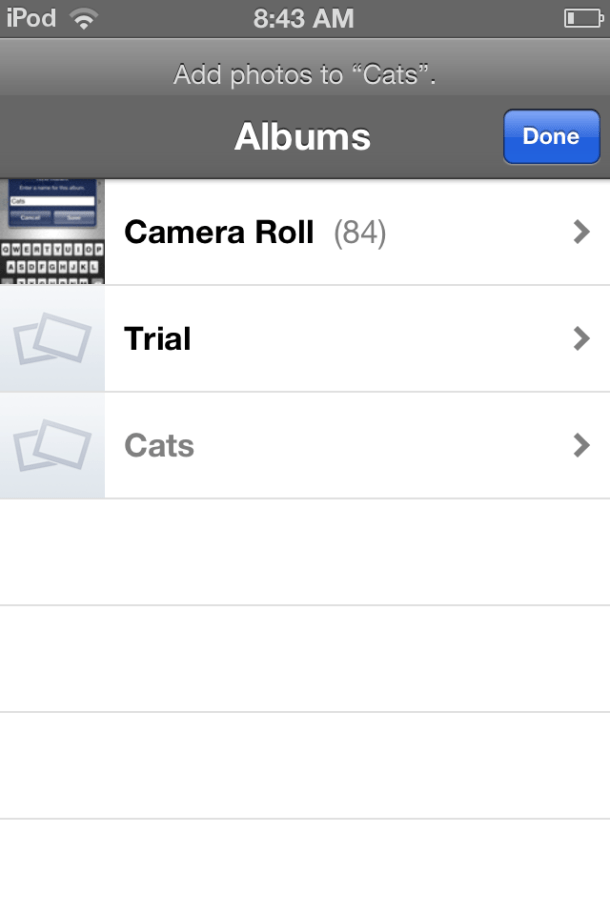
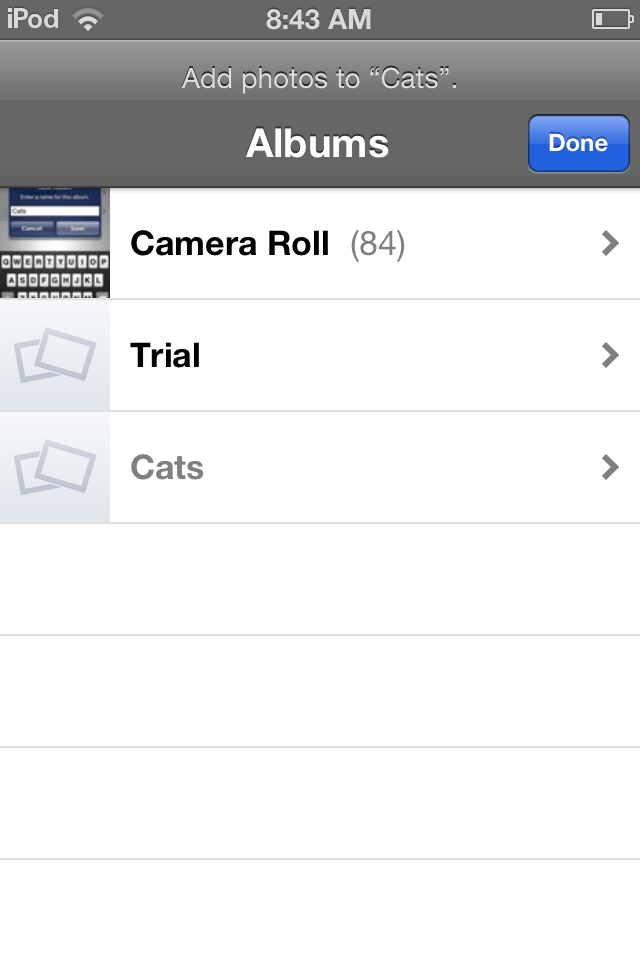
3. Click on the “+” button to create a new Album and give it a name (e.g. Cats).
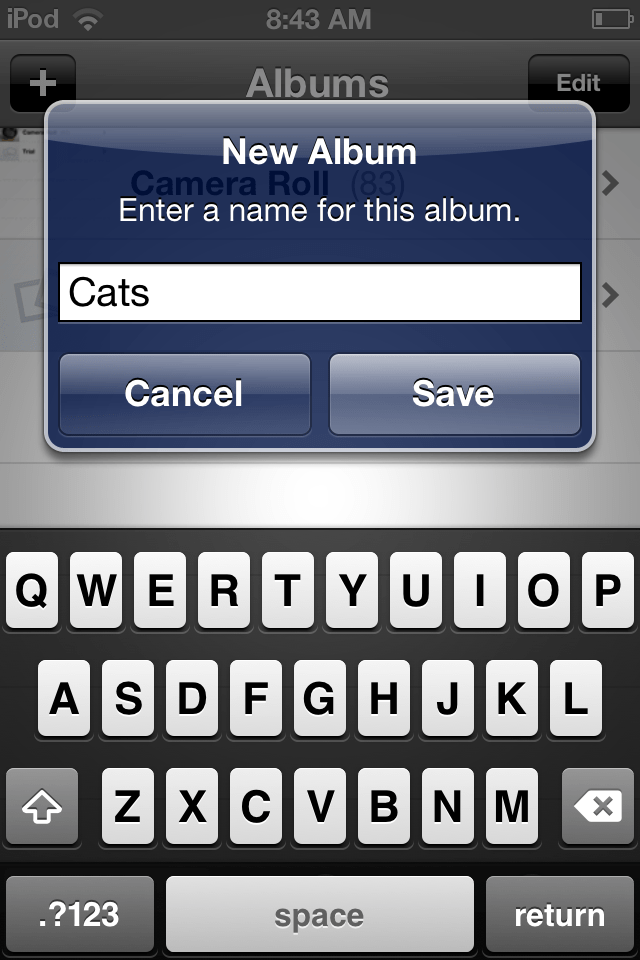
Photo Jan 20, 8 43 04 AM

Now you can tap the “Cats” Album.

Photo Jan 20, 8 43 17 AM4. In your new Album tap the Add button at the bottom. You will then have the opportunity to Add photos from your Camera Roll.
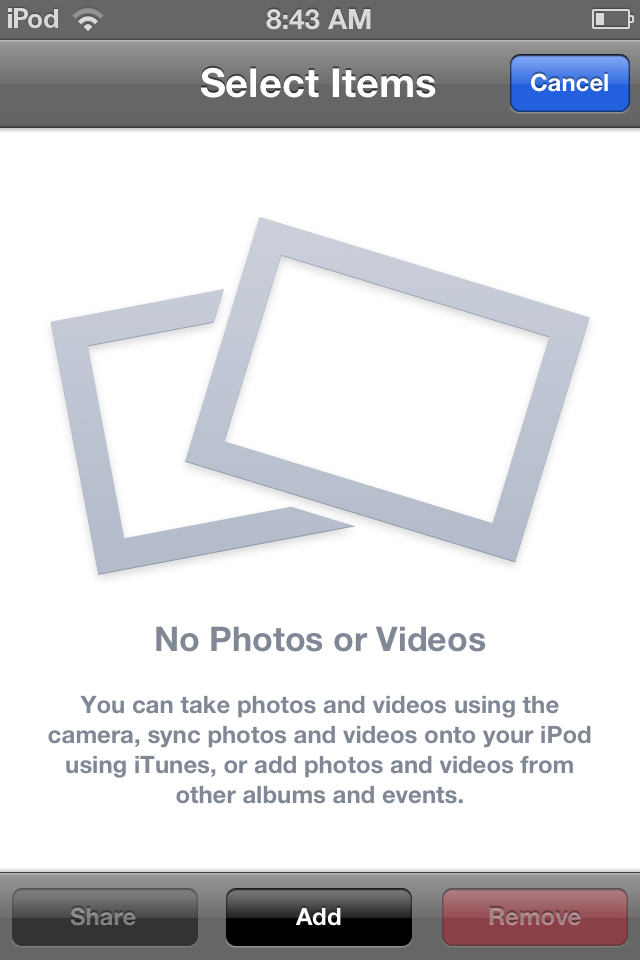
Photo Jan 20, 8 43 42 AM

5. Tap on photos in your Camera Roll  you want to add to your new Album (e.g. adds 23  photos to “Cats”). Tap Done and your selected photos will be added to your Album.
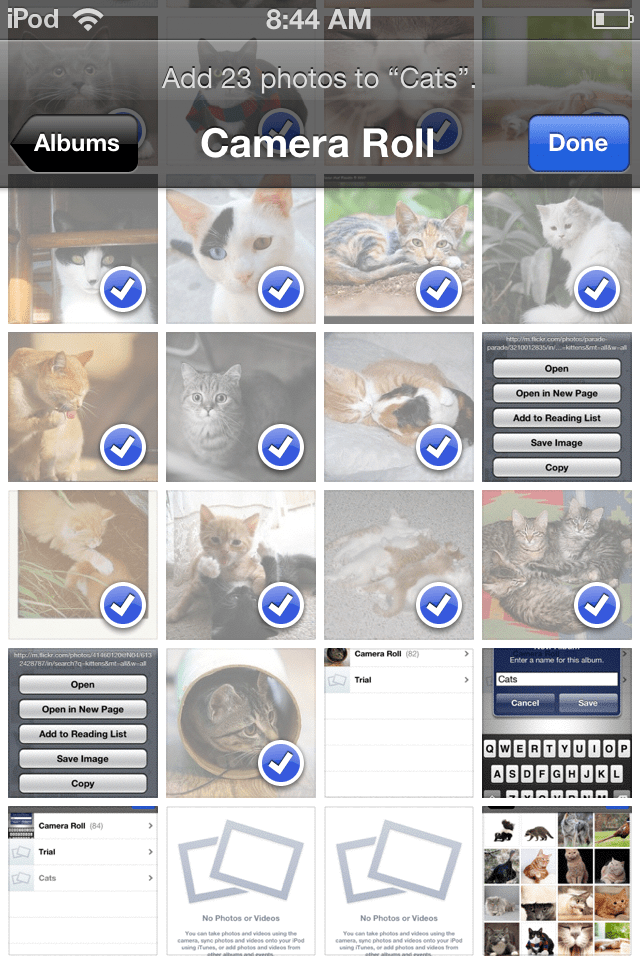
Photo Jan 20, 8 44 22 AM

Additional photos can always be added or deleted by using the Edit button when in an album.

6. To add music to your album select the name of your new album. With the Album open, tap the first photo of the album.
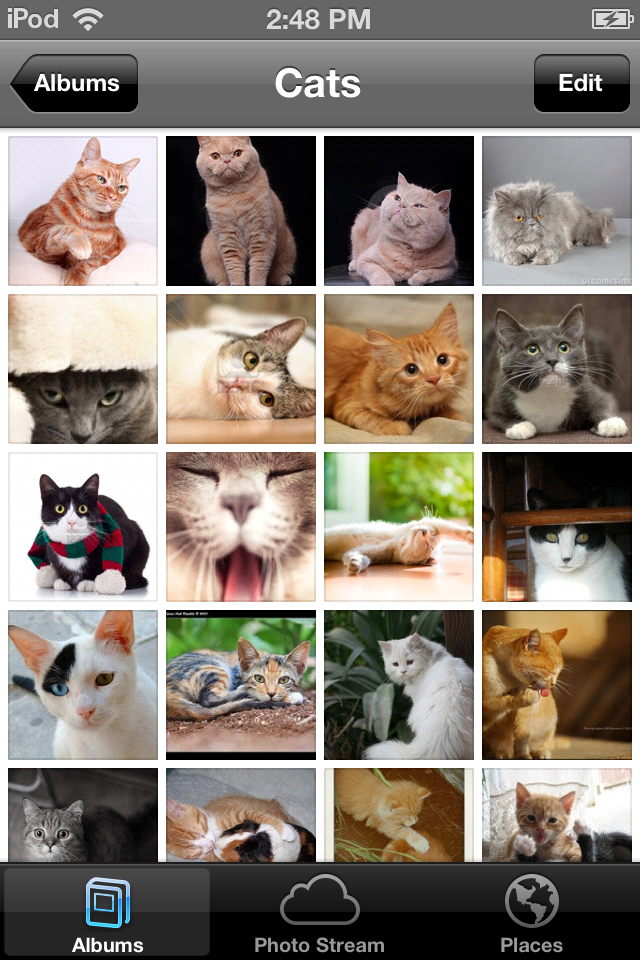
Photo Jan 20, 2 48 58 PM

7. The photo opens and here is where you can add music to the slide show by pressing the play (>) button at the bottom.

8. A new dialogue box opens allowing choice of Transitions, Play Music (on or off). Slide the Play Music button to On. 
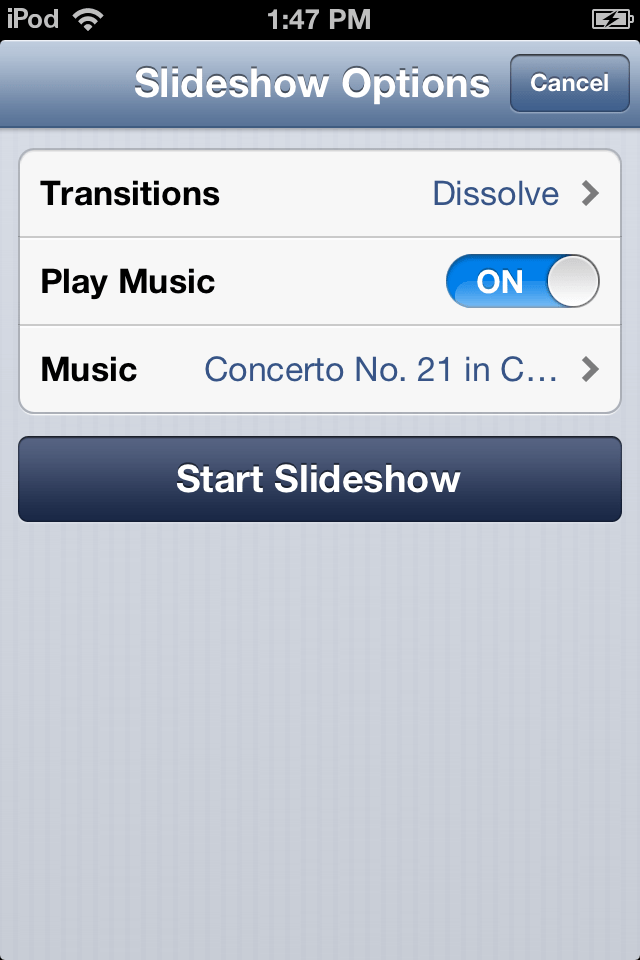
Photo Jan 20, 1 47 23 PM

9. Tap the Music button . Your music library is shown.  Tap on the desired song.
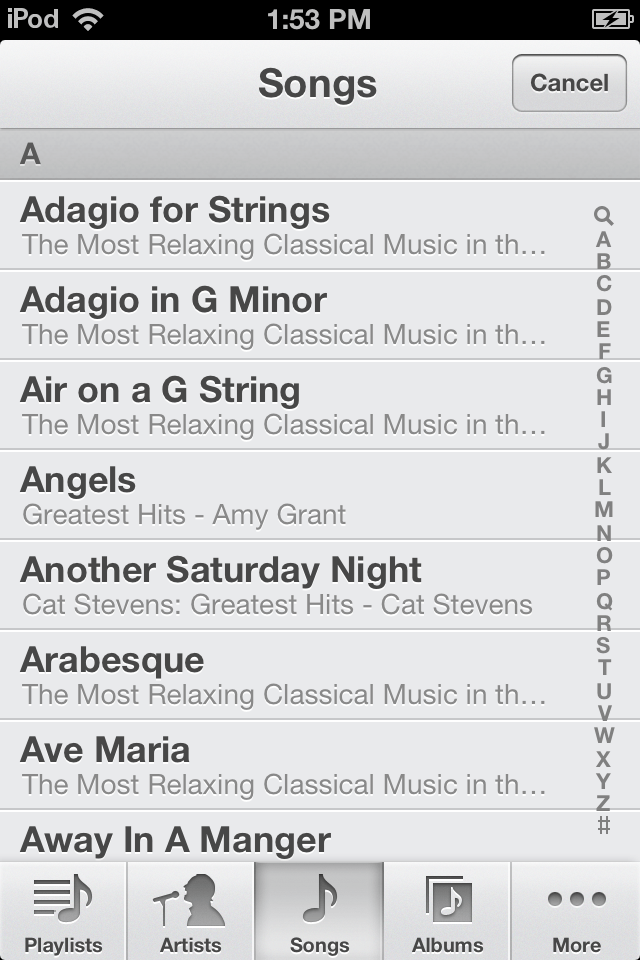
Photo Jan 20, 1 53 09 PM

10. Tap Start Slideshow. Your customized relaxation slide show is ready to go for your student or client. The music selected will remain attached to the album until you edit it.

After doing this once, the process is pretty easy only requiring locating images and music prior to creating a new Album. I am using this method of providing a customized relaxation slide show using the iOS Photo app as an on demand choice of a self-regulation activity for a student at school.  It does require numerous pictures to keep a slide show going for an extended time, but is easily customizable with pictures and music already synced to your iPod Touch as chosen by your student or client.

*In need of resources to find  copyright free and free images?

Here are a few to check out:

In need of free calming music?

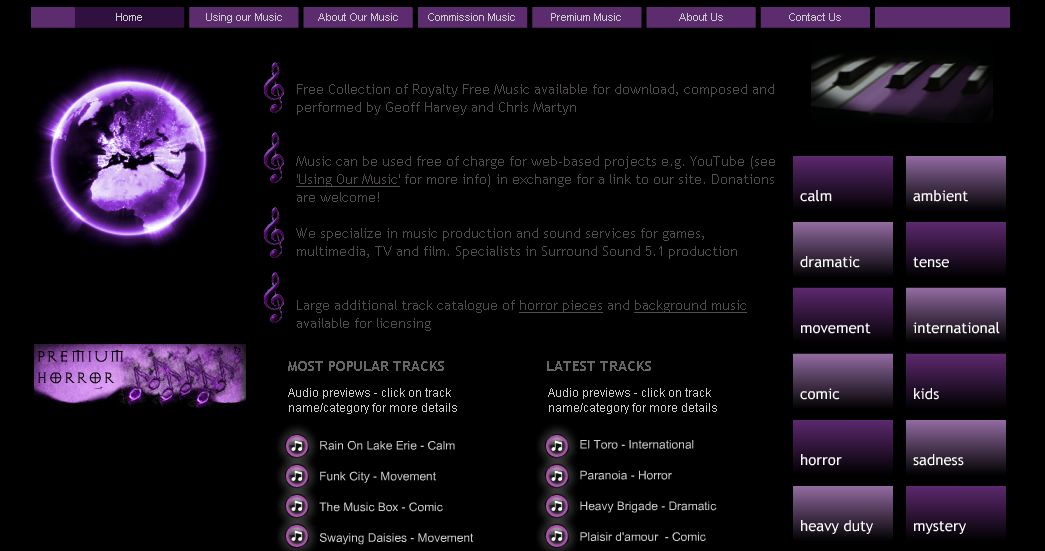
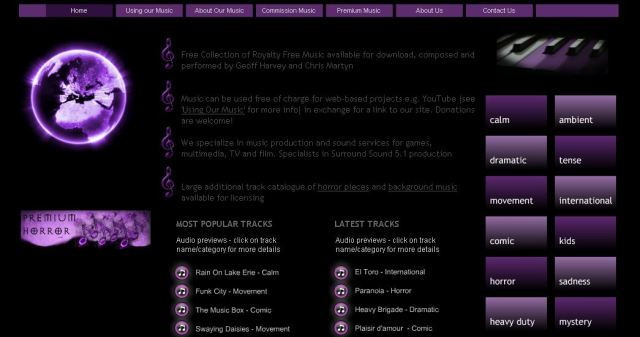
I stumbled upon Purple Planet.com trying to find calming music clips for free. Purple Planet offers royalty free sounds clips if you credit their website. I was quite excited to find Purple Planet.com  which supplied me with a variety of royalty free music to try with specific students that was easy to listen to the download right from their web and download with ease. They have a whole list of calming music and ambient music titles that might be suited to students who might benefit from music that is calming in nature. Here is a screenshot of their website:
Purple planet pic1

Purple Planet.com is one resource for downloading and transferring music from your PC to your iPod via iTunes. Instructions for how to upload music from your computer to your iPod Touch is found in the eHow article How to Transfer Music From my Computer to my iPod. Using appropriate existing titles purchased through iTunes certainly is another easy method of accessing music.

Interested in a list of calming apps for your middle to post secondary students (or adults)? Here is a link to 20 Calming Apps for Stressed out Students (and Teachers) from Edudemics.

Relax!

Carol

Posted in App Reviews, Apps for OT's, Apps for Special Needs, Education, Emotions, High School, iPad, iPhone, iPod, Mental Health, Middle School, Music app, Occupational Therapy, Photo, Rest and Sleep, Self-regulation, Sensory Apps, Sensory Apps for ASD, Special Needs | Tagged , , , , , , , , , , | Comments Off on Creating Relaxation Slide Shows on your iPod Touch

20 Calming Apps For Stressed-Out Students (And Teachers) – Edudemic

See on Scoop.itOT mTool Kit

The picture of college that we get from Hollywood is usually one where everyone is happy, carefree, and laid back, giving no thought to tomorrow.

Carol Leynse Harpold‘s insight:

Edudemic provides a variety of calming apps for middle to post secondary students and teachers worth checking out.

Carol

See on edudemic.com

Posted in App Reviews, Apps for OT's, Apps for Special Needs, High School, iPad, iPhone, iPod, Occupational Therapy, Rest and Sleep, Self-regulation | Tagged , , , , , , | Leave a comment

With Fleksy, Blind and Sighted Users Can Type on Phones and Tablets Without Seeing the Screen | Free Resources from the Net for EVERY Learner

See on Scoop.itOT mTool Kit

Carol Leynse Harpold‘s insight:

Paul Hamilton’s Edublog post features a new way to key on your smartphone. Check it out an trial this for yourself. Then share it with an individual with a disability who might benefit from this new, intuitive method of direct input!

See on paulhami.edublogs.org

Posted in Uncategorized | Leave a comment

Can’t Find Your Keys? – Here’s the App for That…

Cobratap icon

CobraTag App (free for iPhone, iPad and Android)

An adult client I evaluated with organizational challenges identified one of the main concerns was locating keys. Although this was not the only area of organizational concern, it was one of the most important ones for the client.

A search ensued resulting in possible key locator devices. One such device, called the CobraTag, had good reviews and had apps for Android and iOS devices which would accommodate the clients mobile devices. Connect to a device or object, like keys, this Bluetooth device can be located by the tag and what it is attached to or by the device which has the app installed.

cobratagiphone

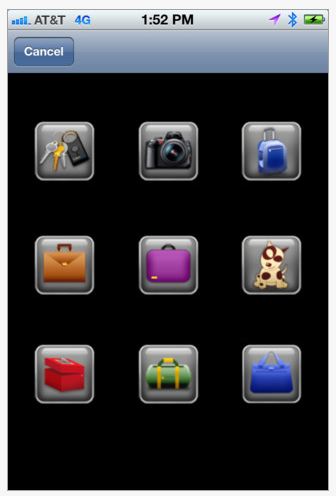
The Cobra Tag Universal for Android and iPhone/iPad (46.50) is an electronic tag  that can be attached to  keys, phones, bags, pets, camera’s or suitcases for two way communicating between devices.
cobra tag pic3

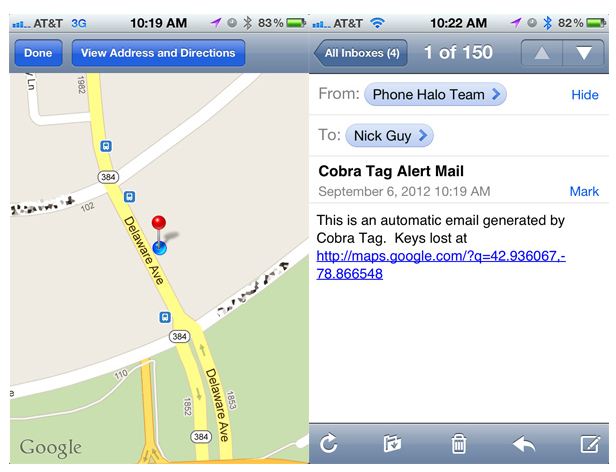
By activating the tag and pairing it via Bluetooth to your mobile you link the devices. The alarm sounds when the link is broken between the two devices,  or when you press the sound button on either device. A map link can also be sent by your device to your email indicating the location of it as managed in the app settings.
cobra tag pic 4 mapThe devices or tag can be located when within 30 feet.  The tag uses a battery that can be charged with a USB cable. Battery life is reported to be up to one week.

For more information about the Cobra Tap visit the Cobra website or read Nick Guy’s detailed  review on iLounge.com.  The CobraTap is easy to set up was successfully implemented with the client.

More apps to support occupational performance of individuals with organization challenges.

Do you have any experience with any other devices with apps such as the Cobra Tag? Please share!

Carol

Posted in Activities of Daily Living, Android, App Reviews, Apps for OT's, Apps for Special Needs, iPad, Occupational Therapy, Organization, Special Needs, Uncategorized | Tagged , , , , , , | Leave a comment

Leo’s Pad 1 & 2


Leo's Pad2 icon Leo’s Pad is a relatively new app for preschoolers created by Kidaptive and designed by Stanford University featuring interactive and animated appisodes of adventures in science. Leo’s Pad Appisode 1 (free; iPad) has been available since mid December with Leo’s Pad 2 debut January 10, 2013 in iTunes.

I was first made aware of Leo’s Pad just recently by a special education teacher who has a preschool daughter who reported she was highly engaged by this app.  Reviewing the Leo’s Pad Appisode 1 and 2 does show this app to be a very engaging and interactive app.

Leo’s Pad curriculum concepts include 7 categories:

  • Control Yourself (Emotional Control, Executive Function, Motor Control, Patience)
  • Figure Stuff Out (Representation, Spatial Reasoning, Planning, Structure of the World, Relationships)
  • Be Creative (Creative Uses, Self Expression, Idea Generation)
  • Gather Necessary Knowledge (Colors & Shapes, Mathematics, Positional Language, Reading and Language, Wellness)
  • Love Learning (Practice, Perseverance, Approach to Learning)
  • Acquire Physical Routines (Movement Mastery, Space Mastery, Task Mastery)
  • Interact with Others (Back and Forth, Boundaries, Communicating, Reading Others)

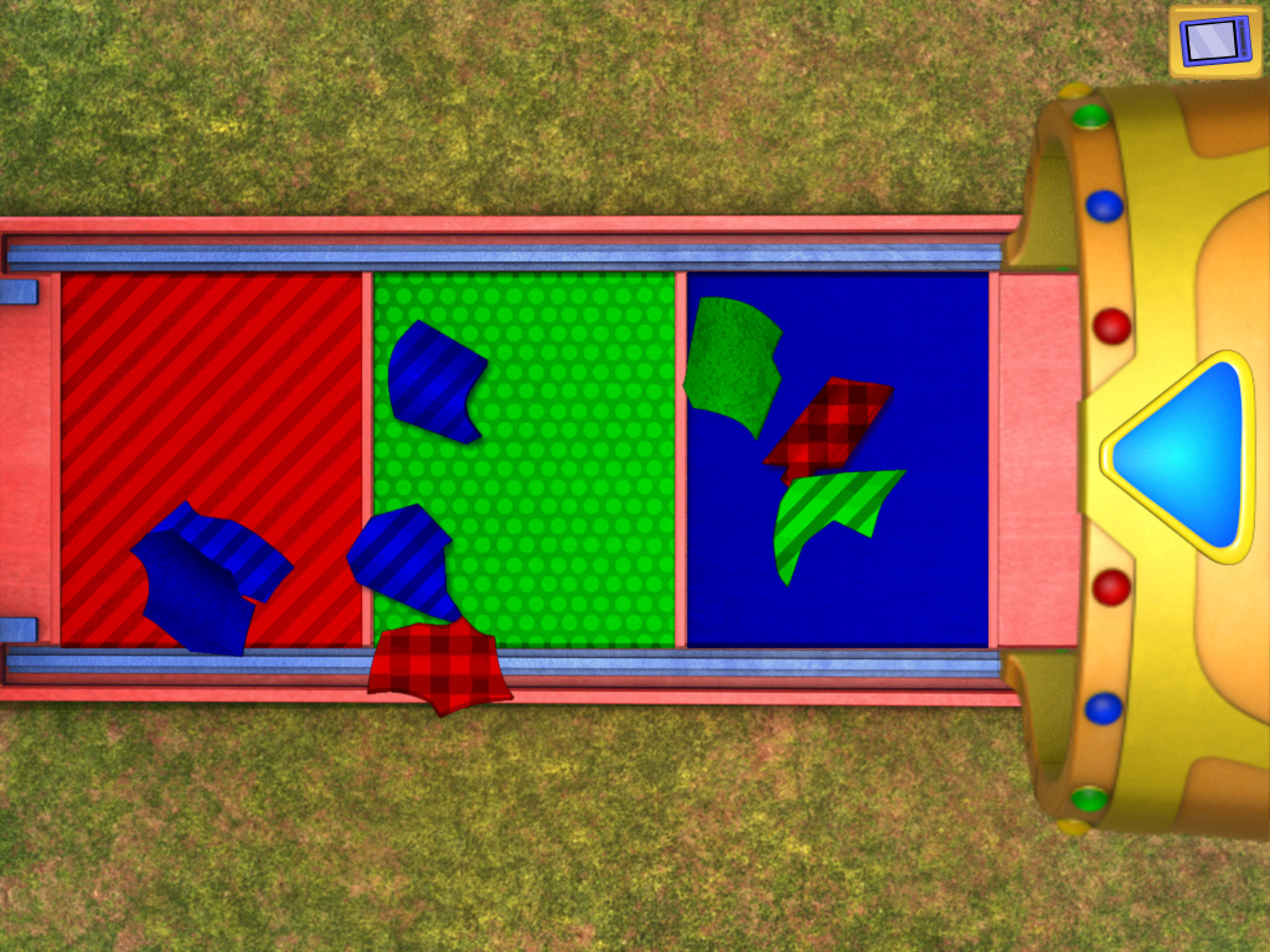
Categories support 21st century learning goals as noted in the curriculum listed featuring the sub topic goal areas. The app presents like a Pixar interactive story with animation, characters talking, giving directions, moving and interacting within the scenes with the activities.  In Leo’s Pad 1 there are 13 different story scenes with activities featuring tracing and putting pieces of a telescope together, counting and taking away, sorting patterns and identifying numbers while tilting the iPad towards the correct number of objects on the screen.  Here are a few screen shots of some Leo’s Pad 1 spatial reasoning activities involving putting together a telescope:

Leo pad pic 1                         Leo pad pic 3

After completing  scene activities, you can go back to the scenes and interact with them again. Repeating a scene increases the level of difficulty of the activity if the user has successfully completed the entire activity.

Leo’s Pad 2 has 9 different scenes providing a combination of activities that support the defined curriculum goals.  Here are a few of the screen shots of the new Leo’s Pad 2 visual motor, matching and sorting activities which increases in difficulty when going through the complete story another time:

Leo Pad pic 4                     Leo pad pic 5

The app provided a few activities suited to students serviced by OT such as tracing, color and pattern  sorting, shape matching/ parquetry, however the tasks appeared to be more advanced than what most special needs preschools might work on. The visual motor task of tracing parts of a rocket ship (above picture on left) involve shapes with curves and angles, a more difficult visual motor skill.  Following directions and knowledge of right and left concepts were also part of the activities in Leo Pad, skills well above those of  most special needs preschoolers I have worked with. These activities could be appropriate children with typically acquired developmental skills with more abstract spatial reasoning skills.

Leo’s Pad activities requires strong listening and receptive language skills as part of the curriculum goals, but which may be frustrating to students with challenges in these areas.  Again, as projected for preschool children, those with language, motor or cognitive difficulties may need support when engaging in the activities. The activities would seem to be best suited to kindergarten or primary students who have the receptive language skills to support engagement and understanding of tasks requested.

Leo’s Pad provides wonderful, engaging activities for typical preschool to kindergarten aged students. At this time limited options for differentiation are available in Leo’s Pad apps to make any changes or to add or remove additional prompts (visual, textual or repeated audio) within the activities or provide different levels of the tasks. Within the school setting use by teachers or therapists require using it with a variety of students. Lack of enlisting numerous students at this time or resetting the activity to the beginning level limits use with multiple students. Including the ability to enroll multiple users would make this app more useable in a school setting.

Projected for Leo’s Pad apps is a parent dashboard that will collect data on the users progress. This sounds to be a great addition to the app to monitor progress in the goal areas projected within the app. At this time home use by individual users seems to be what it is best suited for. Suggesting this app for home programming for students who have skills that support successful participation would be appropriate or providing individual support by an adult when using the app for those that are engaged but may have difficulty with tasks presented. With Leo’s Pad 1 currently free, I suggest checking this app out to trial with your child or students for it’s engaging and interactive storylike format.

Carol

Posted in App Reviews, Early Childhood, Elementary School, iPad, Occupational Therapy, Special education, Visual Motor | Tagged , , , , | Leave a comment

More Customizable Apps

OT’s with Apps Customizable Apps List

Customizable apps - ots w

Judi Sweeney’s customizable apps list is a great resource for apps that can be modified to support the unique needs of individuals with disabilities for work task at school or independent living or work skills. With thousands of apps available and new apps continually developed, there are always more emerging with customizing features. Here is another app list with more possible customizable apps:

  Book Making / Social Story Creating Apps


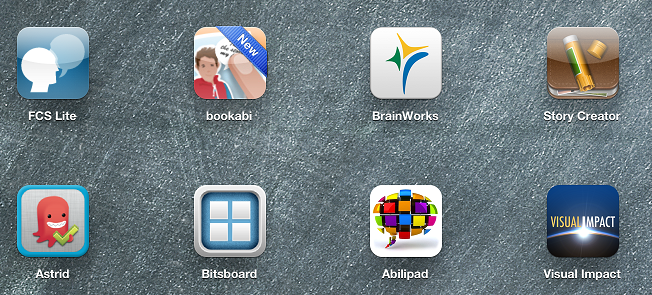
Story Creator icon  Story Creator – Use pictures, videos, add text, highlighted text and audio recording to book making app. Work flow is limited to Facebook. Lock feature

Free

 Tapikeo icon  Tapikeo HD – Uses pictures, audio, text to create stories, vocabulary supports or sequenced instruction. Lock feature

2.99

 Bookabi icon Bookabi – Create books in 2D or 3D with backgrounds, characters, objects, stickers or your photos. Call outs for text.

Free

 My Pictures Talk icon My Pictures Talk – Create stories with your photos and audio recording features.

4.99

Storyboard icon  Storyboards – Create 2D story boards with stock images.

Free

Creative Book builder icon  Creative Book Builder – Create ePub books or text books. Work flows to PDF, ePub and iBooks.

4.99

  Fine Motor – Prewriting


Ready to Print icon Ready to Print – Allows customization of features within the pre-writing activities.  

9.99

  Functional Life Skills


Functional Planning System icon  Functional Planning System – Scheduling and video prompting options support daily tasks. Customizable

4.99

 Shopping List Generator icon Shopping List Generator – Create a picture list of shopping items

4.99

 Visual impact pro icon Visual Impact Pro – Video, text, audios supports provide cognitive supports for community and daily living tasks.

49.99

Piclist to do icon  PicList – Create to do list. Provides image support

1.99

  Instructional Apps


Bitsboard icon Bitsboard – Combines many Grasshopper apps for customizing instruction for emergent learning tasks.

Free

Sentence maker app icon Grasshopper apps  Sentence Maker – Create your own sentences for students.

.99

Make Dice Lite icon   Make a Dice – Create your own dice for classroom tasks.

.99

Little puzzles Little Puzzles– Use your own pictures to customize puzzles with 4-9 pieces.
Free

 Image spinner icon Image Spinner – Create your own spinner

.99

A+ Flash Card Pro icon  A + Pro – Flash cards created with text, audio, image. Syncs with Quizlet collection of flashcards

Free

 Tiny Tapp icon Tiny Tap – Take pictures and create choice game for young students.

Free

Choiceboard creator icon  Choice Board Creator – Create choice board of 2 to 8 pictures to choose from

Free

Word Slapps icon  Word Slapps – Customize and categorize vocabulary with images, audio.

4.99

  Math


 Teaching Table icon Teaching Table Provide a variety of widgets to create math activities.
2.99

  Self-Regulation


Sosh icon  Sosh – Provides supports for 5 R’s of social skills and self-regulation (relate, relax, regulate, reason, recognize). Appropriate for individuals with self-awareness.
39.99

 Sosh icon Sosh Relax – Relaxation component only of the Sosh app. Add your own images, sounds, songs to create customized self-regulation tool.
5.99

 Autism Tracker Pro icon  Autism Tracker Pro – Tracks moods, emotions, activities. Customizable

9.99

Brainworks icon  Brain Works  Sensory diet app, customizable, unlimited users

11.99

Autism 5 pt scale icon  Autism 5 Point Scale – Five point rating. Allows customization of each point.

free

  Visual Communication Apps


Now what icon  Now What? – Text based visual schedule app for higher functioning individuals

free

iSee Quence app icon iSequence – Basic visual schedule app appropriate for young students

2.99

  Writing/ Handwriting


 Clicker Sentences icon Clicker Sentences – For emergent writer supplies images, word bank and text to speech. Customizable

20.99

 Clicker Docs icon Clicker Docs – For developing writer, provides word prediction, word banks, text to speech, tabbed word banks. Customizable

25.99

Write My Name icon  Write My Name – Features ability to create customized user name activity.

3.99

 Write for School icon Write for School – Choose school fonts. Customize the instruction and verbiage of letter formation within app.

6.49

Another fabulous resource is Lauren Enders Pinterest pins of customizable apps. Lauren’s Pinterest is absolutely awesome! An exceptional resources for special education teachers, therapists and AT’s.

Also thank you to Lisa Olsen for sharing her favorite customizable apps! What are your favorite apps that can create customized content for your students or clients occupation?

Carol

Posted in App Reviews, Apps for OT's, Apps for Special Needs, Customizable app, iPad, iPhone, iPod, Life Skills, Occupational Therapy, Rehabilitation, Social Skills, Special education | Tagged , , , , , , , , , | 2 Comments