Kid Tech – According to Apple [Infographic]

MDG Advertising  created this informative infographic on the use of Apple tablets with kids today. It demonstrates the presence of (Apple) tablets available within families, as well as statistics on the impact of iPads in general education and for specific special needs use (autism-related, alternative and augmentative communication).

Reviewing this infographic brings some questions to mind about the prevalence of mobile technology, use and accessibility of them to all special needs students (or clients) to make information or the device accessible to them. Are we ready to embrace the technology changes projected? What are best practices with their use?

Kid Tech, According To Apple [Infographic]

Infographic by MDG Advertising

What do we need to do or know as parents, professionals or stake holders of individuals with special needs to support their appropriate use and access to such ubiquitous devices?

Carol

Posted in iPad, iPod, Occupational Therapy, Special education, Special Needs | Tagged , , , , | 2 Comments

Guided Access in iOS 6 – Video by Luis Perez

Luis Perez  shares key features of Guided Access available in  iOS 6 in his video review geared to use with individuals with disabilities.

For more videos from Luis Perez visit his YouTube collections  or visit his wiki, Mobile Learning 4 Special Needs  for more of his expert information and resources.

Carol

Posted in Accessibility, iOS, iPad, iPad Management, Mobility Impairment, Occupational Therapy | Tagged , , , , | 2 Comments

Maze-A-Licious Counting Farm

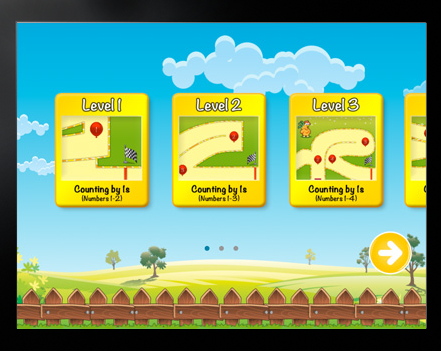
Maze-A-Licious Counting Farm  app is a number/counting and maze activity combined in one app. Developed for iPhone/iPad by Brainster Apps, it is free with in-app purchase (.99) to unlock intermediate and advanced levels.

Maze-A-Licious Counting farm enrolls 4 players at a time and provides three levels of play:

  • Beginner for ages 2-4; counting from 1-10 (free) with three levels within the beginner level

  • Intermediate for ages 3-5; counting from 1-20 (in app purchase to unlock levels 4-6))
  • Advanced for ages 5-8; counting by 1’s, 5’s, 10’s (in app purchase to unlock levels 7-9)

This maze activity is performed by tipping the iPad to move the character through the maze. Rather than a visual motor integration activity, this is a bilateral/two-handed, visual motor activity, requiring the user to tip the device to make it move towards numbers in the pathway to get to the finish line. Time is recorded in each level. Levels get more complex and longer as number sequences increase. The screen expands to provide additional pathways needed for the longer number sequences.

Between every second maze, users are asked to tap balloons in numerical order to reinforce counting skills.

I expected that Maze-A-Licious app was a traditional maze drawing activity. I was pleasantly surprised to find this app requiring bilateral and motor planning skills not often found in iPad apps along with reinforcement of academic skills.  My experience with younger students I have intervened with found many of them having bilateral motor coordination challenges, exhibiting difficulty holding a paper while writing and performing self-care activities requiring two hands to perform (few ADL’s do not require bilateral skills!).  Apps such as Maze-A-Licious provide  bilateral integration and upper extremity motor planning practice  frequently needed as a part of the foundational skills for writing, tool management and upper extremity gross or fine skill development.

In app purchases are required for levels 2 and 3, which I did not buy. I did like the app which provided free beginner levels as a trial to determine if appropriate for the user. Although we all love free, $ .99 is affordable for unlocking intermediate activities within the app.

Brainster Apps, has developed Maze-A-Licious Counting Farm and also have apps that reinforce ABC and word recognition.

Check out Maze-A-Licious to determine if this might be part of your OT iTool Kit!

Carol

Posted in App Reviews, Apps for OT's, Apps for Special Needs, Early Childhood, Elementary School, iPad, iPhone, Occupational Therapy, School Based Interventions | Tagged , , , , , | Leave a comment

Speak Selection and AssistiveTouch in IOS 6

Posted in Accessibility, iOS, iPad, iPad Management, Occupational Therapy | Tagged , , , | Leave a comment

iWordQ App

iWordQ US app for the iPad (24.99) is a word prediction app developed by Quillsoft, producers of WordQ and SpeakQ.  iWordQ app provides both word prediction and text to speech options for struggling readers and writers.

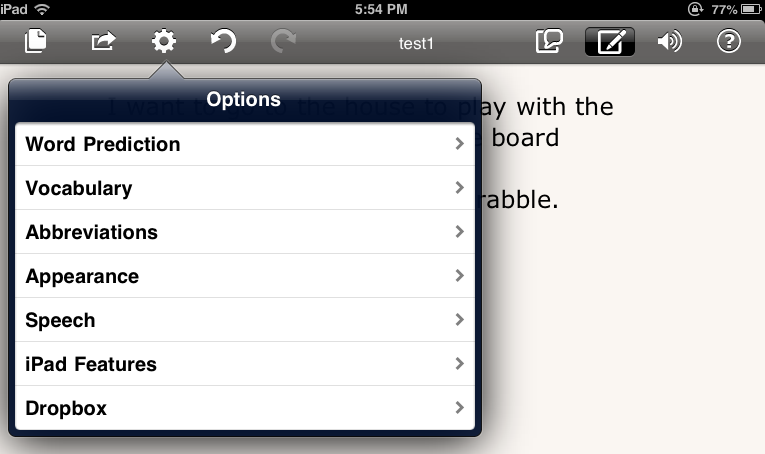
The iWordQ app menu provides the tools of the reading and writing modes featured in the app:

Writing Mode: The tools on the menu (left) provide the following writing mode options:

  • Create a new document or open an existing document
  • Email the document, open a document in other apps option, copy the document
  • Writing Options provides settings including:

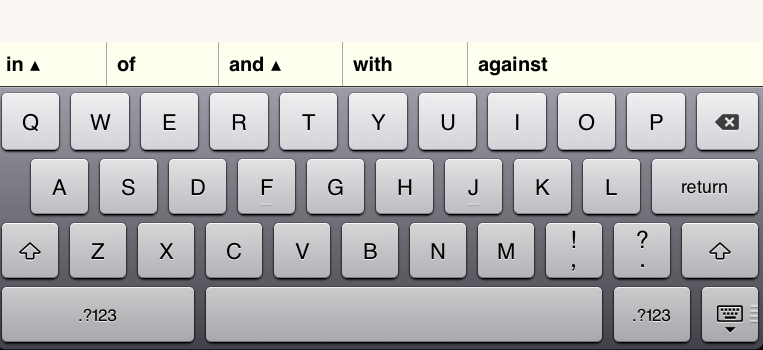
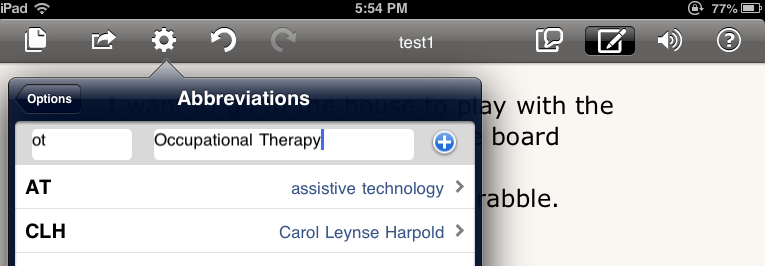
    • Word Prediction options –  maximum predictions (3-10 words), turning predictions on/off, usage examples, creative spelling, position of the predictions. Arrows indicate word phrases are available

    • Vocabulary options –  adding your own vocabulary and vocabulary usage examples (vocabulary list)
    • Abbreviation options – ability to create your own abbreviation expansion word list

    • Appearance – choice of color schemes (paper, white or black) and font (6 choices)
    • Speech – Exceptions to pronunciations allowing modifying the pronunciations of words and a choice of Ryan or Heather voice
    • iPad Features – you can control auto-correction, spelling suggestions and definitions within the app
    • Dropbox linking options
    • Using a triple tap in the writing mode provides text to speech with word by word highlighting
    • Zooming in and out with text reflow is available in writing (and reading) mode.

Writing options are easy to access and change within the menus.

Reading Mode: The menu tools on the right dedicate the app to the reading mode. Several options how the text is read aloud are provided in the app.

Reading Mode Options include:

  • Text Chunking on/off
  • Pause time for text chunking (.5 , .75, 1.0 seconds)
  • Reading speed (Very slow, slow, normal, fast very fast)
  • Line spacing (1.2, 1.5, 2.0)

Other Reading Mode features include:

  • The iPad onscreen keyboard and writing tools are hidden when in reading mode. The current sentence is provided in black text with the surrounding text in grey to focus attention on the  sentence. Tapping another sentence selects it to be read.
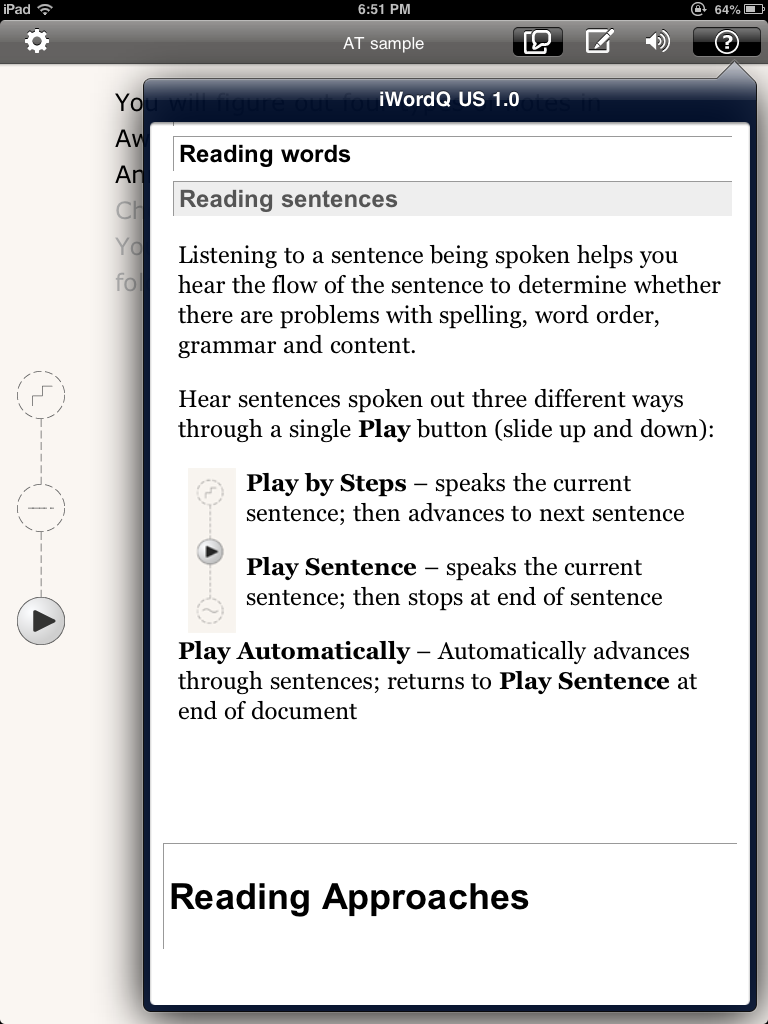
  • Three different modes of reading are available using the buttons on the left: play by steps (speaks sentence then advances to next sentence), play sentence  (speaks sentence, stops at end), play automatically (advances through sentences to end of document)
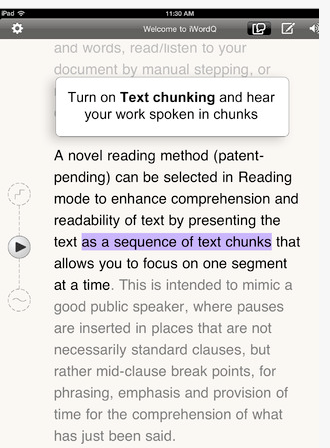
  • Text chunking is another feature provided by iWordQ, allowing text spoken in chunks to allow the listener to comprehend segments of text read a loud. Text below shows black versus grayed text provided in the reading mode.
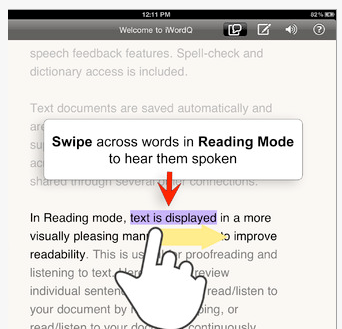
  • Text can also be swiped over to read by word or chunks of words in the reading mode.

iWordQ provides many desired supports for writing and reading for students with learning disabilities within one app. Options of adding vocabulary, modifying pronunciations, modes of text read, abbreviation expansion, line spacing options, enlarging text with zooming, and highlighting of text when read a loud are seldom found in one app.

As a text reader, electronic text can be copied and pasted into the app to be used for reading text gathered from a document or the internet for access to struggling readers. Using iWordQ on a iPad3 further provides this app with the possibility of the basic tools of Dragon Dictation, integrated into the keyboard as a writing support as appropriate to the user.

iWordQ provides many great options. An options that I would like to expanded include providing additional background colors in the reading or writing modes. Currently paper, white and black are provided, however  blue, green, gray or bright pink backgrounds, often suited to individuals with learning disabilities, ADHD or light sensitivity (see Judy Sweeney’s article on Color as Assistive Technology) would be welcome additions. Color filter sheets, such as those available from See it Right, can be added to the iPad screen for those students benefitting from such filters when reading or writing. It also would be great if it interfaced with Google Docs or Google Drive, an online resources for students in our school district.

Thank you to Quillsoft for their generosity supplying the app for review. iWordQ is a welcome addition to my app collection for students with learning disabilities.  WordQ software for the PC has been a favorite for its stability and usability on the PC and appears comparable on the iPad.  This app will be a great compliment to the apps currently being selected for students with learning disabilities who will be involved with exploring use of iPads at the middle school level.

Will this be in your OT iTool Kit?

Carol

Posted in App Reviews, Apps for OT's, Apps for Special Needs, iPad, Learning Disability, Occupational Therapy, Special Needs, Text to Speech, Word Prediction, Writing | Tagged , , , , , , | Leave a comment

Wet-Dry-Try App – And Writing Tools

Wet-Dry-Try App appears to be a great addition to a OT iTool Kit, providing mobile and additional methods of learning to a HWT curriculum. One of the wonderful things about an iPad is the mobile access it provides to carry it from room to room and school to school to use in therapy for transient therapists. However, having used the HWT materials for many years and being a firm believer of the need for development of fine motor skills with real manipulative or tools (using the real materials – the actual slate, chalk and sponges) are important for developing fine motor and sensory motor skills. Reviewer Carol Hesch, OTR also mentions this in her review of the app.

Carol’s review provoked about some further thoughts about using tools when engaging in the app. What tools or manipulatives can be used with the Wet-Dry-Try App?

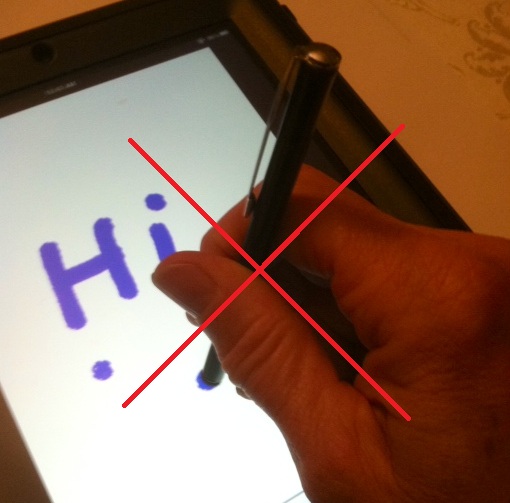
  • Use a stylus to emulate use of a pencil, facilitating the development of a dynamic tripod grasp  and preparing for pencil paper transition of skills.

Many different styluses are available. Check out the stylus you are using to determine if they have connectivity to draw or write with the edge of the stylus when holding them at an angle which would facilitate a mature tripod grasp with finger extension.

Some styluses do not allow connectivity along the sides or edges resulting in holding them  up and down to write which does not encourage a mature grasp.

Many different stylus choices are available and more enter the market all the time. Here are some reviews of suggested styluses previously posted: Stylus review,  More styluses for special needs , Cosmonaut stylus review  .  Another source for styluses is Lauren Ender’s Pinterest page on Styli for iPads. One of the styluses she reviews is the Simplism Japan Grip Touch Pen for iPad which has a tripod grasp integrated into the shaft of the stylus. I have not trialed this but it looks interesting and is a reasonable price at Amazon ($9.51).

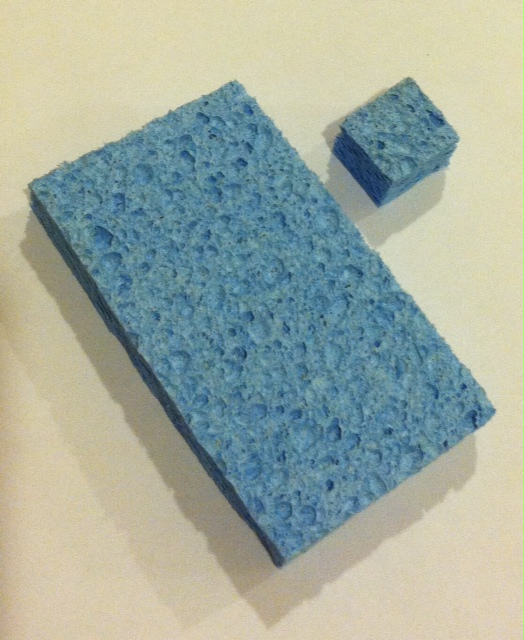
  • Use of a piece of cellulose sponge ( yes! – inexpensive cellulose sponge – just like what I cut apart for the HWT chalkboard practice)  was conductive on the iPad allowing me to draw/write with the small piece of sponge. This would also facilitate use of a pincer or three fingered grasp during Wet-Dry-Try  practice (dependent on skills and goals of the student).

This presented a few thoughts about use of Wet-Dry-Try app and tools to transition students to use of implements. Any suggestions of other tools or methods to use in therapy or with instruction?

Carol

Posted in App Reviews, Apps for OT's, Apps for Special Needs, AT for Handwriting, Fine Motor Development, Finger Isolation, Occupational Therapy, School Based Interventions | Tagged , , , , | 6 Comments

Traveling Eileen Stand

Look at the new and improved Traveling Eileen stand invented by Dr. Therese Willkomm from AT in New Hampshire.

ATinNH is an assistive technology resource from the University of New Hampshire’s Institute on Disability. If you are interested in McGyvering AT stands, mounts and more, check UNH’s  ATinNH YouTube Channel. Dr.  Therese Willkomm has great devices she has invented to support AT needs.

Do it yourself projects for your OT iTool Kit!

Carol

Posted in Accessories, Android, Ergonomics, iPad, iPod/iPad Accessory, Occupational Therapy, Special education, Special Education Teacher, Special Needs | Tagged , , , , , , | 2 Comments

OT iTool Kit Tip and Tricks #6

As the school year starts here are a few tip reminders and a few new tricks when using your iPad for work or personal use:

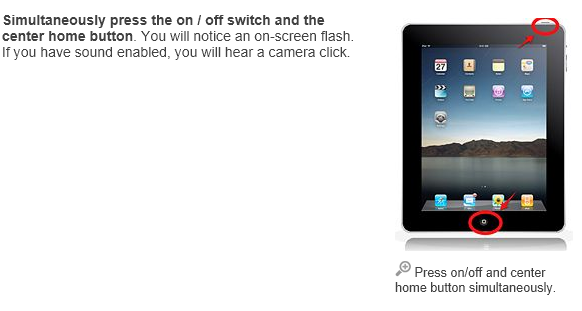
  • Screenshot – Don’t forget about how to take a screen shot of your device – press the Home and Power off button at the same time. You will see a flash and hear a camera “click” sound like a picture is being taken. The picture will be stored in your Photos for retrieval in apps on your device. Within your Photo app you can then email, print, copy, import or sync to iTunes if needed. This is one of my most used features along with the camera to get visuals into multimedia apps, storytelling or communication apps. So many things you can do and fast!

http://www.wikihow.com/Take-a-Screenshot-With-an-iPad

  • Camera Zooming – When taking a picture I could not figure out how to make the zoom control appear. Pinch the screen out as though you were enlarging the screen and the zoom slider appears to help you focus with the camera.

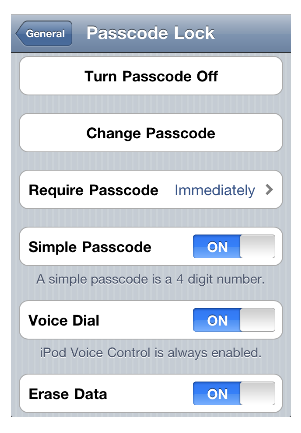
  • Passcode Lock – Under Settings>General > Passcode Lock provides you the opportunity to set up a pass code for your device to secure the professional information you have on it.

If you are letting others use your device, or have a tendency to leave it behind or unattended it might be a good idea to “Turn Passcode On”. Some apps also provide in app pass codes settings. Options for the pass code lock are available when you set it up.  More information some of the features of  pass codes are available here: http://support.apple.com/kb/HT4113

  • Battery Life – If battery life becomes an issue during your work day, consider turning off Notifications, Location Services or even Wi-Fi if you don’t need it for Internet searches or communications. Turning off any type of connectivity to your device can reduce the drain of your battery. On a new iDevice battery life should be approximately 10 hour and reportedly 9 hours with connectivity services. Batteries do wear however in time.
  • iCloud Back Up – If you are using iCloud to store your data, pictures or music be sure to periodically backup your device. Settings>iCloud> Back Up to turn iCloud Backup “On” when your device is plugged in and connected to WiFi or select the “Back Up Now” to save all data to the cloud. Here is a good article with info about Cloud back up : http://www.pcmag.com/article2/0,2817,2407494,00.asp . Some apps also can back up to different services such as Google Doc for archiving (e.g. Awesome Notes). Check out your apps for such features.

Have any tips or trick you use on your iDevice? Please share!

Carol

Posted in iOS, iPad Management | 2 Comments

Letter Cats App

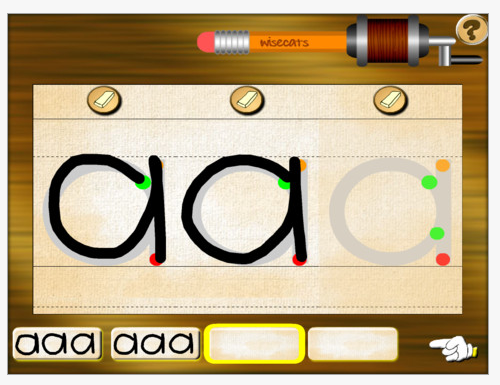
Letter Cats app is a manuscript letter formation app for iPhone and iPad ($.99).Upper case and lower case manuscript letter formation as well as writing words can be practiced within the app.  It provides visual directions of the formation of a letter with a dot moving within the lines of a letter and speaks the letter or sound as it is traced. Verbal directions are not provided in the app for the letter formation sequence.Letters that are correctly formed and within the tracing lines sharpen the pencil shown at the top of the app screen. When three letters are produced within those lines the group of letters are added to the home screen to show the users achievements.

Letter Cat is a basic skill and drill letter formation app. Some of the letter formations deviate from standard letter formation models if you follow a specific handwriting curriculum as Zaner Bloser² or Handwriting Without Tears³ programs. I does provide the ability to create your own words to practice and trace easily within the app.

The app provides a few settings for languages, speaking letter or letter sound and turning music on and off. The settings are protected by a multiplication answer.

When considering some of the best practices¹ for letter formation, this app provides a few of the recommendations for handwriting instruction:

  • Provides continuous strokes for letter formation
  • Shows the direction of the letter formation (although not with arrows)
  • Provides sounds of the letter with formation
  • Applies learning of letters to words that can be customized to student

Letter cats does not provide learning letters in like groups, but does allow the letters to be practiced out of sequence. Guidance from an adult would be needed to practice groups of similarly formed letters. I like the fact that you can create your own words whether for spelling purpose or to carry over letter formation to produce words.

A few suggestions for the app include making the color of the moving dot darker to detect its movement and direction more easily, provide choice of different styles of letter formation models and provide the verbal directions for letter formation for auditory learners. Providing a few opportunities of reduced guides during letter formation practices  would require students to use their motor memory and help reinforce learning letters.

Letter Cat provides skill and drill letter formation practice that can help parents and teacher work on letter formation. It is important to match letter formation practice programs with the instructional method used by the child’s school. Being mindful of using a multisensory approach for learning letter formation is also important as well providing different types of sensory mediums. At $.99 this app certainly can help students learn to write letters if provided guidance with proper letter formation, grouping of like letters and auditory feedback to learn.

What do you have in your OT iTool Kit for letter formation practice?

Carol

References:

¹Retrieved on 9/13/2012 from: http://www.ldonline.org/spearswerling/The_Importance_of_Teaching_Handwriting

² Retrieved on 9/13/12 from: http://www.auburn.edu/academic/education/reading_genie/letters.html

³ Retrieved on 9/13/12 from: http://www.hwtears.com/files/Letter%20Formation%20Charts.pdf

Posted in App Reviews, Apps for OT's, AT for Handwriting, Handwriting, iPad, iPhone, Occupational Therapy | Tagged , , , , | Leave a comment

Story Creator App

Story Creator App – Created by Alligatorapps.com  is a story telling app for iPad and iPhone that is free for the next 48 hours.

Why another story telling app you say???

Story telling apps can serve many educational, therapeutic or social purposes for any student, but for special needs students it can allow the ability to modify/customize classroom or IEP focused curriculum tasks. I see this as huge – no longer needing to searching for an app (out of 700,000 – yikes!) for content but allowing customizing curriculum materials on a mobile device for an individual student. Content on demand!

Generally here is what storytelling apps can do:

  • Provide a method of creating modified curriculum materials for students with special needs on any subject
  • Allow the ability to create high interest or personalized stories to students
  • Provide a method of creating social or sensory stories for individual student needs
  • Supply step by step directions with images and audio to a student/individual
  • Provide vocabulary words or facts to students with audio and images
  • Captures student productions to make a book for a student or parent
  • Allows an easy method for a student to become an author (how powerful is that!!) – with audio, text or drawing/selecting
  • Seemingly endless uses!

Story Creator app  provides a few different options when compared to some of the other story telling apps that I have used. It is also developed by the Innovative Mobile App folks who are a trusted source, provide heroic support and great customizable educational apps for emergent learners.  Here’s a few of the features available in their new app:
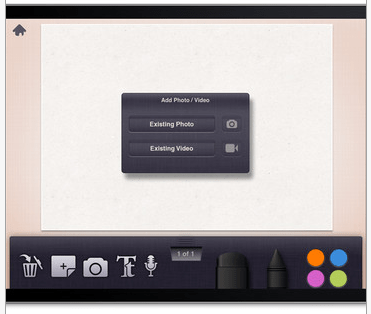
✔ Extremely easy to create in for a student or adult
✔ Supports the importing of photos and videos
✔ Allows adding text and audio recordings with every page
✔ Supports text highlights – easy to modify to read each word with audio recorded (even I caught on right away how to modify this!)                                                                                       ✔ Drawing tools available
✔ Allow sharing stories with others and copy stories across devices

Other app features:
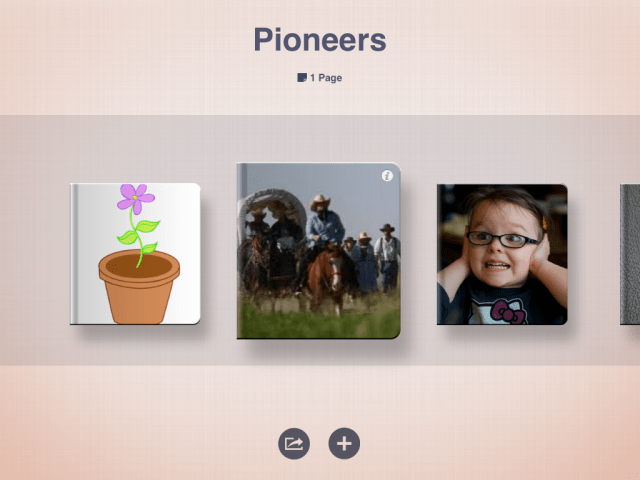
✔ Add as many stories as you like – I can create a library of books for a student
✔ Share stories with friends and let them download your stories into their own app
✔ Share stories on Facebook as a photo album
✔ Backup stories online so kids can’t accidentally delete your hard work
✔ Download stories on multiple devices – create once, share with others

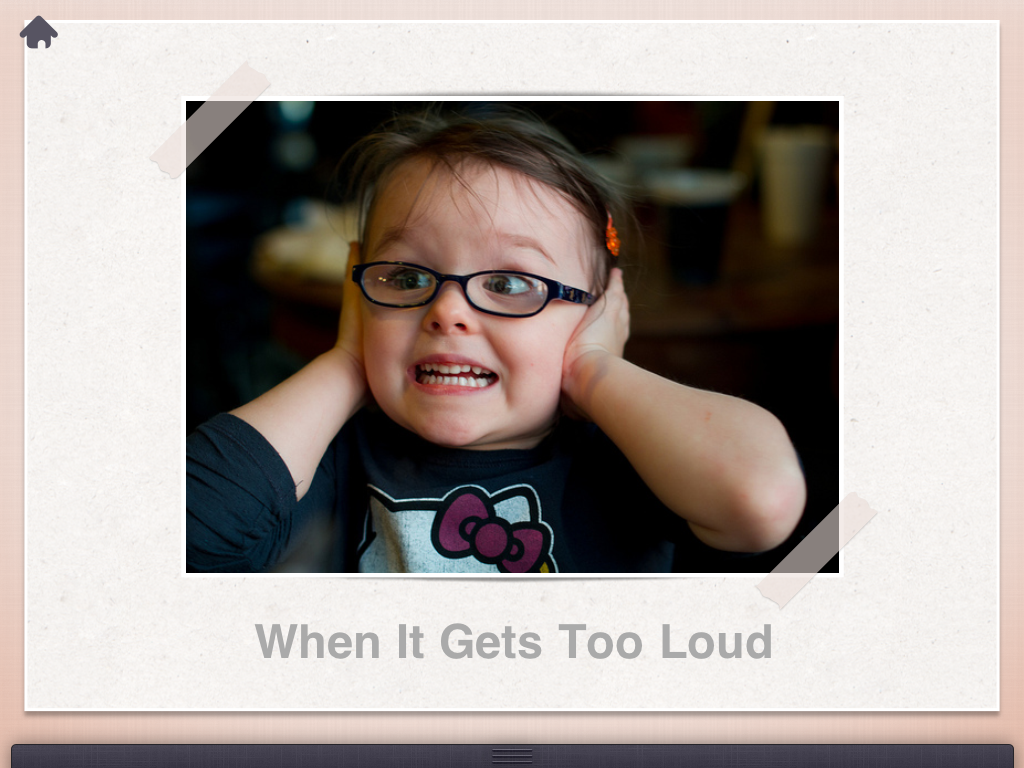
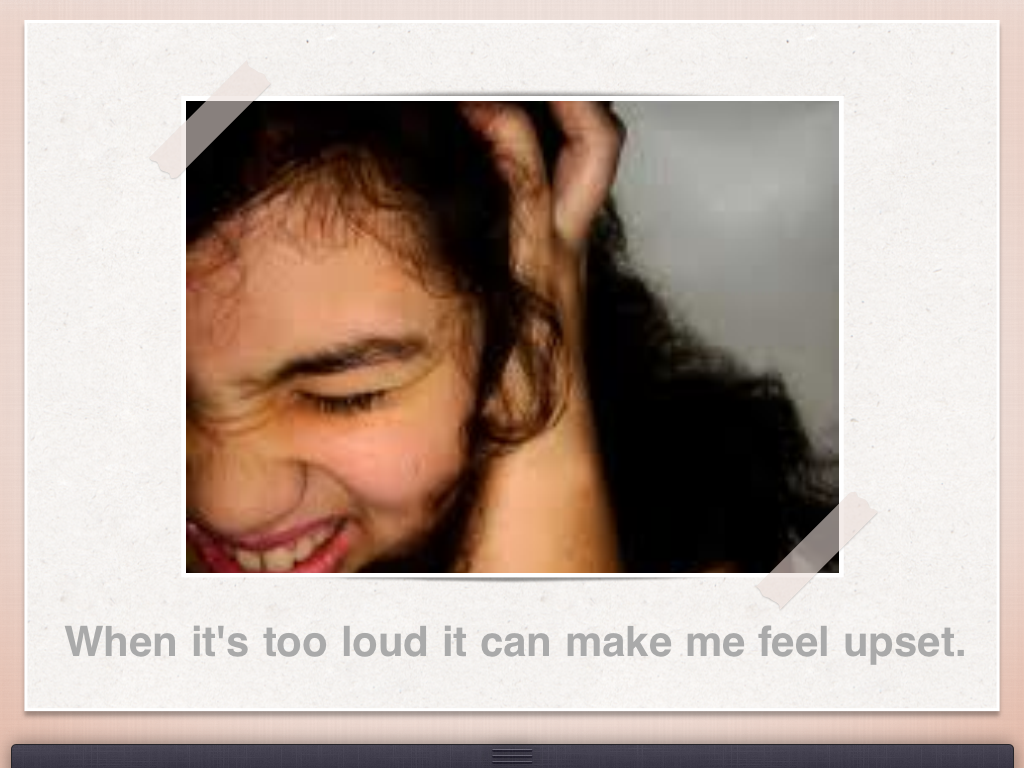
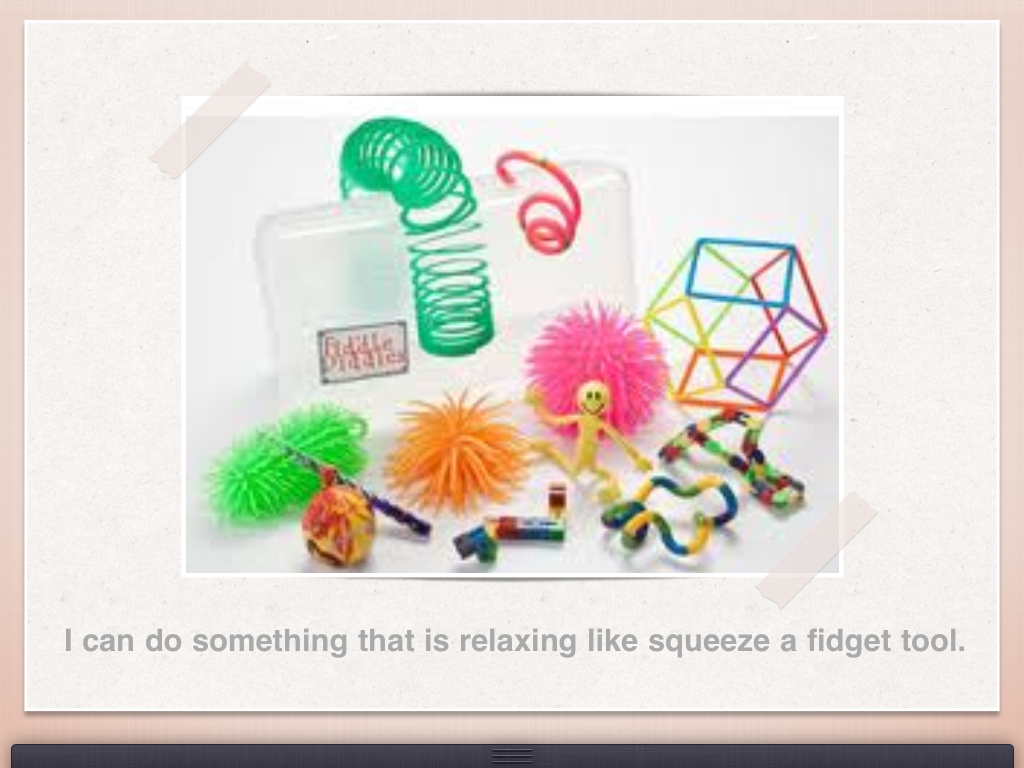
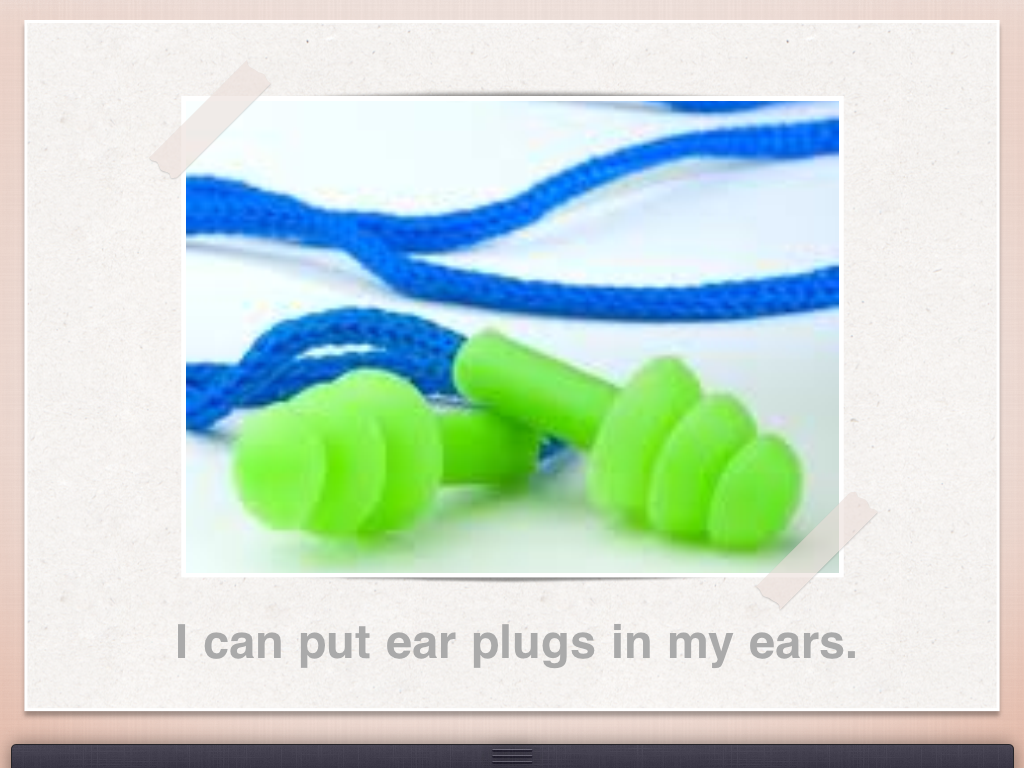
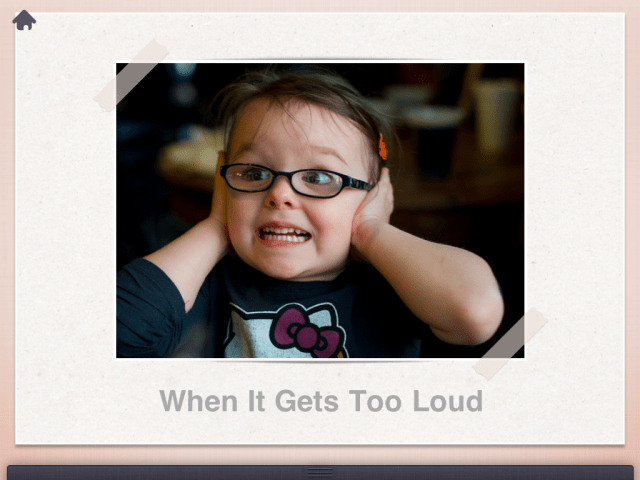
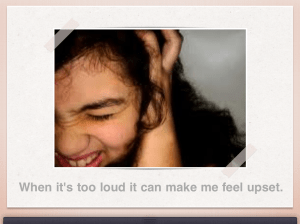
Here is an example of a book I quickly made using pictures from Creative Commons or Google images for a sensory story for a student(s):
Story Creator app was easy to use, however, took a few trials to get a story sent from one device to another. This may have been user error. One of the methods for transferring it was with Facebook and I shared it using a “Private” setting.  I am not real adept at navigating some of those features in Facebook. With time and a few trials it did transfer from my school iPad to my personal iPad (maybe its the size of the file also that took longer to transfer?). I am requesting instructions from Mobile Innovations for file transfer which I could not find on their website or in the app at this time perhaps due to its debut today.

One of Story Creator features that I really like is the ability to  create and store as many stories as I want and back them up or transfer them to another device. Story Creator also provides the possibility of transfering it to iPad and iPod Touch, not always the case with all story telling apps.  I also find it more and more important to explore the workflow possibilities of an app along with the qualities of the app when considering creating stories or activities for students. Those workflow needs are how can I share, how many can I produce, can I print it, how easy is it to share with others to get it to student(s) device? I love the stories that Story Buddy app creates however the fact that you can only create 5 books in the app will not support my student needs for curriculum content. Audio is also lost with some apps when transferring to another source or device (very important feature for many special needs students!).

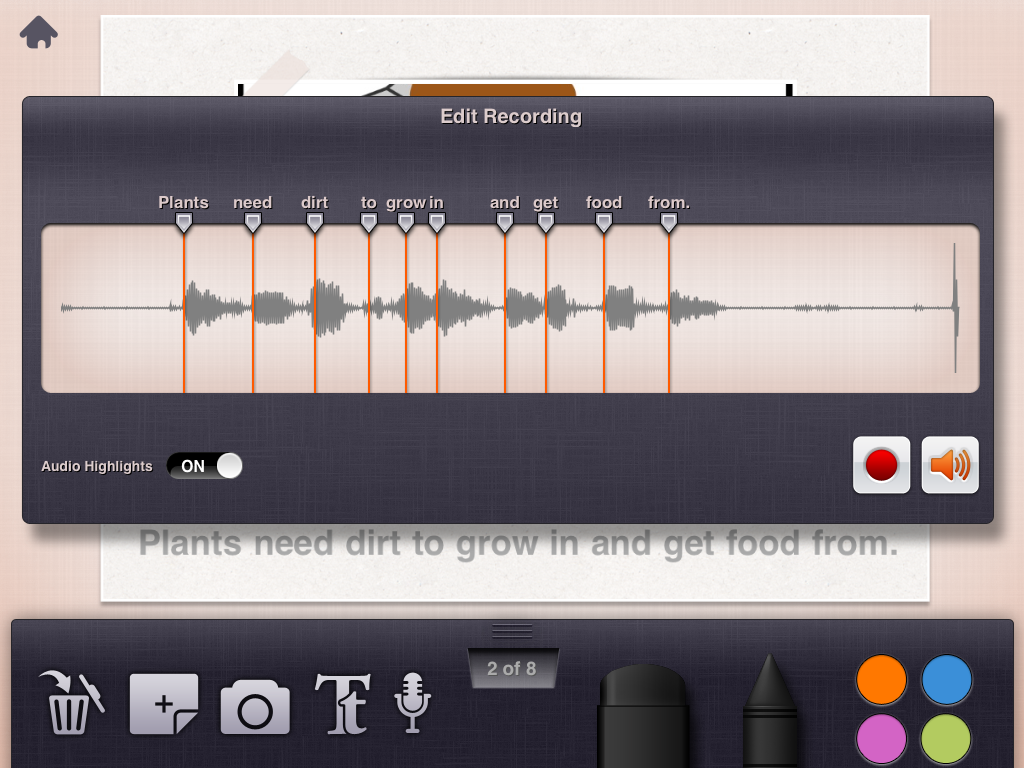
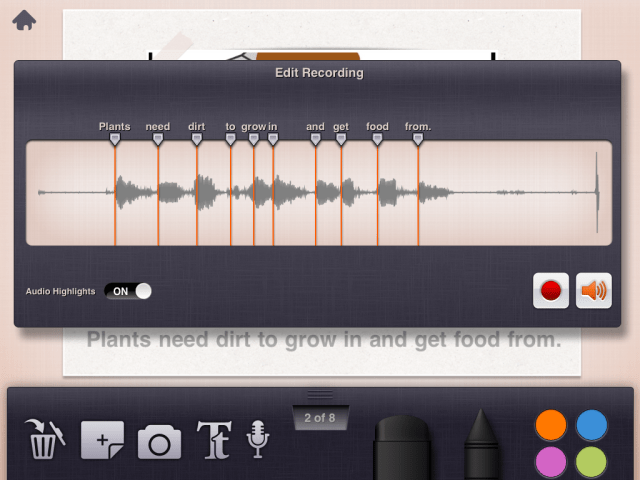
One of the amazing features of Story Creator app is its ability to speak the text word by word that you record. Not only does it allow audio highlighting, but it also allows modification of when it will speak the word using the edit recording feature. This was amazingly intuitive and easy to edit and I am not typically so great at managing and modifying audio.
Story Creator is a great app but here’s a few things that I would suggest to make this app even better:

  • Although you can back up the story online, I would like to see a lock feature in the app to remove access to controls by wandering fingers.
  • Provide a turn page button for individuals that need a concrete image for turning pages or are not ready for swiping (sounds silly but when working on specific patterns of movement or access it can be important)
  • Option to export to Dropbox along with social media websites

Story Creator is valuable, free story telling app that is an easy to use, allows sharing and supports audio, text, images and video – not something that you typically find in a free or low-cost app. It would be a worthwhile app for a cost for the tools and ease of use it provides. As typical, Innovative Mobile Apps has supplied another highly useful app that will allow customizing content to support special need students.

I know this will be in my OT iTool Kit and I will share it with every one at my school!!

Carol

Posted in App Reviews, Apps for Special Needs, Book, eBook Creating, iPad, iPhone, iPod, Occupational Therapy, School Based Interventions, Self-regulation, Social Story, Special education, Special Education Teacher, Story Telling | Tagged , , , , , , , , | 1 Comment