Dragon Dictation App

Would you like to talk into your iPhone, iPod Touch or iPad and generate text without typing? Dragon Dictation is an app for you!

Dragon Dictation, produced by Nuance the makers of  Dragon NaturallySpeaking, is a free voice recognition app available for the iPhone, iPod Touch and iPad. Unlike Dragon NaturallySpeaking, no initial training is required prior to use. The app requires only a “Tap and dictate” into your phone then tapping “Done” when you are finished recording.
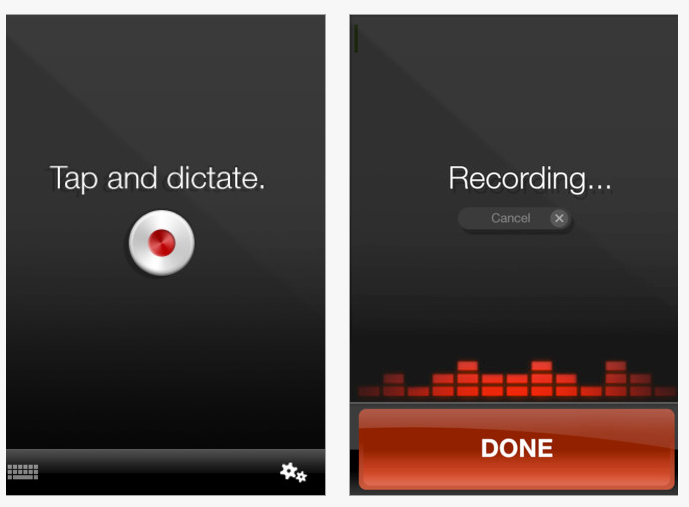
Dragon Dictation requires Wi-Fi service (or the Data Plan on your phone) for transcription to occur. After recognition via cloud computing the text transcription is entered in to the Dragon Dictation screen.
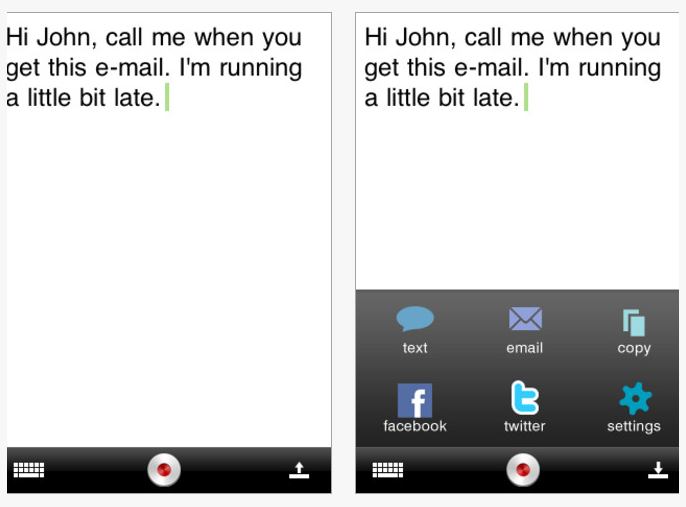
You can dictate additional messages into your text, edit the text using the keyboard or manage the text by copying,SMS, emailing or moving the text to Facebook or Twitter as available choices within the app. Using the copy feature text can be pasted into other apps for further use. If you want to listen to your text to edit, paste the text into apps with text to speech such as Speak-It!, Text Assist or NeoPaul.

Dragon Dictation for the iPad features a slightly different layout but similar functions:
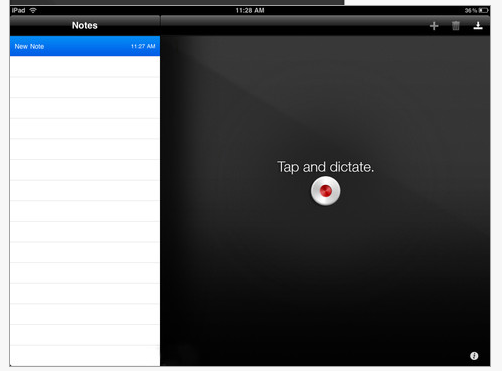
This app is simple to use and amazingly accurate given the fact that no training is required. Don’t expect unusual names or words to be recognized by the app. Good enunciation and clear speech is always recommended when using voice recognition software. Background noise can interfere with recognition, with recommendations for “try in a quieter environment for better recognition results” provided as a message when loud noises exist in the background.

So what commands can be used with Dragon Dictation?  Here is a list of commands and punctuations posted by the Dragon Mobile Apps Team:

Commonly used commands

“New Line” or “Next Line”
Press the enter key once, capitalize next word
“New Paragraph” or “Next Paragraph”
Press the enter key twice, capitalize next word
” Caps <word>
Type with an initial capital
“All Caps <word>
Type in  all uppercase
“Caps On”
Start typing words with initial capitals
“Caps Off”
Stop typing words with initial capitals

Commonly used Punctuations

&
“ampersand” or “and sign”
.
“period”
:
“colon”
?
“question mark”
!
“exclamation point”
,
“comma”
=
“equal sign”
@
“at sign”
/
“forward slash” or “slash”
“hyphen”
“begin single quote” or “open single quote”
“end single quote” or “close single quote”
“begin quote” or
“open quote”
“close quote” or
“end quote”
(
“left parenthesis”  or
“open parenthesis”
)
“right parenthesis” or “close parenthesis”
%
“percent sign”
$
“dollar sign”
#
“pound sign”
°
“degree sign”

For students or individuals challenged with producing print, this app can be a compensatory method of producing text for notes, lists, emails or compositions.  There is a limit to how much you can record and transcribe at one time, thus if you are producing long compositions using Dragon NaturallySpeaking Premium for PC or Mac is recommended. If accessing print or decoding is challenged, copying the transcribed text and pasting it into apps as Speak-It!, NeoPaul or Talk Assist to use text to speech apps may be useful.

For more information on Dragon Dictation visit the Nuance Mobile Life .

This is truly an amazing, free app! A top pick on many review lists.

Carol
Posted in App Reviews, Apps for OT's, iPad, iPod, Occupational Therapy, Voice Recognition | Tagged , , , | 3 Comments

Livescribe Pencast App for the Echo and Pulse Pen

Do the students you work with have difficulty with note taking?

Note taking is a requirement of students beginning in upper elementary school and which more demanding as students transition to middle, high school and beyond. There are many barriers presented to students during note taking – spelling, understanding vocabulary presented,  writing at the pace of the lecturer, writing legibly, paraphrasing when note taking, using short term memory to hold the information you want to write,  writing and comprehending simultaneousely to get the information down on paper in a meaningful way for it to make sense at a later time. All needed for note taking.

Some students require accommodations for note taking, such as have a peer note taker, getting outlines from the teacher, recieving teachers notes or having notes taken by the paraprofessional or teacher who might accompany the student(s) in the classroom. Other tools for note taking include recording the lecture (given permission, or as written into the IEP) with a handheld device, via capture on an interactive whiteboard, video, or even recording it with a laptop computer (via cam or recorded using computer software).

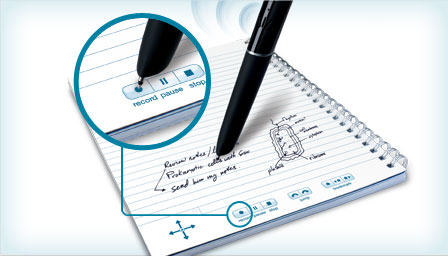
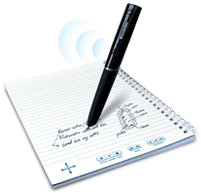
In the past few years electronic recording pens such as the Livescribe Echo or Pulse Pen became available as a new method of note taking recording written and audio information simultaneously using specialized paper and an electronic pen.

The Livescribe Echo or Pulse Pen (Echo is their newest pen and Pulse the first generation of the Livescribe Pens) allow a person to write and record audio at the same time. Using the specialized Livescribe paper, the pen records or videos what you are writing while recording the audio/sound at the same time. Using menus printed on the paper, recording can be started, stopped and paused.

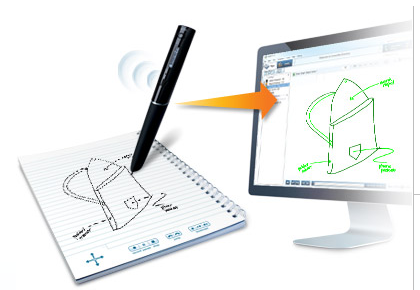
Other tools or controls on the paper menu include volume, bookmarks, jumping and increasing or decreasing the playback rate.  The Echo/Pulse Pen can be used primarily with the paper or synchronized to Livescribe Desktop software on your computer for archiving the pen’s files or review the recorded handwritten notes and listen to the audio in the Desktop software.

So what’s the deal with the Echo Pen and an iDevice apps?

The Pencast Player App, Livescribe’s mobile app,  creates Pencasts using the Echo/Pulse Pen files with the recorded audio and handwritten notes that can be uploaded via   Livescribe Desktop Connect and shared via Wi-Fi on the Pencast app on your mobile iOS device.

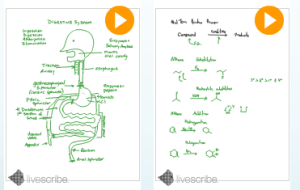
Pencasts are a digital version of the notes and audio allowing you to hear, see and relive your notes just as they were captured created in the Livescribe Desktop software and sent to the Pencast app.

Notes taken in class can be seen, reviewed, relived on your computer as well as on your iDevice using the Pencast Player App as a study tool. Many shared academic Pencasts  in a wide variety of  subjects and topics are posted on the Livescribe Pencast website tab or all to view.

Using the Echo or Pulse Pen, you can review your notes seeing and hearing the information recorded using your pen and Livescribe Notebook paper, on your computer or make it portable on your iPhone, iPod Touch or iPad using the Pencast Player App.

For more information on the Echo/Pulse Pen, additional apps, notebooks accessories and videos and tutorials visit www.Livescribe.com/ and check out the Livescribe Education tab to see how the Echo/Pulse Pen is being used for academics. There are also examples of how it is used in business as well as other creative uses. A link to AT4Education provides a post on a new app for the Echo Pen software.

Carol

Posted in App Reviews, iPad, iPod, Note Taking, Occupational Therapy, Special education, Uncategorized | Tagged , , , , , , , | Leave a comment

Apps for Pre-Writing Skill Development

A comment on this blog questioned if there were apps that supported early imitation of lines and shapes also known as pre-writing skills.  My search (which could easily have missing  apps)  found that such apps  seem to be in limited supply! Most of the apps focus on practicing letters and numbers and not what OT’s consider the prerequisites to letter formation.

Apps that provide some of practice in making or tracing basic shapes or pre-writing skills include:

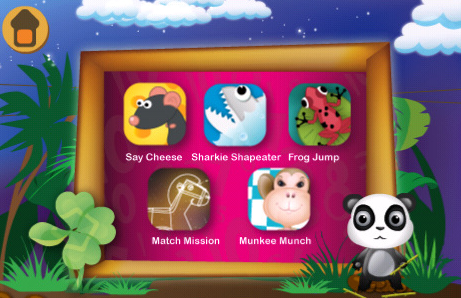
Geometry (Mathomatix) – (free) app that has a game “Say Cheese” that practices making basic shapes as circle, square, triangle and rectangle. It provides feedback on student performance giving auditory feedback when you are not successful. It does not provide cues to directions for tracking and I found the triangle to be somewhat hard. This app does provide additional shape matching games that I believe would be motivating for students.

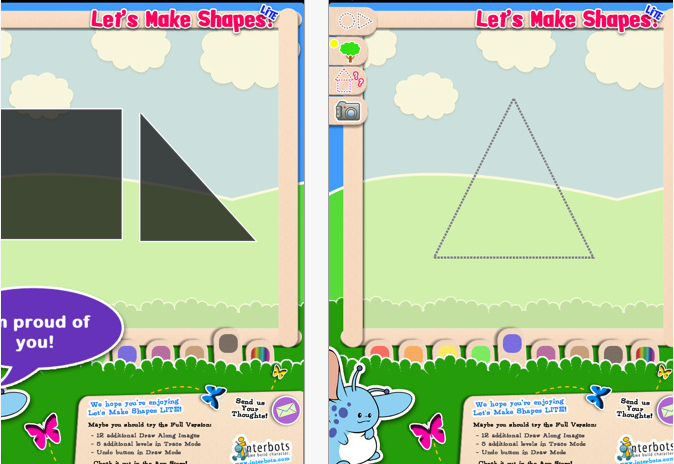
Let’s Make Shapes lite – (free) this app practices tracing over lines for basic shapes. There are lines to trace but limited visual cues of direction of drawing is provided. Using the lite version had some limitations but was great to be able to trial the app. This app appeared to have possibilities despite the lack of visual cues given for direction of drawing. Worth trialing.

Pattern Painter – from Tickle Tap Toddlers (1.99). This app is primarily for practicing drawing shapes. I did not trial this app. Rating in iTunes were a 2 of 5 which made me reluctant to purchase and trial the app.

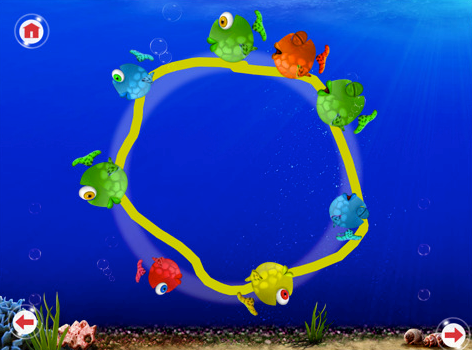
Kandy Fish– (.99) Also has a game that traces shapes using a cute ocean with fish theme. Made only for iPad, I did not trial this app however it looks appealing for young children.

Other possibilities for tracing to consider are:

Whizzy Kids – (free) The Finger Mazes  that is one among other games provided in Whizzy Kids app. Students trace horizontal lines with graded degrees of difficulty in the Finger Maze game. It does not provide the tasks of developmental sequence of writing, but good visual motor skill development for kids.

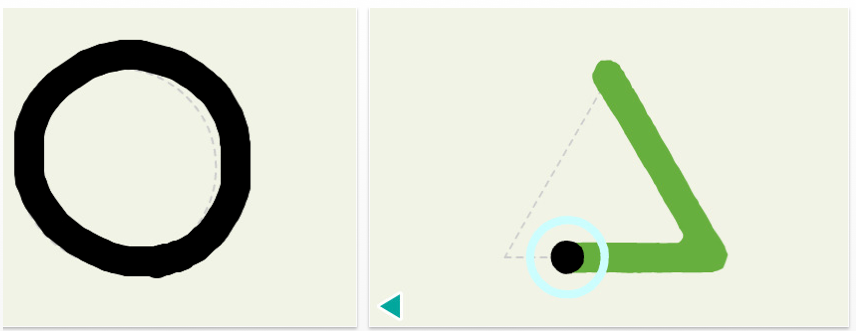
SkyWrite – (free) – this is a fabulous app with an airplane that flies and draws where you draw on the screen with an air stream (you can size this and do other customizations). The air stream stays on the screen for a period of time until it fades or you erase it. You could model drawing shapes and basic lines on Sky Write and have the student trace around or over it with another color of the air stream. It is a really an incredibly cool app that students enjoy.

Doodle Buddy – (free) is a must have drawing program that allows you many tools within its drawing program. Here are a few things you could do to work on pre-writing skills using Doodle Buddy:

  • Use stamps or stencils for a student or yourself to make a shape in Doodle Buddy app.
  • Draw the shape and have the student trace over it with another color in Doodle Buddy.
  • Draw a shape or beginning lines using a wider line, then have the student use a thinner line to draw on top of the wider line and within the line.
  • Draw a shape in Doodle Buddy and have them erase the shape with the eraser tools.
  • Take a picture of a shape or line drawing worksheet your iPad2 or iPod Touch camera and bring it into Doodle Buddy as a picture. Have the students trace over the shape or line drawing using the drawing tools in Doodle Buddy.
  • Locate an on-line worksheets of basic shapes or lines. With  the worksheet open  on your iDevice, take a screen shot (press home and power off button simultaneously) of the online worksheet. A picture of the worksheet will be placed in your Photo Album. The picture can be opened in Doodle Buddy and available to be traced on  in Doodle Buddy using the colored marker/crayons. You could insert arrows for cues of where to start and what direction to draw.

You won’t have the verbal feedback but you will have a mobile, electronic worksheet(s)  available to you. There are endless things you can do with the camera and tools in Doodle Buddy.

If you have a chance to try any of the apps or tracing activities let us know how it works! If anyone  find any other apps please share!

Carol

Posted in App Reviews, Apps for OT's, Apps for Special Needs, AT for Handwriting, Fine Motor Development, iPad, iPod, Pre-writing, Special education | Tagged , , , , | 4 Comments

Data Collection App

Super Data TRacker pic

Assessment has been a part of my job whether working with students or adults, gathering information about student/client abilities to determine what skills require intervention. Working as an Occupational Therapist one on one with students, we are able to determine what steps and skills are needed to accomplish the long term objectives through assessment, observations, knowledge of development milestones and task analysis. Collecting data was typically performed through reassessment, checklists, rubrics, observation and anecdotal notes taken on student progress. Hard copy notes was the most typical method of collecting data.

iPads and iPods have been provided to many of the special education staff at my school this year to support students programming. The mobility of the iDevices lends themselves not only as a mobile treatment tool but an electronic data collection tool. It promises efficiency, a method of gathering and calculating data given the appropriate app to support those data gathering needs. With the availability of an iPad for many of us the search began to find an app that lends to easier, meaningful and more efficient electronic data collection.

Formative assessment is an emphasis at our school. When considering an electronic data collection app used by teachers and therapists functions of entering customized goals, ability to use standard formative assessment rating ( 4 to 1 ) or other rating scales, accumulate data over time, ability to calculate the accumulated data in a meaningful way (percentages or achievements/opportunities) and retrieve/manage the data in a format in compatible with our schools technology were features desired.

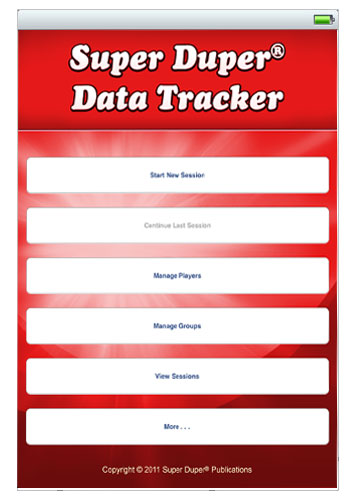
The search began. I may have missed apps that would provide more than what I could find but I had a difficult time finding an app of the desired functions for an iPad/iPod. The Super Duper Data Tracker is the one apps I believe come the closest to the functions that were desired.

Super Data TRacker 1


Created by Super Duper Publications,  the Super Duper Data Tracker App provides the following functions:

  • Create multiple goals for each student.
  • Choose from various response types — Tally, Correct/Incorrect, Approximated, and Cued.
  • “Undo” the last recorded response to correct an error.
  • Store data for an unlimited number of sessions.
  • Add students to multiple groups.
  • Add students temporarily to a group to make up missed sessions.
  • Write notes for each student in a session.
  • Email results for individual students or all students in a group.
  • Graph results for each goal.

 Example of creating a goal and choosing the response types including correct/incorrect, approximate or cued as used on an iPhone.

Super Duper Data Tracker session by player (client or student) showing accumulated scores by goal on an iPhone. The app allows you to collect or review sessions by date, player or goal. Players can be tracked individually or by group. Data is recorded by sessions and can be accumulated over time and ended at any time. Session data can be viewed in a chart by sums and percentages or a graph and emailed from the iPad or iPod.

Although this app had most of what I was looking for, what would be a welcome addition  would be a choice of response types with scores of 4 to 1 in addition to the correct/incorrect, approximate, or cued. This response type would fit standard formative assessment rubric format used by many teachers, therapists or related service personnel in education.

At present the app would be my and fellow teachers’ choice for data collection (we would all like additional choices of response types however) when using iPad or iPod for data collection. Spread sheets are another option but I prefer this app for its easy check off abilities rather than having to put numbers in a spread sheet.

Use of the Super Duper Data Tracker app found it easy to use. It is available for iPhone, iPod Touch, iPad from iTunes for $5.99. Super Duper Publications provides a video and FAQ about the app on its website for more information.  I also found Super Duper Publication easy to contact and quick to reply to questions and comments. Than you Super Duper Publications! If you have any other suggestions or thoughts for a data collection app appropriate for teachers and school based therapists – please share!

Carol

Posted in App Reviews, Apps for OT's, Data Collection, Formative Assessment, iPad, iPod, Occupational Therapy, Special education, Special Education Teacher | Tagged , , , , , | 2 Comments

Cleaning your iPod or iPad

When you work with young children and a wide variety of student in many classrooms keeping your iPad from being a germ spreading source can be a concern. Questions about cleaning the iPad and also disinfecting it are frequent. What does the manufacturer recommend for cleaning and what are some options for cleaning the iPad or iPod?

The Apple website provides the following instructions for cleaning your iPad:

Handle your iPad with care to maintain its appearance. If you are  concerned about scratching or abrasion, you can use one of the many  cases sold separately. To clean iPad, unplug all cables and turn off  iPad (press and hold the Sleep/Wake button, and then slide the onscreen  slider). Use a soft, slightly damp, lint-free cloth. Avoid getting  moisture in openings. Don’t use window cleaners, household cleaners,  aerosol sprays, solvents, alcohol, ammonia, or abrasives to clean iPad.  iPad has an oleophobic coating on the screen; simply wipe iPad’s screen  with a soft, lint-free cloth to remove oil left by your hands. The  ability of this coating to repel oil will diminish over time with normal  usage, and rubbing the screen with an abrasive material will further  diminish its effect and may scratch your screen.  (retrieved on 10/4/11 from: http://support.apple.com/kb/ht3226#ipads )

Questions still arise over all those germs shared by little and big fingers when using the iPad or iPod. Are there any antibacterial choices?

I found Klear products on the Technology for Education’s website as an ammonia and alcohol – free product for cleaning iPod and iPads. The Klear Screen iKlear Complete Cleaning kit  provides a cloth that states it ” is treated to trap and eliminate over 99.0% of the bacteria on their surfaces”.

The Klear Screen products are sold by iKlear. Their antimicrobial (def.- capable of destroying or inhibiting the growth of microorganisms) microfiber clothes are sold in kits available from TFE, iKlear or Amazon and come in different sizes as does the spray cleaner.  Prices range from approximately $20.00 for the kit to $6.00 for a single cleaner. I have not yet bought the products but the questions come up frequent enough to have encouraged me to find answers to the cleaning question.

Anyone have any other recommendations for keeping iDevices clean and germs at bay with the use of the iPad or iPod?

Healthy computing!

Carol

Posted in Cleaning your iPad/iPod, iPad, iPod, iPod/iPad Accessory, Occupational Therapy | Tagged , , , | Leave a comment

iPad/iPod Camera and Photoshop PE

Both the current  iPad 2 and the 4th generation iPod Touch have camera and video capabilities that are wonderful therapy and documentation tools. How many ways can you use the camera for therapy purposes?

  • gather electronic documentation of student work or performance using the camera or video (record a presentation, take a picture of their production)
  • record verbal or visual directions of an assignment
  • with permission record a lecture
  • take pictures for visual communication/schedules
  • provide students with immediate feedback on their performance, behaviors or or of expected behaviors
  • capture awesome student moments for parents to see
  • capture information for use at meetings or in IEP’s of students work
  • take pictures to make a story book
  • take pictures of field trips to make a book
  • take pictures or videos of classes to foreshadow activities that may be anxiety producing for a student

What if when you want to use the pictures on your device and the orientation is sideways  making the picture unusable? What if you want text on the picture but your app doesn’t provide that option?

Of course there are apps for that!

PhotoShop PE PhotoShop PE is a simple app that provides a few simple photo editing tools such as cropping, fliping, rotating, color enhancements, boarders and more to help manage your photos. Photoshop automatically accesses the Photo Library on your device to import photos for editing. Once edited it is resaved in the devices Photo Library for your use. Now your photos are edited and ready to use in a visual schedule, story book or social story! I find this a frequently used app for basic photo management.


Caption Plus

Another helpful tool is a caption app to insert text labels on pictures for individuals needing visual information. Thanks to the QIAT listserv AT techies (thank you James Nuttall ) I found there are many caption apps available. Caption Plus is a free app for iPad and iPod that easily accessed the devices photo album, allowed me to insert a text label, save it in the photo album for use in story telling apps like StoryRobe or visual schedule apps as First-Then.

If I did not have an iDevice with a camera, transferring the photo from a camera to a iDevice is possible using a Apple camera connector or SD card reader connector, storing them on your computer in a dedicated folder and transferring the folder pictures to your iPad or iPod using your iTunes account. and then up.  Other options to transfer photos include transferring your photo to a Drop Box account or other cloud computing accounts for retrieval, storage and uploading it to your device via Wi-Fi.

There are many other types of photo editing apps available. What kind of photo or video editor do you use on the iPad/iPod to support your therapy needs?

Carol

Posted in App Reviews, Apps for OT's, Apps for Special Needs, Computer Utilities, iPad, iPod, Occupational Therapy, Photo Editing | Tagged , , , , , , | 1 Comment

Even More Fine Motor Apps

A couple of my really favorite apps that are fun, promote fine motor and visual perceptual skills are My Underwear and Sam Phibian.

My Underwear is an arcadish game with activities of catching underwear, matching colored underwear or patterns of underware to colored or patterned animals. It increases slowly in levels of difficulty to provide appropriate trials for a range of kids (and some of us adults who like…) to play. It also has a visual memory matching game and a paint your underwear activity.

Great for young children and primary school children this is a fun way to sneak in visual perceptual skill development using your mobile device. Not surprising that it rates 4-5 stars in iTunes. Costs $.99 for iPad or iPhone.

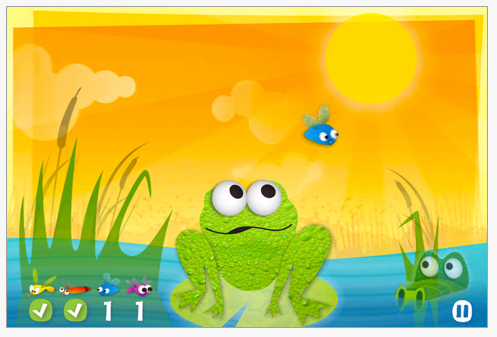
Sam Phibian is another fun app featuring a frog that eats insects. Visual tracking/scanning, attention, matching and eye hand coordination is required to make the frog  eat the correct color, quantity and type of insects flying through the air.

A single tap on the insect feeds the frog. Due to the multitasking required this is best for primary school students (or adults ;o). Free; For iPad and iPod. Rated 5 stars in iTunes.

Happy Apping!

Carol

Posted in App Reviews, Apps for OT's, Apps for Special Needs, Fine Motor Development, iPad, iPod, Occupational Therapy, Uncategorized, Visual Perception | Tagged , , , , , | Leave a comment

One of My Favorite App Developers – Grasshopperapp.com

Have you heard or seen the Grasshopperapps ? I tell everyone who works with emergent readers, writers or learners about Grasshopperapps.com. They produce many wonderful free apps as well as for pay  apps (typically .99)  for emergent reading, writing, spelling, numeracy, sorting, patterning, categorizing as well as perceptual skills (matching, puzzles).

Visiting their website or searching in iTunes for Grasshopperapps will provide you with over 80 different apps to meet the needs of your emergent learners.

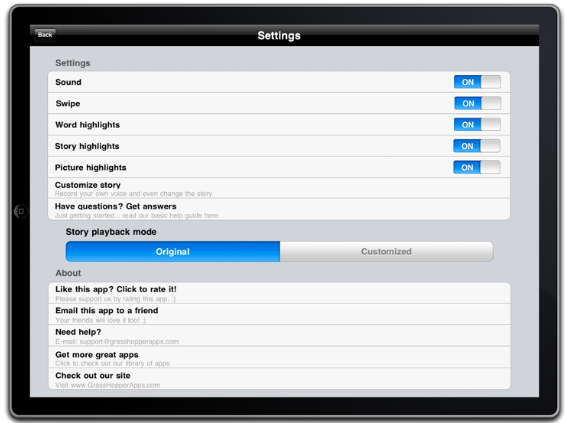
Some of their wonderful qualities of their apps are their clean presentation, wonderful, real images, ease and consistency of navigation and interaction in all of their apps.  A huge bonus is the ability to customize within the app (yes, really – you can customize levels of skills of the app!! – I tell everyone because most people are not used to having  the option available to them in apps!). Here is a typical example of the settings page where you can customize the the sound, word highlighting, story highlighting.

In the number, sorting, puzzles, letters or spelling apps you have a choice of the number of items, range of numbers, letters or  lower/upper case letters presented.   Customizing the activity by import your own pictures and recording your own sound is always an option in the settings.

Grasshopperapps also has story book apps that have wonderful kid centered real pictures and stories that will read aloud. I really love the grasshopper apps to work on specific skill development. Visit their website often, they are developing new apps on a regular basis and often offer them for free when they first come out!

Check them out . It will be well worth your time!

Carol

Posted in App Reviews, Apps for OT's, Apps for Special Needs, iPad, iPod, Phonics | Tagged , , , , , | Leave a comment

iDevice Accessory Bonanza!

What a bonanza! Check out the extensive iPad/iPod accessories list on Technology for Education’s website.

While searching for iDevice resources for speech and language pathologists and occupational therapists I wandered on to Technology For Education’s iPad/iPod Accessories link and found the most extensive listing of accessories for iDevices I have seen!

Listed are pages of cases, speakers, styluses, screen protectors, stands, mounts, covers, cleaners (clothes and spray, some clothes are antimicrobial – yeah, we know where those kids fingers have been), key guards for the iPad as well as for specific  AAC apps (Tap to Talk, Grace, Speak-It!, etc.), home key guard, switches and more! Accessories I did not realize were available.

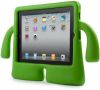
Here is a cute kid case sold through TFE – the iGuy I had not seen yet- comes in mango, peacock and lime as seen below. Sells for $37.00. Too cute. I would be most interested in how durable it is.

Otterbox cases are also listed with the numerous other offering of cases on the TFE website. I am biased with iPad Otterbox cases due to their reasonable cost and durability. We have been using the Otterboxes for our student dedicated iPads (true story, one of my teachers told me the iPad survived falling off of the stander tray on to the concrete floor of our high school iProloguo2go user) making me a thankful believer in the Otterbox cases!

If you are in the market for accessories this is a great place to peruse! Also check out RJ Cooper’s site as he is a master at adapting!

Have fun! Share what accessories you recommend!

Carol

Posted in iPad, iPod, iPod/iPad Accessory | Tagged , , , , | Leave a comment

Managing Your iDevice for the Young Learner – 101

Children love using the iPod or iPad and with a single touch can explore games and stories and lots of things, sometimes much more than you want them to! The iDevices ease of use can be a two edged sword with children/students easily getting to places you don’t want them to go.

I have heard repeatedly from fellow OT’s ” I wish I could hide the home button”. As a OT who frequently thinks about adapting things a number of things go through my mind, none which has come to fruition yet and chances are may not end up being esthetically pleasing. Good news, now there is something inexpensive and esthetically pleasing out there to help with hiding the home button and keeping the

BubCaps are home button covers for the iDevices that deter young fingers from pressing the home button. Available with different amounts of rigidity, BubCaps come in Regular, Ultra and Max depending on the age or strength of the user. Inexpensive, they come in 4-packs of a mixture or 4 of one kind for $5. BubCaps are available at their website (see link above) or through Amazon.com.

The making of BubCaps seems to come from experience (necessity is the mother of invention, right?). The company’s blog features a great overview of how to prepare your iDevice for toddlers. Check our their recommendations on protecting your iDevice on PaperClip Robot’s blog. It is worth it if you are new to using an iDevice and work with users with busy hands!

Anyone else have any methods of protecting the home button?

Happy Apping

Carol

Posted in Apps for OT's, Focused attention, iPad, iPod, iPod/iPad Accessory | Tagged , , , , | 4 Comments