Cause and Effect Sensory Light Box (1.99) for iPhone and iPad was created for a group of teenagers with complex needs including visual impairment, autism and developmental disabilities. With 21 different scenes with abstract visuals and quality audio the app encourages development and basic awareness of touches and gestures through open-ended exploration and play.
Scenes interact differently and respond to various combinations of taps, presses, sweeping and controlled movements. Some scenes are intended to encourage multi-finger and multi-handed use.
This look like a great app to work on cause and effect for individuals who enjoy visual stimuli. Have you used it? Please comment if you have experience with the app?
Thanks to Sarah DeBellis for her review on School Writing app, a international handwriting with many features including manuscript and cursive writing instruction. Check out her extensive review to decide if this belongs in your OT iTool Kit!
School Writing by Demografix is an App I’ve meant to review for some time. It has handwriting fonts for Australia, New Zealand, the USA and the UK. You might be mistaken for thinking it is only a handwriting App, when it is really a versatile App that can be used across the curriculum and is suitable for all ages. This App is for iPad only, but iPhone and iPod Touch users should still keep reading as there Demografix has an iPhone App, School Fonts, that is very similar, lacking only one of the major activities.
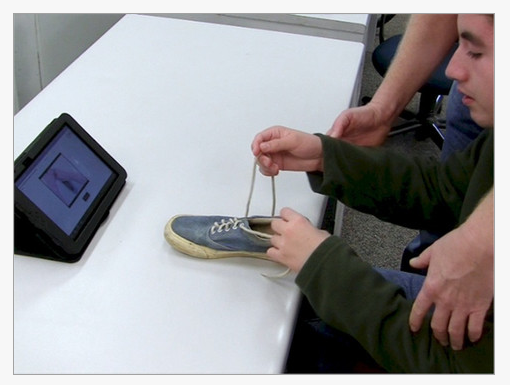
Tying shoe laces is one of those functional goals that a OT (or teacher, parent) works on to increase independence of their student, child or client. Whether using standard laces, adaptive laces, velcro and or instructional methods we are always looking for interventions that support successful skill acquisition for the client.
For a number of years now I have been using a YouTube video of shoe tying video to some of the students with autism I work with. Understanding the power of video modeling and visual communication, I went to the Internet to find a video to help support the student with ASD (Autism Spectrum Disorder) a visual method of learning.
Using an existing step by step shoe tying video, we started each session viewing the video on the computer. Sometimes we watched it several times, giving the option to the student to replaying the video as many times as needed before starting hands on practice of shoe tying. I also found a hard copy worksheet with simple text and images of the steps of shoe tying that closely resembled what was taught in the video for the student to follow during the hands on practice. The method work like a charm, requiring limited verbal cueing to the student using the hard copy visual worksheet with text (with students who have some reading capabilities) while practicing hands on task of shoe tying. It did not take long for the student to be able to demonstrate shoe tying skills. I can still hear the first student look at the pictures and recite the steps out loud himself while practicing each step. Visual communication and video modeling at work to support communication as well as skill acquisition! We have used this method a school with other students with strong visual preference and some reading abilities successfully at school.
So what does this have to do with apps, iDevices or Android tablets? Plenty!
Mobile devices can provide you with an “app for that” to support instruction of tie your shoes, video resources are available on the Internet on shoe tying or you have video capabilities on iDevices or Android tablets to create visual instruction of the task if you are not interested in video instruction. Here are some suggestions on ways to provide visual demonstration to your client using a mobile device :
Download, save in your favorites your own favorite video of shoe tying on your mobile device (see below for a few shoe tying video suggestions). Using the mobility of a tablet (iPad, iPod or Android tablet) you can watch a video on demand – anywhere! Providing the visual support in the environment of where shoe tying needs to be done – in the hallway after gym class, after recess in the winter months at the students cubbie or locker etc.
Create your own video of the skill or process using the camera/video on your tablet!
If you use a hard copy visual step by step sequence (worksheet) take a picture of it. Here are some options of what to do with the picture/photo on your device:
– Save steps of the photos and create an album of the pictured steps
– If using a hard copy step by step document, take a picture of it. Use it as a photo to show as you go or import the picture into Doodle Buddy to draw on or use another picture editing app to show where to start or which way to move a lace
– Create a step by step book with your photos of the task in Tapikeo, Pictello or other story telling apps to review steps of shoe tying with your students.
– Have your students help you make a book with the picture of the them performing steps of the task. They will be sure to want to review themselves in their book!
The mobility of electronic tablets is such a powerful tool allowing ease of use in almost any environment with visual instruction!
Apps for Shoe Tying
Here are just a few shoe tying apps and resources for you to consider as visual supports for learning the process:
Shoe Tying 1 – Activity App – (4.99) for iPhone/iPad from the makers of the Activity Trainer, Accelerations Educational Software . They provide systematic teaching and video modeling practice for individuals of any age.
Although Shoe Tying 1 is a bit pricey, if you are needing discrete training for students, this clean, well designed app and extension materials this may be well worth the cost !
1, 2, Tie My Shoe app (.99) for Android devices. Provides step by step visual instructions for shoe tying. Provides an auto play mode with settings of slow, medium and fast.
Basic visual instructions are provided.
Video Resources for Shoe Tying
Here are some video resources on shoe tying that are appropriate for instruction purposes:
If you are not able to connect at school to YouTube or are not working in an area that has Wi-Fi connections there are ways to download the movie files and save them to your tablet. Check back for future OT iTool Kit Tip and Tricks on how to manage and load YouTube videos on your iDevice.
Although only a tool for your instruction, an electronic tablet can provide access to many educational or therapeutic resources on the fly!
Do you have any other resources for shoe tying that you use?
This is a repeat post but in lieu of some of the keyboarding app reviews I thought and frequent reference to how to do this I thought I would post this how to use and connect a standard and Bluetooth keyboard with your iPad.
How to connect a Bluetooth keyboard to your iPad
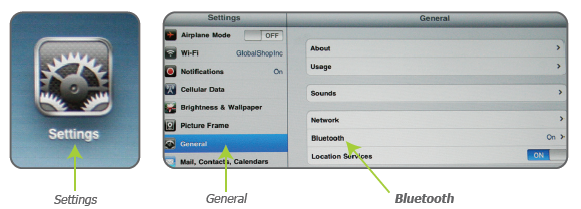
You can connect a Bluetooth keyboard by going to Settings > General > Bluetooth>On then slide button to ON.
Make sure your keyboard power is on and then pair the two devices. The iPad will search for your Bluetooth device and give you instructions for pairing the device and keyboard typically a code to enter for connection. The manual for your keyboard will also give you instructions for how to pair the devices. Here is a good video of step by step instructions of how to pair a Bluetooth keyboard with your iPad:
Bluetooth keyboards such as the Apple wireless keyboard or the Logitech Tablet Keyboard that has a stand works with both my Toshiba Thrive Android Tablet or iPad . Connecting a keyboard is the same as connecting other Bluetooth devices such as Bluetooth switch interface. Easy? Yes!
How to attach a standard keyboard to your iPad
Standard wired keyboards can also be connected to your iPad using the Apple iPad Camera Connection Kit if you don’t have a Bluetooth keyboard. Cost of the connection kit is $29.00 typically and can connect cameras, keyboards or another iPad to your iDevice making it a handy tool for a number of reasons. Keyboards typically cost more so if you can’t afford a Bluetooth keyboard, this might be a cheap solution.
The camera connector kits comes with two connectors, a USB and an SD card connector. Plug the camera connector with the USB port into your iPad and connect a standard USB keyboard into the camera connector that has been connected to your iPad. After connecting the USB keyboard to my iPad, I initially received a “not compatible” message, I selected okay, then opened an app that word processed (such as Notes app) which allowed me to type on the keyboard into the Note app without a problem. Here is a video showing you how to connect a wired keyboard:
The next challenge was positioning of my iPad in an upright position with the connector attached at the bottom. I unlocked the rotation on my device so that I could flip the iPad upside down and view the app with the connector positioned on top of my iPad while in an easeled position.
My Targus Versavu Case can do a 360 rotation and has a stand in the case providing an upright position when attaching a standard wired keyboard for more appropriate ergonomic placement of the keyboard and iPad.
I also have an inexpensive Arkon Portable Fold-Up Stand for Tablets suitable for easeling an iPad, Thrive or any other tablet for better ergonomic, upright positioning.
Have a need for a countdown app? Do you have a child or a student who would benefit from count down by days to a big event?
When I saw this app I thought about students who need a visual reminder of the number of days to an event to help with anticipating a big trip, start of school, vacation or end of school ( I know school system people would never want to use this as a countdown to end of school!). Although a low tech calendar with days crossed off can do the same thing, the automation of an app might help teachers or parents provide children or students with an immediate countdown number to help them anticipate that big event.
CountDown Pro – for iPhone/iPad comes as a lite version and Pro version (regularly $.99) with Pro free today. Provides countdown to an event and also provides calculation of number of days by entering a beginning and ending date (does not calculate years just days). Events can be categorized under All, Work, Life. You can set reoccurring events by month or year to be alerted of birthdays, anniversaries similar to electronic calendar options. Here are a few pics of the app:
I was surprised to find a gazillion countdown apps for specific purposes (pregnancy, weddings, etc.). This app was very easy to use. A quick search on countdown apps found most were $.99 to 1.99 in cost for a full version, making this app a bargain.
Although I have not trialed this app with a student, I could image it being helpful to individuals with temporal concept challenges who have a difficult time with anticipating big events. Countdown strategies such as visual times for short-term concepts, verbally counting down to end a therapy session, counting down to get started are invaluable tools therapists, teachers and parents use with our clients ( children or adults – how many of you count with an adult client for sit to stand – it gets everyone on board and sync’d). For those clients who love to use electronic devices this might be one more tool for your iTool Kit that can come in handy.
For Android – I found many “countdown” apps for Android, many free. Here is one to consider:
Days Left – free for Android. Countdown app by days that can be customized by event.
I should be using either of these – I am terrible at anniversaries and birth dates! And might I use this for end of school year countdown, days to vacation? Hmm… admit it – we all like countdowns to big events we look forward to!
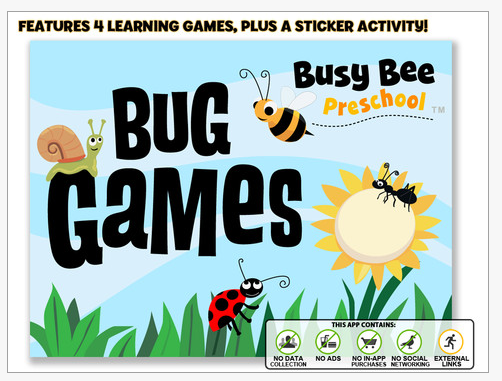
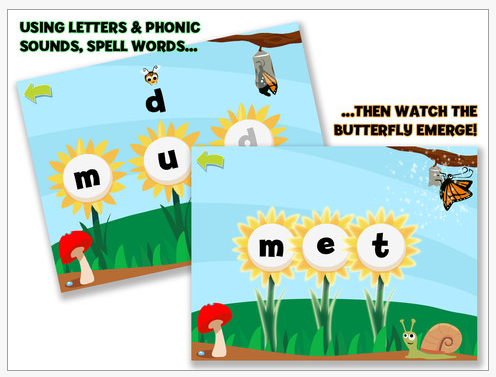
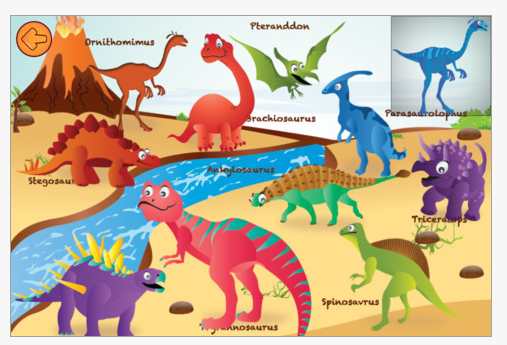
Bug Games HD – iPad only featuring all kinds of critters to promote letter and word work, number concepts with dot to dot and puzzle activities. Stickers as a reward system is included. No ads, no in app purchases and no data collection is in the app.
If not an app for your OT iTool Kit, share with parents and teachers to add some variety to learning for free!
Buzzle app – iPhone/iPad (free, with in app purchases) app featuring 31 puzzles with different scenes and concepts. Shape discrimination and pattern matching activity (not inset puzzles) presented with a variety of theme concepts (animals, shapes, objects, etc.) and scenes. Suited to preschool and primary age students. Rated well by reviewers in iTunes.
Check out these free apps to determine if they will be part of your OT iTool Kit!
Chris Hotzak at Rehab Alternatives.com has a compiled a Top 10 Occupational Therapy Blogs list. Based on criteria of information presented, frequency of posts, uniqueness, fun and ease of navigation, his list includes blogs are interesting to peruse for their different flavors and focus of OT. I am also honored, as the author of OT’s With Apps, to be one of the 10!
I encourage you to visit his review of the Top 1o Occupational Therapy Blogs at Rehab Alternative.com and explore for yourself what other OT’s are sharing about our profession, get additional ideas and resources.
Thank you Chris for including OT’s with Apps on the list!
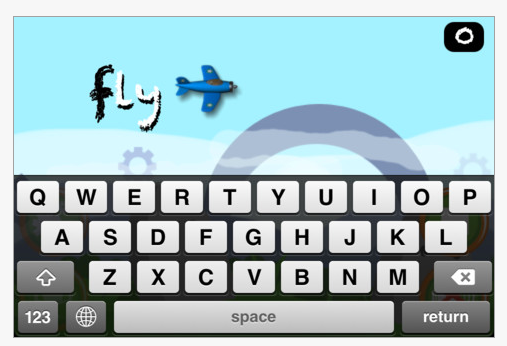
Thank you to Bonnie Shams, OTR for her comment about Type Fun app, a keyboarding game app for the iPad and iPhone.
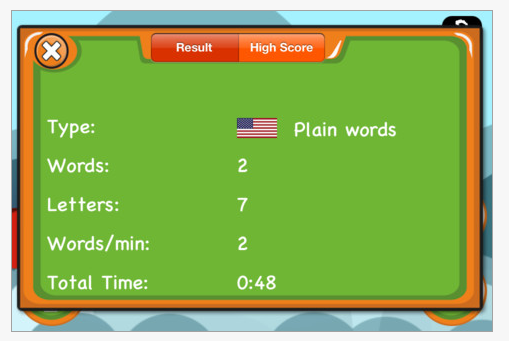
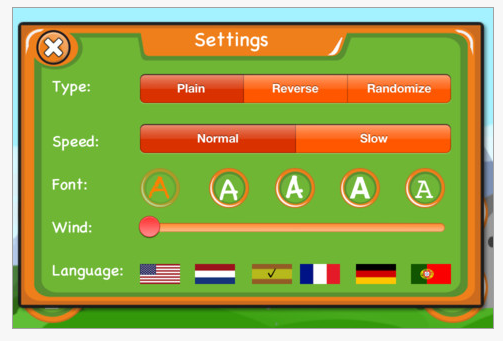
Available in a lite and full version (.99) with more words provided in the full version. Practice levels for beginning and practiced typists are options with speed settings and word selections provided in a fun game format!
The app provides scores and has setting options for the user. Here is a video of the app’s typing game :
As always practice on a standard keyboard using touch typing technique is recommended as the standard method of typing instruction. Use of a Bluetooth keyboard (such as Apple Wireless Keyboard or Logitech Tablet Keyboard for iPad ) or a wired keyboard is possible (see how to connect a standard keyboard to an iPad using the iPad Camera Connection Kit on this previous post : Keyboarding Practice on Your iPad or Android ) with your iPad. Be sure to use good ergonomic positioning when practicing keyboarding!
Thank you again to Bonnie for her recommendation. Another free tool for your iTool Kit!
There are sturdy cases, kids cases but what about cases for professional use?
Here are a few cases that recieved good reviews for professionals looking for lightweight, low scale, affordable protection for their iPad with out a keyboard. Keyboards typically add weight and bulk making them a bit more clumsy to tote around. Having a case with a keyboard or not I believe depends on your usage. If you are using it for meetings, word processing or documentation then having a keyboard may be essential for you. If using your device is more frequently with students with interactive apps and projects, short annotations, checking emails or Internet access, a keyboard may not be your choice. I have done both and keep going back to a keyboard-less case (and I am adapting my keyboarding skills to the device- for good or bad!).
Here are some cases favored by Amazon customers and CNET (a trusted source of electronic reviews):
Targus Versavu for the New iPad (3rd Gen) – ($39.) Compatible with iPad 2 and 3, this case rotates 360 degrees to position it upright in portrait or landscape. the case is slim, protective and provides grooves to allow upright positioning. Having purchased this for an iPad2 and now using it with my iPad 3, I still like this case for ease of use. I can fold the front back to hold and use my iPad or position it upright in the case. Low scale it stacks and stores easily with all the other stuff I cart around.
Others have asked me how my screen stays clean, realizing the soft inside fabric when closed cleans the screen on its own. It does not come with sleep/wake feature.
STM Bags Grip for iPad 3rd Generation – ($32.) Slim, lightweight case that is easy to carry, protective and provides two kickstands for positioning for easy typing or viewing. Auto on-off front cover wakes up the device and puts it to sleep. Rated well by CNET reviews and Amazon customer ratings.
Targus Vuscape for the New iPad (3rd Gen) ($35.) Slim, soft, padded case that protects your iPad. Provides automatic wake up/sleep function, magnetic closure and upright orienation in landscape position. Rotation capabilities not available. Rated well by Amazon customers.
Speck Products MagFolio Case for the New iPad 3 – ($35.) Favored in CNET’s reviews of iPad 3 cases and Amazon customers ratings. This is a slim case with magnets to keep cover closed and activate sleep/wake function. Form fitting protective case for the iPad 2 or 3.
Can’t find an app? Checkout this updated, categorized listing of app geared to OT’s, special education, individuals with LD, ADHD, students, teacher or parents. It has a brief description of the apps which hopefully will make it a bit more user friendly. Android apps are also being added.
More apps in most categories. Prices may differ as some apps were purchased during a “free” app day or may have experienced a price change.
Please let me know if you have any suggestions. This app list will be posted in the Pages section of OT’s with Apps blog for your perusing. If this list is helpful, please share.

 Cause and Effect Sensory Light Box (1.99) for iPhone and iPad was created for a group of teenagers with complex needs including visual impairment, autism and developmental disabilities. With 21 different scenes with abstract visuals and quality audio the app encourages development and basic awareness of touches and gestures through open-ended exploration and play.
 This look like a great app to work on cause and effect for individuals who enjoy visual stimuli. Have you used it? Please comment if you have experience with the app?
 School Writing by Demografix is an App I’ve meant to review for some time. It has handwriting fonts for Australia, New Zealand, the USA and the UK. You might be mistaken for thinking it is only a handwriting App, when it is really a versatile App that can be used across the curriculum and is suitable for all ages. This App is for iPad only, but iPhone and iPod Touch users should still keep reading as there Demografix has an iPhone App, School Fonts, that is very similar, lacking only one of the major activities.


 app (.99) for Android devices. Provides step by step visual instructions for shoe tying. Provides an auto play mode with settings of slow, medium and fast.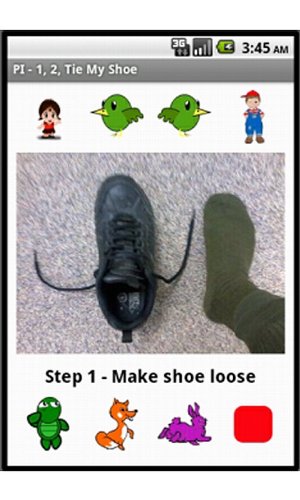

 that has a stand works with both my
  or iPad . Connecting a keyboard is the same as connecting other Bluetooth devices such as Bluetooth switch interface. Easy? Yes!
 if you don’t have a Bluetooth keyboard. Cost of the connection kit is $29.00 typically and can connect cameras, keyboards or another iPad to your iDevice making it a handy tool for a number of reasons. Keyboards typically cost more so if you can’t afford a Bluetooth keyboard, this might be a cheap solution.
 can do a 360 rotation and has a stand in the case providing an upright position when attaching a standard wired keyboard for more appropriate ergonomic placement of the keyboard and iPad.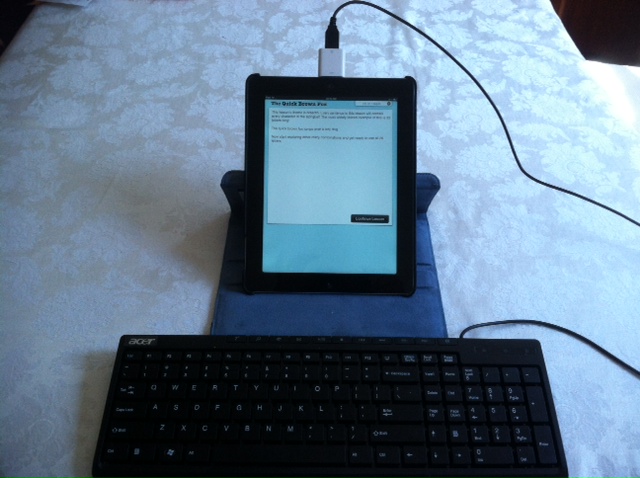
 suitable for easeling an iPad, Thrive or any other tablet for better ergonomic, upright positioning.





 or
or  ) or a wired keyboard is possible (see how to connect a standard keyboard to an iPad using the
  on this previous post :
 – ($32.) Slim, lightweight case that is easy to carry, protective and provides two kickstands for positioning for easy typing or viewing. Auto on-off front cover wakes up the device and puts it to sleep. Rated well by CNET reviews and Amazon customer ratings.
 ($35.) Slim, soft, padded case that protects your iPad. Provides automatic wake up/sleep function, magnetic closure and upright orienation in landscape position. Rotation capabilities not available. Rated well by Amazon customers.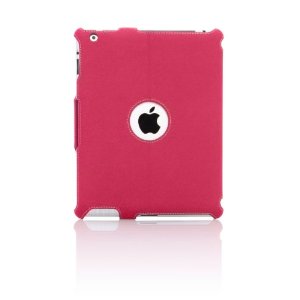
 – ($35.) Favored in CNET’s reviews of iPad 3 cases and Amazon customers ratings. This is a slim case with magnets to keep cover closed and activate sleep/wake function. Form fitting protective case for the iPad 2 or 3.
 ($22.) – Has 2 position adjustable stand in a lightweight, protective case. Reviews have been positive for an reasonably priced case.
 – ($35) A lightweight solution to a tactile keyboard for your iPad. The keyboard uses magnets to stay in place and gives you a feel of a keyboard that you can easily apply and remove.



 OT's with Apps & Technology