Awake Labs, is developing an electronic band that to help children on the Autism Spectrum. Currently an Indiegogo project, wearable measures and tracks anxiety to understand behavior and predict behavior meltdowns. Called Reveal, this project is projected for commercialization in early 2017.
Here is more about this exciting innovation:
Reveal is targeted the individuals with Autism but has implications for other individuals who may have behavioral challenges due to stress and anxiety. The wearable will provide information to caretakers as well as the user.
An exciting innovation to assist with self regulation! Think of the children this might help identify sensory or behavioral strategies!
Questions about styluses are often posted. Styluses have come and gone with some reappearing after reorganization of some of the vendors. Here is a review of some favorite styluses for big and little fingers that are currently available and the links to the vendors.
Styluses for Little Fingers
Styluses for kids are unique due to the durability and grasp affordances. Accuracy with positioning the stylus in various positions is also important if used to promote progression of a more mature grasp. Here is what I have found currently available:
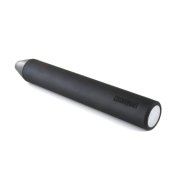
Cosmonaut Stylus – (25.00) Remains an expensive stylus, but found to be a durable, weighted tool for students to use. Probably not good for sensory seeking chewers who like the feel of the rubber tip.
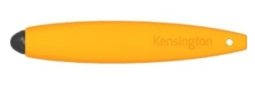
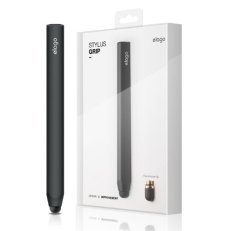
2. Kensington Gummi – (9.99) A small rubber tipped stylus for small hands. Available in different colors.
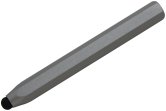
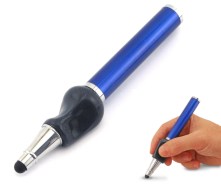
3. Infinite Aluminum Easy Grip – (6.95) – Stylus with aluminum shaft for easy gripping. Although I don’t own this stylus, similar styluses provided weight for additional proprioceptive feedback for those sensory seeking students.
4. Suck UK Stylus – (10.36) – Another chunky stylus that can work for small hands.
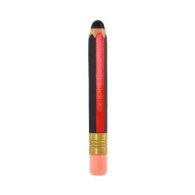
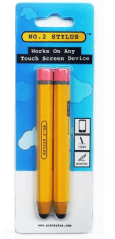
5. No. 2 Pencil stylus – (19.99 for pack of 2) – Similar to the Suck Stylus, this stubby stylus has replacement tips.
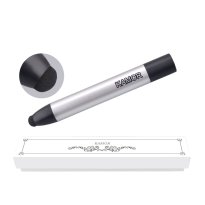
6. Kamor Stylus – (4.99) – Has a mesh tip and a chubby shaft for small, young hands to grasp. I have not used this stylus yet (it is on its way…), but looks promising and at a low cost.
Unfortunately the Dano Stylus, a popular stylus of OT’s is no longer available. On an occasion, it can be found on sale from a 3rd party on Amazon, although you may pay dearly for it ( 36.20 – 1 available on Amazon on 7/4/2016 – Dano Stylus )
Styluses for Big Hands
Here are a few styluses for more mature users who are looking for accuracy and control:
Lyntec TrueGlide Stylus – (9.99) This is one of my favorite generic styluses due to its mesh tip which I find is more accurate positioned in a variety of angles for ease of use and input.
These unique styluses are adapted for individuals with grasping and strength challenges.
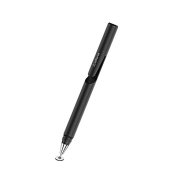
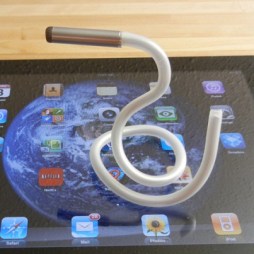
1. Caduceus iFaraday Stylus – (22-25.00) Fortunately this stylus is back on the market for purchase. It is one of a kind with a bendable shaft that is extremely light weight that can be adapted to many hands and wrist for positioning purposes. I recommend adding the SALT tip ( mesh tip) for best accuracy with use with minimal pressure and from different angles. This is an incredible, adaptive stylus! Replacement tips are available.
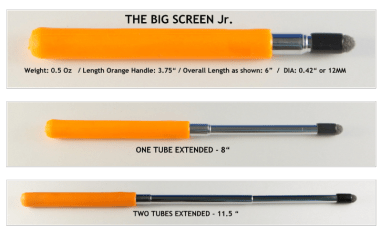
2. Stylus-R-Us Telescoping Stylus – ( check website for pricing). Telescoping Styluses as well as other styluses are available at Stylus R US. These styluses are somewhat pricey but very accurate and well made. Contact the developer if you are looking for something unique for an individual with a disability.
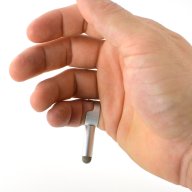
3. Sixth Digit – (29.00) – This Sixth Digit device can be used for tablet input as well as for many pointing tasks. Adjustable, tip replacements available Clever.
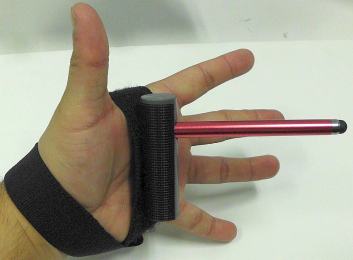
4. Hand Pointer from RJ Cooper – (29.00) – This adaptive stylus has a great strapping system to secure the stylus to a hand in multiple positions.
Note : Mouth pointer styluses are listed in the equipment menu on OT’s with Apps Blog.
Certainly there are many more styluses, however the above styluses are recommended from experience with use of almost all of them.
What stylus do you recommend for your mobile device tool kit?
I can’t tell you how often I talk with clients about methods of converting hard copy text/papers to digital format for purposes of accessing information using text to speech, completing forms or for organizational reasons. Whatever the reason there are many ways of completing this task using portable devices such as portable scanners, scanning mice or a mobile device with a camera and apps. So what might be some good choices?
Using a Mobile Device with a Camera.
One of the most frequently used methods of scanning documents and converting it to electronic format is with the use of a mobile device with a camera. There are a couple of options when using your mobile device: use your camera or use a scanning app.
a. Using your camera to make a digital copy can work when all you need is a copy and quality of the image is not a concern. Taking a picture and storing it in your photo album, emailing it or saving it in a document can work. Lighting and positioning can cause shadows and a product that may not be centered or flat. If all you need to to view it at a later time, that can work!
b. If a more professional copy is needed to share with a client, employer or business purpose, use of a OCR Scanning app is recommended. You will still use the camera of your mobile device, but with a scanning app that will literally scan it using OCR- optical character recognition which detects the letters/word and symbols of the image and save it in a format that is readable or editable. The most typical formats are doc., txt or PDF formats that creates readable and editable text document documents. When using a scanning app, most apps allow cropping, dimming or brightening and some editing capabilities. The scanning process reducing lighting and shadowing problems and allows cropping the scanned image or document to a standard size document creating a professional and cleaner copy. Scanning apps allow you to save the scanned document in a chosen format, and share the document via email, cloud service (dependent on the app) or for use in another app. This method allows easy storing, sharing and retrieval at a later time.
Scanning apps are plentiful for iOS and Android with a variety of features and paired or connected services. Here are a few of my favorite OCR apps:
OCR scanner apps for iOS:
Scanner Pro app by Readdle (3.99 for iPhone, iPad) Exports to email, Dropbox, Google Drive, OneNote, OneDrive, iCloud, Evernote.
Readiris App ( 14.99 for iPad only) Compatible with VoiceOver.. Exports to email, Google Drive, Dropbox and Box.
Text Grabber (free; iPhone, iPad) Compatible with VoiceOver.. Exports via email, Evernote, Twitter or Facebook
OCR scanning apps for Android:
CamScanner app (1.99); Exports via email, Evernote, OneDrive, Dropbox and Google Drive.
Genius Scan (free/6.99); Exports via email, Evernote, Dropbox or Box.
Scanbot app (free) ; Exports via email, Evernote, Google Drive, Dropbox or Box
Portable handheld scanners.
These portable document scanners are small and can be easily carried in a case or back pack. The following portable scanners are rated well and can be easily transported:
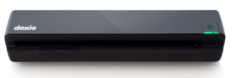
Doxie Portable Scanner ( 129.00 ). Portable OCR scanner about the size of a paper towel roll and weighing about 1.7 pounds. Scan Syncs with PC, MAC and iPad using an SD card. No computer required.
Doxie Go Plus (178.00). Portable OCR scanner same as above however longer battery life and higher DPI.
Scanning Mouse.
A scanning mouse can be a portable solution used almost any where to scan in a document when connected to a laptop or
Iris Executive Scanning Mouse 2 (77.00). Move the mouse over a document with scanning feature to input text information and convert to a digital format. Works with Window, Mac. Here is how it works:
There are a number of portable options to convert hard copy text to digital format, allowing individuals access to electronic documents for reading, writing or to organize files. Mobile devices and apps provide an easy method of managing documents for a variety of purposes by individuals with disabilities. With the availability of mobile devices, low cost apps can provide an inexpensive method of converting hard copy to electronic format. Other portable devices also are available to aid managing documents.
Portable, Adjustable Computer/Keyboard/Mouse Stand
Looking for a inexpensive sit to stand solution for positioning a keyboard, laptop or mobile device?
I recently purchased the Readaeer ® stand, a portable, adjustable computer /keyboard and mouse stand as a sit to stand component to my workstation. After recommending these stands for clients for several years, I decided to add this adjustable stand to stand component at my workstation. I have been working on an inexpensive sit to stand solution for a while, trialing many found objects (crates, boxes, other stands, etc. being the cheap person I am) to see what might be a comfortable, ergonomic, inexpensive solution. Added as adjustable positioning for my keyboard and mouse when using an external monitor positioned on a shelf (or could be mounted or attached to an arm on the wall…) attached to my laptop computer provided appropriate ergonomic positioning for viewing (with bifocals..) and comfortable, neutral positioning of both the keyboard and mouse when standing. A Logitech Bluetooth keyboard and mouse , already used at my workstation, reduced the tangle of cords and allowed ease of repositioning these input devices from sitting to standing, has also been a plus. This has been the best solution yet, and fit my budget with my existing equipment!
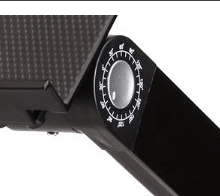
With many portable, adjustable stands available, I found my pick of stands – the Readaeer ® Portable Stand with mouse platform -f a very affordable stand for less than $30.00. This stand accommodates a 17″ computer and also a mouse platform that can be easily attached to the right or left side of the stand. Both the tray and the mouse platforms have angle adjustments to achieve ergonomic positioning along with 360 degree angle adjustments of the legs that allow you seemingly endless options of positions. Happily, the adjustable legs have degree markings to help with symmetry of the stand, otherwise it truly can get cockeyed easily with just a slight angle off making it stand crooked!
Here are some of the positioning possibilities with the stand along with how portable it can be when collapsed:
Weighing less than 4 pounds, this stand is also easy to carry if needed.
This stand has also provided a solution to many clients with mobility challenges that rely on positioning in a recliner as a comfortable positioning solution. The lightweight, 4 pound stand with multiple adjustments allows it to be easily fit and lifted for use on couches, beds, soft recliner chairs as well as table tops.
Clients have also used this stand as an alternative for positioning documents when standing.
Although there are many sit to stand solutions and laptop positioning solutions, this inexpensive solution has provided my best yet solution for my workstation as well as a solution for many clients and cost effective.
What are your cost effective laptop computer positioning solutions?
Finding the right tools for the job can often times feel like looking for that needle in a haystack. For a number of clients in need of work related cognitive supports, a device that is small and ubiquitous provides a discrete tool with numerous options. iPhones, iPod Touch, Android phones can provide supports that look no different than those used by the general public.
Protecting and maintaining mobile devices is another part of the solution, along with identifying apps, training and integration. When considering mobile device usage, protective cases and security is often an important part of the solution so the device can not be lost or misplaced, or damaged. Cases, lanyards or other attachment methods often need to be considered.
A previous post on the Lanskin Lanyard identified a case and lanyard option for an iPod Touch. Each devices often require a specific case allowing access to power and audio ports, features such as the cameras, volume buttons or memory cards. It is more typical than not that with each new model these features change in location or design requiring careful consideration of a case and devices for security. So what currently does a haystack search yield when looking for an iPhone 6 case and potential security attachment options?
A recent haystack search found a few new iPhone 6 cases and devices that are durable and provide features that will help maintain a device with a client for security and easy access:
Kenu Highline Case for iPhone (29.99 on Amazon) with security leash and protective case. I have not trialed this case but it looks promising with a protective hardshell case and leash to retain this to a belt loop or other attachment for security.
RealCase for iPhone ( 34.95 on Amazon) has a retractable lanyard built into the case.
Smart Catch holder for iPhone (36.00 on Amazon) fits over protective cases with lanyard attachment for security. Lanyard is detachable.
Phone Lasso Grip for mobile phones (9.95 through Amazon) features an adhesive patch to attach to your device under a case.
Frog’s Tung Cable Cell Phone Leash for mobile devices (19.99) adheres to the device providing a leash for security. It is also detachable. A variety of Frog’s Tung Cable Leashes are available.
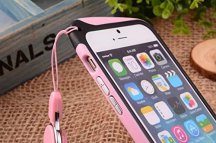
Trial of the Smart Catch and Lasso on my iPhone (as shown in top pictures) finds these two viable options at a low cost. These options could prove a temporary options for a work situations for attachment of a any phone or iPod Touch to a belt loop or lanyard offering security and easy access. Although not trialed the other options also provide methods of protection and security.
What other options have you used for your students or clients?
Note taking is a subject frequently addressed during AT assessment of students. Along with peer note taking accommodations, as eligible through a college’s students with disability center, or special education department there are many electronic tools available to support note taking using mobile devices, recording devices or software choices. As with many tools these days, choices are many and requires research on the features of each of these tools.
Standard Note Taking Tools
Along with researching the type of note taking tools, the question of the best method of note taking should be identified. Review of the literature on note taking yields differing opinions on the best tools. When considering handwriting, typing, recording information as frequent methods of note taking, a Scientific American article (May, 2014)suggests handwriting is a better method of note taking as it is slower and requires individuals to summary information in their own words. Typing, a faster method of producing written information resulted in reduced retention by students of lecture information.
Another article (Friedman, M. N.D.) identifies typing which is a faster method of written production, allows greater availability of cognitive resources for understanding lecture content. Individual factors of speed and proficiency with typing or writing require consideration when choosing a method of note taking.
Many students identify maintaining pace when note taking, spelling and the multi-tasking demands of listening, processing, writing and summarizing a challenge. Note taking is a multi-faceted task with many demands on the note taking simultaneously which can break down at any one of the task components.
Note Taking Tool Choices
There are many include standard paper and pencil, word processing on a computer as cited above or use of handheld digital recorders. Other hybrid tools, using electronic devices use multiple features often including taking or importing images, digital recording, handwriting or typing using software, apps or smart pens. Consideration of learning preferences, electronic resources or device platforms, costs, sensory and motor skills should be considered when considering a note taking tool. Using a feature matrix to compare individual components of note taking tools, can be a helpful tool when considering preferred note taking tools.
Note Taking Feature Matrix
Evaluating the features of the tools considered takes the guessing out of selecting appropriate tools. I love feature matrixes, too many times I have searched for similar apps and unable to recall the slight differences and features of one versus another. Feature matrixes I find, provide a systematic method of comparing all those features needed for an individual client.
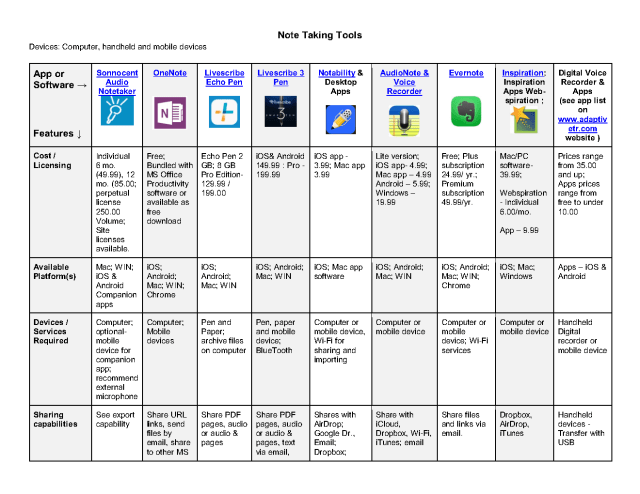
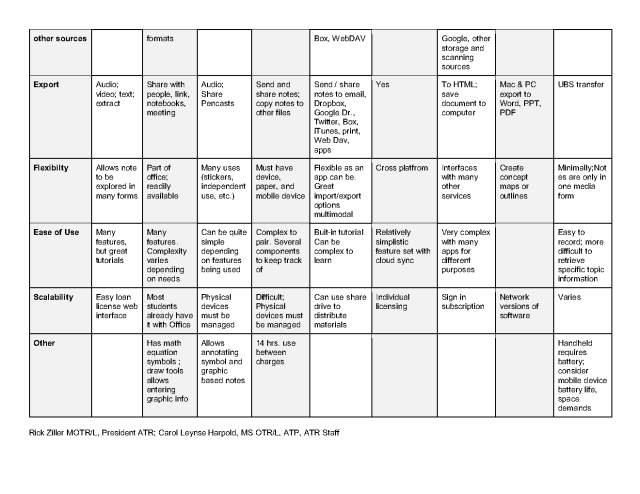
The following Note Taking Feature Matrix created by ATR’s AT specialists , Rick Ziller MOTR/L and myself help compare note taking features of a few of the major note taking apps, software, hardware and services available:
The following list includes links to the software and devices above mentioned available online :
The following list contain a few select digital recording apps by platform for consideration:
Basic Voice Recorder App List¹
Chrome:
MicNote – MicNote is a great tool that allows you to both record audio and take notes at the same time. It is perfect for brainstorming ideas, taking quick notes, and planning meetings.
Voice Recorder – Voice Recorder ( free) is a simple app which records sound from your microphone. After recording, you can trim the sound and save it to your computer.
AudioRecorder App – Record audio, and then save as a wav file. Works off line.
Windows:
Windows voice recorder tool is available in the Start Menu > Windows Accessories> Steps Recorder (Windows 10 OS) or as Recorder in Windows 7 or 8. Simple recording application that can be saved for later review.
Easy Voice Recorder (free; Pro version 3.99 for additional features): Simple to use voice recorder for Android devices. Save and share files. Pro version features additional file organization tools.
Audio Recorder (free): Sony recording app with easy to use interface and several levels of sound quality levels to choose from. iOS:
iOS
SimpleMic (free; 2.99 for upgrade features)- Voice recording app compatible with VoiceOver. Syncs with iCloud for storage and easy review. Sound activation feature. Label and tag for easy retrieval. Transfer directly with email, Dropbox and SoundCloud. Share with Google Drive, Evernote, MS OneDrive.
QuickVoice Recorder (free; Pro 2.99 removes ads, allows recording more than 5 min.): Easy to use voice recorder, name files, send, share voice files, create voice memo for emails. Transfer files to Gdrive, other apps and services.
Summary – Note Taking Tools
Many features can be considered when choosing a note taking tool for a student along with the other supports available from special education services or students with disabilities or tutors. The above note taking feature matrix compares features of some of the major devices, apps and software considered for the task. The above list of apps is limited, however recommended for ease of use.
What is your favorite note taking tool? What are your students with special needs using to support note taking?
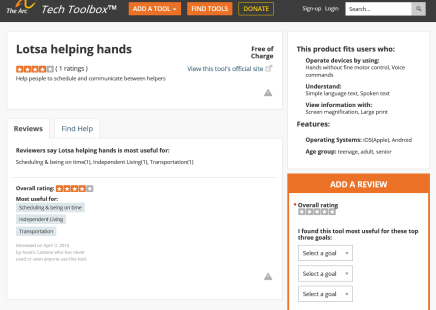
Thanks to the The Assistive Technology Daily blog for offers the latest tech resources for individuals with disability. One of their recent posts features The Arc’s Tech Toolbox™ , an online resource to find, share, rate and review technology for people with intellectual or developmental disabilities (I/DD). This is a welcome addition to other online technology websites or apps dedicated to searching the myriad of apps or software available to support the specific needs of an individual! Searching for the right app is overwhelming due to magnitude of numbers of apps on each platform!
The search format of the Tech Toolbox™ is easy to use with multiple advanced search features specific to the needs for individuals with intellectual disabilities. Here an image of the basic search features which provides additional options in each of the drop down boxes:
Results of the search provide a rating, description, cost and identifies if it is from a website, software or hardware. Results features “More”I like the features of newest to oldest, providing a method to keep up with recently created software that have emerged on the market and reviewed.
Not only are apps, but software and devices featured in the Tech Toolbox. Users can add additional reviews as well as offer a device, software/app or hardware for review.
This new Tech Toolkit is a welcome addition to the other technology search tools available on the web! Share your expertise with apps, software, websites or devices that support individuals with intellectual disabilities with Arc’s Tech Toolkit to aid others decision-making for assistive tools!
Thanks to Jacqui Murray for her quick answer to a question asked often about setting default fonts in MS Word. As an OT and ATP working with a variety of individuals with disabilities on the computer often requires addressing and exploring font types, sizes as well as contrast when using the computer. Many individuals continue to use MS Word and for those with presbyopia , dyslexia or low vision / visual impairment conditions, modifying the font size and type and spacing may improve visual comfort and access.
Jacqui provides this quick solution to setting a default in MS Word…
Dear Otto is an occasional column where I answer questions I get from readers about teaching tech. If you have a question, please contact me at askatechteacher at gmail dot com and I’ll answe…
Google Docs recently added Voice Typing tool provides a voice recognition tool for word processing within Google Chrome. This is a great new feature in Google Docs that requires no training and little set up. Voice Typing can be turned on in Google Docs under the Tools menu:
Using my computer’s microphone resulted in good speech recognition when using Voice Typing, matter of fact it is quite impressive! In the past, voice commands for editing, navigating or formatting using dictation in Google were limited, reducing the functionality of the tool. Recent updates finds Google has added many new commands supporting speech recognition for more than just dictation but for navigation, correction and also for individuals who use screen reading to speak the cursor location, speak formatting among other options.
A full list of all of the Google Voice Typing commands are available here: Type with Your Voice . Here are the Voice Typing command topics currently available (each area can be expanded showing numerous commands in the online resource. Note the below image does not have active links):
Note- the above Voice Typing is only available in Google Docs and when using Google Chrome browsers.
If you are a GAFE school or a Google Chrome and Google Doc user interested in using speech recognition, check this feature out. Certainly how this functions may be dependent on your computer’s processor, voice quality and microphone. You may want to consider using a noise cancelling microphone headset for noisy environments.
Flip Writer AAC app is a communication tool for individuals with hearing and speech disorder who benefit from text based information for the iPhone and iPad. The app also features high quality text to speech, providing a voice to those with a speech impairment. Although OT’s specialty is not communication, there are times when communication becomes a barrier due to aphasia, hearing impairment, requiring a method to gather and share information with clients, friends or others when working in a hospital, clinic or other settings. Flip Writer app for iOS devices provides a tool to exchange messages with a mirrored writing environment for both communicating partners.
Flip Writer AAC app is again available in iTunes and currently free. Regularly priced at 24.99 (I believe), this is a great deal and provides a tool that might come in handy for communication with clients or others. At 32 MB it won’t take a lot of space on your device like other symbols/picture based communication apps.
Already using Flip Writer AAC app or another app? Share your app suggestions!


















 OT's with Apps & Technology