Live Caption — The Assistive Technology Daily

Live Caption Live Caption Using voice recognition software, you can connect with the world again. Stay in the conversation with Live Caption. Need help understanding the waiter at your favorite restaurant? When you download this app, they can speak directly into your phone and Live Caption transcribes in real time. To begin captioning, simply press the…

via Live Caption — The Assistive Technology Daily

H/T to The Assistive Technology Daily for curating everything AT!

Carol

Posted in Accessibility, Apps for Special Needs, Communicaton, Deaf and Hard of Hearing, Hearing Loss, Uncategorized | Tagged | Leave a comment

Assistive Listening Devices For Hearing Loss People — Hearing Loss and Solution

For young and elderly clients, hearing may be a barrier in your OT practice. There are so many types of Assistive Listening Devices (ALD)  available today for individuals with hearing loss, it is important to be somewhat familiar and also refer clients to a hearing specialist if a barrier exists. Here is a short overview of some ALD’s or assistive technology for hearing loss.

Assistive Devices:- Assistive devices or Assistive technology are used by the hearing loss or language disorder people to communicate. These devices help a person to hear and understand what is being said more clearly or to express thoughts more easily. With the development of digital and wireless technologies, many of the devices are becoming available […]

via Assistive Listening Devices For Hearing Loss People — Hearing Loss and Solution

Thanks to Hearing Loss and Solution for sharing this information.

Carol –   OT’s with Apps

Posted in Accessibility, Assistive Technology, Deaf and Hard of Hearing, Hearing Loss, Uncategorized | Tagged | Leave a comment

Object Recognition Apps Feature Match Matrix

Object Recognition apps pics

Object Recognition Apps

It’s an exciting time as recognition apps for both print and objects advance and become more accurate and thus usable. With the evolution of object recognition along with artificial intelligence (AI), more and more object and AI apps are now available for mobile devices. With advancements of computer vision and artificial intelligence (The Hien, 2017), object recognition apps become available to individuals with disabilities as well as the general market. Object recognition of labels, posters, facial recognition, text, environmental information, and images are now available and have become more and more accurate. Availability of such apps support individuals with visual impairments but also provides not only text information but also object information  to individuals with learning and intellectual disabilities.  Access to two dimensional print using both object recognition and optical character recognition and three dimensional object recognition become possible with these technologies.

Recent AT evaluations of individuals with significant learning and intellectual disabilities requiring access to information in employment has required re-exploring available apps to determine what apps are available. With the individual needs for each client and their work tasks, reviewing available apps using a feature match appeared to be the most systematic way to explore current options.

While there may indeed be additional apps omitted in my app feature match review, the primary focus of my app selections were to identify apps suited to individuals with intellectual disability, requiring minimal set up, login or problem solving required. Easy access, accuracy and dependability were the primary features desired. A caveat to providing this review includes an understanding that if use of object identification may not always be accurate, thus it should not be used in situations where safety may be at risk with it use.

The Object Recognition App Feature Match reviews the following object recognition apps, selected to determine features, device compatibility and requirements of the selected apps:

  • Seeing AI app
  • Third Eye
  • Be My Eyes
  • EyeSpy app
  • iDentifi app
  • TapTap See app
  • CamFind app
  • Look Tel Recognizer app
  • Digit Eyes app
  • VizWiz app

Link to Object Recognition App Feature Match document.

Apps not reviewed include Talking Goggles due to it crashing or poor recognition and Aipoly app ( Android, iOS) due to its 4.99 monthly subscription required with free trial.

What object recognition apps have you used? How have you applied them to your client’s needs?

More for your OT eTool Kit!

Carol, from OT’s with Apps

References:

The Hein, Dang Ha (2017), The Modern History of Object Recognition – Infographic, retrieved on 11/23/2017: https://medium.com/@nikasa1889/the-modern-history-of-object-recognition-infographic-aea18517c318


Posted in Accessibility, Android, Apps for OT's, Apps for Special Needs, Assistive Technology, iOS, Object Recognition, OCR | Tagged , , , , , | Leave a comment

Call Scotland New & Revised Apps Wheel

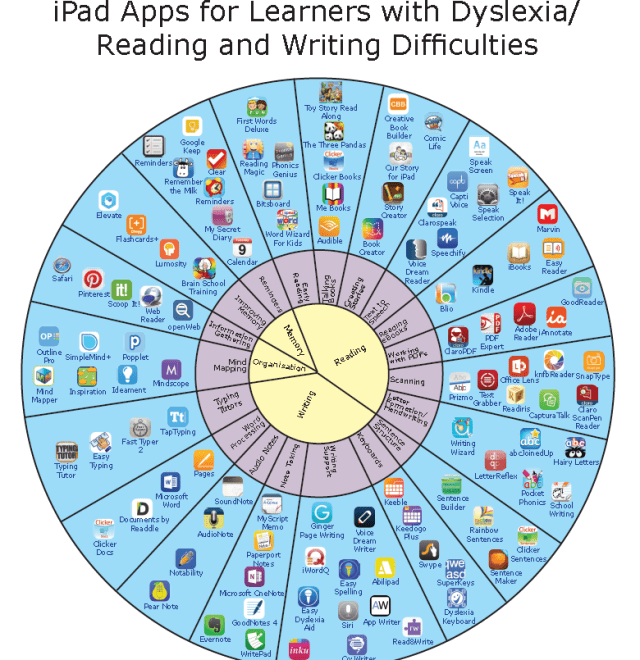
Call Scotland has curated apps using a clever apps wheel display for several years. Here is their 6th version of the iPad Apps for Learners with Dyslexia / Reading and Writing Difficulties. Their app wheel has those tried and true apps for individuals a learning disability. I’m sure you’ll find your favorite apps, as well as a few new ones.

Here is an image of the app wheel:

You can download the document here: http://www.callscotland.org.uk/downloads/posters-and-leaflets/ipad-apps-for-learners-with-dyslexia/

What are your favorite apps that support individuals with a learning disability? I might consider adding a dictionary app category.

H/T to Call Scotland for their diligence in staying abreast of the best of thousands of apps to chose from (daunting job!).

Carol – OT’s with Apps and Technology


Posted in Apps for Special Needs, Assistive Technology, Dyslexia, iPad, iPhone, iPod, Learning Disability, Reading, Writing | 3 Comments

Connect 12 electronic magnifier (new generation) — The Assistive Technology Daily

The Connect 12 Magnifier from Humanware offers a portable tablet with accessories for close and distance magnification. AT Daily shares this new digital magnifier.

Connect 12 Lightweight, sturdy and extremely portable1 12-inch full HD touchscreen Live HD magnification from 1-24x with intelligent LED illumination Capture/save single or multiple pages providing accurate OCR with magnification of 1- 80xOption to use speech to relieve reading fatigue 3 efficient reading modes: full page, column and line modes …

via Connect 12 electronic magnifier (new generation) — The Assistive Technology Daily

Carol from OT’s with Apps and Technology

Posted in Assistive Technology, Low Vision/ Blindness, Uncategorized | Tagged , | Leave a comment

Keyboarding Skill Development Standards

Molly Shannon, OTR shares a general Keyboarding Standards By Grade from MissJaimeOT, a great visual of expectations of keyboarding.

When considering pre-typing standards,  Keyboarding Without Tears™ also provides in depth standards for early keyboarding skills : Standards for the Production and Presentation of Writing  in their Resources.

H/T to Molly Shannon and MissJaimeOT for their shares of keyboarding standards.

Link

via From Miss JAIME: Great information and keyboarding standards per grade level included. “Keyboarding Skills – Ages and Stages of Learning to Type” — AT and OT: Assistive Technology for OTs

Posted in Keyboarding | Tagged | 3 Comments

Google Glass 2.0 Is a Startling Second Act | WIRED — The Assistive Technology Daily

Yes, that’s Google Glass on her frames. But she’s not using it to check her Facebook, dictate messages, or capture a no-hands video while riding a roller coaster. Erickson is a 30-year-old factory worker in rural Jackson, Minnesota. For her, Glass is not a hip way to hang apps in front of her eyeballs, but…

via Google Glass 2.0 Is a Startling Second Act | WIRED — The Assistive Technology Daily

H/T to The Assistive Technology Daily, for curating all things AT!

Carol

Posted in Accessibility, Assistive Technology, Vision, Vocation | Leave a comment

ZooMe Power Travel Scooter


ZooMe Auto Flex scooter pic2

ZooMe Auto Folding Scooter

When evaluating vocational rehab clients, all flavors of disability and workplace barriers can present themselves. Clients with MS or Guillian Barre can present  fine motor, visual or mobility challenges in their vocational tasks, requiring solutions to maintain their employment. Frequently, distance mobility challenges are present due to sensory,  motor impairment or fatigue. As an OT, the functional mobility challenges can be identified, however, referral  for  PT evaluation is typical to determine their mobility needs and identify solutions.


As an OT and ATP Professional working with vocational rehabilitation clients, making recommendations of tools that will support their employment goals is required. Familiarity with AT and adaptive equipment is needed, however seating and mobility remain a specialized area of AT. As aforementioned, referral to a specialist for determination and typically funding is necessary. General information about options is helpful as fatigue with distance ambulation can be a barrier. Students, instructors or employees presented with walking distances and conserving energy is important in their occupation.

A new category of power mobility devices appear to be emerging with folding travel scooters among them. ZooMe Auto Flex Folding Travel Scooter is one such power scooter weighing  55 pounds and offering an airline compatible battery. with a weight limit of 300#. This light weight scooter reportedly auto folds/unfolds in 15 seconds. It has anti-tip wheels, an auto folding seat with padded seat and adjustable armrests and fold down back. The ZooMe Auto Flex is one of the ZooMe folding travel scooter line that debuted in 2016.

ZooMe Auto Flex travel scooter pic1

It was exciting to see this new line of scooters available as an option for clients. For more information on this scooter check out Drive Medical  for their line of travel scooters.

Are your clients using these travel scooters? What kind of experiences have your clients had with these mobility devices?

More for your OT Tool Kit.

Carol

Posted in Accessibility, Mobility Impairment, Occupational Therapy, Uncategorized | Leave a comment

ELI Envision A Low Vision Identification System for ADL’s or Work Place Tasks!

ELI Envision app pic

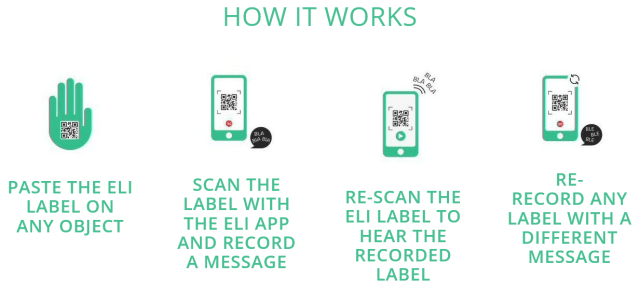
Identifying personal or work related materials can be a challenge for individual with low vision. I recently stumbled upon ELI Envision labeling system, an iOS and Android app using low cost special programmable labels with a mobile device that can be customized to provide self recorded audio information to identify objects. Created by innovator, Ron Klein, ELI Envision was specifically for individuals with low vision, it does have many more applications and is similar to QR  codes, but with specialized programming capabilities. Here is the scoop on the ELI Envision app,  special labels and how it works:

The ELI app for iOS and Android is free. Specialized programmable labels are required to record information to aid identification. Here is more information about how it works:

ELI envision pic1

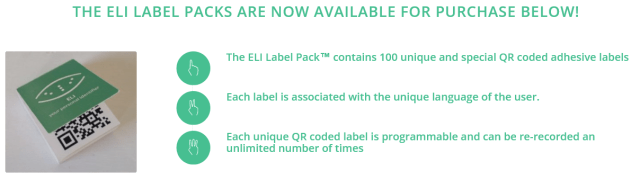
The special labels are small and available in packs of 100 for $20.00 USD and can be re-programmed or re-recorded.

ELI envision pic2

Can this be done with QR codes, well yes with a bit more work involved in my experience ( computer work to create these codes with audio and print them out). There are other systems that have some similarities, but not quite as easy and reprogrammable. . This is a pretty fast method using a mobile device and I am assuming a Wi-Fi connection.

This customizable label system could be great for self care labeling at home and could also have application to some labeling needs in a work situation. Modification of the labels on more durable label systems with use of a handheld mobile device could offer information for work related tasks, objects or materials. What an awesome option for labeling!

For more information check out the ELI Envision website.

Have you used these labels and the ELI Envision apps? How might you use them to support your clients occupation?

More for your OT eTool Kit!

Carol


Posted in Accessibility, Activities of Daily Living, Android, Apps for OT's, Assistive Technology, iOS, iPad, iPhone, iPod, Low Vision/ Blindness, Mobile Device Use, Organization, Vision, Vocation | Leave a comment

Compact Keyboards for One Handed Typing

Half qwerty keyboard

A variety of keyboard options are available for one handed typists. Likewise,  there are a number of different philosophies about methods of input, whether to use a standard QWERTY,  alternative or specialty keyboard method . Some of the options of alternative or specialty, one handed keyboards include but are not limited to:

How do you chose the method of input or keyboard for one handed typing? Lily Walters, in my opinion, has a great website offering information and her philosophy about one handed typing methods and considerations. She presents 5 areas to consider when selecting a one handed keyboarding method¹:

  1. Ease of use
  2. Speed of learning
  3. Speed of typing after instruction and practice
  4. Usability at school/home/employment
  5. Will the user use the system in 5 years?

Of the 5 areas Lily Walters rates them by importance to be considered¹:

  1. Will the user use the system in 5 years, will the device be available on the market in 5 years?
  2. Usability at school/home/work – will the user be using a dedicated computer in the environments computer access is required? Will it be compatible with the operating system available?
  3. Speed of typing following instruction and practice – what rate can be accomplished with the method or keyboard chosen?
  4. Ease of use – not only input but will a keyboard need to be carried or available in all environments?
  5. Speed of learning – does the user have existing skill in use of a keyboarding method that can be enhanced with a keyboard or practice? What time and effort is the user willing to commit to learn a new method or device?

Her philosophy suggests there are typically three different choices of keyboards available for one handed typists which should considered with the 5 questions in mind:

  1. Standard QWERTY keyboard
  2. Dvorak keyboard
  3. Specialty one handed keyboard (Maltron, Half Qwerty, BAT, etc. )

Certainly there are special situations for each one handed user and the choice of method should be up to the user which input method or keyboard is selected. According to Lily Walters, use of a standard QWERTY keyboard with retraining using a one handed method is the most universal method of one handed typing allowing users access to any computer with QWERTY keyboard. I have to agree with her philosophy generally and find most clients when presented with the options choose a one handed method of typing using a QWERTY keyboard. Perhaps the fact that most of the clients I work with looking for solutions for one handed methods of keyboarding are 18 years or older and typically have experience with the QWERTY keyboard and prefer to use their familiarity of prior keyboarding skills and they transition to a one handed method. Along with determining their method of input also includes providing them with one handed keyboarding instruction and trialing QWERTY keyboard options that are available.

Using a QWERTY keyboard, what features might be considered in QWERTY keyboards?

  1. Use of a standard 101 key QWERTY keyboard typically found on most desk top or laptop computers.
  2. Use of a Half QWERTY keyboard such as the Matias keyboard using a mirrored method of typing with one hand. This keyboard can be used as a standard QWERTY keyboard or in a Half QWERTY mode.
  3. Use of a compact QWERTY keyboard, especially for individuals with smaller hands (children and females). Consider the hand span of the typists, can their thumb to pinkie finger span from shift “a” key to backspace? If not consider a compact , or mini keyboard, for learning or individual use. Trial is recommended as the feel and reach of each keyboard is different.

The following compact keyboards are recommended from experience with many one handed clients:

  • Logitech K380 Keyboard – This PC/Mac/iOS/Android wireless keyboard is about 10 1/2″ in width, smaller than a standard without the number pad, allowing an easer reach from “a” to backspace key with use. Working with many individuals with one handed typing, when learning to type reaching across to correct errors initially on a standard keyboard interferes with maintaining a new home row position. A smaller keyboard aids maintaining position.
  • Logitech K400r Keyboard – This PC/Mac/iOS/Android wireless keyboard is similar to the above K380 keyboard, but has a touch pad mouse to the right side. Good for the right one handed typist, but not convenient for a left one handed typist. Reach from “a” to backspace key is about 8.25″, reduced from 9″ on a standard 101 QWERTY keyboard.
  • Adesso Mini USB Keyboard – A PC wired keyboard, this keyboard has been around for a long time and continues to be a frequent choice for many one handed typists. With an embedded numeric keypad, this compact keyboard has a reach of 8.5″ from “a” to backspace key.

If learning one handed typing on a 9.7″ tablet as an Android or iPad with a keyboard, the above Logitech keyboards can be used, or tablet cases with keyboard provide a compact keyboard. Realize that some function keys are in different locations pending iOS/Android or PC systems.

My favorite wrist rest for compact keyboards is the Glorious Gaming TenKeyLess wrist rest, a firm, compact rest that fits nicely with the 10 1/2″ keyboards. This wrist rest comes in different widths and lengths pending the type of keyboard and support surface needed.

What One Handed Keyboarding Programs are available?

The following are a few of the one handed keyboarding programs available providing structured lessons:

Lily Walters One Hand Typing –  $49.  for CD.

Lily Walters One Hand Typing Manual – $29.

Five Fingered Typist – $85. CD and manual

Typing Training.com- One handed typing-First month free, $9.00/month. Custom Solutions website.

Doorway Online – Single Handed Typing – free online one handed typing tutorial.

In the past Five Fingered Typist was the typical one handed typing program recommendation. With free one handed typing options as Doorway Online, my recommendations now include Doorway Online lessons.

What do you recommend for one handed clients for instruction and input methods?

References:

¹Walters, Lily. “How To Type With One Hand on a Normal Keyboard.” BEST How To Type With One Hand – About One Hand Typing, Keyboarding and Keyboards. About One Hand Typing, n.d. Web. 01 July 2017.                          

More for your OT eTool Kit!

Carol



Posted in Assistive Technology, Keyboard, Keyboarding, Typing | Tagged , , | 2 Comments