More Stylus Recommendations – From Experienced Voices

Thank you to these OTR’s who shared their experience and stylus recommendations.

Erin diChiara MA OTR, ATP recommended the following styluses and stick:

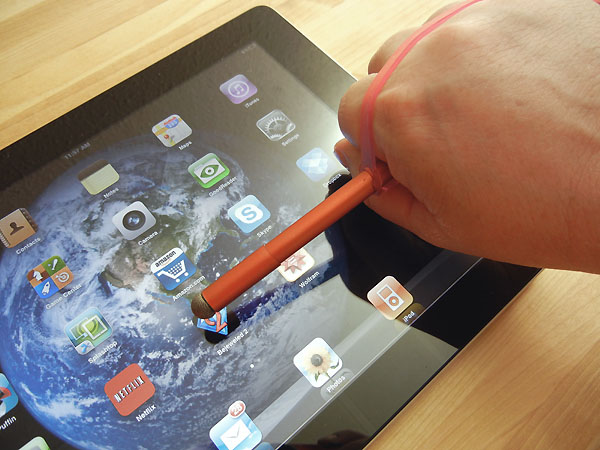
iFaraday SALT ($20.00) – Developed for people with hand or wrist injuries, may also be used by anyone who holds the pen at an angle of less than 45 degrees.
Features…

  • Extrememly light touch (approx 1 gram to activate touch).
  • Tip diameter greater than the barrel, permitting very shallow grip angles.
  • Symetrical tip shape; any part of the tip acts as the active surface.
  • Extended barrel length (7″) permits full grip with hand outside field of view.
  • Protective sleeve at tip protects barrel contacting touch screen.

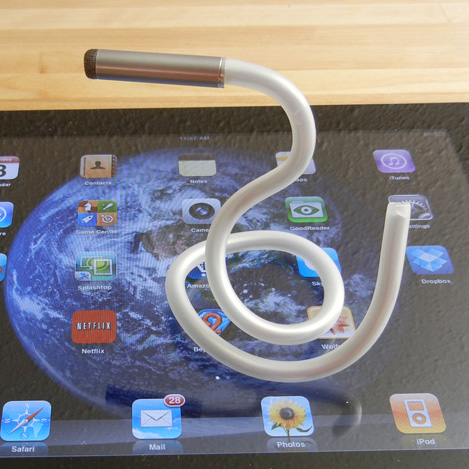
iFaraday Caduceus ($20.00) accommodates a wide variety of disabilities. Developed for hand and wrist impairments, it can also serve as a mouth stick. The shaft is bendable yet strong, enabling it to be custom fitted for gripping or attaching. People who otherwise cannot use capacitive touch screens may be enabled by this stylus. (Patent Pending.)
Features…

  • Lightweight
  • Bendable
  • Replaceable Tip
  • Soft plastic barrel sleeve

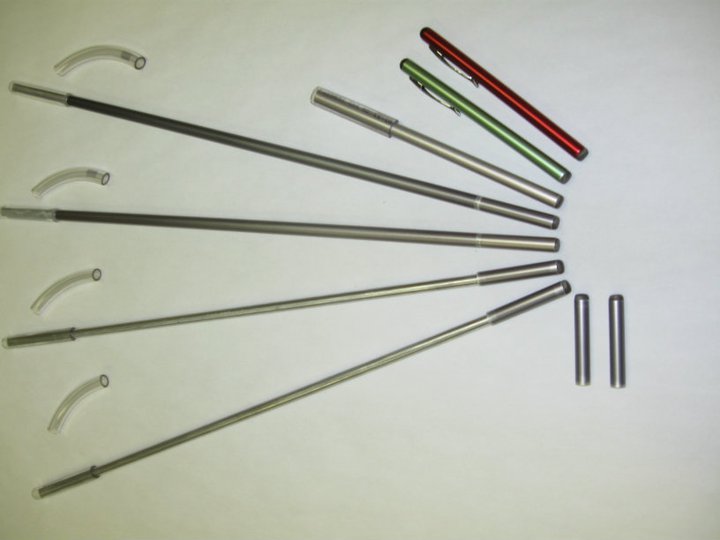
iBility Stick – Produced in various standard lengths in straight and bendable shafts. The longer iBilitySticks (15″ or 16″) have replaceable tips. The shorter handhelds (standard 6″) are one-piece. All have removable/replaceable vinyl upper sleeves for a soft, reduced-slip characteristic for biting or hand-held or cuff-held options. Made primarily for touch screen use.

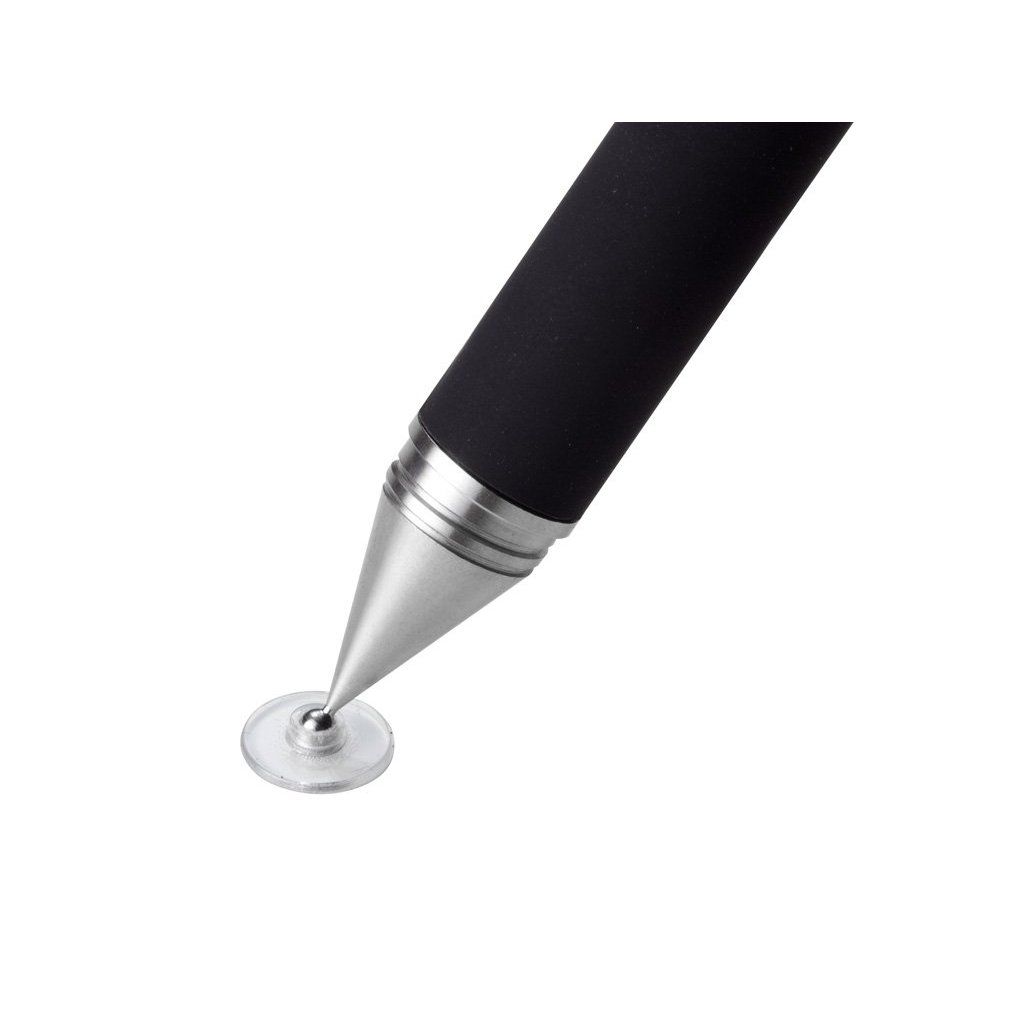
Kami Bible, OTR recommended the Adonit Jot Pro Stylus . “I have been using the Adonit Jot Pro with students at school. I really like that it is heavier and feels more pen-like. It has a disc tip that is very precise and allows you to hold the stylus at an angle that is more suitable for writing. The tip does seem a little fragile, so I have not used it with any students that I couldn’t trust to use it as directed.”

With the popularity of tablet and explosion of apps and uses, finding an appropriate tool for access and production is important. What kind of stylus do you recommend?

Thank you Erin and Kami!

Carol

Posted in Accessories, iPad, iPhone, iPod, iPod/iPad Accessory, Occupational Therapy, Stylus | Tagged , , , , , , | 2 Comments

Visual Multiplication Table App

I may not do a lot with teaching math in my job, but this app I will share with a number of my special education teachers as another tool to help special needs students understand multiplication.

Visual Multiplication Table app for iPad only is currently free. One of her many educational math apps, Esa Helttula provides visual and interactive methods of understanding multiplication in her Visual Multiplication Table app.

The app provides four different ways to work with a multiplication table:

– Table: Explore the multiplication tables.
– Groups: See the multiplications as visualizations.
– Multiples: See how each number has an unlimited number of multiples.
– Solve:  Scramble and solve the multiplication table. I could image this as an alternative, inclusion lesson for students being exposed to multiplication. This might be a method a student with a physical disability who can not physically manipulate objects can engage in multiplication concepts.

Help for how the app works is easily accessible with the ? at the bottom left if you are not quite sure what to do. The app is easy to navigate and easy to engage in.

One of the wonderful things about apps on an iDevice is its low scale presence in a classroom. As an inclusionary method, students can remain at their desk and engage in a content appropriate activity with minimal start-up time!  Certainly there are other manipulative ways to present multiplication concepts that may be important for a kinesthetic learner. For a special education teacher moving from class to class, apps on an iPad become a wonderful eTool Kit for all kinds of educational needs (eBag of Tricks?) and in almost any environment.

Here is a video of the app:

Currently free, check out Visual Multiplication Table app and consider if this will become an eTool in your iTool Kit or eBag of Tricks! If you won’t be using it, pass it on to a teacher who might! If you like this app, Esa Helttula also has a variety of educational math apps on her website, idevbooks.com   you might want explore.

More for your eTool or iTool Kit!

Carol

Posted in App Reviews, Apps for OT's, Apps for Special Needs, iPad, Math, Occupational Therapy, Special education, Special Needs | Tagged , , , , , | 1 Comment

Everyday Grooves App – Musical Prompts for Routines and Schedules

Everyday Grooves app for iPhone and iPad is a free app from the Fred Rogers Center at St Vincent College. The app provides musical prompts that help to establish routines and structure in the everyday lives of parents and young children for daily events such as reading, brushing teeth, and getting dressed.

Using Everyday Grooves is simple – the app helps users set up musical prompts throughout the day to help children transition to new activities. When the music starts, turn the volume up so your child can hear and sing along. Or, just play the songs when it is convenient for you!

Each piece is an original song in the style of popular music on the radio, and lyrically walks families through suggested steps for the routine. There are 12 routines with a different song for each self care activity:
Wake Up!
Brush Your Teeth!
Get Dressed
Get Ready, Let’s Go
Let’s Read!
Love You!
Clean Up
Say Goodbye
I’m Thankful
Let’s Eat!
Bath Time!
Let’s Rest

The songs tempo are appropriate for the task such as the Let’s Rest (bed time prompt) providing a calm, sweet song. The songs appear to be professional quality. The app does not provide customization other than setting times or alarms to the 12 self-care activities.

A fellow OT works with a student, who after trialing many, many approaches, found his best receptive abilities were achieved by singing to him. Singing gained his attention, improved transitions and receptive language (sound familiar?- yes we have all had students we sang to in a therapy room!). I thought of her and the student immediately after working with this app which communicates in his best receptive mode! Teaching to their strengths is one of those things we preach, but sometimes we still can miss application! I am anxious to share Everyday Groove app with her to trial when school starts!

Although this app is not customizable other than scheduled alarm times, it provided me a model to think differently about creating social stories or visual communication using voice out put  – whether speaking or singing! Using story telling apps such as Tapikeo, Pictello, Story Buddy 2 with audio recording or visual scheduling apps such as First Then Visual Schedule with audio recording capabilities could provide the opportunity to sing a visual schedules or social stories –  as long as you can sing (wouldn’t this be a great high school vocal group project?)!

I really enjoyed this app, especially how it made me think about the student needs and skills. Focusing on student’s abilities not their disability is important and sometimes you just have to think out of the box to deliver that! Kudos to St. Vincent College for this free app

This will definitely be in my OT iTool Kit – I have a couple of students in mind to trial this apps with, then I may need to find someone who can sing!

Carol

Posted in Activities of Daily Living, App Reviews, Apps for OT's, Apps for Special Needs, iPad, iPhone, iPod, Occupational Therapy, Visual Communication | Tagged , , , , , , | 5 Comments

Skill Game – A Visual Motor and Spatial Reasoning Challenge

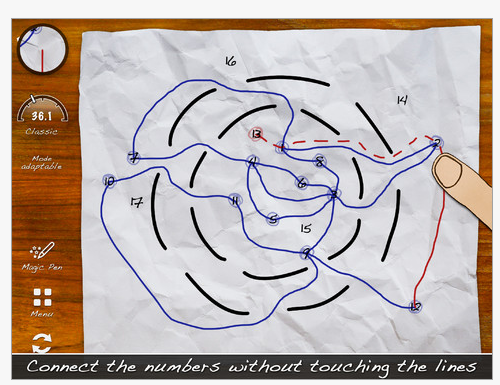
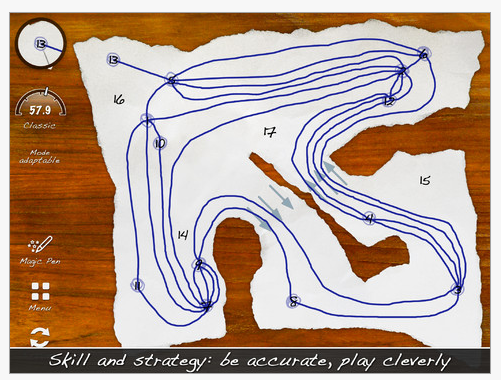
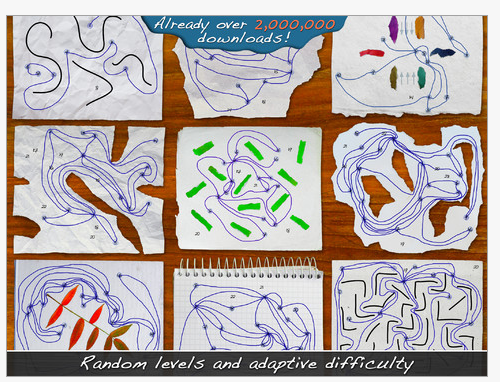
Skill Game app, by Good Apps is a Game Center app listed as “Free for a short time”. Designed for iPhone and iPad, this is an electronic visual motor – pencil paper kind of activity requiring problem solving, fine motor and visual  spatial reasoning skills. Here are some images of Skill Game app and the rules to understand it a bit better:

Appropriate for older elementary students through adult, Skill Game app provides great opportunities to work on visual motor control, motor planning and spatial reasoning.  Here is a short video on the app:

Although you can use a finger to play in this app, a stylus would help with accuracy when drawing. One of the styluses from Stylus R Us’  , the Adonit ADJF Jot Flip Stylus  or iFaraday’s SALT styluses provide accuracy and allow the player to see the screen. When using a finger, your hand covers the screen limiting the ability to view all of the points.

This looks like an interesting app gone free for older students or adults that need work on visual motor and spatial reasoning skills.

Catch it while it still is free to add to your OT iTool Kit! Have fun!

Carol

Carol

Posted in App Rubric, Apps for OT's, iPad, iPhone, iPod, Occupational Therapy, Visual Motor | Tagged , , , , , , | 9 Comments

AppWriter App Price Reduced

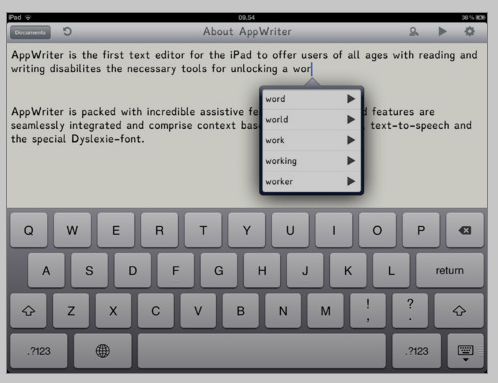
AppWriter, an iPad app developed by LingApps features  text to speech, basic word prediction and a very easy interface. It is a favorite of mine however its regular price of $19.99 made me think twice about purchasing it (although I did without regret!). As a back to school sale LingApps has reduced to $12.99, a pretty good deal for this easy to use app easily used as assistive technology for elementary to middle school or older students.

Here are a few screen shots of AppWriter if you are not familiar with it:

AppWriter app has a simple interface making it a great tool for elementary and middle school students with learning challenges. You will find more information on the app in the recent AppWriter review at: http://wp.me/p1w0d0-sk .

I believe this is a good, solid writing app for students. Copying and pasting text into the app makes it a basic text to speech reader also.

This is a good deal but as price reductions go – it is a mystery how long the price will be reduced!

Carol


Posted in Uncategorized | 1 Comment

Back to School – Visual Timer Apps

Getting ready to go back to school?

Here is a free back to school app that provides visual communication for parents or teachers needing to provide structure to their child or students day.

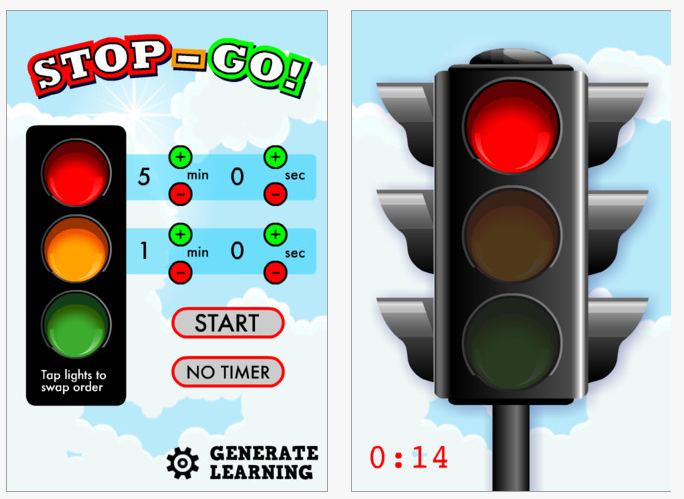
Stop Go! (free) for iPhone and iPad is a stop sign app providing a visual timer you can set from 5 seconds up to 99 minutes and 55 seconds. You can also set the time that the warning chime will go off.  No options for choice of sounds are available. Used to provide visual warning for when activities will stop, this app provides both the stop sign and count down time on the screen.

This is a simple app but highly valuable as a behavioral aid to help children anticipate when a change in activities and schedules will occur using a standard stop sign concept.

Whether used as a warning when the TV or iPad needs to be turned off or when it is time to brush teeth before bed time. Visual timers can reduce the struggles of verbal reminders when activities are to end for children and students.

Need other settings or features in a visual timer? Check these app out:

More apps for your OT iTool Kit!

Carol


Posted in Android, App Reviews, Apps for OT's, Apps for Special Needs, iPad, iPhone, iPod, Occupational Therapy, Visual Communication | Tagged , , , , , , | Leave a comment

Need a Sensitive Stylus?

Are you in need of a stylus that is sensitive and easy to handle for one of your students or clients?

I have searched and purchased a number of styluses with an OT perspective in terms of the needs of users with atypical prehension, movement, sensation and tone.  As OT’s we are always looking for ways to improve grasp patterns, compensate for challenges with movement or tone or provide sensory motor input using different positioning, grips, handles, weight or textures to facilitate improved use of tools to access or perform a task. Like pens or pencils, the size, shape, weight and gripping surface of a tool can all make a difference for individuals with mobility, cognitive or sensory challenges. So it goes with styluses.

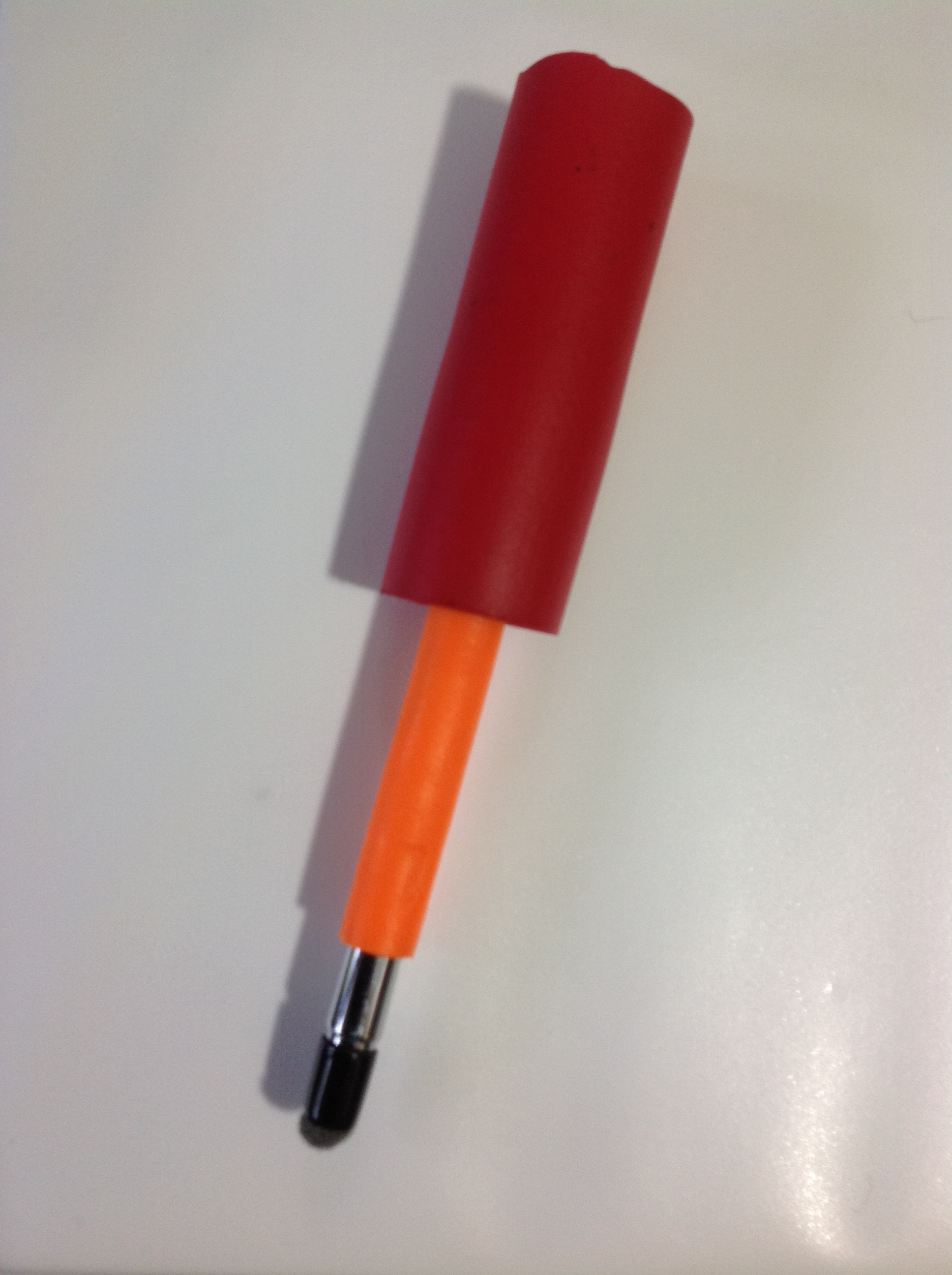
Considering styluses for children or clients, I have been searching for different size and shapes of grips on styluses. I have found chunky styluses (such as the Cosmo or Cosmonaut), some that were heavier providing increased sensory feedback and also MacGyvered handles for styluses to enlarge the grasping surface or sensory awareness for the user.

Some styluses were heavier, providing increased sensory feedback for with reduced sensory awareness.

What I have overlooked (and may be related to the type of clients I more frequently service) are qualitities of styluses for individuals who require some of the opposite characteristics, that of light touch, light weight, ease of handling and accuracy. Aren’t all stylus tips the same  with exception to the size of the tip?

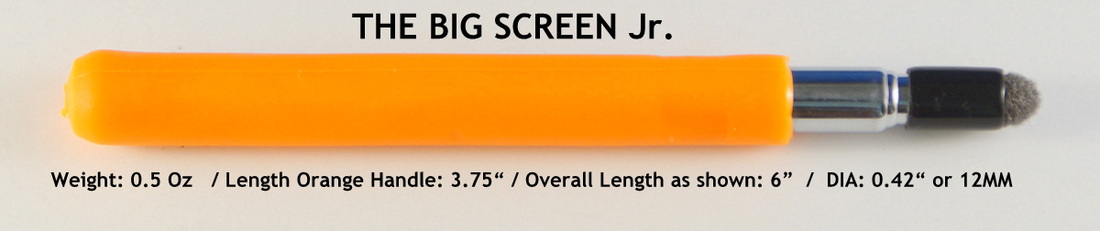
A comment posted by Ciara Campbell and subsequent emails mentioned the success she had with her stylus from Stylus R Us. Some search and contact with Mr. Stylus peaked my interest in his stylus science resulting in purchase of a Big Screen Jr stylus from Stylus R Us. This brought about a whole new appreciation regarding the sensitivity of conduction or touch capable of his styluses.

Having received my new Big Screen Jr. stylus featuring a .42″ handle and telescoping shaft, I found the handle comfortable and large, jus a little smaller than a Crayola large marker. What was amazing was the sensitivity of the stylus.

Mr. Stylus shared with me how sensitive the stylus was but seeing and using was believing.  With barely a touch of the surface of the iPad screen (not even touching) to activate an icon, menu or keyboard key the device accurately responded. It also did not skip or miss when writing or drawing, a source of frustration with use of standard styluses previously purchased.  I realized that not all styluses tip sensitivities or conduction are created equal.

Another quality of this highly sensitive tip was the ability to hold the stylus like  a real writing tool, not straight up but at an angle allowing connectivity of the side of the stylus tip. This allowed me to write with a mature pencil grasp, rather than having to hold it immaturely in an upright position like many of my other styluses (holding a Stylus R Us stylus in a mature manner is recommended by Mr. Stylus). This is something we are always trying to achieve but sometimes it is not capable with a standard styluses.

Retrieved on 8/7/2012 from: http://beststylus.com/how-to-judge-any-stylus.html

This is a bonus when using a stylus on a mobile device and working on handwriting and development of mature grasp patterns!

So what’s the big deal? My standard stylus works for me, why would I purchase a more expensive stylus that is more conductive? Here are a few reasons that come to mind from a therapeutic intervention point of view:

  • For use with individuals who have graded control but movement and activation of the screen is limited and effortful
  • For use with individuals who do not have proximal or large muscle movements but have remaining distal control such as:

Arthritis

Arthrogryposis

Muscular Dystrophy

Myopathies

Some spinal cord injuries

  • You are developing  handwriting skills and facilitating a mature pencil grasp and finger extension

Another bonus is that I was able to attach a standard large grip handle on The Big Screen Jr. which still allowed the stylus to have the conductivity needed to work very well on the iPad screen (Huh? – wow!). You may not want to use this grip on a stylus but the trial proposes that other grippers may be able to be used on one of the Stylus R Us stylus and still work accurately. Not the case will many other styluses.

Stylus R Us  makes many varieties of stylus with different handles/shafts but with all with the same sensitive stylus tip.

Would I purchased this for all of my students or clients?  It depends, if I had a student/client who had weakness and good control and wanted a needed accurate and efficient method of input, I would definitely recommend one of Stylus R Us styluses. If I worked with students on handwriting on my mobile device and wanted to facilitate a more mature grasp, the Stylus R Us stylus tips allow better positioning and accuracy when writing or drawing. For individuals with poor graded motor control this may not be the best choice of styluses.

As always the right tool for the task fit to individual needs of the user (and good clinical judgment).

Carol

Posted in Accessories, Handwriting, iPad, iPod/iPad Accessory, Occupational Therapy, Stylus | Tagged , , , , | 10 Comments

Organization & Time Management Android Apps for High School and College Students

The previous post “Organization and Time Management  Apps for High School and College Students” on OT’s with Apps brought a comment from a visitor indicating the lack of  suggested apps for Android users. As an iDevice user who is also in charge of managing iDevices in the school I work at, I would be guilty of being iOS biased. I do try to be aware of apps for Android however it is difficult to stay on top the breath of iOS and Droid apps! I do apologize for the lack of review for Android devices.

Coincidentally I have recently been perusing Android apps resources to find apps for individuals with learning disabilities. My searches have frequently found more apps that are  developed for both the iOS and the Android platform – good news when trying to identifying preferred for individuals with disabilities. Although it still appears that iOS apps and review sources out number Android, I did find some good reviews, familiar and noteworthy Android apps for learning and organization!

Here are some Android apps for High School/Secondary and Post Secondary Students for  time management and organizational planning. Review sources are listed at the end of the blog.

Class and Homework Planning/Management
My Homework – (free) This Android app is made by the same developer as My Homework app  for iOS. For syncing between devices, a 1.99 yearly in app charge for sharing information between devices at myHomework.com.

My Homework app provides tools to list class days and time and enter homework into classes with due date and a level of priority (low, medium, high). Assignments can be reviewed as “All”, “Priority” and “Type”  with due date and time. Long term homework assignments can also be entered to break them down into smaller chunks. A simple calendar is provided that shows that there is an event scheduled by date that when the date is selected will display more event information.

Although due dates are entered, no audio or vibrating alarms are options in the app. The app allows checking off the homework when completed and removal of completed assignments. This takes some time to set up and enter assignments. Color coding by block schedule is available.

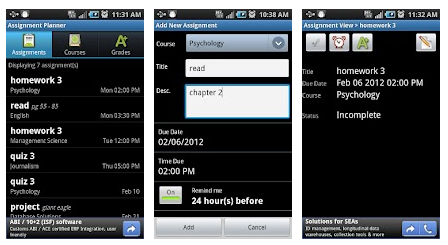
Assignment Planner Free – (Pro 1.29) Class and assignment planner for Android features the ability to set up classes and then adding assignments to each class. Classes can be entered by days and then set up to be repeating and are presented in a list with days of the week and times of the class. Other information by class can also be entered including instructors name, location and contact information.

Assignments are presented in a  calendar but listed by date and time showing class and assignment. Alarms can be set for assignments by hours or minutes prior to the due date set. Assignments can be checked off when complete and scores entered (X/out of = XX%) to track grades. Although no color coding is available in the app, the lists clearly present assignments in a descending order for easy viewing and assistance with prioritization at least by date. The format allows easy editing of information within the app. There is no prioritization method within the app.

This app is good, however I would like to see color coding provided by course for ease of identifying assignments by course. I would also like to see a monthly calendar allowing a big picture view of assignments to help with long-term projects assigned. The Pro version removes ads but which are very inconspicuous in the lite app. I found Assignment Planner to have an easy to use format and no sign in or membership required.

To Do Lists

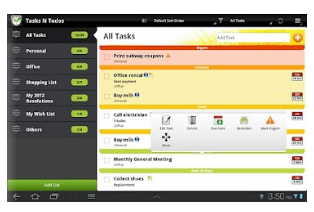
Tasks N ToDo – Lite (Tasks N Todos Pro) is an Android app that provides many features for a do to list app. This app has a very nice interface that is easy to use and read with color coding available of different subjects. Lists of tasks can be separated into different task subjects, such as work, personal, organizations for easy of categorizing events.

Manage your to-do list effortlessly using Tasks N ToDo’s – the to-do list app for Android that syncs automatically with Google Tasks. Setting due dates, notes, reminders for your to-do list are all easily accomplished with its interface. Syncing can occur between Android tablet and smart phone. This app has many tools to help list, prioritize, remind and share events and lists between devices. This app has good reviews and was a favorite of mine from the trials performed.

Calendars

Calendars are many and most tablet and smartphones come with a OES (original equipment supplier) calendar app. Recently I informally surveyed the a group of techies on their personal preference for Android device calendars and the response was almost unanimously the OES calendar. Use of Google Calendar was also a preference by the group.

Most calendars come with the ability to create events and schedules, schedule reminders and some color coding the scheduled items. Google in particular allows color coding of events, setting reminders by days and hours and allows viewing schedules by day, week and month. Those features that are recommended for time management and prioritization when looking for an app include:

  • Entering events and schedules
  • Entering schedules by day, hour and repeated days of the week (such as classes)
  • Setting alarms by minutes, hours or days
  • Viewing a schedule by day, week and month for reminders of short-term goals or assignments as well as long-term projects
  • Color coding events such as classes, personal versus work or school tasks
  • Ability to edit and show completion of tasks (checking off tasks is so rewarding!)
  • A web-based app can allow the ability of other support people to view, edit or enter tasks into a students schedule

Trialing apps that all ready exist may be well worth the time. Other options for calendar apps include using web-based apps such as Google Calendar or email or student management calendars supplied by the school. Look for features important to the student to foster greater independence in organizational skills. Teaching stakeholders, such as parents, peer tutors or coaches how to use the apps can also provide carryover and practice of tools and organizational skill development.

Reviews of Android App ‘s for High School and College Students

Here are a few Android app review links that list droid apps for secondary and post secondary students:

Back to School Essential Apps for College Students – http://www.msnbc.msn.com/id/48189836/ns/technology_and_science-back_to_school/t/essential-android-apps-college-students/

Best Android Apps for College and University Students –http://www.androidauthority.com/best-android-apps-college-university-students-81569/

Android Apps for Students –  http://www.squidoo.com/android-apps-for-students

Do you have any suggestions for organizational apps for students with organizational challenges for Android? This review only scratches the surface. If you have any recommendations please share.

Carol

Posted in Android, App Rubric, Autism, Learning Disability, Occupational Therapy, Organization | Tagged , , , , , , , | 5 Comments

Kapu Forest – App Gone Free

Here is an app gone free suggested for children ages 1-4 years, however many preschool children would enjoy this app!

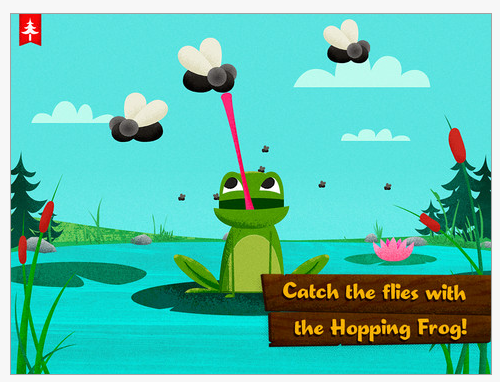
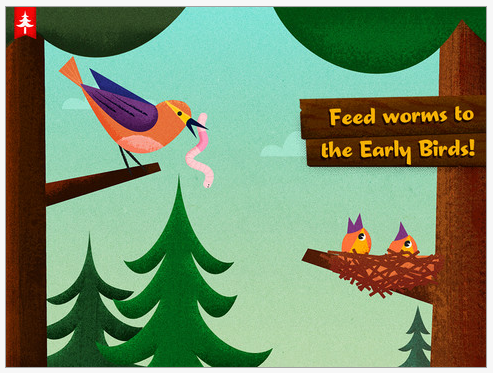
Kapu Forest HD is for iPad (regularly 2.99)  however you can find a version for iPhone/iPod (1.99) and a lite versions. Kapu Forest  app (free) is also available for Android. Geared to ages 1-4 years, it provides basic matching and sorting tasks, visual motor tasks involving interactive play on the iPad of feeding baby birds, catching bugs for frogs, making clouds rain, watering carrot plants and more. The app theme focuses on forest animals with good graphics suited to young children and is intuitive for children to explore and be successful interacting within the app.

One setting provided in this app includes a control of the amount of time the app can be used.

For more reviews on this app check out these web sites:

On Sarah’s iPad : http://onsarahsipad.wordpress.com/2012/08/04/kapu-forest/

Famigo: http://www.famigo.com/app/kapu-forest-hd/

Carol

Posted in Uncategorized | Leave a comment

Wood Puzzle Maze HD for iPad

Reviews by other OT’s are always great as we each work with different clients, places and tools. Here is a review from Carol Hesch, OT with school system experience and apps in her OT iTool Kit! Thank you Carol for your review!

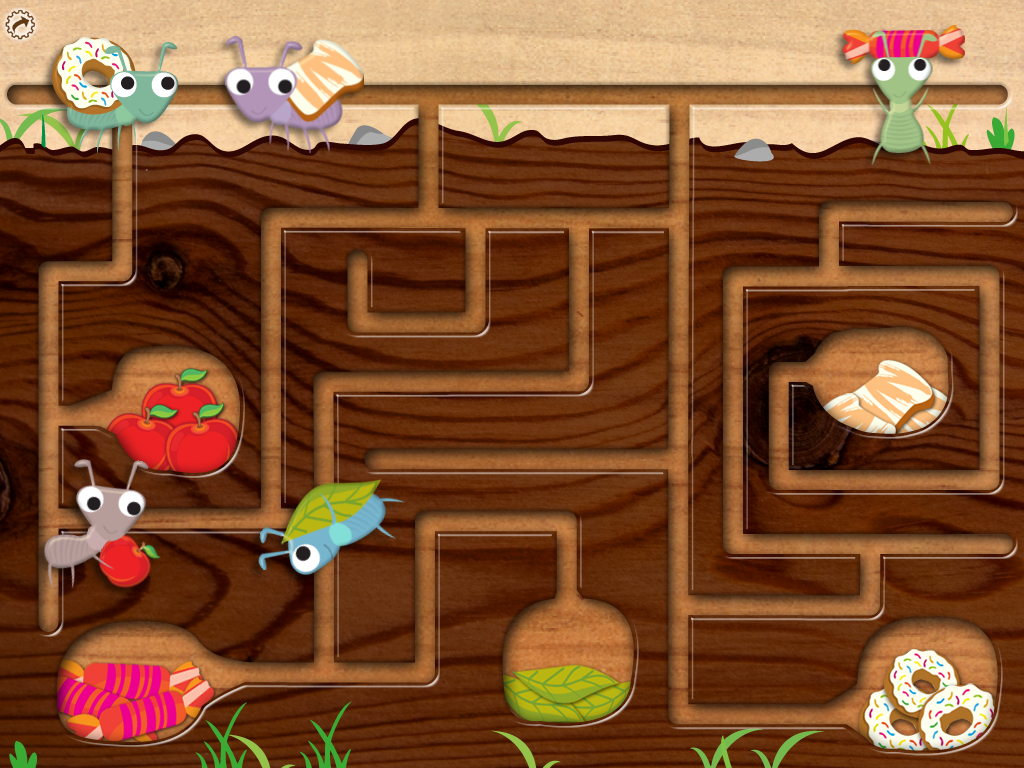
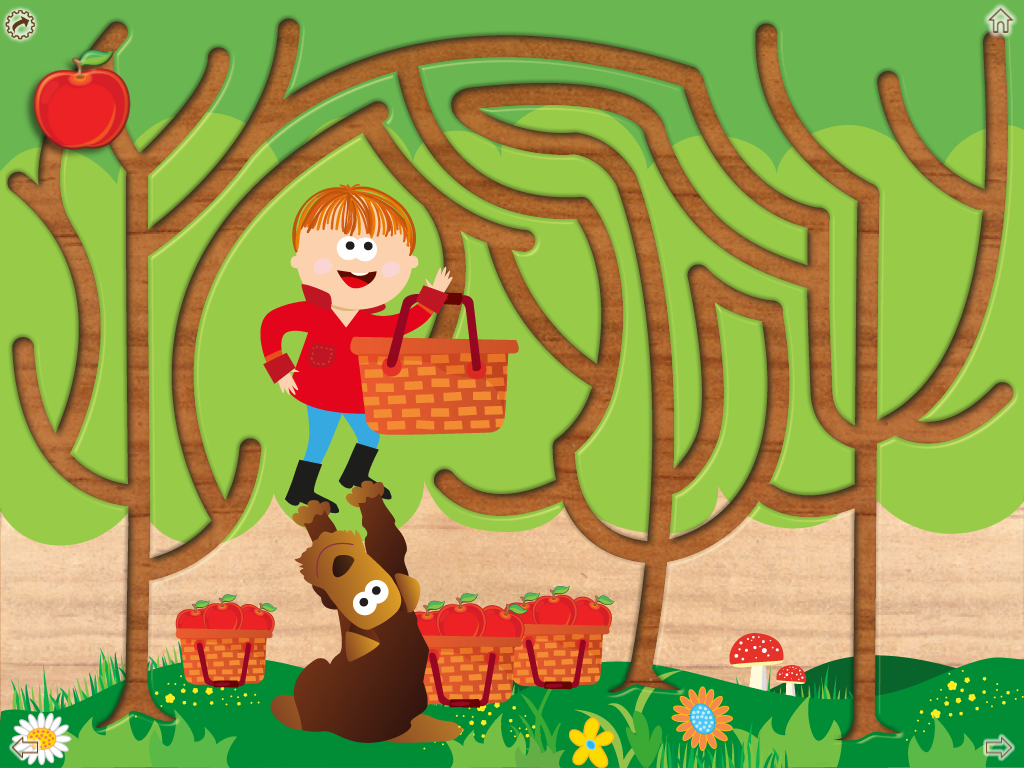
Wood Puzzle Maze HD ($1.99) is an app for the iPad from Tropisounds that offers unique and interactive mazes for the elementary aged child (K+).  I like this app so much it has earned a spot on my iPad home page….not stuffed into a folder. As a OT, I like this app because it works on “visual tracking, spatial visualization, fine motor skills, problem solving and long-term concentration” according to the App Store description.

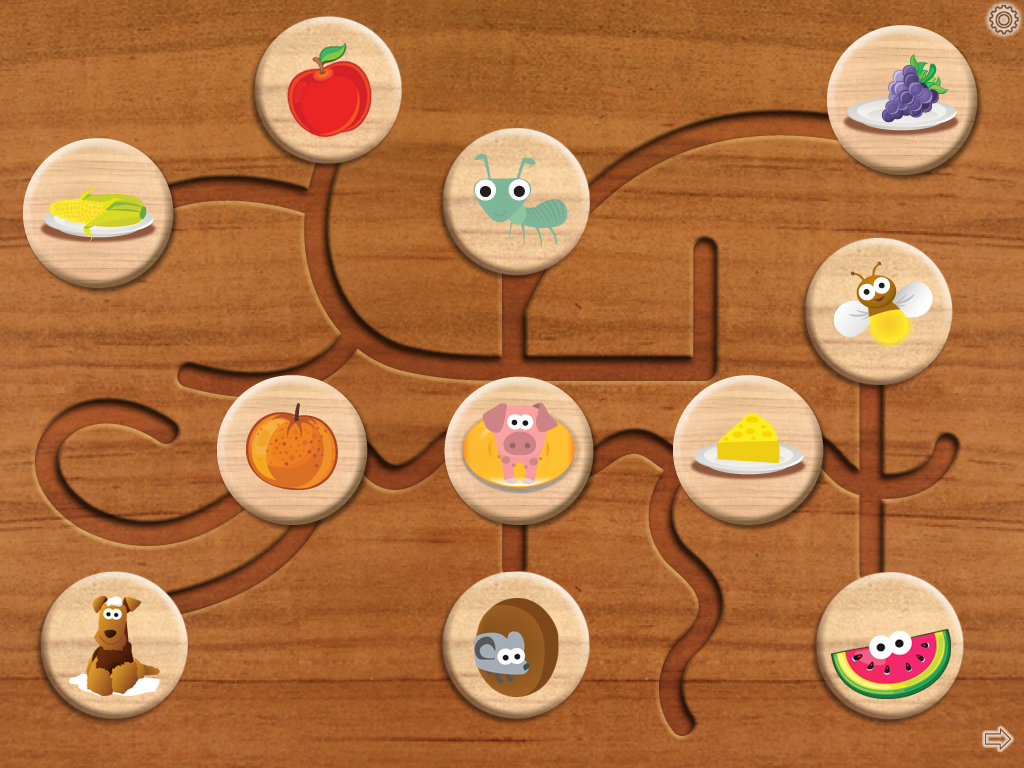
 The home screen offers 17 different puzzles – 11 animal and fruit/veggie themed plus three Halloween and three Christmas.

The mazes begin simply, like matching the animal with the food they eat…

And progress to more and more difficult – requiring increased concentration, problem solving and patience!


The only drawback to the app is the music. It can get a bit annoying, however, the developers recently added an update that allows the music to be turned off!

Check out this app for enhancing your therapy sessions.

Carol Hesch, OT

Posted in App Reviews, Apps for OT's, Apps for Special Needs, Fine Motor Development, iPad, Occupational Therapy, Pediatrics, Uncategorized, Visual Motor | Tagged , , , , , | Leave a comment