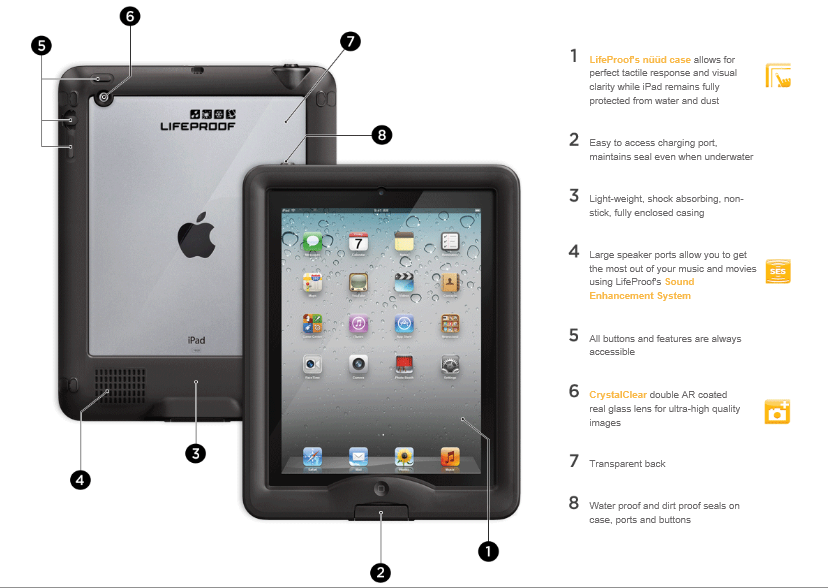
Are you familiar with the LifeProof iPhone case that withstands water, dirt or physical abuse. It is now available for the iPad…
What’s the big deal? Well, look at where you can use it…
Fully encased to protect it from spills, bathtubs, bounces and really grimy hands, the LifeProof case is pricey but reportedly extremely durable. The case comes in a bundle with the case, cover and stand sells for $159.99 from LifeProof.
I do not have experience with this case, but the iPhone case has been very popular and withstands extreme abuse. Hmm? Know anyone that needs their iPad protected from frequent mishandling?
It is back to school time! You probably have apps for skill development, sensory needs, handwriting or curriculum support for your students, but what productivity or utility apps do you have for your professional use?
Productivity or utility apps support tasks such as documentation, presentation, entering data or charts, scheduling, note taking, time keeping/alerting, emailing information with others or needed later. There is a plethora of such apps available dependent on task, workflow methods or personal preferences. Here are a few good free and paid for apps that can help therapists, teachers or parents with productivity of organization:
Awesome Note HD– I have been using Awesome Note for several years now and continue to use it due to familiarity and for the features provided which offer me a means to enter OT and AT caseload, admin tasks, schedules and certain meeting notes. Being a visual person, I prefer creating a binder – like existence to organize my notes and artifacts I collect on my students. Available in a version for the iPod and a HD version for the iPad, Awesome Note provides a calendar, sticky notes, to do list, folders that can be color coded and named and the ability to import or take pictures within the notes for archiving samples of student work or other artifacts needed. Here is a sample of what it can look like:
This is how I start my year with my e-docs, agendas, schedule, meeting information and student info for the year. Folders contain separate notes for all of the students that I work with or topics. The student files can archive anecdotal notes, IEP goals, student specific schedules, or import pictures taken of student work samples using the iPad camera for paperless archiving and retrieval. I have taken pre and post sample pictures of students handwriting readily, logged student sensory levels, behavior or other OT IEP information gathering here for IEP meetings. Not a perfect nor only type of note taking or data gathering system available, but it provides a paperless method of annotation, scheduling and archiving information on my iPad. The notes can be synced to my Google Drive for secure archiving and also provides a method of workflow with the use of my school iPad.
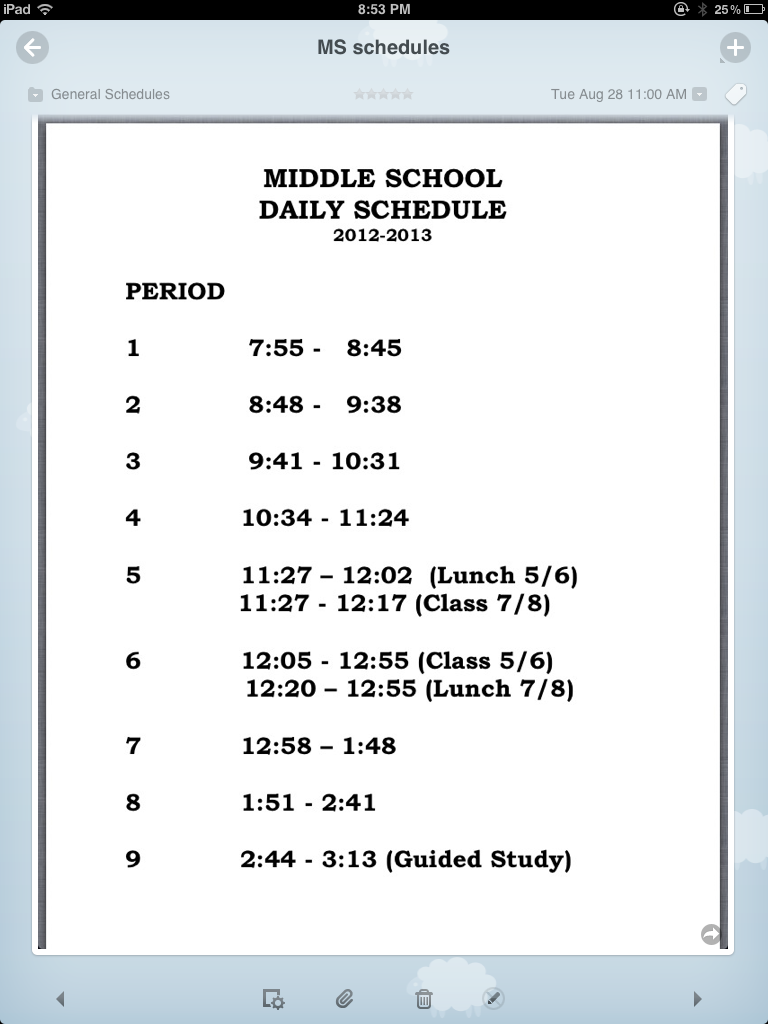
Servicing three different building and many classrooms requires knowing the class schedules of each building. Access to paperless, daily schedules of each building schedule and in service dates in Awesome Note has helped immensely with organization and scheduling which for me can change from day to day pending student schedules and the need to support AT needs across buildings.
Awesome Note app supports my note taking, scheduling and reminders organized in one app and supports the workflow available within our school district.
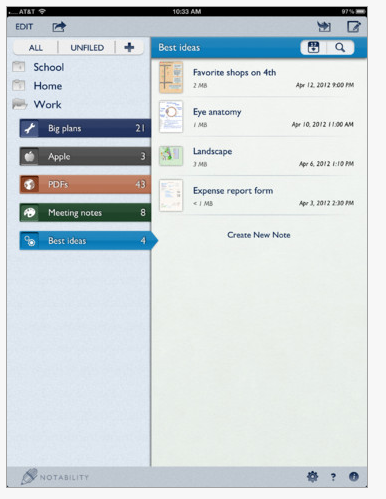
Notability app – Compatible with iPad, (.99) Notability is an advanced note taking and organizational app and a bargain at $.99. I use this app when going to workshops, general class or meeting notes not directly connected to my professional caseload.
Here are some of Notability’s features :
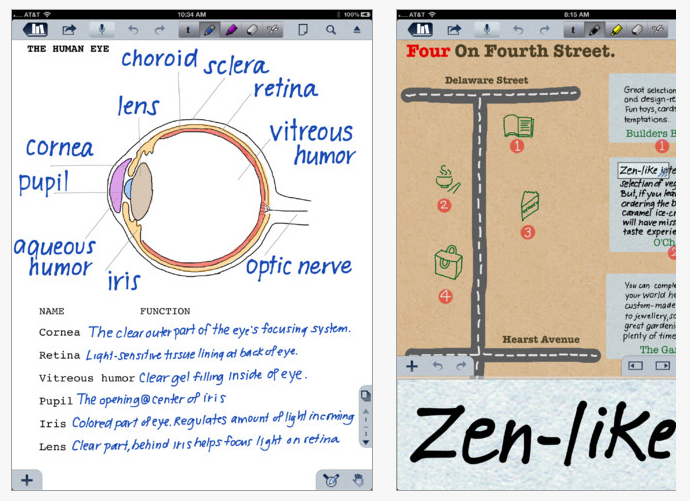
Full-featured Handwriting – Notability’s zoom window helps you quickly and clearly draw, let you copy, move and even re-style the color and width of any ink. Organizing notes is easy you can add or remove pages as needed.
PDF Annotation – Provides features to annotate PDFs: record, type or handwrite on anything. Share your annotations with anyone using email or Dropbox and more.
Advanced Word-Processing – Features styling, outlining, text boxes, and spell check. Other tools like bullets, bold, italic, underline, font presets, cursor controls, and more, help you create and organize your notes.
Linked Audio Recording – Audio recordings can be automatically link to your notes. Use the recording feature to capture your own voice for memos, presentations, or speech practice.
Auto-sync – Notes are always backed up in the cloud. Easily collaborate at work or school sharing ideas and notes on the fly.
Media Insertion – Enhance your notes by adding pictures from your photo library or from the iPad camera. Insert web clips, figures, and drawings to compliment your notes. The ability to crop, resize, and draw on images is available.
Library Organization – Organize, protect and share information. Drag and drop notes into a subject and use a password to keep notes secure. Auto-sync makes backing up simple: your notes are automatically uploaded to Dropbox, Box, iDisk or WebDAV. Import notes, PDFs, and RTFs from the cloud or web. And share notes via Email, Dropbox, Box, Twitter, iTunes File Sharing, and AirPrint.
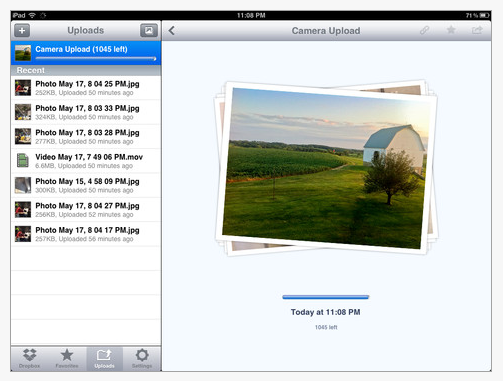
Dropbox app – (free) available as an app for iPhone/iPad and Android, provides cloud storage of documents, audio and video. Dropbox app and web-based service is an easy method of storing and transferring documents and media from device to device whether mobile device or to your computer.
Dropbox provides methods of organization and file sharing with privacy features to allow access to specific files to users given access. Here is a video on Dropbox features made for Android:
Dropbox is an invaluable workflow service supporting file and media sharing between devices however dependent on Wi-Fi connectivity.
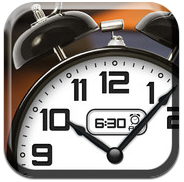
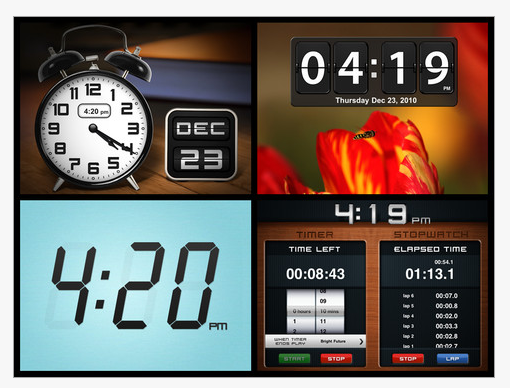
Classic Clock app – (free) Provides a clock, stopwatch and count down timer to for timed tasks as standardized testing, writing, keyboarding, balance, coordination tests, activity tolerance, attention or countdown to forewarn changes in activities or therapy activities.
The free Classic Clock app timer does not alert when used in the background. Purchasing the full Classic Clock HD version (1.99) will allow alerting when running in the background.
Visual timer apps – there are many visual timer apps that provide visual communication to students to begin and end tasks. Here are a few free and paid visual timers:
Time Timer app – (3.99) For iPhone/iPad provides visual timer like the portable Time Timers standardly used for visual communications.
Kiddie Countdown Timer – (free) visual timer providing count down visual of stop sign. Great for young children.
VisTimer app – (free/1.99) – The free version provides limited timer with paid version providing extended time options. Appropriate for older students
Email apps – Email services can be synchronized on your iDevice. Follow these steps to set up the first email account on your iOS device.
Tap Mail on the Home screen of your iOS device.
Select your email provider. If you don’t see your email provider listed, tap Other > Add Mail Account.
Follow the steps and provide the required information to configure your account.
If you already have an email account set up and you want to modify its settings, tap Settings > Mail, Contacts, Calendars, tap the name of your account, and then your email address. Then tap any information you want to adjust.
If you want to add another account, tap Settings > Mail, Contacts, Calendars > Add Account… and follow the onscreen instructions.
If you are synchronizing a work based email, contact your IT department for the information to connect your account. Synchronizing your email has many benefits however consideration of whether you want email readily available on your device if you allow students or others to use your device should be considered for confidentiality.
Calendar apps – iCal on the iPhone/iPad, Google Calendar or Outlook among many other calendars can be synchronized. Options in Settings you can establish a default calendar to synchronize other calendars to provide a mobile method of organization, scheduling and alerts for work related events and meetings. Alarms can be set 5 minutes to hours ahead to help remind you of tasks.
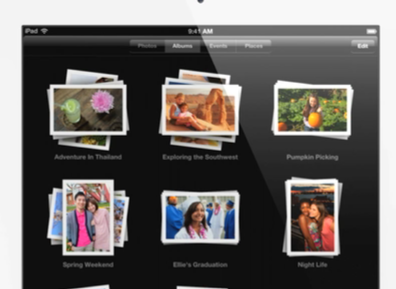
Photo app – Original app installed on the iPhone/iPad, provides not only the ability to take and store photos but also the ability to create “Albums” to organize photos by subject, student or event for slide shows or stories.
Taking pictures or student work, schedules, notes, worksheets or screen shots of documents and pictures on the web provides endless opportunities to organize, save import or exporting images to share, produce or create!
What productivity apps are in your teacher, therapist or OT iTool Kit?
“The KinderTown app helps busy parents find the best educational apps for kids ages 3-6 years old. Download it on your iPhone, iPad, or iPod Touch and teach your little one something new today.”
Caroline Nugent, Education Director at Kindertown, provides great app reviews as well as suggestions for integration of apps into daily instruction of early childhood classrooms. She has real life experience on what it takes to balance hands on activities, technology and learning in the lives of young learners in the classroom. Here reviews and educational blog provides a wonderful perspective of early learning for staff and families.
Enjoy her review and suggestions of project based, versatile learning apps for the classroom in her recent education blog post, “Versatile Kids Apps – Perfect for the Classoom”. Her suggested apps will support everyone in and out of the classroom – kids, teachers, therapists, parents and yes your budget too!
Tiny Tap is a free iPad app that makes creating content and “games” an easy task. Not only is it very easy to use, but offers a method of creating a quiz with basic data collection on user responses.
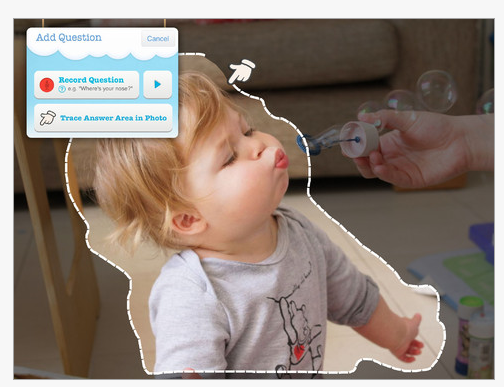
Geared to users who perform best with audio and image support (no text option is currently available) and physically interact with the touch screen, Tiny Tap allows you to create a “game” or questions about a theme or any variety of pictures from your photo album or camera. Steps to creating in Tiny Tap involve choosing an image or pictures of objects or vocabulary that response to questions of “show me”, “where is the ___ ?(object)”, that the user can relate to. As shown below, images can be easily added from the camera or from your iPads Photo Album.
The next step involves recording a question such as “where is” or “touch the”, then select/trace the object in the picture that is the answer to your question. Very fast, simple and easily edited.
After recording your initial question, you have the option of recording a correct response or incorrect response. Responses to correct and incorrect answers can be recorded. Options of types of music chosen with the app and turning the music on and off can be added in the game.
Visual and audio feedback is provided to the user after selection of the answers along with data collection supplied at the end of the game. Game creations can be shared via Email, Facebook or iTunes.
Tiny Tap is an easy method of creating a game or quiz for individuals with emergent learning skills and can provide teachers, parents, students or therapists an easy tool for creating “games”. Editing is also easy for creators to perform during production or at a later time. For users it provides a simple, interactive game for answering questions or a study method for some students. In store app purchases provide some free downloadable “games” such as a Color Game, Dress for Winter and pay for “games” such as Farm Animals, Making Pizza or Music. Check out Dress for Winter free game for a great example of what you could do for basic identification of clothing by seasons. It is a spring-board for ideas of creating functional life skills, vocabulary, sensory or social skills “games” for your child, student or client.
One option I would like to see in this app is the ability to add text to support emergent literacy or students who benefit from presentation of information visually whether image and or text.
On the creative side, Silva Rosenthal Tolisano in her Langwitches Blog (this is one of my favorite educational blogs) provides some great ideas on using this app for student created activities and ESL . You’ll enjoy her outside of the box ideas and instructional uses of this app and much more at her blog post:
Here is a back to school app reviewed by Sarah Bellin. Sarah provides a great review with attention to features useful for special needs students such as speech, text, visual cues, incentives and constructive feedback, all important to support the variety of needs we encounter.
Carol
If your child is learning to tell the time and need, you might like to take a look at Tell Time by StudyPad. Unlike many other Apps that just ask questions, Tell Time has some features that support learners, including students with special needs.
Features
8 modules in the App focus on the following topics:
Parts of the clock. – Identify the minute hand, hour hand, numbers on an analogue clock
Patrick Black on QIAT list serv recently supplied this AAC Apps for Android resource developed by Will Wade, OT from the Ace Centre in Oxford, GB. Will Wades lists not only provides AAC apps but also some supports for dyslexic or learning disabilities. A comparison tool is provided in the Full List tab that appears updated. The About tab provides a Android and iOS list by category. I found the information regarding mobile 112 interesting and definitely worth checking out!
If you are looking for Android apps for communication or LD support, this would be a wiki to peruse.
Rainbow Sentences app, for iPad (7.99) is one of Mobile Education Store’s many language based app. Typically an app thought to be for speech and language, I was a bit concerned about reviewing this app as a OT however upon initial trial I immediately identified how I might use this as a writing tool for students that I work with or have worked with in the past.
Rainbow Sentence provide a very easy to use interface for the user, therapist, parent or teacher. Initial pages of the app provides a helpful video demonstrating settings, user set up and operation of the app. Settings provides many options to turn on off audio instructions, answer reinforcement, choose a level, provide color coding and color themes.
The app provides graphics, audio feedback and graded levels of complexity for each learner along with the ability to collect recordings and accomplishments of each user enrolled.
Level 1 (above image) provides sentence development with who and what components, increasing the complexity to Level 3 to include building sentences with who, what, when and why components.
Visual cues, of colored words and line coding provides additional supports to students needing help with identification of sentence components.
Each activity or lesson also provides a visual and audio review of the parts of the sentence being worked on using the show button. The great news is this is an option to review rather than automatically generated, which for some student would provide too much verbal and take too long.
Rainbow Sentences provides data collection on students and the ability to send their completed lessons with audio recording of them reading the sentence by email for archiving. Student information also provides data on their accomplishments.
As a OT I have many student who hate to write (you know those students…). They have melt downs in the classroom at the very thought of a writing task or even seeing a pencil or paper placed in front of them. Providing alternatives and choices to written production is typically necessary to engage them in the writing process. Alternative choices have been low tech accommodations of circling answers as appropriate, using label makers to type a word and print out the word for placement on a worksheet or using high-tech tools such as Intellitools Classroom Suite to create writing environments – just like Rainbow Sentences app with colored answers, colored lines, text to speech and graded number of choices and difficulty for them to produce the writing assignment.
Although Rainbow Sentences does not provide a means of creating custom sentences, it does provide an easy and motivating method for students to learn and create sentences by a single touch and with rewards for completion of tasks. Puzzle pieces are provided as a reward for successful completion of the lessons as a reward for the user.
Both as a OT and AT, providing students with the opportunity to be a writer or author is powerful, especially for those who have emergent literacy skills and need the opportunity to learn how to build a sentence, be a writer and learn language and grammar. Rainbow Sentences does not provide handwriting instruction, but for some of our students who are not interested or capable of the mechanical writing process apps like Rainbow Sentences allow them to be a writer !
As a Intellitools Classroom Suite user for many years, Rainbow Sentences app provides a mobile solution to students who have emergent literacy skills and require opportunities to learn sentence structure, grammar and be a writer. The ability to collect data on each user is an important feature also provided to the teacher or therapist when needing to track student performance.
I can definitely see how this would fit in my OT iTool Kit for specific students who need practice with the process of written composition, but would consult with the teacher and speech and langugage therapist on what level to start with and other components of language to make sure I am working on appropriate components for the student.
Thanks to Mobile Education Store for allowing me to review this app and having one more mobile tool in my iTool Kit available to support students I work with!
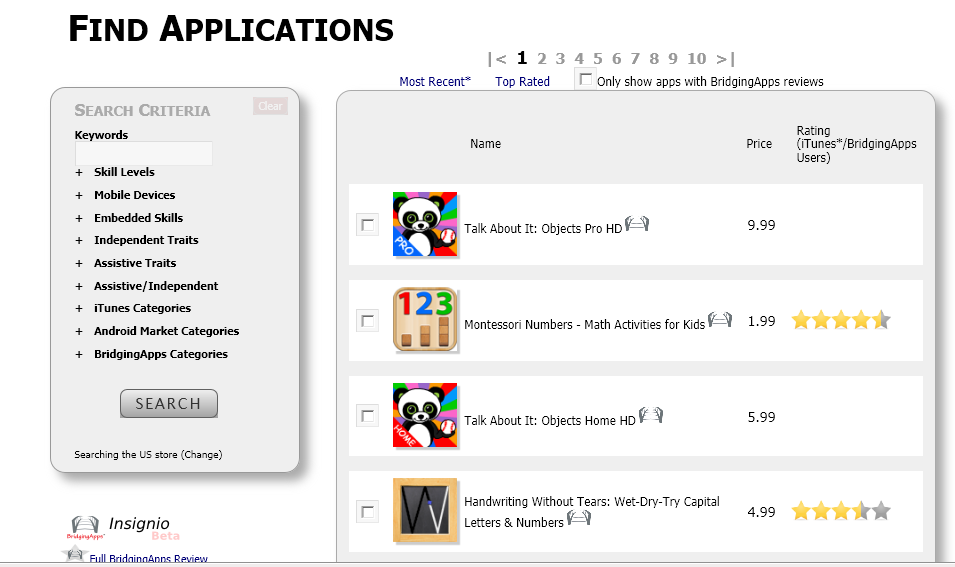
Have you visited Bridging Apps website? Formerly SNApps4Kids, this website offers an Insigneo – Search engine specifically for special needs app – its like a Specialneedspedia for apps.
Sponsored by Easter Seals of Greater Houston, Bridging Apps provides multiple methods of searching for apps. You can search by user:
It’s Insigneo search engine provides numerous choices of searching within app categories:
Apps are rated and provide a link to iTunes for purchase. Android app search is also included in the categories.
Bridging Apps website also offers more such as information on programs it offers. Getting Started: iPads for Special Needs is a handbook they have published. Here is a description of their handbook from their website:
“This handbook addresses not only why you should consider an iPad for your special needs user, but also which one to buy, the accessories that may be necessary for a special needs user – case, stylus, keyboards, switch access, Braille interfaces, wheelchair mounting and more – all with a particular focus on the special needs user. This book will also guide you through goal setting, basic and advanced set up options, finding apps and encouraging your user to interact with the iPad.”
Bridging Apps is a valuable resource when searching for apps for special needs. As an OT this website also offers equipment recommendations as well as apps making it another resource to locate tools for students or clients. This is definitely worth bookmarking in your browser or adding this to your iPad home screen for easy access.
This will definitely be a resource for my OT iTool Kit!
Working in mental health? Check out Candida Abrahamson’s review of apps for assessing depression. Even if you don’t work in mental health, I recommend you read her blogpost – always pack with great information and an entertaining writing style!
Carol
Working in mental health? Check out Candida Abrahamson’s review of apps for assessing depression. Even if you don’t work in mental health, I recommend you read her blogpost – always pack with great information and an entertaining writing style! Carol
This infographic, “How Memory Works” reminds us of the stages of memory for learning to occur. As OT’s, teachers, therapists, or parents, a good working memory is necessary for learning to occur and for recall of all of our day to day tasks for us function.
So how can you apply memory strategies in your work with students, clients or for yourself with day to day tasks? Are their apps that can help apply those strategies?
(1) Sensory memory (encoding) holds memory for about 20-30 seconds. One of the single most important components is attention³. Providing information in a novel or new way to learn can help maintain some individuals attention so that learning can occur. Sensory memory/learning involves using all senses, touch, vision, hearing, smelling, moving and handling objects in a variety of ways. Using all of your senses¹ is standardly recommended, providing more sensory channels to be used to involve more parts of your brain.
We also know that some of our students may have strong preferences with how information is being presented. It is obvious for some individuals with easily observed sensory losses or motor impairment what compensatory methods need to be used to present and allow sensory memory to occur, but some less obvious disabilities such as individuals with autism learning or central processing disorder may require specific modes for sensory memory to occur.
(2) Short term memory (retrieval) holds information temporarily and requires repetition, practice and review to help information to be received, recalled and learning to occur. Along with skill and drill practice and review other methods to help with recall and learning include, draw it, write it, sing/chant it, rehearse it, review the information across different days. Skill and drill practice is not particularly popular these days, however flash cards that provide visuals, auditory, color coding and methods of categorizing information can help information be stored.
(3) Long term memory (storage) creating permanent storage of memories. Using the information to categorize/organize³, restating, summarizing comparing, analyzing or creating a presentation or project of the information helps with understanding and generating meaning of the topic. Tapping into interests, learning mode preference³ and prior knowledge can support storage into long-term memory. Health³ is also a factor that needs to be considered. This includes mental health³ that may include anxiety or stress factors, lack of sleep that may affect sensory memory and attention which affects learning potential.
What strategies and apps might support memory strategies of the different stages? There are many (understatement – a plethora) memory strategies focused on learning as well as for functional living skills. Here are just a few recommended strategies and some apps that might support use of those strategies :
1. Encoding or sensory memory – Use multi-sensory modes of learning. Visual strategies can be good for many students in the classroom, especially known to support students with autism or those with memory challenges. Present information in words and or with text to those who need information available in a concrete manner. Auditory information is transient, here then gone, and difficult for those with auditory processing challenges or weak memory. For individuals with mental health, attention/concentration issues understanding that they need help with calming or de-stressing before learning can occur is extremely important. If stressed, overwhelmed, inattentive learning can’t occur.
Strategies and apps:
Allow individuals to move to an area where they can concentrate or calm themselves. Apps such as mediation or relaxation apps, music apps or select music that is known to calm the individual can help them be ready to learn a task. Such apps might include Mindful Mediations, Relaxation Melodies .
Music or radio station apps like Pandora, iTunes music or Yahoo Radio can be helpful for environmental sound to calm and help with concentration. Music provided individually, as each person has a personal preference for music (and which I have found can change from day to day depending on mood and preference).
Research on using white noise indicated that it had a positive effect on individuals with AdHD. Apps such as White Noise +, SimplyNoise on iPods and MP3 players could help individuals with concentration challenges.
Sensory apps can also help to calm or de-escalate behaviors. Such apps as Pocket Pond, Fluidity, have been observed to help with behaviors.
Self regulation apps such as eCBT Calm app, SOSH app, Autism Five Point Scale app can help by providing step by step methods and customized strategies to assist individuals in self regulation.
Providing information in multi-sensory modes using any of the multitude of multi-media resources and apps. There are many apps or web 2.0 available on a mobile device providing sound, images/videos such as CNN News, Qwiki app or tapping into Discovery Learning wealth of resources.
Multi-media providing background knowledge in a manner that provides impact, interest and meaning are available. You can find videos or create your own using resources such as Qwiki app, You – Tube or Teacher Tube videos, Explain Everything app.
Look for apps that provide novelty and variety of modes of interaction or mediums. As a OT Letter School or Touch and Write for handwriting as an example are highly engaging app providing many different mediums that motivate the student to practice the task just one more time with out it becoming tedious.
2. Storage or short-term memory requires repetition and practice of the information to reinforce memory and learning to occur.
Strategies and apps:
Flash cards – As old fashion and rote learning as these are there are just some things you need to memorize such as math facts, spelling, vocabulary words to be efficient. Blue Study, A+ Pro flash card provide a method of make your own using pictures, text and audio as multi-sensory modes of learning that help with recall.
Use multi media apps for restating the information in your own words, draw the concepts out using slide shows or record your thoughts or explanations using audio recording. Apps such as Educreations, Show Me, ScreenChomp, Blurb Mobile can help create meaning using multi-media.
Use camera and video on iDevices, Android or your camera or Flip camera to take images and movies of tasks for review, demonstration and recall. Using text with the video and audio also provides a multi-sensory memory mode of learning. Video modeling and video self modeling (4) has strong research base for improving learning for individuals with autism and developmental delays.
Variety is helpful to keep learning novel. Choose a couple of apps if possible that reinforce the same skill but in a different mode. Certainly balancing use of electronic learning, hands on learning and demonstration is important for everyone.
3. Retrieval or long-term – Recalling stored information may require repetition, review or creating/recreating meaning of the subject or task. Review the information over days not just cramming the night before can help with recall. Practicing the task, incorporating it routinely in your day, if a day to day task, can help it become a habit or more automated skill.
In the article 9 Strategies to Improve Memory¹ recommends using cognitive supports to “economize your brain use” such as agendas, calendars, and other tools to aid retrieval or access of information that you can’t or won’t remember over time.
Strategies and apps:
Use multi-media and video resources or video to create and make meaning of the information gathered. Use a video camera, My Story Book Maker or other story telling apps or video creation apps readily available.
Create concept maps to organize, categorize and make meaning of information. Apps like Popplet, Idea Sketch are just a few of the many concept mapping apps available.
Cognitive support systems ( 9 Strategies to Improve Memory) , suggests using organization tools such as appointment books, agendas and reference tools to help with recall of daily information that we don’t need to memorize (phone #, addresses, schedules, events, etc.) use iCal, Todo, VoCal, It’s Done! apps as cognitive supports
Here is an outstanding app resource for teachers to find apps for memory and learning:
Appitic website, a directory of apps created by Apple Distinguished Educators. Look for their recommended apps listed under Blooms Taxonomy or Multiple Intelligence categories .
There certainly are many more apps and strategies that can be used for learning or functional, day to day tasks to help with memory. I hope there were a few here that will help you with your student, client or your memory challenges!
4 A Meta Analysis of Video Modeling and Video Self Modeling Interventions for Children and Adolescents with ASD retrieved on 8-20-2012 from : http://nichcy.org/research/summaries/abstract72


 I do not have experience with this case, but the iPhone case has been very popular and withstands extreme abuse. Hmm? Know anyone that needs their iPad protected from frequent mishandling?










 If your child is learning to tell the time and need, you might like to take a look at Tell Time by StudyPad. Unlike many other Apps that just ask questions, Tell Time has some features that support learners, including students with special needs.



 is a handbook they have published. Here is a description of their handbook from their website:



 OT's with Apps & Technology