iWordQ App

iWordQ US app for the iPad (24.99) is a word prediction app developed by Quillsoft, producers of WordQ and SpeakQ.  iWordQ app provides both word prediction and text to speech options for struggling readers and writers.

The iWordQ app menu provides the tools of the reading and writing modes featured in the app:

Writing Mode: The tools on the menu (left) provide the following writing mode options:

  • Create a new document or open an existing document
  • Email the document, open a document in other apps option, copy the document
  • Writing Options provides settings including:
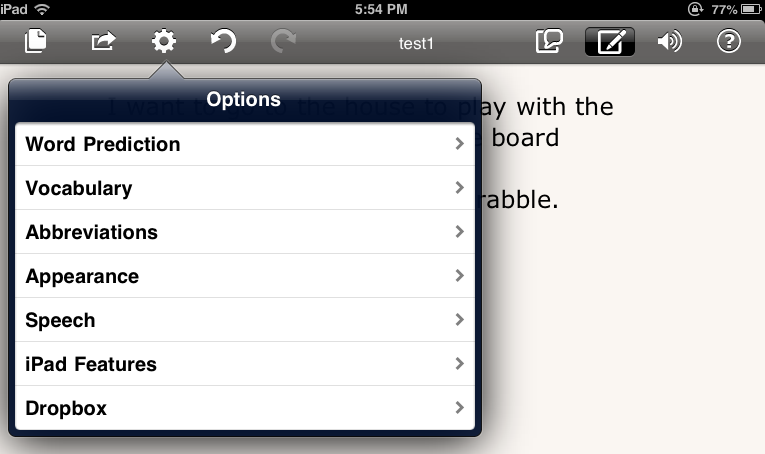
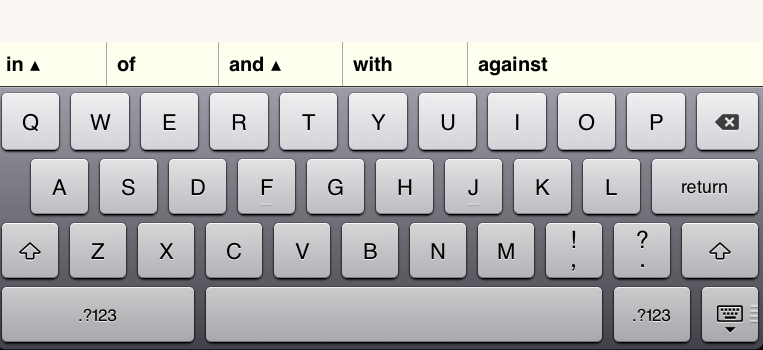
    • Word Prediction options –  maximum predictions (3-10 words), turning predictions on/off, usage examples, creative spelling, position of the predictions. Arrows indicate word phrases are available
    • Vocabulary options –  adding your own vocabulary and vocabulary usage examples (vocabulary list)
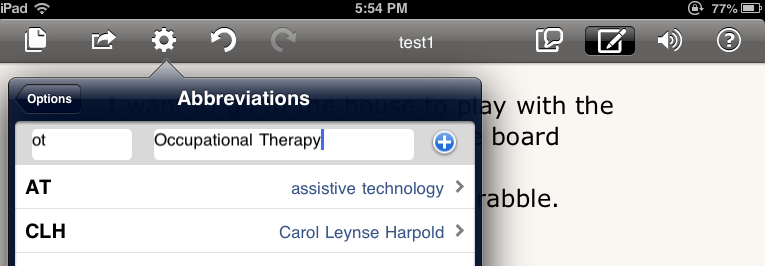
    • Abbreviation options – ability to create your own abbreviation expansion word list
    • Appearance – choice of color schemes (paper, white or black) and font (6 choices)
    • Speech – Exceptions to pronunciations allowing modifying the pronunciations of words and a choice of Ryan or Heather voice
    • iPad Features – you can control auto-correction, spelling suggestions and definitions within the app
    • Dropbox linking options
    • Using a triple tap in the writing mode provides text to speech with word by word highlighting
    • Zooming in and out with text reflow is available in writing (and reading) mode.

Writing options are easy to access and change within the menus.

Reading Mode: The menu tools on the right dedicate the app to the reading mode. Several options how the text is read aloud are provided in the app.

Reading Mode Options include:

  • Text Chunking on/off
  • Pause time for text chunking (.5 , .75, 1.0 seconds)
  • Reading speed (Very slow, slow, normal, fast very fast)
  • Line spacing (1.2, 1.5, 2.0)

Other Reading Mode features include:

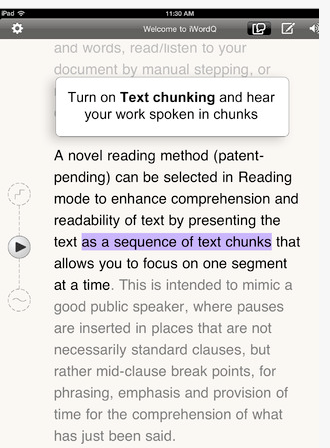
  • The iPad onscreen keyboard and writing tools are hidden when in reading mode. The current sentence is provided in black text with the surrounding text in grey to focus attention on the  sentence. Tapping another sentence selects it to be read.
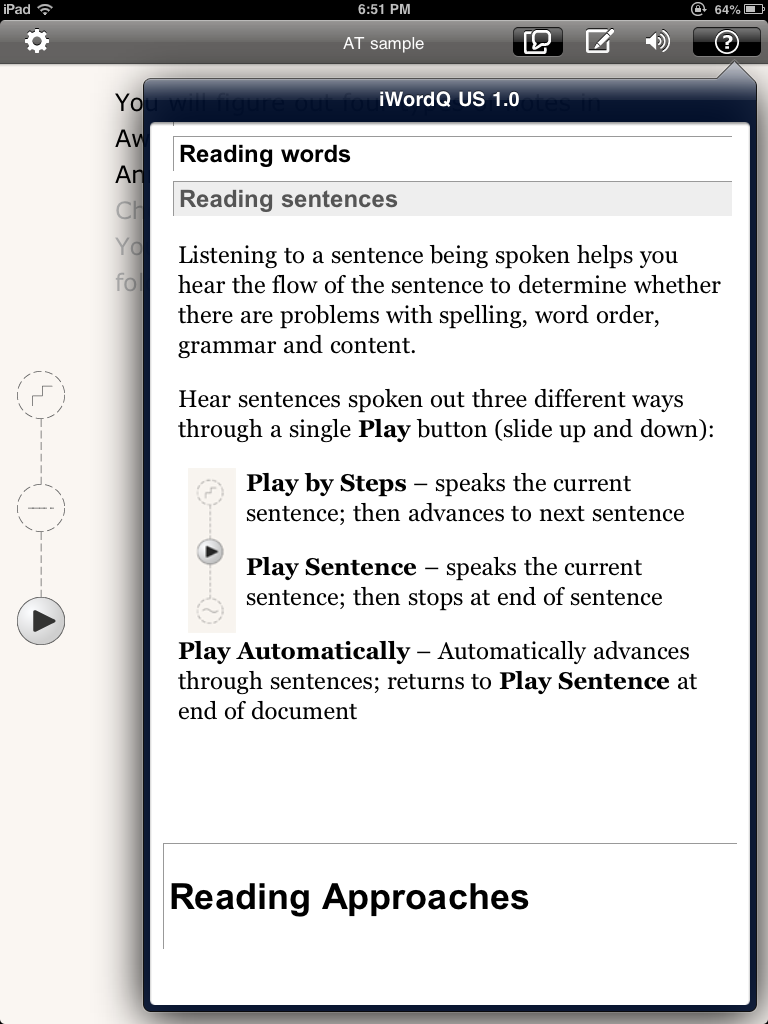
  • Three different modes of reading are available using the buttons on the left: play by steps (speaks sentence then advances to next sentence), play sentence  (speaks sentence, stops at end), play automatically (advances through sentences to end of document)
  • Text chunking is another feature provided by iWordQ, allowing text spoken in chunks to allow the listener to comprehend segments of text read a loud. Text below shows black versus grayed text provided in the reading mode.
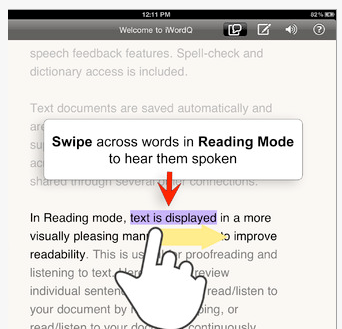
  • Text can also be swiped over to read by word or chunks of words in the reading mode.
iWordQ provides many desired supports for writing and reading for students with learning disabilities within one app. Options of adding vocabulary, modifying pronunciations, modes of text read, abbreviation expansion, line spacing options, enlarging text with zooming, and highlighting of text when read a loud are seldom found in one app.

As a text reader, electronic text can be copied and pasted into the app to be used for reading text gathered from a document or the internet for access to struggling readers. Using iWordQ on a iPad3 further provides this app with the possibility of the basic tools of Dragon Dictation, integrated into the keyboard as a writing support as appropriate to the user.

iWordQ provides many great options. An options that I would like to expanded include providing additional background colors in the reading or writing modes. Currently paper, white and black are provided, however  blue, green, gray or bright pink backgrounds, often suited to individuals with learning disabilities, ADHD or light sensitivity (see Judy Sweeney’s article on Color as Assistive Technology) would be welcome additions. Color filter sheets, such as those available from See it Right, can be added to the iPad screen for those students benefitting from such filters when reading or writing. It also would be great if it interfaced with Google Docs or Google Drive, an online resources for students in our school district.

Thank you to Quillsoft for their generosity supplying the app for review. iWordQ is a welcome addition to my app collection for students with learning disabilities.  WordQ software for the PC has been a favorite for its stability and usability on the PC and appears comparable on the iPad.  This app will be a great compliment to the apps currently being selected for students with learning disabilities who will be involved with exploring use of iPads at the middle school level.

Will this be in your OT iTool Kit?

Carol
Posted in App Reviews, Apps for OT's, Apps for Special Needs, iPad, Learning Disability, Occupational Therapy, Special Needs, Text to Speech, Word Prediction, Writing | Tagged , , , , , , | Leave a comment

Wet-Dry-Try App – And Writing Tools

Wet-Dry-Try App appears to be a great addition to a OT iTool Kit, providing mobile and additional methods of learning to a HWT curriculum. One of the wonderful things about an iPad is the mobile access it provides to carry it from room to room and school to school to use in therapy for transient therapists. However, having used the HWT materials for many years and being a firm believer of the need for development of fine motor skills with real manipulative or tools (using the real materials – the actual slate, chalk and sponges) are important for developing fine motor and sensory motor skills. Reviewer Carol Hesch, OTR also mentions this in her review of the app.

Carol’s review provoked about some further thoughts about using tools when engaging in the app. What tools or manipulatives can be used with the Wet-Dry-Try App?

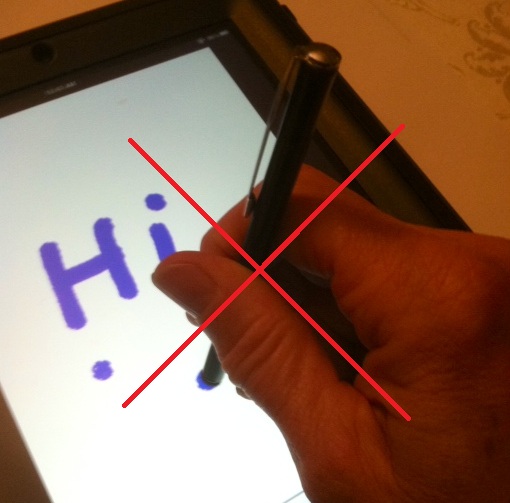
  • Use a stylus to emulate use of a pencil, facilitating the development of a dynamic tripod grasp  and preparing for pencil paper transition of skills.

Many different styluses are available. Check out the stylus you are using to determine if they have connectivity to draw or write with the edge of the stylus when holding them at an angle which would facilitate a mature tripod grasp with finger extension.

Some styluses do not allow connectivity along the sides or edges resulting in holding them  up and down to write which does not encourage a mature grasp.

Many different stylus choices are available and more enter the market all the time. Here are some reviews of suggested styluses previously posted: Stylus review,  More styluses for special needs , Cosmonaut stylus review  .  Another source for styluses is Lauren Ender’s Pinterest page on Styli for iPads. One of the styluses she reviews is the Simplism Japan Grip Touch Pen for iPad which has a tripod grasp integrated into the shaft of the stylus. I have not trialed this but it looks interesting and is a reasonable price at Amazon ($9.51).
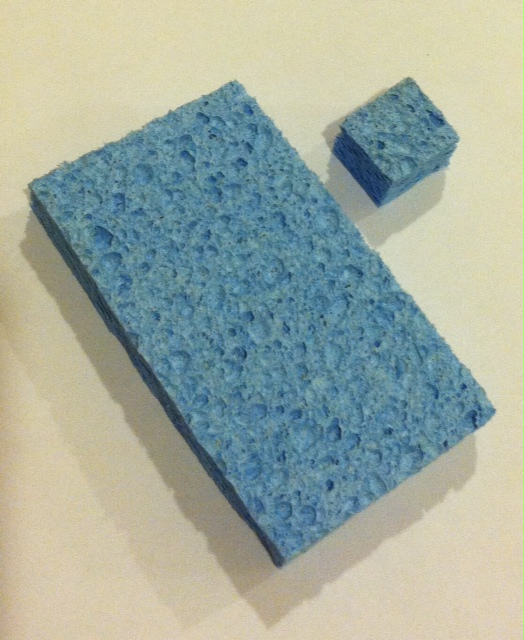

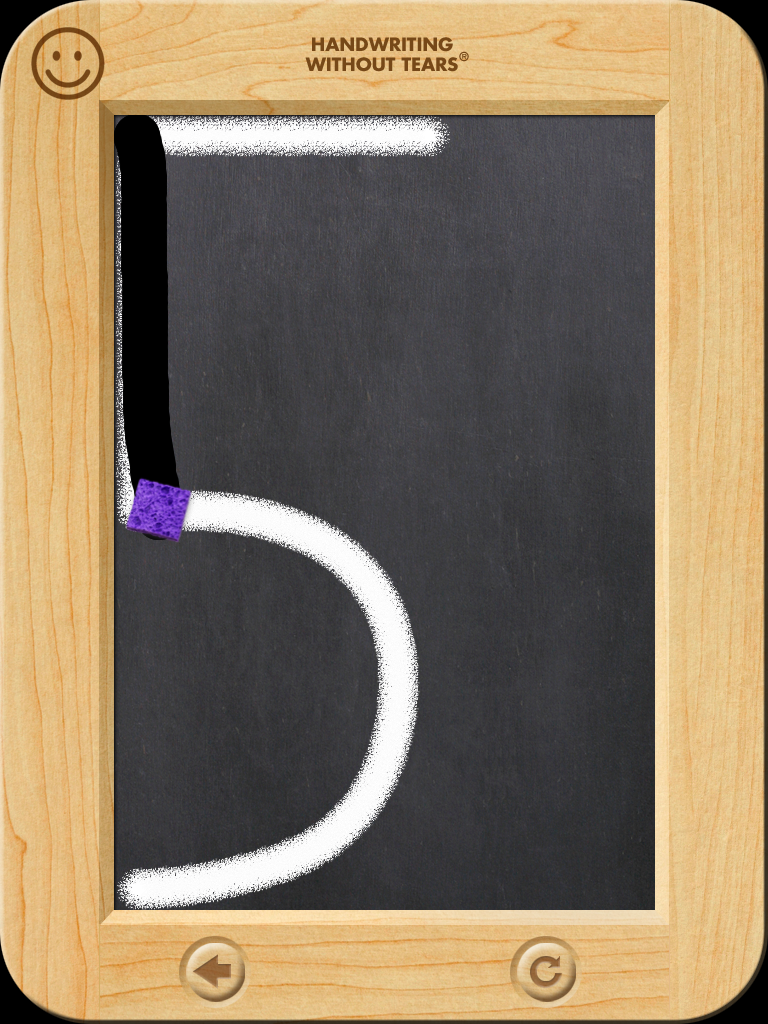
  • Use of a piece of cellulose sponge ( yes! – inexpensive cellulose sponge – just like what I cut apart for the HWT chalkboard practice)  was conductive on the iPad allowing me to draw/write with the small piece of sponge. This would also facilitate use of a pincer or three fingered grasp during Wet-Dry-Try  practice (dependent on skills and goals of the student).

This presented a few thoughts about use of Wet-Dry-Try app and tools to transition students to use of implements. Any suggestions of other tools or methods to use in therapy or with instruction?

Carol

Posted in App Reviews, Apps for OT's, Apps for Special Needs, AT for Handwriting, Fine Motor Development, Finger Isolation, Occupational Therapy, School Based Interventions | Tagged , , , , | 6 Comments

OT iToolkit App List Updated

The OT iToolkit App list updated (and repaired):

OT iTool Kit App List Updated 9-19-12.

(So sorry for any inconviences with the ill-working app list!)

Carol

Posted in Android, App Reviews, Apps for OT's, Apps for Special Needs, Autism, Cause and Effect apps, Choice Making app, Early Childhood, Elementary School, Fine Motor Development, Free apps, Game Apps for Special Needs, Graphic Organizer, Handwriting, iPad, iPhone, iPod, Learning Disability, Memory, Mental Health, Middle School, Note Taking, Occupational Therapy, OCR, Photo Editing, Post secondary, Reading, Sensory Apps, Special education, Spell Checking, Story Telling, Transitions, Uncategorized, Word Prediction, Writing | Tagged , , , , , , | 8 Comments

iWordQ App

Are you familiar with WordQ for Windows?

GoQ, makers of WordQ has developed iWordQ, word prediction software for the iPad (24.99). WordQ is a flexible word prediction program for PC computer with word list support for struggling writers. It’s exciting to see this tool now available for the iPad.

Although I have not had a chance to review the iWordQ app for the iPad yet, here are a few screen shots from the GoQ’s website:

Writing Mode

Reading mode

(images take from http://www.goqsoftware.com/products/)

GoQ website indicates documents can be exported by email, Dropbox and “several other connections”. It will be interesting to see what other services documents can be shared with from iWordQ.

Have you had a chance to use iWordQ app? Please share if you have!

Carol

Posted in Apps for OT's, Apps for Special Needs, Learning Disability, Text to Speech, Uncategorized, Word Prediction | Leave a comment

50 Best iPad Apps for Reading Disabilities – Online College Courses

See on Scoop.itAT 4 Education

Here, we highlight just a few of the amazing apps out there that can help students with a reading disability improve their skills.

See on www.onlinecollegecourses.com

Posted in Uncategorized | Leave a comment

6 Best Word Processor Apps for iPad – TechShout

See on Scoop.itSFSD iPad Scoop

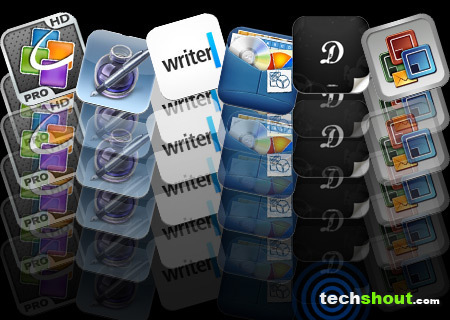
Recommendations for word processing apps from TechShout. Sometimes you just need dedicated productivity apps to create forms, spread sheets or presentations in a standard format. Here are some good choices with good workflow possibilities.


Carol

See on www.techshout.com

Posted in Uncategorized | Leave a comment

Traveling Eileen Stand

Look at the new and improved Traveling Eileen stand invented by Dr. Therese Willkomm from AT in New Hampshire.

ATinNH is an assistive technology resource from the University of New Hampshire’s Institute on Disability. If you are interested in McGyvering AT stands, mounts and more, check UNH’s  ATinNH YouTube Channel. Dr.  Therese Willkomm has great devices she has invented to support AT needs.

Do it yourself projects for your OT iTool Kit!

Carol

Posted in Accessories, Android, Ergonomics, iPad, iPod/iPad Accessory, Occupational Therapy, Special education, Special Education Teacher, Special Needs | Tagged , , , , , , | 2 Comments

Wet Dry Try App from Handwriting Without Tears

Carol Hesch, school based OTR, reviewed Wet-Dry-Try Capital Letters & Numbers app (4.99) for the iPad 2 and 3. Generously supplied by Handwriting Without Tears  & Get Set for School, here is her review of the app:

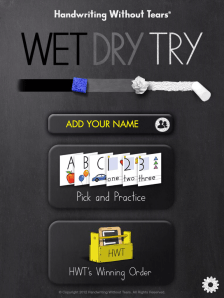
Wet-Dry-Try” app is user-friendly and follows the tried and true HWT methods perfectly.  As an avid HWT fan for many years I am very excited about this app.  The main page of the app gives you your options.   Pick and Practice is the entire uppercase alphabet and numbers 0-10.

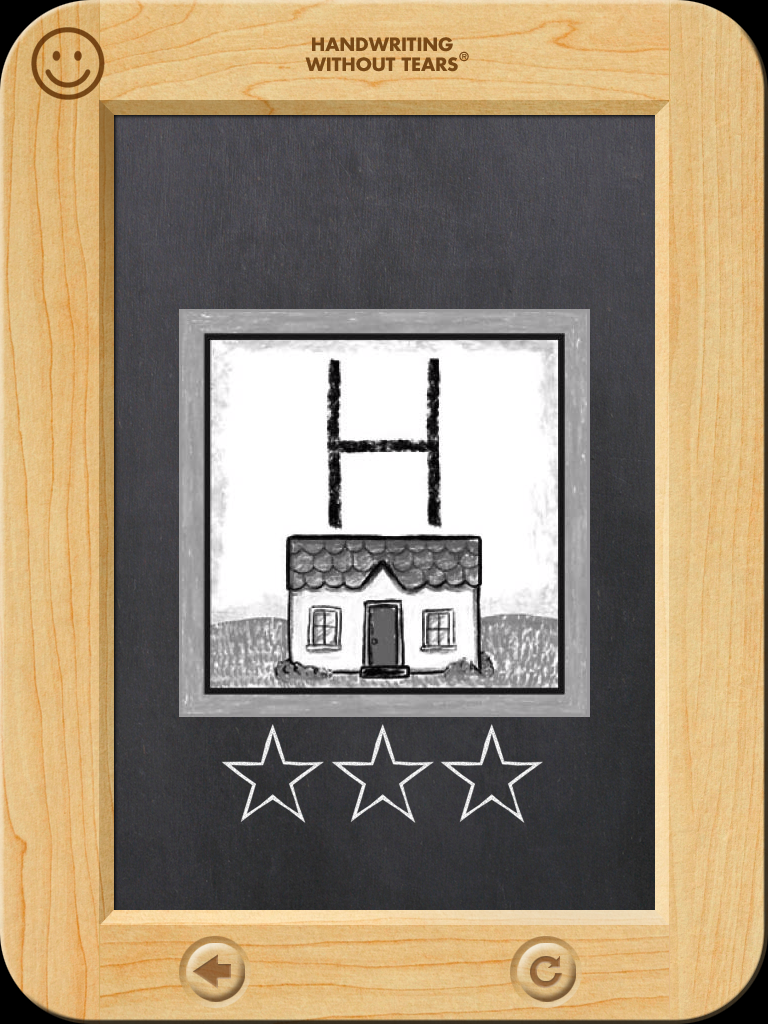
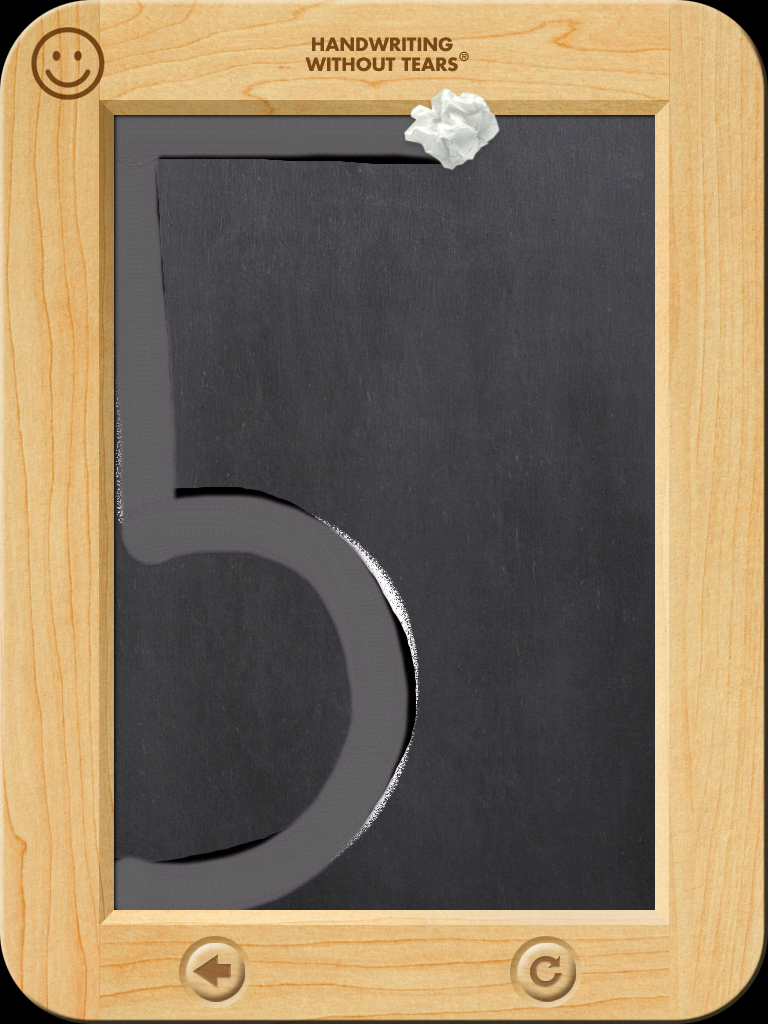
The chalkboard slate looks just like the real thing!  A gentle voice walks you though each step–demonstrating first.

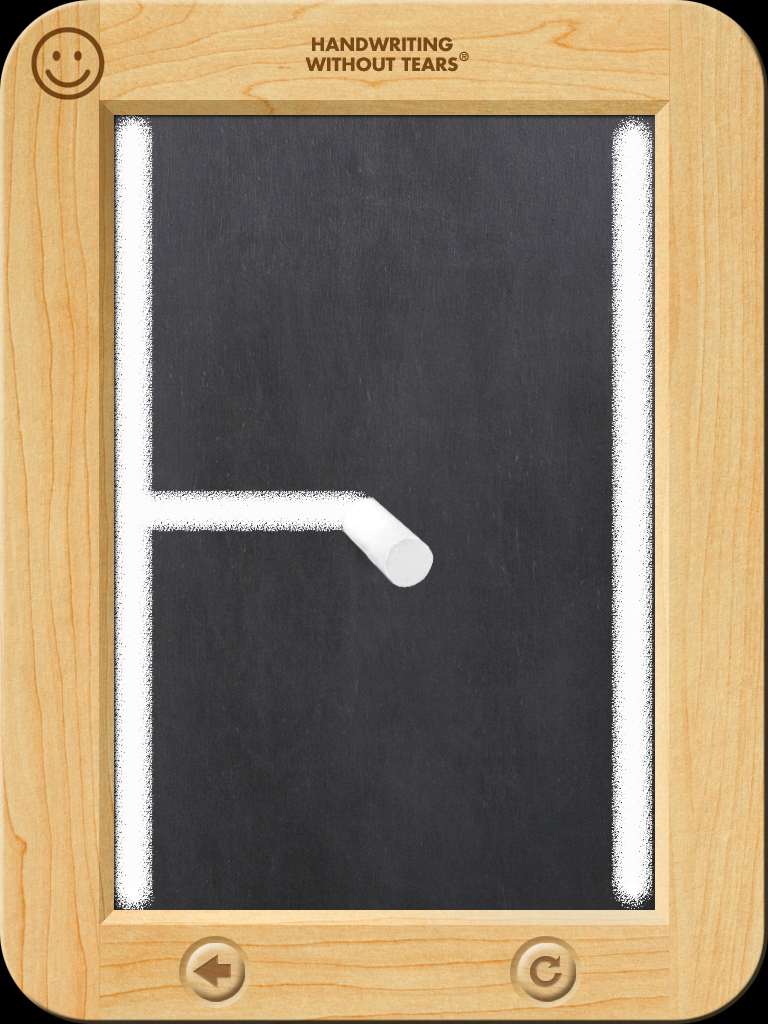
Then the student erases the letter with the “wet” sponge and the “dry” towel, finally ending by “try”-ing it themselves with the chalk.

I really like that the app automatically moves the sponge or chalk to the top and adds the RIBBIT sound that I typically had to make.  Those who are familiar with the HWT program know we have to do the ‘frog hop’  back to the top of the letter or number.  I thought that was super cute they added that sound!

The voice coach and music are gentle and encouraging.  I especially liked it when something done correctly the user was rewarded with a variety of hip phrases including “cool beans”!

You can enter up to four students to track their progress in the Wet-Dry-Try app.  The “HWT’s Winning Order” is where students learn proper letter formation and order according to HWT which starts with “big line” letters first.  Once mastered and unlocked, they move on to the next letters of “starting corner capitals”, then “center starters capitals”.

The settings allow you to turn on/off the music and voice coach.  The app does not include lowercase or cursive letters at this time.  If this app proves successful perhaps they will develop it.

The multi-sensory experience of HWT’s original, old school wet – dry – try is classic.  However, let’s face it, in these days of hurried travel between schools and shortened therapy sessions– it will be great to use this app on the iPad.  It makes it fast, easy and no set-up/clean-up required. Whether you use Handwriting Without Tears or not, you can use Wet-Dry-Try app with ease to teach your students proper letter formation.

Carol Hesch, OTR, Guest Reviewer

Thank you to Carol Hesch and Handwriting Without Tears for supplying the app and the review of Wet-Dry-Try.

Carol Hesch, OTR is an occupational therapist of 23 years with a passion for helping children learn. She has experience in pediatric acute care, rehabilitation, early intervention and school based therapy. As a member of an iPad team for a large school corporation, she has been exploring the use of mobile technology as a “new age” modality with her students.

Posted in App Reviews, Apps for OT's, Apps for Special Needs, AT for Handwriting, Fine Motor Development, iPad, Occupational Therapy, School Based Interventions, Special education, Special Needs, Uncategorized | Tagged , , , , , , | 4 Comments

OT iTool Kit Tip and Tricks #6

As the school year starts here are a few tip reminders and a few new tricks when using your iPad for work or personal use:

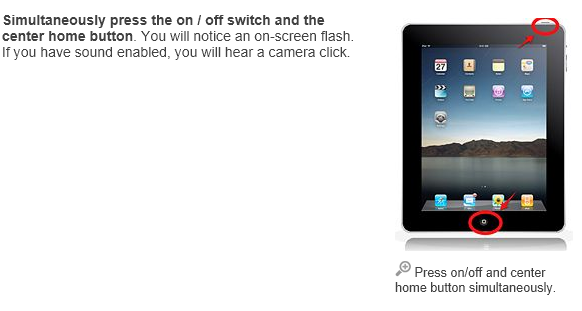
  • Screenshot – Don’t forget about how to take a screen shot of your device – press the Home and Power off button at the same time. You will see a flash and hear a camera “click” sound like a picture is being taken. The picture will be stored in your Photos for retrieval in apps on your device. Within your Photo app you can then email, print, copy, import or sync to iTunes if needed. This is one of my most used features along with the camera to get visuals into multimedia apps, storytelling or communication apps. So many things you can do and fast!

http://www.wikihow.com/Take-a-Screenshot-With-an-iPad

  • Camera Zooming – When taking a picture I could not figure out how to make the zoom control appear. Pinch the screen out as though you were enlarging the screen and the zoom slider appears to help you focus with the camera.

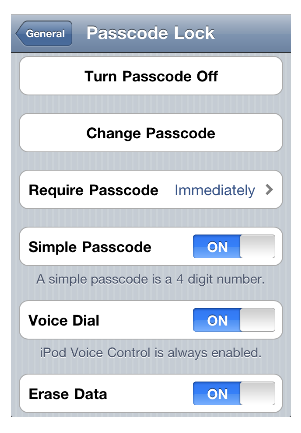
  • Passcode Lock – Under Settings>General > Passcode Lock provides you the opportunity to set up a pass code for your device to secure the professional information you have on it.

If you are letting others use your device, or have a tendency to leave it behind or unattended it might be a good idea to “Turn Passcode On”. Some apps also provide in app pass codes settings. Options for the pass code lock are available when you set it up.  More information some of the features of  pass codes are available here: http://support.apple.com/kb/HT4113

  • Battery Life – If battery life becomes an issue during your work day, consider turning off Notifications, Location Services or even Wi-Fi if you don’t need it for Internet searches or communications. Turning off any type of connectivity to your device can reduce the drain of your battery. On a new iDevice battery life should be approximately 10 hour and reportedly 9 hours with connectivity services. Batteries do wear however in time.
  • iCloud Back Up – If you are using iCloud to store your data, pictures or music be sure to periodically backup your device. Settings>iCloud> Back Up to turn iCloud Backup “On” when your device is plugged in and connected to WiFi or select the “Back Up Now” to save all data to the cloud. Here is a good article with info about Cloud back up : http://www.pcmag.com/article2/0,2817,2407494,00.asp . Some apps also can back up to different services such as Google Doc for archiving (e.g. Awesome Notes). Check out your apps for such features.

Have any tips or trick you use on your iDevice? Please share!

Carol

Posted in iOS, iPad Management | 2 Comments

Letter Cats App

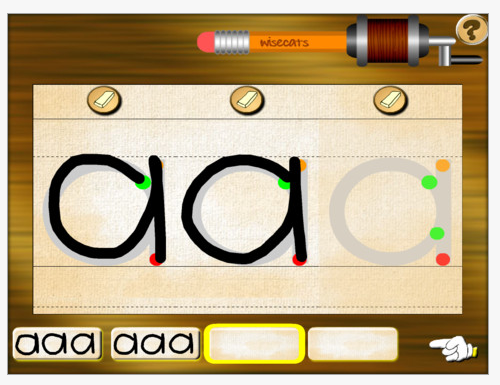
Letter Cats app is a manuscript letter formation app for iPhone and iPad ($.99).Upper case and lower case manuscript letter formation as well as writing words can be practiced within the app.  It provides visual directions of the formation of a letter with a dot moving within the lines of a letter and speaks the letter or sound as it is traced. Verbal directions are not provided in the app for the letter formation sequence.Letters that are correctly formed and within the tracing lines sharpen the pencil shown at the top of the app screen. When three letters are produced within those lines the group of letters are added to the home screen to show the users achievements.

Letter Cat is a basic skill and drill letter formation app. Some of the letter formations deviate from standard letter formation models if you follow a specific handwriting curriculum as Zaner Bloser² or Handwriting Without Tears³ programs. I does provide the ability to create your own words to practice and trace easily within the app.

The app provides a few settings for languages, speaking letter or letter sound and turning music on and off. The settings are protected by a multiplication answer.

When considering some of the best practices¹ for letter formation, this app provides a few of the recommendations for handwriting instruction:

  • Provides continuous strokes for letter formation
  • Shows the direction of the letter formation (although not with arrows)
  • Provides sounds of the letter with formation
  • Applies learning of letters to words that can be customized to student

Letter cats does not provide learning letters in like groups, but does allow the letters to be practiced out of sequence. Guidance from an adult would be needed to practice groups of similarly formed letters. I like the fact that you can create your own words whether for spelling purpose or to carry over letter formation to produce words.

A few suggestions for the app include making the color of the moving dot darker to detect its movement and direction more easily, provide choice of different styles of letter formation models and provide the verbal directions for letter formation for auditory learners. Providing a few opportunities of reduced guides during letter formation practices  would require students to use their motor memory and help reinforce learning letters.

Letter Cat provides skill and drill letter formation practice that can help parents and teacher work on letter formation. It is important to match letter formation practice programs with the instructional method used by the child’s school. Being mindful of using a multisensory approach for learning letter formation is also important as well providing different types of sensory mediums. At $.99 this app certainly can help students learn to write letters if provided guidance with proper letter formation, grouping of like letters and auditory feedback to learn.

What do you have in your OT iTool Kit for letter formation practice?

Carol

References:

¹Retrieved on 9/13/2012 from: http://www.ldonline.org/spearswerling/The_Importance_of_Teaching_Handwriting

² Retrieved on 9/13/12 from: http://www.auburn.edu/academic/education/reading_genie/letters.html

³ Retrieved on 9/13/12 from: http://www.hwtears.com/files/Letter%20Formation%20Charts.pdf

Posted in App Reviews, Apps for OT's, AT for Handwriting, Handwriting, iPad, iPhone, Occupational Therapy | Tagged , , , , | Leave a comment