See on Scoop.it – SFSD iPad Scoop
ASD Wheel developed by Mark Coppin provides areas of needs and appropriate apps. Always new apps to consider.
Carol
See on xa.yimg.com

See on Scoop.it – SFSD iPad Scoop
ASD Wheel developed by Mark Coppin provides areas of needs and appropriate apps. Always new apps to consider.
Carol
See on xa.yimg.com
 Block-a-doodle-doo app for iPhone/iPad ($.99) by Busythings.co.uk is cute game where you move a chicken riding on a gator looking mobile device through cars and trucks on the street. The user has to problem solve to plan a course to get the chicken through the street filled with cars and trucks that must be moved.

There are 30 levels to choose from with the lower the levels having fewer the obstacles. The higher levels have present a monster, that if not blocked will gobble up your critter!The app opens with a quick tutorial to demonstrate the app.

Block a doodle do app offers a clever way to work on problem solving, visual motor skills and spatial relations.
 Line Up app for iPhone/iPad (.99) is another Busythings app that uses adorable little creatures to work on patterning. The student has to use an isolated index finger touch to make the creature the proper color, shape or size.
The creatures do a cute little dance when the pattern is done correctly. If not done correctly, the creature literally is shown the door to make way for the student to try again.

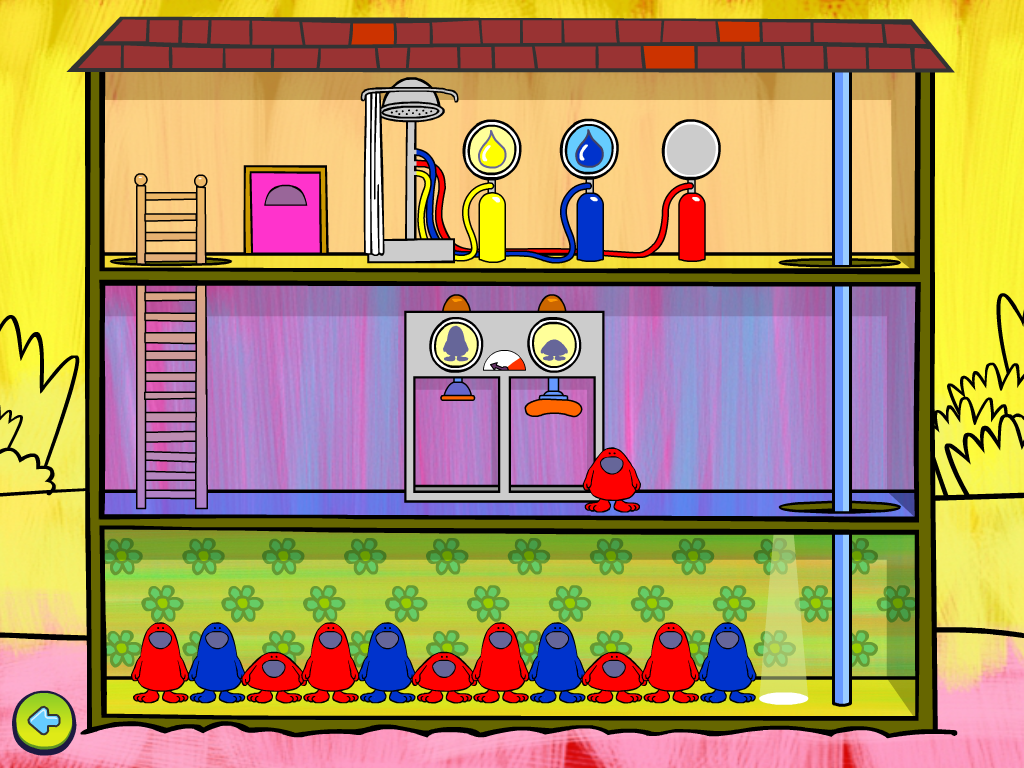
At the opening of the app it provides a quick tutorial (that you can exit anytime). Line Up app has 4 levels to choose from – easy, medium, hard, and work through.

Two more fun spatial reasoning apps to offer your students and to fill your OT i/mTool Kit. Have you used these apps? Share your experience.
Written by guest blogger Carol Hesch, School based OT (the other Carol).
Carol Hesch, OTR is an occupational therapist of 23 years with a passion for helping children learn. She has experience in pediatric acute care, rehabilitation, early intervention and school based therapy. As a member of an iPad team for a large school corporation, she has been exploring the use of mobile technology as a “new age” modality with her students.
See on Scoop.it – Apps for Special Education
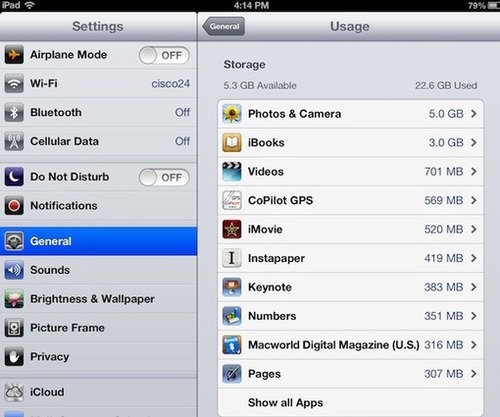
Running out of room on your iPad? Here is how to find what’s taking up the most space (memory) on your iPad.
See on ipadacademy.com
See on Scoop.it – Apps for Special Education
Jane Farrall again shares her expertise on the quickly expanding market of switch access for mobile devices. Here is her latest update on the use of switch or joysticks with the iPad.
If you are exploring indirect access to the iPad, Jane is a wealth of information!
Thank you Jane!
Carol
See on www.janefarrall.com
See on Scoop.it – Apps for Special Education
It is only two days until Halloween so for some fast spooky fun, check out the apps from The Speech Guy! A great collection of Halloween apps listed by age categories.
There may very well be some that will be requested past the spooktacular day!
And if you thought you saw this title send to you before, you are right! I think the gremlins are out early this year and are doing some wacky things on the blog (sorry!) – of course it couldn’t be user error, could it???
Just a little wonky these days… those gremlins are alittle impulsive this year!
Carol
See on the-speechguy.com

Image from Your Therapy Source
Your Therapy Source.com shares research on the benefits of exercise on learning for students with ADHD: Your Therapy Source – www.YourTherapySource.com: ADHD, Exercise and Learning.
Findings of the cited research indicated students with ADHD improved their scores on academic test following 20 minutes of exercise. This is timely information as some high stake state tests (at least in Wisconsin) start in November. Check out the article and reference of the study at the above link and get your kids moving!
Interested in ways to get your kids moving? Other than traditional ways of movement during recess or gym – there are apps for that! Check out Your Therapy Source.com’s post “10 Apps That Will Get Kids Moving” .
Image from Your Therapy Source
Your Therapy Source has great ideas and resources for school based therapists including apps!
Wow, more for your OT i/mTool Kit !
Carol
Do you have students whose handwriting legibility interferes with their production of written work? Is it hard to decipher what they write?
As OT’s or teacher’s of special needs students with handwriting legibility challenges, there are many different low tech to high-tech solutions for improving or by passing handwriting challenges. In the elementary school the need to complete worksheets, whether spelling, DOL, math, social studies, science or language arts remains a frequent method of written production. Current solutions for adapting worksheets may include:
Accommodations are based on students ability, time, tools/equipment and human resources available. With use of mobile devices such as the iPad, what tools and apps could be used for on demand adapting of worksheets for students with handwriting legibility challenges?
Are there apps for that?
Yes there are, however first a caveat, the apps featured in this post are for students who are proficient readers but which handwriting is the primary barrier to their production of writing. If you have students who need additional supports for reading and/or spelling (such as word prediction), different apps are available for that .
Some of the apps for apps for adapting worksheets have been in my OT iTool Kit for a while. While at a 2012 Closing the Gap session entitled, “Using the iPad as an Effective and Productive Classroom Tool” presented by Ona Allison, Director of Technology at Morrison District #6, IL and Nicole Weckherlin, OT at St. Louis Children’s Hospital, my OT colleague, Erin Higgins and I were introduced to a few more apps that can be used for the work flow to adapt worksheets for special needs students.
Certainly there are more apps out there that can do the job, but here are a few that have been tested as workable apps to create adapted electronic worksheets on demand using the iPad. One of the exceptional features of the iPad with a camera is its low scale, multi-function features making it highly useful for adapting and production in the classroom for service providers and students.
Here are equipment suggestions, apps and workflow ideas for adapting worksheets for student with special needs.
Equipment recommendations:
Scanning Apps :
 Scanner Pro app for iPhone/iPad (6.99) Scanner Pro allows you to scan checks, agreements, whiteboards, pages and even multipage documents. After scanning you can email them or upload to Dropbox, Google Docs and Evernote. https://itunes.apple.com/us/app/scanner-pro-by-readdle/id333710667?mt=8
 JotNot Scanner Pro app for iPhone/iPad (1.99) scans multi-page documents, receipts, whiteboards, business cards and notes into PDF files; email scans directly; or upload them to iDisk/WebDav, Evernote, Box.net or Google Docs where they can be shared with
others. https://itunes.apple.com/us/app/jotnot-scanner-pro/id307868751?mt=8
Both scanning apps scanned with good quality results for the PDF files used. Both apps provide cropping, editing, reprocessing capabilities along with selection of the size of the item being processed (business cards, legal paper, letter etc.). Workflow options are also the same managing documents and PDF’s and the ability of sharing them with Cloud based services as Google Docs, Dropbox, Box and other typical Web 2.0 document management services.
Apps for Typing on Worksheets :
 PaperPort Note app for iPhone/iPad (free) provides a note taking environment that accepts images and PDF files imported. Annotation tools are available to produce text boxes or sticky notes to enter text. Sizing, color and boarders of the text boxes can be modified. Text boxes can also be created for completion at a later time. Moving the text boxes took a bit more skill than in other apps in our experience. Tools for handwriting or drawing are also available if circling or underlining answers are required on worksheets. Voice recognition using Nuance’s Dragon Dictate is available within the app if you don’t have an iPad3 with Dragon Dictate integrated into the keyboard (Wi-Fi required for the speech translation to work). A microphone for recording is also provided but collects it generally on the page in order of recording and not at a single location on the form.
 Worksheets are saved within the PaperPort Note app for sharing with Dropbox, Google Docs, Email, printing or to open in another app. Students need to have fair fine motor skills, awareness of a keyboard, traditional to conventional spelling skills and proficiency with the app tools to complete the forms.
Type on PDF for iPad (4.99) – Create and arrange text boxes on imported PDF scanned worksheets using this Import scanned documents for form completion using text box and handwriting tools. Text fields can be premade, sized and fields numbered for easy navigation within the text fields. Using the enter key moves the use to the next numbered text box for easy navigation if the text boxes are ordered appropriately. In order maintain text boxes to be filled later, enter a few spaces in the box to keep it available on the form. The green arrows on the text boxes provide an easy method of moving the forms up/down and side to side for placement. The Pro version of this app (9.99) provides additional methods of managing the text fields however not needed for school purposes in my opinion.
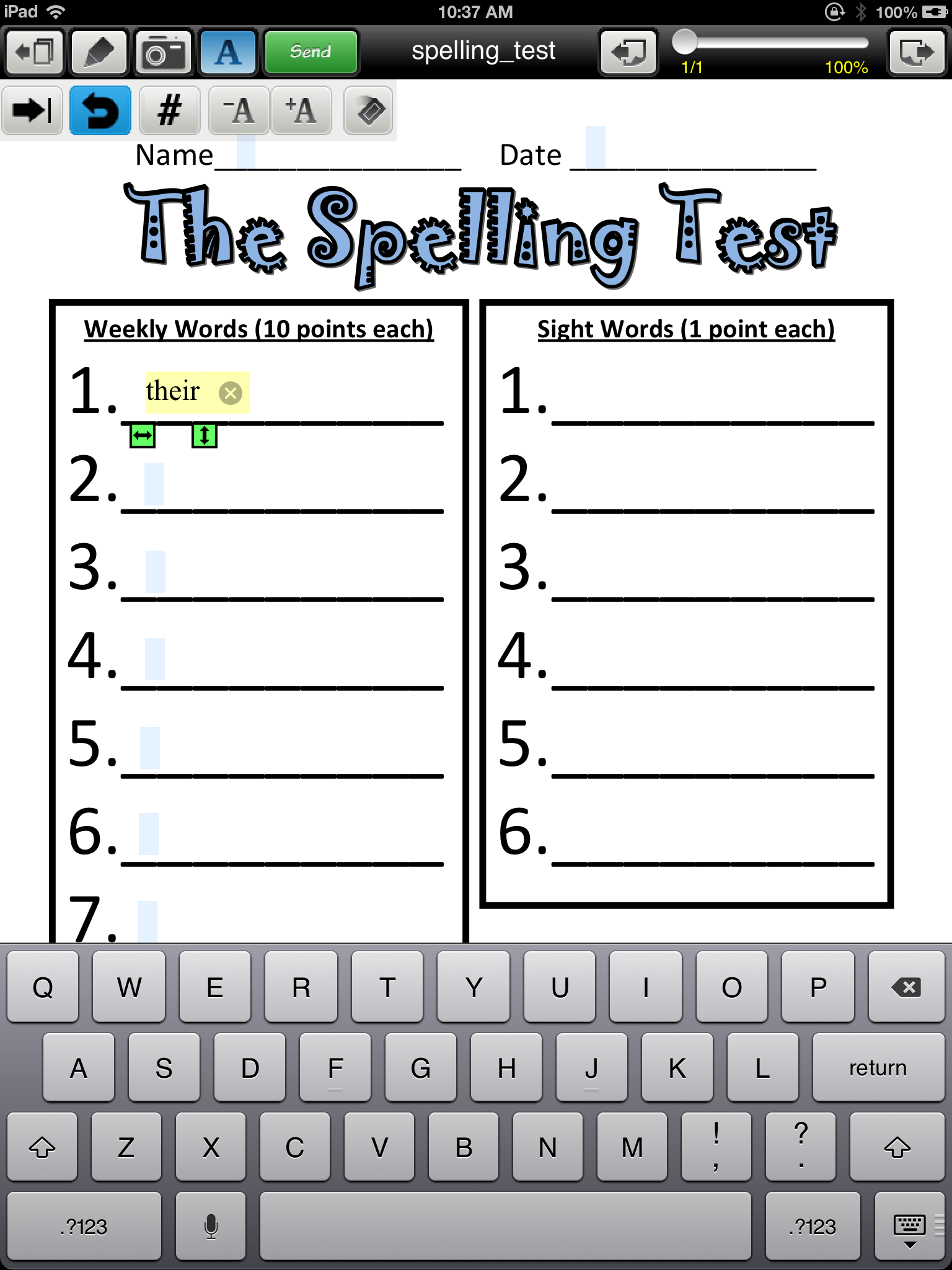 Completed forms can be emailed resulting in a PDF of the worksheet for printing or forwarding or printed from within the app if you have those capabilities at your school.
 iAnnotate for iPad (9.99) is a robust PDF management app. It has the most tools and features of all of the apps but with that can be a bit more complicated to use as well due to its many tools. It allows you to create text boxes to type, highlight, draw/handwrite, create note boxes with more information, record sound at a specific location on the PDF, note take and share documents to Dropbox, Box, email, print or from your iPad. With recent updates an account is needed to access new extended Cloud features with this app, not particularly great in a school environment. Text box creation was easy but it was not easy to create numerous text boxes for later completion. I had to place a character (not a space) to maintain the text box on the form. It was also difficult to move the text box after it was created and required selecting a typing tool to edit what was typed. Text boxes expand to the size of the inserted text to prepare the form. iAnnotate also has a recording feature that places an audio recording marker at a specified location, not a typically found feature in note taking apps.
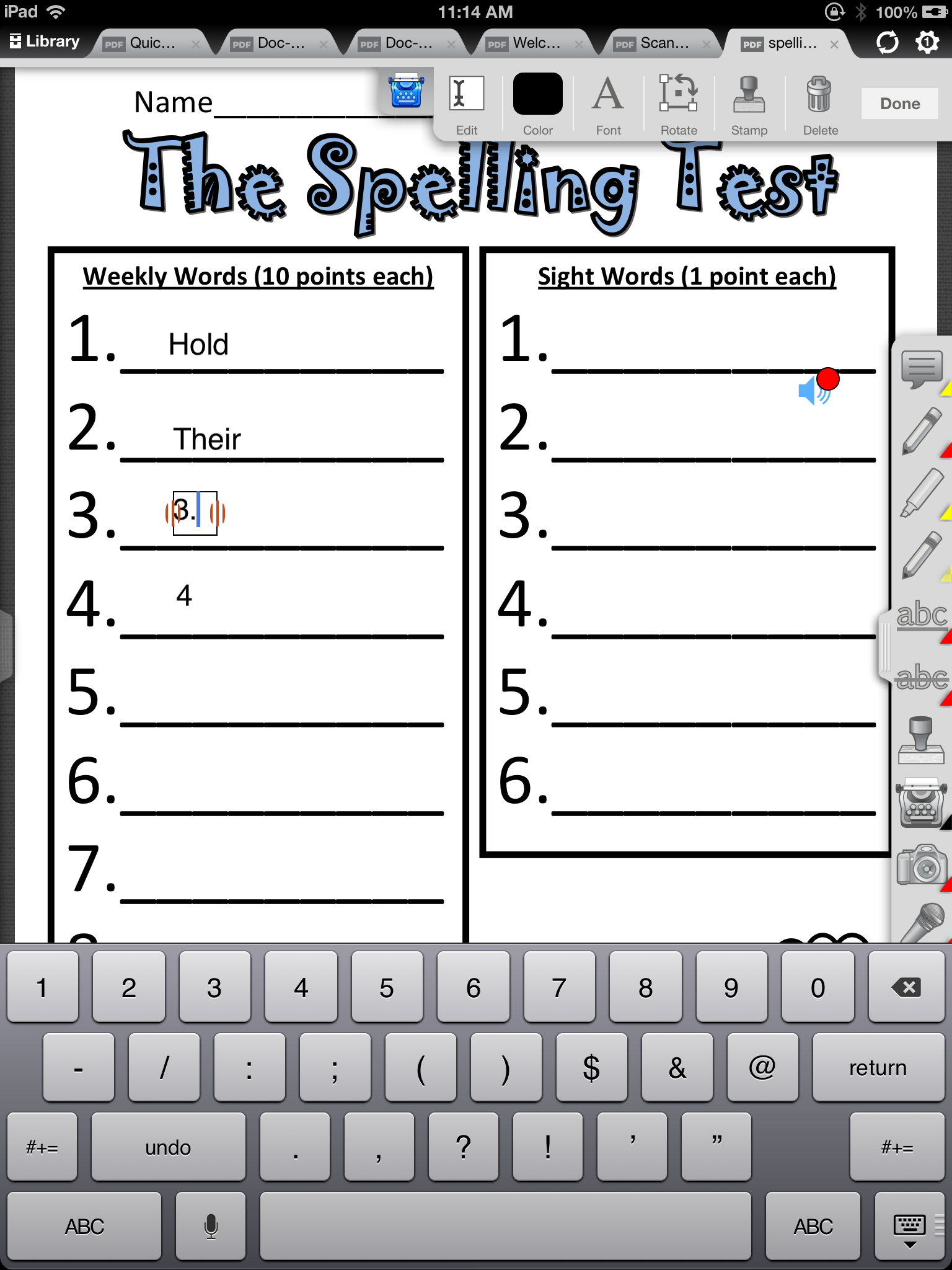 Students who are a bit older and have more experience with navigation and problem solving would be best with this feature rich app in my estimation.
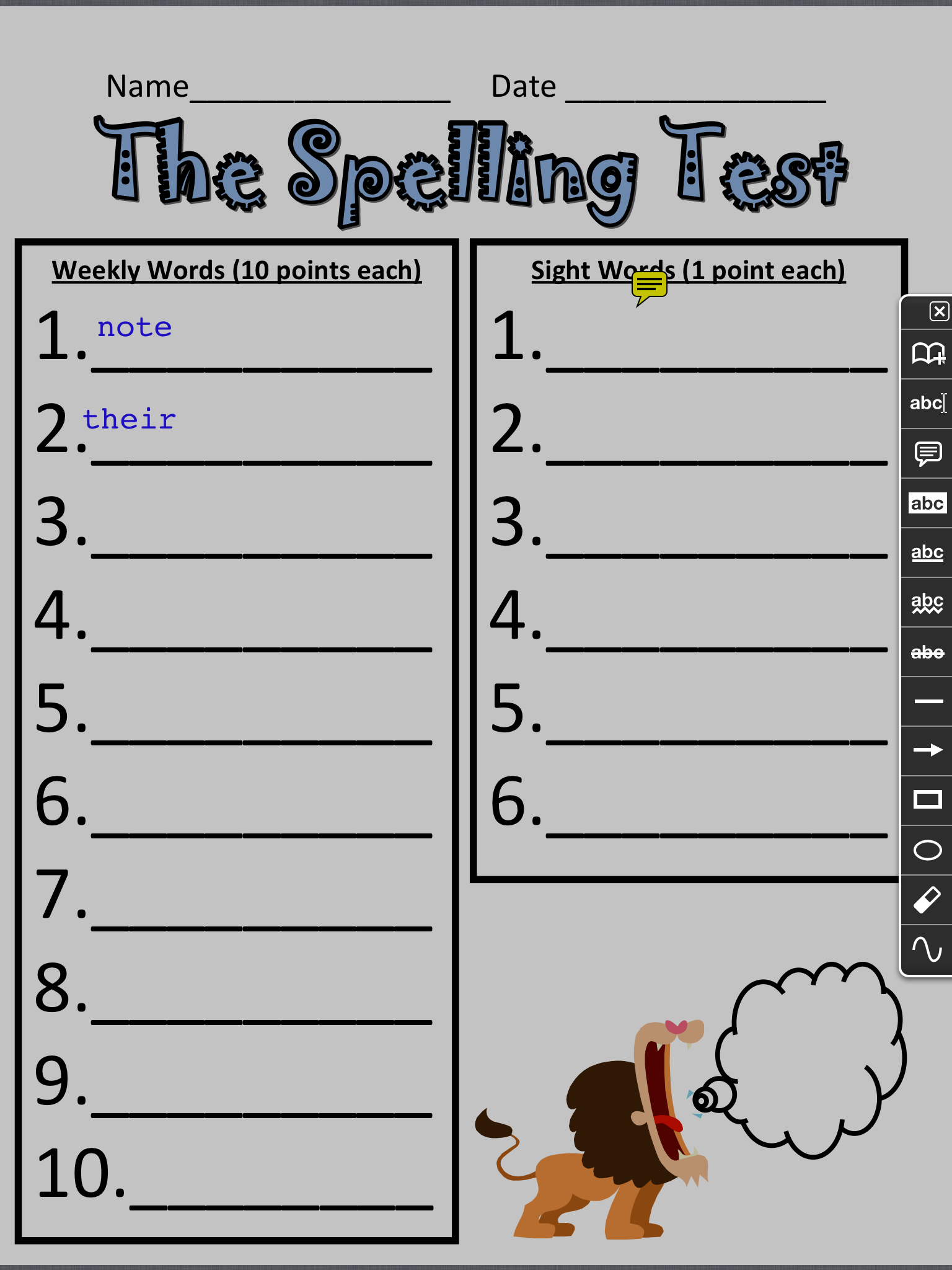
 GoodReader for iPad (4.99) is considered a PDF Reader but which provides many more features of which includes annotation of PDF files. It reportedly handles large PDF and TXT files, manuals, large books, magazines, and renderings of 100 mb and more with great speed. The annotation tools allow the ability to mark-up PDF’s using typewriter text boxes, sticky notes, lines, arrows, and freehand drawings on top of a PDF file. The fillable text boxes have no borders making the text boxes difficult to identify. To maintain text boxes characters have to be placed within the boxes and if completing at a later time have to be selected then edited to type within. This is another feature rich app that would take an older student who has good app navigation and problem solving skills and can manage producing text on demand to complete a form.
What is the process to create fillable forms?
These directions are based on using Scanner Pro app. JotNot has similar features but which may be in another sequence in the app.
1. Select a scanner app, open it and use the iPad camera option to take a picture of the form you want to adapt. Pictures from your photo album can also be used, however due to lighting they are often gray or darker than when using a scanner app.
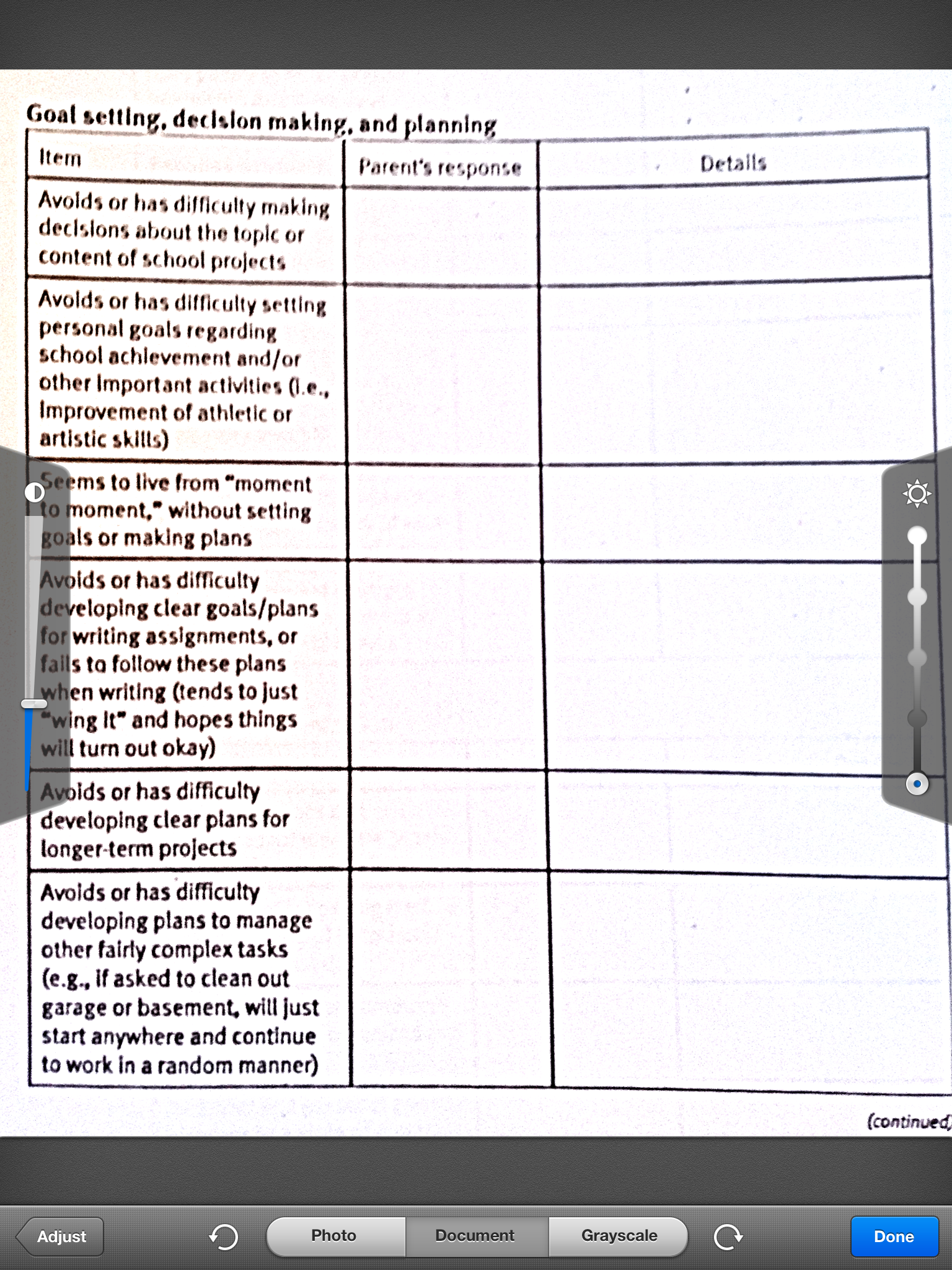
2. Once the image of the form has been taken and is in the scanning app, use the scanning selection tool to select the specific area of the worksheet image you want to use. This is a cropping feature that allows you to take out other information not needed or captured in the image. Once you have selected what you need from the image in your form, Select Done.
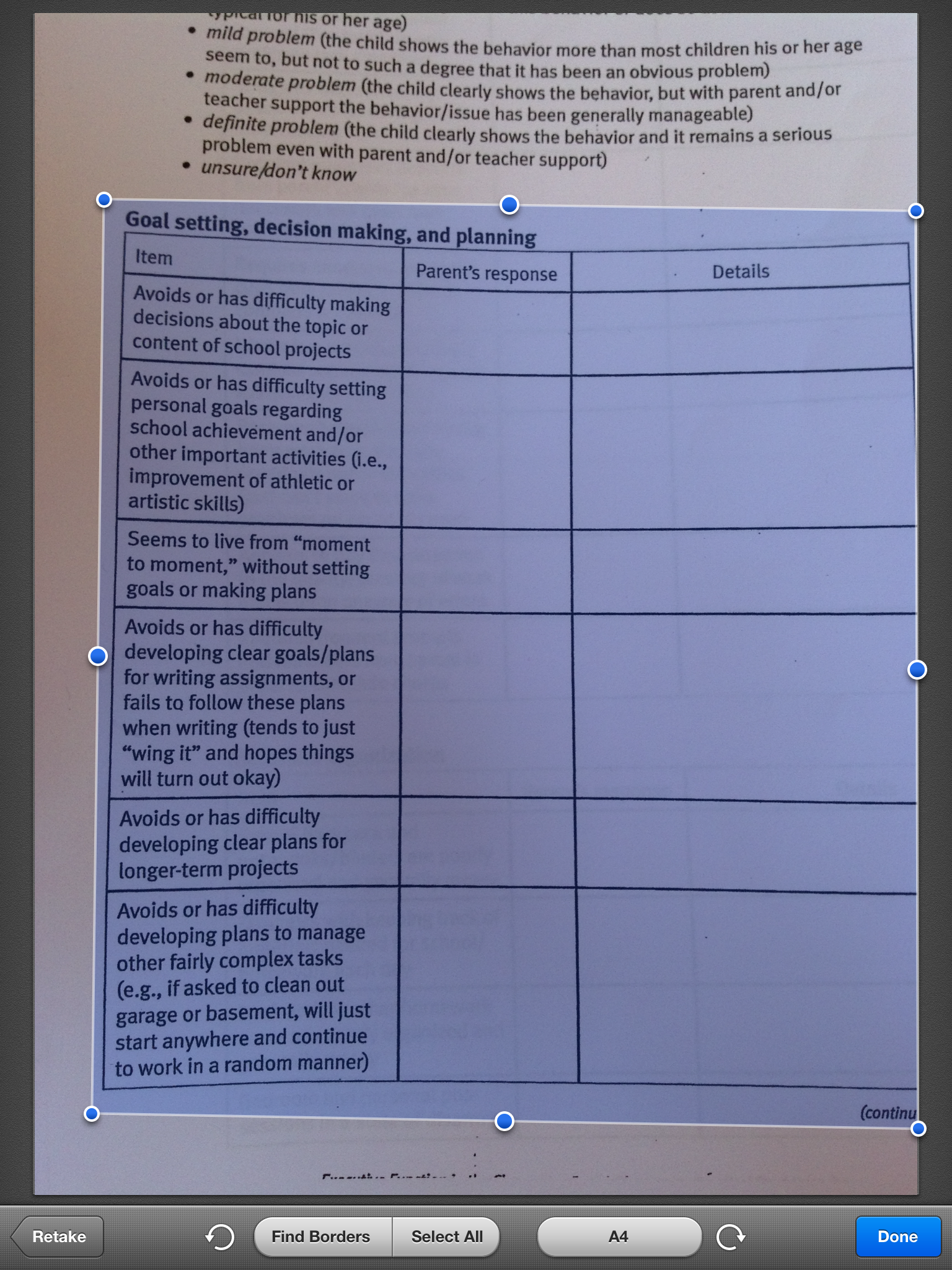
In Scanner Pro, you are provided a step to lighten or provide more contrast or adjust the selected area. When you have achieved satisfactory results select Done again.
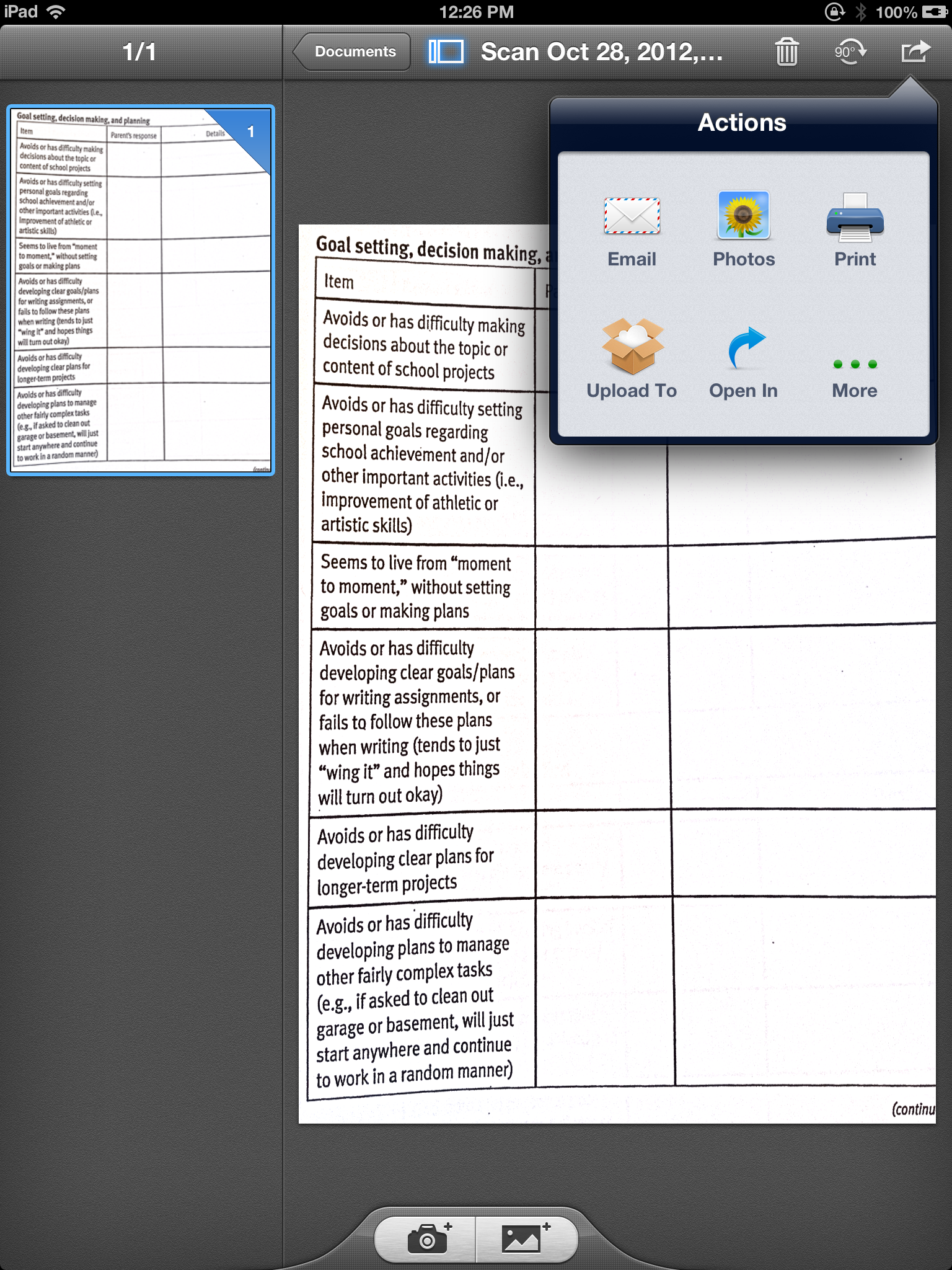
3. Your scanned image has been processed and ready for review. By pressing the Move To icon at the top right of your screen you will have workflow choices of saving or sharing it via Email, Photos, Print, upload to Cloud or Web based services (Google Docs, Dropbox requiring establishing a connection and login with these services), Open In or More… Select the Open In icon to process the scanned document to a form filling app.
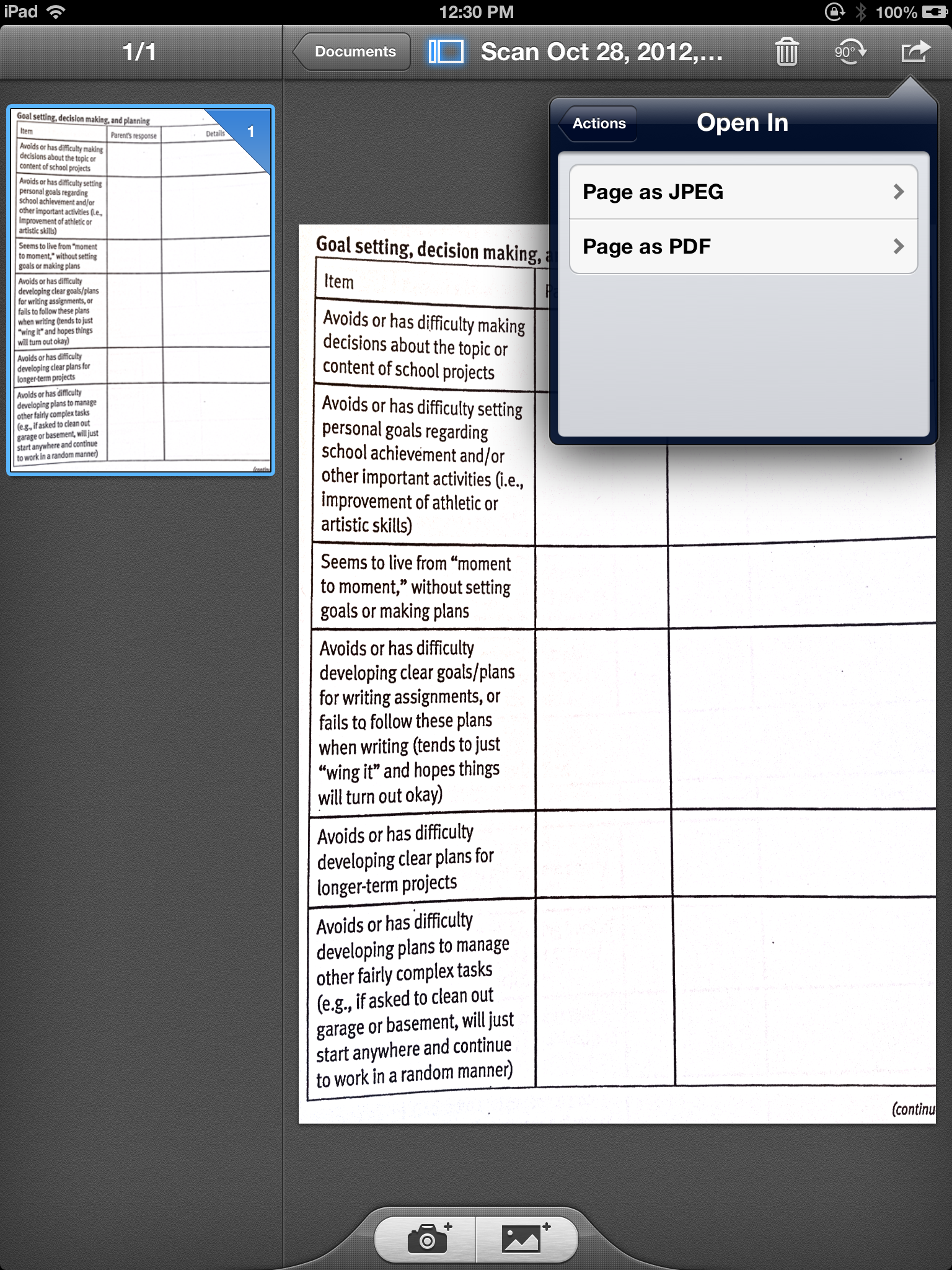
5. Next a Open In option of what format you want the scanned document to be processed in is offered. Select “Page as PDF”, to create a PDF format of the scanned image. The image will be processed as a PDF.
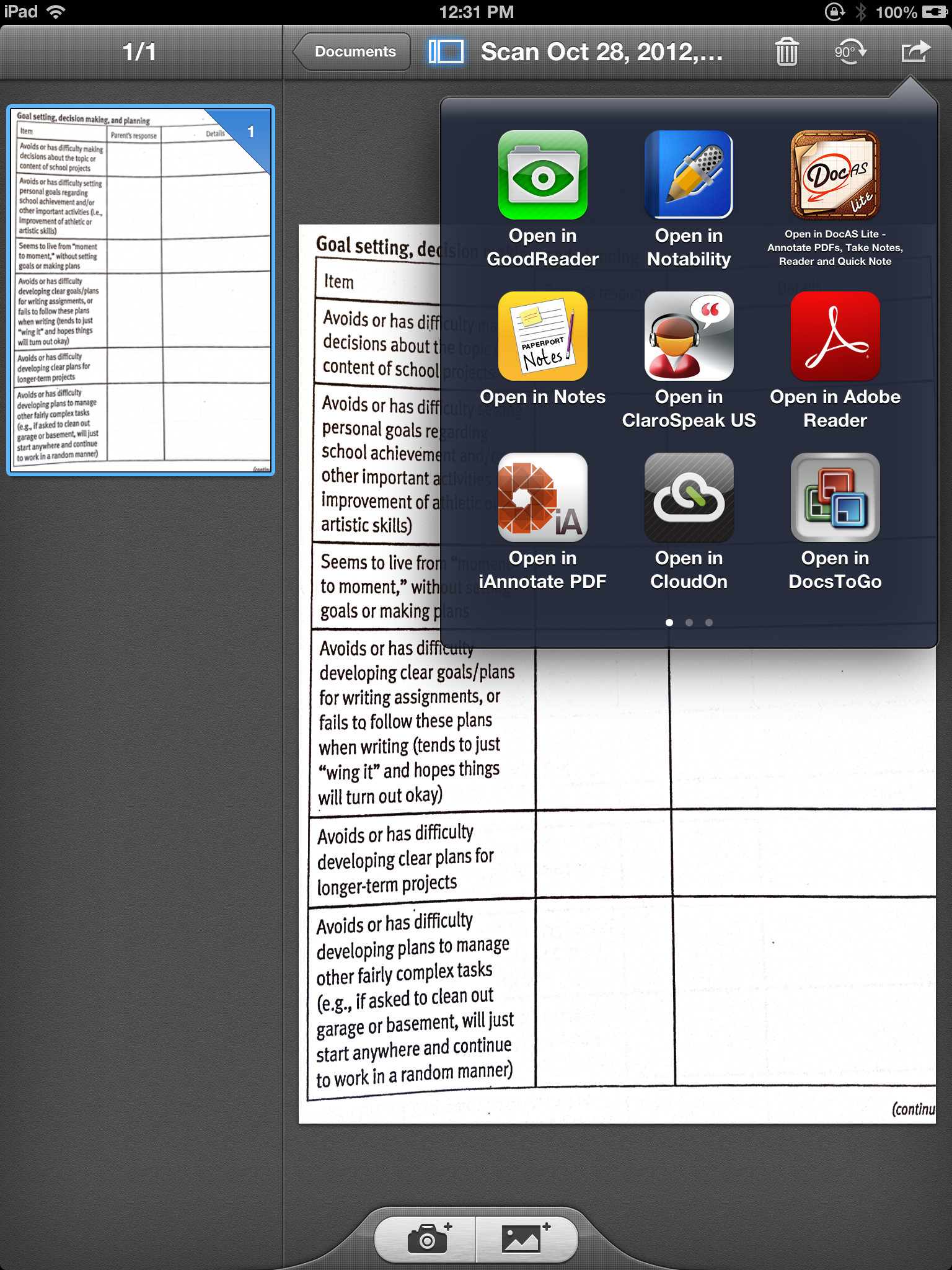
6. The Open In workflow options to transfer the PDF to a format compatible app on your device is provided. Select the app ( e.g. iAnnotate, PaperPort, Type on PDF) you will be using to adapt your work sheet in. Swiping to the right on these choices provides you other apps on your device that will handle the PDF.
7. The file will then be transferred automatically as a PDF to the app you chose. In this image it was sent to PaperPort Notes in a PDF format . It looks just like (almost) the part of the hard copy form (a little better job at picture taking would have yeilded a straighter form!) I scanned .
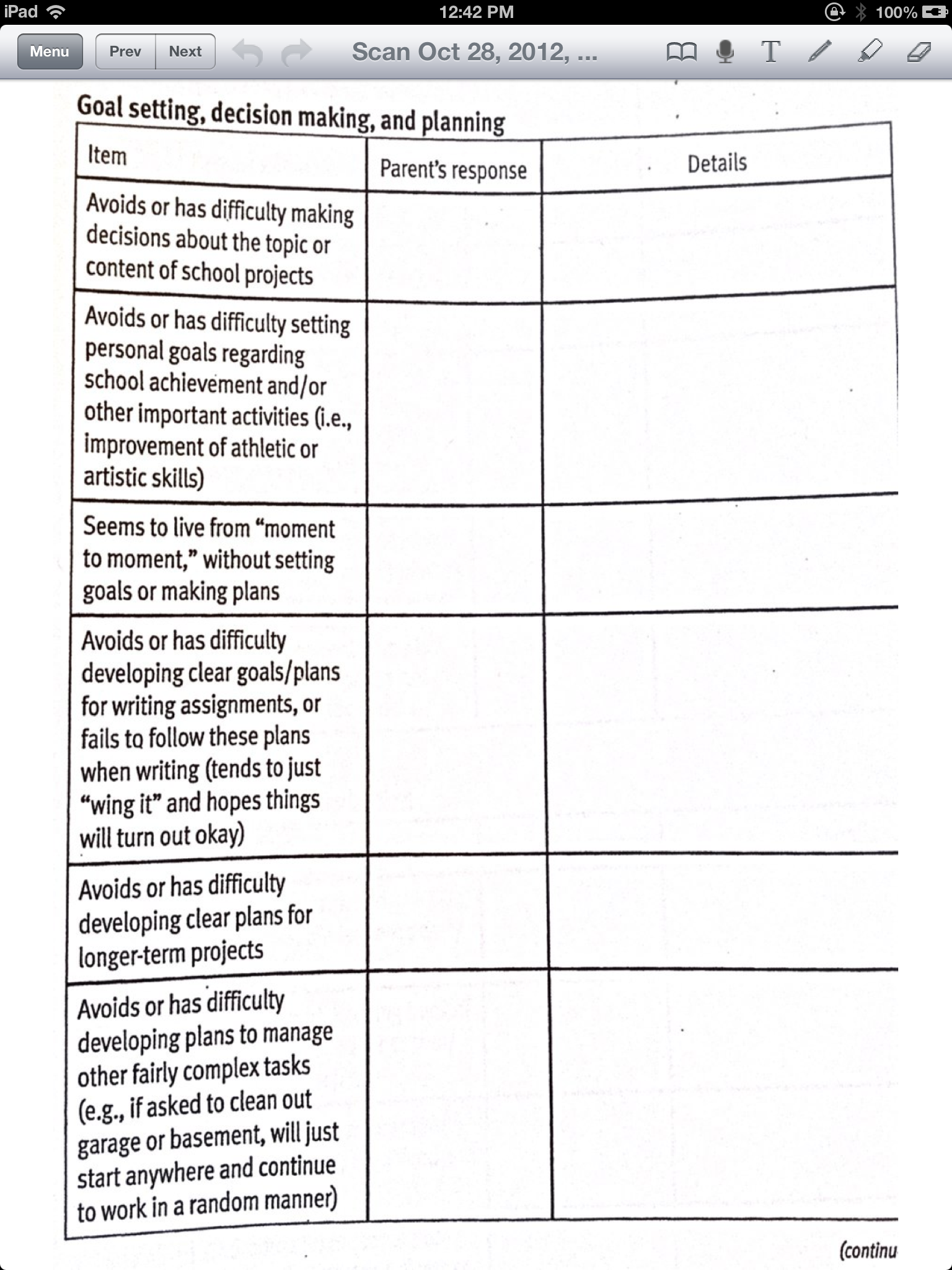
8. Now you are ready to create text boxes in the app of you chose. Consult the directions within the form filling app for creating those text boxes to prepare it for your student as needed. Check on quick video clicks within the Help of the apps or on YouTube. Each app works a bit different and can take a bit of practice to navigate and produce the text boxes on the form.
9. When the form is completed, print the form, send the form via email or to a web based document management service (Google Docs, Dropbox, etc.). I find the easiest method is to email the PDF form from the iPad to the teacher or myself for printing or forwarding to the teacher or paraprofessional.
Conclusion: Scanning apps featured appeared to be similiar for the purposes of scanning copies to a PDF format and also workflow choices. Apps reviewed that manage PDF file formats have different types of tools and different levels of difficulty in managing the tools needed to create and complete text boxes to fill out forms. Some apps, such as PaperPort Notes or Type on PDF appeared to be simpler and more easily to navigate for younger or less skilled users. Other apps were best suited to users with good problem solving skills and navigation skills such as iAnnotate and GoodReader apps in this reviewers opinion. The writing/note taking apps featured in this post are best suited to students who can read, but may require adaptations for producing written work using a keyboarding to allow them tools to produce legible worksheets in class.
Other writing apps exist for student who need to complete worksheet information using keyboarding with text to speech options. Worksheet formating such as lines and pictures are typically lost but typing and text to speech can be offered to struggling reader and writers. A few options to consider for those students needing reading and writing supports are apps as iWordQ which provides word processing, word prediction and text to speech when used with scanning apps as Prizmo or Text Grabber as OCR tools to convert hard copy to electronic text.
Another great app option is the use of App Writer English which includes a scanning tool, text to speech and word prediction. Worksheet formating is not maintained but the supports for struggling readers and writers are provided.
I hope this helps. This is just another method of adapting curriculum to support the needs of our special education students in an inclusionary setting. If you have any experience with other apps, methods you use to adapt fillable worksheets, please share!
More tools for your Teacher or OT i/mTool Kit!
Carol
Innovative Mobile Apps has been developing again and this time it is a visual – spatial reasoning app called Little Solver – Figural Analogies. Just gone free this looks to be another great app to work on visual spatial reasoning with customization and data collecting features within the app.
 Little Solvers – Figural Analogies – developed for iPhone/iPad (free) provides 14 levels of geometric – figural analogy shapes with text, sound and data gathering tools. Here are some screenshots of the app:
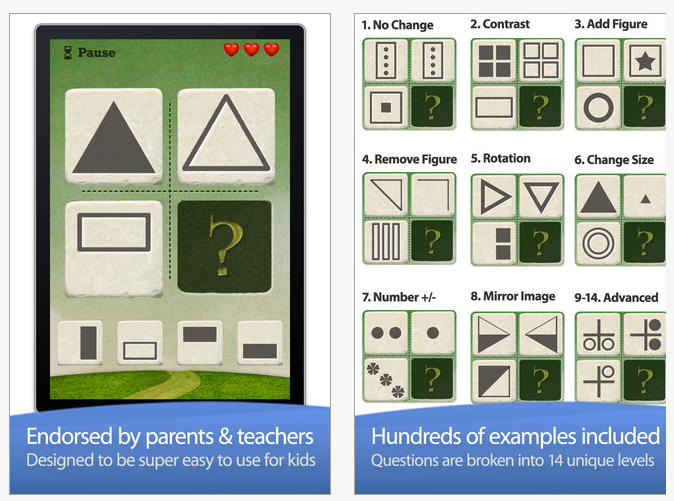
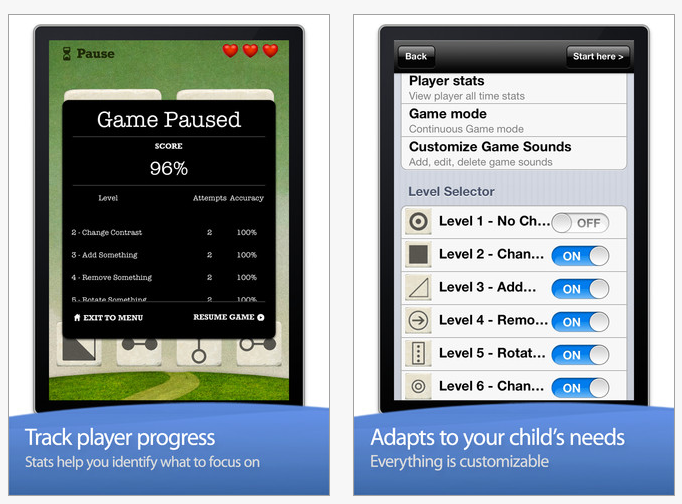
Look like an app that would benefit your students? Will this be included in your OT iTool Kit?
Carol
Here is PAAL part 3 on apps presented by Avi Glick, Director of Preparing Adolescents and Adults for Life (PAAL) while attending the 2012 Closing the Gap Conference in Minnesota last week. This third post shares community life skill apps used with individuals with Autism Spectrum Disorder students enrolled in the PAAL program. These app could also support many other individuals including individuals with cognitive impairment, traumatic brain disorder or possibly those with early stages of dementia and the ability to learn mobile device use.
Purchasing and Budgeting:
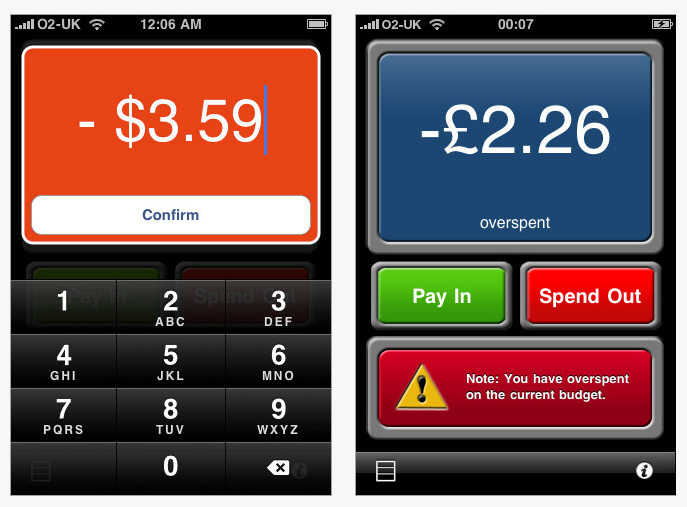
 Cash Strapped – app for iPhone/iPad (.99) – Set a daily, weekly or monthly budget for all your disposable income and keep track of it quickly and simply. Every time you spend money at the restaurant, store or vending machine just enter the amount and your remaining budget will be recalculated immediately.
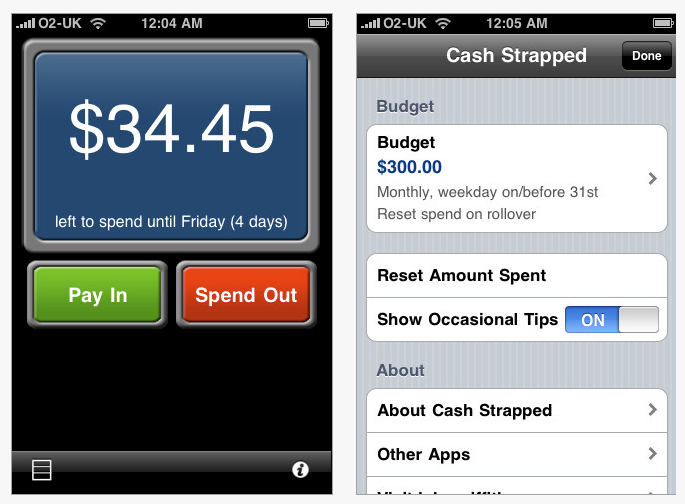
 PicList To Do Manager – iPhone/iPad (1.99) PicList is a to do management app with features such as reminders, sorting, password protection and color coding tasks. PicList also has the tools to turn anything into a list without having to type it into your phone or iPad. Import photos, take pictures of text messages, shopping lists, sticky notes and add them to your list. Tools also allow you to cross off items on your list with a draw tool.
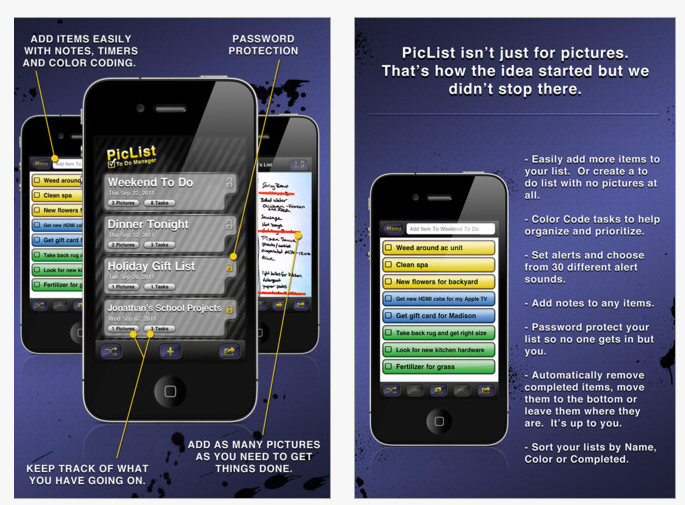 Watch a video with more information on the PicList app: http://www.youtube.com/watch?v=o0sVZPicUm0
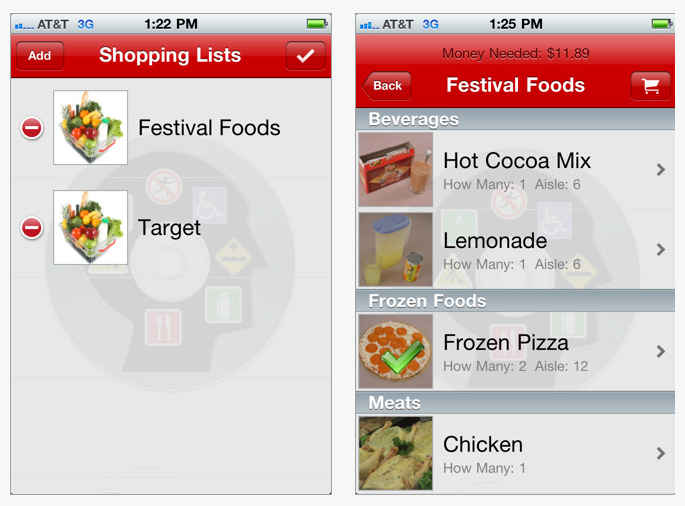
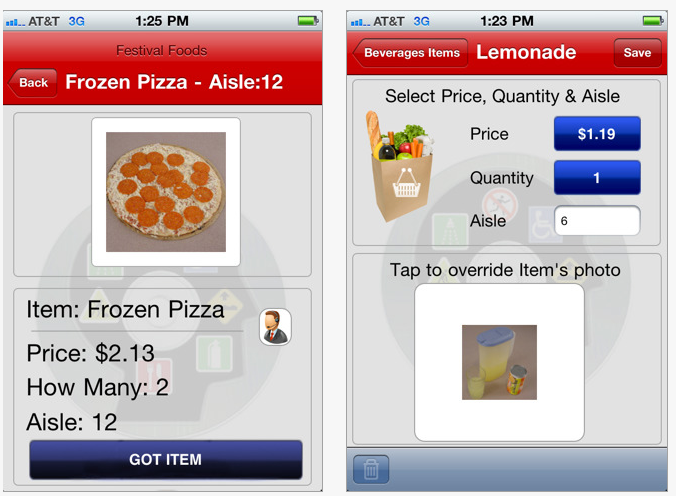
 Shopping List Generator – iPhone/iPad (4.99) by Connor Company is a functional, picture shopping list app that allows you to create different lists for different users, use your own pictures, add items and categories, enter item prices and locations. Shopping List Generator provides accessibility features for individuals with special needs as described in iTunes :
* text-to-speech engine reads items and locations
* uses large, easy-to-see images
* item locations are a great reminder when at the store
* item prices are automatically totaled for you!
The Shopping List Generator can be used by an individual or in a classroom setting with multiple users. Screen shots of the app:
Navigation
 Community Side Kick for iPhone/iPad/iPod (19.99), developed by AbleLink Technologies is a travel support tool, providing a “virtual” travel companion for the user. Automated location updates can be sent via email while traveling in the community. Community Sidekick sends email messages generated automatically by intervals determined by a caregiver which containing map links showing the user’s location. With use of an iPhone, services can be sent using phone service. iPad/iPod devices must have connection to the Internet be turned on and run in the foreground to track user location.
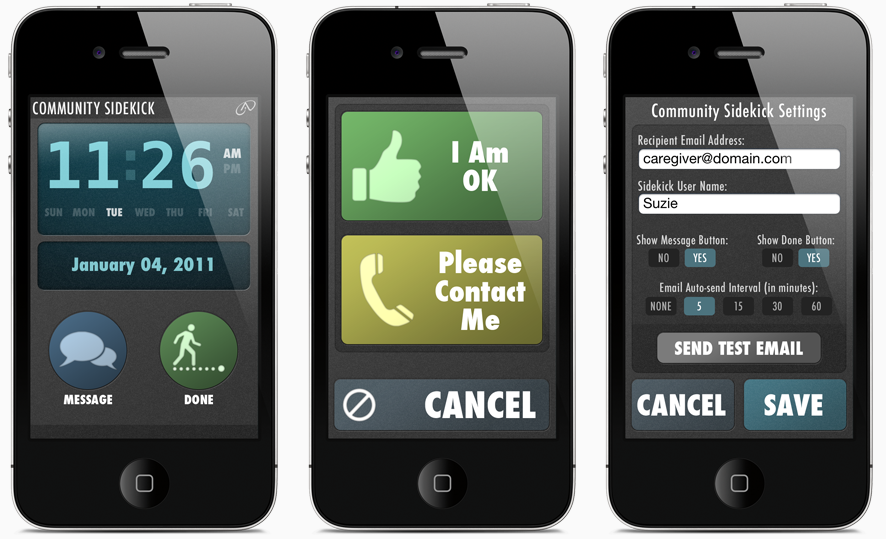
Images retrieved from AbleLink Technologies website.
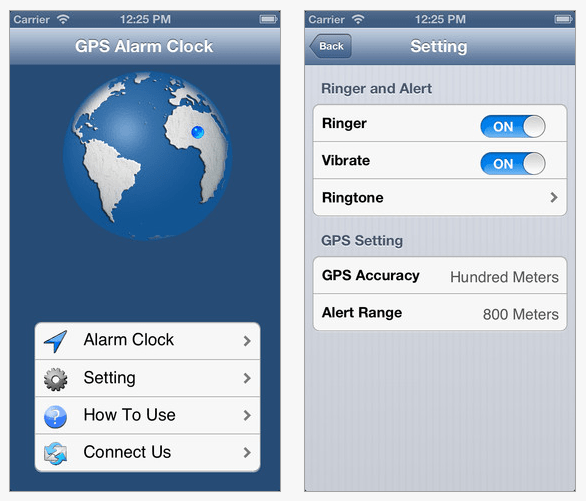
 GPS Alarm – (.99) for iPhone/iPad (optimized for iPhone 5, requires iPad iOS 5.1) provides GPS and time alarm/alert in one app. Set destination and time and it will alert you when you are near the destination. Clever!
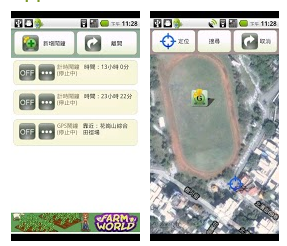
 GPS Alarm – Android (free) Described as reminders of approaching locations.
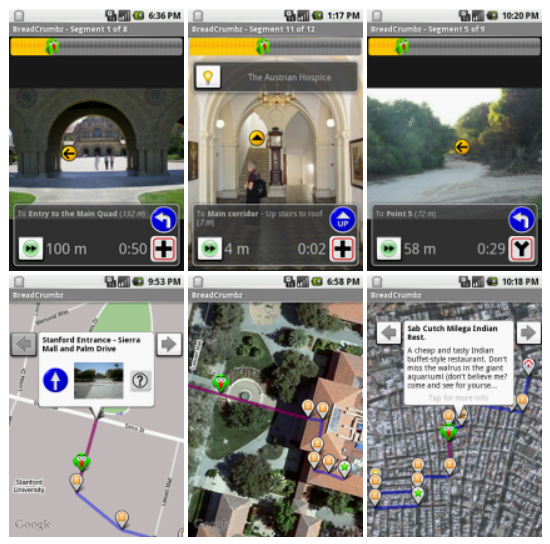
 BreadCrumbz – Android (free) Allows navigation using pictures and a map. Here is a description by a review from CNET as using “GPS, Google maps, and the G1’s camera phone to help you track a route, like directions from the train station to your house.” (retrieved on 10/26/2012 http://reviews.cnet.com/8301-3504_7-10073098-14.htmlBreadCrumbz ) . Take photos along the way to mark the path and label with helpful hints. Here’s a view of the app:
Other apps not reviewed but mentioned for navigation by Avi Glick include iNap for iOS or iNap for Android both time alerting apps and WayFinder app a navigational support for smartphones (android) developed by AbleLink Technologies.
Phone
 One Tap Dial (also called FaceDialer) – for iPhone/iPad (.99) provides creation of picture icons for speed dialing contacts on iPhone 4, iPod Touch 4 and iPad 2 for calling or mailing.
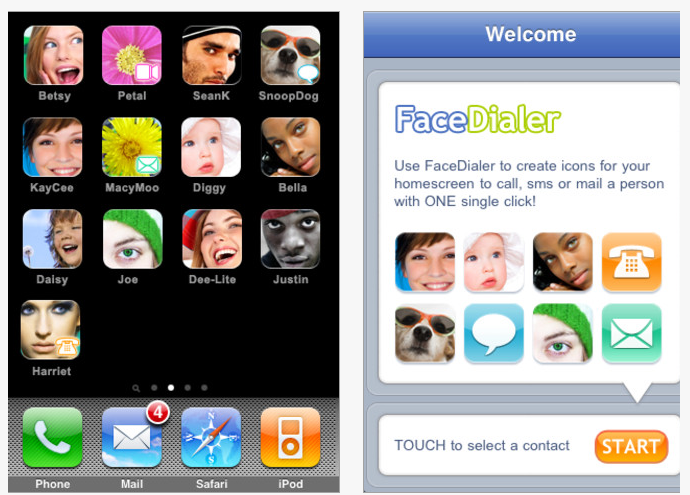
Pocket Ace – A picture based smartphone application created by AbleLink Technologies as part of their Pocket Endeaver Suite of mobile apps. Contact AbleLink Technologies for more information.
Here is a link to videos about the PAAL program. Links to prior posts on apps used in the PAAL program:
Preparing Adolescents and Adults for Life # 1
Preparing Adolescents and Adults for Life #2
Great app list for individuals who are community based and need additional support to develop or be independent. Many more apps for your OT, Teacher or Parent iTool Kit (I actually think this actually should be mTool Kit)!
Carol

Reminder…
Shapes Touch and Write gone free today!
For more information on the app see Shapes Touch and Write for iPad post dated October 25, 2012.
Carol

The OT eTool Kit resource - review of apps and other technologies for OT's working with children and adults.
The OT eTool Kit resource - review of apps and other technologies for OT's working with children and adults.
powered by ARRM Technology Resource Center
Indiana's leader in assistive technology and the home of the INDATA Project
Assistive technology to help infants and toddlers communicate, move, play, and grow
The Stories of an Occupational Therapist with Retinopathy of Prematurity
The OT eTool Kit resource - review of apps and other technologies for OT's working with children and adults.
The OT eTool Kit resource - review of apps and other technologies for OT's working with children and adults.
Tech Integration for Busy Teachers
Just another WordPress.com site
Technology support for all dyslexic people
Re-train the Visual Brain…Advancing awareness, understanding and best practices
Literacy, AAC & Assistive Technology
Supporting Accessibility with the iPad

 OT's with Apps & Technology