Intellipad App

The Intellipad App was an exciting find shared by a member of the  Qiat list serv where information is shared by AT gurus.

Intellipad App is the first notepad that I have seen that provides basic text to speech capabilities, word prediction, picture support and a customizable keyboard. Used for word processing, completing assignments or as a notepad with a customized keyboard to modify and adapt. The ability to modify is something that OT’s, special educators rely on to allow students access to their curriculum. Intellipad provides that in a basic writing environment.

Word prediction is available with the ability to hear each word before selection. Customization for text to speech, word prediction, spelling is limited at present, primarily allowing that function to be on or off.  There are six different voices (UK or US English) but rate and pronunciation correction setting are not options. The text to speech is all or none. It reads the text from beginning to end when you press the speech button. No pausing or starting from the point of the cursor.

Available to customize is the keyboard to be used as a word processor or as a word bank with modifications for size and color of the keyboard and what the keys will represent. The app provides sharing of other users customized keyboards which is a time saver and a springboard for other creative ways of using the app. Here is a great example of a modified keyboard to support basic sentence generation:

Another great feature is the ability to split the screen with a photo, providing great visual support for students. This example shows how it can be customized to complete an assignment.

How do you manage the created document? It can be printed, emailed or copied to clipboard for use in another app.

Forward thinking of other ways to use this, I opened Dragon Dictation, voiced a note which was then transcribed via cloud computing to text (you need wi-fi connectivity for this), copied the text and pasted it into an Intellipad document or note. The standard paste function was available to enter the transcribed text created with Dragon Dictation into the Intellipad note. This would be a way to review and edit transcribed text for individuals with decoding or spelling challenges. Using the two programs in tandem would require the physical and cognitive capabilities of navigating on the iPad and between apps, but it provides an support to student composing on the iPad.

Another use is to perform basic math on the iPad. I have been searching for quite sometime for a simple app that will provide a number keyboard and word processor that students can keyout path problems, something our dysgraphic students have a difficult time doing. I have visualized students sitting at their desk tapping/keying out their math problems using a simple number line and symbols for addition, subtraction and equal. They don’t need a calculator they just need to be able to write the problems and answers as a practice. With Intellipad this can be done!!

Are there other apps that provide word prediction and text to speech? Yes there are, but not with the ability to customize the keyboard which provides wonderful options of word banks and keyboard layouts for student access and cognitive scaffolding. Are there some limitations to it? Yes there are but there are few other apps that I know of that comes even close to the functions in Intellipad unless you want to pay a lot for an Aug Com app.

Created for iPad only, this $19.99 app allows the ability to modify the writing needs of special needs students using an iPad. Is it as robust as what we might be used to using Co:Writer, Read&Write Gold, Kurzweil 3000, Word Logic or other dedicated word prediction software  on Win or Mac OS? No, but for the iPad this is a great step in the direction of apps that are customizable for special needs students.

Kudos to Cheryl Bregman for the creation of Intellipad. Check out her website for screen shots and Intellipad in action videos featuring the app.  It will be interesting to see if there will be updates and upgrades to this app.

Thank you Cheryl, as an OT and AT person it is what I have been waiting for!

Carol
Posted in App Reviews, Apps for OT's, Apps for Special Needs, AT for Handwriting, iPad, Math, Occupational Therapy, Special education | Tagged , , , | 2 Comments

Stop Spreading the Germs!

More Cleaning Products for the iPad/iPod!

The topic of cleaning your iPad or iPod seems to always come up when with working with teachers or therapists who work with children. A previous post featured the iKlear product which was all I could find at the time as an antibacterial cleaner for the iDevices. Sometimes you just stumble upon information or products incidentally despite all the keywords, terms you use when searching the internet.

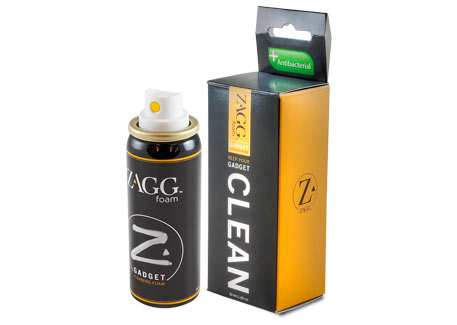
My latest find was an anti-bacterial foam cleaner for the iPad/iPod made by Zagg called Zaggfoam.  Available for around $10 I found it at Target but also found it listed on the Internet at Staples, Sears, Amazon, Best Buy for about the same price (actually Sears was the lowest price!).

Nice to have a cleaner readily available at local stories that can fight the germs our students share with us daily!

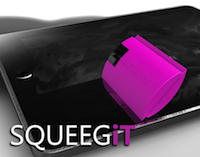
Another cleaner I stumbled upon searching the Internet was the SQUEEGit. Developed by Cleaner Gear, Inc.,  the SQUEEGit has a squeegee surface/blade and sprayer all in a small gadget.

It uses their CleanAid solution as the sanitizer and is listed as safe for iPod and iPads screens.  Available for $14.99 (no shipping costs) on the Cleaner Gear, Inc website.

We know where our kids hands have been! Use a cleaner and stop spreading the germs!

Carol

Posted in Cleaning your iPad/iPod, iPad, iPod, iPod/iPad Accessory, Occupational Therapy, Special education | Tagged , , , , | 3 Comments

Drawing Apps

Drawing Apps are readily available for the iPad, iPod and iPhone and are a natural fit for a capacitative screen on a mobile device. Used for scribbling, drawing, writing, stamping or writing messages – there are many uses for drawing apps!

Here are a few of my favorite drawing apps (for different reasons):

Doodle Buddy– (Free) A favorite of many is a drawing app with stamps, stencils, backgrounds, text writing tool, brush/chalk/glitter/smudge and eraser, colors to draw with as well as choices of line thickness. One of the tools offers different backgrounds, scenes, worksheets with a maze, dots and boxes game, Tic Tac Toe and hangman worksheets. Importing photos from your library or the camera to take a picture for use in Doodle Buddy is available. Doodle Buddy is a versatile drawing app that can support writing on photo images taken within the app or imported.

Confetti – (Free) is a drawing app that features a black background with neon “confetti string” that you draw on the screen. You can draw many different string lines at a time if you are using different fingers. Settings in the app allows you to change gravity, line speed, jitter or fade out qualities using a slider. Strings float, jitter and fade away after drawn depending on your settings. It is an intriging drawing app that is some what unpredictable but interesting to see what happens with your drawing. This is more of a “sensory”  or fidget/doodle app than a “make a drawing” app in my opinion. Here is a product of a confetti string drawing (I guess you have to try the app to really appreciate it!)…

Once you draw, the “string floats, jitters around and disappears. Actually it is fun- just give it a try. Kids and adults enjoy this. Great as a real doodle tool.

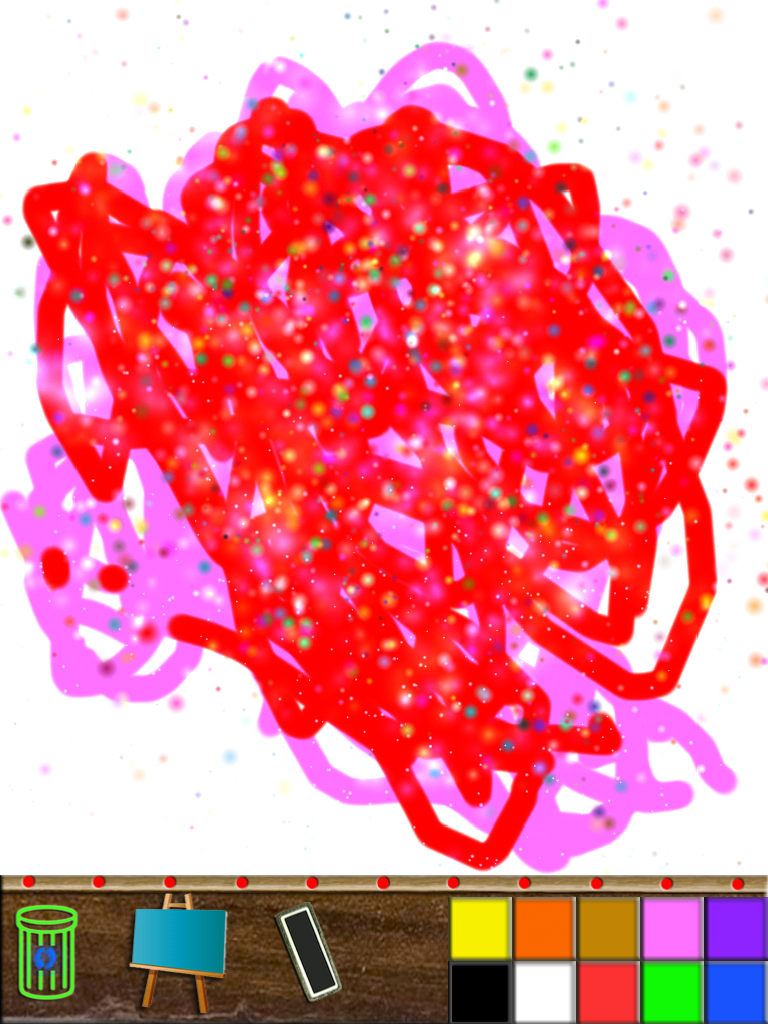
Paint Sparkles Draw-my first colors HD – (Free) Paint Sparkles Draw is a great drawing app that paints with sparkles. Not only does it sparkle and paint but it plays music when you draw! Provides a very simple interface with 10 colors to draw, an eraser, easel (provides coloring pages), and trash can. Plays interesting music and sound effects when drawing and speaks the palette color you choose aloud.

Paint Sparkes Drawing is a great app for drawing and leisure. One of the students with Autism I service chooses this app frequently to scribble/draw and listen to the music. It is calming and provides great multi-sensory feedback with a simple and easy to access interface.  This is a keeper!

Skywrite – (Free)- This is an amazing app previously reviewed but worth mentioning again. Skywrite displays a plane flying through the air that follows the lines you draw. Tools provided are drawing tool, text tool , 3D tool, erase tool, music and different types of smoke and sky. Settings include the ability to hide tools when drawing. You can replay what you have drawn or pause (freeze) the flying drawing airplane. Great for making shapes, writing your name, forming letters or just doodling as a relaxation activity. Truly amazing free app! Your kids and you will love this!

These are some of my favorite drawing apps for drawing but also for doodling and calming purposes for some students. Another reason that makes the iPad’s such a valuable tool in the school district for OT’s and special education staff.

Other than, drawing, doodling and calming, what else can you do with these apps? Come back for a future post on using Doodle Buddy as well as other note taking apps for access to curriculum tasks!

If you have a favorite drawing app, please share!

Carol

Posted in App Reviews, Apps for OT's, Apps for Special Needs, Autism, iPad, Sensory Apps, Special education | Tagged , , , , | Leave a comment

Leisure Apps for Student with Multiple Special Needs

The iPad brings so many opportunities to our students with significant needs. I have the opportunity to work with a high school student in a multi-categorical classroom who has a dedicated iPad with Proloquo2go as her communication device. Setting up the Proloquo2go has been a work in progress, requiring consult from the speech and language pathologist, teacher and paraprofessionals for the Proloquo2go vocabulary and environments she will use it in. Although the iPad’s primary purpose is for communication, it also is very motivating for her and serves as a mobile source of  entertainment and leisure activities.  For those of us who are smitten by iDevicitis, we can only imagine the potential apps available to her allow her the same electronic access and interactions as other same aged peers. The coolness factor is huge and she also knows it!

She currently is using her iPad for greetings (“marketing”) at the morning coffee shop which the classroom runs at the high school as well as for other classroom communications.  Although the iPad is primarily for communication, leisure activities is another typical use by same aged peers. For this student the iPad is her communication device and offers leisure and independent access to communication and leisure activities, something that previously required several devices and assistance from others.

The classroom leisure time at the end of the day is a great time to work with her on communication, interaction and access to her iPad for leisure activities.   This is a good time to work on her operational competencies of the iPad and collaborate with paraprofessionals that supporting her throughout the day who can help identify communication needs and carryover its use.

With her motivation for using the iPad and the socialization it affords her, finding additional apps that support her leisure interests and peer interaction became a need.  Communicating her choices of music, food/ snacks  were no-brainers using the iPad with Proloquo2Go was the first step and loading Justin Bieber and Jonas Brothers music were next easy additions,  but finding leisure apps that were age appropriate and within her ability and engage others would require some thought and searching. What leisure activities would she like to do?  What activities would look appropriate, encourage interaction with same aged peers and be fun and successful?

Some of my requirements for searching for apps or content for her:

  • The apps or content would need to appear age appropriate
  • The app or activity would allow her independent access (that is all part of it right?) on the device
  • She could engage in the app or activity by her self as well as be an inviting app for others to engage with her
  • Only supervision or minimal assist to successfully participate with the app would be required after training and familiarity (with a goal of independence for her)

The search and trials began. Here are a few of the apps I have found thus far (this of course is a work in progress) that I felt met my goals:

Tic Tac Toe app – (Free/$) Can be played with one or two players. On an iPad, the grid on this apps is clear, simple and easy to perform.

Fun Bubbles – ($.99) – Easy bubble popping app. Simple and nicely presented. Individual or more than one can play this game.

Feed the Hippos (Lite/$) – Hungry hippos are looking for fruit to eat. Fling the fruit to the hippos to feed them. We are trialing this app to see how she does with it. It appears to have potential.

Little Puzzles (Free) – One of the fabulous Grasshopper apps. This app lists as Preschool Games but like all of the Grasshopper apps, you can import your own picture, record a voice to customize the puzzles. Number of puzzle pieces can be set from 4 to 36 allowing a great way to customize the puzzle for different skill levels. Use pictures of outings, classmates, family, vocabulary you are working on  and your students will have a new activity on your iPad. There are many puzzle apps available for free for the iPad.

Let’s Bowl (Free/Deluxe- $.99)-  A bowling simulation game quite real looking. Scores your points automatically. (Bowling is a familiar classroom outing).

Pocket Pond – (Free) – Features a pond with fishing swimming in the water that you can interact with. Provides realistic sounds of water splashing, with fish swimming and responding to taps on the screen as they swim at random in the pond. Extremely realistic, you can also feed the fish. add lily pads and food to the water. Enjoyed by young and old.

Best Corny Joke app (Free/$) – App with clean, silly, corny jokes!

Four in a Row Game (Free/$) – Similar to Connect Four, this game may require some assistance for the concept, but can be coached by a peer when playing.

Mouse Maze (Free/$) – Maze that starts very simple and advances in difficulty. Solo game but turn taking could foster interaction with a friend.

Penguin Racing (Free/$)- We have not trialed this app yet, but seems to be a possibility if she can learn to swipe on the iPad.

JitterBug (Free) – This is a cat app that you can catch or tap bugs. You can choose how many bugs and what kind you want to appear. It has levels of difficulty and an option of continuous play. Cleanly presented and nice graphics make this a fun and simple game for all ages! (Thanks Purina!)

No doubt there are many more game possibilities for students with special needs. I wonder how many other cool pet apps are available that would be appropriate for students? If you have favorite game apps for high school special needs students please share!

Suggestions for electronic books for high school students reading at a beginning level are also welcome. I intend to review book apps appropriate for this skill and age range in a future post as another option for the use of an iPad for special needs students.

Carol

Posted in App Reviews, Apps for Special Needs, Game Apps for Special Needs, iPad, Leisure apps, Occupational Therapy, Special education | Tagged , , , , , | Leave a comment

Preschool Math Apps

There are many math apps that work on fact skill and drill as well as for computation, calculations, and equivalency.  Most of the students we currently are using the iPad with need to develop basic numeracy skills and number recognition. I am sure there are many other apps out there but here are a few tried and true preschool math apps to consider:

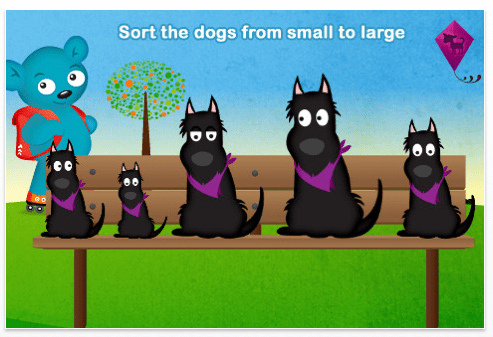
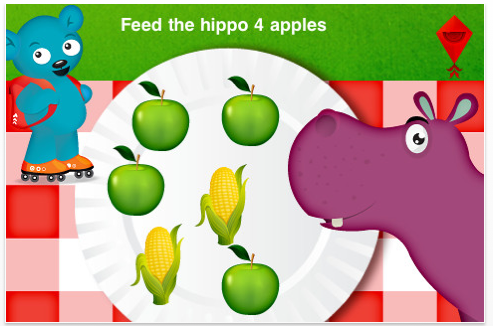
Park Math ($1.99) is made by Duck Duck Moose geared for 2-6 year olds and works on counting, size, patterns, sorting and beginning addition and math at two different levels. It is visually inviting and has clever math activities that are kids friendly. Verbal instructions are provided for the activity that were voice by kids. I like the small to large sorting, the feed the hippo counting and the subtraction activity which takes apples off the tree to demonstrate subtraction.

Available for iPod and iPad this a great preschool math app.

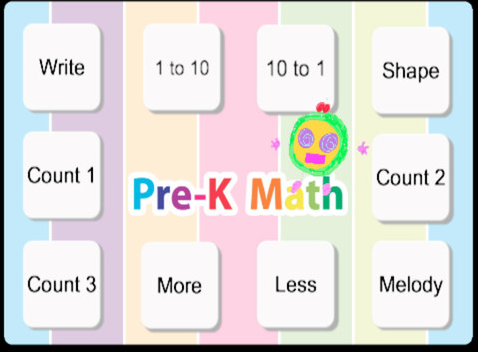
Pre-K Math HD – $1.99 – Provides interactive early math skills as shape recognition, counting, more and less and number recognition. Great interface and choices for learning math for young learners on an iPod or iPad.

GrasshopperApps.com has several wonderful preschool math apps which work on counting, number recognition on the iPad and iPod:

  • Photo Touch Numbers– Free – Focuses on recognizing numbers and counting objects and associating them with a number.

  • Montessori Counting Board – $.99 – Provides practice with counting and associating the number with objects  counted. As one of the Grasshopper apps, it provides customization within the app.

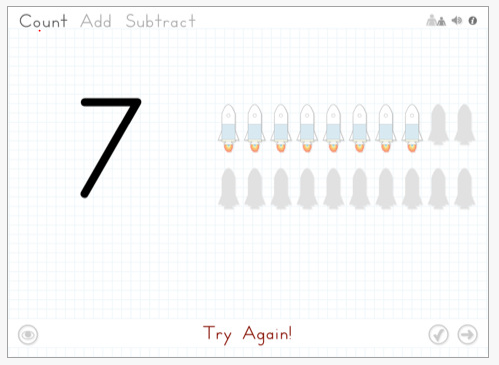
Numerate – $.99 – Focuses on recognizing numbers (1-20) and explores simple addition and subtraction with interactive calculations. Each number and calculation includes a sound and visual to teach quantity to preschool and kindergartener. For iPad and iPod.

Of course there are more. If you have one that works well with preschool or kindergarten level students please share!

Carol

Posted in App Reviews, Apps for Special Needs, iPad, iPod, Math, Special education | Tagged , , , | 1 Comment

Autism Apps App

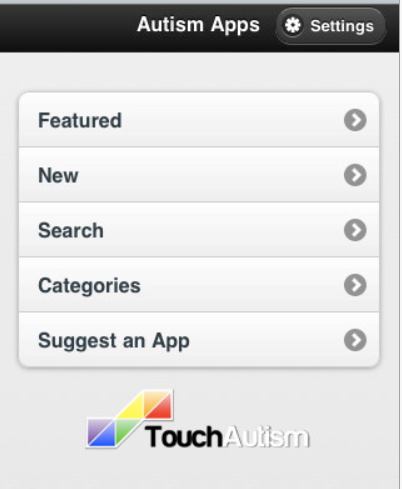
Autism App, by TouchAutism was a great free find this week. It is an app that reviews apps that will support individuals with Autism. Although it is listed for Autism, the apps reviewed can benefit individuals with other special needs and reportedly were written by parents, specialists and other users from first-hand experience.

The categories tab lists 30 categories of apps, each reviewed with additional information on each app regarding:

  • Details
  • iPod Screenshots
  • iPad Screenshots
  • Reviews
  • Download link with cost

Some of the categories covered include :

  • ABA
  • Alphabet
  • Art
  • Assessment
  • Behavior and Social Skills
  • Books
  • Cause and Effect
  • Choice Making Apps
  • Colors
  • Communication
  • Creative Play
  • Data Collection
  • Fine Motor and Writing Skills
  • Geography
  • Letters
  • Literacy
  • Math
  • Medical
  • Music
  • Numbers
  • Professionals
  • Puzzles
  • Reference
  • Self Care
  • Sensory
  • Social Stories
  • Text to Speech
  • Time
  • Visual Schedules
  • Visual Timers

Well organized and easy to navigate, this is a great resource at your finger tips for anyone working with individuals with special needs. The apps appear geared toward the needs of preschool to primary aged students as well as functional life skills. Categories such as ABA, medical, data collection and professional provide app resources for individuals who support individuals with Autism. Some apps listed are suited for students at middle school skill levels (Geography, Math) however it does not include productivity or  note taking  apps.

I found this a valuable, one stop – job stop app right on my iPad. Although I have Bookmarks and shortcuts to other app resources and web pages added to my Home Screen, this is an easy, well-organized list. I am hoping will be updated and expanded on a regular basis. Despite having a  slight problem when I used a link from the app to their website causing an inability to get back into the app (I deleted it and reinstalled it) this app was well worth reinstalling as a resource for students and staff I service.

Check it out!

Carol

Posted in App Reviews, Apps for OT's, Apps for Special Needs, AT for Handwriting, Autism, Data Collection, Fine Motor Development, Handwriting, iPad, iPod, Letter Formation, Math, Occupational Therapy, Phonics, Sensory Apps, Sensory Apps for ASD, Special education | Tagged , , , , , , , , | Leave a comment

Math Apps for 1st Grade

While considering possible accommodations for a first grader who struggles with writing math problems, I started exploring high and medium tech possibilities that would support the student in the classroom. Generating of problems using Intellitools Classroom Suite  (ICS) is a possibility using an on-screen keyboard with a customized tool bar however it would require some creation time and require her to understand another computer program when working away from her desk at the student computers. Although this is a very feasible answer given the available software and support of a tech savvy teacher but it also requires being “different”, sitting at the computer and away from her desk.

Having been afflicted with case of iThing-itis, of course, I started researching apps that might be available on an iPod that would allow the student to remain at her desk to perform the same type of task using the touch input of a handheld device (…and can you hear the refrain of other first graders saying “why does she get to use that?”). Many students write answers with ease, however for some handwriting is a barrier in expressing what they know and masks what their real abilities are.  My search resulted in finding the following math apps, most customizable for the students needs and appropriate for learning math facts for first grade students:

Math Magic –  $.99 – Provides customizable simple math fact addition and subtraction. Objects to support use of visuals to assist students who are at the being stage of math computation. It has an easy to use interface and is appealing to young students.  For iPod/iPhone and iPad.

Kids Math Fun 1st Grade – $1.99 – This app provides addition and subtraction practice in a traditional format with timed practice, type of feedback to problems completed and scores. It provided a kid friendly user interface for easy access however there were no customization features for selecting addend maximums/minimums or sum for problems. The Kids Math Fun Kindergarten app provides practice for students beginning to learn their math facts. No visual manipulatives are provided with the app. For iPod/iPhone and iPad.

Math Smart – $.99 – 1st grade math app containing addition, subtraction practice and number sequencing tasks. Easy interface for early elementary school children. For iPod/iPhone and iPad.

Kid Calc–  $.99 – 7 in 1 app for kindergarten to first grade students including counting, number tracking, math puzzle, calculator and flash card challenged. The flash card challenge shown below allows customization of numbers used in flash card presentation. For iPod and iPad.

Math Tappers – Free – Early elementary school app that uses visuals to learn math addends of a sum.  For iPod.                                      

Math Drills –  $1.99 – Another math fact drill app. Provides numerous features to customize the fact drill set for a student including number of problems top and bottom numbers of the addends, arrangement of the problems and more. Gathers scores on user drills and tests. Provides reviews assistance including block manipulatives, a number line or facts chart. For iPod/iPhone and iPad.

Math Fact Drills – $1.99 – This math app creates the ability to set “game parameter” such as number of questions, top and bottom number limit, length of timed test for provides a lot of customization for a user. It does not appear to collect data over time but provides final results of a “game”. Provides addition, subtraction, multiplication and division practice. For iPod/iPhone and iPad.

If you were a 1st grader which one would allow you to learn in your best learning mode?

What are your favorite first grade math apps?

Carol

Posted in App Reviews, iPad, iPod, Math | Tagged , , , , | Leave a comment

Sound Stamp App for Echo Pen

Echo Pen

As previously posted, the Echo or Pulse Pen is wonderful note taking tool for students to take notes and simultaneously record lectures (audio record) using special Livescribe notebook paper and the electronic Echo or Pulse Pen (Echo is their newest pen and Pulse the first generation of the Livescribe Pens) .  The beauty of this pen is that you can write or draw as much or as little as you want to when note taking. The recording tool records what is spoken at the same time as you write and is able to be played back (out loud) from the pen using menu tools provided on the paper and tapping in your writing on your Livescribe paper.

I have recommended this pen for students in K-12 education, college students and business people who have difficulty with spelling, reading, recall or comprehending when gathering information from lectures, meetings or interviews as a few examples. It’s appearance does not suggest a special need, just looks like another electronic gadget -which it is!

Valuable tool? Yes! –  and for more than just note taking!

We have been using the Pulse Pen at our school for about the last two years not only for note taking but also as a medium tech tool for adapting worksheets for students who have difficulty accessing print. As a highly mobile alternative to  scanning worksheets into a computer,  one of our awesome paraprofessionals at our middle school (You are awesome Mary Jo!) has been recording information on sticky labels printed with Livescribe paper (this can be done on sticky/adhesive labels with laser printers from the Livescribe Desktop) for students to listen to recorded information of the print on the worksheets.  Using the sticky or adhesive labels with printed Livescribe paper, the labels are placed on assignment worksheets, recorded on with worksheet information or directions for the assignment. Labels can be cut to smaller sizes to fit on the worksheets so they do not cover print or images (you don’t need much space, just enough to record or mark and answer). This provides an auditory means of accessing the worksheet text using the labels and pen and also a way for students to record their answers using the labels provided. The pen looks very typical and worksheet only have small pieces of labels stuck to them. Worksheets, study guides and vocabulary lists are a few of the uses for this modification using the Pulse Pen or Echo Pen.

Just the other day I walked into that tech savvy  multi-categorical classroom. Students had a resource period and were seated at the table independently reading and reviewing vocabulary and worksheet tasks using the Pulse Pens. Without such adaptations a paraprofessional would need to be reading the information to the students. Hats off to the students and kudos to the paraprofessional who had prepared the accommodation!

Did it take additional time for her to do that? Of course it did, but did she gain the student’s sense of independence and self-determination in the process?  Yes, and she probably gained time to help another student with their LLI instruction, adapt the next lesson or manage the gazillion of other needs in that multi-categorical classroom!

What I did not realize is that Livescribe has produced an app for the same thing that also does more! Time to tell Mary Jo and request the ….

Sound Stamp App for Echo Pen

Livescribe Echo/Pulse pens have a number of additional apps for purchase providing different tools that can be loaded onto your pen. One of the new tools is called the Sound Sticker which records messages on small stickers that can be re-recorded on using the app software on your pen.

A similar concept as what we had done with creating labels, the Sound Sticker audio can be erased and re-recorded, possible on the pen, but not as simple of a process as having a delete button on the menu when removing a record audio using the Sound Sticker app. Available on the Livescribe website at $24.99,  convenience of the app as well as stickers provided may be well worth it when time is a commodity that is hard to come by.

For more information on Sound Sticker App, or the Livescribe Echo or Pulse Pen in K-12 education visit their website for videos describing many ways it can be used. There are videos of creative ways it has been used to support education, and of course only limited by your imagination and needs.

For information on the Livescribe pens with different memory capacity,  more apps (dictionary, spelling apps and more) and accessories (different size and types of notebooks, cases, etc.), visit the Livescribe store. You will also find refurbished pens available at a discounted price!

Explore the Echo/Pulse Pen and be creative in ways it can help support your students! If you have questions on how to print on sticky labels feel free to leave a question in the comments.

Hats off to Mary Jo and Linda for their never-ending search for tools and additional time taken to support their students! You are awesome!

Carol

Posted in App Reviews, Apps for OT's, Apps for Special Needs, Digital Recording, Note Taking, Occupational Therapy, Special education | Tagged , , , , , , , | Leave a comment

Dragon Dictation App

Would you like to talk into your iPhone, iPod Touch or iPad and generate text without typing? Dragon Dictation is an app for you!

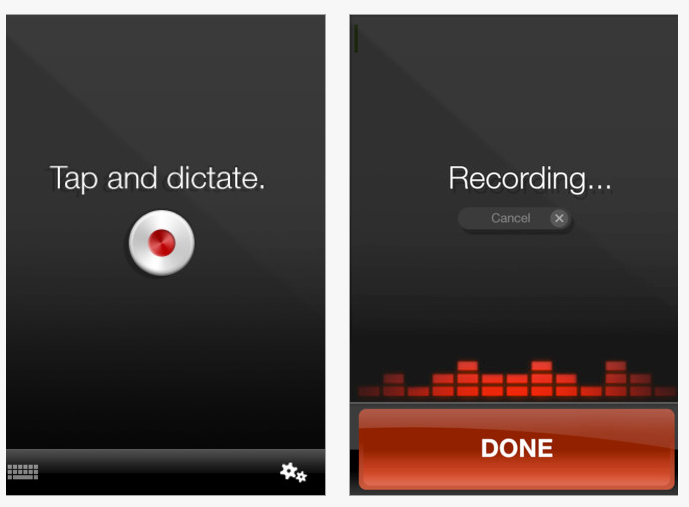
Dragon Dictation, produced by Nuance the makers of  Dragon NaturallySpeaking, is a free voice recognition app available for the iPhone, iPod Touch and iPad. Unlike Dragon NaturallySpeaking, no initial training is required prior to use. The app requires only a “Tap and dictate” into your phone then tapping “Done” when you are finished recording.

Dragon Dictation requires Wi-Fi service (or the Data Plan on your phone) for transcription to occur. After recognition via cloud computing the text transcription is entered in to the Dragon Dictation screen.

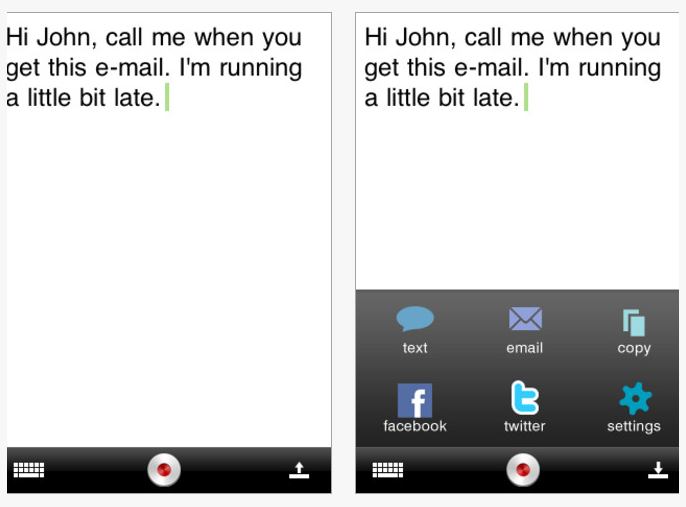
You can dictate additional messages into your text, edit the text using the keyboard or manage the text by copying,SMS, emailing or moving the text to Facebook or Twitter as available choices within the app. Using the copy feature text can be pasted into other apps for further use. If you want to listen to your text to edit, paste the text into apps with text to speech such as Speak-It!, Text Assist or NeoPaul.

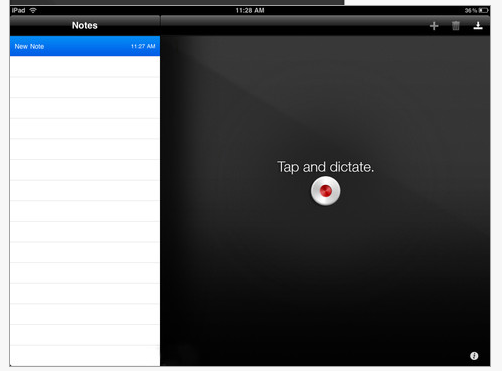
Dragon Dictation for the iPad features a slightly different layout but similar functions:

This app is simple to use and amazingly accurate given the fact that no training is required. Don’t expect unusual names or words to be recognized by the app. Good enunciation and clear speech is always recommended when using voice recognition software. Background noise can interfere with recognition, with recommendations for “try in a quieter environment for better recognition results” provided as a message when loud noises exist in the background.

So what commands can be used with Dragon Dictation?  Here is a list of commands and punctuations posted by the Dragon Mobile Apps Team:

Commonly used commands

“New Line” or “Next Line”
Press the enter key once, capitalize next word
“New Paragraph” or “Next Paragraph”
Press the enter key twice, capitalize next word
” Caps <word>
Type with an initial capital
“All Caps <word>
Type in  all uppercase
“Caps On”
Start typing words with initial capitals
“Caps Off”
Stop typing words with initial capitals

Commonly used Punctuations

&
“ampersand” or “and sign”
.
“period”
:
“colon”
?
“question mark”
!
“exclamation point”
,
“comma”
=
“equal sign”
@
“at sign”
/
“forward slash” or “slash”
“hyphen”
“begin single quote” or “open single quote”
“end single quote” or “close single quote”
“begin quote” or
“open quote”
“close quote” or
“end quote”
(
“left parenthesis”  or
“open parenthesis”
)
“right parenthesis” or “close parenthesis”
%
“percent sign”
$
“dollar sign”
#
“pound sign”
°
“degree sign”

For students or individuals challenged with producing print, this app can be a compensatory method of producing text for notes, lists, emails or compositions.  There is a limit to how much you can record and transcribe at one time, thus if you are producing long compositions using Dragon NaturallySpeaking Premium for PC or Mac is recommended. If accessing print or decoding is challenged, copying the transcribed text and pasting it into apps as Speak-It!, NeoPaul or Talk Assist to use text to speech apps may be useful.

For more information on Dragon Dictation visit the Nuance Mobile Life .

This is truly an amazing, free app! A top pick on many review lists.

Carol

Posted in App Reviews, Apps for OT's, iPad, iPod, Occupational Therapy, Voice Recognition | Tagged , , , | 3 Comments

Apps for Pre-Writing Skill Development

A comment on this blog questioned if there were apps that supported early imitation of lines and shapes also known as pre-writing skills.  My search (which could easily have missing  apps)  found that such apps  seem to be in limited supply! Most of the apps focus on practicing letters and numbers and not what OT’s consider the prerequisites to letter formation.

Apps that provide some of practice in making or tracing basic shapes or pre-writing skills include:

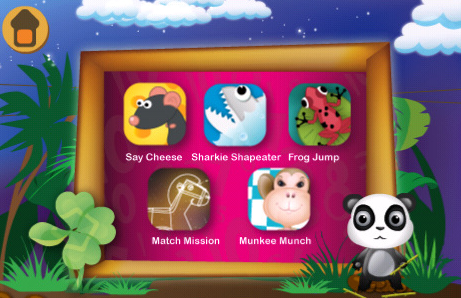
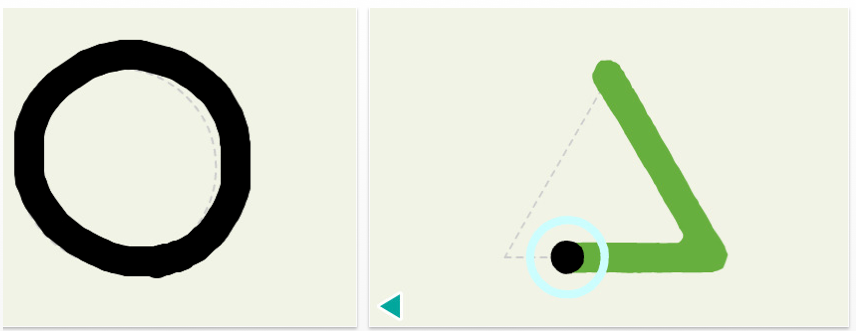
Geometry (Mathomatix) – (free) app that has a game “Say Cheese” that practices making basic shapes as circle, square, triangle and rectangle. It provides feedback on student performance giving auditory feedback when you are not successful. It does not provide cues to directions for tracking and I found the triangle to be somewhat hard. This app does provide additional shape matching games that I believe would be motivating for students.

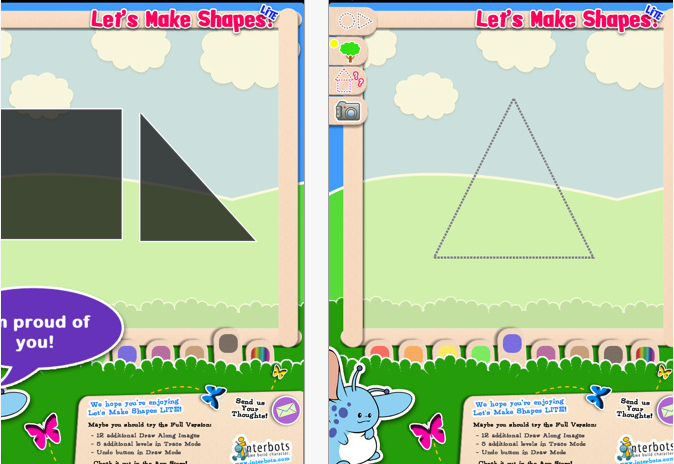
Let’s Make Shapes lite – (free) this app practices tracing over lines for basic shapes. There are lines to trace but limited visual cues of direction of drawing is provided. Using the lite version had some limitations but was great to be able to trial the app. This app appeared to have possibilities despite the lack of visual cues given for direction of drawing. Worth trialing.

Pattern Painter – from Tickle Tap Toddlers (1.99). This app is primarily for practicing drawing shapes. I did not trial this app. Rating in iTunes were a 2 of 5 which made me reluctant to purchase and trial the app.

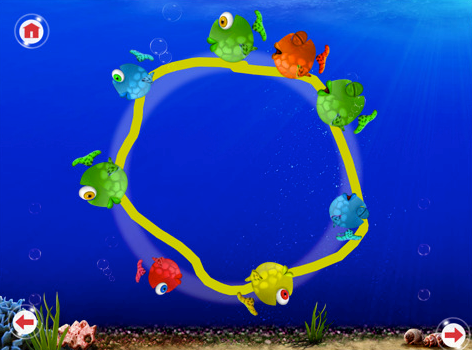
Kandy Fish– (.99) Also has a game that traces shapes using a cute ocean with fish theme. Made only for iPad, I did not trial this app however it looks appealing for young children.

Other possibilities for tracing to consider are:

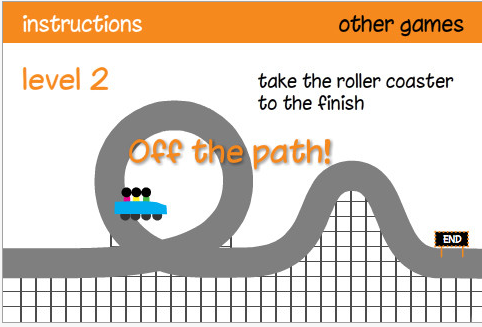
Whizzy Kids – (free) The Finger Mazes  that is one among other games provided in Whizzy Kids app. Students trace horizontal lines with graded degrees of difficulty in the Finger Maze game. It does not provide the tasks of developmental sequence of writing, but good visual motor skill development for kids.

SkyWrite – (free) – this is a fabulous app with an airplane that flies and draws where you draw on the screen with an air stream (you can size this and do other customizations). The air stream stays on the screen for a period of time until it fades or you erase it. You could model drawing shapes and basic lines on Sky Write and have the student trace around or over it with another color of the air stream. It is a really an incredibly cool app that students enjoy.

Doodle Buddy – (free) is a must have drawing program that allows you many tools within its drawing program. Here are a few things you could do to work on pre-writing skills using Doodle Buddy:

  • Use stamps or stencils for a student or yourself to make a shape in Doodle Buddy app.
  • Draw the shape and have the student trace over it with another color in Doodle Buddy.
  • Draw a shape or beginning lines using a wider line, then have the student use a thinner line to draw on top of the wider line and within the line.
  • Draw a shape in Doodle Buddy and have them erase the shape with the eraser tools.
  • Take a picture of a shape or line drawing worksheet your iPad2 or iPod Touch camera and bring it into Doodle Buddy as a picture. Have the students trace over the shape or line drawing using the drawing tools in Doodle Buddy.
  • Locate an on-line worksheets of basic shapes or lines. With  the worksheet open  on your iDevice, take a screen shot (press home and power off button simultaneously) of the online worksheet. A picture of the worksheet will be placed in your Photo Album. The picture can be opened in Doodle Buddy and available to be traced on  in Doodle Buddy using the colored marker/crayons. You could insert arrows for cues of where to start and what direction to draw.

You won’t have the verbal feedback but you will have a mobile, electronic worksheet(s)  available to you. There are endless things you can do with the camera and tools in Doodle Buddy.

If you have a chance to try any of the apps or tracing activities let us know how it works! If anyone  find any other apps please share!

Carol

Posted in App Reviews, Apps for OT's, Apps for Special Needs, AT for Handwriting, Fine Motor Development, iPad, iPod, Pre-writing, Special education | Tagged , , , , | 4 Comments