See on Scoop.it – Apps for Special Education

Select and Speak review by Paul Hamilton
See on paulhami.edublogs.org

See on Scoop.it – Apps for Special Education
Select and Speak review by Paul Hamilton
See on paulhami.edublogs.org
See on Scoop.it – Apps for Special Education
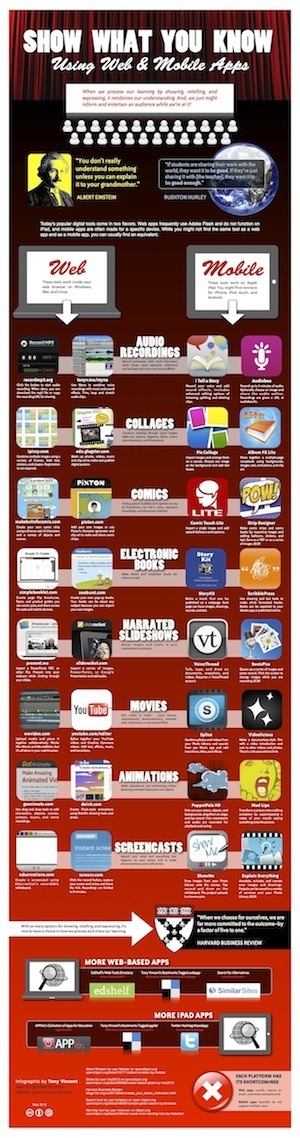
“Nowadays teachers and students have a variety of ways to show what they know and to express themselves. These web and iPad apps can turn students into teachers and teachers into super-teachers! Furthermore, most of the apps listed in the infographic are free of charge.”
See on learninginhand.com
See on Scoop.it – OT mTool Kit
Interesting self-monitoring device and app for eating.
See on attraining.org
Clicker Docs app (25.99) for iPad, developed by Crick Software , is a new iOS app that provides differentiated writing support for struggling writers. As one of Crick’s two new apps, Clicker Docs provides text only word banks and word prediction options offering support for primary aged writers in this Docs app. Clicker Sentences app provides a simpler picture based writing environment for emergent writers.
Here are some of main features of Clicker Docs app:
– Talking spell checker
– Dropbox support within the App
– Simple Copy and Paste
– Words from the current Word Bank are now included in predictions
– Hardware keyboard support
– Tool to Create New Word Bank directly from Edit Mode
– Improved pronunciation
– Improved opening of files from email
– Performance improvement when moving between Word Bank tabs
ACCESSIBILITY
– Swipe Grids option enables swiping between Word Bank Grids
– Show touches option shows a yellow blob each time you touch
To really understand the strength and ease of use of this app seeing (and trialing) is believing:
A sequel in skill level to Clicker Sentences app, Clicker Docs app provides word prediction, text to speech and word bank support.
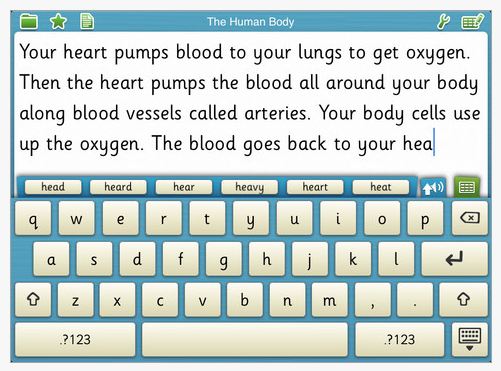
Word prediction settings provide options of:
The setting menu in Clicker Docs also provides these options:
Word banks provide support for the word prediction data base. They also can be customized according to theme and vocabulary of the user. Word banks can be viewed by themes …
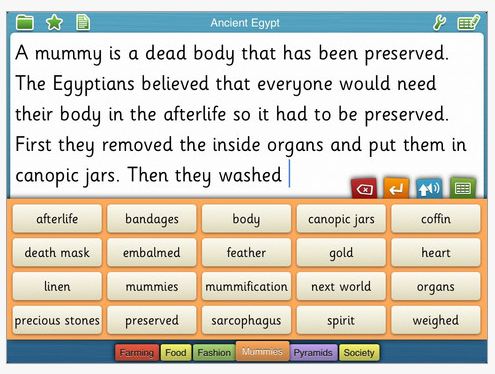
or alphabetically as seen below. Choice of writing supports are displayed by pressing the green keyboard tab above the word bank or keyboard allowing toggling between supports.
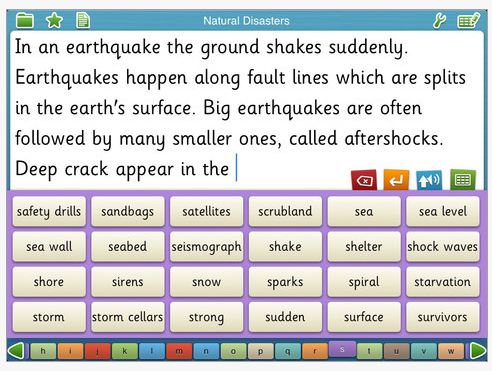
Words in the word bank can be heard prior to selection by tapping the blue arrow which allows the word chosen to be spoken aloud. After it is spoken it can be selected for inserting into the document. This took a bit of practice but was easy to use and became more automatic with repetition (kids would get this much faster than I did!).
Writing environments or grid can be custom-made or are available within the app as shared by Crick through the LearningGrids resource. Below is an example of creating a customized grid of the human body allowing addition of unit words (content), choosing word order and color of the grid. The grid shown at the bottom provides a display of how the grid appears.
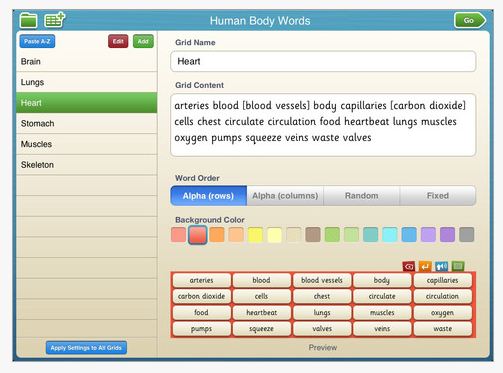
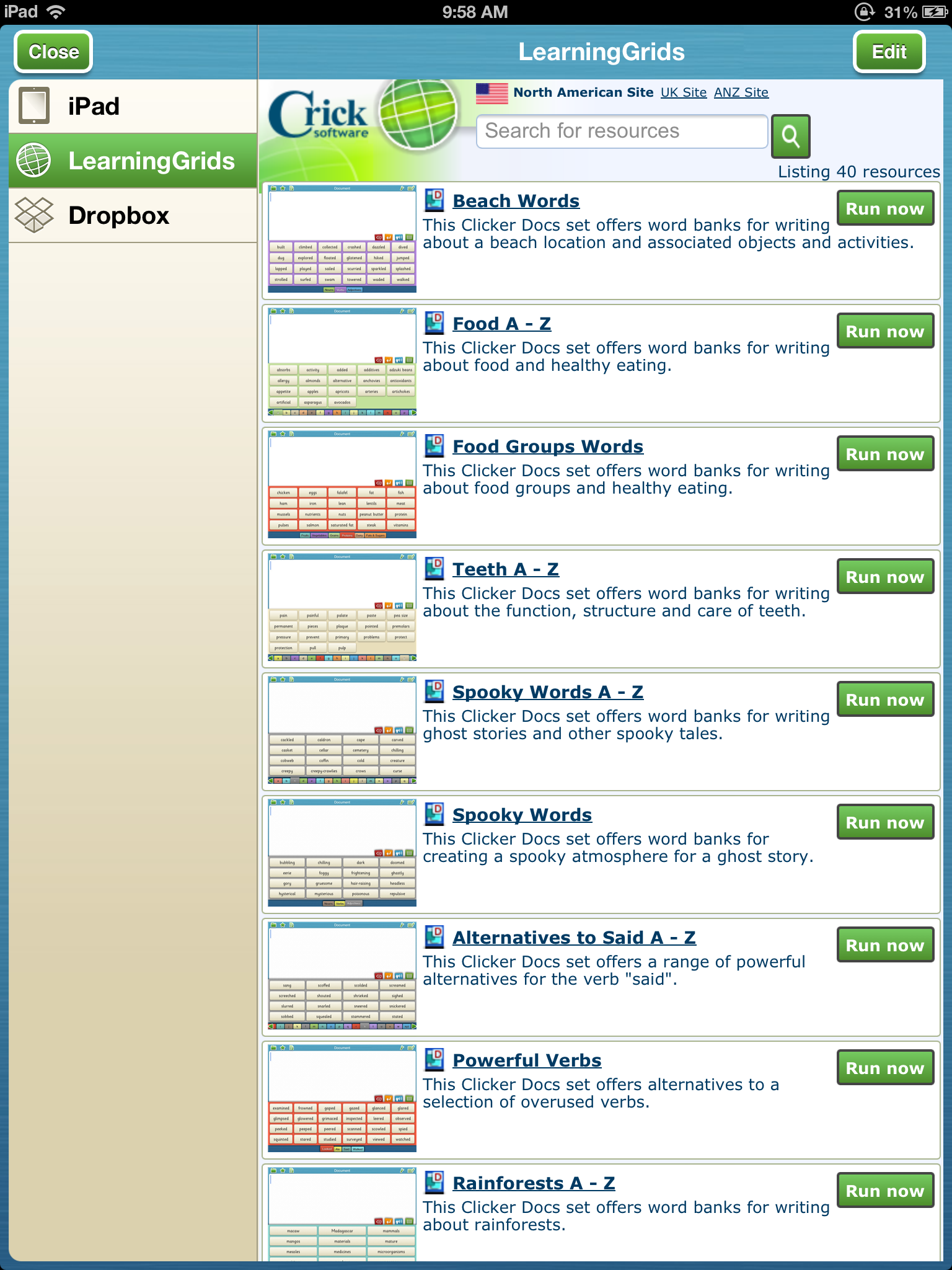
Crick further supports users with shared grids provided through the LearningGrids menu within the app. Currently there are dozens of shared grids in the LearningGrids resource provided by Crick with a free registration. An option to transfer directly to Dropbox is also provided within the app for ease of workflow when creating and sharing grids between devices or for students (how many times have you had to take an iPad home to create on a students device for the next days use?? Probably too many times!).
Crick also provides a User Guide to Clicker Docs PDF file to help understand features of Clicker Docs app.
Clicker Docs, like Clicker Sentences apps are suited to the unique needs of students with literacy challenges. The provision of word prediction, text to speech, word banks are unique to only a few apps at the present time. Crick further supports therapists and teachers with pre-made grids, guides and the ability to share grids between users. I had the opportunity to be guided through features of Clicker apps by Neil Andrews, from Crick Software, who provided me with great information not only about their apps and Clicker 6 as well as practical application of their use. Ease of use of the apps are at the heart of their app development understanding the daily limitations of time faced by teachers and therapists.
Crick provides some great apps, software and resources for supporting students with the writing process. Their commitment to developing software and mobile device apps provides the special needs community with a variety of choices for inclusion and home use.
Interested in a review of Clicker Sentences? Visit a recent review of the app: http://wp.me/p1w0d0-1t1
Thank you to Neil Andrews for sharing his time and app codes for Clicker apps! Clicker Docs and Clicker Sentences apps are definitely a tool that will be in my OT/AT mTool Kit!
Carol

Looking for more Valentines Theme apps?
Here are a few apps and resources to help you with your search for Valentines Day themed apps:


Check out the Valentines Day themed apps from Kindertown, a trusted source. Peruse their valentines activities also for great ideas for preschool ages.
 Kids Fingerpainting – Valentine’s Day HD – (free) iPad – Drawing app with ability to create a frame and add a written message. Create a valentine’s day wish for someone special.
 Build a Card – Cupid Edition – (.99) iPhone/iPad app allows you to create a card by choosing a theme and adding your own pictures.
Looking for Valentines Day fine motor activities to go along with your mobile app use? Here are a few Pinterest boards with Valentines Day activities, OT style:
http://pinterest.com/dnazari/ot-valentine-s-day-activities/
http://pinterest.com/ytherapysource/activity/
Do you have any other suggested apps for Happy Valentines Day? Please share!
Happy Valentines Day!
Carol

First Words Valentine is a free app for iPhone/iPad providing basic vocabulary for Valentines Day. Learning Touch ‘s First Words Valentine is one of more than 10 other First Words apps providing interaction with vocabulary words for iDevices.
First Words Valentine provides 8 holiday words users can match the letter tiles to create the word. Words are spoken out loud after tiles are matched correctly. A short animation of images about the word is provided to engage the user.
 Although words can not be customized in this app, options are available allowing change of word order, how long the longest word can be, speech on/off, spelling speed and more as shown in the settings image below:
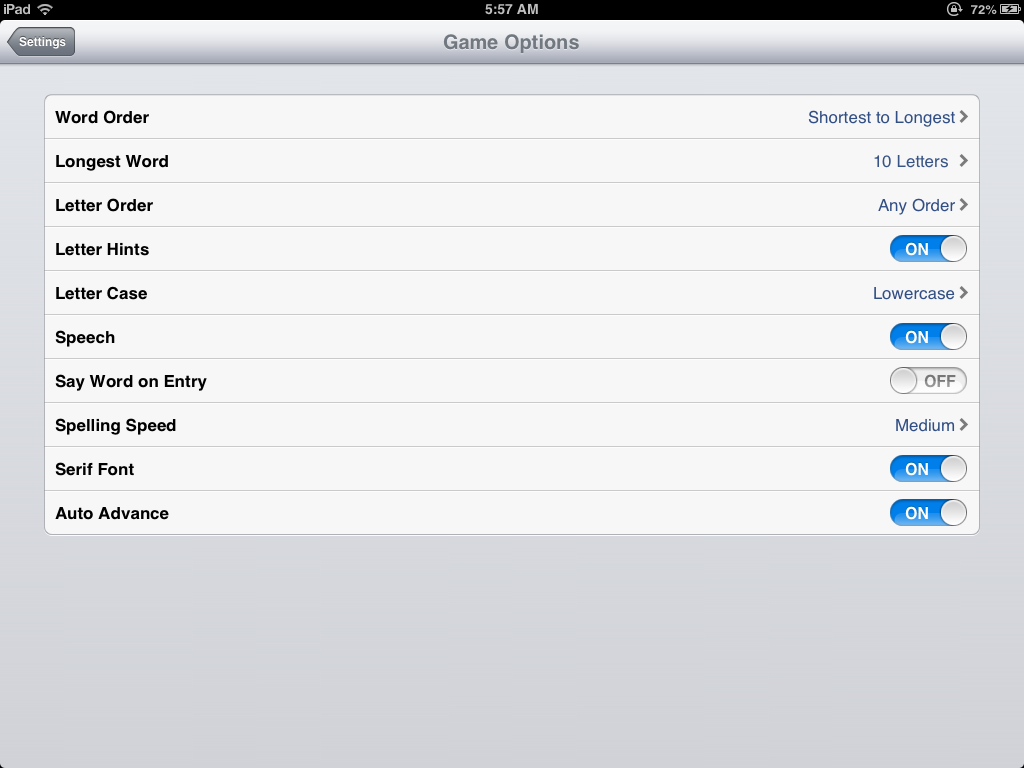 No verbal feed back is provided when letters are incorrectly matched (there are definitely pros and cons to that!). Letters can only be correctly matched to complete the word and move to the next word. If you are interested in a app with a valentines theme for students who love to work with letters and words, First Words Valentine might be the app for you for free.
Remember all those words on conversation candies you got on Valentines Day?
 Want to customize your own word list?
Consider using one of Grasshopper Apps Little Speller apps that allow you to customize a word list and add your own pictures, text and audio.
 With the Little Speller app (there are at least 3 to choose from), you can choose words or create your own word list with in the app by going into the settings and choose “Customize Items > select the “+”> Create New List> name the list and add your words. You must choose your list to play your newly created list.
 If you are looking to add a phrase, such as “Be True”, consider using Grasshopper App’s Sentence Maker to create a sentence or phrase. An earlier post describes how to customize Sentence Maker app and can be found here: http://wp.me/p1w0d0-m8 .
The Grasshopper apps mentioned above are .99 and sometimes free. If you join their Free the Apps, they will alert you of new apps you can download for a limited period for free. The Grasshopper apps folks are developing new emergent literacy apps all the time which are very useable for young children as well as older students who benefit from literacy development tools. As customizeable apps they are well worth adding to your mTool Kit!
Have fun!
Carol
See on Scoop.it – OT mTool Kit
Your Therapy Source shares the Tabata Timer App to help get kids moving.
Carol
See on Scoop.it – OT mTool Kit
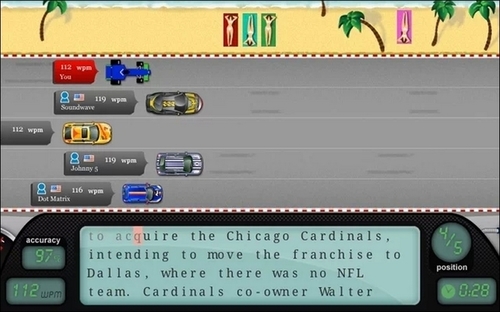
Options for free typing practice for students using Google Chrome accounts.
Carol
See on paulhami.edublogs.org

I was happy to be contacted by Susan Westfried, teacher and developer of the app, 4KidCal, a simple calendar app for kids. Providing 28 stickers and audio recording, 4KidCal allows users to create an event in the calendar without writing. Drag a sticker symbolizing an event to a date, record into the sticker and you have created a visual and audio reminder on the calendar.
4KidCal app, compatible with iPhone and iPad (1.99) is demonstrated here in a quick video of basic features:
Here’s what else you need to know about 4KidCal app, from February 11 – 18th the app is being offered for free!
Although I have more questions about the app, (Can you only put one sticker or recording on a day? How many users can be managed? Can you customize symbols? Are there syncing abilities? etc.), I can wait until next week to download this app for free. This might just be the ticket for some middle school students that have difficulty with basic organization, writing, reading and home work reminders!
Check back next week for more information on 4KidCal!
Carol
Sarah DeBellis reviews the app Playroom – Lessons with Max, an app for learning early concepts. Sarah always provides a thorough and thoughtful review including features that might be suited to students with special needs. She also offers a video review of the app, helpful in determining if it is a fit for your mTool Kit!
Thanks to On Sarah’s Pad for the review!
Carol
 Playroom – Lessons with Max is an App designed to help children of preschool and kindergarten age to learn early concepts. There are five games in the app, each using the same characters, Max the Cat and a mouse (my children have named him Cheeky Mouse), and familiar toys. I had a lot of help with this review from Master 5, as you will read. Thanks to Svetlana from Igromatic for allowing me to be part of the Beta testing and for giving me the opportunity to review this great app.
Toys are hidden in the bedroom and you must help Max to find them. Children are offered a glimpse of the four toys they will need to find before the mouse pulls down the blind and they are hidden behind or inside common bedroom/playroom items. My children loved this activity, particularly as different toys were used…
View original post 916 more words

The OT eTool Kit resource - review of apps and other technologies for OT's working with children and adults.
The OT eTool Kit resource - review of apps and other technologies for OT's working with children and adults.
powered by ARRM Technology Resource Center
Indiana's leader in assistive technology and the home of the INDATA Project
Assistive technology to help infants and toddlers communicate, move, play, and grow
The Stories of an Occupational Therapist with Retinopathy of Prematurity
The OT eTool Kit resource - review of apps and other technologies for OT's working with children and adults.
The OT eTool Kit resource - review of apps and other technologies for OT's working with children and adults.
Tech Integration for Busy Teachers
Just another WordPress.com site
Technology support for all dyslexic people
Re-train the Visual Brain…Advancing awareness, understanding and best practices
Literacy, AAC & Assistive Technology
Supporting Accessibility with the iPad



 OT's with Apps & Technology