OT’s with Apps @ Workshop for the School Based OT – March 7-8, 2014


OT's with apps at school join us picInterested in learning more tips, tricks and tools for your OT mTool Kit?

A few more seats left!

Join the OT’s with Apps @ School Workshop to learn more about apps for:

  • Early Childhood
  • Pre-writing
  • Visual motor
  • Visual perception
  • Handwriting (manuscript and cursive)
  • Writing apps for emergent through struggling writers
  • Writing for dygraphia
  • Math production
  • Reading
  • Visual Supports
  • Self-Regulation
  • Apps for OT
  • App Resources
  • Mobile device equipment

Join us for two “appy” days of apps, equipment and applications for your OT mTool Kit.

Find more information at:  ATR Event Webpage 

Questions, feel free to contact me at otswithapps@gmail.com .

Hope to see you there!

Carol

Posted in Uncategorized | 2 Comments

Shape the Village by Wisekids

This gallery contains 7 photos.

Originally posted on On Sarah's iPad:
Shape the Village is a delightful world created by WiseKids where children can explore shapes in amusing and entertaining ways.  The village is a little “unpopulated” when you first enter the app, but as…

More Galleries | Leave a comment

Tiggly Shapes and Apps

Tiggly Shapes apps

Tiggly Shapes – iPad Toys for Toddlers (29.95) and  Tiggly Apps (free or for purchase) are new type of activity for 18 month to 4 year olds for the iPhone and iPad. Combining technology and hands activities, Tiggly Shapes and Apps provides an interesting blend of visual perceptual play, manipulative skills, and interactive play for young children.

How do the Tiggly Apps and Shapes interact?

Tiggly Shapes are durable shapes that are safe for the iPad but interact with Tiggly Shapes app when “stamped” on the iPad.

Four different apps featuring creative use of the shapes to draw, stamp, create animations within the four apps:

Tiggly SafariTiggly Safari app (free) – Construct friendly animals using the shapes with app activities.

Tiggly Stamp app iconTiggly Stamps app (free) – Construct and create with seasonal stamps.

Tiggly Draw iconTiggly Draw app (free) – Draw with shapes and backgrounds using the geometric Tiggly Shapes.

Tiggly Christmas app icon Tiggly Christmas (1.99) – Create with season activities using the Tiggly Shapes.

Here is an overview of the Tiggly Shapes and Apps:

I haven’t had a chance to play with Tiggly Shapes or Apps but they sure look like fun! Maybe they are really only for the young at heart!

Have you tried the Tiggly Shapes and Apps?

More for your OT, parent or teaching mTool Kit!

Carol

Posted in Uncategorized | Leave a comment

Using a Big Blue Keyboard and Word Prediction on an iPad

Big Bluetooth keyboard w tablet stand
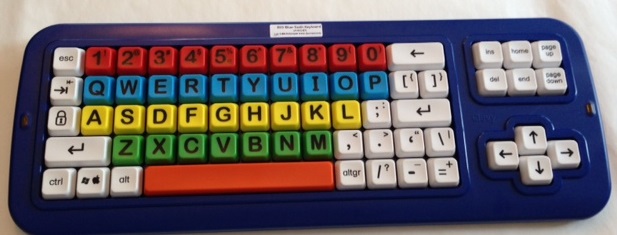
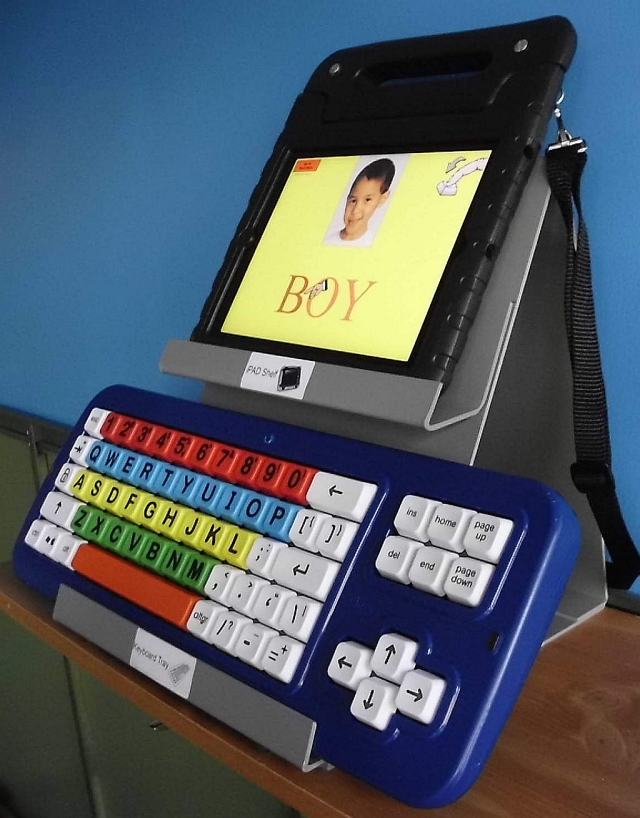
RJ Cooper’s Keyboard-Tablet Combo Stand and Big Blue Keyboard

A big Thank-You to RJ Cooper for lending me a Tooth Keyboard and Tablet Stand Combo and Big Blue Keyboard to demonstrate input equipment for the iPad at an upcoming OT’s with Apps Workshop (March 7-8th). Reviewing and comparing apps and equipment that support writing will be just one of the many topics covered at the workshop. Exploring how the Big Blue keyboard works and what apps it works with to support individuals needing writing supports brought about many questions about how it can be used to support those with motor challenges.

Bluetooth keyboards, of course, come in all different sizes, however, most are either small or a standard keyboard size, making them difficult to access for individuals with poor motor control.

Big blue keyboard

Using RJ’s Big Blue keyboard (Bluetooth) provides an alternative method of access to the keyboard, but brings a number of questions beyond keyboard input about other tools often needed to support writing can be used on the iPad. Such tools as  word prediction, text to speech are often needed for more efficient input or writing support for many writers. How do those tools work with a Bluetooth keyboard to support written composition for individuals with motor and literacy challenges?

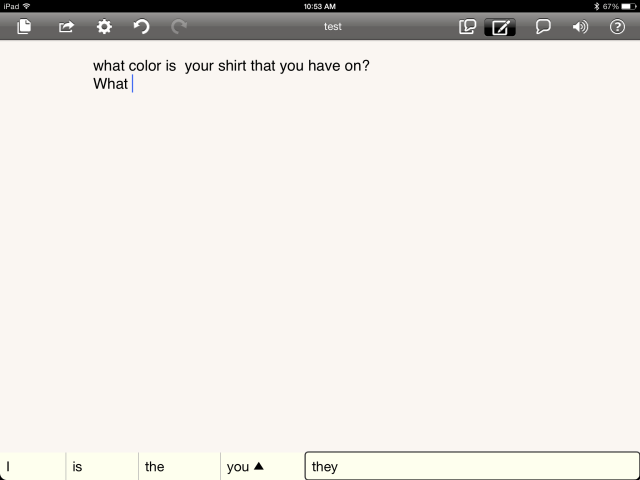
Many of those answers were fortunately provided by RJ Cooper’s thorough instructions and tips about the use of the Big Blue keyboard with the iPad. Although I wanted to trial it with many of the word prediction programs to see which ones would work, RJ provided suggested apps trialed by him and methods of access (what a resourceful guy RJ is!).  RJ’s instruction supplied information on the use of iOS Voice Over functions with the keyboard and specific apps that work well when needing  word prediction, text to speech for written composing on the iPad.

Here are some basic instructions on using RJ’s Big Blue keyboard with the iPad (see below link for RJ Cooper’s written instructions):

iPad and Big Blue Bluetooth Keyboard Connection:

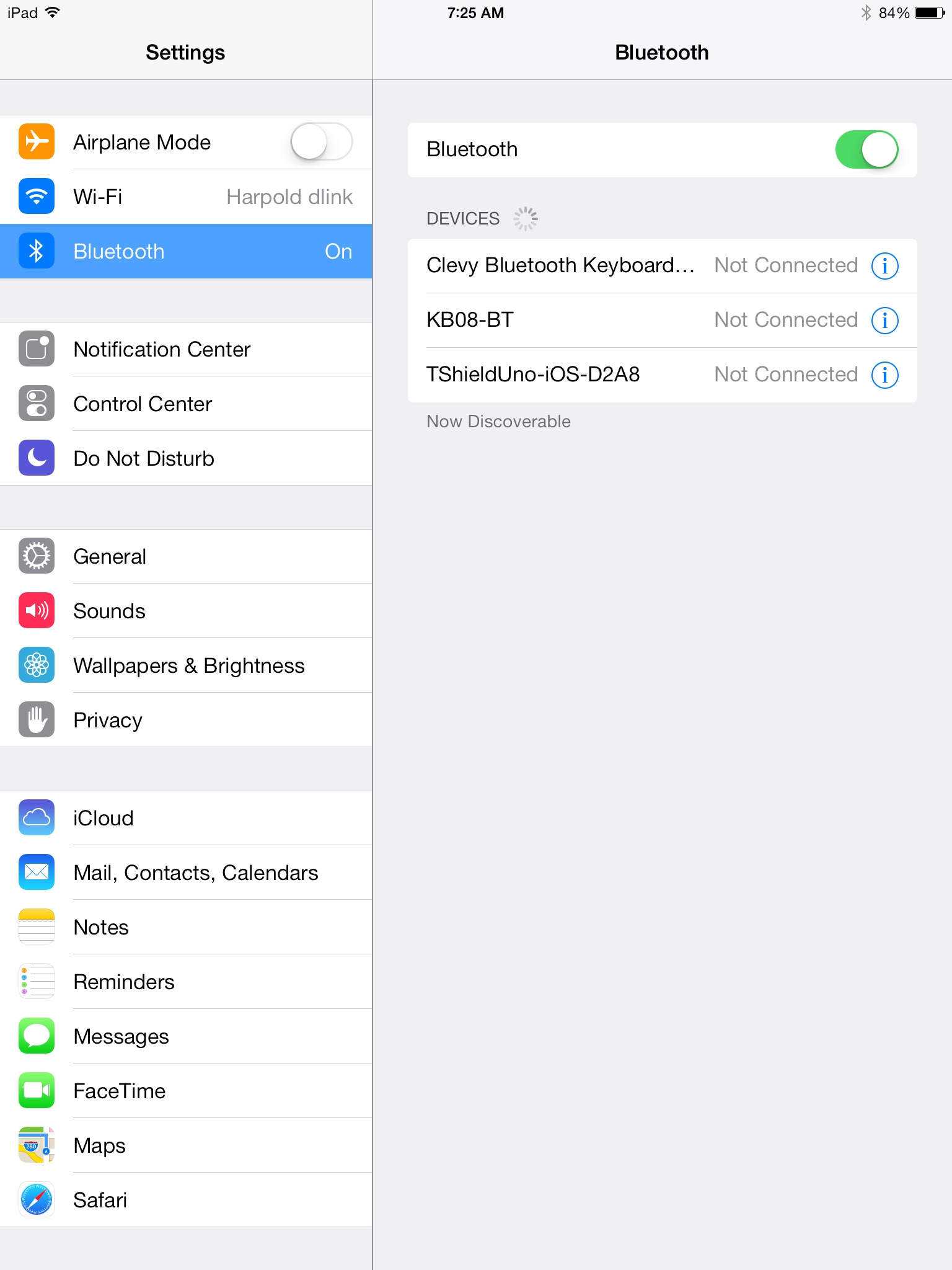
1. To connect the iPad to Big Blue : Go to Settings> Bluetooth> slide the button on (allows recognition of Bluetooth devices):

018c3de72f2449eb0ced6f3f6e4e7d8aa83887d5f2

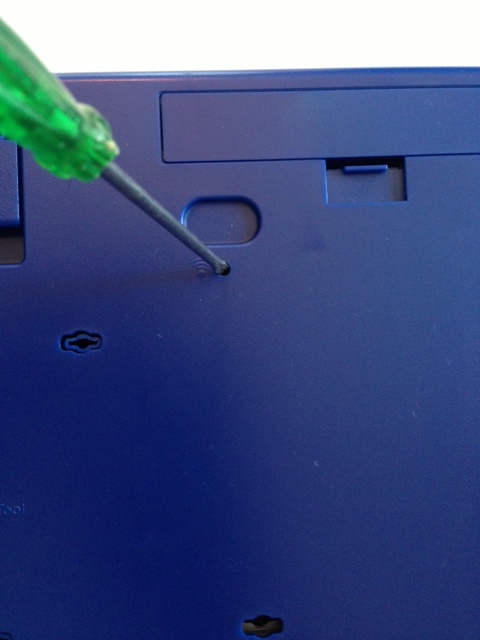
2. On the Big Blue keyboard, press the Bluetooth inset button on the back of Big Blue to start recognition and pairing (instructions for connecting Big Blue from RJ):
big blue btconnect 2

3. When the Clevy Bluetooth Keyboard US is recognized. Tap on Clevy Keyboard in the Devices list to pair. Pairing between the keyboard and iPad will require you to type in a code on the Big Blue.
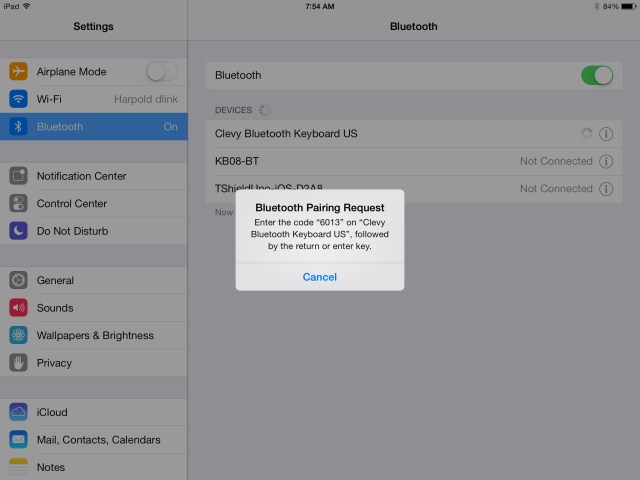
01e2846814368b26a6d21d1f7f90bdb055b94f689d

4. The Big Blue lights will flash indicating pairing and the keyboard will be ready to use. When using a Bluetooth keyboard the standard keyboard will not appear.

The Big Blue provides easier physical access to a keyboard with its large keys and positioning as needed pending the users needs. What apps now provide word prediction, text to speech and selection for users needing writing supports? Keyboard shortcuts and function keys provide methods of selection when using a Windows or Mac computer but what will work on the iPad? Fortunately, as aforementioned, RJ provides instructions.

Using VoiceOver With Word Prediction Apps (see list for specific word prediction apps):

1. In Settings> General> Accessibility Shortcut > Select Triple-Click the Home Button For: VoiceOver :
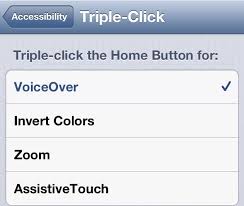
triple click for voice over

This will allow VoiceOver to be easily turned on and off when the Home Button is clicked three times quickly at any time.

2. A Big Blue switch on the back of the keyboard must be turned on to Key Repeat.
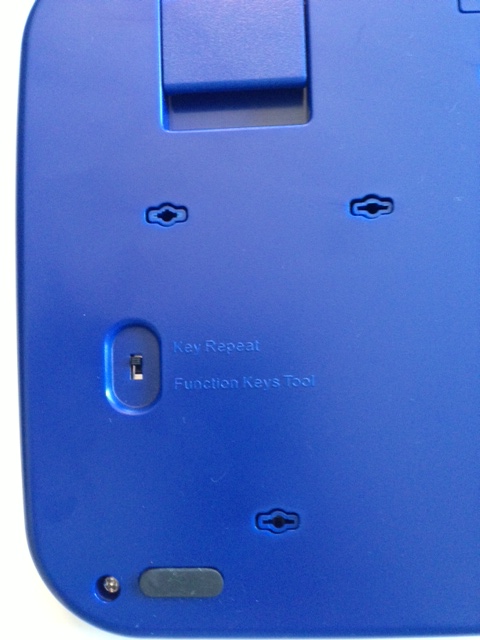
big blue func3

3. With your keyboard and iPad paired. Open your selected word prediction app (WordQ is the app featured below). Prior to start of typing, triple click the Home Button to turn VoiceOver on. You will hear a message “VoiceOver is on”.

4. Using the right and left arrow keys (← , →) on Big Blue allows navigation within features of the app  such as the text field area and word prediction list.
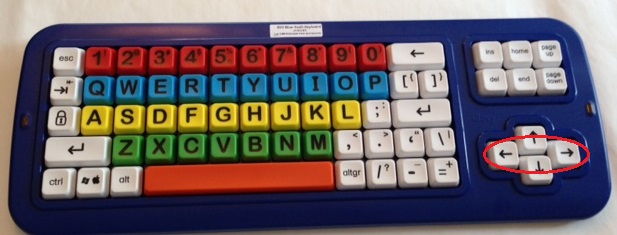
Big blue keyboard w r l arrow keys circled

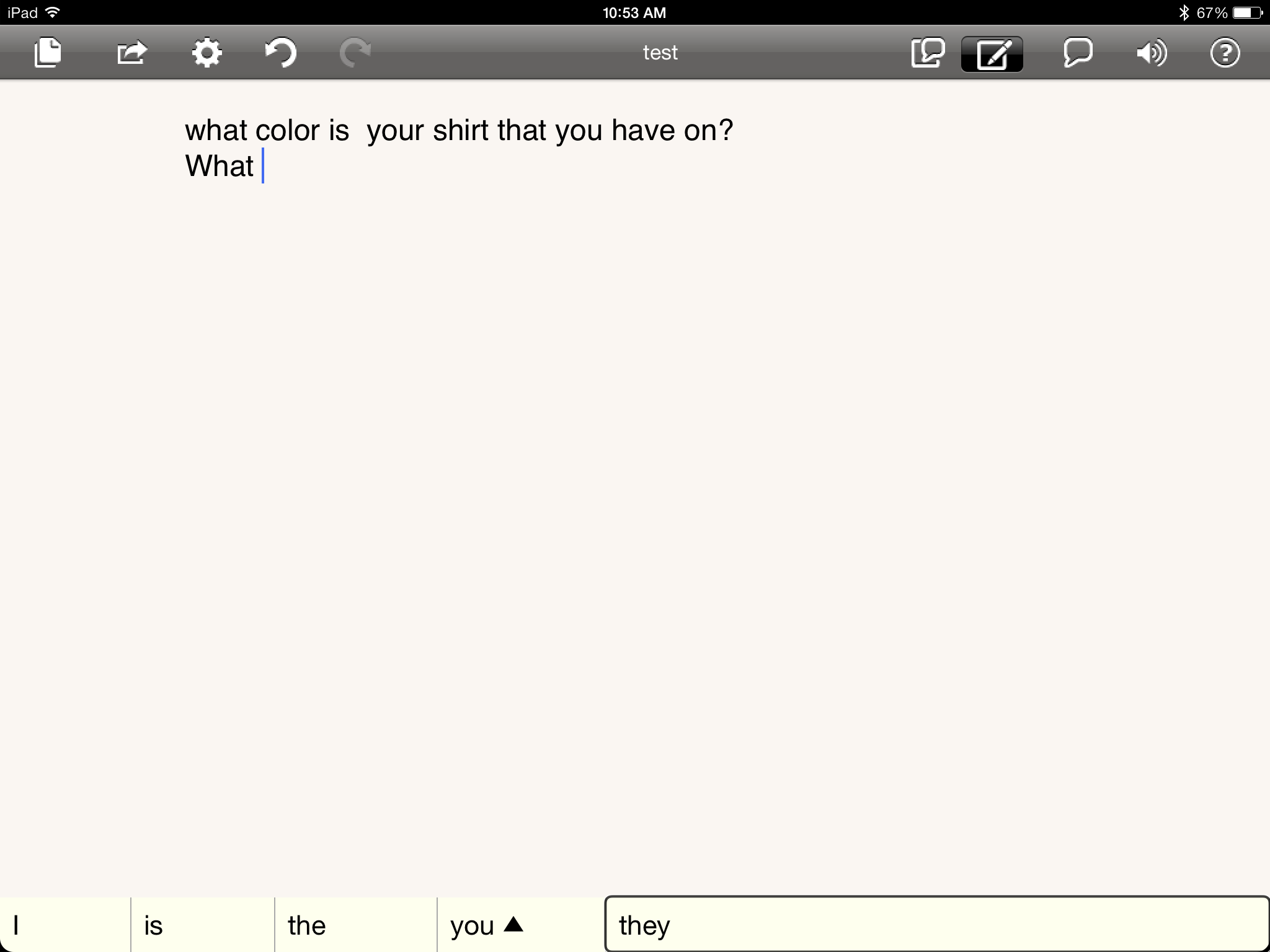
WordQ with VO pic5. Selection of an item using VoiceOver can be made using the ↑, ↓ arrows simultaneously on the Big Blue keyboard allowing words from the prediction list entered into the document text field.
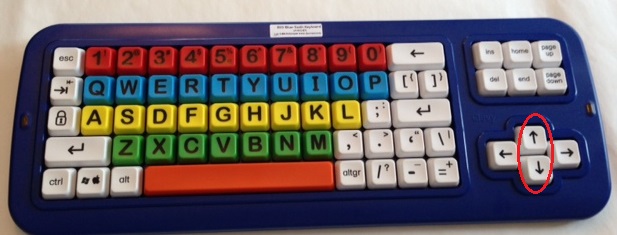
Big blue keyboard w up down arrow keys circled

Creating a quick cap affixed to the up and down arrow keys simplified activation using one finger or touch of both keys.
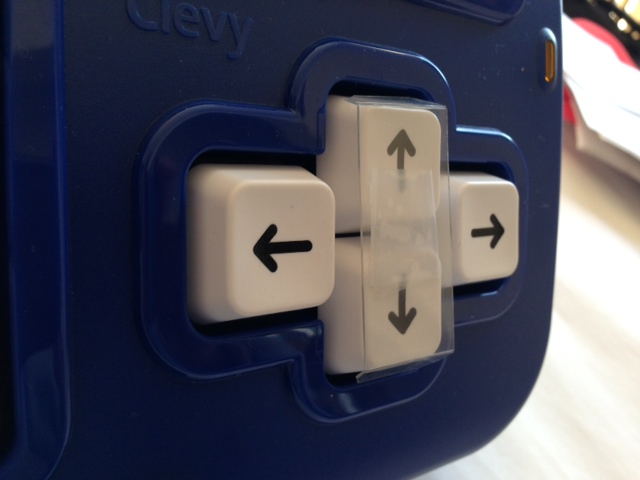
Big Blue key joiner

6. Additional control of navigation can be done using the altgr key which turns On/Off QuickNav allowing navigation within the text field or screen items. The keyboard keys can be used at any time to type, backspace, enter when word processing.
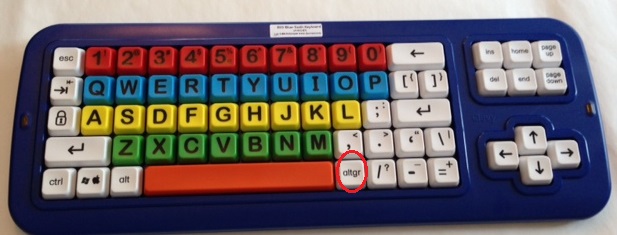
Big blue keyboard w altgr key circled

Practice with navigation and selection of the word prediction took a bit of time to learn, but once familiar resulted in use of the keyboard to type and navigation basically within the app.

RJ Cooper shared successful use of the keyboard with VoiceOver using the following apps:

Trial with word prediction apps found Brevity app, a basic app with word prediction, WordQ and AppWriter to work well with VoiceOver and RJ’s Big Blue keyboard. From my trials, I did not find success using  CoWriter, TypoHD or iReadWrite apps with Big Blue and VoiceOver, however, I would never dismiss user error as a reason for lack of successful use! Abilipad, PantherWriter  and Rocket Keys, nor Clicker apps were not trialed (that’s another day’s work!).

What keyboards or apps for individuals with motor and literacy challenges have you successfully used? Please share!

Interested in learning more about apps, iOS functions, keyboards and other equipment used in OT practice? Join OT’s with Apps for the School Based OT on March 7-8 for two days of apps for writing, reading, math, self-regulation, OT administration and hands on trials with a variety of iPad equipment.  Hope to see you there!

Again, a big thank you to RJ Cooper for loaning out his Keyboard-Tablet Combo Stand and Big Blue Keyboard!

Posted in Accessibility, Accessories, Apps for OT's, Apps for Special Needs, iPad, iPod/iPad Accessory, Keyboard, Mobile Device Use, Mobility Impairment, Occupational Therapy, Special Needs, Text to Speech, Word Prediction, Writing | Leave a comment

Eye Training Apps from Ebenezer School and Home for the Visually Impaired

Ebenezer School and Home for VI icon
Ebenezer School and Home for the Visually Impaired

I often just stumble upon apps when scouring for specific apps for client or students I work with. Apps developed by the Ebenezer School and Home for the Visually Impaired were those stumbled upon and for the right clients or student are a great find. The Ebenezer School and Home for the Visually Impaired, Hong Kong, have created different apps and all are Free!

Four apps have been developed for the Ebenezer School students with low which have basic options of contrast, sizing of objects, background colors and patterns and choice of objects. The four apps are:

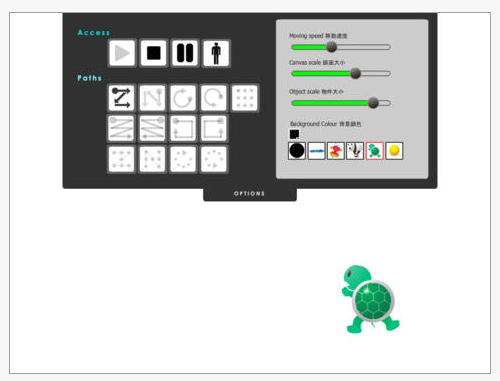
Eye movement training iconEye Movement Training app (free) – Basic tracking skills with 13 different visual tracking tasks, options of moving speed, canvas scale, object scale, background color and six different objects to track.

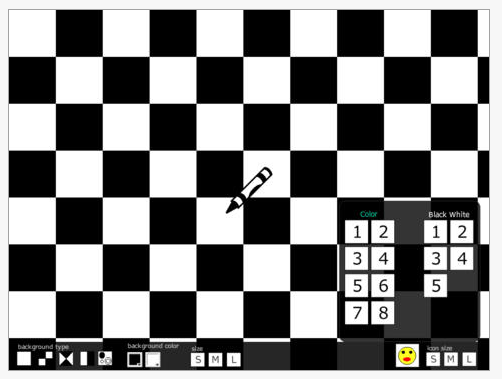
Eye movement traiing pic 6Shapes and Complex iconShapes in Complex app ( free) – Requires locating pictures and designs within competing backgrounds. Provides 5 different backgrounds, background colors, eight different objects to track and small, medium and large sizing of the contrast and objects.

Shapes in Complex free pic1

Dot to Dot icon Ebenezer School app for VIDot to Dot app (free) – Complete dot to dot letters (upper and lower case) and numbers using large numbered dots and animation to guide formation. Background contrast options available. Provides audio reward for completion.

Dot to Dot pic 1

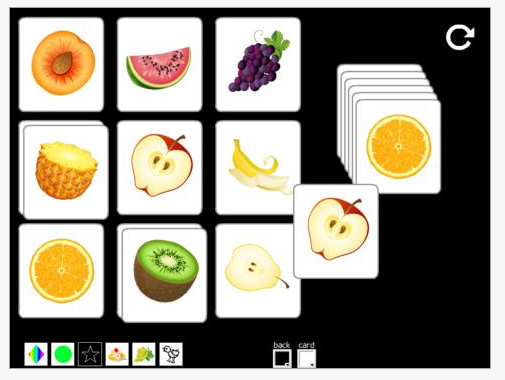
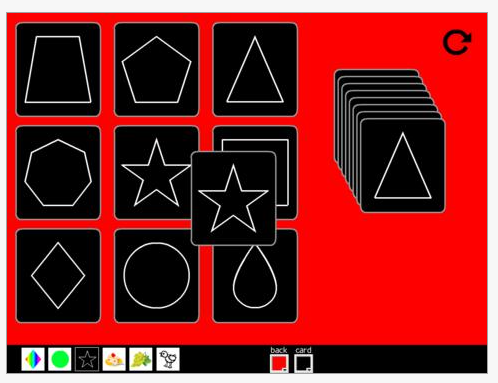
Find the Same iconFind the Same app (free)- requires visual discrimination/  matching of shapes, food, and line drawn animals. Options for background color and card color are available.

Find the Same pic1 Find the same pic2

What a great find for the right clients or students. Although these apps are designed for low vision students, they could be very appropriate for EC students or clients with cognitive, motor, vision, dementia challenges. At a price of free, they are a great deal for your OT mTool Kit!

Have your used these apps? Please share your experience if you have!

Thank you – Carol

Posted in App Reviews, Apps for OT's, Apps for Special Needs, Cognitive Impairment, Customizable app, Early Childhood, iPad, Low Vision/ Blindness, Occupational Therapy, Pediatrics, Special education, Vision | Leave a comment

OT’s with Apps @ Workshop for the School Based OT – March 7-8, 2014

OT's with apps at school join us picInterested in learning more tips, tricks and tools for your OT mTool Kit?

Join the OT’s with Apps @ School Workshop to learn more about apps for:

  • Early Childhood
  • Pre-writing
  • Visual motor
  • Visual perception
  • Handwriting (manuscript and cursive)
  • Writing apps for emergent through struggling writers
  • Writing for dygraphia
  • Math production
  • Reading
  • Visual Supports
  • Self-Regulation
  • Apps for OT
  • App Resources
  • Mobile device equipment

Join us for two “appy” days of apps, equipment and applications for your OT mTool Kit.

Find more information at:  ATR Event Webpage 

Questions, feel free to contact me at otswithapps@gmail.com .

Hope to see you there!

Carol

Posted in Uncategorized | Leave a comment

Skill Game – Gone Free Today

Skill Training app icon

Skill Game App

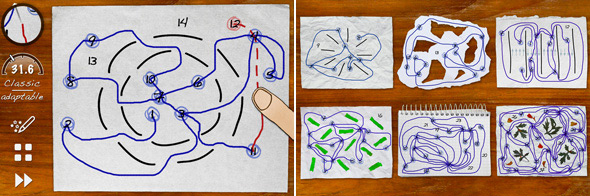
I don’t often recommend Game Center apps, but the Skill Game is a favorite of mine for the visual motor, spatial reasoning and motor planning required. Compatible with iPhone/iPad (iOS 5 or later), this is best suited to upper elementary level students through adults  with fairly good motor control and perceptual reasoning. Today it is free, reduced from regular price of 2.99.

Skill Game  app increases in difficulty as you advance in the app. Connecting numbers without touching lines or obstacles is the object of this app. Skill Game requires problem solving, visual perceptual reasoning and motor planning to complete the task accurately. Beat your time, while avoiding drawing over the obstacles or your lines with accuracy is the goal of the game.

skillgame pic 5

To play this with greater accuracy, a stylus (styluses found at OT’s with Apps Amazon Store) is recommended but not necessary. The Skill Training app, which has the same activities  (2.99) but not linked to the Game Center. For more information about the Skill Training app checkout this prior OT’s with Apps Skill Training review.

Great game for kids or adults who like visual challenges!

More for your OT mTool Kit!

Carol

Posted in Adults, App Reviews, Apps for OT's, Apps for Special Needs, Drawing, Elementary School, High School, iPad, iPhone, Leisure apps, Visual Motor, Visual Perception | Leave a comment

Community Sidekick App from Ablelink Technologies on Sale

Community Sidekick App

Community Sidekick App

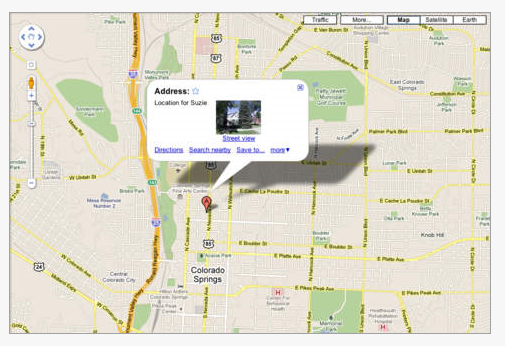
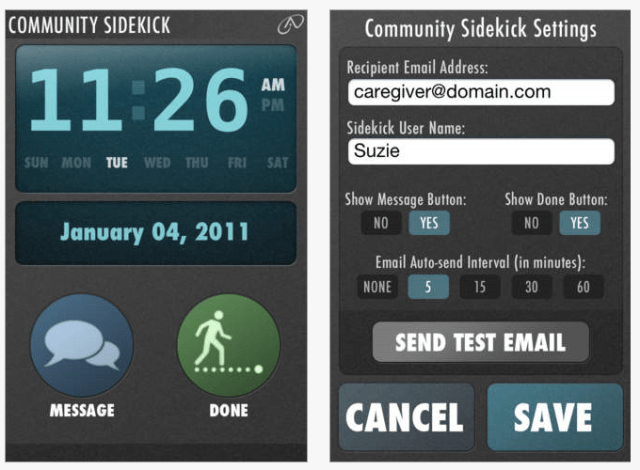
Community Sidekick App developed by AbleLink Technologies is a tracking system that monitors location of individuals in the community. Regularly 19.99, it is currently (2-7-2014) on sale for .99  for a limited time. Compatible with iPhone, iPod (requires Wi-Fi) and iPad, this app uses email to initially send a message of when travel is initiated and then sends automated  emails of locations at regular time intervals (5, 15, 15, 60 minutes) to a friend, caretaker or family indicating the travelers location.

community sidekick pic1 community sidekick pic2Community Sidekick App also provides the ability to automatically send an email to select individuals using a message button (above) to relay simple messages. community sidekick pic3
Community Sidekick app  assists with safety and independent community skills.

Hope you can still catch it while it is on sale!

Carol

Posted in Activities of Daily Living, Adults, App Reviews, Apps for Special Needs, Elementary School, iADL's, Letter Formation, Middle School, Mobile Device Use, Occupational Therapy, Self Care | Leave a comment

AppWriter Cloud in Google Chrome

As Scooped from:  AppWriter Cloud in Google Chrome

See on Scoop.itOT mTool Kit

Carol Leynse Harpold‘s insight:

I have been trialing AppWriter Cloud for a while and its stability and vocabulary support provides a great choice for word prediction for Google Docs.

Exciting news that AppWriter Cloud is currently being expanded in Google Chrome and comes at a very reasonable price per student.

I am looking forward to using this with students at school.

Thank you LingApps!!

Carol Leynse Harpold, MS AdEd, OTR/L, ATP

otswithapps.com

otswithapps@gmail.com

Carol@adaptivetr.com

csleynse@sheboyganfalls.k12.wi.us

AppWriter Cloud can also be trialed for a month for free! For more information: http://www.lingapps.com/appwriter-cloud

Carol

Posted in Uncategorized | Leave a comment

E-bot iPad-compatible Read, Write and Distance Portable Video Magnifier with OCR – HIMS Inc

As Scooped from:

E-bot iPad-compatible Read, Write and Distance Portable Video Magnifier with OCR

Carol Leynse Harpold‘s insight:

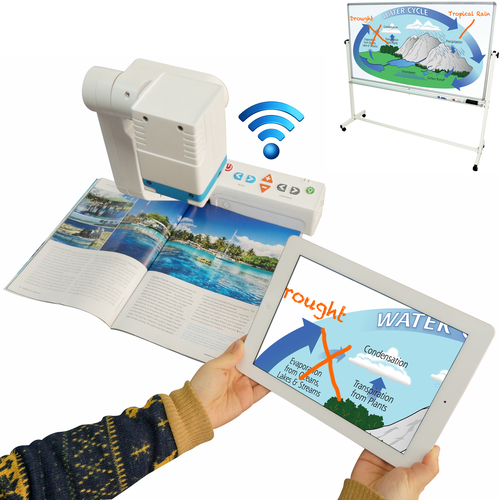
Scan and read devices are getting more and more portable and flexible. This E-bot provides many options, helpful for individuals with visual and learning challenges. Look like a very interesting new AT tool!

Carol

See on www.hims-inc.com

From Scoop.itOT mTool Kit

Posted in Uncategorized | Leave a comment