OT’s with Apps Stylus List

Stylus group

What’s Your Favorite Stylus?

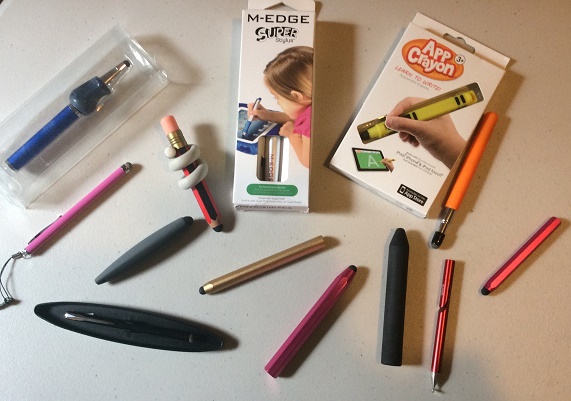
Looking for a styluses for a child, mature user, an adaptive stylus, mouth or head stylus? Check out this new curated OT’s with Apps Stylus List, with a dozens of preferred styluses for almost everybody (no I still haven’t found a commercial finger stylus I would recommend yet…).

Interested in hands on trial of many of the above kids and mature users styluses? Visit OT’s with Apps – Appy Hour presentation on April 18, 2015 at the AOTA Convention in Nashville TN. Although I will not have the head and mouth stick styluses, many of the other styluses will be available for trial.  Come and join Brittany Hand, MOT and myself while we share “What’s the Write App?” during Saturday’s Appy Hour.

Hope to see you there!

Have a recommended stylus? Share in a comment or send me an email at otswithapps@gmail.com.

Carol

Posted in Accessibility, Accessories, Android, Assistive Technology, iPad, Mobility Impairment, Occupational Therapy, Pediatrics, Special education, Special Needs, Stylus, Therapist/Teacher Tools | Tagged , , , , , , , , | 5 Comments

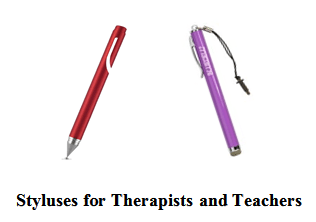
Styluses for Therapists and Teachers

STyluses for therapists and teachers

Handwriting notes on the iPad is something I typically avoid due to the lack of fluency, accuracy and the large size writing it produces. With most fine tipped styluses costing more than $ 50, I decided I could live without trying out the fine tipped styluses to produce handwritten notes on my device. As the iPad and other mobile devices becomes more and more a part of daily life I thought I would explore styluses are currently available and how they work. Price, however continued to be a factor when trialing fine tipped styluses, at least for my type of use.

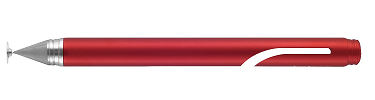
Searching for fine tipped styluses found two different kinds, the standard stylus (no batteries or Wi-Fi connectivity) and Active Styluses. The Active styluses typically have batteries or require charging and may also have Bluetooth or Wi-Fi capabilities. Active styluses are typically more expensive and used by graphic design folks. They are not reviewed in this post due to their cost.

Fine Tip Styluses

Checking out prior reviews seemed to reveal some consistent names on the “Best Stylus” lists. I was able to test some of these out from past and recent purchase. Here are those I trialed:

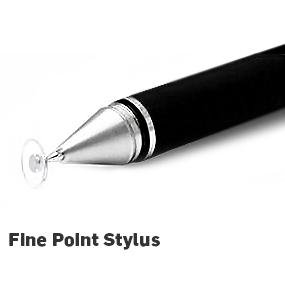
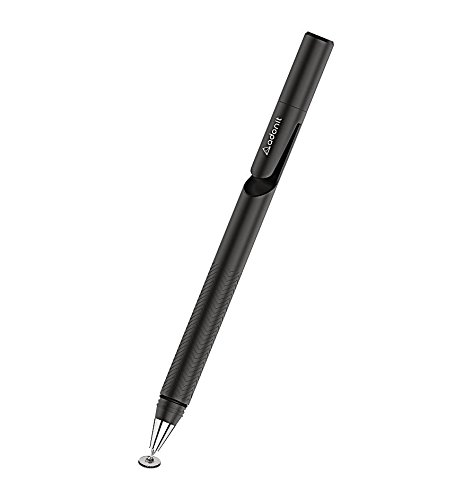
Adonit Jot Mini –  This stylus is touch screen compatible for iPad/iPhone, Windows and Android devices  (14.99-19.99). I found it slightly more responsive on my Galaxy Tab S than on my iPad. Slowing my handwriting speed aided production of the handwriting, seemingly allowing it more time to register. The faster I wrote, there appeared to be parts of letters missed. The tip is a nib, a plastic disc with metal center that attached to the stylus. Replaceable nibs are available.
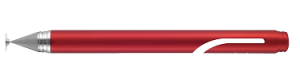
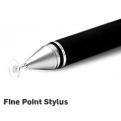
Adonit Jot mini 3Adonit Jot tip
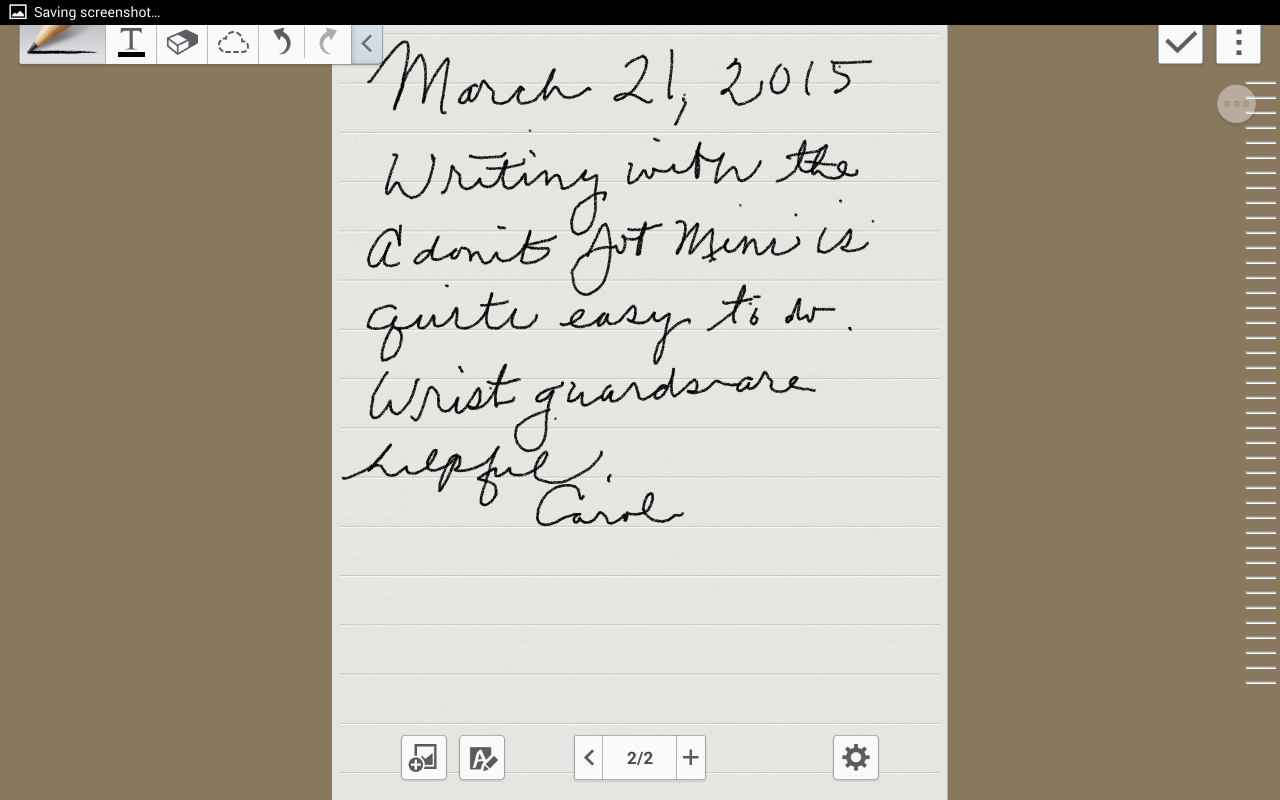
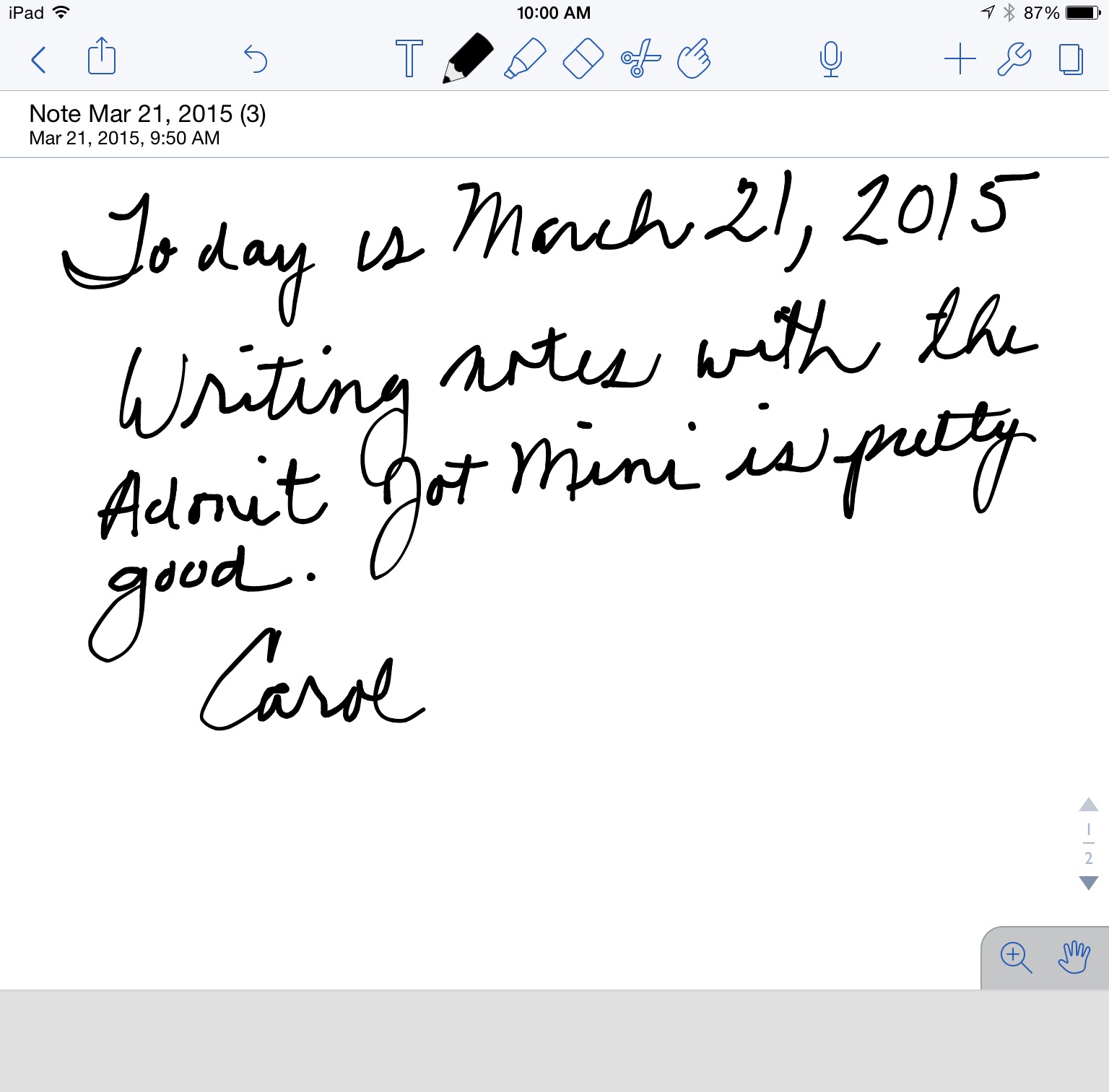
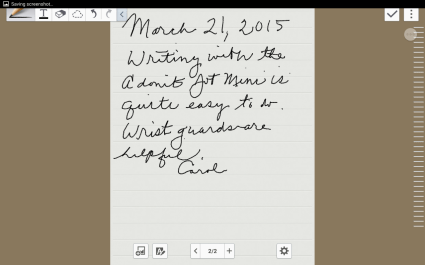
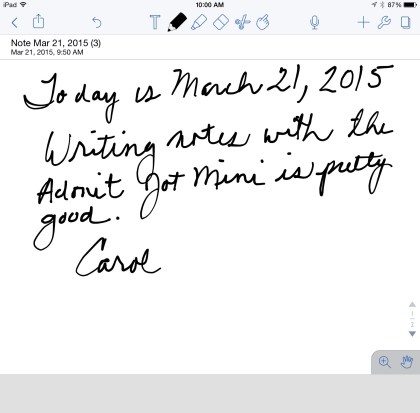
Below are samples using the Adonit Jot Mini. Don’t judge the stylus on my handwriting – this was a quick sample, similar to taking notes.
adonit jot mini HW sample iPad

Adonit Jot Mini Stylus used on Galaxy Tab S – S Note App
 

Adonit jot mini HW sample iPad c

Adonit Jot Mini Stylus on iPad using Notability app

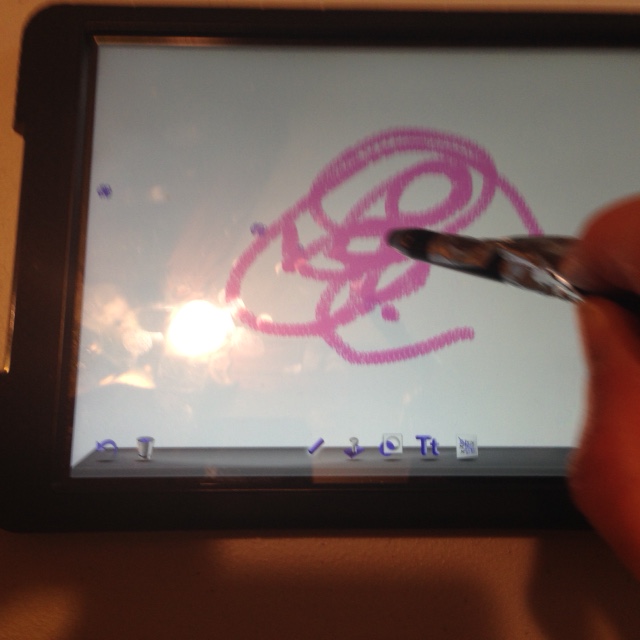
The comparison was also affected by use of the pencil tool on the Galaxy Tab, making it look a little less clear than the iPad due to the choice of writing tool. Actual writing on the Galaxy Tab S was faster using the Jot Mini, perhaps because it is a touch screen and not capacitive screen as is on the iPad. The pen was comfortable to use and also could be used at a natural writing angle (approximately 30º). Like most tools, it would take a little bit of time to get used to for best results. I have no reservations using this pen for drawing or note taking on the iPad or Android tablet.

Adonit Jot Pro – similar to the Jot Mini, but larger (29.99) and uses the clear  disk fine tip. It’s shaft has a magnet to secure the stylus to your device. Review and ratings from a number of websites ( Lifehacker.com ; iGeeksblog )rate is as one of the best. Reviewer on the Wirecutter.com sites the Adonit Jot Pro as the best fine tip stylus.
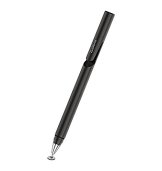
Adonit Jot Pro new

I did not trial this stylus, but assume that it is as good or better than the Jot Mini Stylus reviewed above.

The Friendly Swede Thin Tipped Stylus (9.99) was another stylus option reviewed on the iGeeksblog.com as a “Best Thin tip iPad Stylus” . I have used these styluses for selection and playing some games. The bonus is they have replaceable tips . I Handwriting trial with this stylus on the iPad found less than consistent production of  handwriting, skipping periodically with the tip collapsing. It was better however than the trials with the TruGlide (below).  This stylus did work more consistently on my Android device than iPad.
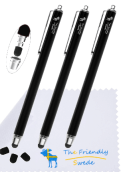
Stylus The Friendly Swede thin tip

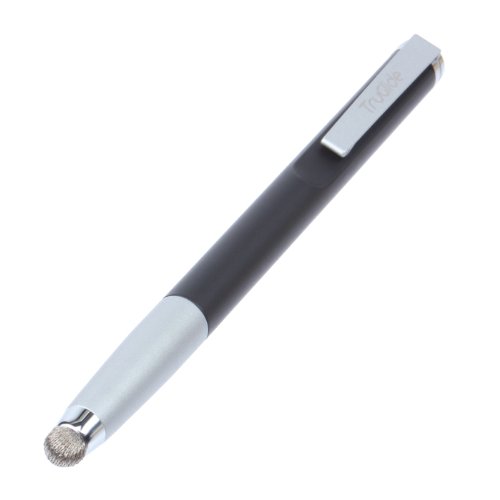
Lynktec TruGlide stylus was also reviewed as a recommended fine tip stylus on other websites. Recent purchase of this stylus for review found a different experience from those review on Lifehacker.com. I could not hold the stylus at a natural writing angle to make contact and produce writing on my iPad. Handwriting was very inconsistently produced whether writing fast or slow. Holding it vertical allow me to write on my iPad – how functional it that ?  Good for pointing and activating – not for writing.  I hope to return it.
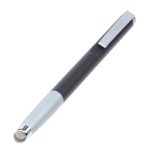
Lynktec Glide stylus pic

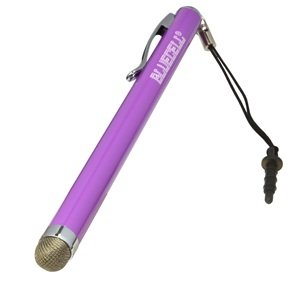
The Glidex stylus (4.99 for 2) with mesh tip was not a reviewed stylus by any of the website. Trial of this stylus for comparison with the Lynktec and Friendly Swede found it requires little pressure and consistently produced handwriting on both my iPad and Galaxy using S Note and Notability apps. I was able to write holding the stylus at an angle natural for handwriting without skipping or repositioning for production. It does have a wider stylus tip, but choosing a narrow writing line helped reduce the size of the handwriting somewhat. When I used the magnified writing guide in both Notability and S Note apps, my handwriting reduced in size significantly and offered a guard when resting my hand on the screen.
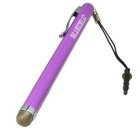
STylus Glidex - cosmo

More Stylus Choices

A few more styluses with fine point clear disk tips are available with price points from 9.99 – 16.99 + and good reviews. They are similar to the Jot Mini but were not trialed.

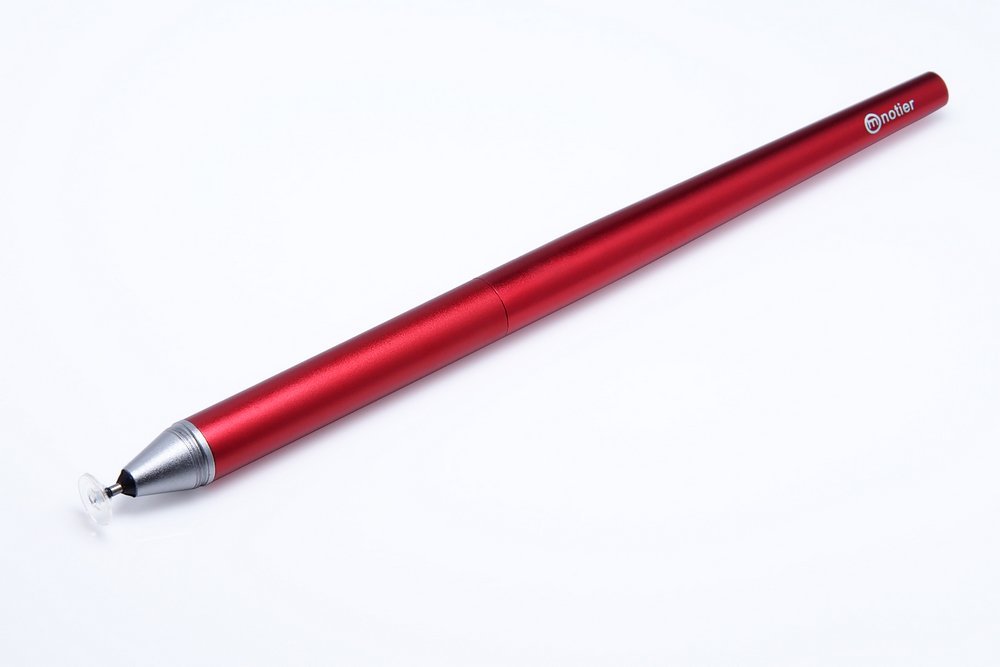
Musemee Notier Stylus – Fine tip stylus with clear disk tip (16.99). Replacement tips are available. Seems to be very similar to the Adonit Jot Mini and Jot Pro with price point slightly higher. Reviews are good and similar to the ratings of the Adonit styluses.
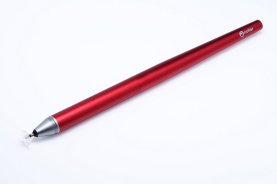
Musmee Notier stylus picThere are a number of other styluses that have thinner tips or have clear disk tips available under $10.00 not trialed.

Active Stylus

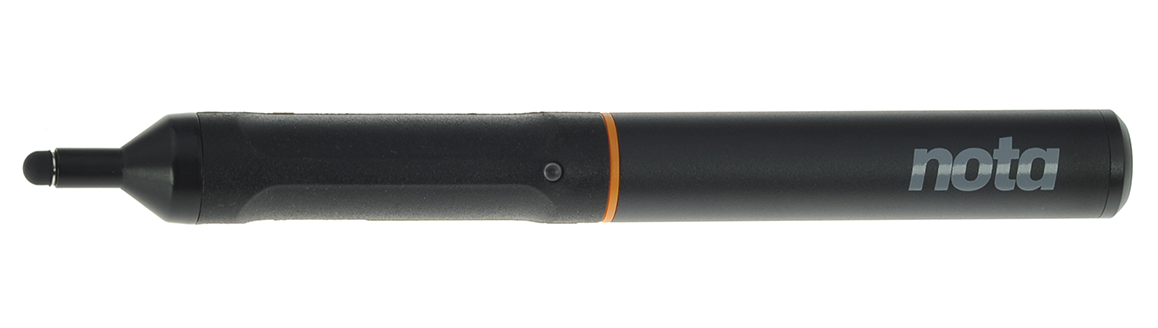
Emerging on the market are those with batteries. I hesitate using a stylus that requires recharging or batteries as there seems too many mobile device things that need a charge to work. The key here is mobile, when you are a practitioner that is mobile and need it to work on the spot, checking battery levels, having the right cord or specific batteries to power tools is just too much- unless you are dependent on it. This new stylus, battery operated, called the Nota Ultrafine (59.99), reports battery life for months. A lower price point and this might be worth check out !
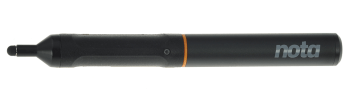
Nota fine tipped stylus

The Verdict – My Favorites:

Of those trialed, my two favorite styluses were the Adonit Jot Mini (14.99) for very refined drawing or writing. For a less expensive stylus, the Glidex stylus ( 4.99 for 2) with standard sized tip, consistent production and little pressure required is my second choice of styluses to write with.

I would consider recommending the Glidex stylus for elementary students and older  for its price, consistency with production at appropriate writing positions.

What do you use? Have any note writing styluses you recommend?

Carol

 

Posted in Accessories, Android, AT for Handwriting, Drawing, Handwriting, iPad, iPhone, iPod, Note Taking, Occupational Therapy, Therapist/Teacher Tools | Tagged , , , , , , , , | Leave a comment

MacGyver Options for Stylus Adaptations

Styluses macgyvered

Stylus Adaptations

The last post featured commercially available adapted styluses available on the market for purchase. Here are some suggestions on methods of adapting styluses for individuals with physical challenges. Perhaps not always the prettiest, but when funds or availability is limited, sometimes you create.

When adapting styluses, remember that iPads require some conductivity of a users touch (yes, your electricity) for it to activate.  What that means for styluses used on iPads (iPhones or iPod Touch) is that you may need to make sure you have connection from your hands electricity to the stylus. Below you will find foil tape used as a conductor when needed. Android devices use resistance for activation, requiring pressure for activation, thus the tape is not needed. Also, of course positioning of the device and the individual may be key factors to activation along with the type of stylus used.

1. Use magic gloves and cut the tip of their preferred pointer finger. Gloves covering other fingers will limit activation of other parts of the screen for iOS devices (which require physical connectivity to activate).

IMG_7035 (527x640) gloves

2. For individuals who have difficulty with isolating fingers when donning gloves , try a child’s sock with a hole cut out for a finger.

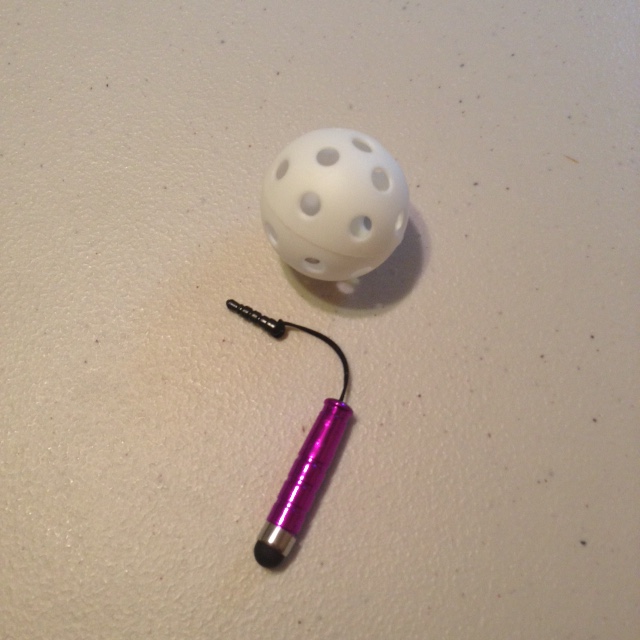
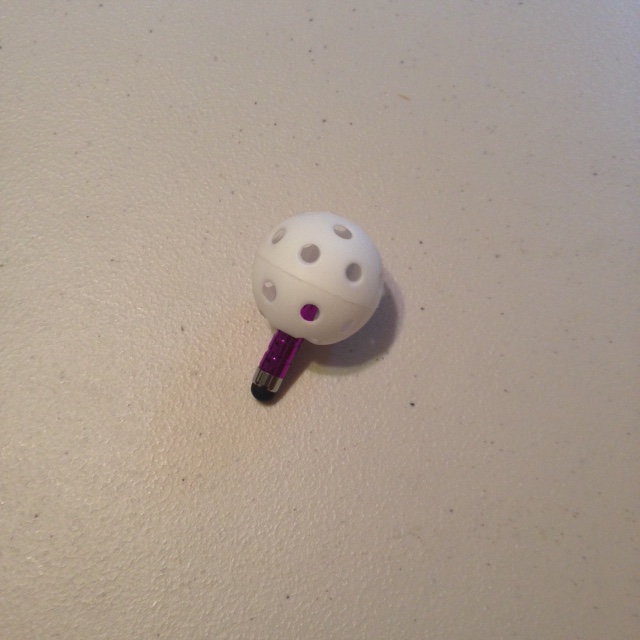
3. A practice golf ball and mini stylus makes a cheap and easy, adapted stylus.

IMG_1931IMG_1930

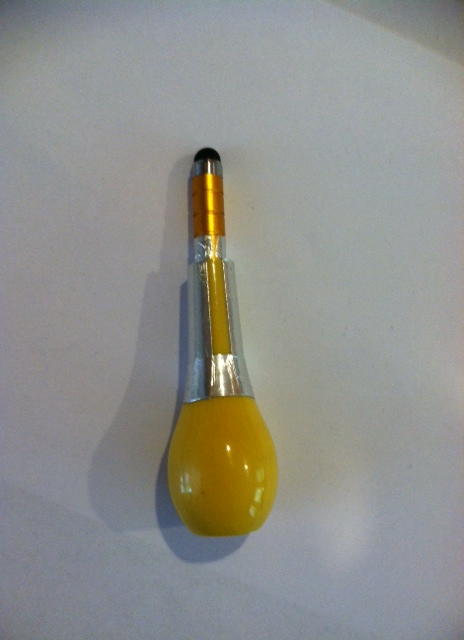
4. Adapted styluses with large bulb handles can be made with a few materials. You will find instructions for making this stylus here:

finished yellow stylus5. Sugru, a modeling material that is very sturdy,  can help with applying handles and grips on styluses as needed. Here is one created for a client – it was preferred by her over all other styluses trialed. Sugru is available in different colors. A very handy material.

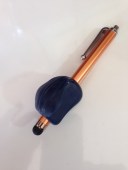
Stylus sugru 6. Adding  a griper  to styluses can also work. If adding a griper is not working, make sure you have some part of your hand or fingers connecting to the stylus. The Pencil Grip or Egg Ohs! are just a couple of options to assist with developing or maintaining a grip on a stylus.

The Grip with stylus pic

Stylus with egg oh grip

7. Adele, OT shared a adapted finger stylus created by the OT’s at the spine unit at GF Strong Rehab Centre:

“Some of the OTs I work with make a finger tip stylus (similar to a thimble) out of splinting material. They mold a short 2inch stylus into the splint. The stylus can be slid in/out of the splint for replacement. This stylus works well for clients who have the strength/movement of their finger to activate a touch screen, but do not have the fine motor control to keep their other fingers from accidentally touching the screen.”

8. Not particularly esthetic, but for a quick demonstration and trial this worked. Using a slip on typing / keyboard aid (below picture ; comes in different sizes and left or right), a stylus taped to the typing aid with foil tape for connectivity (used for furnaces; inexpensively available at hardware stores) created an adaptive method of input to the iPad. I found I needed to apply the foil tape to areas where my fingers touched the aid and also at the palm area for better conduction if using with the iPad. For resistive tablets, such as my Galaxy Tab, I could tape (standard) or glue,  or use Velcro to attach the stylus to the typing aid (no need for foil  tape for conductivity).

Typing aid used with the tip removed:

typing aid pic

First check out how your stylus activates, can it activate when holding at an angle, does the tip need to be directly down for activation? Since not all styluses are created equal, you might have to choose the right stylus for your student / clients needs to make sure it will activate depending on the direction and part of the stylus tip that is used. A heat gun used with the material of this typing aid could also modify the angle as needed.

Here’s my rather un – esthetic – but workable stylus adaptation (with a bit more time it could definitely look better…)

IMG_1935      IMG_1937

It worked…

IMG_1933

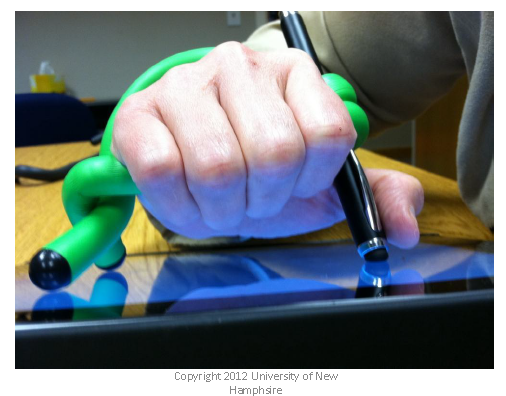
9. Another wonderful resource for AT solutions is Therese Willkomm’s book , “Assistive Technology Solutions in Minutes Book II” . Choked full of helpful resources and solutions for AT devices, self-care, adaptations and so much more, her book provides solutions with ordinary items. I have learned from her resources that industrial twist ties ( 17″) can provide a quick solution for grasps and handles. Here is one of Therese Willkomm’s stylus solutions¹:

STylus with twist tie pic

¹ Retrieved on 3/15/15 from: http://www.iod.unh.edu/ASI%202012/Strand%20E/E1_iPAD_201_Accessories_Adaptations_and_Resources.pdf

Therese Willkomm, Director of Assistive Technology of New Hampshire is truly a MacGyver of adaptive devices! If you are interested in more information on her adaptations check out her books, her YouTube Channel video instructions (consider subscribing), and the ATinNH website. You won’t be disappointed (she is amazing!!).

What adaptations have you found helpful?

Carol
Posted in Accessibility, Accessories, Android, Android Management, Assistive Technology, iPad, iPad Management, iPhone, iPod, iPod/iPad Accessory, Stylus | Leave a comment

Be My Eyes | Remote Help for the Blind – The Assistive Technology Daily

Be My Eyes is an app that allows blind people to request remote help from a sighted person when needed.

As scooped from Assistive Technology Daily : http://attraining.org/atdaily/2015/02/11/remote-help/

Assistive Technology Daily share a new iOS app that provides human assistance to individuals with visual challenges using remote connection. Check out  the AT Daily Post.

Carol
See on Scoop.itOT mTool Kit

Posted in Accessibility, Activities of Daily Living, Assistive Technology, iPad, iPad Management, iPhone, iPod, Low Vision/ Blindness | Leave a comment

Adaptive Styluses and Other Methods of Direct Access to a Tablet

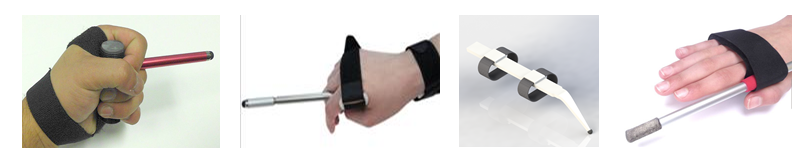
Styluses - adaptive x4 pic

Adaptive Styluses Commercially Available

A recent inquiry on adaptive styluses piqued by interest. It has been a while since I scoured the market for adaptive styluses so it appeared to be time to find what else is out there. Here are my findings:

Limitless Stylus (Prototype)

A prior post on OT’s with Apps presented a new development called the Limitless Stylus (30.). It appears very similar to the pointers created for quads for typing. It presently is in the development stage (to my knowledge).

Limitless stylus

RJ Cooper’s Tablet Handpointer
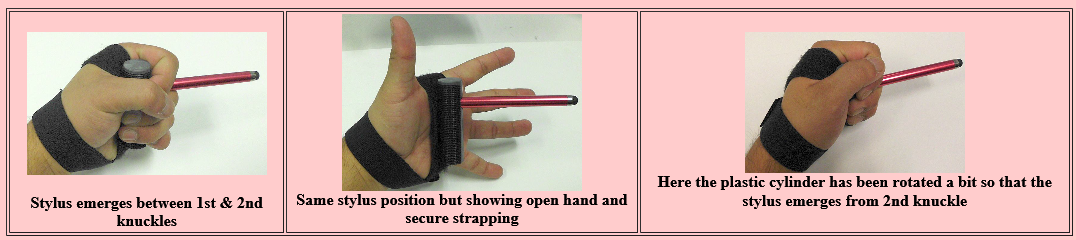
RJ’s Cooper Tablet Handpointer (29.00) is a very adaptable pointer for iPad or Android. His wrist and hand strap provides a very secure method of stabilizing the pointer to anybody’s hand. The stretchy Velcro and cylinder for the stylus also provides options of angles of the stylus pending the users needs. I have found this a comfortable and secure adapted stylus for individuals with tone issues.

RJ Cooper hand pointer pic

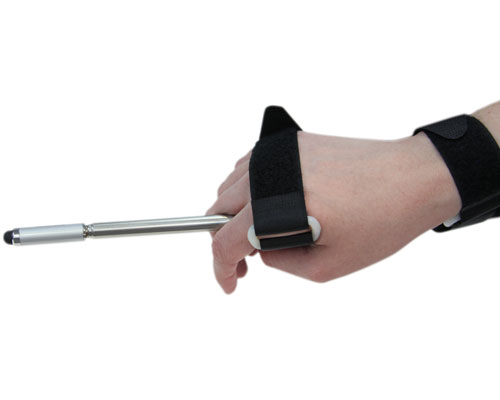
Adjustable Touch Screen Stylus
Available from Enabling Devices, the Adjustable Touch Screen Stylus  (89.95) has a telescoping shaft for customization of the device to the user. Velcro straps aid securing the device to the users wrist and hand. I have not had experience with this stylus.

Adjustable touch stylus - enabling devices pic

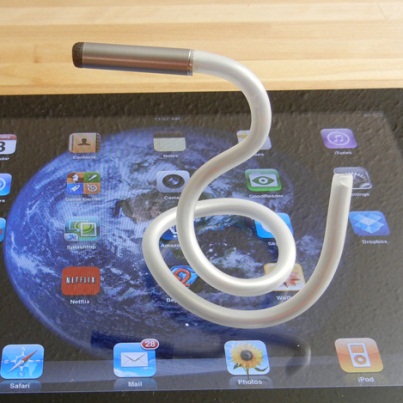
iFaraday Cadeus
iFaraday provides a unique and highly adaptable stylus, the Caduceus (20.00). I have had the opportunity to use and trial this stylus with clients. It’s concept is fabulous, unfortunately the contact of the standard stylus tip in my experience has to be straight on, not angled and sometimes is not responsive. They now offer a replacement SALT tip that I would expect is much more sensitive and make it so much more useable. Add a foam grip or strap and you have limitless positions and access with this stylus.

Caduceus stylus

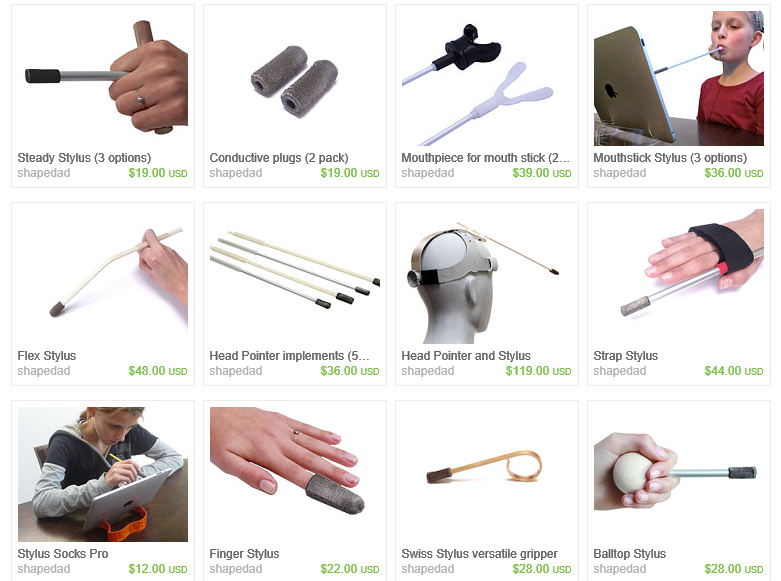
SHAPEDAD on Etsy provides a number of adaptive stylus solutions. Here are his collection and costs of  his adaptive styluses:

Shapedad styluses pic
I have not used any of his styluses but they seem to have withstood the test of time as Shapedad has been on Etsy for quite sometime.

Mouth Stick Stylus

The Mouth Stick Stylus from Shapedad as seen above provides access to the iPad with a mouth stylus.A lightweight device that does not required drag for activation.

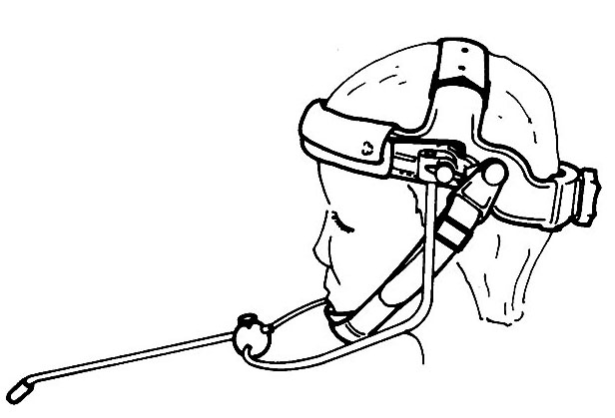
Zygo Head Pointers

The AD Head Pointer  (245.00) from Zygo is a head-worn pointers with a significant design advancement in providing efficient pointing from a psychologically and cosmetically sound perspective: the chin. Unlike forehead protrusion pointers, using an “out from the chin” device more realistically places the pointer in proximity to the item(s) being accessed. It also eliminates the unsightly barrier imposed by forehead pointers because it doesn’t interrupt either the wearer’s field of vision or the full view of the wearer’s face.

These AD Head Pointers have also just been upgraded to include a brand new tip so they can be used with iPad, iPhone, and iPod Touch, as well as other touch screen tablets including Android and all other AAC dynamic display devices. The AD Head Pointers come in three different sizes.

Zygo head pointer pic

Mouth pointers are also available from:

iFaraday – Mouth stick (20.00) that is light weight with a replaceable tip.

Stylus -R -Us – Provides mouth stick styluses. Their styluses are incredibly sensitive and would be a great choice for individuals with weakness who need a light touch to activate a device.

These are the commercial adaptive styluses found from my search. What other adaptive pointers for tablets do you use?

Carol
Posted in Accessibility, Accessories, Android, Android Management, iPad, iPhone, iPod, iPod/iPad Accessory, Occupational Therapy, Physical Disability Tool, Special education, Stylus | Tagged , , , , | 2 Comments

The Limitless Stylus

Limitless stylus

The Limitless Stylus

An inquiry about a finger stylus for a child with CP prompted my search for what type of styluses might be available at the current time. Like apps, tools for mobile devices are being developed and also go off the market constantly.

Although my search for a finger stylus yield minimal results, a comment from developer and engineer Paul Tudisco, shared his new stylus, The Limitless Stylus. A project for a real need with a client and engineering students produced this stylus. It appears to be still in the development stage.

Here are some images and a media clip on The Limitless Stylus prototype. It is projected to be available in different sizes (toddler 1-8; children 8-13, adult 14+, has replaceable tips ( fabulous!) and colored straps.

Limitless stylus

For more information check out The Limitless Stylus website. This looks like a great design! I hope to be able to working with the stylus. Until then, I am thinking about how to macgyver my own adaptive finger stylus!

Any other ideas until production occurs?

Carol
Posted in Accessibility, Accessories, Android, iPad, iPad Management, iPhone, iPod, iPod/iPad Accessory, Occupational Therapy, Physical Disability Tool | Leave a comment

Great Apps from Generous Developers!

Thank you pic 3-2015A huge thank you to the following app developers for supplying promo codes to OT and PT’s at a recent OT’s with Apps Workshop:

CClaroPDF iconlaro Software for providing ClaroPDF apps (2.99) to participants. ClaroPDF (IOS) is an annotation app with text to speech options for reading document and fillable text for the user. A huge benefit is an easy workflow method to upload and access Google Drive.  Claro Software continues to make improvements while offering their app at a great price. This app is great for students with a learning disability or dysgraphia. For more information on ClaroPDF see previous post (no it is not currently free!).

Keedogo plus icon

Assistive Ware for providing promo codes for Keedogo (1.99), Keedogo Plus (4.99) and Keeble ( 14.99) apps. These apps are relatively new, third-party keyboard apps for iOS 8. They offer differing levels of supports for keyboard input for individuals with special needs. Features include, but not limited to ABC and QWERTY keyboards, Keeble iconlarger keys, colored keys and dwell, word prediction and switch access in the Keeble apps. These keyboard apps allow great UDL options on the iPad. Assistive Ware has a huge commitment in developing software for individuals with special needs. For more information see prior post, Keeble Third Party Keyboard app.

Marble Math Jr iconArtgig.com for offering Marble Math Museum and Marble Math Jr apps. Many of the Marble Math apps provide math games requiring bilateral and eye hand coordination tasks. Used as a reinforce or to work on visual motor, motor planning or bilateral coordination they also provide academic content – just don’t tell the kids! Well developed, appealing and intuitive these can be appropriate for OT’s or PT’s who work with students with mild coordination challenges. For more information on Marble Math and Marble Math Jr. check out this prior review Maze Activity App, From the Voice of Experience.

Ready to Print iconEssare LLC (Diane Reid, OTR) developers of Ready to Print app for iOS , Amazon Kindle and Android  (9.99). Ready to Print app provides pre-writing, letter formation and writing activities that can be customized for each user. Multiple users and data collection are features of this very useful app. Great tool for OT’s and home programming. For more information check out this prior Ready to Print post.

PT Tools icon

David Raney, PT, for PT Tools (3.99) promo codes to PT’s (and some OT’s). PT Tools app supplies 9 different therapy tools. Not all of the tools were appropriate for pediatric practice, however PT’s found a number of tools appropriate for pediatric use (goniometer, posture cam, gait analysis, metronome). Tools available in the app:

  • Goniometer
  • Inclinometer
  • Stopwatch
  • Posture Cam
  • Rep Counter
  • Metronome
  • Video Gait Analysis
  • Timer
  • Heart Rate Monitor

Search for apps appropriate for PT’s resulted in trialing a number of goniometer apps . I found the PT Tools goniometer  to be among the easiest to use. Of those goniometer apps provided to the PT’s  participating, they also concurred with the PT Tools goniometer’ ease of use.

While there were many other apps and uses of the iPad reviewed, trialed and discussed with participants, providing demo codes allows all participants hands on experience with apps. Again, many thanks for the generosity and continued support by developers in sharing their apps with participants!

Interested in participating or hosting an OT’s with Apps Workshop? Feel free to contact me at: otswithapps@gmail.com .

Carol
Posted in Android, App Reviews, Apps for OT's, Apps for PT's, Apps for Special Needs, Dysgraphia, Education, Handwriting, iOS, iPad, Letter Formation, Special Needs, Therapist/Teacher Tools, Third Party Keyboards | Tagged , , , , , , , , | Leave a comment

Step-By-Step App from SOAR

StepbyStep icon

StepByStep App


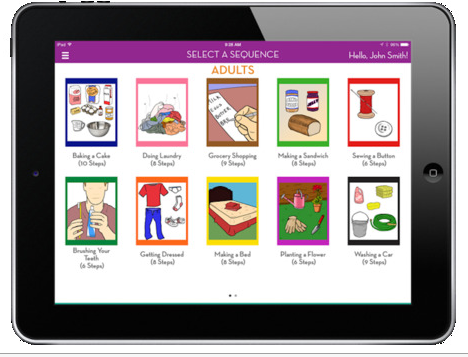
StepByStep app   for iPad, (free, in-app purchase for additional sequences) is a OT created app requiring sequencing clip art pictures of steps of activities of daily living and instrumental activities of daily living for children and adults. Steps of activities of daily living are provided in varying length (from 3 to 10 images)  requiring drag and drop to attain correct order of the activity.

Stepbystep pic1

The free app provides two activity of daily living sequences for each kids and adults . In app purchase of all kids or all adult sequences is available for 9.99. Purchasing each sequence is .99. Activities of daily living activities available include task sequences as brushing teeth, getting dressed, donning socks, washing hands, telling time, writing an email, doing laundry, making a sandwich, planting seeds , buying a candy bar and more. Mobility sequences of transferring in/out of a car, transfers with a shower chair, ascending stairs and sit to stand and stand to sit ascending a stairs for individuals with an impairment are also included.

Stepbystep pic2

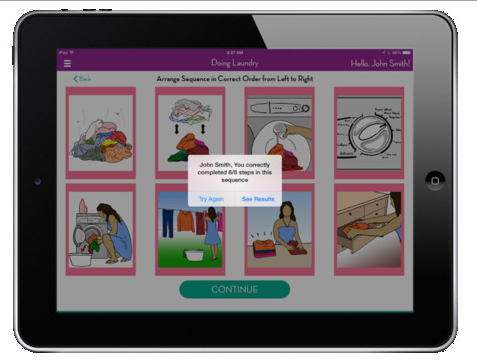
Feedback in the form of a text message is provided to the user with completion of sequencing the tasks.

STepbystep pic3

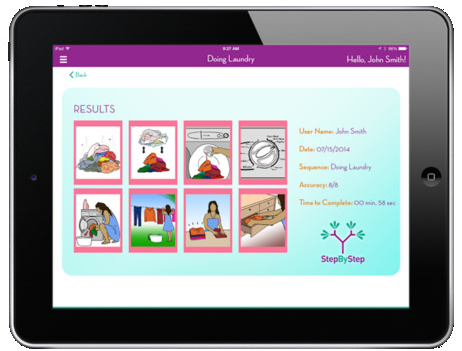
Multiple users can be entered into StepbyStep app. Results of their performance is provided with a picture of their completed task sequence.

Stepbystep pic4

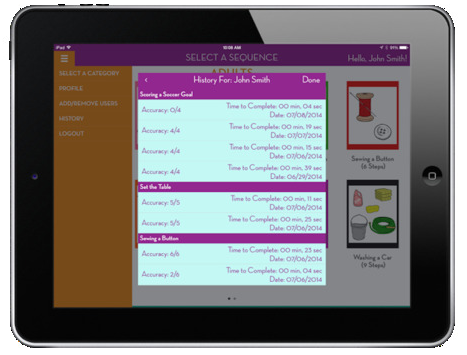
Monitoring user performance can also be reviewed in the user history which listing the task , date, accuracy and time it took to complete the task sequence.

Stepbystep pic5

At the current time I did not have a chance to trial this app with a client. The app is easy to use and navigate. Pictures of the visual sequences are clear and easy to understand. It would appear that users would easily be able to manipulate the sequencing task if capable of performing drag and drop.

Additional features I would like to see considered for StepbyStep app include accessibility options or multi-sensory options such as audio recording of each of the step of the task, text for multi-sensory feedback of steps of the task. Text on each of the steps or the option to add or turn on would also be helpful for those individuals who are text-based to provide clarification of the step. An auditory feedback when completed as a reward or try again would also provide clarification of task performance.

New ADL sequences can not be created and imported into the app. A few sequences I would like to see offered include washing face, combing hair, packing a backpack for school. It also would be great to be able to be able to assign sequences to a user and send a PDF of the pictured sequence items that can be cut out and shared with parents as home programming.

Have you used StepByStep app? Share your experience.

Carol
Posted in Activities of Daily Living, Adults, App Reviews, Apps for OT's, Apps for Special Needs, Early Childhood, iADL's, iPad | 2 Comments
Voice Dream Writer – On Sale

Voice Dream Writer icon

Voice Dream Writer App


Voice Dream Writer app, newly debuted in the past few weeks is on sale this weekend ( 1-29-31/2015). for 7.99. A compliment to Voice Dream Reader app, Winston Chen’s Writer app provides tools for the struggling writer.

Here are a few views of the app:

Voice Dream WRiter pic1

Interested in a video review? Check it out here: Voice Dream Writer app video

Carol


Posted in Apps for Special Needs, Assistive Technology, Dysgraphia, Dyslexia, High School, iPad, iPhone, iPod, Learning Disability, Writing | Leave a comment

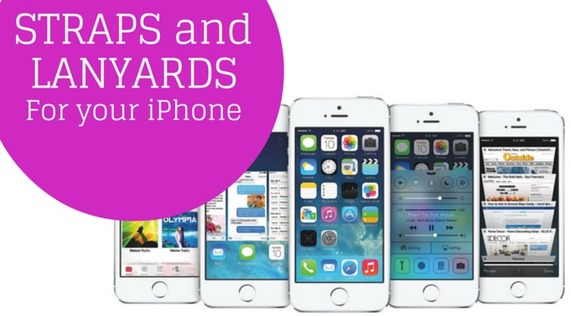
Lanyards and Straps for iPhones and iPod Touches | ATMac

There are not a lot of ways to permanently attach a strap or lanyard to your iPhone or iPod Touch – but there are probably more than you think there are. Here are our best suggestions.

Source: http://atmac.org/lanyard-strap-iphone-ipod-touch#comment-1058

A HUGE H/T to Ricky Buchanan for the extensive post on ATMac.org, ” Straps and Lanyards for your iPhone”! There are dozens of fabulous suggestions and links on ways to attach and secure a device using straps, lanyards and cases for iPhone and iPods.

Thank you much Ricky for your time and for sharing your resource list.

Carol

As scooped on Scoop.itOT mTool Kit

Posted in Accessories, Communicaton, iPhone, iPod | Leave a comment