Google Docs Voice Typing Tool

Voice typing big

Did you know that a new Voice Typing tool is available in Google Docs (since September 2015) providing speech recognition as a option when using Google Chrome Browser? I may be the only one who was not aware of this new tool, readily available in Google Docs!

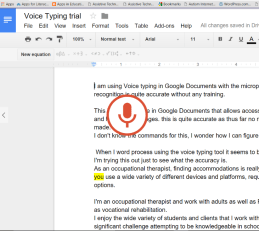
Easily available, this tool can be turned on in Google Docs from the Tool menu.  Selecting the Voice Typing option in the menu activates the tool. It’s as easy as that!
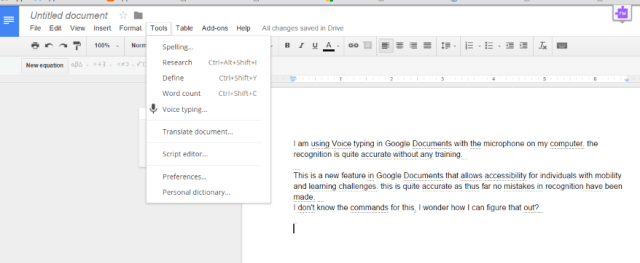
Voice typing screen shot 2The microphone is then available requiring a click to begin  voice recognition within the document.
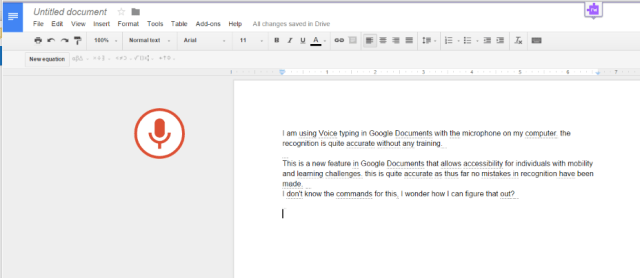
Voice typing with mic

The command  Ctrl + Shift + S (Cmd + Shift + S on a Mac) on your keyboard can also be used to activate the voice recognition tool. The microphone toggles on and to when clicked.  A functioning internal microphone or external mic is required for voice recognition.

A few voice commands are available for punctuation and  very basic navigation. The following commands were listed in Google support :

  • “Period”
  • “Comma”
  • “Exclamation point”
  • “Question mark”
  • “New line”
  • “New paragraph”

Correct mistakes while voice typing

If you make a mistake while you’re typing with your voice, you can move you cursor to the mistake and fix it without turning the microphone off. After correcting the mistake, make sure to move the cursor back to where you want to continue voice typing. You can also right-click words underlined in grey to see a list of suggestions.

Voice recognition is only available for the following languages: English, French, Russian, German, Italian and Spanish.

Accuracy

Initial trial using Google Doc’s Voice Typing tool found accuracy to be at 99% (accuracy in 301 of 303 words). Using my computer’s microphone with verbiage about occupational therapy and assistive technology recognized most of my vocabulary. Misinterpreted words were offered by selecting the word with my cursor, and right clicking. A list of words was generated that could be selected for correction listed. In the 303 words produced errors were: vocation for location and ergonomics for ergo nomics . It was easy to correct the errors using the select and right click with the cursor. I wish my iPhone voice recognition could translate at this rate of accuracy. The word ergonomics has not been correctly recognized after many, many occurrences.  I found my first trial using Voice Typing in Google Docs  quite impressive!

More Information

For more information about Google Doc’s Voice Typing and trouble shooting can be found at: https://support.google.com/docs/answer/4492226?hl=en

Here is a short YouTube on Voice Typing:


Have you or your students used this tool? How accurate has it been for your students?

More for your OT eTool Kit!

Carol
 

Posted in Accessibility, Adults, Adults with LD, Apps for OT's, Apps for Special Needs, Assistive Technology, AT for Handwriting, Google Chrome, Google Docs, Learning Disability, Mobility Impairment, Occupational Therapy, Physical Disability Tool, Special education, Special Needs, Universal Design for Learning, Voice Recognition | Tagged , , , , , , | Leave a comment

Sunu Band | Smart-Watch

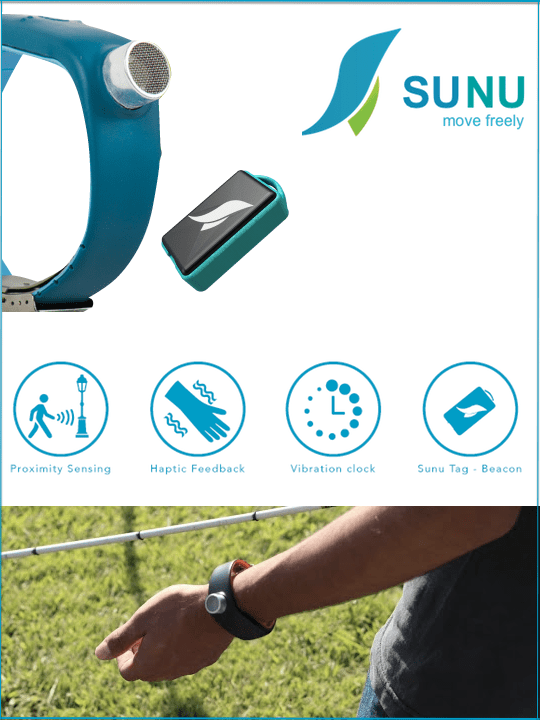
Sunu Band is a discreet smart-watch that uses sonar technology and haptic feedback to improve perception, orientation and navigation for those living with impaired sight.SMART-WATCH Discreetly tell time with Sunu’s haptic vibrating clock. ULTRASONIC SENSORSonar ‘look-ahead’ technology helps you sense … Continue reading →

This device is currently available for preorder: http://sunu.io/

As seen on Assistive Technology Daily.com


Source: Sunu Band | Smart-Watch

Posted in Accessibility, Activities of Daily Living, Adults, Assistive Technology, iADL's, Life Skills, Low Vision/ Blindness, Vision, Vocation | Tagged , , , | Leave a comment

Battery Drain and Mobile Devices

battery drain

Battery Drain ! Oh, No!

How dependent we have become on the use of mobile devices for communication, use of apps for organization, navigation with GPS, taking photography/videos – just to name a few. And – all those functions being dependent on battery life of the device being used, whether handhelds or computers. How often do you start your device, only to find the battery drained and unable to perform the task desired? Grrr…

During recent travel, my phone and iPad Mini were the mode of email communication, navigation, photography, and Internet resources for flight, museum schedules, ticketing, contact information and more. How frustrating when my battery drained, causing an inability to access information needed or take pictures (alright, I did have a camera but limited uploading pics to Facebook)! Certainly the battery issue is not isolated to traveling. It can be a daily frustration when using my device(s) for work at school or when working in the community.

Solutions

Managing settings such as Airplane Mode, turning on/off Bluetooth or Wi-Fi, Battery settings, Notifications, Display and Brightness and closing open apps (to name a few) are important to maximize the battery life. There were still times of battery drain, requiring use of my handy power pack and cord (see suggestions below), to juice up my device and access information.  I found myself changing many settings to reduce the drain – and my frustration level.

What are some of the main ways to manage battery life on devices? Here is a great article providing 10 tips on managing battery life for mobile devices:

How to Make Your Phone’s Battery Last Longer

Here are the recommendations for managing battery life in a nut shell:

  1.  Dim the screen brightness. This applies to any mobile device including tablets and computers.
  2. Keep screen timeout short.
  3. Turn off BlueTooth
  4. Turn off Wi-Fi ( use Airplane Mode ) whenever possible
  5. Use GPS and Notifications sparingly
  6. Don’t leave apps running in the background
  7. Don’t use vibration
  8. Turn off non-essential notifications (most communication and reminder apps have some type of notifications – your notifications app list may be very long).
  9. Manage push email settings
  10. Explore / enable Power Setting Modes

With the constant changes, installation of new apps and updates of the devices OS it’s good to peruse some of the settings such as Notifications periodically to see what settings are turned on and essential.

Portable Powering Up Tools

When battery life becomes a drain here are my favorite charging/power tools. Weight and compactness are extremely important for the ergonomics of what I often and carry for my OT and AT work.

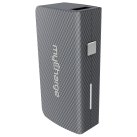
MyCharge Power Bank (29.99) – a little on the expensive side but I have purchased several others and they don’t charge as well, are heavier, bulkier and have not preferred. This 3000mAH power back can charge two devices (phone or tablet) while being charged with an attached USB cable. It is lightweight (2.4 oz.) and measures 3.5″ x 1.5″. A charging cord is needed.  I can carry this in my purse or brief case with little added weight or bulk!

MyCharge power bank

Smaller and larger sized My Charge power banks are also availagleble(2000mAh and 6000mAh ).

Retractable charging cords:

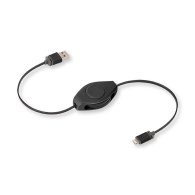
Retrak Lighting USB charging cord – This retractable USB cord available for Lightning and micro USB (Android devices) ports is one of my favorite accessories. No tangled cord, lightweight and easily carried, stored, connected and retrieved from my purse, brief case. Thus far this has been very durable for traveling and daily use.

Retrak Lightning USB Charging Cord:

Retrak cord for lighting

Retrak Micro USB Charging Cord:

Retrak for micro USB

What are your tips and tricks for maintaining battery life on your mobile devices? Do you have a preferred power bank that is easy to manage?

More for your OT eTool Kit!

Carol


Posted in Accessories, Android, Android Management, Assistive Technology, iPad, iPad Management, iPhone, iPod, Uncategorized | Tagged , , , , , | Leave a comment

WVU OT Students App Recommendations

Western Virginia University

Thank you to Dr. Anne Cronin, OT Professor at WVU and the 2016 OT Graduating Class for their app recommendations!

I appreciate their share of the recommended OT apps as listed below by category:

Wrist Movement Apps

Gyrosynth iconGyrosynth (iOS 2.99) – GyroSynth is a gesture driven music synthesizer, which takes full advantage of the gyroscope. You can play and modulate the sound by moving your hand through the air.

Labyrinth 2 iconLabyrinth 2 HD ( iOS iPad; 7.99) – The sequel to the original labyrinth game is available for your iPad, now with new levels for the iPad.


Quell app iconQuell (iOS; iPhone/iPad; 1.99) Quell is a game of logic .


Singing finger iconSinging Fingers (iOS; iPhone/iPad; .99) Singing Fingers lets you finger paint with sound. Just touch the screen while you make a sound, and colorful paint appears. Touch the paint to play back the sound .

Glyder 2 app – No longer available (?).

Rhythm Apps

Ticktock metronome icon androidTickTock  (Android; free) – Tick Tock Metronome is a simple metronome app.


Dancepad icon iosDancePad (iPad; free) –  Finger dancing game for the iPad.


Bongo Toucha iconBongo Touch – (iPhone/iPad; 1.99) – Bongo Touch is a challenging music rhythm game base on finger bongo drum style.


Babies Musical Hands icon iosBabies Musical Hands – ( iPad ; .99) (Android; .99) – A musical toy for babies and toddlers for Android  and iOS tablets and phones. On tablets, it features 15 brightly colored squares that your baby can touch. Red squares make drum sounds, yellow squares play piano notes, and blue squares play guitar notes. On phones, there are 10 squares to touch.

Large Motor/Physical Activity Apps

Jump jump froggy icon iosJump Jump Froggy – (iPhone/iPad; free) – A physical fitness and fundamental mathematical concept app encouraging  exercise and movement to make Flip the Frog and his colorful friends move.

fitquest lite ios iconFitQuest Lite – (iPhone/iPad; free) – FitQuest is an exercise adventure that is fun to play and good for your health. Powered by your own natural movements, jogging in place, hopping and ducking will get baby squirrel safely to the tree house.

NFL Play 60 iconNFL Play 60 – (iPhone/iPad; free) Created by the American Heart Association. You run, jump, and turn WHILE HOLDING YOUR DEVICE and your character does the same. You move and your character moves on screen

Other Notable Apps

Toca boca     All “Toca Boca” Games


Quest icon iosQuest – (iPhone/iPad; 1.99) QUEST is an interesting task management app with to do list with a game twist.


Puppet Pals icon iosPuppet Pals – (iPad; free) – Create your own unique shows with animation and audio. Pick out your actors and backdrops, drag them on to the stage, and tap record. Your movements and audio will be recorded in real time for playback later.

Quiver 3D coloring icon iosQuiver 3 D Coloring – (iPhone/iPad; free) The Quiver App combines physical coloring from “back in the day” with state of the art augmented reality technology to bring you and your children an extraordinarily magical experience.

Cookie doodle icon iosCookie Doodle – (iPhone/iPad; .99) Cookie Doodle is an app for iPhone and iPad which allows kids to recreate the cookie making process in a fun, innovative way.

Pot smash icon iosPot Smash – ( iPhone/iPad ; free) Challenge your brain while your fingers do the smashing. Combine thinking skills with quick reactions to smash every pot in sight.

Tap the Frog icon iosTap the Frog – (iPhone/iPad ; 1.99) – 21 different games within the app.


Dress up Professions icon iosDress Up Professions (iPad; free) (Android; free) – Professions, is an educational game crafted by PlayToddlers, in which the smallest of the house may have fun dressing adorable, providing children with different uniforms of professions, and after doing so, coloring them.

I Get cooking icon iosI Get Cooking – (iPhone/iPad; 4.99)  i Get… Cooking Vocabulary and Create Recipe Photo Sequence Books is an application providing photo books for

Thanks and best wishes to the 45  OT students of the 2016 WVU Graduating Class!

More for your OT eTool Kit!

Carol

Posted in Activities of Daily Living, Apps for OT's, Apps for PT's, Apps for Special Needs, Fine Motor Development, Finger Isolation, Movement, Movement Apps, Occupational Therapy, Special education | Leave a comment

Holiday Gift Guide for Assistive Tech Professionals

Luis Perez in the current Closing the Gap Newsletter shares a few AT shopping suggestions for an adaptive tech guru. Check out Luis’ suggestions:

Holiday Gift Guide for Assistive Tech Professionals

Happy holiday shopping!

Carol

Posted in Uncategorized | Leave a comment

ModMath 2.0 for Dysgraphia Available

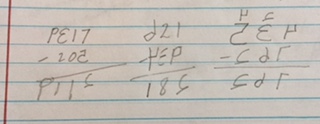
What are the numbers, or are they letters?

dysgraphia math

Is the math correct?

Teachers get really good at deciphering writing and math problems like those seen above after becoming familiar with specific students number or letter formations, but it is not easy at first glance, by any means.

OT’s working with students with dysgraphia or dyslexia are not unfamiliar with the number formations when working with students with dysgraphia. The above sample shows characters  written in an organized manner (columns, aligned and size is fairly consistent) improving legibility not always the case with students with dysgraphia or fine motor coordination  challenges. What might be a solution?

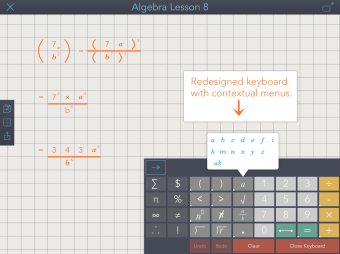
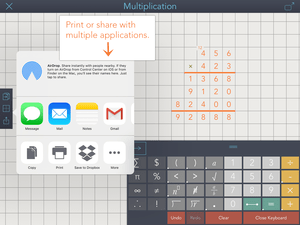
ModMath 2.0 app, an app for students with dysgraphia to the rescue! The 2.0 version  for iPad has new features, a new writing palette and additional in-app purchases to add other math symbols. ModMath app remains a writing environment, not a calculator providing an electronic note pad for producing math problems using an on-screen keyboard!

So what’s new with ModMath 2.0 app?

  • Math symbols for algebraic equations
  • Symbols for fractions
  • Symbols for square roots
  • Options for colored backgrounds and fonts
  • New tool bar
  • In app purchases for .99 each or 2.99 for all additional symbols (Pi, Sigma, Currency, Infinity, Percentage, Therefore, Factorial)

ModMath pic1

ModMath pic2

Other features allow sharing to different services, saving and searching files and thumbnail views of active pages of the document. Here are a few images of the new features of the app:

ModMath pic3

ModMath app has been a great, free iOS math support for students with dysgraphia, now improved and still free for the basic tools – AMAZING!

ModMath.com also provides a Help Center for how to questions.

Kudos to the developers,  who build this app for their son, and continue to develop and provide it for free to other struggling students! Please consider a Donation to help them continue to develop the app features and for Android. More on their story and goals are provided on ModMath.com and their Blog.

More for your OT eTool Kit!

Carol


Posted in Accessibility, App Reviews, Apps for OT's, Apps for Special Needs, Assistive Technology, AT for Handwriting, Dysgraphia, Dyslexia, Free apps, Handwriting, iOS, iPad, Learning Disability, Math, Occupational Therapy, Special education, Writing | Tagged , , , , , | Leave a comment

Eyedriveomatic |Eye Tracking Wheelchair Control Design Wins Hackaday Prize

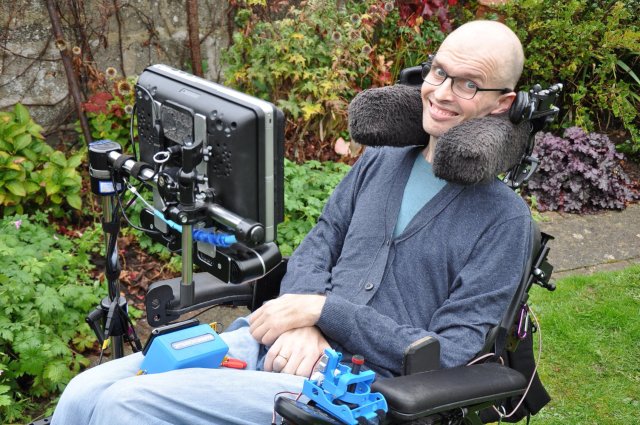
Eyedrivomatic uses the same technology utilized for text-to-speech in order to build a motorized wheelchair you can move with your eyes. A software package called Eyegaze enables subtle eye movements to control special computer software. Most commonly this is used … Continue reading →

Source: Eyedriveomatic |Eye Tracking Wheelchair Control Design Wins Hackaday Prize

Shared from The Assistive Technology Daily!

Posted in Uncategorized | Leave a comment

It’s About Time!

timer

Apps for Time Management – A listing of organization for time management, memory and planning.

It’s About Time Presentation – ATR 2015

Posted in Uncategorized | Leave a comment

iFaraday Styluses

Caduceus stylus 2

The Faraday Website and Caduceus Stylus is Back!

I had a number of contacts from readers about the links to the Faraday Caduceus Stylus not working, and searches for its existence leading to a disappearing website. Good news, contact with the developer and creator of the Faraday styluses found that a change to a new domain and website was the cause of the temporary disappearance.

The Faraday Stylus website is back up and running with the styluses available for purchase!

If you are not familiar with what the Faraday styluses are they are handmade styluses with mesh tips for capacitive devices such as the iPad, or iPhone. One of the most unique features of the Faraday Caduceus stylus is its incredibly light weight, flexible shaft and connectivity, allowing it to be adaptable for a wide range of client needs.  The Caduceus Stylus is one of few of its kind.

Caduceus stylus

Different tips can be interchanged for the Faraday styluses. My favorite tip is the SALT tip, a very sensitive mesh tip that can make contact at different angles.

caduceus pic2

The Caduceus is one of a kind stylus, resulting in a bit of a panic when the website disappeared. What I learned from contact with the maker, is each stylus is  hand made. The maker/developers website also mentions he will work directly with anyone who needs to try and customize or design a new stylus to fit their needs!

The new Faraday website can be found at: Faraday Stylus (http://fd-stylus.com/wordpress/). Contact information is also available on the website if you have a special need.

So welcome back Faraday Styluses! For OT’s looking for adaptable tools for access, we are happy you are back! Updates to links on the device lists will be forth coming!

Carol –  OT’s with Apps!

Posted in Accessibility, Accessories, Assistive Technology, iPad, Stylus | Tagged , , , | Leave a comment

Ghotit RealWriter App and Ghotit Real Writer Software

Ghotit brand pic

How often are spelling and grammar skills identified as “terrible” or “non-existent”  when evaluating struggling writers for AT tools?

In my experience spelling and grammar challenges are frequently mentioned during AT evaluations when writing is a challenge, whether  secondary or post secondary students or adults in the work place. Although a perfect tech solution for grammar and spelling challenges isn’t available (unless you have immediate access to an English teacher), there are a variety of electronic solutions that help identify spelling and grammar challenges.

Ghotit Real Writer and Reader  is one such solution for spelling and grammar checking. Available as stand alone software for Windows and Mac computers, it also can be purchased as a mobile app for Real Writer – Reader for iOS ,  Android tablets and phones. Developed by and for individuals with dyslexia, Ghotit provides both reading and writing supports for a wide variety of needs for individuals (not limited to) with ADHD, LD, and ELL in education or work related tasks.

Here are the supports Ghotit software provides in both software and apps:

  • Text to speech with customizable highlighting options
  • Word prediction
  • Customizable word prediction topics
  • Word Definitions
  • Homophone descriptions
  • Context based grammar supports
  • Spell checking tool with text to speech
  • Customizable background and text options
  • Ability to transfer text to different formats  both on mobile and computer based devices

I have been trying out both the Ghotit Windows software and Ghotit Real Writer iOS App for familiarity with the features and what sets this software or app apart from other similar apps and software. My experience with the applications finds the following:

Word prediction tool

Word prediction tool right out of the box supports higher language needs for secondary and post secondary students. It provides phonetic spelling supports and also appears to offer words by context. Unlike many other word prediction tools, it provides many features with the predicted word: the definition, text to speech and clarification of homophones and homophone word choice by context.

Spell checking tool

Aberrant spelling errors were identified with correct word typically offered in the spelling or word prediction choices.

Grammar tools

Trial use of homophones such as there, their and they’re using Ghotit identified and corrected usage error within a sentence. Grammar correction is also provided within the context of the sentences typed.

Other software options:

Settings provides a variety of options such as speech rate, word and phrase highlighting colors and choice, as well as text size, font, and word prediction options. Words can be added to the users personal dictionary as well as availability to edit (delete words) the personal dictionary. Word prediction has options to learn words, add/select a new or existing topic dictionary.

Documents can be shared as text, opened in another app, printed, text emailed or attached to an email.

Here is a video on the use and features of Ghotit software in action:

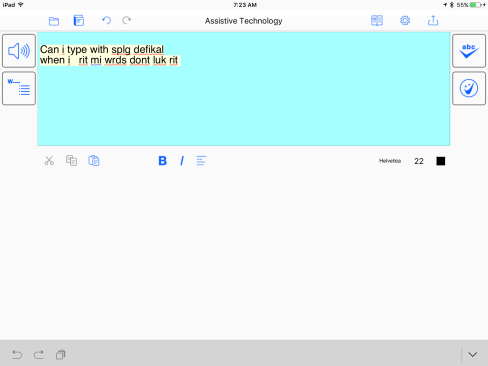
Ghotit Real Writer icon iosThe Ghotit Writer app for iPad, provides the same features as the software.  Here are a few images of the iOS Ghotit app workspace and tools:IMG_1428 IMG_1432

Software Costs: Software and apps are  available as single license software for PC and Mac computers (199.00) and apps on mobile devices (iOS, Windows tablets and Android for 99.00). As single license software for an advanced spelling and grammar checker the cost is competitive. As an app the cost is somewhat high in my experience.

Summary: Ghotit RealWriter software and app provides advanced spelling and grammar checking for individuals with dyslexia or learning disability. It provides good support for those needing phonetic and grammar supports during the writing process.  As an advanced spelling and grammar checker, I would recommend the software an AT tool for individuals needing additional support.  Cost of the software is competitive when comparing it to like applications.  As an app, although it provided advanced features it appears to be quite expensive when compared to other similar iOS apps.

Interested in additional information on Ghotit software? A 2012 CALL Scotland.org article “Advanced Spell Checkers Compared:  Ghotit, Ginger and Oribi Verispell , provided good information on comparable software.  Ghotit software was found to be an effective writing tool for individuals with learning challenges. Ghotit software has been around for quite a few years indicating the developers have supported and continue to upgrade the software to current operating systems to make it work. For more information on Ghotit, visit their website: http://www.ghotit.com/.

Thank you to Ghotit.com for providing the software for review.

More for your OT eTool Kit!

Carol

Posted in Adults with LD, Apps for OT's, AT for Handwriting, Grammar, Word Prediction, Writing | Tagged , , , , , | Leave a comment