Google Docs Voice Typing Command List (expanded)

Voice typing mic pic2

Google Doc Voice Typing


Google Docs recently added Voice Typing tool provides a voice recognition tool for word processing within Google Chrome. This is a great new feature in Google Docs that requires no training and little set up. Voice Typing can be turned on in Google Docs under the Tools menu:

Using my computer’s microphone resulted in good speech recognition when using Voice Typing, matter of fact it is quite impressive!  In the past, voice commands for editing, navigating or formatting using dictation in Google were limited, reducing the functionality of the tool. Recent updates finds Google has added many new commands supporting speech recognition for more than just dictation but for navigation, correction and also for individuals who use screen reading to speak the cursor location, speak formatting among other options.

Here is a video on the new voice typing and commands:

A full list of all of the Google Voice Typing commands are available here: Type with Your Voice . Here are the Voice Typing command topics currently available (each area can be expanded showing numerous commands in the online resource. Note the below image does not have active links):

Google Voice typing commands - new 3-2016

Note- the above Voice Typing is only available in Google Docs and when using Google Chrome browsers.

If you are a GAFE school or a Google Chrome and Google Doc user interested in using speech recognition, check this feature out. Certainly how this functions may be dependent on your computer’s processor, voice quality and microphone. You may want to consider using a noise cancelling microphone headset for noisy environments.

How exciting to see universal design expand!

More for your OT eTool Kit!

Carol

Posted in Accessibility, Apps for OT's, Apps for Special Needs, Assistive Technology, AT for Handwriting, Computer Utilities, Education, Google Chrome, Google Docs, Learning Disability, Occupational Therapy, Special education, Spelling, Universal Design for Learning, Voice Recognition, Writing | Tagged , , , | Leave a comment

Flip Writer AAC – Available Again and Free!

Flip Writer AAC icon

Flip Writer AAC app

Flip Writer AAC app   is a communication tool for individuals with hearing and speech disorder who benefit from text based information for the iPhone and iPad.  The app also features  high quality text to speech, providing a voice to those with a speech impairment. Although OT’s specialty is not communication, there are times when communication becomes a barrier due to aphasia, hearing impairment, requiring a method to gather and share information with clients, friends or others when working in a hospital, clinic or other settings. Flip Writer app for iOS devices provides a tool to exchange messages with a mirrored writing environment for both communicating partners.

Flip Writer AAC pic1

Flip Writer AAC app is again available in iTunes and currently free. Regularly priced at 24.99 (I believe), this is a great deal and provides a tool that might come in handy for communication with clients or others. At 32 MB it won’t take a lot of space on your device like other symbols/picture based communication apps.

Already using Flip Writer AAC app or another app? Share your app suggestions!

More for your OT eTool Kit!

Carol

Posted in Accessibility, Activities of Daily Living, Apps for OT's, Apps for PT's, Apps for Special Needs, Assistive Technology, Augmentative Communication, Communicaton, Deaf and Hard of Hearing, iPad, iPhone, iPod, Occupational Therapy, Text to Speech, Writing | Tagged , , , | Leave a comment

Technology and the Elderly: A New Era –

Technology is not just for the sake of having a cool new toy to play with (although we all remember how cool it was to hold our first iPhone), but it should change and affect (positively) people’s lives […]…

Sourced through Scoop.it from: alreadyhomecare.com

Ron Burg from Already Homecare.com shared this blog post with regarding technologies for the elderly. His post provides a few new technologies that may help with monitoring your parents, clients or relatives using “new era” devices and services. More and more, technology becomes another option for keeping elderly at home. Not for everyone, but for the right parent, client or family, technology may provide a method of supporting elders in their home.


HT to alreadyhomecare.com for more tech applications and resources.

Carol

See on Scoop.itOT mTool Kit

Posted in Activities of Daily Living, Adults, Aging in Place, Geriatrics, Uncategorized | Leave a comment

AT and App Support for Executive Function: Middle School Thru Post-Secondary

EF 2wordle

I had the opportunity to listen to Diana Petschauer and Stacy Driscoll’s webinar on AT and Apps Support Executive Function recently as hosted by the CTD. An excellent webinar presented by two outstanding AT gurus, these specialists shared their listing of tools for executive function for iOS, Android as well as computers. The recording is available for review through the Center for Technology and Disability  and the handout AT and Apps Support for Executive Function: Middle School thru Post-Secondary is able available for free (bonus!).

The webinar was well worth the time and provided an updated listing of apps supporting students with executive function challenges. In today’s app market of thousands of apps, a current, focused app listing from experienced individuals is extremely helpful and time efficient! Many of the apps listed are also applicable to support adults with EF challenges in employment or activities of daily living. Meditation, shopping, task management, reminder/alarm, self regulation and more apps and devices are included in their handout.

The Center for Technology and Disability   is a web-based AT organization funded by the OSEP offering free webinars and disseminating information on AT for professionals, families and all others interested in evidenced based practices, services, research and tools supporting individuals with disabilities. If you are not a member already,  click here to register to access the rich resources offered through the CTD!

Check out the executive function app list curated by these AT specialists!

You will also find apps for executive function listed under “Organization – Students”,  “Organization – Adults”,  Relaxation, Self-Regulation, Time categories in the OT’s with Apps List – 10/2015.

More for your OT eTool Kit!

Carol


Posted in Android, App Reviews, Apps for OT's, Apps for Special Needs, Assistive Technology, Cognitive Impairment, Executive Function, Google Chrome, iPad, iPhone, iPod, Special education, Traumatic Brain Injury, Uncategorized | Tagged , , | Leave a comment

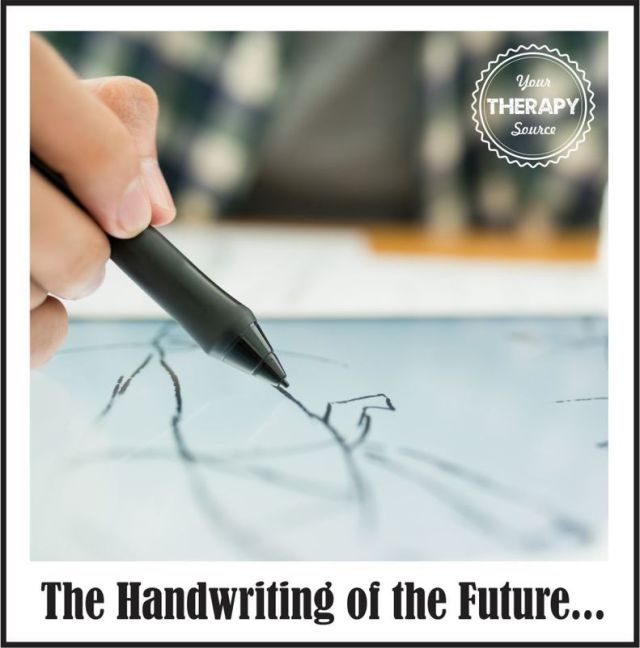
The Handwriting of the Future… | Your Therapy Source – www.YourTherapySource.com

It turns out that handwriting may be making a big comeback! Years ago handwriting was an integral part of the curriculum in our schools.

Sourced through Scoop.it from: yourtherapysource.blogspot.co.uk

YourTherapySource.com provides a review of a new Kickstarter development that supports handwriting, anywhere. Called the Phree™ , this new electronic pen records handwriting and shares it with  electronic devices using standard paper or any surface you can write on (your thigh, countertop without paper, refrigerator, dashboard, etc.). Touting note taking and handwriting recognition, the recorded handwriting or drawing can be sync’d to many different services and devices. The Phree does not record audio, however, used with other favorite apps and software such as OneNote which has recording capabilities, it appears to have potential to be another multi-sensory note taking tool. Here is a video describing the Phree™:

HT to Your Therapy Source for sharing this exciting new handwriting and note taking tool!

More information on this device can be found at Phree website .

More for your OT eTool Kit!

Carol

As Scooped with Scoop.itOT mTool Kit

Posted in Adults with LD, Assistive Technology, AT for Handwriting, Handwriting, Mobile Device Use, Note Taking, Uncategorized | Tagged , , | 2 Comments

Gyroglove for Management of Tremors

Regain your independence.

Sourced through Scoop.it from: gyrogear.co

The Gyroglove is a device under development by students and graduates of the engineering, medical and design programs at Imperial College of London. The mother of invention of one of the students who was working with a 103 year old woman with severe tremors that interfered with her ability to perform basic ADL tasks. The Gyroglove has been under development as a solution to counter act the tremors for improving functional skills.

This is an exciting new innovation that has the potential to aid clients in increasing their functional abilities.

I hope to see this available for clients in the near future!

More information can be found at http://gyrogear.co/gyroglove/ .

Carol Leynse Harpold, OT’s with Apps and Technology

See on Scoop.itOT mTool Kit

Posted in Uncategorized | 3 Comments

Gyroglove for Tremor Management

Regain your independence.

Sourced through Scoop.it from: gyrogear.co

The Gyroglove is the mother of invention for a 103 year old woman with severe tremors. The innovator of the Gyroglove identified the lack of solutions resulting in the woman’s limitations with performing basic self-cares due to her significant tremors.  Now currently a project of students and graduates of a mixed group of international students at the Imperial College of London with engineering, medical and design backgrounds. How exciting to think there will be more solutions for regaining or maintaining independence for individuals with tremors.

Read more about the Gyroglove at http://gyrogear.co/gyroglove/


Carol Leynse Harpold, MS, OTR/L, ATP

OT’s @ Work ; OT’s with Apps and Technology


See on Scoop.itOT @ Work

Posted in Activities of Daily Living, Adults, Aging in Place, Assistive Technology, Geriatrics, iADL's, Life Skills, Occupational Therapy, Physical Disability Tool, Self Care, Uncategorized | Leave a comment

iPad Air 2 Cases with Keyboards for Note Taking

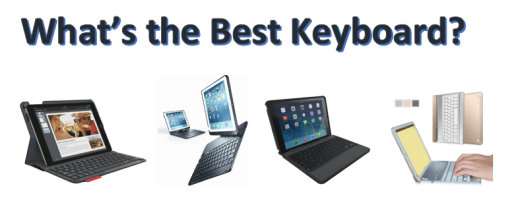
Whats the best keyboard image

Using the iPad’s for word processing, note taking or communicating increases dramatically with use of a keyboard. When evaluating the AT needs of students who are in secondary or post secondary and using an iPad, the need for a keyboard for the device typically arises. What do you look for and what are the choices available for iPad Air 2 cases when a keyboard is needed to support their writing needs?

Of course there are many cases with keyboards available. The right case requires inquiry about the needs, preferences and use of the iPad by the user. Here are some considerations:

  1. How protective of a case do they need for the iPad to survive?
  2. Will they be drawing or handwriting directly on the iPad for input to apps?
  3. Will they be reading on the device?
  4. Will they be taking pictures or using a scanning app with the device input or convert hard copy text to electronic format?
  5. What functions of the keyboard do they frequently use?

When considering the writing needs below are some suggested cases for the iPad Air 2 considering protective or less protective cases or keyboards that are available.

Protective cases with keyboard and reading/tablet options for iPad Air 2:

Zagg Rugged iPad Case –  This Zagg case is rugged but measures approximately 1″ thick adding bulk to the iPad. Highly protective, this hinged case allows the iPad to be separated from the keyboard. With the keyboard attached it can be used in a reading mode or typing mode with adjustable viewing of the screen. attached. The keyboard has backlighting and a standard keyboard.  The case battery reportedly will last for up to two years before requiring a charge. Sells for approximately 102.00.
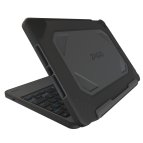
Zagg case with keyboard for iPad Air2 pic2

Logitech Type + with integrated keyboard –   Logitech keyboard provides a magnet which the keyboard attaches and automatically connects with the Bluetooth keyboard. When the iPad is closed sleep mode is turned on, saving tablet battery life. The Logitech keyboard is a standard keyboard with function keys supporting iOS tasks. The case is protective and can be taken off relatively easy if needed. TheiPad keyboard folds under the iPad allowing access to the screen if manually taking notes or drawing. Sell for approximately 80.00.
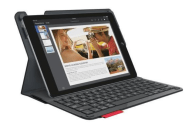
Logitech Type plus case w keyboard

Targus Versa case and keyboard for iPad Air 2 – This Targus case has a hard shell for the iPad and the keyboard with military specs for dropping from 4 feet. Rotates to offer keyboard mode or reading mode. When closed provides sleep mode to save battery life. Screen can be angled for ease of viewing. Offers iOS quick keys in the keyboard. Sells for approximately 79.00.
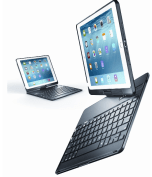
Targus hard shell case with keyboard for Air 2

Anker case with keyboard for iPad Air 2 – Case with keyboard that can provide keyboard and reading/tablet modes. No Apple quick keys. On off key for Bluetooth keyboard connection. Reports battery life of 6 months. Sells for approximately 43.00.
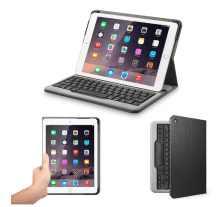
Anker keyboard case for iPad air 2

Belkin QODE Ultimate case with keyboard for iPad Air 2: – This case has a keyboard and protective shell for the iPad and folds to be viewed in a reading or table mode. Keyboard provides iOS quick keys. Cover puts device in sleep mode. Long lasting battery life. Screen can be adjusted in different angles. Sells for approximately 60.00.

Belkin iPad Air 2 case with keyboard and reading mode

iPad attachable keyboards without cases:

Logitech Ultrathin keyboard for iPad Air 2:  – This is a lightweight, slim option for use of a keyboard with the iPad Air 2. The Logitech keyboard attaches to the iPad 2 with a magnet. The keyboard turns on automatically when attached with the magnet. The iPad sleep mode is activated when attached to the keyboard and closed. Standard keyboard with iOS short cut keys. The magnet attaching the iPad is hinged allowing the screen angle adjustment. Keyboard battery life is reportedly 2 years. No protective covering for the iPad. Keyboard sells for approximately 55.00.
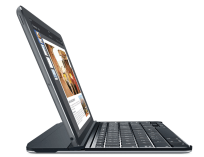
Logitech Ultrathin Magnetic clip on keyboard

Finite iPad Air 2 detachable keyboard – This keyboard is hinged and is detachable, Allowing ease of scanning documents and images or taking pictures. Provides angle adjustment of the tablet screen from 0-50 degrees. Keyboard provides iOS quick keys. Slight lag when attaching with Bluetooth with start up. Sleep mode when closed reduces battery drain. Keyboard is standard with good feel and responsiveness. No cover is provided for the iPad. I have been using this case for approximately a year and am pleased with its performance. Slight caution with use as infrequently the  iPad slipped from the hinges when moving it about. Recommend use by an adult. Sells for approximately 35.00 – a good value if used with care.

Finite keyboard for ipad Air 2.PNG

Summary:

iPad cases and keyboards are readily available, however the adage that you pay what you get for is probably true. I like my Finite case for my iPad Air 2, however I carry it in a sleeve and take care of how it is attached to the keyboard since it does not have a case. Most of my recommendations for students include a case with recommendations for the Zagg rugged case when I know the device may require extra protection. I recommend cases such as the Logitech Type + or Belkin QODE which are lower profile for individuals who will be taking notes involving sketching, math problems drawing or writing and when in need of a keyboard.  For those doing scanning a case that the tablet can be easily removed I find preferred.

Most cases now have iOS keyboard short cuts offered in the function keys. Checking the layout of the keyboard is important when working between devices. It is frustrating in my opinion to have keyboarding errors due to a different keyboard layout.

As always choice of equipment is individuals with many choice and pricing. It is always good to check out the keyboard at a store. I also find YouTube reviews extremely helpful in getting a closer look and opinions from reviewers – usually more than one

Do you have an iPad case with keyboard you are using and can recommend?

More for your OT m tool kit!

Carol

OT’s with Apps

 

Posted in Accessories, Assistive Technology, iPad, iPod/iPad Accessory, Keyboard, Uncategorized | Leave a comment

Toca Boca Apps Gone Free

Toca boca

More Apps ?

With so many apps available and a device loaded with apps it is hard at times to consider more – I resemble that! However, if you work with young children, apps like those created by Toca Boca may be well worth the download for activities for developing creativity, language, visual motor skills or just plan fun (reward activity choice?), especially if they are free!

The following Toca Boca apps are currently free (typically 2.99) and may be worth considering adding to your iOS  or Android app collection if not already part of your curated apps. Downloading them to your iTunes to rotate apps on your device might be a consideration. Here are the Toca Boca apps currently free (for an unknown, limited time):

iOS Apps Gone Free:

Toca Robot Lab icon

Toca Robot Lab – Create your own robots with body parts.

Toca Store icon


Toca Store – Sell at the store and handle money, counting and choice making.

Toca Kitchen Monsters icon


Toca Kitchen Monsters – Create meals for monsters and play with the food.

Toca House icon


Toca House – Mini games that engage kids with doing chores.

Toca Kitchen icon


Toca Kitchen – This might be the only time kids can choose what they will eat or cook and play with their food!


Android Toca Boca apps gone free:

Toca Kitchen 2


Toca Kitchen 2 – More cooking options in this food preparation app.

Toca Kitchen icon


Toca Kitchen – The Android app for cooking and playing with food.

Toca Boca apps are favorites with kids. Toca apps also keep information private and no in app purchasing is required.  Give them a try for your students, kids or grandkids!

More for your mobile OT or teaching tool kit apps!

Carol

Posted in Android, Apps for OT's, Early Childhood, Free apps, iOS, iPad, iPhone, iPod, Just for Fun, Uncategorized | 2 Comments

Sheboygan pianist wows despite cerebral palsy

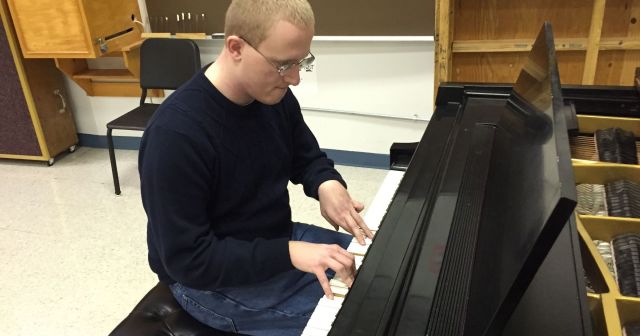
Lakeland College student Jacob Nault, of Neenah, makes a name for himself as a musician

Sourced through Scoop.it from: www.sheboyganpress.com

This is an inspiring story of a young man with passion and talent who has overcomes his disability by creating his own adaptive technique. No assistive technology, but this story reminds us as OT ‘s to think outside of the box, listen and consider all options! I couldn’t resist sharing this out with readers.

Read the entire story at: Sheboygan Pianist Wows Despite Cerebral Palsy

HT to Mrs. Roy for sharing out this great story!

Carol

As shard on Scoop.itOT @ Work

Posted in Uncategorized | Leave a comment