Converting Hard Copy Text to Digital Format

scanning

I can’t tell you how often I talk with clients about methods of converting hard copy text/papers to digital format for purposes of accessing information using text to speech, completing forms or for organizational reasons. Whatever the reason there are many ways of completing this task using portable devices such as portable scanners, scanning mice or  a mobile device with a camera and apps.  So what might be some good choices?

Using a Mobile Device with a Camera.

One of the most frequently used methods of scanning documents and converting it to electronic format is with the use of a mobile device with a camera. There are a couple of options when using your mobile device: use your camera or use a scanning app.

a. Using your camera to make a digital copy can work when all you need is a copy and quality of the image is not a concern. Taking a picture and storing it in your photo album, emailing it or saving it in a document can work. Lighting and positioning  can cause shadows and a product that may not be centered or flat. If all you need to to view it at a later time, that can work!

b. If a more professional copy is needed to share with a client,  employer or business purpose, use of a OCR Scanning app is recommended. You will still use the camera of your mobile device, but with a scanning app that will literally scan it using OCR- optical character recognition which detects the letters/word and symbols of the image and save it in a format that is readable or editable. The most typical formats are doc., txt or PDF formats that creates readable and editable text document documents.  When using a scanning app, most apps allow cropping, dimming or brightening and some editing capabilities. The scanning process reducing lighting and shadowing problems and allows cropping the scanned image or document to a standard size document creating a professional and cleaner copy. Scanning apps allow you to save the scanned document in a chosen format, and share the document via email, cloud service (dependent on the app) or for use in another app. This method allows easy storing, sharing and retrieval at a later time.

Scanning apps are plentiful for iOS and Android with a variety of features and paired or connected services. Here are a few of my favorite OCR apps:

OCR scanner apps for iOS:

Scanner Pro app by Readdle  (3.99 for iPhone, iPad) Exports to email, Dropbox, Google Drive, OneNote, OneDrive, iCloud, Evernote.

Readiris App ( 14.99 for iPad only) Compatible with VoiceOver.. Exports to email, Google Drive, Dropbox and Box.

Text Grabber (free; iPhone, iPad) Compatible with VoiceOver.. Exports via email, Evernote, Twitter or Facebook

OCR scanning apps for Android:

CamScanner app (1.99); Exports via email, Evernote, OneDrive, Dropbox and Google Drive.

Genius Scan (free/6.99); Exports via email, Evernote, Dropbox or Box.

Scanbot app (free) ; Exports via email, Evernote, Google Drive, Dropbox or Box

Portable handheld scanners.

These portable document scanners are small and can be easily carried in a case or back pack. The following portable scanners are rated well and can be easily transported:

Doxie Portable Scanner (  129.00 ). Portable OCR scanner about the size of a paper towel roll and weighing about 1.7 pounds. Scan  Syncs with PC, MAC and iPad using an SD card. No computer required.
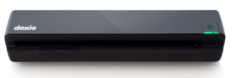
Doxie One

Doxie Go Plus (178.00). Portable OCR scanner same as above however longer battery life and higher DPI.

Scanning Mouse.

A scanning mouse can be a portable solution used almost any where to scan in a document when connected to a laptop or

Iris Executive Scanning Mouse 2 (77.00). Move the mouse over a document with scanning feature to input text information and convert to a digital format. Works with Window, Mac. Here is how it works:

There are a number of portable options to convert hard copy text to digital format, allowing individuals access to electronic documents for reading, writing or to organize files. Mobile devices and apps provide an easy method of managing documents for a variety of purposes by individuals with disabilities. With the availability of mobile devices, low cost apps can provide an inexpensive method of converting hard copy to electronic format. Other portable devices also are available to aid managing documents.

More for your OT eTool Kit.

Carol – OT’s with Apps and Technology



Posted in Accessibility, Accessories, Android, App Reviews, Apps for OT's, Apps for Special Needs, Assistive Technology, Cause and Effect apps, iPad, iPhone, OCR, Organization, Reading, Scanning, Text to Speech | 4 Comments

AWARE App – Creating Location Services Indoors

The AWARE app image

We are all familiar with GPS systems and most likely use it regularly to assist with locating businesses, homes and other attractions by address or GPS guides us to an address  or location, an essential tool for those of us who travel to and between new destinations. I travel regularly to new client residences or business and I am truly lost when my data plan has lost connection causing the GPS to fail in mapping the route to my destination.

For individuals with disabilities, GPS services are an important tool for their outdoor mobility. What about when they have reached their destination and it is a large complex with many floors with a building or many different  buildings to choose from? It is hard for me sometimes in large buildings or complexes to navigate to the correct room or floor with vision!  Whether an individual with low vision, blindness, intellectual, perceptual or no challenges, we all may have experienced situations where having an indoor guide system would be helpful to reach a destination efficiently and independently.

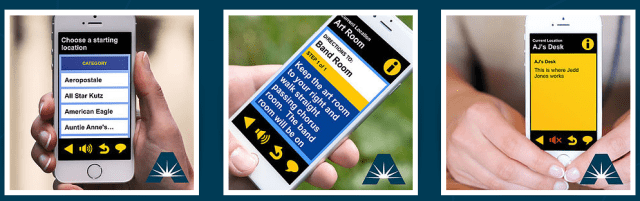
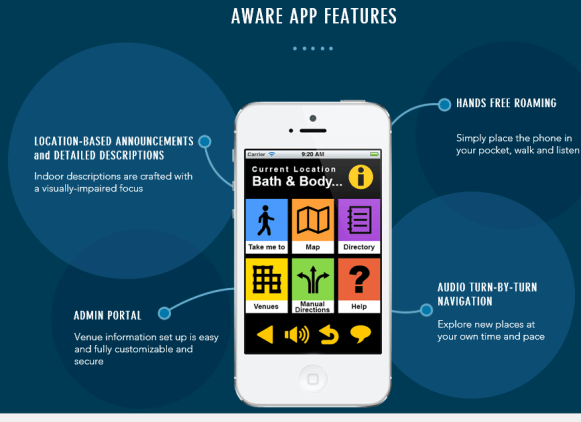
Check out AWARE app and services created by Sensible Innovations. This exciting and innovative new app and location service provides step by step guidance for indoor venues for individuals with visual impairments. Using the AWARE app (free) and iBeacons, directions for inside venues can be relayed via one way Bluetooth to and individual’s mobile device with the AWARE app. See the AWARE app in action in the YouTube below to gain more information on the app and the system:

Created by Sensible Innovations, this app requires their AWARE app , available for iOS and Android (free).

AWARE app pic 2AWARE app pics

The app requires iBeacons, programed and located strategically  in the venues to provide the user feedback and guidance about locations within the building or area. Think of the possibilities for individuals when iBeacons are located in public places.

Aware app pic3

A recent client with visual impairment  employed at a large convention center experienced difficulty with orientation and navigation, requiring assistance from others to get from one location to another within their work day.  Another client previously had significant perceptual challenges causing difficulty navigating a college campus as a new student. Both clients might benefit from guidance using AWARE app  for greater independence and reduced anxiety in their navigation at a new location. What a great innovation!

It will be exciting to see this service be available in the community and allow greater independence for individuals with disabilities in their navigation in and outside of their destinations!

For more information visit the Sensible Innovations website: ( http://www.sensible-innovations.com/#!aware-app/d45j6   )

More for your OT mTool Kit!

Carol


Posted in Accessibility, Activities of Daily Living, Android, App Reviews, Apps for OT's, Assistive Technology, Environmental Control, Intellectual Disability, Low Vision/ Blindness, Maps, Mobile Device Use, Occupational Therapy, Special Needs, Uncategorized, Wearable technology | Tagged , , | Leave a comment

Web Based Keyboarding Instruction for Students

It is too late for end of the school home programming recommendations, but here are some good web based keyboarding resources from Ask a Tech Teacher for student practice with appropriate progress for gaining keyboarding skills. Pass them or share them out, or add them to your keyboarding book mark for recommendations for next school year.

Teaching kids keyboarding isn’t about finding the perfect online website or downloaded software and setting students lose on a year-long self-directed journey of progressive lessons hoping their speed and accuracy improves. That might work for adults, but it’s a prescription for boredom and failure with K-8 students. They require a mixture of activities, only one…

via 3 Online Keyboarding Programs Students Will Choose — Ask a Tech Teacher

H/T to Jacqui Murray for providing these resources on her Ask a Tech Teacher website. She provides excellent resources and practical information on educational technology.

Carol

Posted in Assistive Technology, Keyboarding, Uncategorized | Tagged | Leave a comment

GPII – Global Public Inclusive Infrastructure  

GPII pic

For you OT Techies – Are you familiar with the Global Public Inclusive Infrastructure or  GPII initiative?

Thanks to The Assistive Technology Daily for sharing this new development of Cloud4All  and Prosperity4All  and other international agencies and businesses who have partnered is to create  a system of personalized cloud based access to electronic based tasks. This is an incredible forward thinking project, allowing on demand access universally to individuals with disabilities. Here is a video about the project and its goals…

The purpose of the Global Public Inclusive Infrastructure (GPII) is to ensure that everyone who faces accessibility barriers due to disability, literacy, digital literacy, or aging, regardless of economic resources, can access and use the Internet and all its information, communities, and services for education, employment, daily living, civic participation, health, and safety.As our countries build…

via Home | gpii.net — The Assistive Technology Daily

What an incredible international project and undertaking, allowing universal access to everyone, everywhere. Wow!

To read more about it, visit the Global Public Inclusive Infrastructure website for more information.

H/T to The Assistive Technology Daily

Carol


Posted in Accessibility, Uncategorized, Universal Design for Learning | Tagged , , | 4 Comments

Tar Heel Gameplay – accessible video games! — Jane Farrall Consulting

I’m very excited to say that there is a new option in the Tar Heel family – Tar Heel Gameplay! Tar Heel Gameplay lets you create a timed switch version of most videos. You can link to a video on YouTube and create a switch, touchscreen, keyboard or mouse accessible version of the video in…

via Tar Heel Gameplay – accessible video games! — Jane Farrall Consulting

Jane Farrall shares this new feature of the Tar Heel Family – Tar Heel Gameplay providing a switch option to videos. Check out her review on her blog. If you are not familiar with the Tar Heel Reader, make sure you check on the accessible reading options available online and also for download to your iPad offered by this great, free resource!

H/T to Jane Farrall for sharing this new option to the Tar Heel family of resources!

Carol


Posted in Accessibility, Apps for Special Needs, Assistive Technology, Cognitive Impairment, eBook Creating, Emergent Literacy, Game Apps for Special Needs, Leisure apps, Switch Access, Uncategorized | Leave a comment

About BlindShell | BlindShell — The Assistive Technology Daily

Working with individuals with blindness? Check out the Assistive Technology Daily’s recent post featuring an Android application for the VI…

BlindShell is a smartphone providing access to the Android system for visually impaired users. The environment is controlled by simple touch gestures. For voice feedback Text To Speech is used and as user interface feedback vibrations and sounds are used. BlindShell contains following apps: Call Messages Message to multiple recipients Contacts Alarm Notes Voice Recorder Files…

via About BlindShell | BlindShell — The Assistive Technology Daily

H/T to The Assistive Technology Daily for keeping us informed!!

Carol from OT’s with Apps


Posted in Activity Worksheets on Your iPad, Android, App Reviews, Assistive Technology, Uncategorized, Vision, Visual Impairment | Leave a comment

On the Cheap – Adjustable Stand for Your Computer, Keyboard and Mouse

Portable, Adjustable Computer/Keyboard/Mouse Stand

adjustable stand

Looking for a inexpensive sit to stand solution for positioning a keyboard, laptop or mobile device?

I  recently purchased the   Readaeer ® stand,  a portable,  adjustable computer /keyboard and mouse stand as a sit to stand component to my workstation.  After recommending these stands for clients for several years,  I decided to add this adjustable stand to stand component at my workstation. I have been working on an inexpensive sit to stand solution for a while, trialing  many  found objects (crates, boxes, other stands, etc. being the cheap person I am) to see what might be a comfortable, ergonomic, inexpensive solution.  Added as adjustable positioning for my keyboard and mouse when using an external monitor positioned on a shelf (or could be mounted or attached to an arm on the wall…) attached to my laptop computer provided appropriate ergonomic positioning for viewing (with bifocals..) and comfortable, neutral positioning of both the keyboard  and mouse when standing.   A Logitech Bluetooth keyboard and mouse , already used at my workstation, reduced the tangle of cords and allowed ease of repositioning these input devices from  sitting to standing, has  also  been a plus.  This has been the best solution yet, and fit my budget with my existing equipment!

IMG_2948

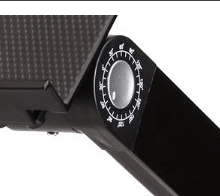
With many portable, adjustable stands available,  I found my pick of stands – the Readaeer ® Portable Stand with mouse platform -f a very affordable stand for less than $30.00. This stand accommodates a 17″ computer and also a mouse platform that can be easily attached to the right or left side of the stand. Both the tray  and the mouse platforms have angle adjustments to achieve ergonomic positioning along with  360 degree angle adjustments of the legs that allow you seemingly endless options of positions. Happily, the adjustable legs have degree markings to help with symmetry of the stand, otherwise it truly can get cockeyed  easily with just a slight angle off making it stand crooked!

adjustable stand pic7 angles

Here are some of the positioning possibilities with the stand along with how portable it can be when collapsed:

Weighing less than 4 pounds, this stand is also easy to carry if needed.

This stand has also provided a solution to many clients with mobility challenges that rely on positioning in a recliner as a comfortable positioning solution. The lightweight, 4 pound stand with multiple  adjustments allows it to be easily fit and lifted for use on  couches, beds,  soft recliner chairs as well as table tops.

adjustable stand pic5

Clients have also used this stand as an alternative for positioning documents when standing.

Although there are many different adjustable stands available on the market, I found the Readaeer ® Stand with mouse platform the most cost affective. Portable adjustable stands with cooling fans  (approximately $40.00) are also available if using it with a laptop computer with cooling issues.

Although there are many sit to stand solutions and laptop positioning solutions, this inexpensive solution has provided my best yet solution for my workstation as well as a solution for many clients and cost effective.

What are your cost effective laptop computer positioning solutions?

More for your OT eTool Kit!

Carol


Posted in Accessibility, Assistive Technology, Ergonomics, Mobile Device Use, Mobility Impairment, Occupational Therapy | 2 Comments

Voice Activated Phone — The Assistive Technology Daily

From the The Assistive Technology Daily

This voice dialing phone includes 3 voice commands and 17 remaining name and number memories. It also includes the convenient pre-dialing feature that speaks the numbers before dialing. It contains 80 talking CID numbers and the LCD displays the name as well. The phone includes other accessible and convenient features such as a hands-free function,…

via Voice Activated Phone — The Assistive Technology Daily

H/T to The Assistive Technology Daily who keeps us informed on the latest!

Thank you!

Carol


Posted in Accessibility, Communicaton, Uncategorized | Leave a comment

JACO KINOVA Robotic Arm

Kinova Robotic Arm

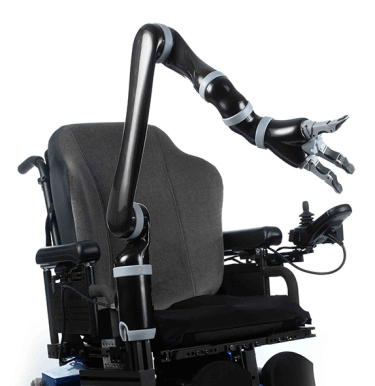
KINOVA JACO ²Robotic Arm

An amazing robotic assistive arm from KINOVA Robotics. See it in action:

For more information or to see other user applications visit the Kinova Robotics Website.

Think of the potential. As OT’s I expect we all can think of individuals this might benefit… Amazing.

Carol
OT’s with Apps and Technology

Posted in Accessibility, Assistive Technology, Environmental Control, Mobility Impairment, Occupational Therapy, Uncategorized | Leave a comment

More iPhone Lanyard Options for Security

       Lasso Attachment                                   Smart Catch

Lanyard Options for iPhone or iPod Touch

Finding the right tools for the job can often times feel like looking for that needle in a haystack. For a number of clients in need of work related cognitive supports, a device that is small and ubiquitous provides a discrete  tool with numerous options.  iPhones, iPod Touch, Android phones can provide supports that look no different than those used by the general public.

Protecting and maintaining mobile devices is another part of the solution, along with identifying apps, training and integration. When considering mobile device usage, protective cases and security is often an important part of the solution so the device can not  be lost or misplaced, or damaged. Cases, lanyards or other attachment methods often need to be considered.

A previous post on the Lanskin Lanyard identified a case and lanyard option for an iPod Touch. Each devices often require a specific case allowing access to power and audio ports, features such as the cameras, volume buttons  or memory cards. It is more typical than not that with each new model these features change in location or design requiring careful consideration of a case and devices for security. So what currently does a haystack search yield when looking for an iPhone 6 case and potential security attachment options?

A recent haystack search found a  few new iPhone 6  cases and devices that are durable and provide features that will help maintain a device with a client for security and easy access:

Kenu Highline Case  for iPhone (29.99 on Amazon)  with security leash and protective case. I have not trialed this case but it looks promising with a protective hardshell case and leash to retain this to a belt loop or other attachment for security.

Kenu case for iPhone

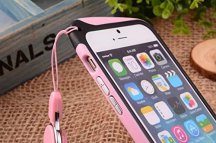
Feelglad Bumper Case Protection Shell Case for iPhone (13.95 on Amazon). Comes in different colors. Strap is adjustable and detachable.

     feelglad case details iphone

RealCase for iPhone ( 34.95 on Amazon) has a retractable lanyard built into the case.


Smart Catch holder for iPhone (36.00 on Amazon) fits over protective cases with lanyard attachment for security. Lanyard is detachable.

Smart Catch holder for iphone

Phone Lasso Grip for mobile phones (9.95 through Amazon) features an adhesive patch to attach to your device under a case.

     Phone lasso grip for iphone

Frog’s Tung Cable Cell Phone Leash for mobile devices (19.99) adheres to the device providing a leash for security. It is also detachable. A variety of Frog’s Tung Cable Leashes are available.

Frog's Tung Cable Cell Phone Leash     Frog Tung leash pic

Armband case for iPhone with Otterbox or LifeProof case (17.95 on Amazon). A variety of armband cases are available, however this accommodates Otterbox and LifeProof cases, some of the most rugged, protective cases available.

Armband for iPhone 6

Trial of the Smart Catch and Lasso on my iPhone (as shown in top pictures) finds these two viable options  at a low cost. These options could prove a temporary options for a work situations for attachment of a any phone or iPod Touch to a belt loop or lanyard offering security and easy access. Although not trialed the other options also provide methods of protection and security.

What other options have you used  for your students or clients?

More for your OT mTool Kit!

Carol – OT’s with Apps and Technology


Posted in Accessibility, Accessories, Assistive Technology, Communicaton, Intellectual Disability, iPhone, iPod, iPod/iPad Accessory, Occupational Therapy, Wearable technology | Tagged | Leave a comment