Free App Resources

Do you get emails sharing a free app for the day and by the time you get to that email or search for the app or the link it is no longer free? How frustrating!

Free is so fun and so much easier for some of us in the educational setting to access rather than going thru the requisition process and navigating the cumbersome VPP process! With limited budgets free is important. Free also allows you to trial an app with only the expense of your time (only???).

So where can you go to find free apps?

Here are a few websites I peruse to find listings of free apps. I won’t profess that this is an inclusive list, but was is offered has many apps both worthwhile for education and some not. Also visiting your favorite app developers also can help you find free apps (ie. Grasshopper or Alligator apps – do I mention them enough?) Here are my favorite free app websites:

iOSnoops – Provides a variety of both apps reduced in price as well as apps gone free. The list of apps are categorized by productivity, photography, games, education, books and more. Provides a nicely presented list with icon, rating and link to review on the app and direct link to the download. At times the app may have gone from free to pay before they up date the listing. I believe they post the free apps early in the am. This is one of my favorite websites.

FreeAppAlert – This website typically has a long list of apps categorized by iPhone and one for iPad. It does not categorize the app list but it does provide a category (such as business, education, finance, books) in the brief listing. Provides an icon of the app and a link to the apps preview in the iTunes store for more information. Again you will find all kinds of apps in the list, some worthwhile and some not.

AppAdvice – Another website that reviews apps. Their iOS Apps Gone Free section lists daily free apps. Their list is not as comprehensive, but it is another good resource for apps gone free.

All of these websites list apps for free for a temporary time, typically but not always, for just a day. I subscribe to these websites using my Google Reader account to allow review in one location when I have time.

Now you can be on top of apps gone free and send messages to others about the free apps. Happy free apping!

Carol

Posted in App Reviews, Apps for OT's, iPad, iPod, Occupational Therapy | Tagged , , , | 2 Comments

iPad Stylus – Purchase or Macgyver it?

iPad Stylus

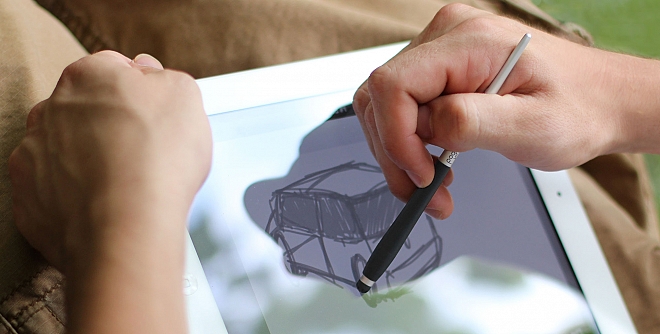
This summer, I found a need and interest in handwriting and drawing on the iPad. I bought a stylus realizing that my finger was not the best writing utensil but became frustrated at my inability to write small and neat even with a stylus. I started doing some research on styluses to see if I could find one that had a finer point. Here are some of the stylus choices:

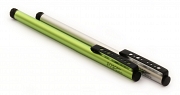
Pogo Sketch – A stylus for capacitive touch screens ($14.95) Pogo has been around for quite a while as a touch screech tool. This is their Pogo Sketch:

They also make a Pogo Sketch Pro with a slimmer shaft (OT’s you will shutter when you see the maladaptive grasp with the use of the Pogo Pro 😦 – Ouch it hurts my eyes!):

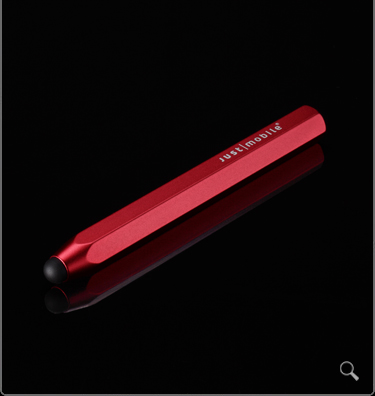
AluPen by Just Mobile – This pen caught my eye as a real possibility for young learners. It is a chunky, light weight pen. It reminds me of the pencils and pencil colors that were easier to handle than standard round pencils for preschoolers. It received good reviews and might work well for small kids hands without having to put a gripper or some kind of grasp on it. ($20.00)

SGP Kuel H10 Stylus Pen – Smaller tipped stylus pen compared to most of the others such as the Pogo. The pen has a strap that plugs into the audio jack making it convenient to locate. Compatible with iPad/iPod. ($12.99) .

Kensington Virtuoso Touch Stylus & Pen – iPad compatible stylus and pen combined. ($24.99)

ShapeDad’s Stylus Sock Pro – Small socks made of conductive material that slides over a pen holder.  ($5.00) (You can also find videos or instructions for how to sew these yourself)

There are many other styluses available.  If you are interested in an in-depth review of styluses check out these two articles:

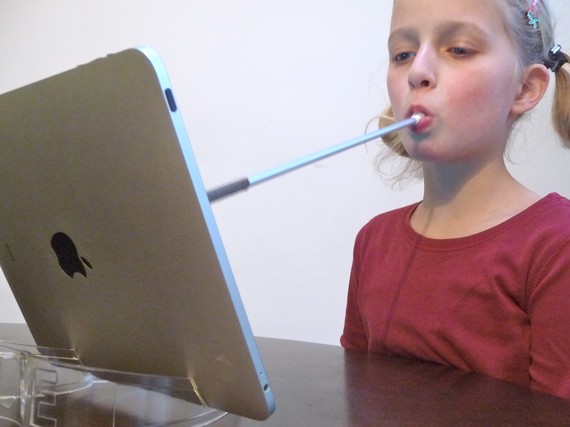
Here is a Mouthstick stylus!

Macgyvering a Stylus

Since I could not find an affordable stylus with a fine I decided to start exploring what else might work.  Using styluses for touch window in the past compelled me to trial old styluses and different materials and tips  (sponges, erasers, felt tips).  As a OT who loves to adapt and problem solve, I was driven to try to create my own.  Sponges worked so I started on taking pens apart to create a sponge tip. It worked but I still could not create a fine tip like I wanted.  After creating my sponge tipped stylus pen,  I found numerous YouTube videos already out there describing how to make your own stylus. Many different methods of making your own stylus using sponge material, foil, wire, glue or tape and a pen/marker/antenna/chopstick or marker are available on the Internet. If you are interested in making your own stylus or don’t have the funds to make one check these videos out or search for “how to make your own stylus” on the Internet:

http://www.techaccess-ri.org/?page_id=485 – Using marker, foam, wire and tape

http://ilearntechnology.com/?p=4221 – Using pen, foam and wire – geared to kids

http://www.techiesnoop.com/how-to-make-your-own-stylus-pen/ – Using an antenna, glue and foam

http://www.techieask.com/2010/05/make-your-own-touch-screen-stylus-from-any-pen/  – Using pen, wire and foam

http://www.youtube.com/watch?v=TcE46qvW4Xk&feature=related – Using chopsticks and foil

Styluses for OT

The subject of styluses came up recently as a fellow OT was discussing how she wanted a stylus to help transition one of her kindergarten students from using her finger on her iPad to using a writing utensil/stylus as another method of developing pencil grasp and control with a writing tool. A great therapeutic and motivating intervention for a young student and emergent writer when you have a mobile tool like the iPad. Many questions came to mind:

  • Which stylus would I purchasing soley for student use? (If I could afford that)
  • How would I adapt an existing Kensington Stylus for small hand use?
  • What kind of griper might I try to use (The Grip?)?
  • If I made one what one would I choose to make?

What would be your choice, make or buy? And which one?

Carol

Posted in Fine Motor Development, iPad, iPod, iPod/iPad Accessory, Occupational Therapy, Special education | Tagged , , , , , | 3 Comments

Evaluation Rubric for iPad and iPad Apps

How do you evaluate apps you are considering purchasing or downloading? Will you need to justify the types of “educational” apps you use with your students or clients?

There are many reasons for having different kinds of apps on your iPad. It may be to learn or reinforcement concepts, skills, for motiviation, sensory processing, calming, organization, reference, communication or productivity for yourself or the student/client?  With so many apps available out there, whether free or for purchase, how do you choose an app and how would you justify their use? What qualifies as a good app?

Initially, when looking or choosing an app information provided in iTunes will give you some good information that I look at to decide whether I will spend time or money on an app:

  • Is it visually present appealing or appropriate for the student or client who is working with it? Too busy, cluttered, graphics not appealing or clean? Are there ads, how obtrusive are the ads?
  • Does the content of the app fit my needs?
  • What do the reviews say? Are there too many ratings of three or below? Do the ads mention crashing, rated poorly?
  • When was it last updated? If it has not been recently updated will it work well with new iOS upgrades?

If rating are poor and updates have not been recent, even if it is free I may not consider taking my time downloading the app.

Once you have decided that the apps may be worth purchasing or downloading (if free) how do you determine what is a good app that you might recommend to others?

As professionals skilled in assessment, how would you evaluate the effectiveness or qualities of a good app? If you had to justify the reason for selecting or using an app how would you do that?

An Evalution Rubric for iPad/iPods published by Harry Walker of John Hopkins and revised by Kathy Schrock provides some guidance on evaluating apps.

This app rubric provides domains that are appropriate across disciplines. I believe adding a domain of participation and interaction might be appropriate when considering apps used for some students for communication or behavior.

This rubric I believe provides a method and terminology to assess and justify the use apps for behavior, sensory processing and interaction/participation that the iPad/iPod supports so wonderfully due to its highly mobile, immediate and interactive content.

Before I had used an iPad or iPod at school I would not have believed I would be justifying using apps like Pocket Pond, Fluidity or bowling on an iDevice. I get it now. The on demand, mobile and interactive qualities of the iDevices are amazing with students with behavior and sensory challenges! So when you are asked why you use Pocket Pond, Cat Fishing or Talking Karl on your iPad, a “4” in the domain of Student Motivation may help justify the use of those apps on your mobile OT tool.

Any thoughts?

Carol

Posted in App Rubric, Formative Assessment, iPad, iPod, Occupational Therapy, Special education, Uncategorized | Tagged , , , , | Leave a comment

Keyguards for the iPad

One of my earlier posts “iDevice Accessory Bonanza!”,  listed Technology for Education’s as having an extensive list of accessories for iPads and iPods. It does have a great resource for iDevice accessories as does RJ Cooper who always finds an access method or adaptation for devices for individuals who are physically challenged. With that said, there is always something new to be found out on the web!

In recent questing I found the ATMac: Empowering Disabled Apple User website featuring great information on accessibility issues for Mac hardware and software products. Written by Ricky Buchanan, ATMac has great insight on accessibility issues and products from his user perspective! At ATMac, I found great information and products associated with iDevices that I would not have found in my favorite websites or feeds.

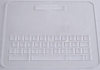
One of the recent posts on ATMac,  iPad Keyguards Available  , featured keyguards available for the iPad from a company called Lasered Pics. Lasered Pics has over 15 keyguards for Aug Comm Apps as well a keyguards for the standard iPad keyboard.

You will find the AAC keyguards featured on their website under the category Adaptive Technology Supplies .  Here is the current list of keyguards available for AAC apps from Lasered Pics :

  • Assistive Chat
  • Grace
  • iClick iTalk
  • iMean
  • My First AAC
  • My Talk
  • Proloquo2go with and without word prediction (3 different options)
  • Sono Flex
  • Speak It
  • Talk Board
  • Tap Speak
  • Tap to Talk
  • Touch Chat
  • Word Power 42

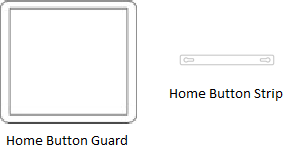
Other accessories such as two different types of home button guards/strips (different from the Bub Caps) to deter fingers accessing the home button to get to their favorite app are also available.

Advice on some iPad cases that will not work with the keyguards are also offered. If you are needing a keyguard and a case for the iPad there are definitely questions to ask! Lasered Pics also has other accessories and options of Colored Acrylic options to check out

As a OT with students needing help accessing the iPad, these resources were a gold mine.  Whether access to a keyboard or aug com system that certainly is a part of the services we offer. I did not see a keyguard for IntelliPad app which has word prediction and text to speech for written composition. Perhaps that will come if there is a need. I wondered if Lasered Pics makes customized keyguards upon request? Lasered Pics contact information is easily available on their website making inquiries easy.

What great resource finds – ATMac and Lasered Pics when working with individuals with physical challenges. These will be marked in my favorites!  How exciting to find more accessibility options that will help the clients or students we service be successful!

Carol

Posted in Accessibility, iPad, iPod/iPad Accessory, Keyguards for iPad, Mobility Impairment, Occupational Therapy, Special education | Tagged , , , , , , | 6 Comments

Lakeshore Learning Apps Gone Free!

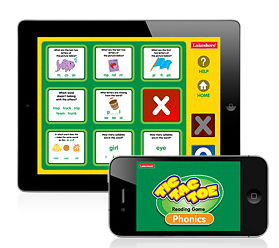
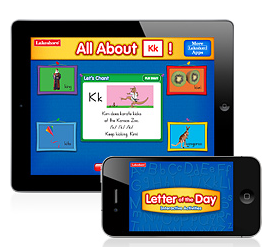
Lakeshore Learning, a company that sells educational materials, is offering three new iPhone/iPod Touch and iPad apps for free until December 30th. The apps are early literacy skill apps focusing on letter formation, phonics, letter identification, vowel sounds and beginning letter sounds. Although these may not all be helpful to OT’s, the Learning with Letters provides animated directions for their letter formation and ample practice opportunities within the app. You also can select the alphabet letter you want to work on from a drop down list.  Below are the three free Lakeshore Learning apps:

Phonics Tic Tac Toe Interactive Game – Focuses on exploring vowel sounds, syllables and more in a game of tic tac toe.

Letter of the Day Interactive Activities – Focuses on exploring the alphabet, provides animated lessons on letter formation, letter sounds and recognition of letters and words by sounds and sight.

Beginning Sounds Interactive Game – Features matching games of recognizing the same beginning sounds.

Thanks to Erin H. for finding these free apps!

Carol

Posted in App Reviews, Apps for OT's, AT for Handwriting, Handwriting, iPad, iPod, iPod/iPad Accessory, Letter Formation, Occupational Therapy, Special Education Teacher, Visual Motor | Tagged , , , , , , | 4 Comments

Visual Motor Worksheets on your iPad

Are you using paper pencil tasks with students such as worksheets for eye hand coordination tasks such as mazes, dot to dot, tracing in the lines, word searches, handwriting, letter formation, drawing and coloring activities?

Would you like the option to have a student perform these drawing tasks on your iPad?

Online resources for worksheets on many subjects are plentiful. Here are just a few online educational resources that organize worksheets by grade, subject or thematically:

Most offer free worksheet as well as may have memberships or subscriptions for educational materials but most worksheets are typically are in a PDF format that you can save on your computer or print out for use with the student. You’ve probably found your favorite sources already!

To make a drawing task or worksheet available for your students on your iPad I  use Doodle Buddy for iPad due to ease and familiarity of use.

So how do you do that?  First you need to get the electronic files on your iPad.

Here are a couple of ways to get the files onto your iPad:

Option A. Using Email:

  1. Save the worksheet to your computer then send it via email to an account your can access on your iPad.
  2. When the email is received the document is embedded in the email. Tap on the picture of the document (now an image) and “Save Image” or “Copy” choices are presented on the iPad screen. Choose “Save Image” which puts the image automatically to the Photos library.
  3. If the picture has extra text from the email use the Edit button (top of screen) to crop the picture using the crop tool that appears at the bottom right of the screen.
  4. Next open Doodle Buddy.
  5. To import your picture of the worksheet into Doodle Buddy first click on the small icon that looks like tic tac toe at the bottom right of Doodle Buddy screen (arrow in image below).

7. You will then get a background, photo and camera buttons (circled in red). Click on the Photos icon which takes you to your Photo library.

8. Once in your Photo library, find the image of the worksheet you want to use, tap it to import it into Doodle Buddy.

The “worksheet” image is now available to be used with the drawing tools. The chalk at the bottom center has drawing tools including a brush, chalk, glitter, smudge or eraser. Here is a finished product of a worksheet completed in Doodle Buddy.

Color and size of your line are other options available to you with the drawing tools.

Option B. Importing a Worksheet using the Camera

If you have an iPad2 with a camera you can take a picture of worksheets or pages and import them into Doodle Buddy to draw or mark on.

  1. Take a picture with the camera, centering the worksheet and getting the best picture possible. Lighting is important as is the background the worksheet is on. A photo of the worksheet will not be as clear an electronic document but it is doable.
  2. With your picture in your Photo library you can then follow Option A steps 5-8 to bring the pictures into Doodle Buddy for use.

When a worksheet is completed, options for what to do with it are:

  • Erase the students lines
  • Send it in Email (click on wrench at the bottom right of Doodle Buddy screen)
  • Save to Photo Album (another option in the wrench icon on bottom right of the Doodle Buddy screen)

Saving to your Photo Album can be a method of collecting assessment data on your student work. You may not want to save everything they produce but occasional products or repeated products for pre-post data collection can be another method of formative assessment.

You may want to organizing your photos in albums or using a photo album app asPhoder or My Photos to help you name, organize and retrieve their work on your iPad for IEP reviews, or to reflect on their progress for quarterly reports. (Don’t forget to back up your iPad if you are collecting student artifacts!!!).

There are other ways to import worksheets using online resources such as Dropbox or when  syncing your device. Photos can also be transferred using  or Bluetooth with apps such as Bump which can transfer photos between iDevices with Bluetooth services turned on. I think the above methods are the easiest. So many possibilities!!

Now you have one more way to use your mobile tool box for student interventions or for documentation purposes. Once you start using the iPad in other ways, the possibilities seem to be endless, although it may take a specific app for that!

Ideas or suggestions? Please share!

Carol

Posted in Activity Worksheets on Your iPad, Apps for OT's, Fine Motor Development, iPad, iPod, Special education, Visual Motor | Tagged , , , , , , | 12 Comments

Free Visual Motor App

Have you stumbled upon iDoodleCard?

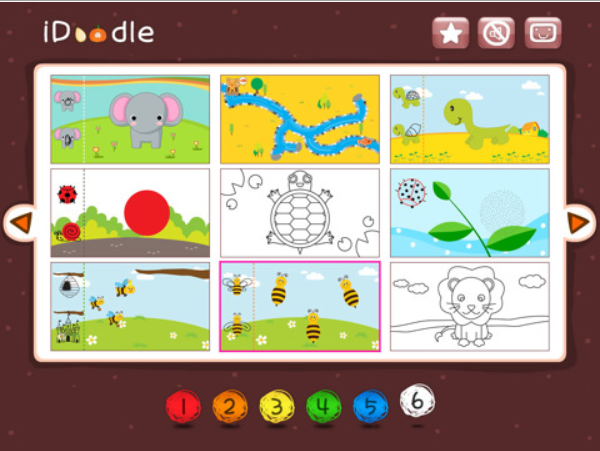
I literally stumbled upon this app and found it to be a good, visual motor app that is Free!  iDoodle variety of visual motor activities for preschool and early elementary aged students. This is a good pediatric OT app for the kids who are working on basic visual motor and visual perceptual skills!

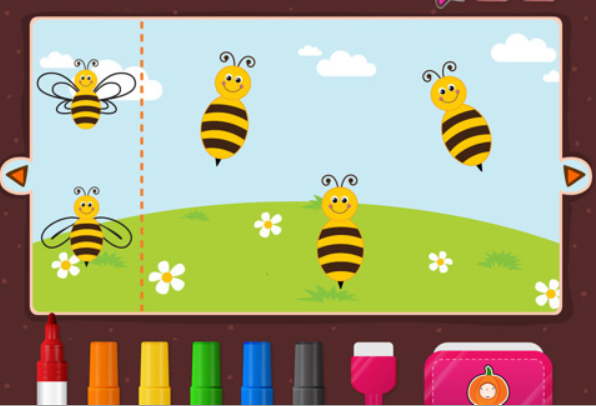
Focused on drawing activities, iDoodleCard provides 54 different drawing activities that you can easily swipe to get to the next or go to page views to choose one of nine activities on each page. Activities include mazes, coloring, drawing animals and things with shapes and free draw.

The draw tools are six primary colored markers and an eraser which are all large and easily accessible. A save tool that allows you to save your creation within the app is provided. For a print copy, you could do a screen shot by pressing the home and power button simultaneously which will send a photo to your photo album for archiving (assessment data) or emailing the creation for print from a computer or via e-print methods which ever is available to you.  Music is available to turn on or off when working in the application.

I have enjoyed using Ed Emberly’s Big Books (Orange, Red, Green, etc books) or other basic step by step drawing books to work on drawing, position in space and visual motor skills with primary aged students who could not draw recognizable pictures in art or the classroom when authoring. Some of the activities remind me of those activities that kids like to do and help them break down the visual task. I am sure there are many other apps out there for step by step drawing instructions to check out if those are therapeutic interventions you use with your students.

Kid friendly and easy to navigate, iDoodleCard is available for iPod and iPad currently for free. Here is a YouTube video reviews on iDoodlecard:

http://www.youtube.com/watch?v=nXeGVi0uRFU

Just another tool for your electronic OT tool box! Have fun doodling…

Speaking of doodling – have you read the OT Advance article on doodling by Susan Schriber Orloff, OTR/L? Check out Doodling: A Boost to the Brain , I thought is was an interesting, quick read and a good reason to doodle!

Are you using any styluses for drawing or writing for yourself or your kids?

Or have you transferred online drawing activities or worksheets using your iPad or iPod (kinda small but possible)?

Topics for upcoming posts!

Carol

Posted in Apps for OT's, Fine Motor Development, iPad, iPod, Occupational Therapy, Visual Motor, Visual Perception | Tagged , , , , , | Leave a comment

Emotions Apps

Are you working with students who need help with identifying emotions in themselves, others or awareness of their emotions?

Working with students with Autism, the need for emotional awareness in themselves and of others is important. Often a struggle with students with autism, identifying emotions can require direct instruction for students to gain awareness and identification of those emotions.

One of the tools I have used in the past was a hard copy work sheet with numerous emoticon pictures on it ranging from excited to depressed that a student could point to express their emotions or feelings.

For the particular student I was working with, the emoticon pictures were provided first thing in the morning so he could express his feelings and any concerns of the morning. This routine helped staff understand his thoughts and help him move forward to the days events. The morning session allowed for review of social stories and well as his identification of emotions as he started his day. The student appeared to enjoy this time and forewarned us of perseverative thoughts, concerns or emotions that would need to be dealt with during the day. So are there any apps out there available for the iPad or iPod that would help with gaining emotional awareness but be portable – one of the many wonderful features of the iDevices?

I found several apps that would provide learning opportunities on the topic of emotions suited for primary aged students. Here is a listing of the apps I found:

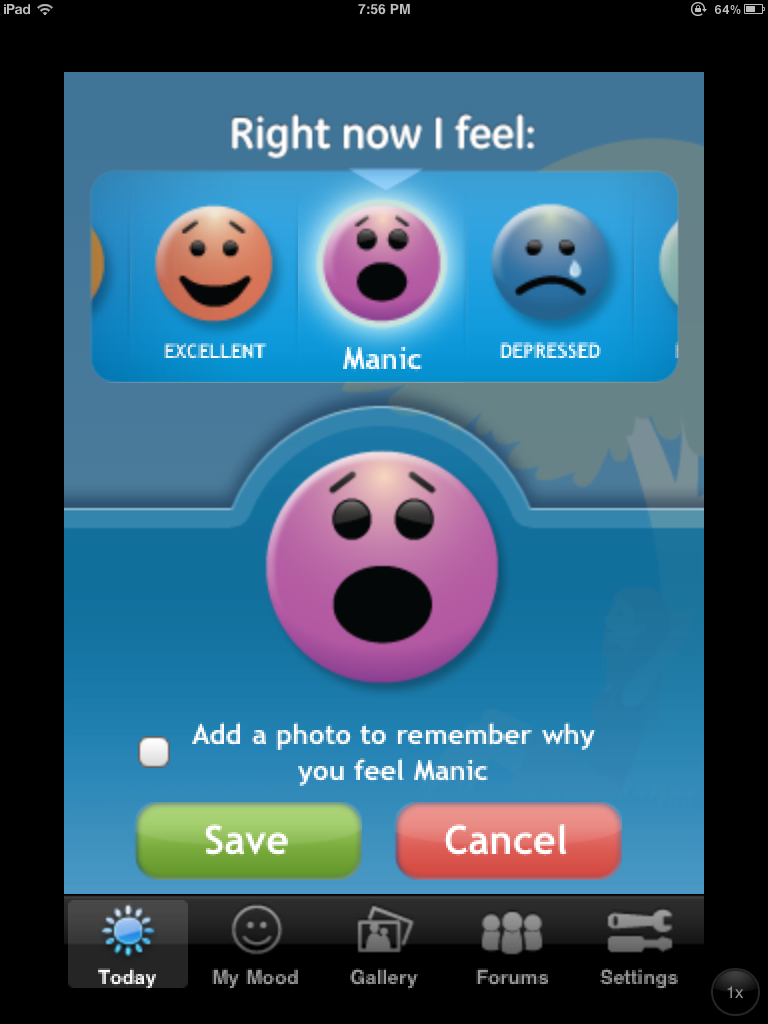
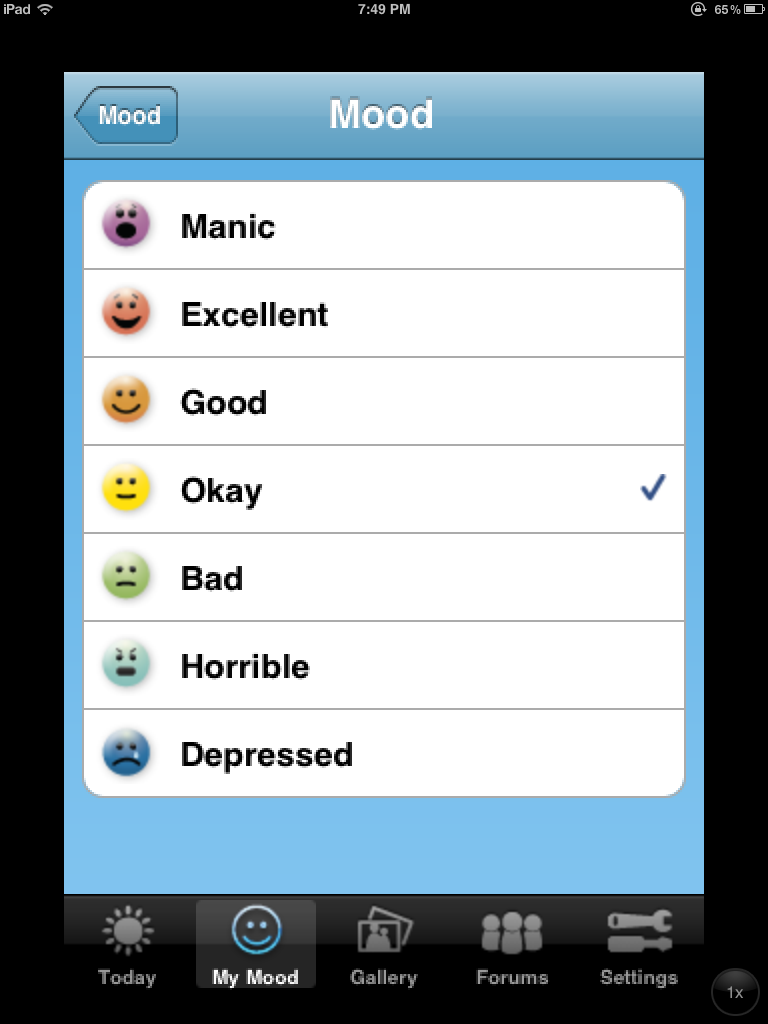
GE Healthymagination created an app called Moody Me. It reminded me of the emoticons worksheet I had used the elementary aged student I mentioned above.  Moody Me app provides a range of emotion icons to help identify and describe your feelings. The app also provides a feature to take a picture to help you remember why you felt the chosen emotion. You have an option of saving the picture of the event for later review.

The app gathers the date and the time of your response:

You can gather your daily mood in the calendar provided. It also reports an average of the moods in the past 7 days. A handy, free app for iPad and iPod, this app could be used for kids to identify their moods, take a picture of their face or event as available with an iPad2 or iPod 4th Gen camera to help them understand their moods. Taking pictures of them selves or others could  also help identify facial characteristics of  various moods and track their moods all on the iPad or iPod. The information can be synced to the apps website with a Moody Me account.

Alligator Apps and Grasshopper Apps have two emotion apps that I intend to customize for a primary aged student that is working on basic emotions (happy, sad, etc.) as a part of his special education program. With the customize features of the Grasshopper and Alligator apps I can choose certain emotion pictures be presented and also the mode or type of activity appropriate for the student.

  • Touch and Learn – Emotions app provides verbal instructions to choose a correct answer given  4 pictures of adjectives or nouns (see picture below).

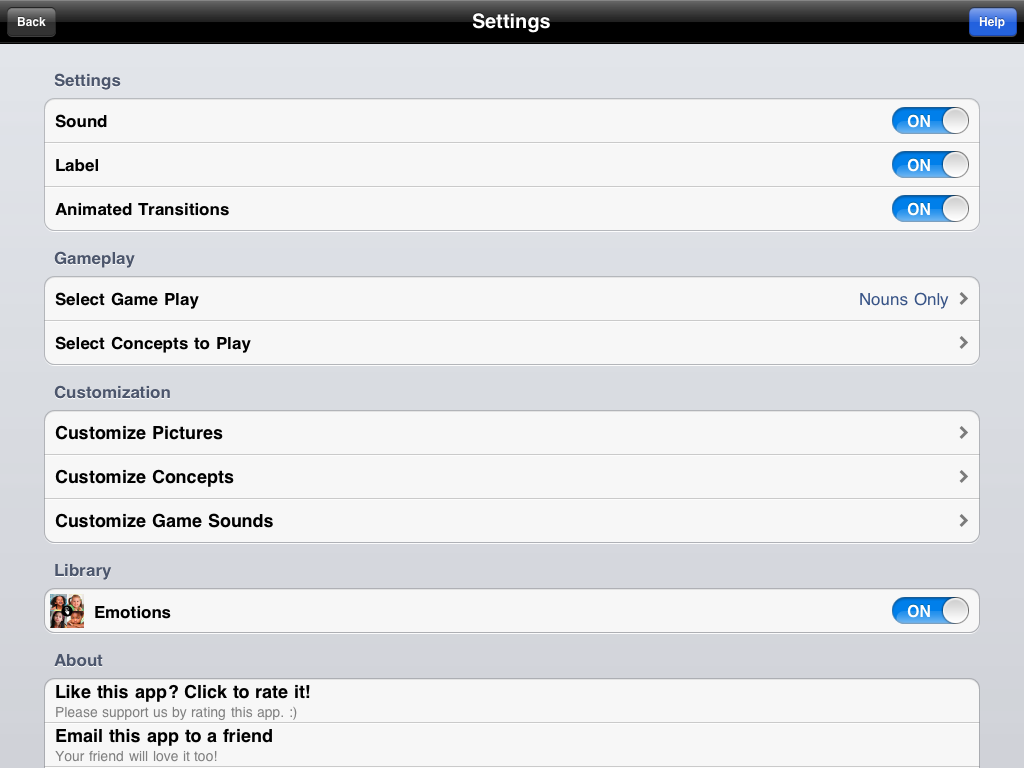
Customization in settings provides the options of selecting the play mode (nouns only, adjectives and nouns only, verbs and nouns only, progressive difficulty), concepts, sound, labels, and pictures presented. I will be able to choose specific emotions or specific nouns (boys, girls, men and women) being worked on with as needed for a student using the customization features. What a great option to help support the individual of our students!

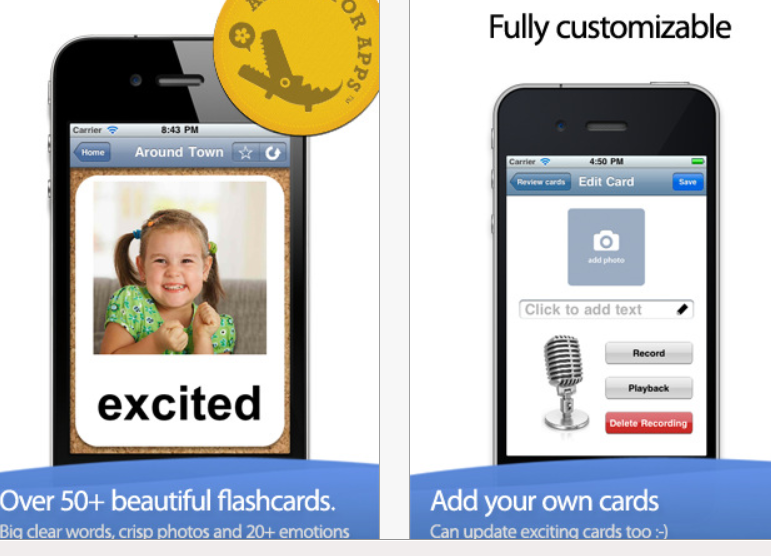
  • Alligator Apps’ ABA Flash Cards & Games Emotions  has flash cards and games showing real pictures of children and adults faces with different emotions. Like Grasshopper Apps, opportunities to customize content is available. Setting options include choosing learning or game mode as well as choices of reading or listening with basic and advanced levels. There are numerous other methods of customizing how content is presented such as font size, color and customizing the pictures and sound of the flash cards. Cleanly presented with great pictures of real adults and children, ABA Flash Cards & Games Emotions app supports development of identification of feelings with games and quizes.  Free!

Kindergarten.com produces a flash card app Emotions. This app provides real pictures of adults and children depicting different emotions. Setting are provided which provides choices of  turning on/off shuffling cards, voice audio, chime sound and music reinforcement. Free.

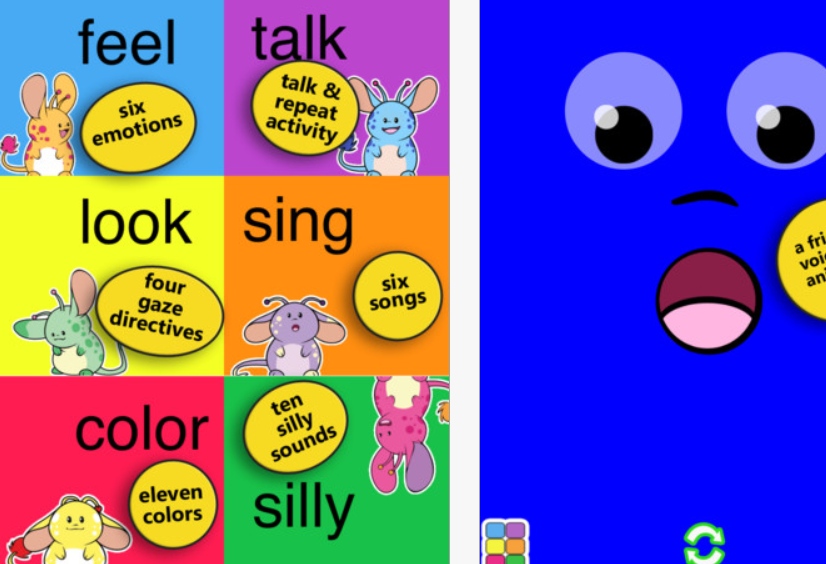
Touch & Say for the iPad is a simple activity app for early development in children. It presents six different emotions in a graphic format that requires only a single touch to the screen. Activated by a single touch to the iPad screen, this cause and effect app can be used for individuals working on developing basic skills. Free.

Any of the apps that might assist your students emotional development? Please leave a comment if you have one to share!

Carol

Posted in App Reviews, Apps for OT's, Apps for Special Needs, Autism, Emotions, iPad, iPod, Special education | Tagged , , , , | Leave a comment

Alligator Apps

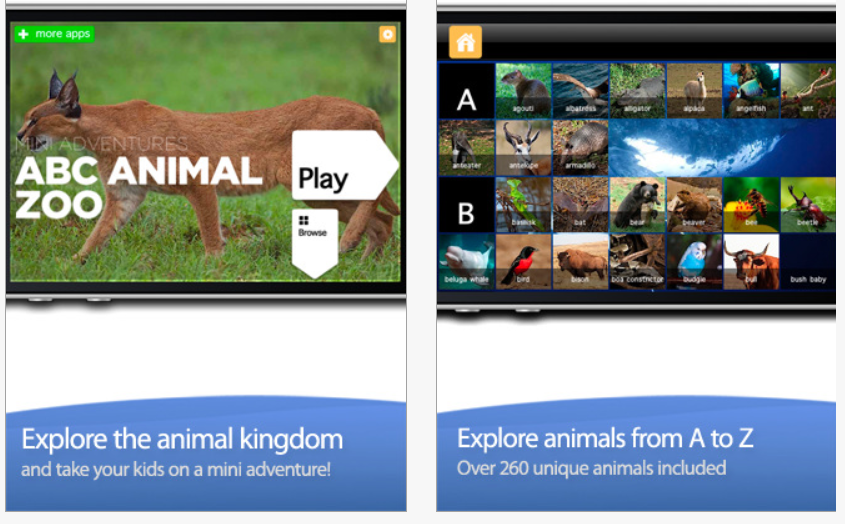
Alligator Apps produces educational apps for preschool and primary aged students. One of their new apps is Mini Adventures – Animals providing beautiful real life pictures of animals with options of videos of the animals within the app. Animals are arranged also by A-Z for easy navigation to animals in alphabetic order. What I love about their apps is that they are customizable, present clean, focal pictures and have an easy navigation interface for students and teachers.

Customization in their apps differ from app to app depending on the content. Choices for customization may include selecting a range of pictures, categories or concepts, selecting specific attributes, choices of text labels or audio, level of difficulty, number of items will be presented or importing your own pictures into the app just to name a few. This apps customization allow you to choose video or pictures, use just upper case or lower case letters, choosing time of display, sound or mute and add your own pictures to the categories of animals by alphabet or create your own.

I have a student who uses Teach Town as part of his curriculum along with classroom instruction and extension activities to support his individualized education program. He loves animals and being able to customize this app for mobile learning in the classroom and in other enviroments will be helpful to support his current learning goals.

Mini Adventures – Animals is available for the iPad and iPhone for $.99 (I got it for free as a part of Free the Apps – see below). Their website also has additional flash card apps for reading, memory and general flash cards for vocabulary.

Visit Alligator Apps  website and check out their Free the Apps sign up (can also be found with in a downloaded app). Enrollment will allow you an alert to newly created apps offered to you for free.  Following the “more apps” links available in their apps will offer you dozens of apps from Alligator or Grasshopper Apps.

Check them out. If you have a question they will promptly reply to you. It will be well worth your visit if you need apps when working on core concepts with Preschool and Primary aged students! If you find you like the Alligator Apps check out Grasshopper apps – you will love them too!

Carol

Posted in App Reviews, Apps for OT's, Apps for Special Needs, iPad, iPod, Occupational Therapy, Special education | Tagged , , , , , | Leave a comment

Cause Effect Apps

As a OT, the skills and ages of  the students you service can vary tremendously.  You may be supporting students accessing the regular education curriculum to students working on life skills or basic of cause and effect skills. They can be young or older students all needing different skill development and age appropriate activities for them to work with while in the regular education classroom when with their peers.  Finding age appropriate activities and apps when working with older students at the middle and high school can be a bit tricky, especially when looking for cause and effect apps. So, my recent quest focused on look for age appropriate cause and effect apps suited for older students.

Many of the sensory apps I have been using and previously mentioned in an earlier post were appropriate apps for cause and effect activities for older students. A search for additional apps found many apps for toddlers and preschool students but few for middle school age and above.  I wanted to find appropriate apps that would facilitate interaction with same aged peers knowing that the iPad can be an interaction magnet!  Student love to play with the iPad!

As always there are many factors to consider when choosing apps. Here are a few things I considered when choosing an app for middle to high school aged students:

  • What kind of interaction or touch are you wanting to develop? Are you looking for a gross movement or interaction – “hit the screen any where” to get cause and effect or are you looking for isolated finger control to improve accuracy to prepare for more precise selection such as a communication board or activity with smaller icons or controls?
  • What kind of response or effect is motivating for the student? Do they need sound, movement and/or visual? Can the visual on the screen be many (or busy) or does it need to be simple, easily seen, large, have high visual contrast?
  • Are you needing an activity that you will be using a switch for interaction?

With the above considerations in mind, what apps are available for young and older students?

Here are some cause and effect apps for I think are appropriate for older students:

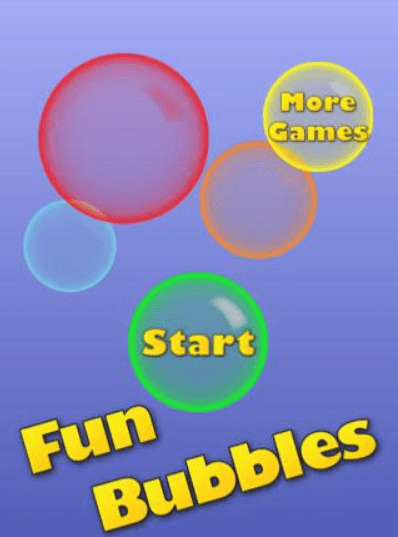
Fun Bubbles – ($.99) – Simple interface to pop bubbles presented on the screen. This requires eye hand to pop the bubbles and can help develop fine motor skills and more refined touch. Discussed previously in earlier fine motor post.
Cat-Fishing – (Free)- If you can get past this being an app for cats (it is made by Friskies), this is a great, simple tap the swimming fish (of which there is just one at a time) app. It has great contrast with colored fish on a dark blue background. There is no sound to this but definitely has the movement/animation and visual to attract attention. The speed of the fish swimming increases as you tap or catch one and only goes to 10, then you are a winner and can simply start again. No having to buy anything else and there are minimal ads. This was to me a great find and will work I believe for older students. It is like a Pocket Pond scaled down with a goal.

Jitterbug– (Free) – Previously mentioned in the leisure post, also a Friskies app (just forget this is a cat app!) presents brightly colored bugs that crawl across the screen. The black background allows a strong contrast for students when viewing this and is an added plus visually. There are levels and scores (you could collect some data with the scores?) but also an advanced level where you can select how many bugs you want. A slider allows you to select up to 5 bugs of the 5 types of bugs available. Counting and simple addition could be used with this apps although not the goal of cause effect software, but an added plus if using it with other students with basic math (adding, counting by, 1’s, 2’s or 5’s are possible with its use). I like the simplicity of the interface and contents. Ads are minimal. Reinforcement of isolated finger use can easily be done with this app.

Random Touch – (Free) – A simple app which you touch the screen and a random object is stamped on the screen. A sound (dings, boings, honks) also accompanied by each touch or stamp made on the screen. Hitting the screen, dragging your hand on the screen can stamp multiple objects and cause multiple sounds. With dragging my hand on the screen it also closed the program due to finger slides or flicks. The objects stamped are clean images of real objects, numbers, letters, shapes and colored line drawing appropriate for kids of a variety of ages. Facilitating the use of isolated finger touching or generally touching the screen would be appropriate with this app.
Fluidity– (Free) – One of my favorite apps for its interesting colors, actions and formations, is free.

Fluid – (Free) – Similar to Fluidity, it provides water over a background picture. You can splash the water when you tap on the screen and listen to the water splash.
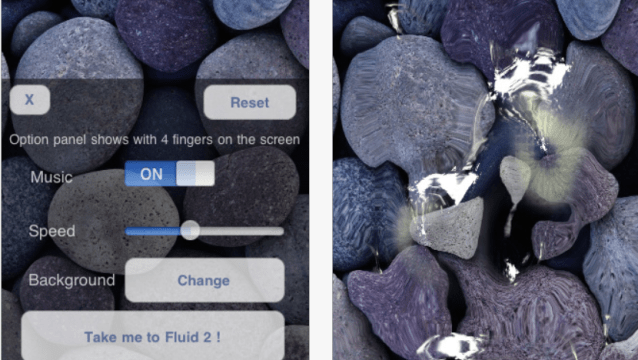
Heat Pad– (Lite)- Thanks to Erin and Gail for sharing this app with the rest of us at school, this free app provides a heat print and sound when you touch the screen.

Pocket Pond– (Free) – This app provides a pond with fish swimming randomly in it. When you touch the iDevice the pond surface ripples and wave and makes the sound you would hear with authentic sound. The fish move when you touch them. Feeding the fish, adding more fish or dragonflies or lillypads to the pond are other features of the Pocket Pond. Young and old are intrigued by this app.

Wipe and Learn – ($.99) – This cause and effect app requires swiping a picture tool to erase to reveal a hidden picture. The app has a huge variety of background pictures. The background picture name is spoken aloud when it is revealed. Requires more accuracy, attention and motor skill to wipe the who cover off the background prior to moving on.

iLoveFireworks – (lite/$.99) – Touching the screen causes a display of fireworks that varies each touch. Provides fireworks sounds with each touch.

Most of these apps I chose have movement, are highly visual and provide sound to keep students engaged.

If you want more information on switch access with cause effect software go to the iPad go to RJ Cooper’s website for a switch interface hardware .

Do you have any apps to add to the collection that you like to use with older students? Please share them if  you do!

Carol

Posted in App Reviews, Apps for OT's, Apps for Special Needs, iPad, iPod/iPad Accessory, Special education | Tagged , , , , , | 5 Comments