Counting Bear app is another one of Grasshopper apps great customizeable apps for students requiring practice with early numeracy skills – 1-20. Gone free, this app is worth while checking out to add to your basic math app tool kit. The ability to customize features and concepts in the Grasshopper apps makes them very appropriate for special needs student use.
If you are not familiar with the many Grasshopper apps make sure you visit their website. They have wonderful apps for emergent readers, early math, books and more!
As many apps, I just stumble upon them when searching for another app, when perusing educational apps, iDevice info or free app offerings.
Define: app was one of those stumbled upon apps. It is simple but provides an easy method to create a vocabulary list from an existing dictionary base that is not dependent on Wi-Fi services unless you want to use Wikipedia, Wiktionary or do a Web Search of the word.
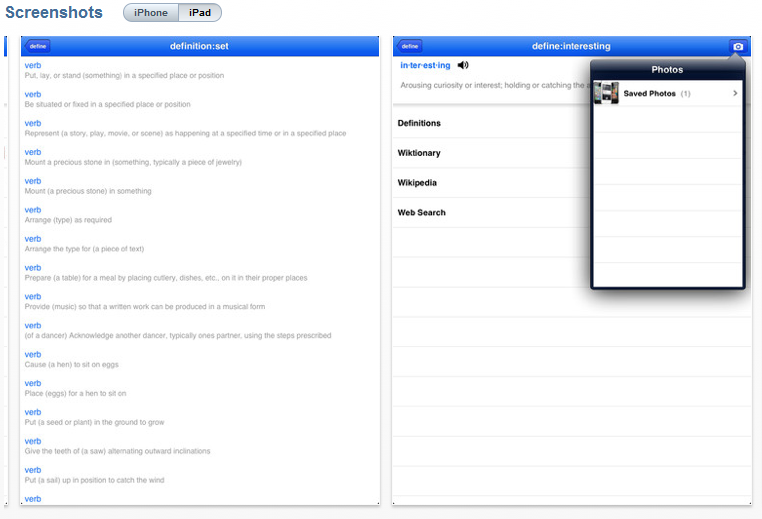
Define: provides a search tool to look up a work typed into the search text box. Once the word is typed it will look up the word and provide a definition. The word is entered into the beginning page of the app in a listing by date, creating a simple vocabulary list of words and definitions at your finger tips in this app. A speak tool is available to read only the word searched, not the definition. If you have Speak Selection turned on in the Accessibility options of your iDevice you will have tools to speak the definition aloud.
For more definitions, selecting the Definitions tool provides you with other uses and definitions of the word. You also have the option of looking up the word in Wiktionary, Wikipedia and by Web Search. A camera in the right upper corner allows you to take a picture or select a photo from your Photos app. If you brought in a picture or image a Media category is listed where the pictures or web clips related to the word are able to be reviewed. I found that if I wanted content from any of the web services it was easier to take a screen shot (Press home button and power button simultaneously) putting the image in the Photo app and ready to use as Media for one of your defined words.
This is a very simple app, but I see application of this app for a student who would benefit from a word list with definition and media that support unfamiliar vocabulary. Although many of the dictionaries allow for a favorites category where you can create a custom word list, this app is simple and provides opportunities to include media with the word and definition. I have some learning disability and ASD students that I believe would benefit from this app, even if it only was on a teachers iPad, allowing them an immediate reference and word definition (with media) for visual learners.
Define: is compatible with iPad, iPhone and iPod Touch and currently is free. There is limited information on the Internet on the app, but can be found in the App Store by searching Define: .
Another tool for your OT iToolkit depending on the ages and needs of your students.
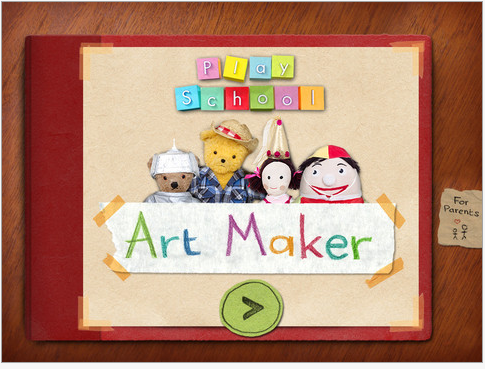
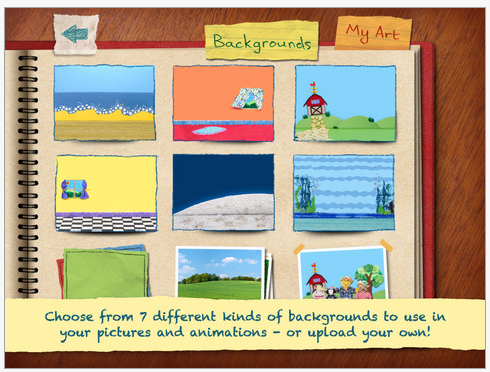
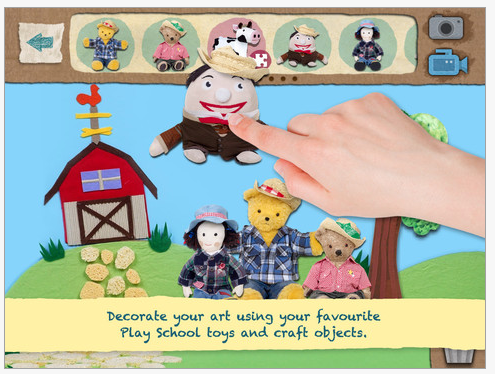
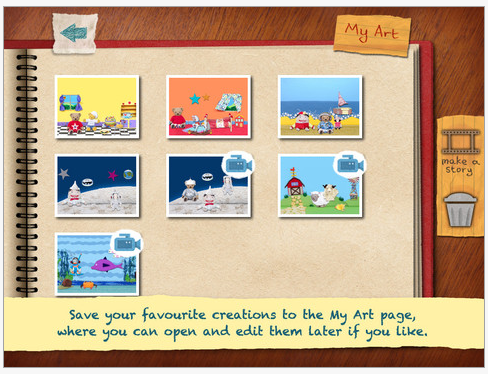
Art Maker App is free for a short time featuring a story making tools for young learners aged 2-6 years. Compatible only with the iPad, this app provides several different backgrounds and a scrolling pallet of objects (animals, buildings, plants, etc.) to insert onto the background and create pictures which can be combined to create a sequence of pages for a story book. The app provides sound and the ability to move the toys or objects on the background, and create animation and record sound when making a movie. It has some interesting tools that young learners can participate with to assist with the story making process. Here are some screenshots of the apps tools and features:
Currently free, this is an interesting story making and interactive app for young learners. For students on an OT caseload who may have difficulty drawing and creating on their own or who get frustrated with their limited ability to generate pictures on their own this is an error free tool to support them in making pictures or stories. This is worth exploring as a tool for young students if you support them in story making activities, or can use it as a motivator during therapy sessions.
Free is a great way to add more tools to your iTool kit!
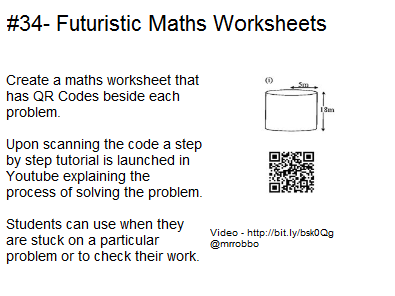
Are you familiar with these funny looking black and white QR (Quick Response) codes? You see them everywhere, supplying links and information regarding information and instructions on products or events. QR codes provide information that can be scanned multi-directionally by a mobile device with a camera.
What do they have to do with AT or OT? Well, depending how creative you are or the type of devices you have available to you, they can be another tool available on your iDevice for individuals with disabilities. With some searching you will find that QR codes are readily used in education and special education for all kinds of things. Here is a link to a slide show with numerous educational uses for QR codes: https://docs.google.com/present/view?id=dhn2vcv5_765hsdw5xcr&revision=_latest&start=0&theme=blank&authkey=COX05IsF&cwj=true
My initial thoughts were to use QR codes for students who need support accessing worksheet information. But with a bit more thought here are a few other ways QR codes can be useful:
Do you work with any individuals with significant motor problems that have difficulty writing down URL’s, phone numbers or other event information? Individuals with a phone equipped with a camera can scan the QR codes which can be saved for later retrieval or will directly link them to the information rather than having to enter an entire URL, phone number or address into their smart phone. Easy access!
Create visual phone book or address book with pictures and QR codes for quick access to phone numbers using the QR codes
QR codes can be used to supplement or summarize class material, text-book pages when created using the notes or audio gathered by students or teachers and converted to a QR code. This QR code can be put on a work sheet or posted on a website for students to review information when absent from class
Create flash cards with words, vocabulary, letters, objects, math facts, study information and place a QR code on them providing the correct answers or pronunciations
QR codes can provide audio information or directions on work sheets to students who can not access print. With a QR code providing information on directions or content, using a QR reader can supply a student with access to the worksheet information. Some QR generators provide only short information and some tools manage more extensive text or media.
Do you have handouts or web resources that you supply to parents? If they have a smart phone provide those URL’s via a QR code allowing them greater ease of access to the information by scanning a QR code than dealing with URL’s
Here are a couple of ideas of QR codes in education (gathered from Steven Anderson’s Live Binder QR Codes in Education :
There are many QR code readers for android and for iDevices with cameras as well as web-based services or apps to generate QR codes. One of them is a QR reader that provides text to speech to the QR code, providing information spoken aloud called QR Voice.
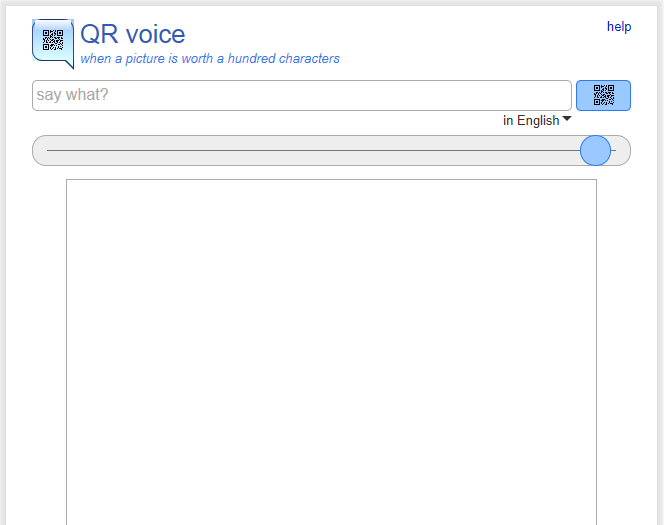
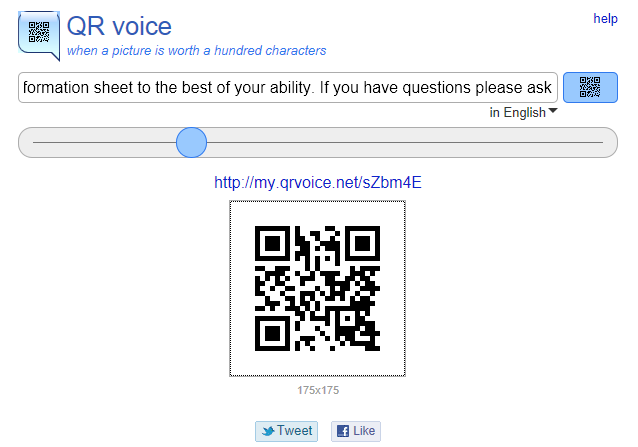
QR Voice is an online QR code generator. Limited to creating a message of up to 100 characters it will create a short audio message. You still use standard QR code readers only the information supplied is not a text but an audio message. Here is the process:
Insert up to 100 character into the text box, select the QR code picture and it creates the code on the information you entered. You can choose the size of the code by moving the slider.
The result is the QR code and URL that can be copied and pasted, or printed out, posted or applied to worksheets, books, materials or laminated for use. Easy? Yes!
Kawya – A web-based QR code generator providing free code generation for URL’s, text, SMS or phone numbers. Requires free membership for access to the code generator. Easy to use.
There are many free or low-cost QR Readers available for the iPhone/iPad/iPod Touch. Here are just a couple:
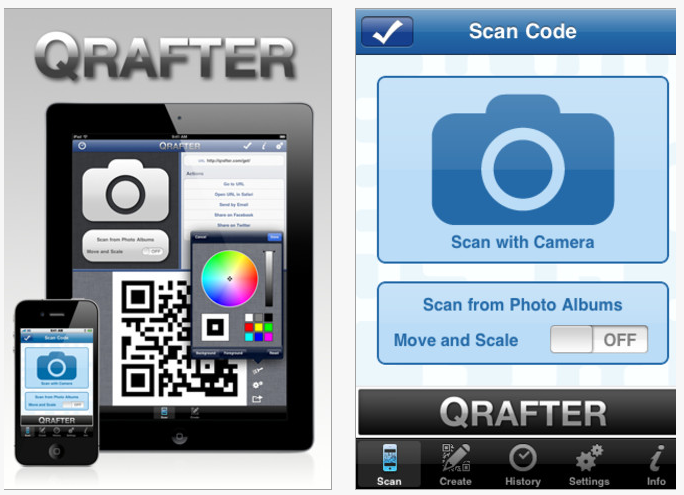
Qrafter – Pro version creates QR codes (2.99) and standard version is a reader (free). Many different types of information can be utilized in a QR code including URL’s for YouTube, map info, addresses, phone, email and much more allowing QR code readers to be used to supply information on many types of information. I found the most success with Qrafter app.
QR Reader – QR code reader (free or $.99 for Premium which removes ads) compatible with iPhone, iPad2, iPod 4th gen.
Although you might not have an immediate use for the QR reader at present, I am guessing you will be seeing it used more and more if you work in the school setting and may spark some ideas on its application to your OT practice. If you are currently using QR readers or code generation in your OT practice or with students or client please share how you are using them!
Step by step drawing apps reviewed in the post dated 12/20/2011 listed two apps that were appropriate for young elementary school students when learning to draw. A comment from Margaret Rice (thank you!) suggested the app Pirate Scribblebeard’s Treasure as more creative option for step by step drawing for students. Here is the suggested app as well as a few more apps I have found that provide step by step method of drawing for young learners:
Pirate Scribblebeard’s Treasure – From Kidoodle apps , is a drawing and interactive app allowing children to be creative with their drawing and write about the images in the app.This app is available for iPad and Android for $.99 for iPad and is reviewed in the video below.
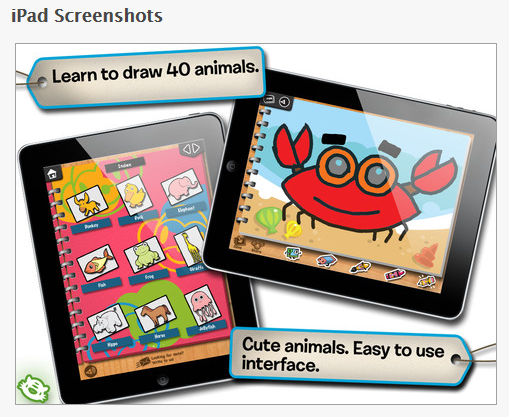
Learning to Draw is Fun – Available for iPad (lite version is free, $1.99 for full version) this step by step drawing app provides 4 steps to create 40 simple drawings. The app provides the step instructions presented above a drawing palette for children to copy each component free hand.
When completed the productions can be painted, printed or emailed. Simple format and instructions with basic shapes used in the drawings, gear this app to young learners including preschool to early elementary aged artists.
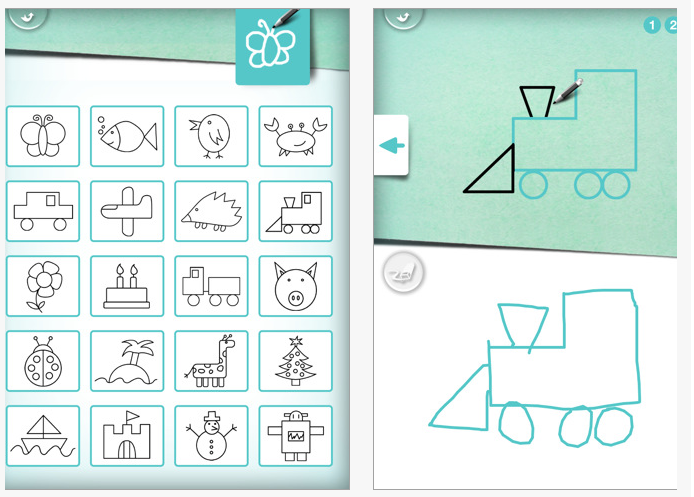
Drawing for Kids – A step by step drawing app with 30 different images to drawing using 6 different steps to completion. The app introduces a new component to copy at the top of the screen with a palette to copy the shape below.
This app provides the option of a tracing componet to be added to the drawing palette if additional scaffolding is needed during the drawing process. For final production, printing or emailing are options to print the drawing. Available for iPad for $1.99 for full version or Lite to sample a few drawings.
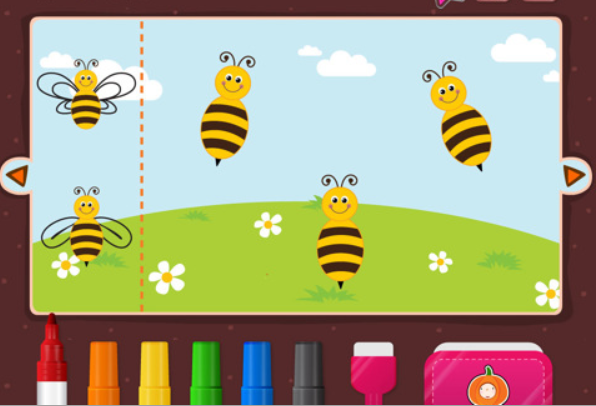
iDoodle Card – Mentioned in a previous post, this app provides simple visual motor tasks and simple drawing activities that support young students in the drawing process. Available free for iPad only.
iLuv Drawing – Reviewed in an earlier post also provides step by step drawing by tracing over existing lines provided in a sequential method.
A few other options:
Locate your favorite step by step hard copy worksheets of step by step drawing directions (if legally reproducible) and take a picture of the worksheets with your iPad2. Store the photos is an Album in your Photos app on your iPad you can present the pictures as a model for students to copy from your mobile iTool kit (iPad).
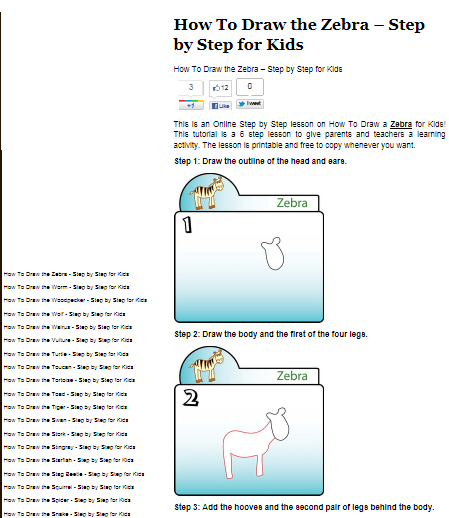
Locate websites that supply you with step by step drawing instructions. One such website is Drawing for Kids.net. If Wi-Fi is always readily available to you, bookmark the website or add it to your home screen for easy access. If Wi-Fi is not consistently available, take a screenshot (press home button and power button simultaneously – stores a photo of the screen in Photos) of the webpage(s) (if legally reproducible) and organize them in an Album in your Photos. You can present the photos of the step by step instructions to your students for them to can copy and draw on hard copy. Drawing for Kids.net has free, reproducible, 6 step instructions for drawing animals . They have extensive step by step instructions on over 80 animals on their website. Here is an example of their instructions:
Use Doodle Buddy to have students draw their step by step animals from a hard copy picture on an iPad and save and print the production.
Your iPad or iPod Touch camera is a wonderful way to store electronic worksheets and data on your mobile device. Here is another way your iPad2 can be your mobile toolkit!
Just a few more tips and tricks for your OT iTool kit!
Are you familiar with Tony Vincent and his Learning in Hand Blog? As a guru of mobile learning dating way back when PDA’s were in vogue, Tony Vincent has incredible expertise and information on mobile devices and their integration in education. He is creditable source for all things iPad/iPhone as well as other mobile devices.
This post provides Tony Vincents expertise on how to maintaining the organization of your iDevices as well as cloning it when you are making any changes to them whether just a back up, updating an iOS or adding new apps to numerous devices under one account. If you have ever had to back up when upgrading your system, maintaining the organization of your apps in folders is important. This sounds minor but when you have hundreds of apps organized and need to keep that organization for support personnel or student ease of access (or not so easy access ) you will want to maintain your apps in an organized way on your device for access to the apps.
Melissa Dills is an Ohio kindergarten teacher and has a blog, Adventures of iPads in Kindergarten. Melissa recently contacted me with this question:
I currently have 5 ipads in my kindergarten classroom. I back up my ‘original’ one on iCloud and it pushes out the apps to the other four. My question is do you know of a way to get them to go into the appropriate folder They are just going onto the screen instead of the folder I put it into on my original. Thanks for your great website. It is very helpful!
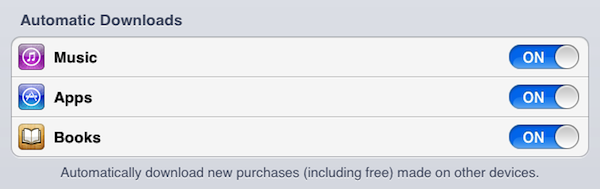
It’s very convenient to enable Automatic Downloads of apps in the Store section of Settings on iOS devices. This automatically downloads new purchases (including free) made on other devices and in iTunes. You just need to be signed into the same iTunes account on all of your devices. Don’t worry; you don’t have to input the account’s password each time an automatic download happens (that would be annoying).
As Melissa points out, apps are indeed automatically downloaded, but they are not placed into folders or even necessarily onto the same Home screens. Currently Apple does not provide a way to synchronize folders among devices. Other settings, like wallpaper and sounds, are also not synced and have to be set up manually on each device. With older students, teachers can have them place apps in folders and make settings consistent across devices.
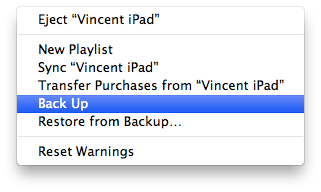
In Melissa’s situation with younger students and only five devices, she could set up one of the iPads as a master. That means she would move apps into folders or onto specific Home screens and configure settings. After she has the iPad exactly the way she wants it, she will connect to iTunes, right-click the iPad’s name in iTunes’ sidebar, and choose Back Up.
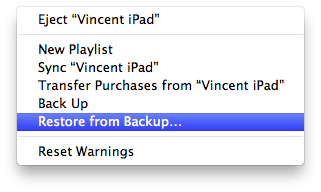
After back up is complete, Melissa will disconnect the master iPad. Then, she’ll connect one of her other four iPads, right-click the iPad’s name in iTunes’ sidebar, and choose Restore from Backup.
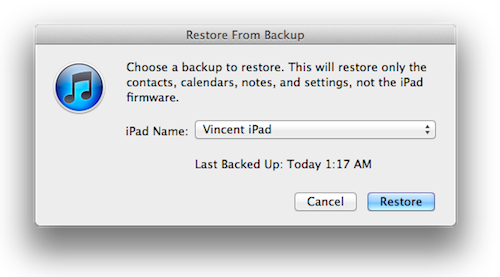
iTunes will ask Melissa to choose a backup to restore onto the current device. She’ll of course choose the backup of the master iPad.
It will probably take some time for the restore to complete. When done, this iPad will be a clone of the master. That means all apps will be in the same folders, Home screens will be identical, and settings will match exactly. I suggest that Melissa rename the iPad so that it’s not confused with the master iPad.
Melissa can restore her other three iPads from the master’s backup as well. Afterwards, all five of her iPads will be set up identically. Because iTunes allows you restore only one iPad at a time, Melissa probably won’t want to go through this process very often. She’ll probably still rely on automatic downloading of apps and manually putting into folders unless she has downloaded a large number of apps that would take lots of time to sort.
Now, this method of restoring from a backup of a master device will replace all data with that from the master. That means images, recordings, and any high scores will be erased from the other devices.
Restoring from a backup can also save teachers time if they customize an app. For example, Learn How to Spell from Grasshopper Apps is fully customizable. You can use the sets of words that are included in the app. But even better, you can add your own words, complete with your own images and voice recordings.
It can take lots of time to make customized sets of words within the app. In a classroom like Melissa’s where there are a small number of iPads that can be used as a center, it saves a lot of time and repetition to use the cloning method above to copy the customized sets from a master iPad to other devices. Perhaps one day Grasshopper Apps will update their apps to save customized lists to iCloud so they can be easily copied to other devices. Until then, restoring from a backup is the way to copy the app’s data from one device to another.
Canby Schools in Oregon have deployed hundreds of iPod touches using this restore from backup technique. Joseph Morelock has written how they do it in the wiki article Imaging iPod touch Devices Using iTunes Restore. December 10, 2011 post from Learning in Hand.
Even if you do not want all of the devices exactly the same but want to maintain organization with some apps or want the customization backed up, you can always delete those apps you don’t want. Even if you are not cloning from one device to another, these instructions provide you a method of maintaining the organization of your device when backing it up. Certainly, backing up your device periodically if you have visual schedules, chore or other customized app for your student will be important if something unfortunate should happen to your device!
Hope this helps you (I wish I had this info about a month ago!!).
Do you work with students who have difficulty with letter reversals and identifying left versus right?
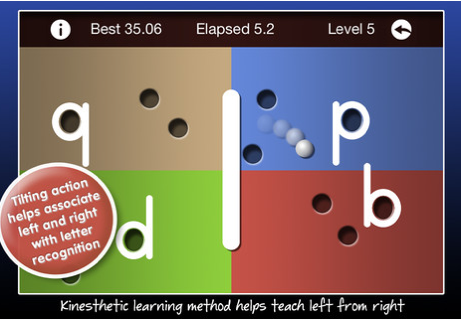
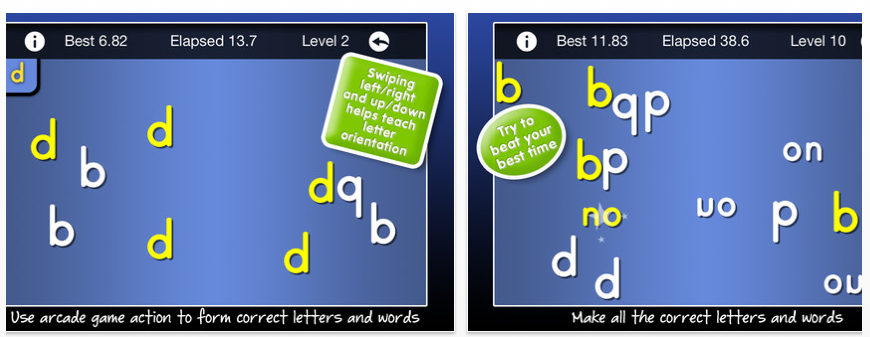
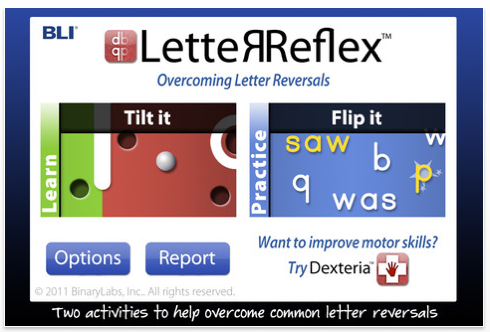
Binary Labs, creator of Dexteria app have created LetterReflex App which focuses on remediating reversals of letter and in words and right and left discrimination. Games focusing on discriminating directionality of letters such as b and d are included. Skills focused on include activities reinforcing left and right using a kinesthetic approach which require tilting the iPad to the left and right when forming a letter.
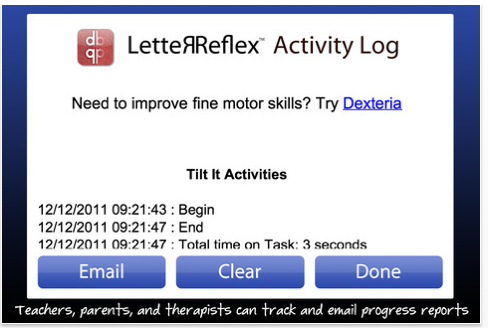
LetterReflex also collects data on student performance.
Compatible with iPhone, iPod Touch and iPad, this app currently is 1.99 as an introductory special.
Thanks to Gail for sharing this new app! Another treatment activity for your OT iTool kit!
Text to speech tools provide access to print to struggling readers to support decoding, vocabulary and comprehension skills. For many years as an OT and ATP having software that provides text to speech capabilities was a staple on my computer for students or adults to access print. Although there are countless apps available for mobile devices, finding the right one or ones that will do the job or tasks presented to individuals with a learning disability feels like a needle in a haystack. With accessibility features of Voice Over and Speak Selection tools integrated into iOS5 on iDevices, text to speech is readily available in many apps (not all) and solidly when accessing Internet-based text using Wi-Fi. The iOS5 speak tools are rather amazing when you turn on Voice Over Triple Click in Accessibility (General>Accessibility>Triple-click Home> Voice Over selected) and have the Speak Selection turned on.
What text to speech options are available when you don’t have Wi-Fi, or have text a student needs to access spoken out loud?
Appadvice.com has a great post ” Text to Speech Apps for iPad: iPad/iPhone AppGuide ” listing text to speech apps that is well worth reviewing. Checking out this review will give you a listing of a few pay and some free text to speech apps.
Third is a review of how to use Voice Over and Speak Selection accessibility options now available with iOS5.
Here is a listing of some of the text to speech apps reviewed in the Appadvice.com review and a few more I believe are worth mentioning:
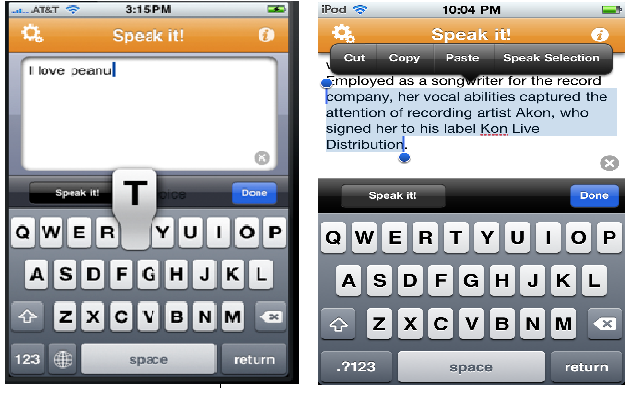
Speak it! – Text to speech app available for iPod, iPhone and iPad (1.99), with features of high quality voices, rate of voice and volume controls. Use the app to type or paste text from another source into the app to use the text to speech tool. Options available include saving the text, create an audio file and saving the audio file.
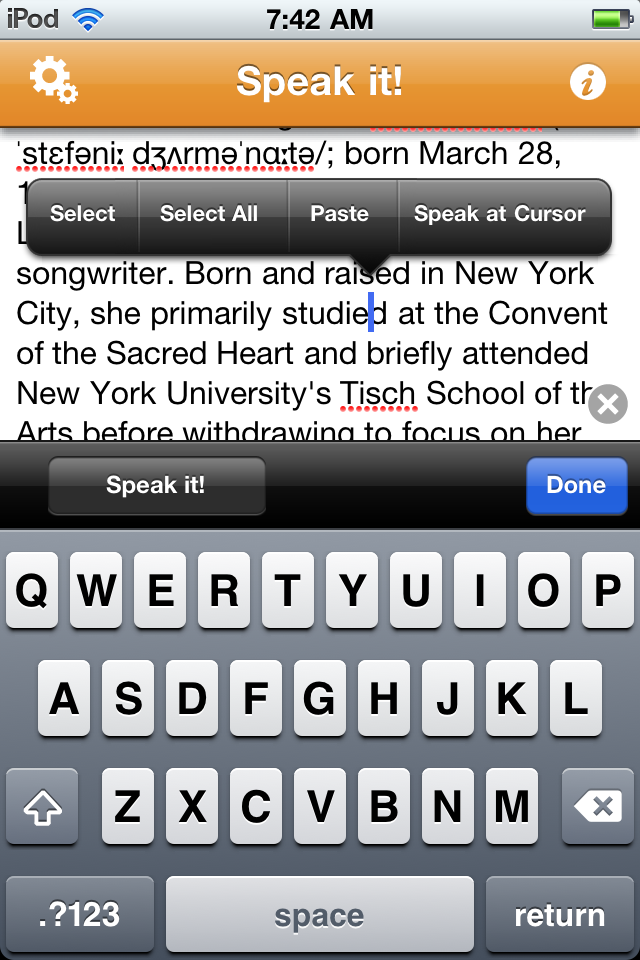
Speak it! provides the ability to copy, paste and speak the text as shown in the controls above. Quality of the voices were good and additional high quality voices can be purchased. One of the simple features I liked was the ability to Speak at Cursor, allowing better control when you wanted to move forward to have text read aloud, rather than reading all of the text.
In many other apps trialed, most read read from the beginning of the paragraph with difficulty being able to select or touch in the text to read a specific word or text. A small feature but functional when skimming for details or vocabulary.
Write & Say – This is a text to speech and translation app compatible with iPhone, iPod and iPad (9.99). I did not test this app out because of the price and the ability to purchase and trial Knowtilus, developed by the same company having many of the same features along with note taking tools for a fraction of the cost (see below).
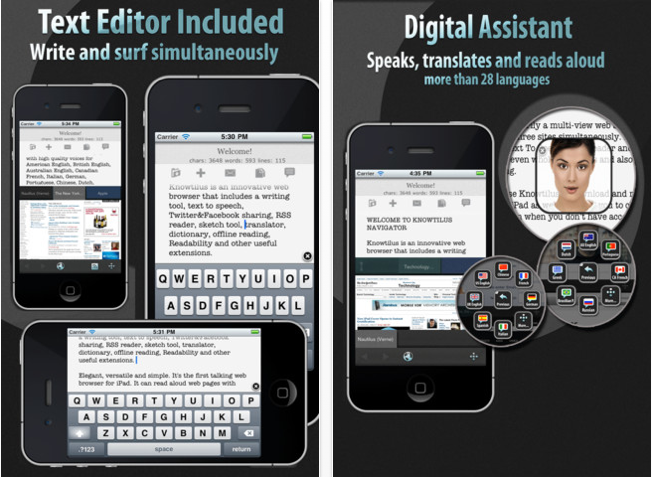
Knowtilus – Knowtilus is a note taking app created by the same company as Write & Say but with additional features. Available for iPhone, iPad and iPod, Knowtilus Pro is currently is priced at $.99, a great deal for the text to speech and note taking tools. Both apps have high quality text to speech voices, the ability to change pitch and has translation tools. Knowtilus is a note taking app providing many other features, including the ability to bookmark pages, email pages translate pages and read aloud. Sketching and a scan code tool is also available in this note taking tool.
To get a better idea of its many capabilities check out the YouTube videos on the Knowtilus website . Here is another video to check on the quality of the text to speech voices:
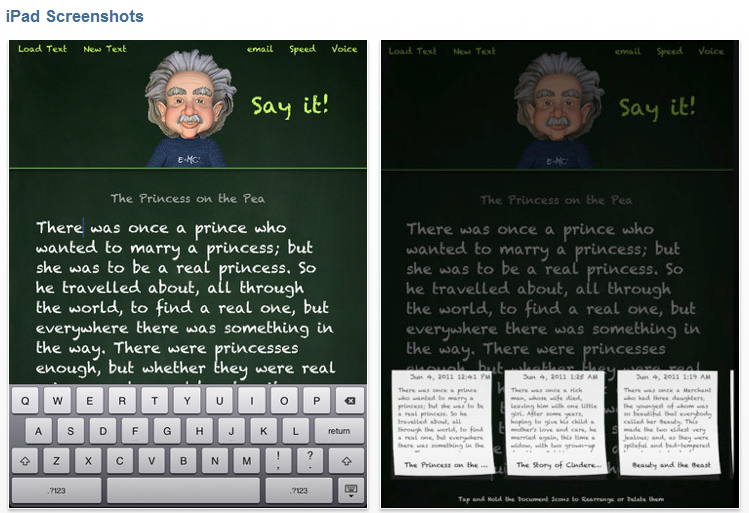
Another fun text to speech app created by Knowtilus is Mr. Talker HD compatible with iPhone, iPad and iPhone (1.99). This app provides an Einstein looking virtual assistant who talks the story or text to you. Fun app, easy controls to start the text to speech and pause it and features pretty straight. You can type in the app as well as copy, paste text from another source, name and save it to load it at another time (the notes at the bottom of the right image below are the saved files loaded and available to review). I could see some students enjoying this, and also having text readily available to load to read (such as bookshare text files). There is also a chance students could get distracted by the virtual assistant and not listening to the text read aloud! Here’s what Mr. Talker HD looks like on an iDevice:
This app has some easy navigation features and I could definitely see using this as a simple book or note reader. I have not trialed it with student but look forward to trialing it and looking at the potential of this app. Knowtilus apps provide some interesting alternatives with text to speech!
Other apps with text to speech worth mentioning are:
SpeakText – This text to speech and translation app provides more controls for selecting and speaking text copied or typed into the app. Features to key in a URL to be read or translated is also available. Designed for the iPad and iPhone its current price is $9.99. I was able to find a series of this developers apps for free in the past which was a great deal, I am not sure that I would pay the price currently having the speak functions available with iOS5. Although I did like the speaking controls available in it allowing better navigation within text to forward or review or speak specific sentences, paragraphs or words.
Speak It To Me – A simple text to speech app. Compatible with iPad, iPhone and iPod and free. Limited controls, but allow you to copy emails, text into the app and read aloud.
Read&Write Web Apps – I am a definite believer in Read & Write Gold’s PC software, they now have a web based app which I have not had a chance to trial. It provides text to speech with highlighted text which is not seen in many of the other text to speech apps reviewed. Costs however are unknown and do not appear available on their website, however you can request a free trial.
There are numerous other basic text to speech apps of many different flavors free to minimal cost. Check out the Appadvice review for other text to speech choices.
I look forward to trialing the Knowtilus apps but I would also recommend learning the accessibility features of the iOS5 which provides in my mind wonderful accessibility with text to speech being one of them. If you have not already check out these features, an earlier post reviewed some of the text to speech accessibility options or there are video reviews galore available for you to sit back and learn. Here is a quick step by step video on setting up the Accessibility Speak function in iOS5:
If you have any favorite text to speech apps, as always please share!
One more tool for your OT iTool kit! Appy Holidays!
In my years of OT work with students, intervention for improving visual motor skills included many activities. When needing to support students ability to produce artwork in classroom projects or in art class using step by step drawing tasks focusing on production of people, animals and objects using basic shapes in a sequential fashion. One of my pre-digital favorite resources for step by step drawing were the books by Ed Emberly who created his Big Orange, Big Green, Big Purple and more books that displayed step by step instructions of animals, insects and other things kids would be drawing (and because I can’t draw either). Although those still are great resources (if you find them in the library they are among the tattered, frequently used and loved books), of course there are also an apps for that providing step by step drawing instruction.
iLuv Drawing – Made by Learn with Fun Apps has created this step by step drawing app that is created with easy tools in a simple tracing format with audio instructions. Currently free, this app provides instruction for drawing 40 different animals using crayons, markers and other tools. Easy to use with a step by step method and audio of creating a digital picture, this app can be used for preschool through early elementary aged students.
iLuv Drawing also allow you to email your creations for printing and sharing. Here is a great review of iLuv Drawing from Technology in (Spl) Education . Available for iPad only.
Learn with Fun Apps also is the developer of the iLuv Drawing Santa app previously reviewed in an earlier posting on holiday apps. With the same kind of step by step drawing instructions, this app provides great seasonal visual motor activities with models of christmas tree, snowman and bell and other season items to draw through the winter months. Made for the iPad and also currently free!
These apps are a great addition to your OT itool kit and free helps you fill your tool kit without emptying your pocket book! What a great gift! Thank you Learn with Fun Apps!
PS- Learn with Fun Apps also have some maze apps I haven’t trialed but would be worth checking out from experience with iLuv Drawing apps!
I give recognition to the QIAT (Quality Indicators for Assistive Technology) list serv for this list of “Sturdy Cases for the iPad”. The topic came up on the list serv with posts generated by experienced AT professionals. It seemed appropriate to share the suggested cases for others benefit:
Otterbox iPad 2 Defender Case – Black NEWEST MODEL – This case is what we have been using in our school. Staff has evidenced an iPad with a Otterbox case being dropped from about chest height on a concrete floor and another iPad being thrown on the floor. Both devices survived without any damage to them at all! Available for iPad, iPad2, iPod Touch, iPhone devices.
Trident Kraken II Hybrid Case for iPad 2 (KKN2-IPAD-2-BK) – Constructed from impact-resistant polycarbonate and double-enforced with a shock absorbing silicone inner-sleeve. Corners feature double-thick silicone for outstanding protection against drops and other impacts. Available in different colors for iPad2, iPhone, iPod Touch. About $50 for iPad case.
GRIFFIN GB02480 Survivor Extreme-Duty Military Case for iPad 2 (Black) – This case is built for military duty grade protection and listed for extreme-duty. Sounds like it would work for some school situations! Comes in a few different colors for iPad2 and iPhone. Costs listed as $80 for iPad2.
Thanks to the QIATer’s for their expertise and time to share their information on cases on the list serv that I am sharing with you. This was valuable information to have when needing to purchase a “sturdy” case for the iPad for some of the students and individuals that we work with. As an OT this was a valuable list to have when considering dedicating a student with a device that you have invested a lot of money, time as well as ensuring the safety of the user.
Anyone have any additions to the list or comments on their experience with “sturdy cases” ?

 Counting Bear app is another one of Grasshopper apps great customizeable apps for students requiring practice with early numeracy skills – 1-20. Gone free, this app is worth while checking out to add to your basic math app tool kit. The ability to customize features and concepts in the Grasshopper apps makes them very appropriate for special needs student use.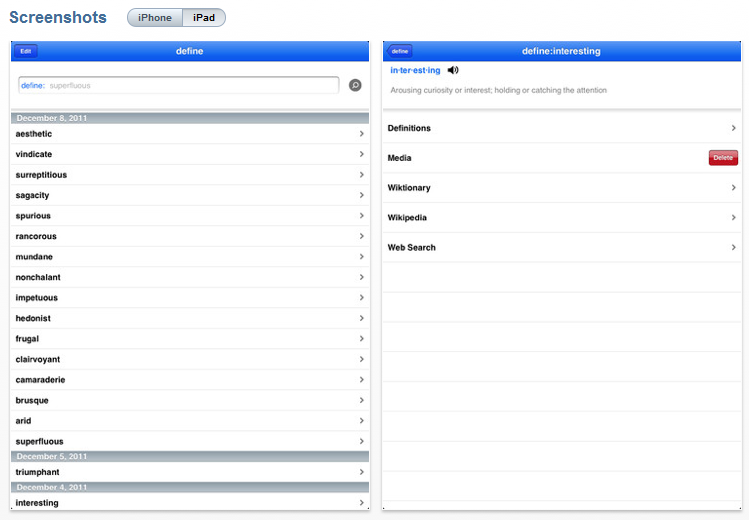











 – This case is what we have been using in our school. Staff has evidenced an iPad with a Otterbox case being dropped from about chest height on a concrete floor and another iPad being thrown on the floor. Both devices survived without any damage to them at all! Available for iPad, iPad2, iPod Touch, iPhone devices.
 – Constructed from impact-resistant polycarbonate and double-enforced with a shock absorbing silicone inner-sleeve. Corners feature double-thick silicone for outstanding protection against drops and other impacts. Available in different colors for iPad2, iPhone, iPod Touch. About $50 for iPad case.
 – This case is built for military duty grade protection and listed for extreme-duty. Sounds like it would work for some school situations! Comes in a few different colors for iPad2 and iPhone. Costs listed as $80 for iPad2.
 – This company has a variety of cases among which is a Drop Tech series case as well as a Military Edition case that are for durable for rugged use. Available for iPad2 and iPhone. Cost ranges from $60-70 for the iPad case.

 OT's with Apps & Technology