See on Scoop.it – Apps for Special Education
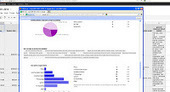
Great examples of how to use Google Forms to collect data for therapists and teachers.
Carol
See on blog.asha.org

See on Scoop.it – Apps for Special Education
Great examples of how to use Google Forms to collect data for therapists and teachers.
Carol
See on blog.asha.org
See on Scoop.it – Apps for Special Education
Many educators are realizing that the most powerful apps are those that allow for student creation. Some apps, for example Pages, Explain Everything and Popplet, push students to demonstrate, apply and synthesize their learning.
See on www.appolicious.com
Do use your Google Drive often? Would you like to be able to access your Google Drive with your iPad or iPhone/iPod? What’s the app for that? The Google Drive App!
 Google Drive App (free) developed by Google provides mobile access to your documents, files and media on your iPhone, iPad or Android device. Google provides 5 GB of space with their free Google Drive account with additional storage available for purchase. Similar to Dropbox, Google Drive App provides Cloud based storage between devices with WiFi/ or Internet connection. With many institutions using Google services (especially school systems), use of an app with direct connection makes retrieval and storage (workflow) easier.
Here’s a few things you can do with your iOS Google Drive app:
Here’s what the iOS app looks like:
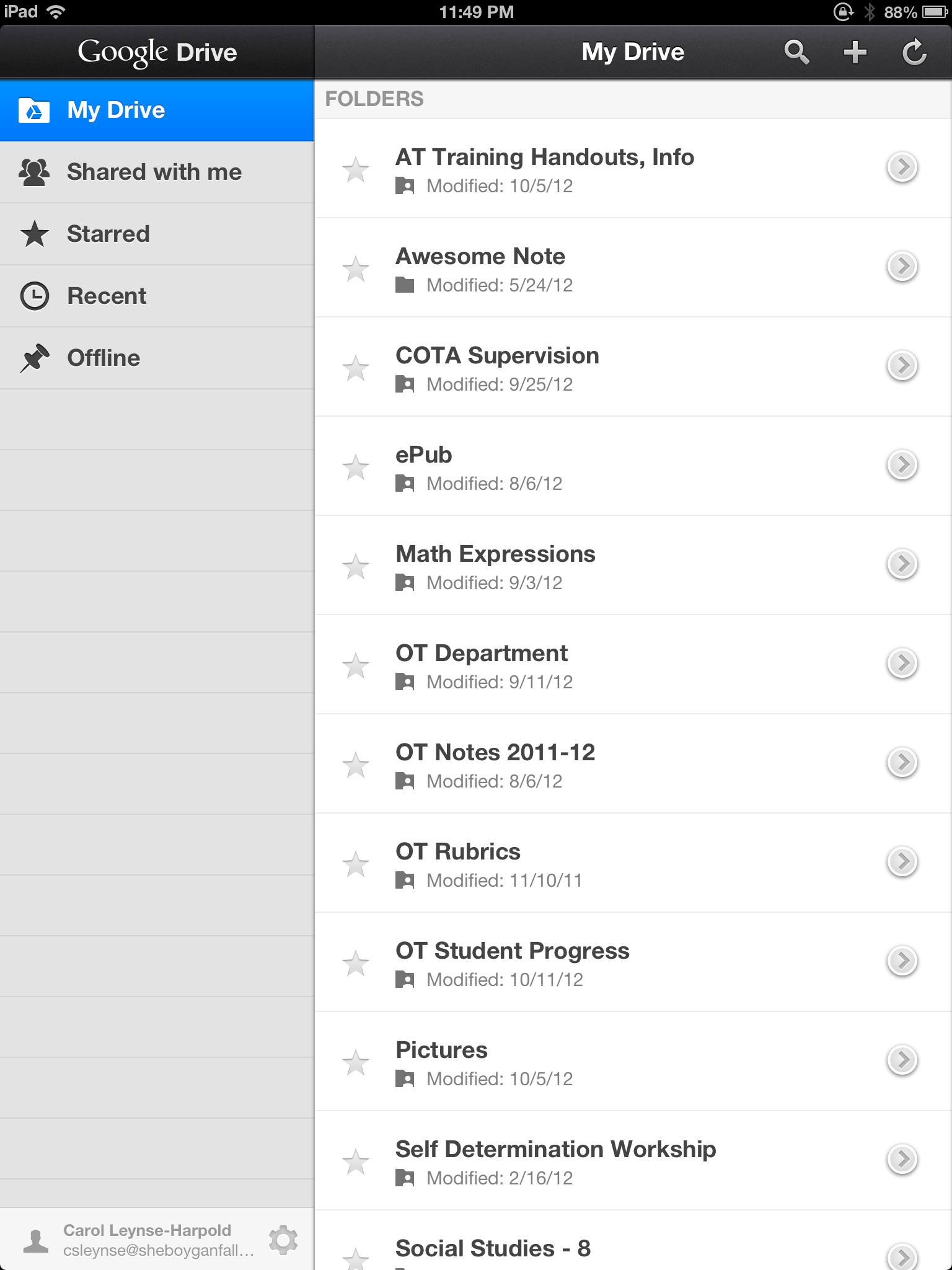
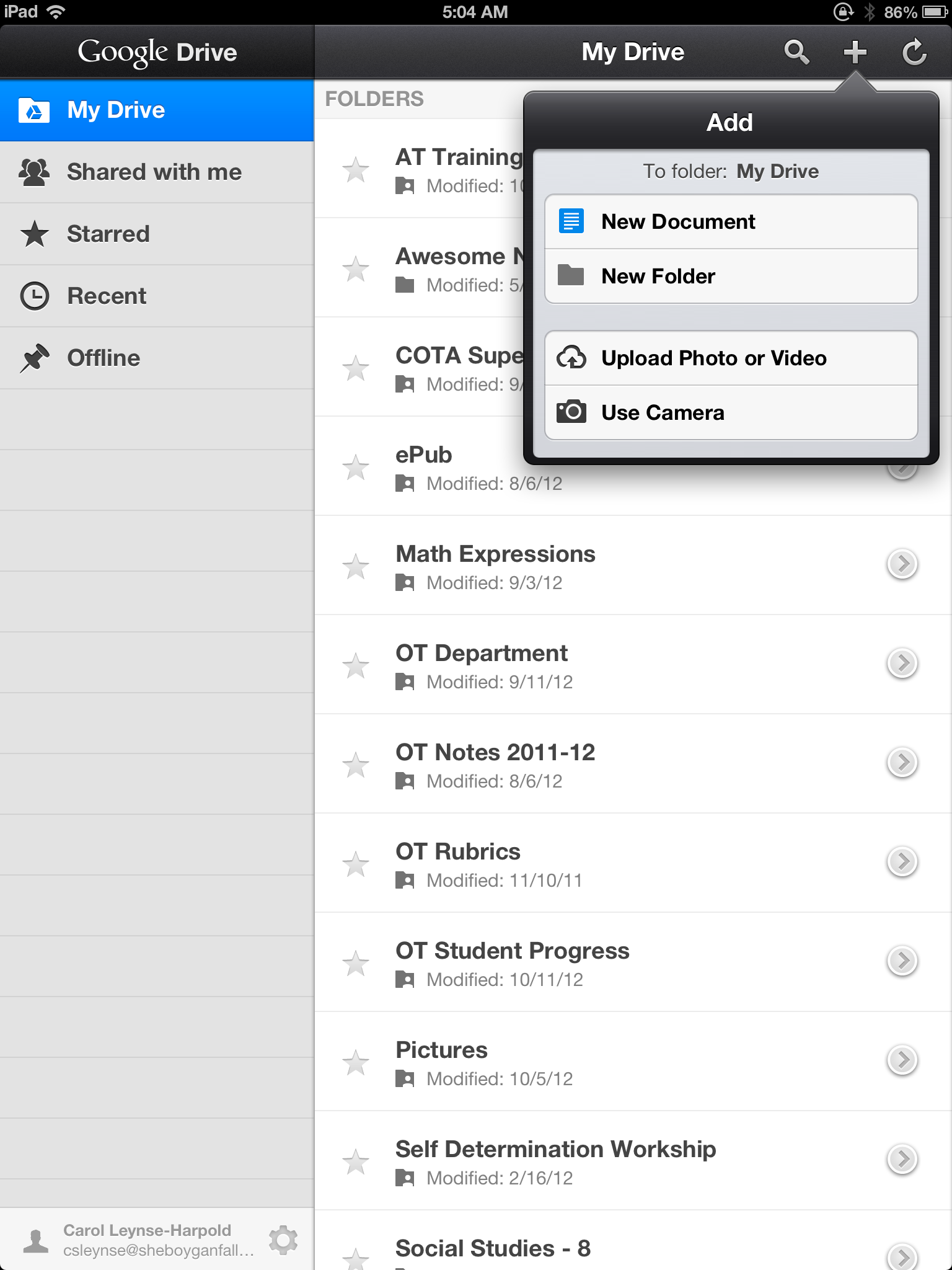
Basic functions are available, but I find in the school system this is a wonderful method of managing photos and videos taken on an iPad. How many times have you been asked why you can’t download an app or take anymore picture due to maxed capacity of your device due to media? Move it the photos, videos to your Google Drive for retrieval on your mobile device or to print or manage off of your device from your Google account!
Here are some of the features available in Android Google Drive:
Here’s what the Android Google Drive app looks like:

Video overview of what of the Android Google Drive app has to offer:
Both apps appear similar. The listing of the Android Google Drive shows a few more functions than the iOS however at initial glance they look very similar. Recent updates of the Android app may provide different functions.
With Google Educators account available in more and more schools, Google Drive becomes a familiar and secure location for managing documents of a sensitive nature (check with your institutions rules for that) and media with access 24/7 . I am happy to have a Google developed app that supplies access my files from my mobile device. It may not be as full featured as the options available in Google on my laptop, but it provides an easy access, transfer and storage for some file formats. This is a must have for my OT iTool Kit as well as for the rest of the iPads at our school for workflow management.
Unfamiliar with Google Drive Accounts? For more information check out what they have to offer here: https://www.google.com/intl/en_US/drive/start/index.html?authuser=0
More on about uses of Google apps to come!
Carol
 Touch and Write Cursive Letters is an app by FizzBrain ($2.99) for your iPad (OS 4.0+) It offers a variety of options to practice cursive writing that are fun and creative. Given how many states are actually removing cursive from curriculums (sigh), we as OT’s understand and recognize the value in learning this skill. The app has a great tutorial that walks you through the many options. Here are some screen shots from the tutorial.

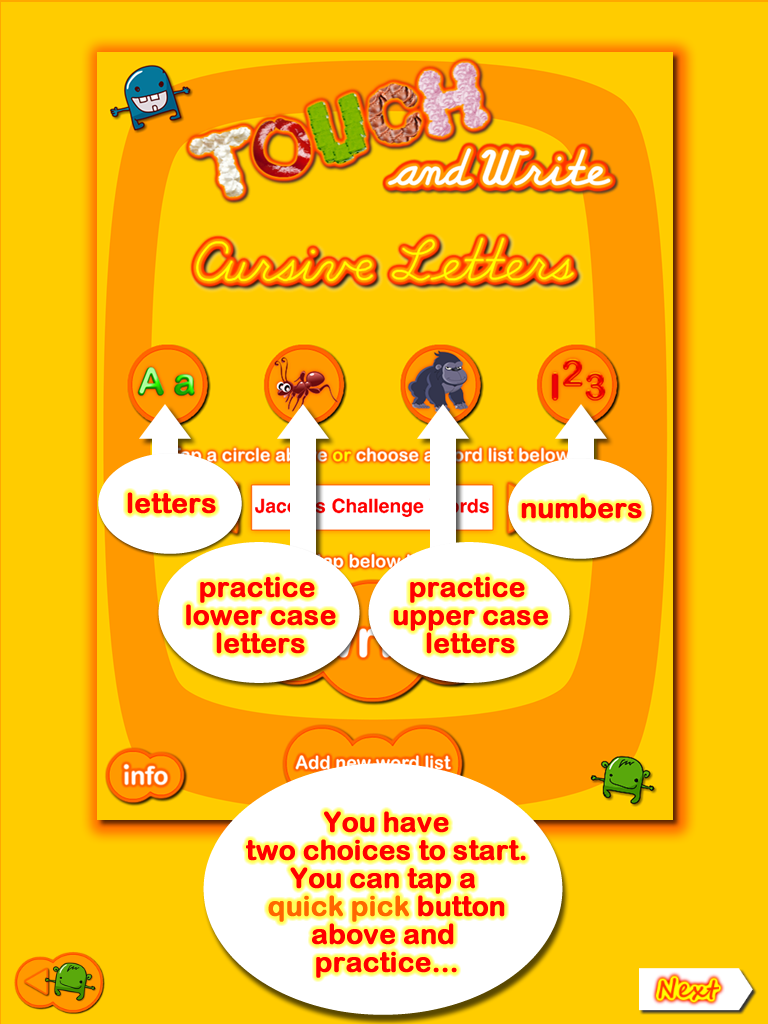
The app has great options of practicing cursive letters and words in various mediums such as shaving cream (sounds like you’re squirting it), chalk, jello, paint, etc. Dragging the little monster over the cupcakes shows you the direction to form the letter.

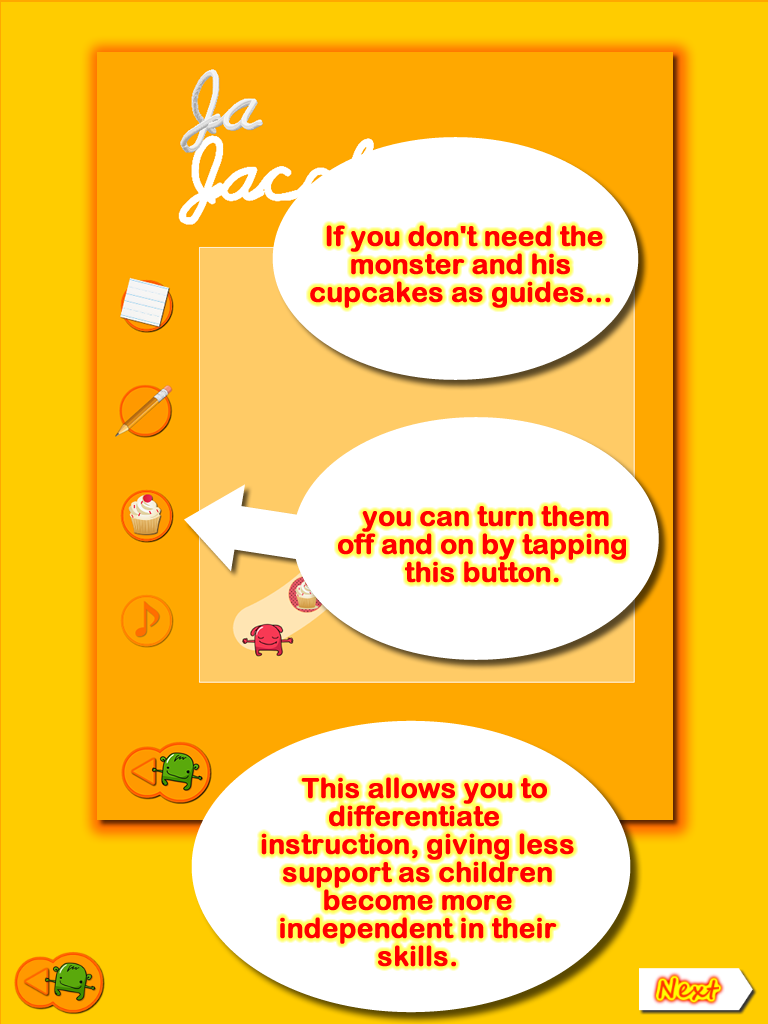
You can turn on/off the cupcake and sound feature if you want or your student doesn’t need it.
The app is pretty particular/sensitive and will make you start over if not correct—but I don’t think it’s overly sensitive. You could use a cut piece of cellulose sponge (a great idea from OT with Apps) or a stylus so the older child really gets the “feel” of writing in cursive. It has a ton of cool paper choices that your students can use as the background for their letters.


You can also create your own word list, which is a nice feature.
Overall, this app is easy to use, friendly and customizable—and it has an Australian version (which probably sounds adorable). A nice addition to our app collection!
Reviewed by guest blogger Carol Hesch OTR/L, a school based OT (the other Carol).
Candida Abrahamson shares a great app deal for World Mental Heath Day – which is today! Check out her blog post for review of the app WhatsMyM3 .

Familiar with PBS Kids Sprouts , providing educational programming for preschoolers? Sprout has online games as well as a number of apps available for free for iPhone or iPad.
 Spouts Doodle Dots App (free) for iPad is one of their free preschool listening game that practices color, shape, number and object recognition given directives such as “touch the diamond”, “touch the blue dot”. Completing each directive correctly draws a part of a picture. It is a simple, easy to use app focused on vocabulary but which may fit into a therapy when working on recognition of basic concepts such as geometric shapes, objects, numbers and colors.
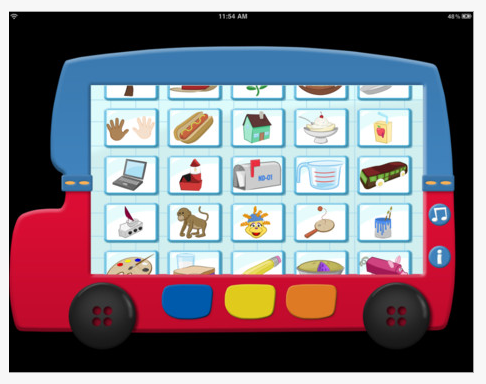

This app provides simple interaction through listening and touch the correct object. There are few options or setting available other than turning music on or off. Navigation in the app is very easy, moving back and forth between screens or to choose a new activity. Presentation on the screen is clean and simple allowing focus on the task with few distractions. Using the guided access, one of the new iOS6 accessibility features will help keep users in the app.
Sprouts has a few other apps as well as many online games and activities to consider for preschool children. For more games and activities check out Sprouts online:
http://www.sproutonline.com/games
Something additional for your OT iTool Kit.
Carol
Here is some digital Halloween fun for your mobile devices…
Halloween eBook – (free) for iPhone and iPad provides this halloween vocabulary and social communication skills around the concept of “where”.

Teo & Bianca Halloween Coloring Book – (free) for iPad provides holiday theme coloring activites for some variation in iDevice activities.
Carve a Pumpkin (free) for iPhone and iPad. Pick a pumpkin and create your own Jack-O-Lantern with this app.
On the theme of Monsters….
Moody Monsters Manner HD (free) for iPad provides learning about emotions through engaging and fun games. Worth mentioning again for Halloween for some not too scary fun for ages 3-8 years.
Monster Chorus (gone free) for iPhone and iPad, provides gentle, musical monster melodies!

Monster Hunt – The Memory Game – (free) iPhone and iPad. A monster of a memory game!

Android Apps
Memory Halloween (free) Android. Memory game with Halloween theme and scary sounds!

Happy Halloween Shape Puzzles (free) Android. Assemble spooky puzzles!

Have a spooktacular time!
Carol
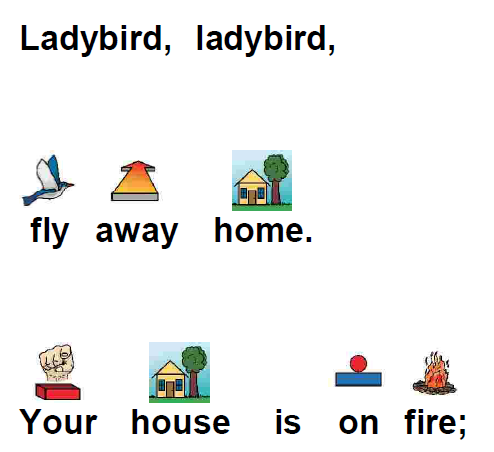
Do you still create and utilize graphic supported text for your students or clients for recipes, books, stories, directions or lists? Interested in being able to access them on your iPad?
Using programs that create graphic supported text such as Boardmaker or Picture It! are easy ways to modify text information to students or clients that require pictures to access print, directions and concepts. Programs such as News- 2 – You also provide graphic supported text units and themed materials however, what if you want or need customized graphic supported text and text to speech for a recipe or specific directions and video or a computer with the software is not an option?
Here is one possibility using Boardmaker or Picture It! software to create graphic supported text, then a few more steps prior to opening it with ClaroSpeak app using the text to speech feature to read it aloud on your iPad!
Here is how:
1. Parse text or create graphic supported text using a Boardmaker or Picture It! applications.
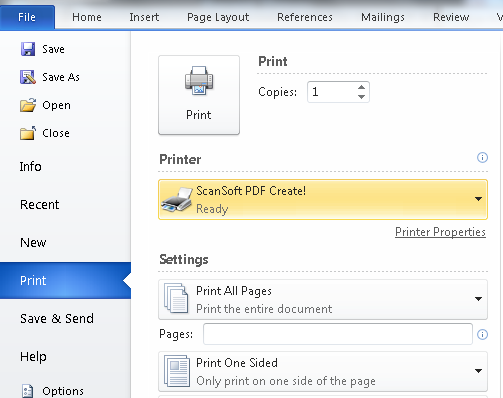
2. Use an existing PDF creating application installed on your computer. This can be done by installing software such as Free PDF Creator, CutePDF or using existing software as Scan Soft PDF Create. After installation of a PDF creator files are created by printing the document to a PDF creator application. (When finished parsing or creating in with Boardmaker or Picture It! go to Print from within the software and choose one of the PDF printer choices. Make sure you see where the file will be saved to.)
3. To get the PDF document onto your iPad you can email the document to an account that you have access to on your iPad or transfer it to cloud storage such as Dropbox.
4. If emailing the document, open your email on your iPad. Locate the email you sent with the PDF document. The PDF file will be embedded in the body of the text you sent and will look something like this:

5. Click the PDF file, it will open the PDF and provide you with options of what app you can open it in.

I chose ClaroSpeak app to open the PDF document which retains the pictures and text and provides the options of text to speech to read the text aloud. No highlighting is provided but when the text to speech is activated it reads through one document page at a time.

The text to speech can be paused and played using the arrow at the top right of the top menu. When the document is read through the end you must return to the first page of the document to allow it to read the text again. read you must return to the first page of the document the press the speak arrow.
Other options to display the PDF document on the iPad include opening the PDF file in iBooks. No text to speech will be provided since this is a PDF file. Other possible apps that would read a PDF file includes vBookz PDF Voice Reader but which was not trialed due to cost (4.99/per voice) and ClaroSpeak available to use. Voice Dream Reader was trialed however, images were not retained when the document was imported into the app. or other apps will allow you to have the images of graphic supported text but without text to speech. (I am sure there are other apps that could do this, but I used what apps I already had for cost containment!).
There are a number of steps to create, convert, email then open in an appropriate app to allow text to speech with a graphic supported text, however it may be worth it for the needs of specific students. ClaroSpeak app is a low-cost app that provides text to speech capabilities for a number of file formats to allow individuals with reading difficulties a method of accessing print on a mobile device. Other methods of access may include video taping directions, providing talking picture books whether hard copy or an electronic book on the iPad or using an AAC program to write out directions using text or message boxes within the program.
Have you used any methods of providing graphic supported text on the iPad? Please share any thoughts, suggestions you might have!
More for your OT iTool Kit!
Carol
See on Scoop.it – Apps for Special Education
More of Jane’s expertise on alternative access methods to the iPad. Again, my gratitude to Jane for your her time and willingness to share her information. Her information is invaluable to help sift and winnow what access choices are available for mobile devices!
Carol
See on www.janefarrall.com
11/11/12 The survey is now closed. If interested, here is the link to the results of the Mobile Device Use Survey : http://wp.me/p1w0d0-1ez – Thank you!
Carol
(10/4/12) In interest of gathering basic information on the use and prevalence of mobile devices with special needs individuals or by those that support them, I have created a quick survey for visitors to complete. I am hoping to get information, not readily available, on the topic from those who support them. As always I appreciate your comments and the time you take to visit OT’s with Apps and would be grateful if you help gather such information.
If you have any questions or comments please share them. Many thanks!
Carol

The OT eTool Kit resource - review of apps and other technologies for OT's working with children and adults.
The OT eTool Kit resource - review of apps and other technologies for OT's working with children and adults.
powered by ARRM Technology Resource Center
Indiana's leader in assistive technology and the home of the INDATA Project
Assistive technology to help infants and toddlers communicate, move, play, and grow
The Stories of an Occupational Therapist with Retinopathy of Prematurity
The OT eTool Kit resource - review of apps and other technologies for OT's working with children and adults.
The OT eTool Kit resource - review of apps and other technologies for OT's working with children and adults.
Tech Integration for Busy Teachers
Just another WordPress.com site
Technology support for all dyslexic people
Re-train the Visual Brain…Advancing awareness, understanding and best practices
Literacy, AAC & Assistive Technology
Supporting Accessibility with the iPad

 OT's with Apps & Technology