See on Scoop.it – OT mTool Kit
Check out the latest video JUST added to the Spectronics Online Resources! Apps for Early Literacy Series – Part 2 (letter-sound identification, letter tracing) available now…
See on www.spectronicsinoz.com

See on Scoop.it – OT mTool Kit
Check out the latest video JUST added to the Spectronics Online Resources! Apps for Early Literacy Series – Part 2 (letter-sound identification, letter tracing) available now…
See on www.spectronicsinoz.com
See on Scoop.it – OT mTool Kit
Bookshare support now includes organizational accounts
– Improved VoiceOver support for the blind
– Can start speaking text from a chapter, bookmark, or highlight
– Can start speaking from a text search result
Listen to PDF and Word documents, articles, eBooks and Web pages with text-to-speech. Integration with Dropbox, Pocket, Instapaper, Bookshare, and Gutenberg. Silky smooth synchronized highlighting and autoscrolling. Rock-solid stability. 55 amazing voices in 20 languages available.
See on itunes.apple.com
See on Scoop.it – OT mTool Kit
I have been waiting for Panther Writer to be released with more anticipation than waiting for Christmas! (yes, you can see my geeky side now 🙂 ) And it has…
Another great option for alternative keyboards for the iPad.
See on www.spectronicsinoz.com
See on Scoop.it – OT mTool Kit
Best Free Android Apps (Media)
Android utility apps including video editing, adding text to pictures, downloading videos and more. A number of useful apps to consider!
Carol
See on nashfrias.blogspot.fr
Write for School
Device Compatibility: iPad
Cost: 6.49
Developer: Little Caradams Pty Ptd
App Description: Write for School is an educational app featuring manuscript upper and lower case letters, number formation, letter blends and vowel formation instruction for primary aged students. Created by Australian developers, this app also provides D’Nealian and Zaner Bloser Style American letter formation along with numerous Australian, New Zealand and United Kingdom font styles in its instruction.
The main screen of the app provides the following options:
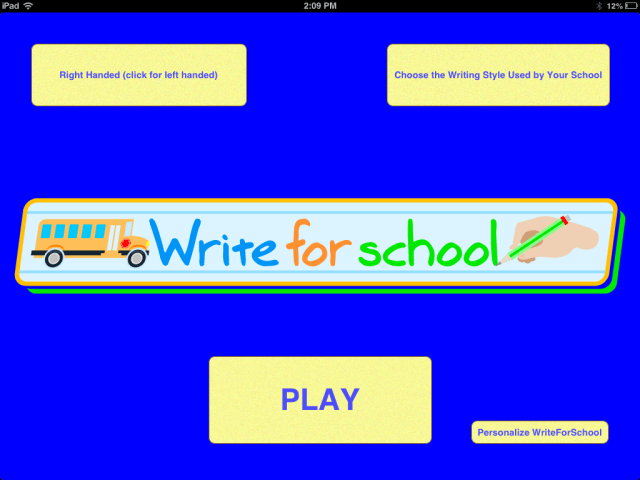
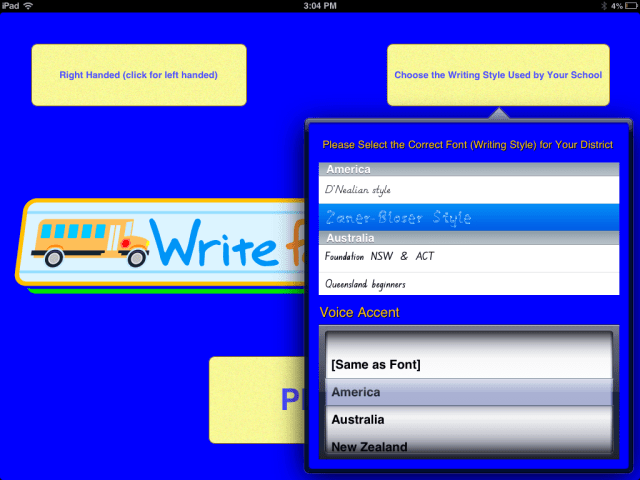
Type of font
Font Color
Font Size
Transparency
Thickness of the font
Position of the font on the screen (moves it up and down on the screen)
Writing line size
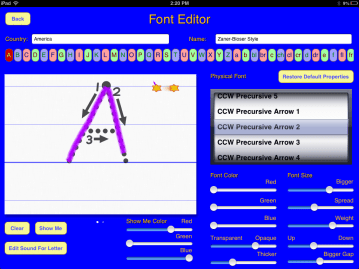
“Show Me” editing options allow you to create your own the order and letter formation of the letter. The default lower case letter “x” formation started with the left diagonal descending, different than American Zaner Bloser letter formation. I was able to edit this sequence using this editing feature. The default color for the “Show Me” video of letter formation is red. Other options are green and blue.
The activity page provides the following options for the user:

The writing area also provides the following options for the user:
The “Show Me” button provides a video of the letter being drawn, “Next” moves the user to practice the next letter in the alphabet, and “Try Again/Clear” clears the writing area for additional practice. A star guides the user in where to start writing and continues to guide the user in the direction of letter formation.
The a-z alphabet buttons provide easy choice of letter formation practice in any sequence. The picture speaks the letter and word name when touched. Phonetic sounds are not provided in the app.
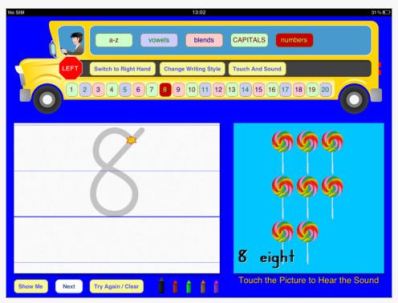
Use: This app is primarily for preschool and elementary skilled students needing practice with letter formation. Although made by Australian developers, it provides many options for different styles of letter formation instruction for English languages. Easy to use, it provides visual and video instruction of letter formation. Although it does not provide arrows for direction of letter formation as is recommended by best practices (Graham, Steve), it does provide a star showing where to start writing the letter which also guides the user through the visual motor sequence of letter formation. The “Show Me” option provides a wonderful visual/video sequence of letter formation. Readily available “Try Again/Clear” and “Next” buttons allows for additional practice or moving on to the next letter in the alphabet. Using the letters and number line presented on each screen can allow for practicing letters out of sequence or by letter groups as directed by the teacher or therapist. Repeated practice is offered using different colored writing tools. Coming from a school that has adopted the American Zaner Bloser method of handwriting instruction, there were a few minor differences with how some letters were formed but which could be edited in Personalize WriteforEducation button using the Font Editor menu.
I found the options available in the Font Editor to be exceptional, allowing editing of the “Show Me” video formation sequence as well as changes to the attributes of letter writing with color choices, width of lines, sizes of paper lines and size of the font. Choosing different fonts available provides, letters with arrows showing the correct sequence of letter formation also with options of reducing the supports to dotted lines depending on the font choices available. Although the app is very straight forward for the user, the many options requires a bit of trial to determine how to customize the letter formation practice to the user as well as to a school’s letter formation instruction using the Personalize button options.
Pros: Writefor Education app include the ability to customize not only the color, the font, weight and thickness of the lines and formation of letters using the Font Editor menu. Few other app (that I am aware of) provide such in depth customization of the instruction component. Customization can aid users with vision, motor planning and motor control challenges and also provide fading supports to the user with use of different font types.
Instruction is provided by the videos (“Show Me”) of letter formation as well as use of a star showing where to start writing and which guides the writer in the direction of the letter formation. Although this does not provide the recommended numbered arrows for letter formation (Graham, Steve, n.d.), it does provide guidance for letter formation to the user. Accuracy for letter formation was lenient when tracing over the letter, stopping the written line when extremely deviant from the letter line. This can be good for beginning writers providing them the ability to learn the sequence and formation of the letter then requiring accuracy after letter formation is learned.
The “Show Me” video instruction is a wonderful aid for students who are visual learners to view format of the whole letter sequence. Many different opportunities for letter and number formation practice are provided in this app in a flexible and customizable skill and drill format.
Cons: Best practices recommends providing arrows and number sequence for letter formation (Graham, Steve) which is partially provide using the star guide during the writing process. The videos however provide a wonderful visual guide of how the whole letter is formed. The letter pictures provided in each writing activity I found somewhat distracting as many have animation which might be distracting to the user.
Use of a stylus is recommended for improved viewing of the star which visually directs letter formation but can be difficult to see under your finger when writing on the iPad. Although the app provides many opportunities for letter formation (lower, upper case, blends and vowels), best practice also recommends using the letters practiced in words and writing letters from memory (Graham, Steve, n.d.). Writing activities to reinforce recall from memory or writing words are not currently integrated into the app but can easily be performed following letter formation training with the app using paper, white board or chalkboard practice. Games of producing the letters by verbal or recall can easily be played using letter dice, flash cards or in a variety of tactile mediums (shaving cream, play dough, clay, gel bags, sand or aquarium rocks for real multi-sensory feedback.
Multiple user options are not available in the app. For teachers or OT’s customizing the app for multiple student use would be difficult to manage. Tracking the acquisition or completion of letters by students also is not available within the app. Screen shots could be take of single student work using the Home button and Power button and stored in a Photo Album by student for assessment and tracking purposes if assessment information was needed when using the app.
Special needs features: Widths and sizes of letters and numbers, line and color of lines when writing can be customized for the user providing great options for students with visual challenges, attention or motor challenges. Video “Show Me” option of letter formation provides a strong avenue for learning for visual learners. Guidance for letter formation using the star and a stylus can aid students with cognitive and motor planning challenges. Providing students audio instruction or coaching (by the instructor) using the classroom’s verbal instruction is recommended to allow a multi-sensory method of learning for students which is consistent with classroom instruction. Positioning of an iPad on an easel and use of an appropriate stylus for the student can help with access and being able to see the star guide when writing.
Final Comments: Despite some features that were missing according to best practice research (Graham, Steve) I was quite impressed with the many options and customization available in this app allowing instruction to mirror what is provided by school curriculum or customize the instruction to individual learners needs. The video “Show Me” option for visual learners is very appealing as this is a strong method of learning for them and readily available. Writing for Schools also provides a flexible means of learning upper, lower case letters, blends, vowels and numbers. The ability to choose your own order of practice of letter or number formation and the ability to customize using the “Personalize” button provide customization not only to school instruction but also to each user. Customizing instruction to multiple users on a single iPad could be very cumbersome but would be beneficial to students using dedicated devices. Using this app along with other hands on methods of letter formation would provide learners with instruction and multi-sensory modes of learning including writing on paper for functional carry over to classroom tasks. Instruction for those using Handwriting without Tears I believe could be adapted using the Font Editing options.
This app is a value for its ability to customize instruction to students and customize instruction for a specific school handwriting method. It would be great if a lite version was available for a brief time for teachers and therapists to trial prior to purchase to ensure that it will meet their students and school instructional methods. WriteforSchools is a worthwhile app for skill and drill practice of handwriting for primary aged students.
Have you used this app? What is your favorite letter formation app?
References
“Writing Numeral and Symbols.” N.p., n.d. Web. 24 Dec. 2012. <http://www.zaner-bloser.com/media/zb/zaner-bloser/HW_Student78.pdf>.
“Teaching Letter Recognition.” Web log post. The Reading Genie, n.d. Web. 24 Dec. 2012. <http://www.auburn.edu/academic/education/reading_genie/letters.html>.
Graham, Steve. “Want to Improve Children’s Writing.” N.p., n.d. Web. Retrieved on December 24, 2012 from http://www.aft.org/pdfs/americaneducator/winter2009/graham.pdf
Carol

Educational Apps for Sale (part of Digital StoryTime) has a few great deals on iPad apps previously reviewed but now at reduced prices:
 Book Creator for iPad – (Was 4.99 now 1.99 ) This app allows unlimited creation of books within the app with text, audio, video and images. Easy to use for teachers and students to create books and projects that can be transfered to iBooks, PDF format, sent thru email. Good work flow options within the app.
 iLearn with Poko: Seasons – (Was 2.99 now free) This app provides early learners activities about seasons, weather, clothing in a fun format. Used with PreK thru 1st grade level students this provide activities regarding self care skills (clothing choices), seasons and weather. A nice addition to your science apps for free!
 American Wordspeller – (Was 4.99 now .99) A phonetic based dictionary.
Educational Apps for Sale has many more educational apps on sale. Check them out!
More for your OT iTool Kit!
Carol
This post is not particularly related to mobile apps (although I will connect it in a little bit…), but this is such an interesting post from The Sensory Spectrum, I thought as OT’s, parents or others that work with individuals with sensory processing this needed to be shared.
The Sensory Spectrum provides several interesting perspectives via video what it might be like to have a sensory processing disorder. How many hundreds of time have I wished to be inside for just a few minutes to perceive and understand what they see, hear and feel. These resources help with getting inside, even though each individual may have a different perception, it is a start.
And now I wonder why some of my students wear ear muffs frequently, why they like sameness, predictability, patterns and calming apps that they can control the visual or audio effects of ? Wouldn’t you if life was so unpredictable?
If you work with clients with sensory processing challenges check out their blog and the resources provided from The Sensory Spectrum, it is well worth it!
Thank you to The Sensory Spectrum blog for their incredible work at providing insights and resources on SPD for all!
Carol
A teenager on the Autism spectrum shared what it’s like to experience sensory overload. Bravo for him in educating others!
Visual Schedule will Travel!
Work tasks integrated into a students day can be part of a students life skill programming. Using visual strategies may also be a need for many students to facilitate independence with task completion by providing photos, symbols or text in a concrete, static, visual manner and decrease verbal prompt dependency.
What happens when when students need to travel and use visual communication at the same time but independence in interacting with the a device is a goal?
A number of shoulder strap cases are available to allow students easy access to iPads for communication purposes ( see iPads and Student Transport and Easy Bee case review for suggestions). Numerous apps also are available providing visual schedule prompts for student to follow a visual sequence of events customized to their individual needs. One such app is First/Then Visual Schedule (iOS) (Android) app by Good Karma available for iPad and Android which provides different views (full, split or list) of scheduled tasks or places they will participate in during the day.

Using a shoulder bag, visual schedule app on an iPad, cart and a few other inexpensive items, here is a cheap way visual communication was adapted to provide a visual schedule on a cart for use during transport:
1. A sturdy, ballistic nylon travel case or bag with a shoulder strap (available from Amazon) when traveling about the school had been chosen due to its low profile, ease of donning and doffing independently, ability to view the iPad visual schedule and safety during travel.

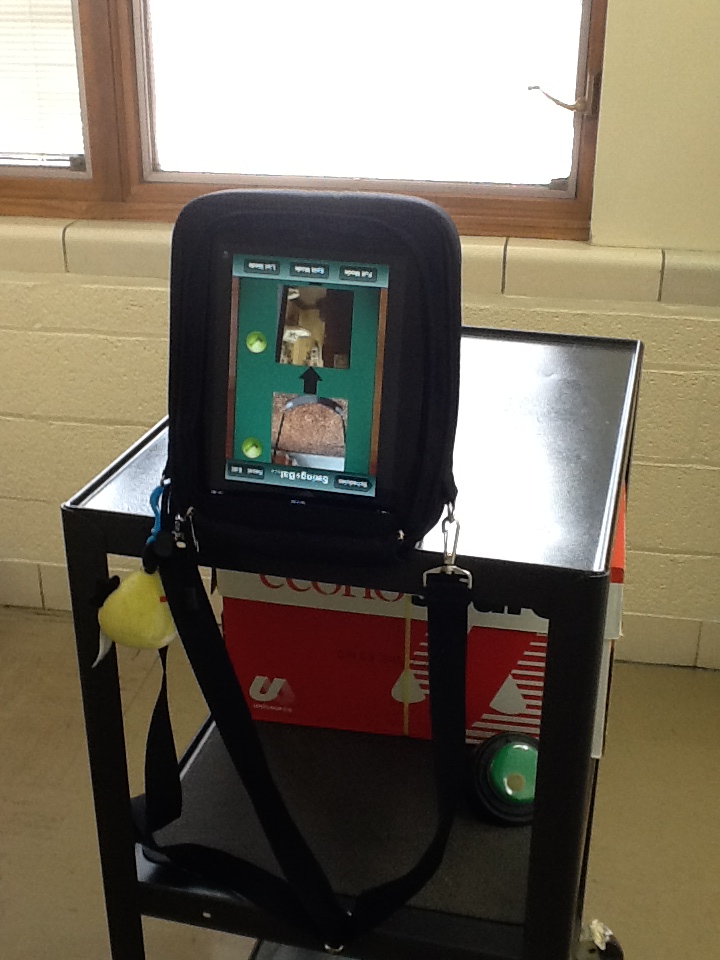
A pocket on the back of the bag allowed the cover to be managed and tucked away allowing easy viewing of the screen (see image below). It also provided a quick easy method of adapting the iPad to the cart (see below)!

2. Large book stand repurposed from our library with heavy duty velcro to secure it to the cart.
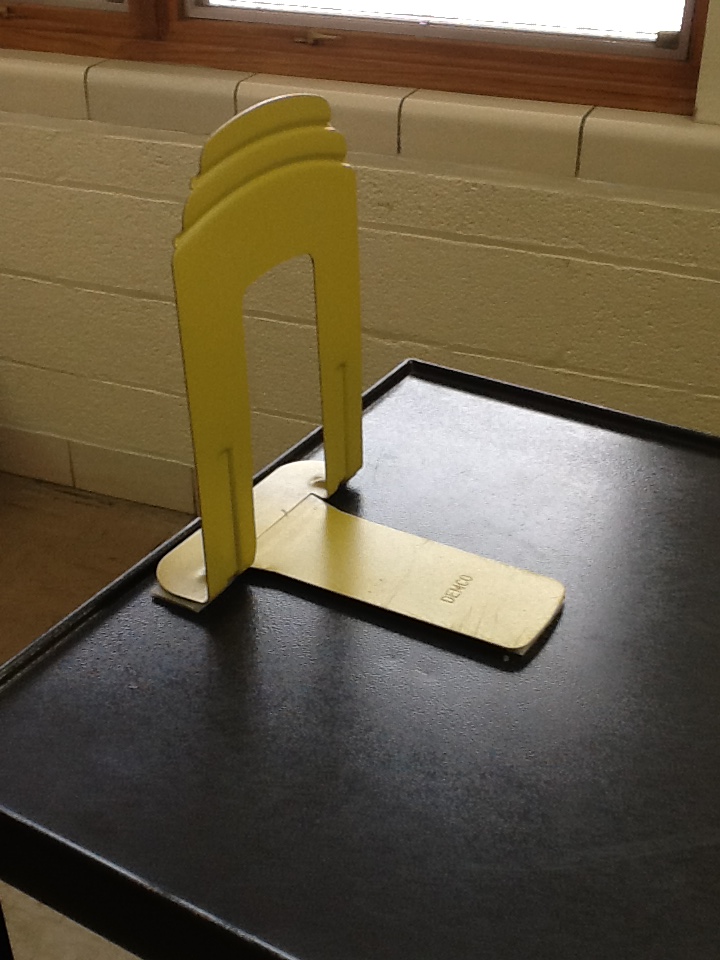
3. Sliding the pocket of the case onto the secured bookstand provided the visual schedule at eye level for the student. This means the iPad is upside down in the case, but zippers on the bag secure the device from falling out. Changing the orientation of the iPad screen for correct orientation of the app was needed but an easy thing to do on the device.
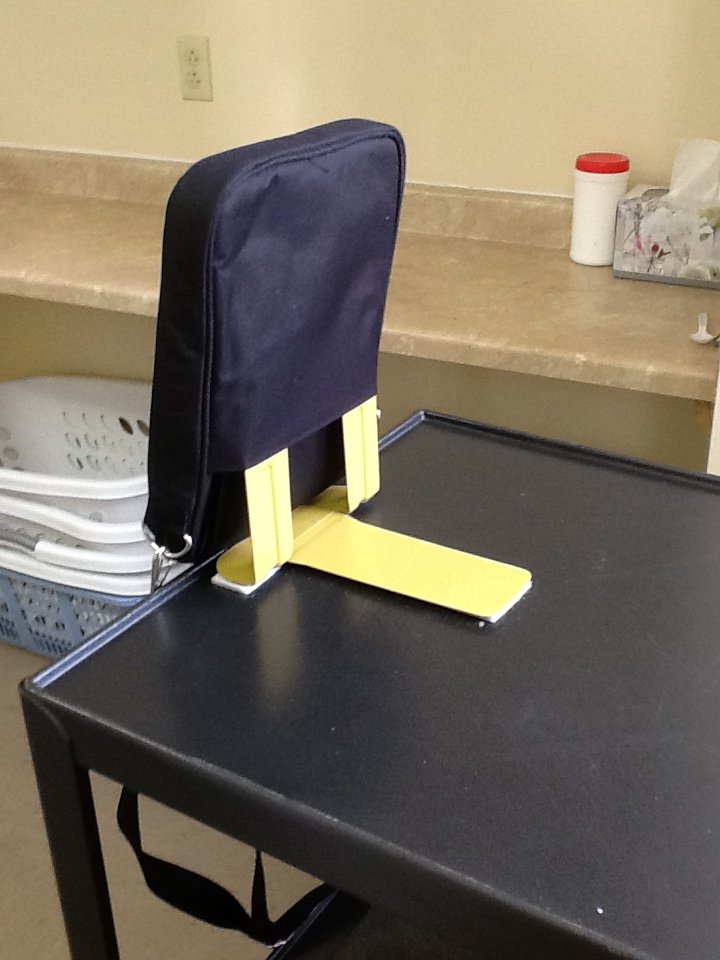
4. The iPad with visual schedule is available at eye level on the cart for the student. There is plenty of viewable space to watch where he is traveling with the cart!
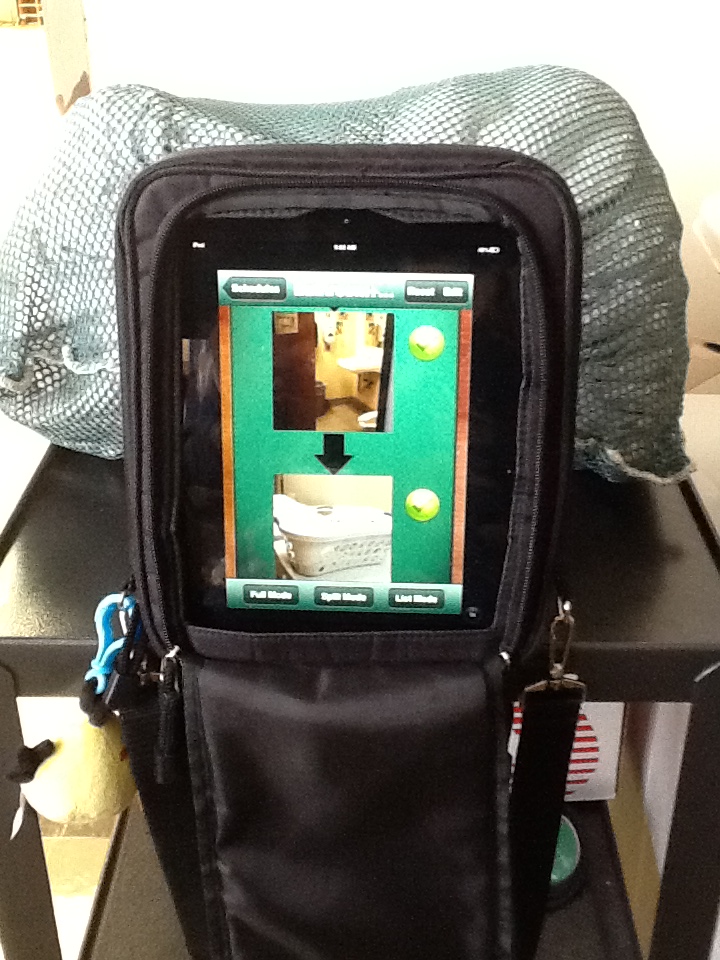
The existing cart and bag provided easy method of mounting the device on the cart with only a repurposed book stand and some Velcro required! It’s off to work we go!
References:
Visual Supports and Autism Disorder. Retrieved on December 16, 2012 from: http://www.autism-center.ucsd.edu/autism-information/Documents/A_S_visual_supports.pdf
Using Visual Schedules a Guide for Parents. Retrieved on December 16, 2012 from: http://www.iidc.indiana.edu/?pageId=394
See on Scoop.it – Apps for Special Education
Photo Table by Paul Solt I have no idea how long this app is free for but I assume its for a very short time. It dropped in price from $9.99 and I’ve played with it a little and itR…
Small But Kinda Mighty features Photo Table, an app gone free. Sound like an app worth having from a reliable source!
It will be in my OT mTool Kit!
Carol
See on smallbutkindamighty.com

Here is a holiday stocking stuffer idea for the iDevice user – shared by Chris Beatty, OTR, ATP via email:
“I recently found ‘Tech Touch’ gloves available at Target with which work with iPad or capacitance touch screen. The gloves prevent inadvertent touches from the palm or other finger.
 The touch is limited in the thumb and index finger. It allows the user to rest the hand on the touch screen without activation. It would work much less intrusively than a traditional keyguard. The gloves fit most hands and relatively inexpensive (3 pair for $9.99).
It may be a great little gift.”
Chris Beatty OTR/L ATP
Adaptive Technology
Occupational Therapist
Assistive Technology Professional
You can also find these Tech Touch gloves in assorted colors from Targets online store for 3 for 9.99 (with free shipping on purchases over $50).
 Nice find and great iDevice accessory Chris! Thank you for sharing!
Carol

The OT eTool Kit resource - review of apps and other technologies for OT's working with children and adults.
The OT eTool Kit resource - review of apps and other technologies for OT's working with children and adults.
powered by ARRM Technology Resource Center
Indiana's leader in assistive technology and the home of the INDATA Project
Assistive technology to help infants and toddlers communicate, move, play, and grow
The Stories of an Occupational Therapist with Retinopathy of Prematurity
The OT eTool Kit resource - review of apps and other technologies for OT's working with children and adults.
The OT eTool Kit resource - review of apps and other technologies for OT's working with children and adults.
Tech Integration for Busy Teachers
Just another WordPress.com site
Technology support for all dyslexic people
Re-train the Visual Brain…Advancing awareness, understanding and best practices
Literacy, AAC & Assistive Technology
Supporting Accessibility with the iPad



 OT's with Apps & Technology