ScribblePress App

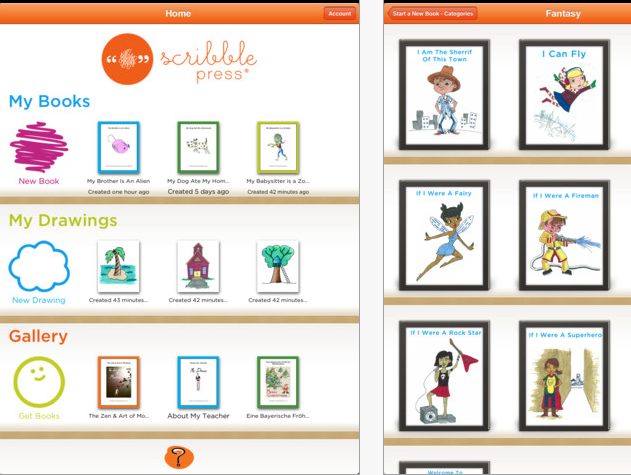
ScribblePress is a drawing and publishing app for the iPad that currently is free and I believe may have some possibilities for OT’s.

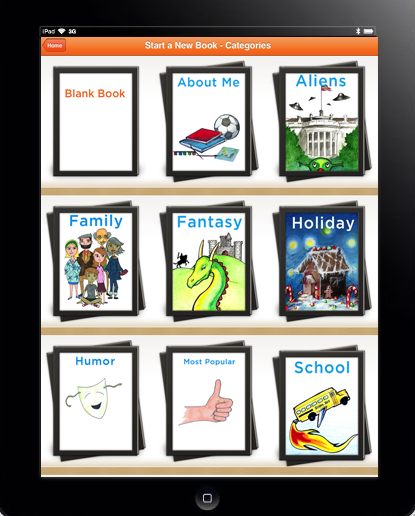
Features of the app include using 50 templates to create a story as well as features to draw on blank pages or import pictures to make your own. Finished publications can be emailed or published to iBook library. See ScribblePress website for more information and ideas of its use. IT is easy to use and publishe with its clean and simple tools.

ScribblePress does not have an audio recording feature but it does allow text entry for a text story line.

So how might an OT you use ScribblePress?

All kids like to publish and show their work. If you have been working on specific handwriting skills,  letters, numbers, writing their name or drawing pictures, shapes or designs in therapy creating a final project showing their skill might be motivating for your student. The book can be created and emailed or published to iBooks if desired. No audio is present, but creating a simple story with a story line is easy to complete.

Check out ScribblePress. It may not be an app you use all the time but it has possibilities for final projects to show case your best student productions or handwriting samples.

Another OT iTool kit possibility. Any ideas on how you might use it?

Carol

Posted in App Reviews, Apps for OT's, Apps for Special Needs, iPad, iPhone, iPod, Occupational Therapy | Tagged , , | Leave a comment

Injini Child Development Game Suite App

Thanks to Molly Shannon for mentioning this app in the Lite version in one of her comments. I had seen this app but shied away from it due to the cost (49.99) not realizing that it came in a Lite-free version. Thank you Molly!

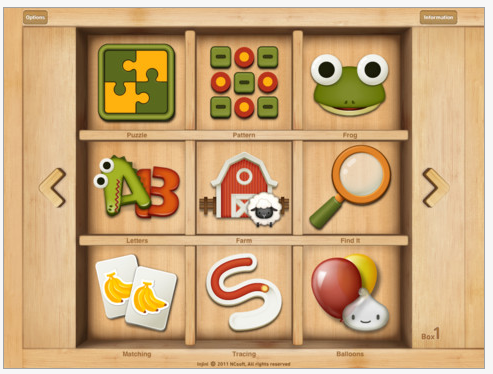
Injini Child Development Game Suite is an app available only for iPad (Lite/49.99) for early childhood aged students with or without special needs. Skills focused on in the app include:

  • Fine motor/visual motor
  • Cause and effect
  • Spatial awareness
  • Memory
  • Visual discrimination and matching
  • Response inhibition
  • Visual processing
  • Sequencing
  • And more….

Watch a video demonstrating Injini’s app activities:

Tasks presented are at a very basic level. It has some option settings including chosing darker colored layout for greater contrast, male or female voice and a count down from 3 to start the activity presented. Many of the activities are leveled providing a method  to grade or track skill of the student. It provides positive reinforcement after successful completion of the activity.  Tutorials are also provided with in the app demonstrating how the tasks works.

The app also provides the model of show me and then do within the activities to help children understand how to perform activity.  Although expensive, it does provide a wide variety of early childhood visual motor, visual memory, sequencing activities for students in a clean and easy to use format. The Lite Injini version provides partial access to the activities (3 out of the 9 leveled activities) for you to trial or use. Letters are not provided in the Lite version

Check it out or trial the Lite version. Will this be one of the apps in your OT iTool kit?

Share what you think!

Carol

Posted in App Reviews, Apps for OT's, Apps for Special Needs, Developmental Delay, Early Childhood, Fine Motor Development, iPad, Occupational Therapy, Visual Motor, Visual Perception | Tagged , , , , , , , , | Leave a comment

Tanagram Apps

Visual perceptual skills are another area OT’s provide intervention. As a OT I had my favorite parquetry or tanagram activities that ranged from simple to more complex as the student or client required. It was always interested to watch the visual perceptual processing of individuals who were challenged in spatial relationships and then scaffold the task using verbal problem solving or simplifying the presentation visually.

So what tanagram or parquetry apps are available on the iPad or iPhone/iPod Touch for your OT iTool kit ? Here are a few suggestions:

My First Tanagram is made by Alexandre Minard who has developed a who series of puzzle apps for young children. Presented cleanly and easily, the pieces are presented in the right orientation, color coded and basic so that the user only needs to match the shape and slide the piece to the appropriate area. Although this app has relatively basic designs I would want even easier designs for some of the students I have worked with. This can be done however by inserting some of the pieces into the design for them to finish the remaining to grade the activity.  I used the lite version which did not provide any options for exploration of how this could be customized if needed.

 Available for the iPad for 1.99, it is also available in a lite version for trial and for Android. Review on YouTube is available here.

For older students PopAppFactory has a beautiful but what appears to be more complex Tanagram Puzzle app. Available for iPad (.99) this app provides templates to recreate designs and a make your own gallery. Integration with an online gallery from others provides more tanagram creations.

Without having trialed this app, it appears as though you can create and save tanagrams customized to students level in the app.

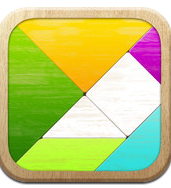
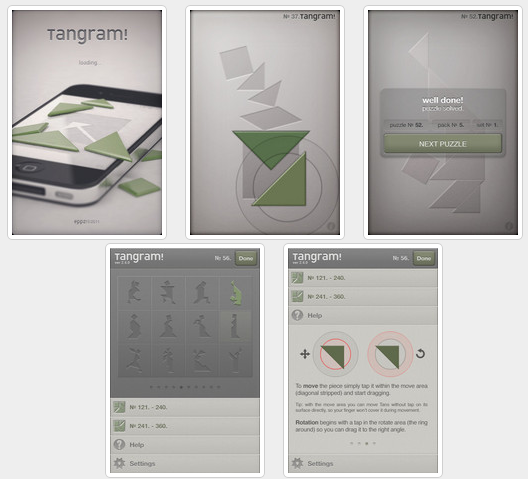
Tangram! app is another app providing the same activities however are not for the significantly perceptually challenged. Available for iPad, iPhone/iPod Touch (Lite and .99 to purchase), Tanagrams! provides a pieces requiring orientation to insert into the tanagram puzzle. Instructions for how to manipulate the pieces are provided but it was pretty intuitive to me.

There are more tanagram apps however find them too complex for most of the clients or students I have worked with. The Tanagram Puzzle appears promising as long as designs can be created at different levels for emergent learners to use.

Have a good tanagram app you use? Please share your experience and your favorite tanagram app!

More tools for your OT iTool Kit!

Carol

Posted in App Reviews, Apps for OT's, Apps for Special Needs, iPad, iPhone, iPod, Visual Perception | Tagged , , , , , , | Leave a comment

Tapikeo App for Storytelling

There are many different storytelling apps out there in a range of prices and features. A previous post  listed several different storytelling/ book making apps and resources.  I am a big believer in you get what you pay for, but sometimes the free or cheap app just does what you need it to do!

I had been using StoryRobe (free) app – great for some students – but not so great with other students who tend to explore functions on the iPad. I created a book for one of my students who likes to tap on the screen to explore only to find she had deleted the story I just made right before my eyes within a few minutes of its publishing (easy come, easy go)! Not quite the right storytelling app for this student! What I needed was an app that had menu protection for this student!

After bit of exploring and trial I found…

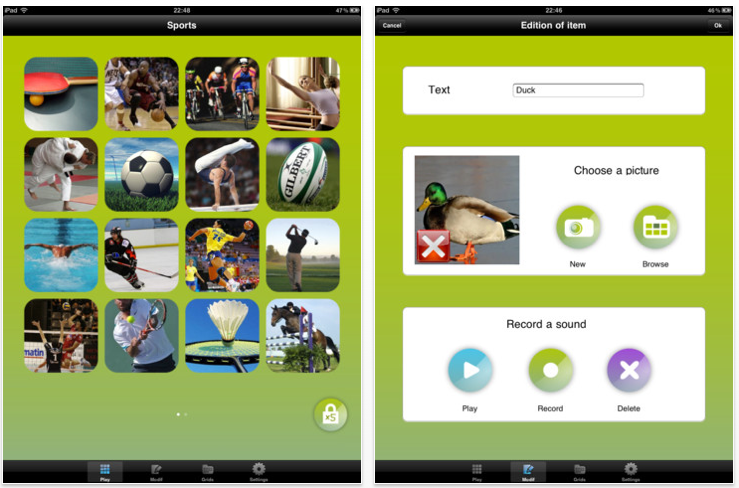
Tapikeo –  is a very simple app to play and create. Available for iPad (2.99) and for the iPod Touch/iPhone (.99). What suited my needs for several of my students were features of an edit and play mode. In Tapikeo you have to tap 5 x’s in rapid succession (left picture below shows lock function) to put it in edit mode, a skill that would be unlikely for students using it to perform. Tapikeo allows you to take a picture or access the pictures from your photo library/album.

It has an easy way to record your voice and type in text for a title for each picture or page and then you are done! I would like the text to be a bit larger with font and size, but I can live with what it provides as most of the students I am using it with access the images and audio more than print.

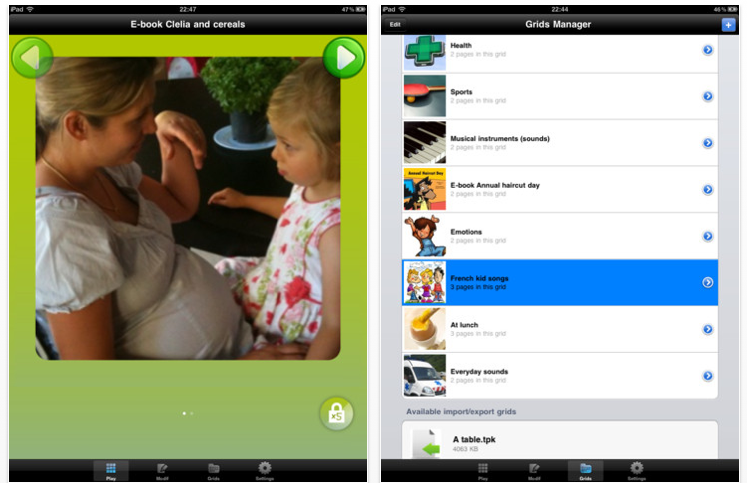
The above left picture shows your end product when in a locked or “play” mode (text under the picture can be added although small font size). The pictures for your book populate by grids and then play like a slide show one picture after another. What I really like are the large green forward and back arrows at the top of the page when e-book mode is selected. Although the swiping can be intuitive for some students on the iPad, others are familiar with arrows to navigate from page to page (years of practice with Intellitools books or activities). Some students have difficulty swiping or are practicing a single tap, so these medium sized arrows are just right for access for most of my students.

Tapikeo has few bells and whistles or customization features but provides what I need for storytelling for select student needs. I have used it to make stories on favorite subjects, classroom curriculum topics appropriate to integrated students (Pets of Ancient Eypgt, Vertebrates). Easy to use, I am hoping that regular ed students can be recruited to make stories for my special need students as a class project!

Used not only for storytelling or book creating on modified curriculum subjects, Tapikeo can also be used for vocabulary, flash cards or a simple presentations. The app has the capabilities to email your stories.

If you have a favorite storytelling or book making app please share it! We’ll all have more apps for our OT iTool kit!

Appy Storytelling!!

Carol

Posted in App Reviews, Apps for OT's, Apps for Special Needs, eBook Creating, iPad, iPhone, iPod, Occupational Therapy, Special education, Story Telling | Tagged , , , , , , , | Leave a comment

A Spectrum of Apps for Students on the Autism Spectrum – January 2012

There are many lists of apps available including those for special needs and ASD. While looking on the Ohio Center for Autism and Low Incidence (OCALI) for resources and references for a recent evaluation, I found their January 2012 PDF listing on “A Spectrum of Apps for Students on the Autism Spectrum“.

A quick review of the many topic areas and apps on the list found many familiar but many new apps worth exploring.  The Social Challenges category had a number of unfamiliar and intriguing apps such as the Urinal Game app ! The OCALI Autism Spectrum list categorizes apps by topic areas and provides many other links and resources for finding apps for students with disabilities.

An OCALI app is now available (free) for iPad, iPhone and iPod Touch featuring podcasts and videos of webinars and presentations hosted by OCALI in a wide variety of areas that relate to students with disabilities. This is great way to listen to professional topics on the go on you iPhone.  I have found OCALI’s ASD resources outstanding and trust that their list and apps is compiled with wonderful, recommended apps and resources!

If you work with students with ASD or low incidence students OCALI resources are worth checking out as a resource for parents as well as professional resources. They have a wonderful handout available for transition to adulthood guidelines if you work with secondary students and beyond available on their website (along with much more!).

Resources for your OT professional development!

Carol


Posted in App Reviews, Apps for Special Needs, Autism, iPad, iPhone, iPod, Sensory Apps for ASD, Social Skills, Special education | Tagged , , , , , , | 6 Comments

Little Finder app – Gone Free

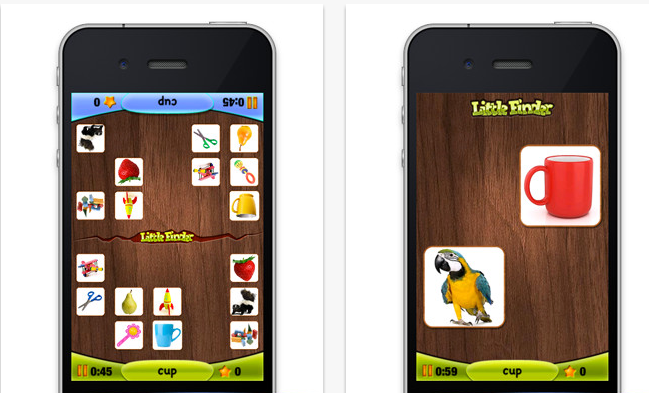
Innovative Mobile apps has a new app gone free called Little Finder.

Little Finder is available for iPhone and iPad and provides a one or more player game to visually search for objects. It provides  audio and visual matching supports making it more accessible for emergent readers to independently play.

Check it out to see if it can be part of your OT iTool kit!

Carol

Posted in App Reviews, Apps for OT's, Early Childhood, iPad, iPhone, iPod, Visual Perception | Tagged , , , , , , | 1 Comment

Visual Timer Apps

With my iPad a part of my tool kit on a daily basis, one of the necessities on my iPad is a visual timer. There are a number of choices currently available, but here are a few favorite visual timers:

Kiddie Countdown Timer – Suited to younger students, the Kiddie Countdown Timer has options of using stop sign like visuals in its timer. Available as a free app and also $.99 to remove the ads. This was previously reviewed –  a great find by my colleague, Gail (thank you!).

Time Timer – This app is the electronic version of the 3″ and 8″ Time Timers compatible with iPad, iPhone and iPod Touch (1.99). It has three modes of timers- 60 minute, custom and a clock mode.  Time timer also provides settings to allow it to be audible, visual or vibrate (on the iPhone).

This is another great timer with many features.

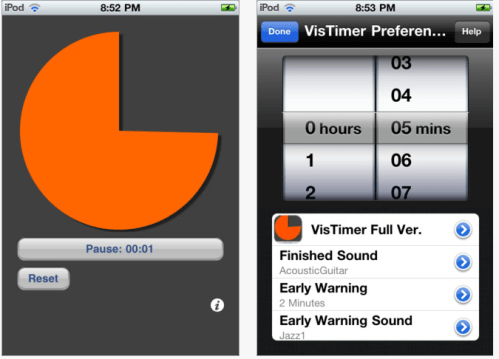
VisTimer – Available  free and for purchase (1.99) for iPod, iPhone and iPad this timer does not have as choices of timers but does allow choices of colors for the clock, different sounds for warning and completion and features elapsing time. Limitations with the free version is it can only time up to 5 minutes and lowest warning time is at 1 minute. I work with older students and this free clock works well for my current purposes. We have many Time Timer clocks that are also readily available for use if a longer period of time is needed.

Waitstrip – A different, linear concept of a visual timer is the Waitstrip app. Available for iPod, iPad and iPhone for $.99, it features a concrete visual representation of time, amount of steps to be completed, number of minutes to work, math problems to be completed using a series of dots as a visual guide.

If you are interested in additional choices check out the Autism App’s  (free app) category of Visual Timer for more choices.

Appropriate for all ages, a wide variety of disabilities and as an portable OT iTool kit.

Carol

Posted in Apps for OT's, Apps for Special Needs, iPad, iPhone, iPod, iPod/iPad Accessory, Occupational Therapy, Sensory Apps for ASD, Special education, Visual Communication | Tagged , , , , | 1 Comment

Define: App – Creating a personal vocabulary or dictionary list

As many apps, I just stumble upon them when searching for another app, when perusing educational apps, iDevice info or free app offerings.

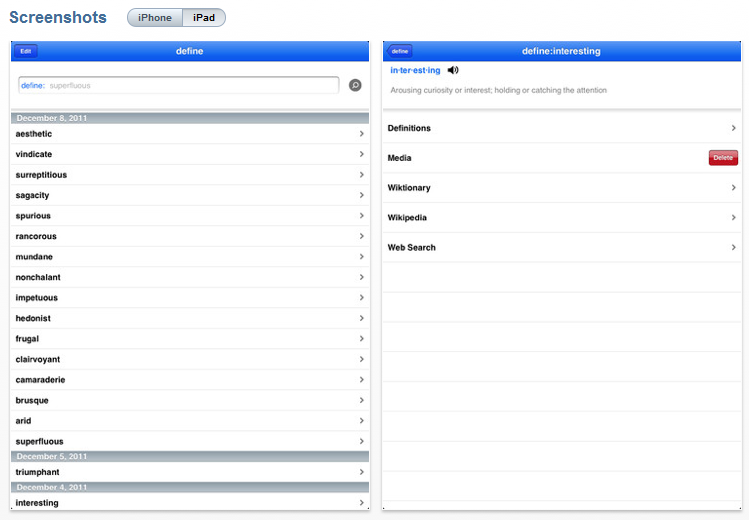
Define: app was one of those stumbled upon apps. It is simple but provides an easy method to create a vocabulary list from an existing dictionary base that is not dependent on Wi-Fi services unless you want to use Wikipedia, Wiktionary or do a Web Search of the word.

Define: provides a search tool to look up a work typed into the search text box. Once the word is typed it will look up the word and provide a definition. The word is entered into the beginning page of the app in a listing by date, creating a simple vocabulary list of words and definitions at your finger tips in this app. A speak tool is available to read only the word searched, not the definition. If you have Speak Selection turned on in the Accessibility options of your iDevice you will have tools to speak the definition aloud.

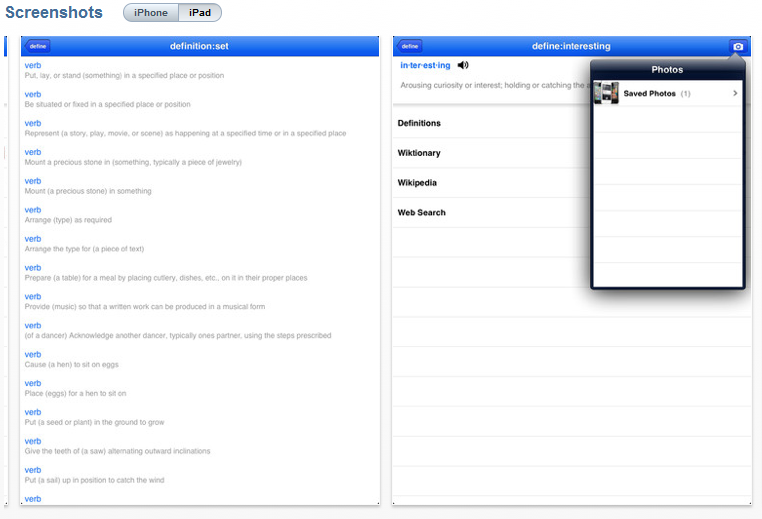
For more definitions, selecting the Definitions tool provides you with other uses and definitions of the word. You also have the option of looking up the word in Wiktionary, Wikipedia and by Web Search. A camera in the right upper corner allows you to take a picture or select a photo from your Photos app. If you brought in a picture or image a Media category is listed where the pictures or web clips related to the word are able to be reviewed. I found that if I wanted content from any of the web services it was easier to take a screen shot (Press home button and power button simultaneously) putting the image in the Photo app and ready to use as Media for one of your defined words.

This is a very simple app, but I see application of this app for a student who would benefit from a word list with definition  and  media that support unfamiliar vocabulary. Although many of the dictionaries allow for a favorites category where you can create a custom word list, this app is simple and provides opportunities to include media with the word and definition. I have some learning disability and ASD students that I believe would benefit from this app, even if it only was on a teachers iPad, allowing them an immediate reference and word definition (with media) for visual learners.

Define: is compatible with iPad, iPhone and iPod Touch and currently is free. There is limited information on the Internet on the app, but can be found in the App Store by searching Define: .

Another tool for your OT iToolkit depending on the ages and needs of your students.

Carol

Posted in App Reviews, Dictionary app, iPad, iPhone, iPod, Language Arts, Middle School, Occupational Therapy, Special education | Tagged , , , , | 4 Comments

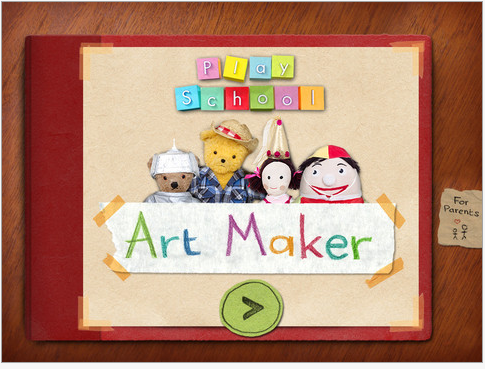
Art Maker App

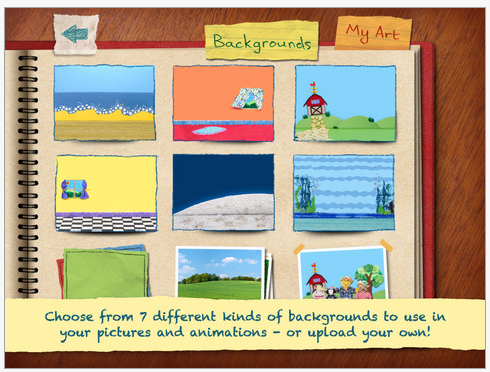
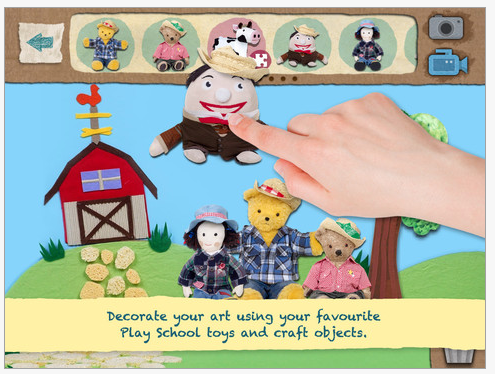
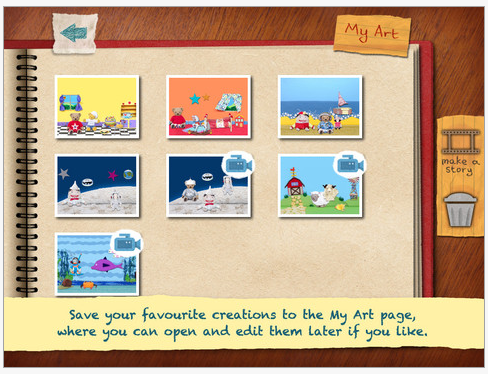
Art Maker App is free  for a short time featuring a story making tools for young learners aged 2-6 years. Compatible only with the iPad, this  app provides several different backgrounds and a scrolling pallet of objects (animals, buildings, plants, etc.) to insert onto the background and create pictures which can be combined to create a sequence of pages for a story book. The app provides sound and the ability to move the toys or objects on the background, and create animation and record sound when making a movie. It has some interesting tools that young learners can participate with to assist with the story making process.  Here  are some screenshots of the apps tools and features:

Currently free, this is an interesting story making and interactive app for young learners. For students on an OT caseload who may have difficulty drawing and creating on their own or who get frustrated with their limited ability to generate pictures on their own this is an error free tool to support them in making pictures or stories. This is worth exploring as a tool for young students if you support them in story making activities, or can use it as a motivator during therapy sessions.

Free is a great way to add more tools to your iTool kit!

Carol

Posted in App Reviews, Apps for OT's, Early Childhood, iPad, Occupational Therapy, Story Telling | Tagged , , , , | 1 Comment

Clone an iPad or iPod Touch – Expertise from Tony Vincent

Are you familiar with Tony Vincent and his Learning in Hand Blog? As a guru of mobile learning dating way back when PDA’s were in vogue, Tony Vincent has incredible expertise and information on mobile devices and their integration in education. He is creditable source for all things iPad/iPhone as well as other mobile devices.

This post provides Tony Vincents expertise on how to maintaining the organization of your iDevices as well as cloning it when you are making any changes to them whether just a back up, updating an iOS or adding new apps to numerous devices under one account. If you have ever had to back up when upgrading your system, maintaining the organization of your apps in folders is important. This sounds minor but when you have hundreds of apps organized and need to keep that organization for support personnel or student ease of access (or not so easy access ) you will want to maintain your apps in an organized way on your device for access to the apps.

Here is Tony Vincents post from Learning in Hand on Clone an iPad or iPod Touch :

Melissa Dills is an Ohio kindergarten teacher and has a blog, Adventures of iPads in Kindergarten. Melissa recently contacted me with this question:

I currently have 5 ipads in my kindergarten classroom.  I back up my ‘original’ one on iCloud and it pushes out the apps to the other four.  My question is do you know of a way to get them to go into the appropriate folder They are just going onto the screen instead of the folder I put it into on my original.  Thanks for your great website. It is very helpful!

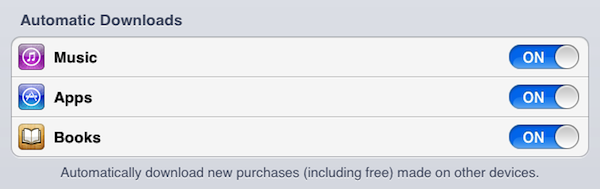
It’s very convenient to enable Automatic Downloads of apps in the Store section of Settings on iOS devices. This automatically downloads new purchases (including free) made on other devices and in iTunes. You just need to be signed into the same iTunes account on all of your devices. Don’t worry; you don’t have to input the account’s password each time an automatic download happens (that would be annoying).

As Melissa points out, apps are indeed automatically downloaded, but they are not placed into folders or even necessarily onto the same Home screens. Currently Apple does not provide a way to synchronize folders among devices. Other settings, like wallpaper and sounds, are also not synced and have to be set up manually on each device. With older students, teachers can have them place apps in folders and make settings consistent across devices.

In Melissa’s situation with younger students and only five devices, she could set up one of the iPads as a master. That means she would move apps into folders or onto specific Home screens and configure settings. After she has the iPad exactly the way she wants it, she will connect to iTunes, right-click the iPad’s name in iTunes’ sidebar, and choose Back Up.
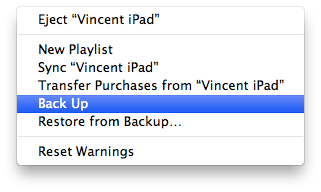
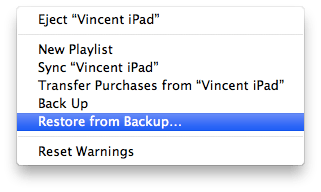
After back up is complete, Melissa will disconnect the master iPad. Then, she’ll connect one of her other four iPads, right-click the iPad’s name in iTunes’ sidebar, and choose Restore from Backup.
iTunes will ask Melissa to choose a backup to restore onto the current device. She’ll of course choose the backup of the master iPad.
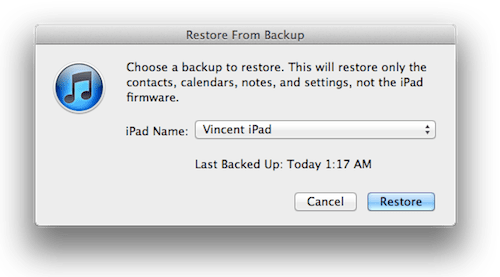
It will probably take some time for the restore to complete. When done, this iPad will be a clone of the master. That means all apps will be in the same folders, Home screens will be identical, and settings will match exactly. I suggest that Melissa rename the iPad so that it’s not confused with the master iPad.

Melissa can restore her other three iPads from the master’s backup as well. Afterwards, all five of her iPads will be set up identically. Because iTunes allows you restore only one iPad at a time, Melissa probably won’t want to go through this process very often. She’ll probably still rely on automatic downloading of apps and manually putting into folders unless she has downloaded a large number of apps that would take lots of time to sort.

Now, this method of restoring from a backup of a master device will replace all data with that from the master. That means images, recordings, and any high scores will be erased from the other devices.

Restoring from a backup can also save teachers time if they customize an app. For example, Learn How to Spell from Grasshopper Apps is fully customizable. You can use the sets of words that are included in the app. But even better, you can add your own words, complete with your own images and voice recordings.

It can take lots of time to make customized sets of words within the app. In a classroom like Melissa’s where there are a small number of iPads that can be used as a center, it saves a lot of time and repetition to use the cloning method above to copy the customized sets from a master iPad to other devices. Perhaps one day Grasshopper Apps will update their apps to save customized lists to iCloud so they can be easily copied to other devices. Until then, restoring from a backup is the way to copy the app’s data from one device to another.

Canby Schools in Oregon have deployed hundreds of iPod touches using this restore from backup technique. Joseph Morelock has written how they do it in the wiki article Imaging iPod touch Devices Using iTunes Restore. December 10, 2011 post from Learning in Hand.

Even if you do not want all of the devices exactly the same but want to maintain organization with some apps or want the customization backed up, you can always delete those apps you don’t want. Even if you are not cloning from one device to another, these instructions provide you a method of maintaining the organization of your device when backing it up. Certainly, backing up your device periodically if you have visual schedules, chore or other customized app for your student will be important if something unfortunate should happen to your device!

Hope this helps you (I wish I had this info about a month ago!!).

Carol

Posted in iOS, iPad, iPad Management, iPhone, iPod | Tagged , , , | Leave a comment